How to display from salesforce to wordpress usually means reading selected Salesforce records with the Salesforce REST API, caching the response in WordPress, and rendering sanitized HTML through a shortcode, block, or custom template. The secure pattern is server-side: WordPress authenticates to Salesforce, Salesforce returns only the fields the integration user can read, and the browser never receives OAuth secrets.
This guide shows the architecture, Salesforce setup, WordPress code, Apex option, security checks, and errors you must plan for when you display Salesforce data on a public or authenticated WordPress page.
How To Display From Salesforce To WordPress
The simplest safe design for how to display from salesforce to wordpress is a read-only integration. Salesforce remains the system of record. WordPress asks Salesforce for a small data set, stores the result in a short cache, and prints the records as HTML.
- Create a Salesforce external client app or connected app for OAuth. The labels in Setup can vary by org and release, but the security model is the same: the external application receives limited API access through OAuth.
- Create or assign a Salesforce integration user. Grant only the object permissions, field permissions, and record access needed for the WordPress view.
- Build a SOQL query or Apex REST endpoint that returns only web-safe fields. Do not expose internal notes, private emails, discount fields, or unreviewed rich text.
- Store Salesforce credentials outside the WordPress database when possible, such as in
wp-config.phpconstants or environment variables. - Call Salesforce from PHP using
wp_remote_get(). Do not call Salesforce directly from JavaScript unless you have a user-level OAuth flow and a reason to manage browser security. - Escape every value before printing it with
esc_html(),esc_url(), or the correct WordPress escaping function.
For current orgs, the REST examples below use /services/data/v67.0/, the Summer ’26 API version shown in Salesforce release documentation. If your org is not on that release, use the latest API version available in Setup or your API client and test the endpoint in a sandbox before production.
Choose the right wordpress and salesforce integration pattern
A wordpress and salesforce integration can be read-only, write-only, or two-way. For display pages, start with read-only unless the page also collects updates from visitors.
Wordpress and salesforce integration: display patterns
| Pattern | Best use case | Salesforce work | WordPress work | Main risk |
|---|---|---|---|---|
| REST API query from WordPress | Listing accounts, events, jobs, partners, products, or custom records | Connected app, integration user, SOQL query | Shortcode, template, cache, error handling | API limits if every page view calls Salesforce |
| Custom Apex REST endpoint | Public views that need business rules, calculated values, or controlled field output | Apex REST class, test class, deployment, permission review | Call one endpoint and render the response | Apex maintenance and test coverage |
| Middleware or iPaaS | Enterprise orgs with retries, queues, monitoring, or transformations | API user, events, MuleSoft or another integration layer | Read from middleware endpoint or synced table | Extra system to monitor |
| Scheduled export to WordPress | Catalogs that change a few times per day | Scheduled job or integration job | Custom post type or table import | Data can be stale until the next sync |
| Form plugin to Salesforce | Lead, case, feedback, event, or job application intake | Lead, Case, custom object, duplicate rules | Form mapping and validation | This writes data; it does not solve display by itself |
Salesforce with wordpress: what should run on each platform?
Use Salesforce for permissions, record ownership, sharing, validation rules, and audited CRM data. Use WordPress for page layout, SEO content, public navigation, and presentation. A stable salesforce with wordpress design avoids duplicating CRM logic inside a theme file.
In enterprise orgs, teams often add a dedicated custom checkbox such as Published_to_Web__c. That field makes the integration explicit. A Salesforce admin can review which records are approved for web display, and developers can keep the SOQL filter simple.
Prerequisites to integrate wordpress with salesforce
Before you integrate wordpress with salesforce, confirm these items in a sandbox. Most production failures come from a missing permission, a blocked OAuth policy, or a WordPress page that bypasses caching.
Integrate wordpress with salesforce through a server-side plugin
- Salesforce edition and API access: The integration user needs API access. Some orgs can restrict API access through approved connected apps, so check both user permissions and connected app policies.
- OAuth app: Configure an external client app or connected app with OAuth settings. For a server-rendered WordPress site, use Web Server flow, refresh token flow, JWT bearer flow, or another Salesforce-supported flow that matches your security review.
- Least-privilege user: Use a user with only the permissions needed for the displayed data. The API response reflects that user’s record access and field access.
- My Domain and login host: Use the correct production, sandbox, or My Domain login URL. Production commonly uses
https://login.salesforce.com; sandboxes commonly usehttps://test.salesforce.com. - HTTPS: Both Salesforce OAuth endpoints and your WordPress admin pages must use HTTPS.
- Cache policy: Decide how long WordPress may cache Salesforce data. Five minutes is common for public listings; order status or case status may need a shorter cache or authenticated access.
Salesforce documents OAuth and connected apps in the REST API guide at https://developer.salesforce.com/docs/atlas.en-us.api_rest.meta/api_rest/intro_oauth_and_connected_apps.htm. Trailhead also provides an external client app project for OAuth setup at https://trailhead.salesforce.com/content/learn/projects/build-integrations-with-external-client-apps/create-and-configure-an-external-client-app.
How to query Salesforce records from WordPress
The REST API query resource runs SOQL and returns JSON. Salesforce documents the query resource at https://developer.salesforce.com/docs/atlas.en-us.api_rest.meta/api_rest/resources_query.htm. A synchronous query can return records in batches; if more rows are available, the response includes a URL for retrieving the next set.
Use a selective SOQL query. Do not query every field and filter in PHP. A page about jobs might query only approved jobs:
SELECT Id, Name, Location__c, Department__c, Apply_URL__c
FROM Job_Posting__c
WHERE Published_to_Web__c = true
ORDER BY LastModifiedDate DESC
LIMIT 20
This query keeps the display small, avoids exposing fields the page does not use, and limits the number of records. For how to display from salesforce to wordpress, that is more reliable than pulling thousands of records and sorting them inside WordPress.
Build a WordPress shortcode to display Salesforce data
The following plugin example creates a shortcode named [sft_salesforce_listings]. It refreshes an access token, queries Salesforce, caches the records in WordPress transients, and escapes output before rendering. Replace Listing__c and field API names with your own object and fields.
Store these constants in wp-config.php or an environment-specific configuration file, not inside a theme template:
define( 'SFT_SF_LOGIN_URL', 'https://login.salesforce.com' );
define( 'SFT_SF_INSTANCE_URL', 'https://your-domain.my.salesforce.com' );
define( 'SFT_SF_CLIENT_ID', 'your-connected-app-consumer-key' );
define( 'SFT_SF_CLIENT_SECRET', 'your-connected-app-consumer-secret' );
define( 'SFT_SF_REFRESH_TOKEN', 'your-refresh-token' );
Then create a small plugin:
<?php
/**
 * Plugin Name: SFT Salesforce Listings
 * Description: Displays selected Salesforce records in WordPress by using a server-side REST API call.
 */

if ( ! defined( 'ABSPATH' ) ) {
    exit;
}

const SFT_SF_API_VERSION = 'v67.0';

function sft_sf_required_constant( string $name ) {
    return defined( $name ) ? constant( $name ) : '';
}

function sft_sf_access_token() {
    $cached = get_transient( 'sft_sf_access_token' );
    if ( $cached ) {
        return $cached;
    }

    $login_url     = sft_sf_required_constant( 'SFT_SF_LOGIN_URL' );      // https://login.salesforce.com or https://test.salesforce.com
    $client_id     = sft_sf_required_constant( 'SFT_SF_CLIENT_ID' );
    $client_secret = sft_sf_required_constant( 'SFT_SF_CLIENT_SECRET' );
    $refresh_token = sft_sf_required_constant( 'SFT_SF_REFRESH_TOKEN' );

    if ( ! $login_url || ! $client_id || ! $client_secret || ! $refresh_token ) {
        return new WP_Error( 'sft_sf_config', 'Salesforce OAuth settings are not configured.' );
    }

    $response = wp_remote_post(
        rtrim( $login_url, '/' ) . '/services/oauth2/token',
        array(
            'timeout' => 15,
            'body'    => array(
                'grant_type'    => 'refresh_token',
                'client_id'     => $client_id,
                'client_secret' => $client_secret,
                'refresh_token' => $refresh_token,
            ),
        )
    );

    if ( is_wp_error( $response ) ) {
        return $response;
    }

    $status = wp_remote_retrieve_response_code( $response );
    $body   = json_decode( wp_remote_retrieve_body( $response ), true );

    if ( $status >= 400 || empty( $body['access_token'] ) ) {
        return new WP_Error( 'sft_sf_token', 'Salesforce token request failed.' );
    }

    set_transient( 'sft_sf_access_token', $body['access_token'], 50 * MINUTE_IN_SECONDS );
    return $body['access_token'];
}

function sft_sf_query_listings( string $city = '', int $limit = 10 ) {
    $token = sft_sf_access_token();
    if ( is_wp_error( $token ) ) {
        return $token;
    }

    $instance_url = sft_sf_required_constant( 'SFT_SF_INSTANCE_URL' ); // https://your-domain.my.salesforce.com
    if ( ! $instance_url ) {
        return new WP_Error( 'sft_sf_instance', 'Salesforce instance URL is not configured.' );
    }

    $limit = max( 1, min( 50, absint( $limit ) ) );
    $city  = trim( preg_replace( '/[^A-Za-z0-9 .-]/', '', $city ) );

    $where = "WHERE Published_to_Web__c = true";
    if ( $city !== '' ) {
        $where .= " AND City__c = '" . str_replace( "'", "\\'", $city ) . "'";
    }

    $soql = "SELECT Id, Name, City__c, Status__c, Price__c "
          . "FROM Listing__c "
          . $where . " "
          . "ORDER BY LastModifiedDate DESC "
          . "LIMIT " . $limit;

    $cache_key = 'sft_sf_listings_' . md5( $soql );
    $cached    = get_transient( $cache_key );
    if ( false !== $cached ) {
        return $cached;
    }

    $url = rtrim( $instance_url, '/' )
         . '/services/data/'
         . SFT_SF_API_VERSION
         . '/query?q='
         . rawurlencode( $soql );

    $response = wp_remote_get(
        $url,
        array(
            'timeout' => 15,
            'headers' => array(
                'Authorization' => 'Bearer ' . $token,
                'Accept'        => 'application/json',
            ),
        )
    );

    if ( is_wp_error( $response ) ) {
        return $response;
    }

    $status = wp_remote_retrieve_response_code( $response );
    $body   = json_decode( wp_remote_retrieve_body( $response ), true );

    if ( $status === 401 ) {
        delete_transient( 'sft_sf_access_token' );
    }

    if ( $status >= 400 || ! isset( $body['records'] ) ) {
        return new WP_Error( 'sft_sf_query', 'Salesforce query failed.' );
    }

    set_transient( $cache_key, $body['records'], 5 * MINUTE_IN_SECONDS );
    return $body['records'];
}

function sft_salesforce_listings_shortcode( $atts ) {
    $atts = shortcode_atts(
        array(
            'city'  => '',
            'limit' => 10,
        ),
        $atts,
        'sft_salesforce_listings'
    );

    $records = sft_sf_query_listings(
        sanitize_text_field( $atts['city'] ),
        absint( $atts['limit'] )
    );

    if ( is_wp_error( $records ) ) {
        return '<p class="sft-salesforce-error">' . esc_html( $records->get_error_message() ) . '</p>';
    }

    if ( empty( $records ) ) {
        return '<p>No Salesforce records are available for this view.</p>';
    }

    ob_start();
    ?>
    <div class="sft-salesforce-listings">
        <?php foreach ( $records as $record ) : ?>
            <article class="sft-salesforce-card">
                <h3><?php echo esc_html( $record['Name'] ?? 'Untitled listing' ); ?></h3>
                <p><?php echo esc_html( $record['City__c'] ?? '' ); ?></p>
                <p>Status: <?php echo esc_html( $record['Status__c'] ?? '' ); ?></p>
                <p>Price: <?php echo esc_html( $record['Price__c'] ?? '' ); ?></p>
            </article>
        <?php endforeach; ?>
    </div>
    <?php
    return ob_get_clean();
}
add_shortcode( 'sft_salesforce_listings', 'sft_salesforce_listings_shortcode' );
Use the shortcode in a page like this:
[sft_salesforce_listings city="Bengaluru" limit="10"]This is a practical implementation of how to display from salesforce to wordpress because the browser receives only rendered HTML. The OAuth token remains on the server, Salesforce API calls are cached, and WordPress sanitizes visitor-provided attributes before building the query.
Integrate WordPress with Salesforce using a custom Apex REST API
Sometimes a direct REST API SOQL query is not enough. Use Apex REST when Salesforce must decide which records are safe to show, calculate values, hide fields based on business rules, or return a purpose-built payload. Salesforce documents Apex REST at https://developer.salesforce.com/docs/atlas.en-us.apexcode.meta/apexcode/apex_rest.htm.
The example below assumes a custom object named Listing__c. It uses with sharing and WITH USER_MODE so record sharing, object permissions, and field-level security are part of the read path. Salesforce documents user-mode database operations at https://developer.salesforce.com/docs/atlas.en-us.apexcode.meta/apexcode/apex_classes_enforce_usermode.htm.
@RestResource(urlMapping='/WordPressListings/v1/*')
global with sharing class WordPressListingsApi {
    global class ListingDto {
        global String id;
        global String name;
        global String city;
        global String status;
        global Decimal price;
    }

    @HttpGet
    global static List<ListingDto> getListings() {
        RestRequest request = RestContext.request;
        Integer limitSize = parseLimit(request.params.get('limit'));
        String city = request.params.get('city');

        List<Listing__c> rows;

        if (String.isBlank(city)) {
            rows = [
                SELECT Id, Name, City__c, Status__c, Price__c
                FROM Listing__c
                WHERE Published_to_Web__c = true
                WITH USER_MODE
                ORDER BY LastModifiedDate DESC
                LIMIT :limitSize
            ];
        } else {
            String cityFilter = city.trim();
            rows = [
                SELECT Id, Name, City__c, Status__c, Price__c
                FROM Listing__c
                WHERE Published_to_Web__c = true
                AND City__c = :cityFilter
                WITH USER_MODE
                ORDER BY LastModifiedDate DESC
                LIMIT :limitSize
            ];
        }

        List<ListingDto> response = new List<ListingDto>();
        for (Listing__c row : rows) {
            ListingDto dto = new ListingDto();
            dto.id = (String) row.Id;
            dto.name = row.Name;
            dto.city = row.City__c;
            dto.status = row.Status__c;
            dto.price = row.Price__c;
            response.add(dto);
        }
        return response;
    }

    private static Integer parseLimit(String rawLimit) {
        if (String.isBlank(rawLimit)) {
            return 20;
        }

        try {
            Integer parsed = Integer.valueOf(rawLimit);
            if (parsed < 1) {
                return 1;
            }
            if (parsed > 100) {
                return 100;
            }
            return parsed;
        } catch (Exception ex) {
            return 20;
        }
    }
}
Call this endpoint from WordPress at:
GET https://your-domain.my.salesforce.com/services/apexrest/WordPressListings/v1?city=Bengaluru&limit=10Deploy Apex only with tests. In a production org, Salesforce requires Apex test coverage for deployment, and the test should assert both the successful response and the behavior when the integration user lacks access to a field or record.
When WordPress also writes data back to Salesforce
A display page often grows into a form. For example, a directory page may show Salesforce records and collect an inquiry. That is a different wordpress integration with salesforce requirement because the WordPress side now creates or updates Salesforce records.
Wordpress integration with salesforce for forms and record updates
Use form mapping for leads, cases, event feedback, or applications. Validate data in WordPress for user experience, then validate again in Salesforce with required fields, validation rules, duplicate rules, and assignment rules. Never trust a hidden form field as proof that a visitor can update a Salesforce record.
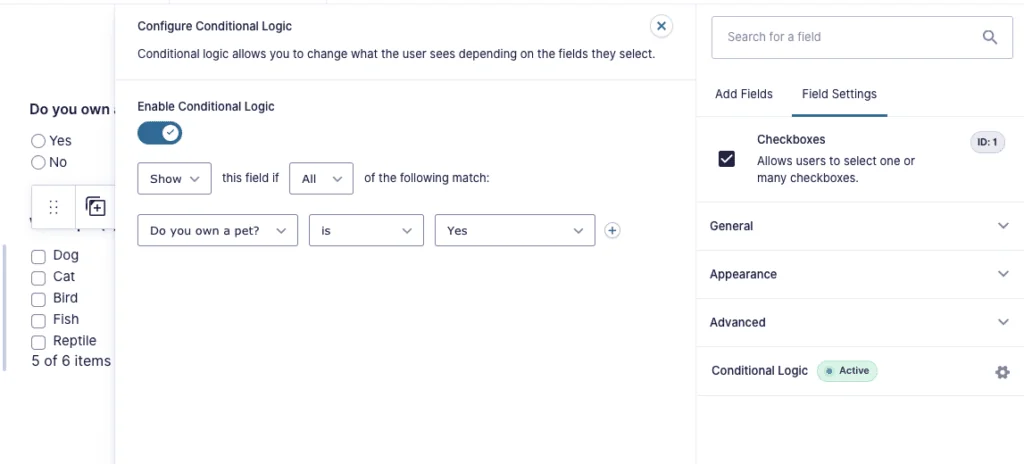
If your page must both display Salesforce records and submit new data, separate the read and write flows. The display shortcode can read approved records. The form handler can create a Lead, Case, or custom object through a different endpoint with stricter validation and logging.
Security best practices for Salesforce with WordPress
Security is the main reason to avoid quick browser-only examples. A production salesforce with wordpress page should treat Salesforce data as protected data until an admin approves it for web use.
- Do not expose OAuth secrets in JavaScript. Browser source, build logs, and network traces can reveal tokens.
- Use least privilege. The integration user should not have Modify All Data, View All Data, or broad profile access unless the business case requires it and the risk is accepted.
- Filter in Salesforce. Add a field such as
Published_to_Web__cand query only approved records. - Enforce CRUD and FLS in Apex. If you build Apex REST, use
WITH USER_MODEfor SOQL where appropriate or sanitize records withSecurity.stripInaccessible()when graceful degradation is required. - Cache carefully. WordPress transients reduce API calls. For authenticated customer data, use per-user cache keys or no shared cache.
- Log failures without leaking data. Store status codes and request IDs, not access tokens or full payloads.
- Plan API usage. Salesforce tracks API usage against org limits. Public pages need caching, scheduled sync, or middleware if traffic is high.
Common errors with WordPress integration with Salesforce
The errors below cover most issues seen while implementing how to display from salesforce to wordpress in a real org.
| Error or symptom | Likely cause | Fix |
|---|---|---|
INVALID_SESSION_ID |
The access token expired, was revoked, or belongs to a different login host. | Delete the cached token, refresh it, and confirm production vs sandbox login URL. |
API_DISABLED_FOR_ORG |
The org or user cannot access the API, or API access control blocks the client app. | Check edition, the API Enabled permission, permission sets, and connected app approval. |
INSUFFICIENT_ACCESS_OR_READONLY |
The integration user lacks object, field, or record access. | Review profile, permission sets, sharing, ownership, and field-level security. |
MALFORMED_QUERY |
The SOQL string has invalid syntax or an unsafe dynamic filter. | Run the SOQL in Developer Console or Workbench, then encode it with rawurlencode() in PHP. |
| Blank WordPress page | PHP error, blocked outbound request, or theme conflict. | Enable WordPress debugging in a non-production environment and test wp_remote_get(). |
| Old Salesforce data on the page | WordPress transient, page cache, CDN cache, or object cache is still serving an old response. | Clear each cache layer and choose a cache duration that matches the business process. |
Best practices for production deployment
Move slowly from sandbox to production. A small wordpress and salesforce integration can still expose sensitive fields if the query is too broad or if a theme prints raw values.
- Build the Salesforce query first and confirm the integration user can see only approved rows.
- Use a sandbox connected app or external client app while developing. Do not reuse production tokens in local WordPress development.
- Add monitoring for Salesforce response codes, token refresh failures, and empty data responses.
- Keep display fields in a field set, custom metadata, or a reviewed configuration if admins need to change them without code.
- Use pagination or narrow filters for large data sets. Salesforce REST query results are batched, and WordPress pages should not fetch unbounded rows.
- Document the owner of the integration user, token rotation process, and cache invalidation process.
Related SalesforceTutorial resources
- Salesforce REST API tutorial for integrations
- Connected app in Salesforce setup guide
- SOQL query examples for Salesforce developers
- Apex REST API in Salesforce
- Salesforce integration patterns and best practices
Frequently Asked Questions
What is the safest way for how to display from salesforce to wordpress?
The safest pattern is a server-side WordPress integration that calls Salesforce with OAuth, caches the response, and prints escaped HTML. Do not place Salesforce client secrets or access tokens in browser JavaScript.
Can WordPress query Salesforce directly without Apex?
Yes. WordPress can use the Salesforce REST API query resource to run SOQL if the connected app, OAuth flow, and integration user are configured correctly. Use Apex REST only when you need Salesforce-side business logic or a controlled response shape.
Should I use a plugin for wordpress and salesforce integration?
A plugin is useful when it matches your use case and security requirements. For display-only pages, a custom lightweight plugin often gives better control over SOQL, caching, token storage, and HTML output than a generic form connector.
How do I integrate wordpress with salesforce for leads and cases?
Use a form handler or integration service to create Lead, Case, or custom object records through Salesforce APIs. Validate input in WordPress, validate again in Salesforce, and apply duplicate rules or assignment rules where the business process requires them.
Does Salesforce with WordPress need CORS setup?
Not for the server-side pattern in this guide. CORS matters when browser JavaScript calls Salesforce directly. A PHP shortcode that calls Salesforce from the WordPress server avoids browser-side CORS and keeps OAuth tokens away from visitors.
How often should WordPress refresh Salesforce data?
Use the shortest cache that still protects Salesforce API limits and page speed. Public listings often work with a five-to-fifteen-minute cache. Authenticated account, order, or case pages usually need per-user caching or live calls after login.