The REGEX function in Salesforce validation rules enforces proper data format by matching field values against regular expression patterns. This powerful validation tool ensures data consistency across your Salesforce org by preventing users from entering incorrectly formatted data.
What is the REGEX Function in Salesforce Validation Rules?
The REGEX function evaluates whether a text field matches a specified regular expression pattern. When used in validation rules, it returns TRUE if the field value matches the pattern, or FALSE if it doesn’t. This function is essential for enforcing standardized data formats like postal codes, phone numbers, email addresses, and custom business identifiers.
Syntax: REGEX(text, regex_text)
- text: The field or text value to evaluate
- regex_text: The regular expression pattern (must be enclosed in quotes)
Creating REGEX Validation Rules: Step-by-Step Process
Follow these steps to create validation rules using the REGEX function:
- Navigate to Setup → Object Manager
- Select your target object (e.g., Account, Contact, Custom Object)
- Click Validation Rules in the left sidebar
- Click New to create a new validation rule
- Enter the rule name, description, and error message
- Build your REGEX formula in the Error Condition Formula field
- Test and activate the rule
Navigation in Salesforce Classic
For Classic interface users: Go to Setup → Build → Customize → [Object Name] → Validation Rules
REGEX Validation Rule Example: US Postal Code Format
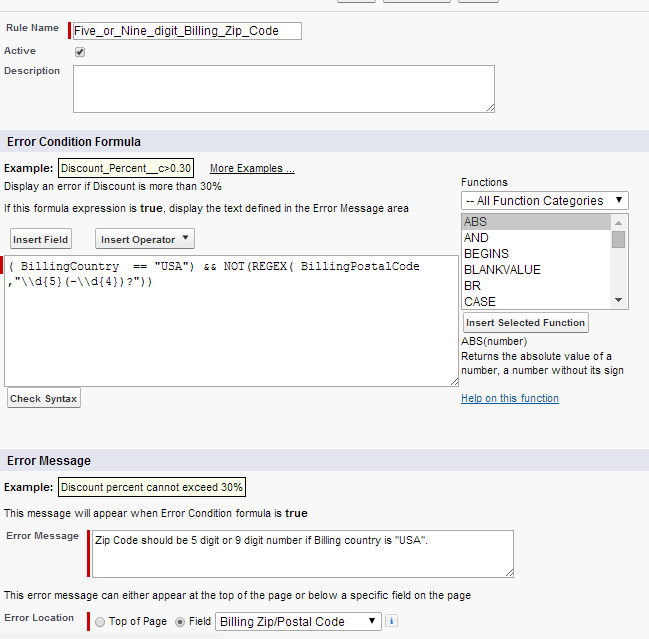
This example validates that Account Billing Zip/Postal Code follows proper US format (5 digits or 9 digits with hyphen) when the billing country is USA.
Error Condition Formula
(BillingCountry=="USA")&&NOT(REGEX(BillingPostalCode,"\\d{5}(-\\d{4})?"))
Formula Breakdown
BillingCountry=="USA": Checks if billing country equals USA\\d{5}: Matches exactly 5 digits(-\\d{4})?: Optionally matches hyphen followed by 4 digitsNOT(): Triggers error when pattern doesn’t match&&: Logical AND operator
See the validation rule configuration screen below:
Testing REGEX Validation Rules
To test the postal code validation rule:
- Navigate to the Accounts tab
- Create or edit an account record
- Set Billing Country = “USA”
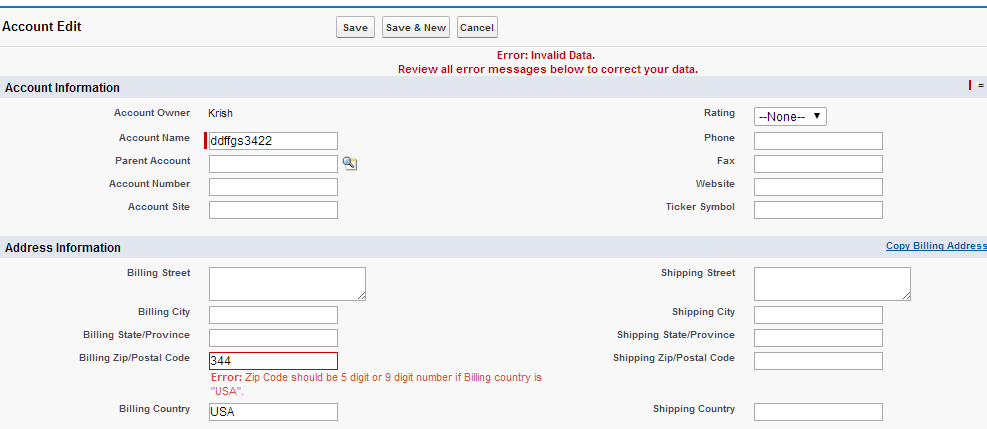
- Enter an invalid postal code (e.g., “123” or “12345678”)
- Attempt to save the record
The system will display your custom error message and prevent the record from saving. Valid formats like “12345” or “12345-6789” will save successfully.
Common REGEX Patterns for Salesforce Validation Rules
Phone Number Validation
NOT(REGEX(Phone, "\\(?\\d{3}\\)?[-.\\s]?\\d{3}[-.\\s]?\\d{4}"))
Validates US phone number formats: (123) 456-7890, 123-456-7890, 123.456.7890, 1234567890
Email Format Validation
NOT(REGEX(Email, "[a-zA-Z0-9._%+-]+@[a-zA-Z0-9.-]+\\.[a-zA-Z]{2,}"))
Ensures email addresses contain @ symbol and valid domain structure.
Social Security Number
NOT(REGEX(SSN__c, "\\d{3}-\\d{2}-\\d{4}"))
Validates XXX-XX-XXXX format for social security numbers.
REGEX Function Best Practices
- Test thoroughly: Use different data scenarios to verify pattern matching
- Escape special characters: Use double backslashes (\\) for regex metacharacters
- Consider null values: Add ISBLANK() checks when fields are optional
- Document patterns: Include comments explaining complex regex patterns
- Performance impact: Complex regex patterns may affect record save performance
Handling Optional Fields
When validating optional fields, combine REGEX with null checks:
NOT(ISBLANK(Phone)) && NOT(REGEX(Phone, "\\(?\\d{3}\\)?[-.\\s]?\\d{3}[-.\\s]?\\d{4}"))
Troubleshooting REGEX Validation Rules
Common Issues
- Escaping problems: Remember to use double backslashes for special characters
- Case sensitivity: REGEX function is case-sensitive by default
- Pattern complexity: Overly complex patterns may cause performance issues
- Field filter validation exception: Occurs when validation logic conflicts with field-level security or required field settings
Debugging Tips
- Test regex patterns in external tools before implementing
- Use formula fields to test pattern matching logic
- Check field permissions and required field settings
- Review validation rule evaluation order
Deploying REGEX Validation Rules Using Change Sets
To deploy validation rules across Salesforce orgs:
- Navigate to Setup → Deploy → Outbound Change Sets
- Create a new change set
- Add your validation rules to the change set
- Upload to target org
- Deploy in the target org after testing
Change sets preserve validation rule logic and dependencies during deployment.
Frequently Asked Questions
What is the difference between REGEX and other validation functions in Salesforce?
REGEX validates against pattern matching using regular expressions, while functions like LEN() check length, ISNUMBER() validates numeric values, and CONTAINS() checks for specific text. REGEX offers the most flexibility for complex format validation.
Can REGEX validation rules cause field filter validation exceptions?
Yes, field filter validation exceptions occur when REGEX validation rules conflict with field-level security settings, required field configurations, or other validation rules. Ensure proper field permissions and logical rule ordering to avoid conflicts.
How do I test REGEX patterns before creating validation rules?
Test REGEX patterns using external regex testing tools or create temporary formula fields in Salesforce. Use the REGEX function in a formula field to verify pattern matching before implementing in validation rules.
What happens when REGEX validation rules fail during data import?
Data import operations (Data Loader, Import Wizard) will fail for records that don’t match REGEX patterns. Review import error files to identify validation failures and correct data formats before re-importing.
Can I use REGEX validation rules with custom objects?
Yes, REGEX validation rules work with custom objects and custom fields. The implementation process is identical to standard objects – navigate to the custom object’s validation rules section and create your REGEX-based validation logic.