Salesforce AppExchange is the world’s largest cloud computing marketplace for business applications. Launched in 2005, AppExchange hosts thousands of pre-built apps, components, and consulting services that extend Salesforce functionality without custom development.
This tutorial covers AppExchange fundamentals, installation procedures, security considerations, and best practices for Salesforce admins and developers.
What is Salesforce AppExchange?
Salesforce AppExchange is a cloud computing marketplace developed and hosted by Salesforce. It serves as the primary distribution platform for third-party applications that integrate with Salesforce orgs.
AppExchange offers several types of solutions:
- Apps: Complete applications with custom objects, fields, and workflows
- Lightning Components: Reusable UI components for Lightning Experience
- Flow Solutions: Pre-built Process Builder and Flow templates
- Lightning Bolt Solutions: Industry-specific templates and configurations
- Consulting Services: Implementation and customization services from Salesforce partners
Benefits of Using Salesforce AppExchange
AppExchange provides significant advantages for organizations extending Salesforce capabilities:
- Direct Installation: Apps install directly into your Salesforce org with one-click deployment
- Vetted Solutions: All apps undergo Salesforce security review before publication
- Customer Reviews: User ratings and reviews help evaluate app quality and vendor support
- Integration Patterns: Apps follow Salesforce integration patterns and best practices
- Rapid Deployment: Quick deploy functionality reduces implementation time compared to custom development
- Scalable Architecture: Apps leverage Salesforce’s multi-tenant platform for automatic scaling
How to Install AppExchange Apps in Salesforce
This section demonstrates the complete installation process using a practical example. We’ll install an app that generates PDF documents from Salesforce records.
Step 1: Access AppExchange
Login to your Salesforce org and navigate to AppExchange through the App Launcher menu.
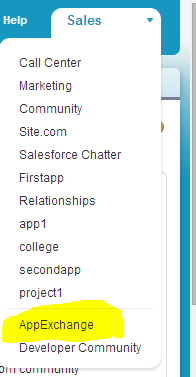
Alternatively, navigate directly to https://appexchange.salesforce.com/ in your browser.
Step 2: Search and Select Apps
Use the search functionality to find apps that meet your requirements. Filter results by category, pricing model, and customer ratings.
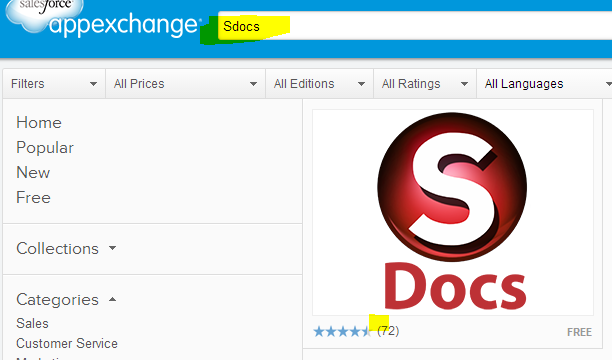
Click on the app to view detailed information including pricing, release notes, screenshots, and customer reviews.
Step 3: Review App Details
The app detail page contains critical information for installation planning:
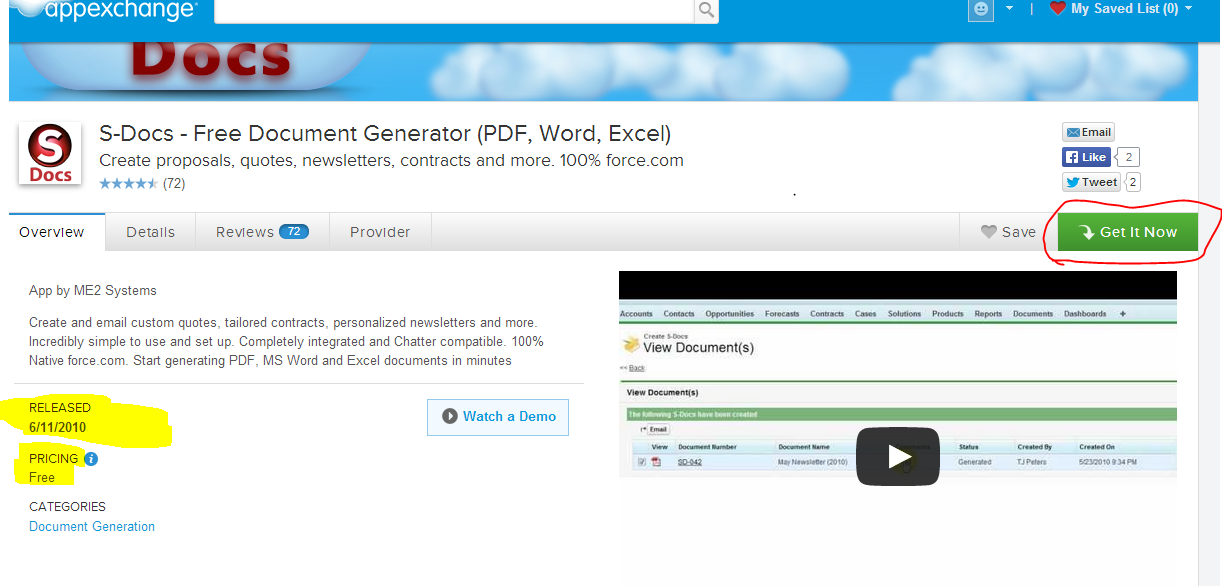
Review the following before installation:
- Salesforce Edition Compatibility: Verify the app supports your org edition
- API Version Requirements: Check minimum API version compatibility
- Permission Requirements: Review what permissions the app requests
- Custom Objects and Fields: Understand what metadata the app will create
Click the Get It Now button to begin installation.
Step 4: Choose Installation Environment
Select your target environment:
- Production: Install directly in your live org
- Sandbox: Test installation in a sandbox environment first (recommended)
Accept the terms and conditions, then click Confirm and Install.
Step 5: Package Installation Configuration
After authentication, you’ll see the package installation details screen:
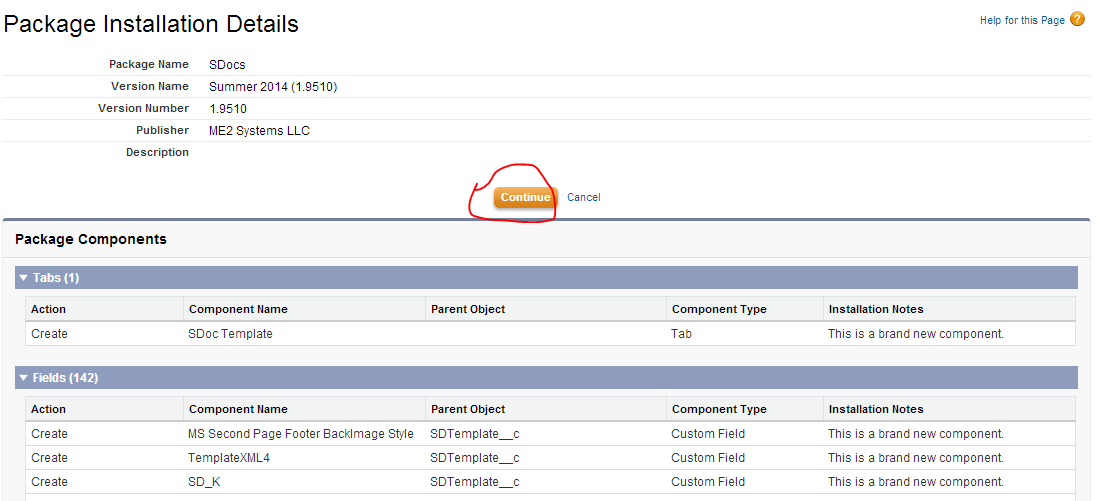
Review the package components and click Continue, then Next to proceed.
Step 6: Configure Security Settings
Choose the appropriate security level for app access:
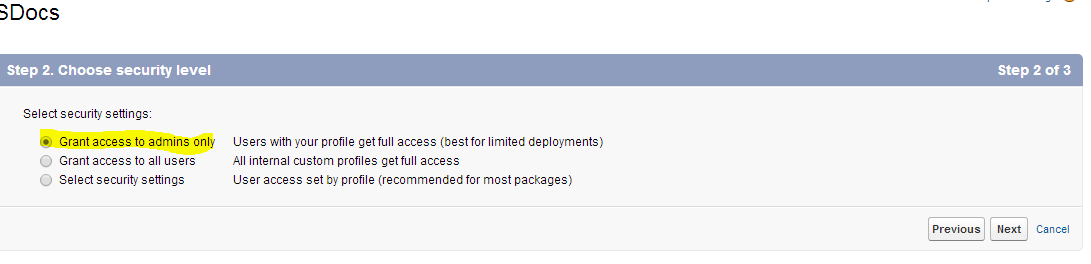
Security options include:
- Install for Admins Only: Restricts access to System Administrators
- Install for All Users: Grants access to all org users
- Install for Specific Profiles: Allows granular profile-based access control
Click Next, then Install to complete the process.
Step 7: Verify Installation
After installation completes, verify the app is properly installed:
- Navigate to Setup → Apps → Packaging → Installed Packages
- Locate your newly installed package in the list
- Review package details and component information
- Test app functionality in a non-production environment first
You’ll receive an email notification when installation completes successfully.
AppExchange Security and Compliance
All AppExchange apps undergo Salesforce’s security review process, which includes:
- Code Review: Static analysis of Apex code for security vulnerabilities
- Permission Analysis: Review of requested permissions and data access patterns
- Integration Testing: Verification of proper API usage and governor limit compliance
- Documentation Review: Assessment of installation and configuration documentation
Security Best Practices for Salesforce Admins
When installing AppExchange apps, follow these security guidelines:
- Test in Sandbox First: Always install and test apps in a sandbox before production deployment
- Review Permissions: Understand what data the app can access and modify
- Monitor Usage: Track app usage through Setup Audit Trail and Login History
- Regular Updates: Keep apps updated to the latest versions for security patches
- User Training: Ensure users understand app functionality and data handling practices
AppExchange for Developers and Integration Patterns
Developers can leverage AppExchange for various integration patterns:
REST API Integration
Many AppExchange apps provide REST APIs for external system integration:
// Example: Calling AppExchange app REST endpoint
HttpRequest req = new HttpRequest();
req.setEndpoint('https://api.appexchange-app.com/v1/data');
req.setMethod('GET');
req.setHeader('Authorization', 'Bearer ' + accessToken);

Http http = new Http();
HttpResponse res = http.send(req);

if (res.getStatusCode() == 200) {
    // Process response data
    String responseBody = res.getBody();
    // Parse JSON and handle data
}
Platform Events Integration
Modern AppExchange apps often use Platform Events for real-time data synchronization:
// Subscribe to Platform Events from AppExchange apps
List<App_Event__e> events = [SELECT Id, Data__c, Timestamp__c
                            FROM App_Event__e
                            WHERE CreatedDate = TODAY];

for (App_Event__e event : events) {
    // Process event data
    processEventData(event.Data__c);
}
Common AppExchange Installation Issues
Troubleshoot common installation problems:
Package Dependency Errors
Some apps require specific Salesforce features or other packages:
- Enable required features in Setup before installation
- Install prerequisite packages in the correct order
- Verify org edition compatibility
Permission and Profile Issues
Apps may fail to install due to insufficient permissions:
- Ensure installing user has System Administrator profile
- Check for custom permission sets that might conflict
- Review field-level security settings for custom objects
API Version Compatibility
Older apps may not support the latest Salesforce API versions:
- Check app documentation for supported API versions
- Contact the vendor for updated versions
- Consider alternative solutions if the app is no longer maintained
Frequently Asked Questions
What is Salesforce AppExchange and how does it work?
Salesforce AppExchange is a cloud marketplace where businesses can find, install, and use pre-built applications that extend Salesforce functionality. Apps install directly into your Salesforce org through a simple installation process, eliminating the need for custom development in many cases.
How do I install an AppExchange app in my Salesforce org?
Navigate to AppExchange through your Salesforce org or visit appexchange.salesforce.com directly. Search for the desired app, click “Get It Now,” choose your installation environment (production or sandbox), configure security settings, and complete the installation. Always test in a sandbox first.
What security considerations should Salesforce admins review before installing apps?
Review the app’s permission requirements, data access patterns, and security review status. Install in a sandbox first, configure appropriate user access levels, and monitor app usage through Setup Audit Trail. Ensure the app follows Salesforce security best practices and has undergone the security review process.
Can I integrate AppExchange apps with external systems?
Yes, many AppExchange apps provide REST APIs, Platform Events, or other integration patterns for connecting with external systems. Review the app’s documentation for available integration options and follow Salesforce integration patterns for optimal performance and security.
What should I do if an AppExchange app installation fails?
Common causes include missing prerequisites, insufficient permissions, or API version incompatibility. Verify you have System Administrator access, enable required Salesforce features, install prerequisite packages, and check the app’s supported API versions. Contact the app vendor’s support team if issues persist.
How do I manage installed AppExchange packages in my org?
Navigate to Setup → Apps → Packaging → Installed Packages to view all installed AppExchange apps. From here, you can view package details, manage versions, configure settings, and uninstall packages if needed. Regular monitoring helps maintain org security and performance.