Changing your Salesforce login password is essential for maintaining account security and compliance with organizational policies. This guide covers the complete process for users and administrators, including password policies, security considerations, and troubleshooting common issues.
Salesforce Password Policies Overview
Salesforce provides comprehensive password policies that administrators can configure to meet security requirements. These policies control password expiration, complexity, and lockout settings to protect your organization’s data.
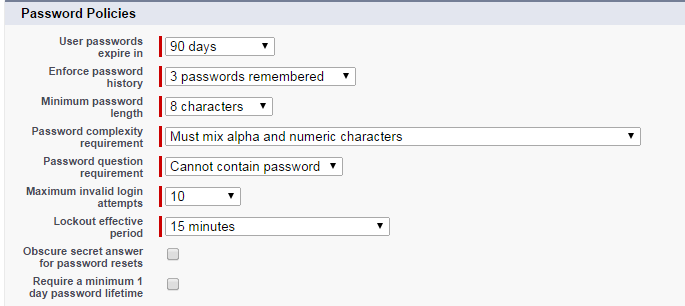
Password policies include:
- Password expiration: 30, 60, 90, 180 days, one year, or never expire
- Minimum password length: Typically 8-15 characters
- Password complexity requirements: Uppercase, lowercase, numbers, special characters
- Lockout duration: Time period after failed login attempts
- Password history: Prevents reusing recent passwords
When to Change Your Salesforce Password
You should change your Salesforce login password in these situations:
- Password expiration notification appears
- Suspected security breach or unauthorized access
- Forgotten or lost password
- Compliance requirements mandate regular changes
- Sharing credentials with others (not recommended)
Step-by-Step: Changing Salesforce Login Password
Follow these steps to change your password from within Salesforce:
Step 1: Access Personal Settings
Navigate to Your Name → My Settings in the top-right corner of Salesforce.
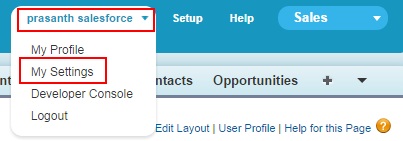
Step 2: Navigate to Personal Tab
Click on My Settings and select the Personal tab from the left navigation menu.
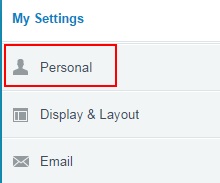
Step 3: Access Advanced User Details
Locate and click on Advanced User Details in the Personal section.
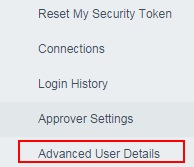
Step 4: Locate Change Password Option
The system redirects you to the user details page. Find and click the Change Password link.

Step 5: Complete Password Change Form
Fill out the password change form with the required information:
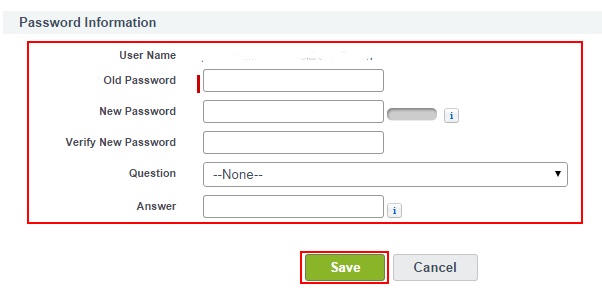
Complete these fields:
- Current Password: Enter your existing password
- New Password: Create a password meeting complexity requirements
- Confirm New Password: Re-enter the new password for verification
- Security Question: Select from the dropdown list
- Answer: Provide your security question answer
Click Save to complete the password change process.
Password Reset Options
If you cannot access your account, use these password reset methods:
Self-Service Password Reset
From the Salesforce login page, click “Forgot Your Password?” and enter your username. Salesforce sends a reset link to your registered email address.
Administrator Reset
System administrators can reset user passwords through Setup → Users → [Select User] → Reset Password. This method bypasses the user’s current password requirement.
Security Best Practices
Follow these guidelines for strong Salesforce password security:
- Use unique passwords: Never reuse passwords from other systems
- Enable two-factor authentication: Add an extra security layer
- Regular updates: Change passwords before expiration dates
- Password managers: Use tools to generate and store complex passwords
- Monitor login history: Review login attempts in Setup → Login History
Common Password Change Issues
Troubleshoot these frequent problems:
Password Complexity Errors
Ensure your new password meets organizational requirements for length, character types, and complexity. Check with your administrator for specific policies.
Security Question Problems
If you cannot remember your security question answer, contact your system administrator for assistance. They can update your security question settings.
Account Lockout
Multiple failed password attempts trigger account lockout. Wait for the lockout period to expire or contact your administrator for immediate unlock.
Administrator Password Management
Salesforce administrators have additional password management capabilities:
- Password policies: Configure organization-wide password requirements
- User password resets: Reset passwords for any user in the organization
- Login history monitoring: Track password change activities and login patterns
- Mass password resets: Force password changes for multiple users simultaneously
Integration and API Considerations
Password changes affect API access and integrations:
- Connected apps: Update OAuth tokens after password changes
- API integrations: Refresh authentication credentials in external systems
- Single sign-on: Coordinate password changes with SSO providers
- Mobile apps: Re-authenticate mobile applications after password updates
Frequently Asked Questions
How often should I change my Salesforce password?
Change your Salesforce password according to your organization’s policy, typically every 90 days. However, change it immediately if you suspect unauthorized access or if required by compliance regulations.
What happens to my API connections when I change my password?
Password changes invalidate existing API sessions and security tokens. You must generate new security tokens and update authentication credentials in connected applications and integrations.
Can administrators see my password after I change it?
No, Salesforce administrators cannot view user passwords. They can only reset passwords, which forces users to create new ones. Salesforce encrypts all passwords and does not store them in readable format.
Why can’t I reuse my previous password?
Salesforce password history settings prevent reusing recent passwords to enhance security. The number of previous passwords remembered depends on your organization’s policy configuration.
What should I do if I’m locked out after changing my password?
If you’re locked out after a password change, wait for the lockout period to expire (typically 15-30 minutes) or contact your system administrator for immediate account unlock. Verify you’re using the correct new password and username.