The Salesforce sidebar provides quick access to recent items, shortcuts, and application-specific tools. Administrators can control sidebar visibility per application to optimize user experience and screen real estate. This guide covers how to toggle sidebar visibility in Salesforce applications with practical examples.
Understanding Salesforce Sidebar Functionality
The sidebar in Salesforce applications displays contextual information including recent records, shortcuts, and application-specific components. For call center applications, the sidebar might show incoming calls or case queues. For sales applications, it typically displays recent accounts, contacts, and opportunities.
Sidebar visibility is controlled at the application level by administrators. Users can toggle the sidebar on or off within applications where this functionality is enabled.
When to Show or Hide Salesforce Application Sidebar
Show sidebar when:
- Users need quick access to recent records
- Application requires real-time notifications (call center scenarios)
- Screen space allows for sidebar content
- Users frequently navigate between related records
Hide sidebar when:
- Maximizing screen space for data entry forms
- Users work primarily within single records
- Mobile or small screen environments
- Simplified interface requirements
Step-by-Step: Showing and Hiding Sidebar in Salesforce Applications
Follow these steps to toggle sidebar visibility in any Salesforce application:
Step 1: Navigate to Your Target Application
Open the application where you want to control sidebar visibility. In this example, we’ll use the Accounts application.

Step 2: Locate the Sidebar Toggle Arrow
When the sidebar is hidden, you’ll see a small arrow pointing right on the left edge of the screen. This arrow indicates the sidebar can be expanded.
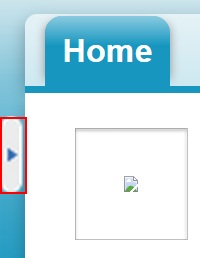
The arrow appears as a small triangular indicator on the left margin of the application interface.
Step 3: Click to Show or Hide Sidebar
Click the arrow to toggle sidebar visibility:
- To show sidebar: Click the right-pointing arrow
- To hide sidebar: Click the left-pointing arrow when sidebar is visible
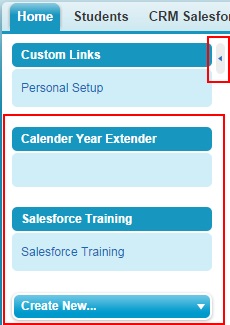
Once expanded, the sidebar displays recent items, shortcuts, and application-specific components. The arrow now points left, indicating you can click it to hide the sidebar again.
Administrator Settings for Sidebar Control
Administrators can configure default sidebar behavior through Setup:
- Navigate to Setup → User Interface → User Interface Settings
- Configure Show Sidebar options for different applications
- Set default visibility preferences for new users
- Control which applications allow user sidebar toggling
These settings determine whether users can control sidebar visibility or if it’s enforced at the organization level.
Salesforce Integration Patterns and Sidebar Usage
When implementing Salesforce integration patterns, consider how sidebar visibility affects user workflow:
- Canvas applications: May require hidden sidebar for full-screen experience
- Lightning components: Can interact with sidebar content programmatically
- Third-party integrations: May need sidebar space for embedded tools
Best Practices for Salesforce Sidebar Management
For Salesforce Admins:
- Test sidebar visibility in different applications during user acceptance testing
- Document sidebar requirements in application design specifications
- Consider user roles when setting default sidebar preferences
- Monitor user feedback on interface usability
For Users:
- Toggle sidebar based on current task requirements
- Use sidebar shortcuts to improve navigation efficiency
- Customize sidebar content through personal settings where available
Troubleshooting Sidebar Issues
Common sidebar problems and solutions:
- Arrow not visible: Check application permissions and user interface settings
- Sidebar won’t toggle: Verify administrator hasn’t disabled user control
- Content not loading: Clear browser cache or check network connectivity
- Mobile display issues: Sidebar behavior varies on mobile devices
Frequently Asked Questions
Can all Salesforce applications show or hide the sidebar?
Most standard Salesforce applications support sidebar toggling, but some specialized applications or custom apps may have fixed sidebar settings. Administrator configuration determines which applications allow user control over sidebar visibility.
Does hiding the sidebar affect Salesforce application performance?
Hiding the sidebar can slightly improve page load times since fewer components need to render. However, the performance impact is minimal in modern Salesforce implementations. The main benefit is increased screen space for data entry and viewing.
How do Salesforce admin interview questions relate to sidebar management?
Salesforce admin interview questions often cover user interface customization, including sidebar configuration. Candidates should understand how sidebar settings affect user experience, application design, and organizational productivity.
Can sidebar visibility be controlled through Salesforce security settings?
Yes, administrators can control sidebar visibility through user profiles, permission sets, and organization-wide settings. This is particularly important for security-sensitive applications where sidebar content might display confidential information.