Sf record usually means a single Salesforce row, such as one Account, Case, Lead, or custom object entry. In admin searches, however, sf record often points to record type setup: a way to give one object different business processes, picklist values, page layouts, and Lightning record pages without creating separate objects.
This guide explains how a salesforce record type works, when to use it, when to avoid it, and how admins and developers should handle RecordTypeId in production orgs. Salesforce Help describes record types as a way to tailor business processes to users with different picklist values and page layouts; the implementation details matter because the wrong design can create reporting, deployment, and data quality issues.
Use this sf record guide as a checklist before you create or refactor record types in a live org.
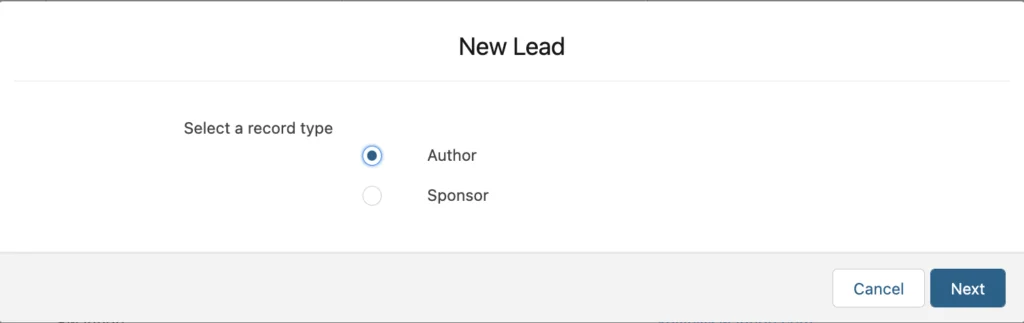
Sf record: what it means in Salesforce
An sf record is an instance of an object. In this article, sf record also means the admin design around the record type that controls how that entry is created and edited. An Account record stores one company or household, a Case record stores one support issue, and a custom object record stores one entry for that custom data model. A record type is metadata that classifies records inside the same object.
Think of the object as the table and the record type as the branch of process inside that table. For example, the Case object can store product defects and billing questions. Both are Cases, but the fields, statuses, required details, and agent workflow can differ.
What is a record type in salesforce?
what is a record type in salesforce? It is a configuration record that lets admins offer different business processes, page layouts, and picklist values for records of the same object. Salesforce documents this behavior in its official record type setup guidance: Tailor Business Processes to Different Record Types Users. Trailhead also walks through record type creation in Guide to Creating Custom Record Types.
A record type does not replace object design. Use it when the records share the same object identity but need different execution. Do not use it to hide records from users, split unrelated data, or avoid creating a better data model.
What are record types allowed to change?
what are record types allowed to control in Salesforce? The practical answer is narrower than many teams assume. A record type can shape the user experience and process choices, but it does not own security.
| Area | What record types can do | What they do not do |
|---|---|---|
| Business process | Use different Sales Processes, Support Processes, or Lead Processes where the object supports them. | They do not create a new object or a separate database table. |
| Picklists | Limit available values and set defaults for picklist fields per record type. | They do not remove values from the master picklist list. |
| Page layouts | Assign layouts by profile and record type. | They do not replace field-level security. |
| Lightning record pages | Activate pages by app, record type, and profile. | They do not override object permissions or sharing. |
| Automation and code | Use RecordTypeId or RecordType.DeveloperName in Flow, validation rules, Apex, SOQL, and formulas. |
They do not make poorly scoped automation safe from recursion or limits. |
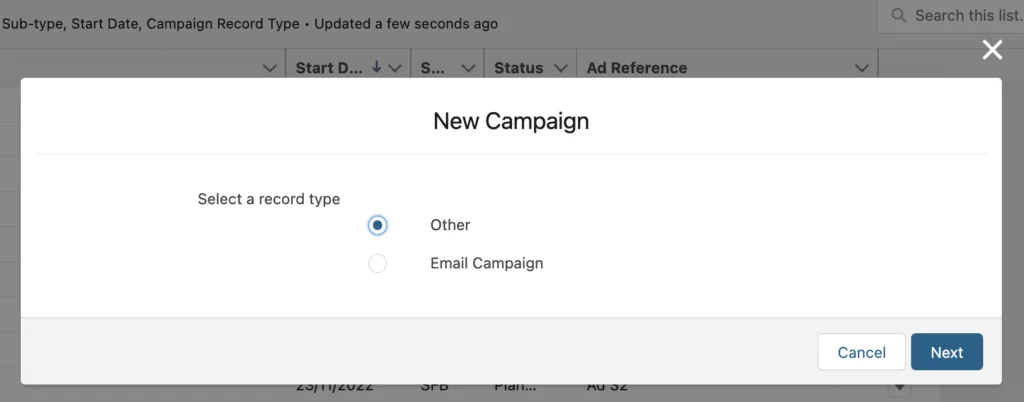
When should you create a Salesforce record type?
Create a salesforce record type when one object has records that belong together for reporting and ownership, but users need different choices during creation and editing. In enterprise orgs, this usually appears in sales, service, partner, compliance, or regional process differences.
A good sf record design starts with a simple question: are these still the same kind of record? If the answer is yes, a record type may fit. If the answer is no, create a separate object, use a related child object, or normalize the data model.
Salesforce record type examples that hold up in enterprise orgs
| Object | Record type examples | Reason to use record types |
|---|---|---|
| Opportunity | New Business, Renewal, Expansion | Each process can need different stages, probability rules, validation, and forecasting review. |
| Case | Product Defect, Billing Question, Feature Request | Agents need different required fields, statuses, queues, and resolution steps. |
| Lead | Direct Lead, Partner Lead, Event Lead | Lead qualification, routing, and conversion rules often vary by source and sales channel. |
| Campaign | Webinar, Trade Show, Email Campaign | Budget, location, attendance, and response fields can vary by campaign execution. |
| Custom object | Internal Request, Customer Request | The object remains one request model, but approvals and required fields differ. |
When not to use a record type
Do not create a record type for every team preference. An sf record model becomes hard to support when every small variation becomes metadata. Use fewer types when one page layout, one process, and conditional Lightning page visibility can handle the difference. Too many record types create setup overhead because every new picklist value, profile assignment, validation rule, Flow condition, report filter, and deployment package may need review.
A record type is also not a security boundary. Salesforce Help states that record type assignment on a profile or permission set does not determine whether a user can view a record with that type. Use organization-wide defaults, role hierarchy, sharing rules, teams, territories, manual sharing, restriction rules where appropriate, and field-level security for access control.
How to create a record type in Salesforce
Build a record type in a sandbox first. Treat each sf record decision as part of release design, not a quick UI tweak. The safe order is model, fields, business process, page experience, record type, access assignment, picklist restrictions, then testing. This sequence reduces rework because a record type depends on choices that should already exist.
Step 1: document the record type differences
Before touching Setup, write down what changes by type. This sf record planning step should include who creates the record, who edits it, and which automation runs after save. Include required fields, default values, picklist values, automation rules, approval paths, reports, list views, and users. This planning step prevents a common sf record problem: adding a type because the label sounds useful but finding later that no process actually differs.
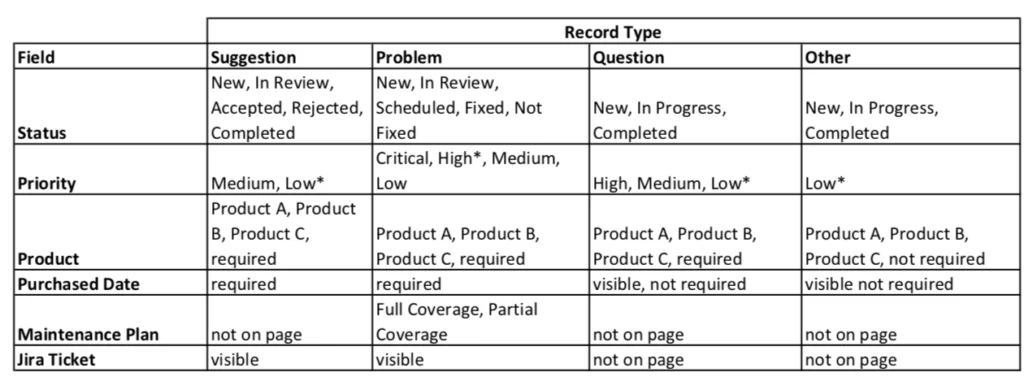
Step 2: create fields and master picklist values
Create the fields first, then add the full set of picklist values to the field. A stable sf record setup uses one field with per-type values instead of several duplicate fields. Salesforce record type picklist settings select from the master list; they do not create a separate field per type. If a new value appears later, add it to the master picklist and then make it available for each relevant record type.
Step 3: set the business process when the object requires it
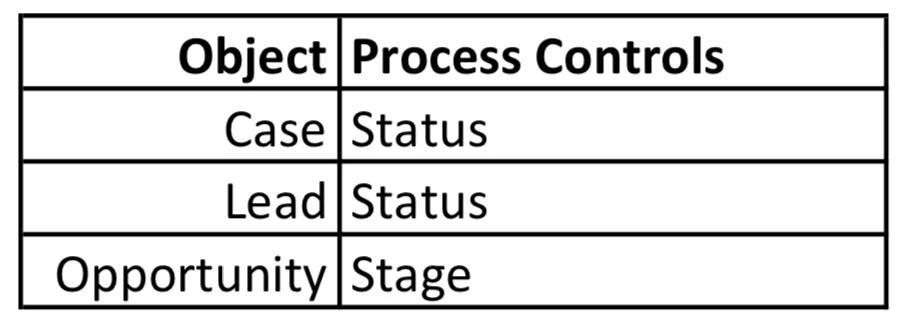
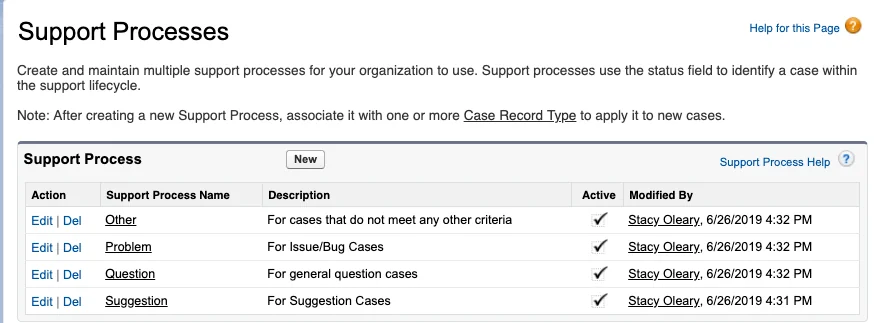
Opportunities, Cases, and Leads have process settings that work with record types. Opportunities use Sales Processes for Stage values, Cases use Support Processes for Status values, and Leads use Lead Processes for Lead Status values. Other standard and custom objects do not use those same process setup screens.
Step 4: prepare page layouts and Lightning record pages
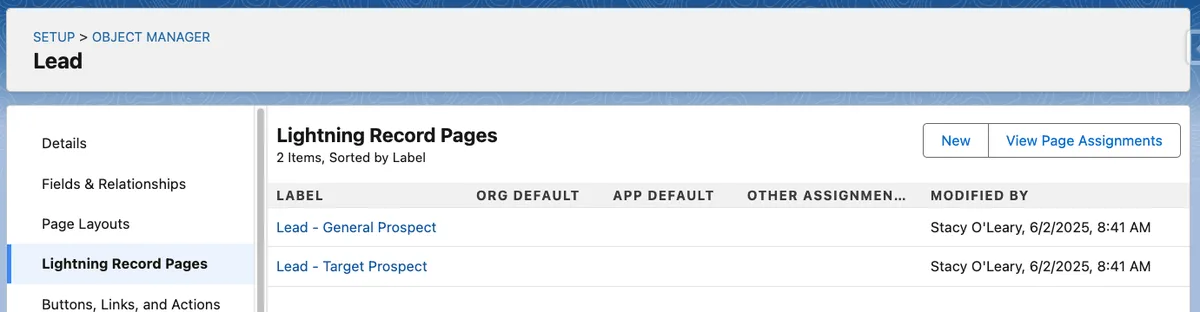
Use page layouts for field placement, related lists, buttons, and profile-plus-record-type layout assignment. Use Lightning App Builder when the page composition must change by app, record type, and profile. Salesforce documents Lightning record page activation choices in Activate Lightning Experience Record Pages.
For related setup details, see Salesforce page layouts, Salesforce Flow automation, and validation rules in Salesforce.
Step 5: create the record type
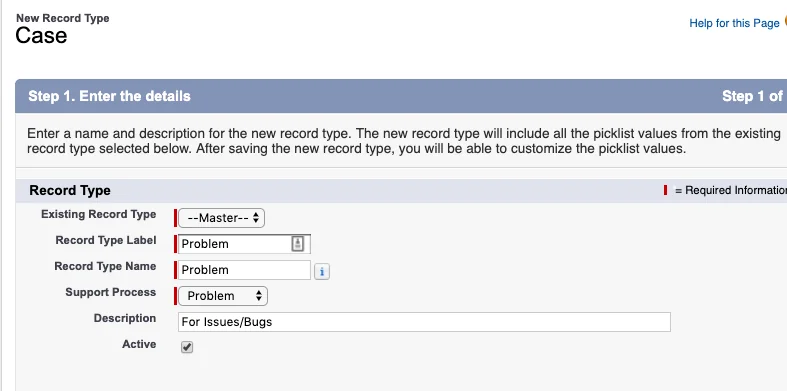
For each sf record path, go to Setup > Object Manager > Object > Record Types > New. Select an existing record type to clone settings from, enter the label, verify the API name, add a description, choose the business process if the object requires one, and decide which profiles can use it during creation.
Use a description that explains when the user should select the type. A description such as “Use for customer-reported product defects that need reproduction steps” is more useful than “Product Defect”.
Step 6: assign record type access and defaults
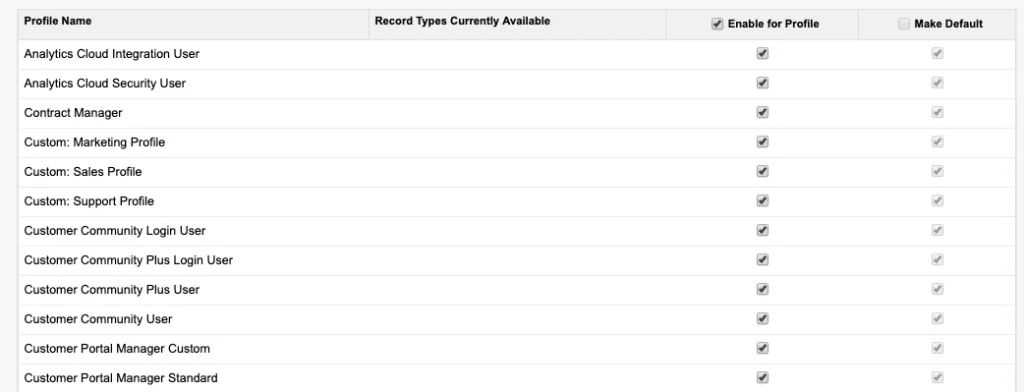
Admins can assign record types through profiles and, for custom record types, through permission sets. Salesforce Help covers profile-based assignment in Assign Record Types and Page Layouts in Profiles and permission-set assignment in Assign Custom Record Types in Permission Sets.
The default record type controls the initial value for new records when the user has access to more than one type. It does not force every existing record to change, and it does not grant record visibility.
Step 7: restrict picklist values per record type
Open the record type and edit each picklist field that needs different values. Choose the selected values, define a default when required, and verify dependent picklists after setup. If the object uses a Sales Process, Support Process, or Lead Process, review the process field values there as well.
Step 8: test with real user profiles
Test as users who represent each role. Create records, edit records, change owner, run Flows, trigger validation rules, convert Leads if applicable, and create reports. Confirm that list views, quick actions, Path, Dynamic Forms, assignment rules, and approval processes still behave as expected.
How record type security and access really work
In an sf record design, a record type controls availability for record creation and helps choose page behavior. It does not decide whether a user can read, edit, delete, transfer, or report on the record. For record visibility, start with the Salesforce security model: object permissions, field-level security, organization-wide defaults, role hierarchy, sharing rules, teams, queues, territories, and manual sharing.
This distinction affects audits. A user may be unable to create a Product Defect Case because the record type is not available to them, but that same user may still see an existing Product Defect Case if sharing grants access. Salesforce states this directly in How Is Record Type Access Specified?.
How developers work with RecordTypeId in Apex and LWC
Developers should treat RecordTypeId as metadata-driven, not as a hard-coded ID. For related server-side patterns, see Apex in Salesforce. Record type IDs differ between orgs and sandboxes. Use DeveloperName-based lookup in Apex, metadata references in deployment, and UI API metadata in Lightning Web Components.
Apex example for a salesforce record type
The following Apex utility gets a Case record type by DeveloperName without running SOQL. It also checks availability, which matters when code supports a user-facing process.
public with sharing class CaseRecordTypeSelector {
    public class RecordTypeException extends Exception {}

    public static Id getCaseRecordTypeId(String developerName) {
        if (String.isBlank(developerName)) {
            throw new RecordTypeException('Record type developer name is required.');
        }

        Schema.RecordTypeInfo info =
            Schema.SObjectType.Case.getRecordTypeInfosByDeveloperName().get(developerName);

        if (info == null || !info.isAvailable()) {
            throw new RecordTypeException('Case record type is not available: ' + developerName);
        }

        return info.getRecordTypeId();
    }
}
Governor limit note: this pattern uses schema describe metadata instead of querying RecordType inside loops. If you must query, do it once per transaction and cache the result in a local map. The official Apex reference documents Schema.RecordTypeInfo methods in RecordTypeInfo Class.
SOQL example using record type safely
Use RecordType.DeveloperName in SOQL when you need readable filtering and the DeveloperName is stable across environments.
SELECT Id, CaseNumber, Subject, Status, RecordType.DeveloperName
FROM Case
WHERE RecordType.DeveloperName = 'Product_Defect'
AND Status != 'Closed'
ORDER BY CreatedDate DESC
LIMIT 200
Keep the filter selective in large Case tables. Add indexed filters such as Status, OwnerId, CreatedDate, or a business key when the report or integration reads high-volume data.
LWC example for a record type-aware form
Lightning Web Components can use the UI API through getObjectInfo to read object metadata, including record type information. Salesforce documents this in getObjectInfo.
import { LightningElement, wire } from 'lwc';
import { getObjectInfo } from 'lightning/uiObjectInfoApi';
import CASE_OBJECT from '@salesforce/schema/Case';

export default class CaseRecordTypeHelper extends LightningElement {
    @wire(getObjectInfo, { objectApiName: CASE_OBJECT })
    caseObjectInfo;

    get productDefectRecordTypeId() {
        const infos = this.caseObjectInfo.data?.recordTypeInfos;
        if (!infos) {
            return undefined;
        }

        const match = Object.values(infos).find(
            (rtInfo) => rtInfo.developerName === 'Product_Defect'
        );

        return match?.recordTypeId;
    }
}
Use the resolved ID with base components such as lightning-record-edit-form when the form must create records for a specific type. If the user should choose the type, show a clear selector and validate the chosen value before save.
Deployment checklist for record types
Record type deployment fails most often when teams move only the record type and forget its dependencies. Include the full set of metadata and retest in the target sandbox before production.
- Custom fields and picklist values: deploy fields before record type picklist restrictions.
- Business processes: include Sales Processes, Support Processes, or Lead Processes before the related Opportunity, Case, or Lead record type.
- Page layouts: include layouts and layout assignments that depend on profile and record type combinations.
- Lightning record pages: include page activation assignments for app, record type, and profile where used.
- Profiles and permission sets: include record type availability, default record type, object permissions, and field permissions.
- Automation: review Flows, validation rules, approval processes, assignment rules, Apex tests, and integrations that reference
RecordTypeId. - Data migration: update existing records only after the target org has the new type and users understand the process impact.
For developer-led releases, the Metadata API represents a record type as RecordType. Salesforce documents this component in RecordType Metadata API.
Common errors with record type configuration
| Error | Likely cause | Fix |
|---|---|---|
| User sees the wrong page layout | Page layout assignment or Lightning page activation does not match the user profile, app, and record type. | Check both Page Layout Assignment and Lightning App Builder activation. |
| User cannot select a record type | The type is not assigned through the user profile or permission set. | Add the record type to the correct profile or permission set and set a default if needed. |
| Picklist value is missing | The value exists in the field but is not enabled for that record type. | Edit the record type picklist values and add the value. |
| Inline edit is unavailable in a list view | The list view returns multiple record types. | Filter the list view to one record type. Salesforce list view guidance notes this requirement for inline editing. |
| Apex works in sandbox but fails in production | The code hard-coded a record type ID or the DeveloperName differs. | Use DeveloperName consistently and add test setup that resolves record types dynamically. |
| Reports mix unrelated processes | Too many meanings were placed in one object without clear record type filters. | Add report filters, report types, or reconsider the data model if the records are not the same concept. |
Best practices for a stable sf record design
- Keep record types few and process-based. A record type should explain a different way of working, not a minor label difference.
- Use DeveloperName in automation and code. Do not hard-code Salesforce IDs.
- Document every record type with owner, purpose, active users, layouts, key picklists, and automation dependencies.
- Use field-level security for field access. Do not assume hiding a field on a page layout protects it from API, reports, or other UI paths.
- Review record types during release planning. New picklist values, Flows, and validation rules often need per-type decisions.
- Include users in sandbox testing. Admin-only testing usually misses confusing labels, missing defaults, and report filter gaps.
A clean sf record model helps admins keep one reporting structure while giving teams the process differences they need. The design should be boring on purpose: clear labels, stable DeveloperNames, limited types, tested assignments, and documented dependencies.
Frequently Asked Questions
What is the difference between a Salesforce record and a record type?
A Salesforce record is one saved entry in an object, such as one Case or one Account. A record type is setup metadata that classifies records within the same object and can control business process, picklist values, page layouts, and Lightning record page assignment.
What is a record type in Salesforce used for?
A record type in Salesforce is used when records belong to the same object but need different process paths. Common examples include Opportunity sales processes, Case support processes, Lead qualification paths, and custom object request categories.
Can record types control record visibility in Salesforce?
No. Record type assignment controls whether users can create or select that type, but it does not control whether they can view a record. Use sharing settings, object permissions, field-level security, and related access features for visibility.
Why can I not inline edit a list view with multiple record types?
Salesforce inline editing usually requires the list view to filter records to one record type. Add a Record Type filter to the list view, then verify that the edited fields are on the assigned layout and editable for the user.
Should every picklist value become a record type?
No. Use a record type only when the process, layout, required fields, or allowed values differ enough to justify the setup cost. If the only difference is one label, a picklist value is usually enough.
How do developers get RecordTypeId without hard-coding IDs?
In Apex, use schema describe methods such as getRecordTypeInfosByDeveloperName() and then read getRecordTypeId(). In LWC, use getObjectInfo from the UI API. Avoid hard-coded IDs because they change between orgs.