Docusign salesforce integration connects Salesforce records, recipients, files, templates, and signing status so users can send agreements without copying data between systems. In production orgs, the safest design usually starts with the supported managed package, then adds Flow or Apex only where the business process needs custom validation, routing, retry handling, or reporting.
This guide explains the architecture choices, setup sequence, security model, automation points, file storage decisions, and Apex callout pattern for admins and developers who need a controlled docusign salesforce integration.
Docusign Salesforce Integration: Architecture Choices
A docusign salesforce integration is not only a button on a Lightning page. It includes user permissions, Docusign authentication, Salesforce Files, recipient mapping, envelope tracking, completed-file storage, and optional automation. Salesforce lists Docusign as an integration option for sending, signing, and tracking agreements from Salesforce, while custom API work should follow Salesforce callout and Named Credential guidance.
| Integration pattern | Use it when | Salesforce design note |
|---|---|---|
| Managed package sending | Users manually send envelopes from Account, Opportunity, Contract, Case, Quote, or a custom object. | Best first option for most admins. Validate page assignment, permission sets, record access, and file access. |
| Managed package plus Flow | Envelope status should update Salesforce records, tasks, or notifications. | Keep Flow fault paths clear. Do not update Opportunity stages unless the sales process defines the rule. |
| Apex callout with Named Credential | The org needs custom payloads, validation, retries, or server-side orchestration. | Use Queueable Apex with Database.AllowsCallouts. Do not hardcode OAuth tokens or secrets. |
| Middleware | Several systems create, enrich, archive, or report on agreements. | Use an integration layer when Salesforce should not own all transformation logic. |
What should be ready before you integrate docusign with salesforce?
Before you integrate docusign with salesforce, confirm who owns templates, who can send documents, where completed files live, and which Salesforce records must track envelope status. Most implementation issues come from missing recipient emails, unclear file storage rules, or permissions tested only with System Administrator access.
- Docusign account: Confirm the Docusign environment, sender licenses, templates, and who can authorize the connection.
- Salesforce objects: List the source objects, such as Opportunity, Contract, Quote, Case, or a custom agreement object.
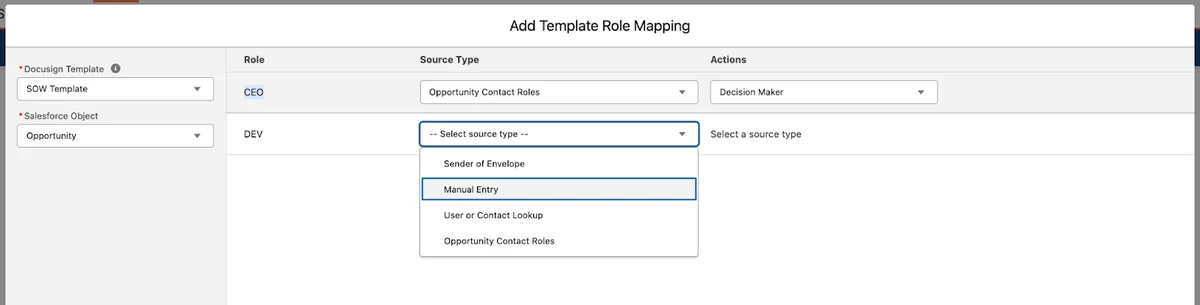
- Recipient source: Define whether signers come from Contact, Lead, User, lookup fields, Opportunity Contact Roles, or manual entry.
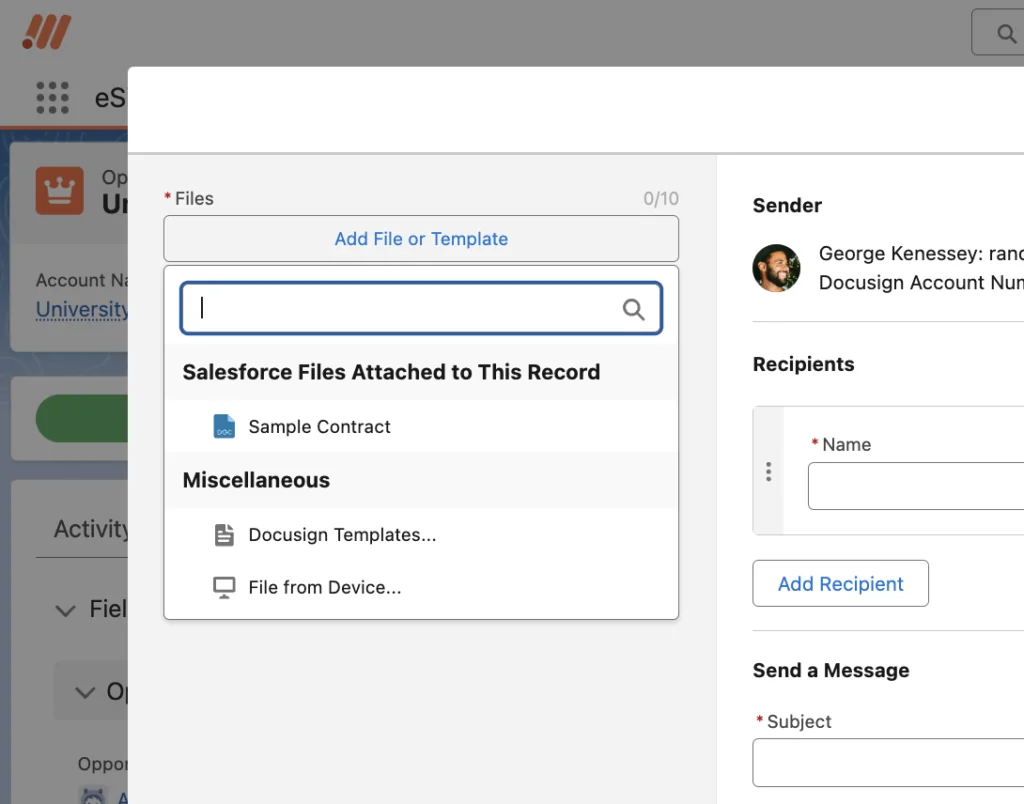
- File source: Decide whether documents come from Salesforce Files, Docusign templates, generated files, or external storage.
- Status model: Define what the business does when an envelope is sent, viewed, completed, declined, voided, or failed.
- Security model: Review object permissions, field-level security, sharing, file visibility, and package permission sets.
Implementation questions before you integrate docusign with salesforce
Use these questions before you integrate docusign with salesforce in a shared production org. They keep the setup focused and prevent late changes to templates, recipient rules, and file retention.
| Question | Why it matters |
|---|---|
| Can we integrate docusign with salesforce for every target object? | Some objects need custom page visibility, file relationships, or recipient logic. |
| Who can integrate docusign with salesforce for new teams? | Credential and package setup should be controlled by admins, not individual users. |
| Should we integrate docusign with salesforce before document generation is final? | Usually no. Sending works better after merge fields, template tags, and file naming rules are stable. |
How to integrate Docusign with Salesforce
The exact screens depend on the installed Docusign package version and your Salesforce org configuration. The sequence below works well in enterprise orgs because it separates authentication, access, Lightning page placement, user testing, and automation.
Integrate docusign with salesforce using a managed package
- Install the current Docusign Salesforce managed package in a sandbox first. Do not begin in production.
- Connect the Docusign account using the package setup flow and document the credential owner.
- Assign package permission sets to a pilot group. Do not test only as System Administrator.
- Add the send component or action to the relevant Lightning record page.
- Map template roles to Salesforce fields, Contacts, Users, or related records.
- Configure whether completed documents are saved as Salesforce Files, external links, package records, or another approved store.
- Send sandbox envelopes with one signer, multiple signers, missing email values, declined signatures, and completed signatures.
- Promote the configuration through normal deployment controls and retest with production-like users.

Salesforce and docusign integration record-page design


A clean salesforce and docusign integration page should answer three user questions: which document am I sending, who must act, and what is the current status? Place the sending action near the business fields users review before sending. Place envelope history near the record summary or related lists where users check deal, case, or contract progress.
For Opportunity pages, a practical docusign salesforce integration layout includes the stage path, primary contact, products or quote summary, Docusign send action, and envelope tracking. For Contract pages, place sending and tracking near contract status, effective date, and approval fields.
Docusign integration salesforce template and recipient mapping
docusign integration salesforce mapping should be deterministic. A sender should not guess which person maps to Buyer, Legal Reviewer, Partner Signer, or Internal Approver. Use lookup fields, Contact Roles, User fields, or a custom junction object when signer rules vary by product, region, or contract type.
In large orgs, avoid one template that tries to serve every process. Create templates by business outcome, such as new subscription agreement, renewal order form, partner amendment, or data processing addendum. Each template should have a clear owner, signer source, file source, and completion rule.
How should envelope status tracking work?
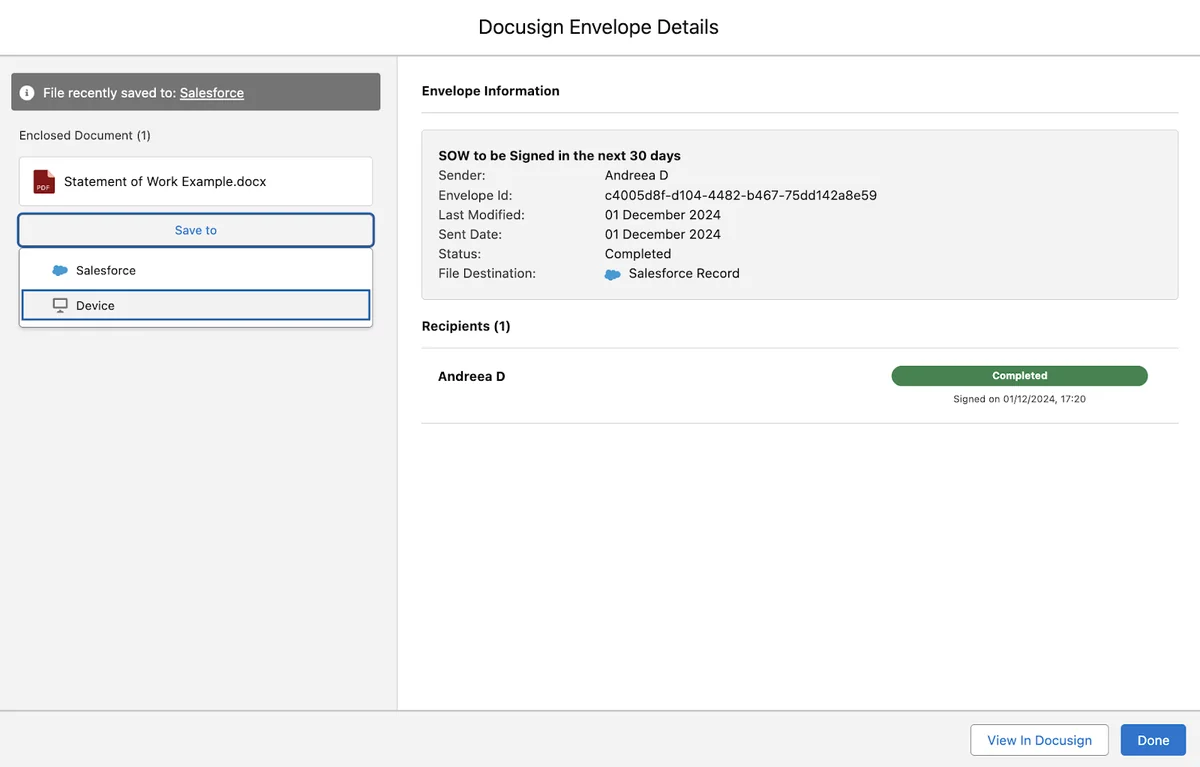
A docusign salesforce integration should track status at both envelope and recipient level. Envelope status supports reporting. Recipient status helps users follow up with the person who still needs to review or sign.
Do not treat the completed document as the only useful signal. In many orgs, sent, delivered, viewed, completed, declined, voided, and failed events all matter. For salesforce and docusign integration reporting, keep the field list small enough that users understand it.
| Status signal | Typical Salesforce action | Warning |
|---|---|---|
| Sent | Stamp sent date, sender, and envelope reference. | Do not move sales stage unless the process defines that rule. |
| Viewed | Create a follow-up task or notify the record owner. | Prevent duplicate tasks from repeated status events. |
| Completed | Save final file, update contract status, and notify the team. | Confirm all required recipients completed before downstream updates. |
| Declined or voided | Flag the record and preserve the reason. | Do not overwrite older completed documents. |
| Failed | Log the error and alert the integration owner. | Do not expose raw payloads with personal data to broad users. |
How to automate docusign salesforce integration safely
Automation is where docusign salesforce integration can save time or create audit problems. Keep the first release narrow: update a status field, create a task, attach a completed file, or send one internal notification. Add stage changes, approvals, renewal creation, or billing updates only after status mapping is stable.
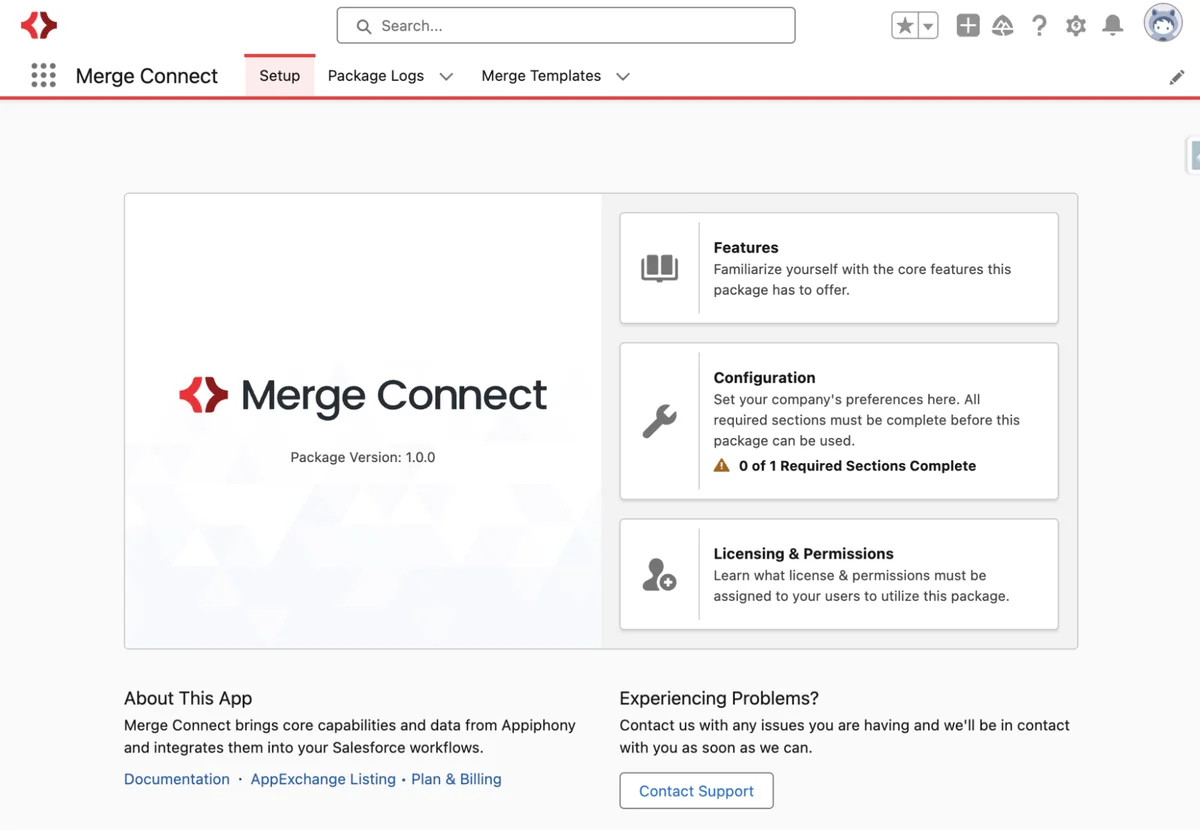
Use Flow for Salesforce-side record updates when the managed package writes envelope or recipient records into Salesforce. Use Apex for callouts, custom payload construction, retries, and validation. Salesforce documents Named Credentials as callout endpoints, and the Named Credentials Developer Guide explains how endpoint and authentication configuration are separated. Salesforce Help also documents Named Credentials and External Credentials. Trailhead includes a practical project for HTTP callout credentials.
Apex callout scaffold for docusign salesforce integration
The following Apex shows a controlled callout shape. It is not a replacement for the managed package. Set new Apex classes to the current org API version, such as API v60.0 or later, and test the final payload against the current Docusign eSignature API contract before production use.
public with sharing class DocusignEnvelopeJob implements Queueable, Database.AllowsCallouts { public class IntegrationException extends Exception {} private Id contentVersionId; private String accountId; public DocusignEnvelopeJob(Id contentVersionId, String accountId) { this.contentVersionId = contentVersionId; this.accountId = accountId; } public void execute(QueueableContext context) { if (!Schema.sObjectType.ContentVersion.fields.VersionData.isAccessible()) { throw new IntegrationException('Missing file access.'); } ContentVersion fileVersion = [SELECT Title, FileExtension, VersionData FROM ContentVersion WHERE Id = :contentVersionId LIMIT 1]; Map<String, Object> document = new Map<String, Object>{ 'documentBase64' => EncodingUtil.base64Encode(fileVersion.VersionData), 'name' => fileVersion.Title, 'documentId' => '1' }; Map<String, Object> payload = new Map<String, Object>{ 'emailSubject' => 'Signature request', 'documents' => new List<Object>{ document }, 'status' => 'created' }; HttpRequest request = new HttpRequest(); request.setEndpoint('callout:Docusign_eSignature/v2.1/accounts/' + EncodingUtil.urlEncode(accountId, 'UTF-8') + '/envelopes'); request.setMethod('POST'); request.setHeader('Content-Type', 'application/json'); request.setBody(JSON.serialize(payload)); HttpResponse response = new Http().send(request); if (response.getStatusCode() < 200 || response.getStatusCode() > 299) { throw new IntegrationException(response.getBody()); } } }Governor limit note: enqueue one job per envelope request, not one job per recipient. Do not query recipients in loops. Use HttpCalloutMock in tests. Custom Apex must also respect sharing, CRUD, and field-level security; with sharing does not enforce FLS by itself.
How should completed files be stored?
In any docusign salesforce integration, file storage affects cost, search, compliance, and user access. Salesforce Files work well when users need the signed agreement on Account, Opportunity, Contract, Case, or a custom object. External storage works better when legal or operations teams manage retention outside Salesforce.
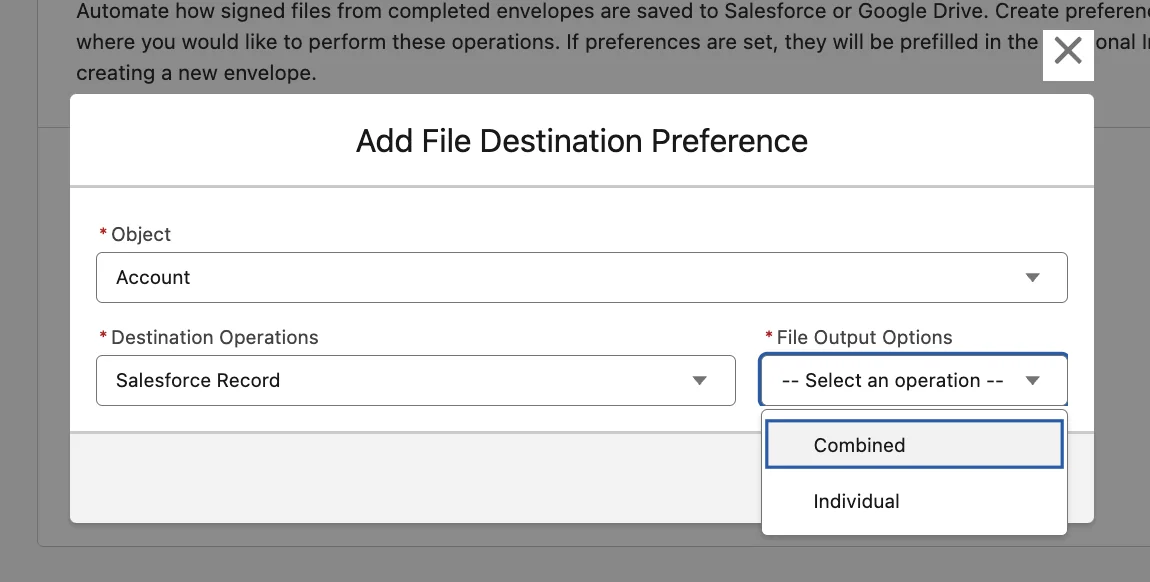
- Use Salesforce Files when record users must view signed agreements from Salesforce.
- Use external storage when retention, folder policy, or collaboration is managed outside Salesforce.
- Use metadata plus link when Salesforce users need status, completed date, signer, and URL but not the physical file.
- Restrict visibility when documents include pricing, legal clauses, payment details, or personal data.
Best practices for docusign salesforce integration security
Security for docusign salesforce integration has three layers: Salesforce record access, Salesforce file access, and Docusign authorization. A user who can view an Opportunity should not automatically be allowed to send every related file for signature.
- Use permission sets: Separate sender, viewer, admin, and integration permissions.
- Respect sharing: Use
with sharingin custom Apex where record sharing should apply. - Check CRUD and FLS: Use schema checks or
Security.stripInaccessiblefor custom code that reads or writes fields. - Use Named Credentials: Do not store access tokens, refresh tokens, or client secrets in Apex, Custom Labels, or unprotected metadata.
- Log safely: Store envelope IDs, correlation IDs, and status values. Avoid logging full document payloads.
Common errors with docusign integration salesforce projects
Docusign integration salesforce errors to check first
A failed docusign integration salesforce project usually has a small cause: missing permission, blank recipient email, broken callback, inactive sender, or file sharing mismatch.
| Symptom | Likely cause | Fix |
|---|---|---|
| Send action is missing | Permission set, page activation, or component visibility rule is wrong. | Check app, profile, record type, permission set, and Lightning page assignment. |
| Recipient is blank | Template role points to an empty field or missing Contact Role. | Add validation before send and show a clear message to the user. |
| Completed file is missing | Output option is disabled, callback failed, or file sharing blocks access. | Review package settings, callback logs, and Salesforce Files visibility. |
| Apex callout fails after DML | The transaction performed DML before the callout. | Move the callout to Queueable Apex, then write status after the response. |
| Reports show duplicates | Automation creates a tracking record for every event. | Use the external envelope ID as a unique key and upsert status changes. |
Deployment checklist for Salesforce and Docusign integration
Before production release, test the salesforce and docusign integration with records that match real use: one signer, multiple signers, internal approvers, missing email addresses, replaced files, declined envelopes, and completed envelopes.
- Confirm installed package version and sandbox test results.
- Document the authentication owner and credential rotation process.
- Verify Lightning page activation by app, profile, and record type.
- Run tests with sender permission sets, not only with admins.
- Test completed-file access from parent and child records.
- Confirm Flow fault handling or platform-event error handling reaches the integration owner.
- For Apex, deploy tests with
HttpCalloutMockand maintain Salesforce’s required 75% Apex coverage for production deployment. - Train users on what each envelope status means and when to follow up.
Acceptance criteria for docusign salesforce integration
Use acceptance criteria to keep docusign salesforce integration testing focused. A user story is not complete because one admin sent one envelope. It is complete only when the right user can send the right file to the right recipient and the right status returns to Salesforce.
- docusign salesforce integration sender test: a standard user can send from the target object without setup-only controls.
- integrate docusign with salesforce file test: users can select only files they are allowed to send.
- salesforce and docusign integration report test: managers can report on envelope age, owner, template, and final status.
- docusign integration salesforce audit test: admins can trace who sent the envelope, which record started it, and where the completed file was stored.
Related SalesforceTutorial resources: Salesforce Flow automation patterns, Salesforce Connected App setup, Salesforce API integration guide, and Apex code best practices.
Frequently Asked Questions
What is docusign salesforce integration?
docusign salesforce integration connects Salesforce records with Docusign envelopes so users can send documents, populate recipients, track signing status, and store completed files from Salesforce. The implementation can use a managed package, Flow, Apex callouts, or middleware depending on the customization required.
How do I integrate docusign with salesforce without custom code?
You can integrate docusign with salesforce without custom code by installing the supported managed package, connecting the Docusign account, assigning permission sets, adding the send action or component to Lightning pages, and mapping templates and recipients. Use Flow for Salesforce-side updates when the package exposes the needed records or actions.
When should developers use Apex for salesforce and docusign integration?
Use Apex when the salesforce and docusign integration needs custom payload rules, server-side validation, retry handling, or orchestration that package settings and Flow cannot express. Use Queueable Apex for callouts, Named Credentials for authentication, and HttpCalloutMock for tests.
Where should completed Docusign files be saved in Salesforce?
Save completed files to Salesforce Files when record users need the signed agreement on Account, Opportunity, Contract, Case, or a custom object. Use external storage or links when retention belongs outside Salesforce. A docusign integration salesforce design should document this choice before user testing.
Can Docusign envelope status update an Opportunity stage?
Yes, but only when the sales process defines that rule. Many orgs first store envelope status, completed date, and recipient status, then use Flow to move the stage after completion and any required internal approval checks.