Einstein Conversation Insights in Salesforce
Einstein Conversation Insights is Salesforce’s sales conversation intelligence feature for turning recorded voice and video calls into transcripts, call insights, action items, summaries, and coaching signals. Admins use it to connect recording providers, define keywords or prompts, match calls to Accounts and Opportunities, and expose useful call data where sellers already work.
In enterprise orgs, the value is not only transcript storage. The value is a governed workflow: consent and recording policy, provider setup, permissions, related record matching, reportable call activity, and manager coaching. Salesforce also uses the newer Conversation Intelligence wording in some Trailhead content, but many admins and search results still refer to the feature as Einstein Conversation Insights.
Official references used for this guide include Salesforce Help for Einstein Conversation Insights setup, Salesforce Help for Call Explorer powered by Einstein Generative AI, and the Salesforce Object Reference for VoiceCall.
What is Einstein Conversation Insights?

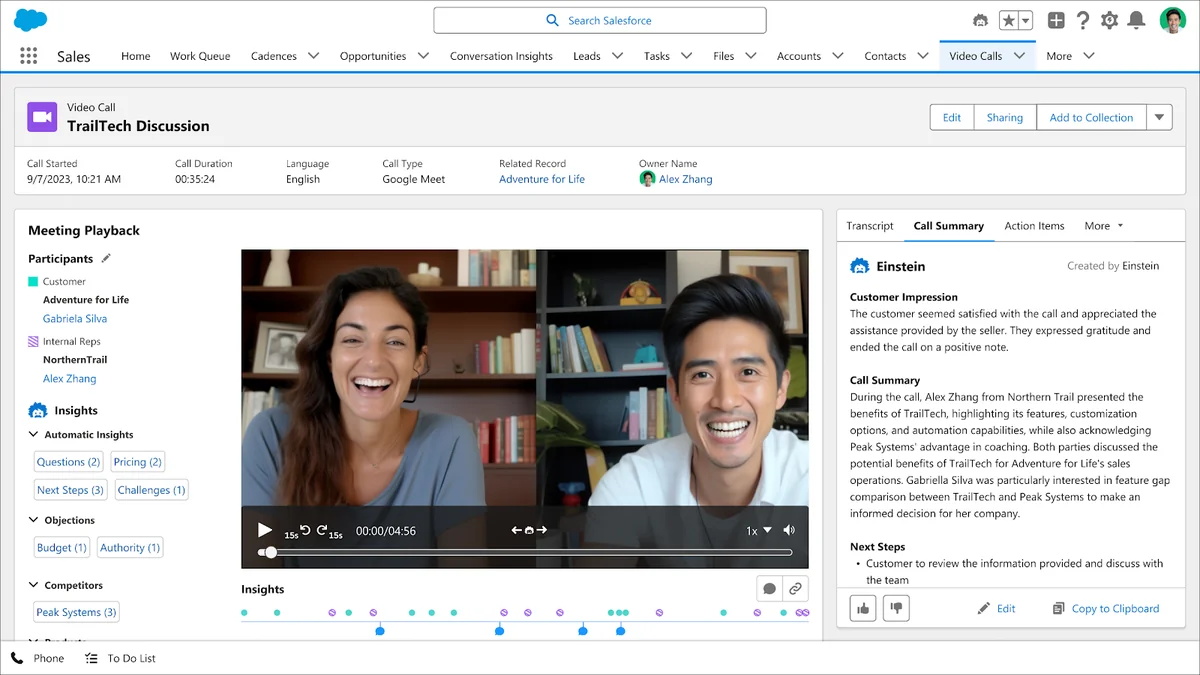
Einstein Conversation Insights captures supported sales calls and meetings as Salesforce call records, then processes the recording so users can review a transcript, listen to the recording, view detected insights, and take action from the record page. For sellers, it reduces manual note review. For managers, it creates a coaching and reporting layer across call activity.

Think of it as a sales call review system inside Salesforce rather than a standalone meeting recorder. A call can be related to an Account or Opportunity, surfaced in the Activity Timeline, reviewed in Pipeline Inspection, and included in reports and dashboards. This matters because sales leaders usually coach from pipeline context, not from an isolated recording library.
How does Einstein Conversation Insights work?
The setup starts in Salesforce, but the call source normally comes from a connected voice or video provider. After the provider sends eligible recordings, Salesforce creates or updates call records, processes the transcript, and surfaces insights based on standard categories, configured keywords, and available generative AI features.
| Layer | What admins configure | What users see | Implementation note |
|---|---|---|---|
| Recording provider | Video or voice connector, user connection, recording rules | Voice and video call records in Salesforce | Confirm legal consent and provider storage rules before rollout. |
| Transcript processing | Feature enablement, supported languages, processing permissions | Transcript tab and searchable call content | Transcript quality depends on audio quality, speaker overlap, language, and provider metadata. |
| Call insight detection | Standard insights, product terms, competitor terms, custom categories | Highlights for pricing, objections, questions, next steps, products, or competitors | Start with a short taxonomy. Too many categories make reporting noisy. |
| Related record matching | Automatic matching or custom Flow logic | Call activity on Account and Opportunity records | Opportunity Contact Roles and clean Contact email data improve matching. |
| Generative features | Einstein for Sales add-on, permission sets, prompts where supported | Call summaries, Call Explorer answers, and generative conversation insights | Validate licensing and regional availability in the target org. |
Salesforce conversational intelligence data model
Salesforce conversational intelligence uses standard and feature-specific records rather than storing everything as plain Tasks. The main objects depend on the call type and how the org was enabled. VoiceCall is available in API v40.0 and later, VideoCall is available in API v51.0 and later, GenAIConversationSummary is available in API v60.0 and later, and VideoCallInsight is available in API v66.0 and later for qualifying Einstein Conversation Insights orgs whose data is stored natively on the Salesforce Platform.
Do not assume every Einstein Conversation Insights object is available in every org. Licensing, feature enablement, data residency, and the date the feature was first enabled can affect which records appear in Object Manager, SOQL, reports, and automation.
How to set up Einstein Conversation Insights
Use a sandbox first. Einstein Conversation Insights touches recordings, customer data, user permissions, related record matching, and reporting, so the first Einstein Conversation Insights rollout should use a pilot group with known Accounts and Opportunities.
- Confirm licensing and edition. Review the org’s Sales Cloud edition, Einstein Conversation Insights entitlement, and Einstein for Sales add-on requirements for generative features.
- Review compliance requirements. Confirm recording consent, retention policy, storage location, and internal access rules with legal and security teams.
- Enable the feature in Setup. In Setup, search for Einstein Conversation Insights, open General Settings, and turn on Conversation Insights. Salesforce Help notes that the readiness process can take time, so do not toggle the setting repeatedly while dashboards are being created.
- Connect a recording provider. Configure the supported voice or video provider used by the pilot users. Keep provider admin access separate from Salesforce admin access where your security model requires it.
- Assign permission sets. Give only pilot users the required user permissions first. Add manager permissions later when call review and coaching rules are ready.
- Define call insight categories. Configure products, competitors, and custom keyword groups. Keep keyword lists short and test them against real calls.
- Configure related record matching. Use Salesforce’s automatic matching first if the sales process has clean Contacts and Opportunity Contact Roles. Use Flow only when the standard matching order does not fit the business process.
- Add page components. Review Voice Call, Video Call, Account, and Opportunity Lightning record pages so sellers can see transcripts, summaries, and related call activity without switching tabs.
- Validate reporting. Build pilot reports for call volume, call insight frequency, competitor mentions, objections, and calls without related Opportunities.
Call insight configuration for admins
A call insight should map to a sales behavior or risk that someone will act on. Good examples include pricing discussion, renewal risk, security review, implementation timeline, competitor mention, legal redline, or missing economic buyer. Weak examples include vague words that appear in most conversations.
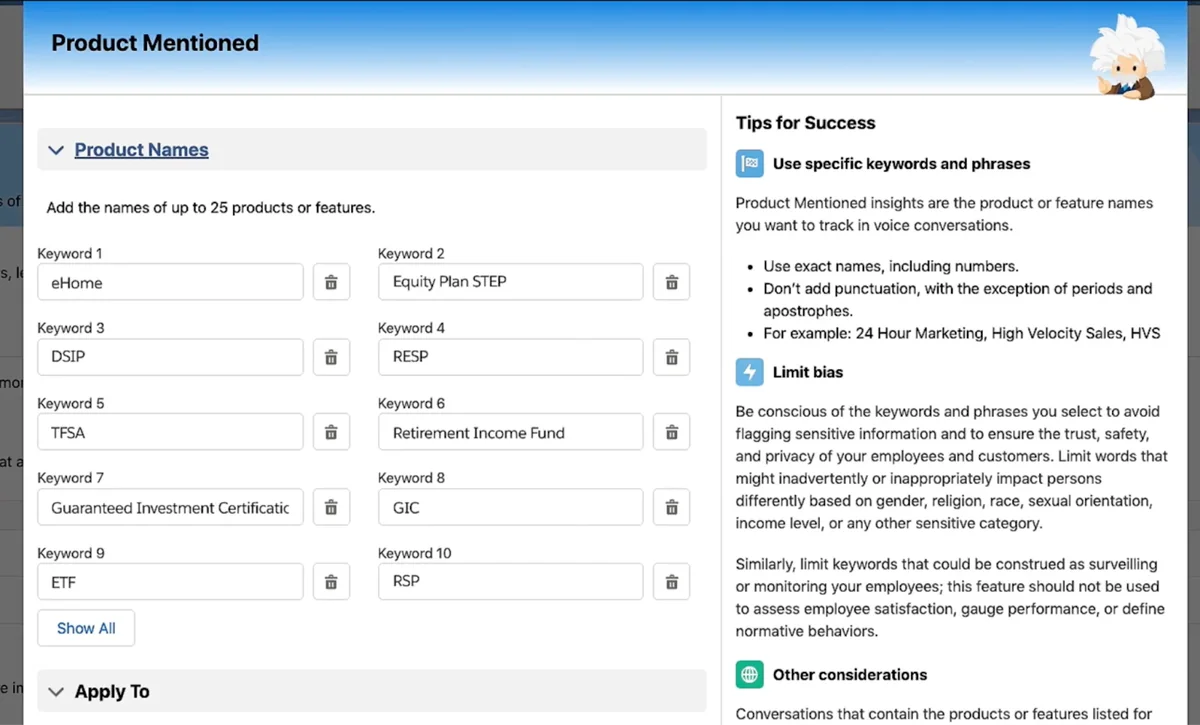
Use separate categories for products, competitors, and commercial blockers. This makes reporting cleaner because a manager can ask, “Which late-stage Opportunities mentioned Competitor A and pricing in the same week?” instead of searching raw transcripts.
How do related records and Activity Timeline work?
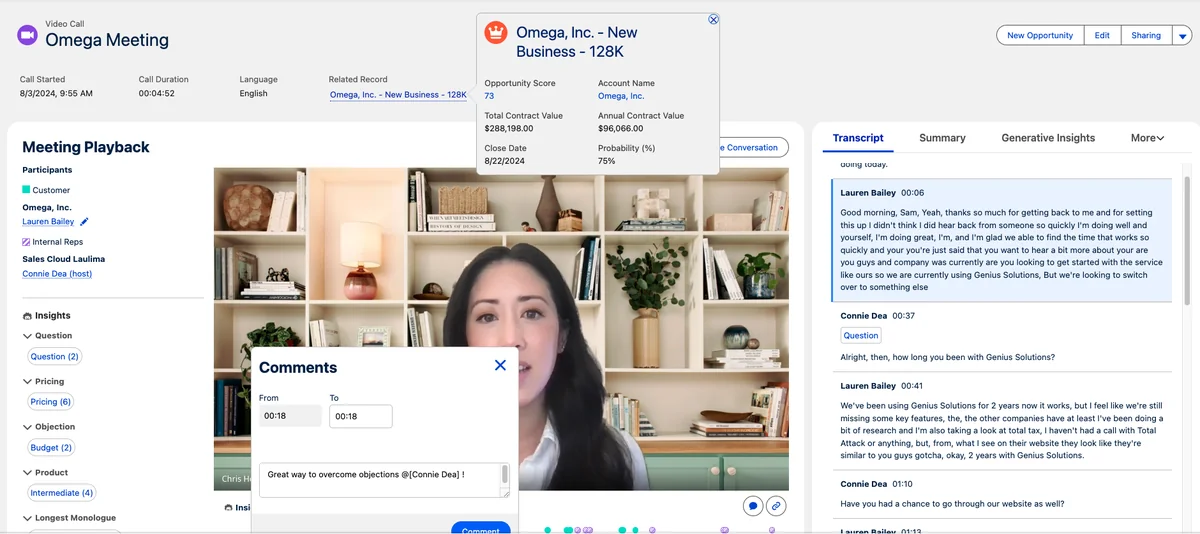
Einstein Conversation Insights becomes useful when calls attach to the correct Salesforce record. If a call stays unrelated, users can still review it, but pipeline coaching and reporting lose context. For sales use cases, the usual target is an Opportunity, then the related Account when an Opportunity cannot be matched.
Clean participant data matters. In production orgs, inaccurate Contact email addresses, missing Opportunity Contact Roles, generic meeting aliases, and unmatched domains cause more issues than the Einstein Conversation Insights setup page itself. Fix those data problems before judging the feature.
When to use Flow for related record matching
Use Flow with Einstein Conversation Insights when the standard matching behavior does not match your sales operating model. Examples include partner-led deals, public-sector buying committees, multi-account enterprise Opportunities, or calls where the external participant’s email domain belongs to a consulting partner rather than the buyer.
A safe Flow pattern is:
- Trigger after the call record is created or updated.
- Run only when the related record field is blank.
- Find candidate Contacts from participant email data where available.
- Prefer open Opportunities with active Contact Roles and a recent next step.
- Write the related record only when the match is unambiguous.
- Log unresolved matches for sales operations review instead of guessing.
How can managers coach sellers with Conversation Insights?
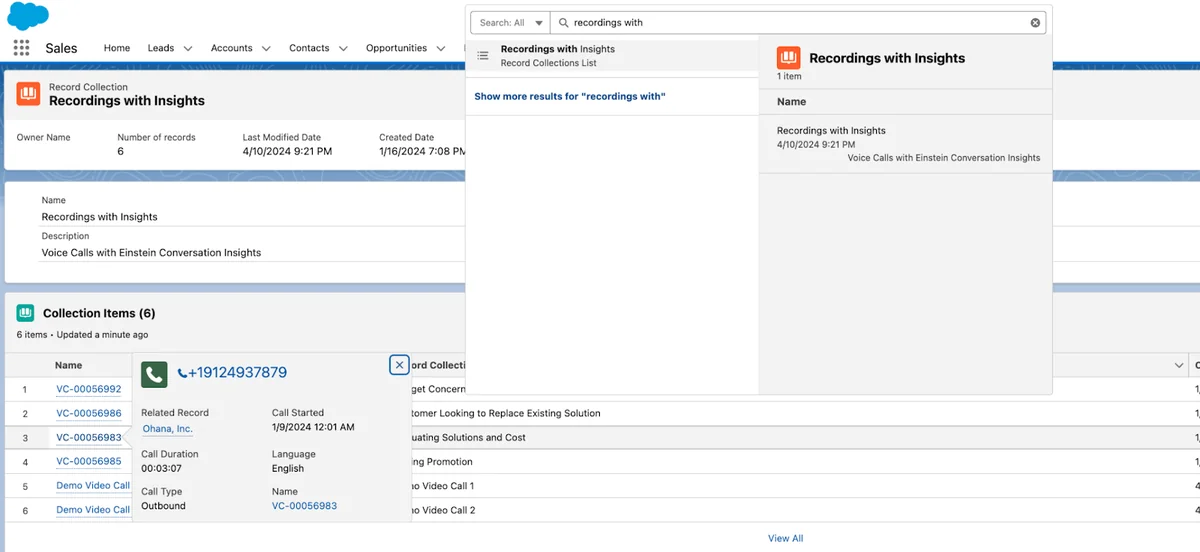
With Einstein Conversation Insights, managers can review a call without asking the seller for a manual recap. They can inspect the transcript, jump to moments where an insight appeared, comment on the call, and group calls for coaching or onboarding. This works best when the organization defines what managers should review. Otherwise, call review becomes another queue that no one has time to manage.
In enterprise orgs, create manager review standards such as:
- Review one discovery call and one late-stage call per seller each month.
- Check whether pricing was discussed before a proposal was sent.
- Inspect calls with competitor mentions on Opportunities above a defined amount.
- Use coaching comments for skill feedback, not private performance notes.
- Keep call collections aligned to onboarding themes such as discovery, objection handling, or renewal risk.
How to analyze competitive wins and losses using conversation insights
Sales leaders often ask how to analyze competitive wins and losses using conversation insights because Opportunity fields alone rarely explain why a buyer chose one vendor. Conversation data adds context: which competitor was mentioned, who raised the concern, what objection followed, and whether the seller addressed it.
Analyze competitive wins and losses using conversation insights
Start with a small competitor taxonomy. Create one insight category for each tracked competitor, then pair it with categories for pricing, security, implementation timeline, contract terms, executive alignment, and next steps. This lets sales operations compare the call evidence against Opportunity outcomes.
| Question to answer | Conversation data to inspect | Salesforce record to join | Action to take |
|---|---|---|---|
| Why are late-stage deals lost to Competitor A? | Competitor mention, pricing discussion, security concern, next step gaps | Closed Lost Opportunities | Update battlecards and manager coaching prompts. |
| Which competitors appear most in renewal risk calls? | Competitor category and sentiment from summary where available | Renewal Opportunities and Accounts | Prioritize customer success intervention. |
| Are sellers handling objections consistently? | Objection insight timestamp and transcript segment | Opportunity stage and owner | Create enablement collections with strong example calls. |
| Do product mentions correlate with wins? | Product category and follow-up action items | Closed Won Opportunities | Refine discovery questions and demo sequence. |
Do not treat a keyword match as proof of buyer intent. A competitor name can appear because the seller introduced it, the customer rejected it, or the customer uses it today. Always inspect the transcript context and related Opportunity data before changing forecast calls or compensation analysis.
Call Explorer Salesforce, summaries, and generative features
Generative features help users ask questions about recorded conversations, but they do not remove the need for governance. Admins should control permissions, prompt design, page placement, and review rules before expanding access.
Call explorer salesforce
Call Explorer Salesforce searches are useful when a seller needs an answer from a specific call without reading the full transcript. Salesforce Help describes Call Explorer as a feature powered by Einstein Generative AI that users open from the Explore Conversation button on voice and video call records. It requires the Einstein for Sales add-on, Einstein Conversation Insights, record access, and the Einstein Sales Call Explorer permission set.
Use Call Explorer for questions such as:
- What objections did the customer raise?
- What next steps were agreed?
- Which products or competitors came up?
- Did the buyer mention budget, timeline, legal review, or implementation risk?
Salesforce conversational intelligence with call summaries
Salesforce conversational intelligence also includes call summaries where the required add-on and permissions are available. A summary helps a seller copy the main points into an Opportunity update, but the user should still verify important commitments against the transcript. Treat summaries as a productivity aid, not the system of record for contract terms.
Call insight prompts and generative insights
Generative conversation insights can answer predefined questions from a transcript when the feature is available in the org. This is different from keyword-based call insight detection. Keyword insights in Einstein Conversation Insights look for configured words or phrases. Generative insights use a prompt to extract a structured answer, such as the customer’s main concern, implementation blocker, or requested commercial term.
Write prompts like requirements, not slogans. A usable prompt states the answer format, the business concept, and what to do when the transcript does not contain evidence. For example: “Identify whether the customer named a competing vendor. Return the vendor name and the sentence that supports it. If no competitor is named, return No competitor mentioned.”
How do reports and dashboards use Einstein Conversation Insights?
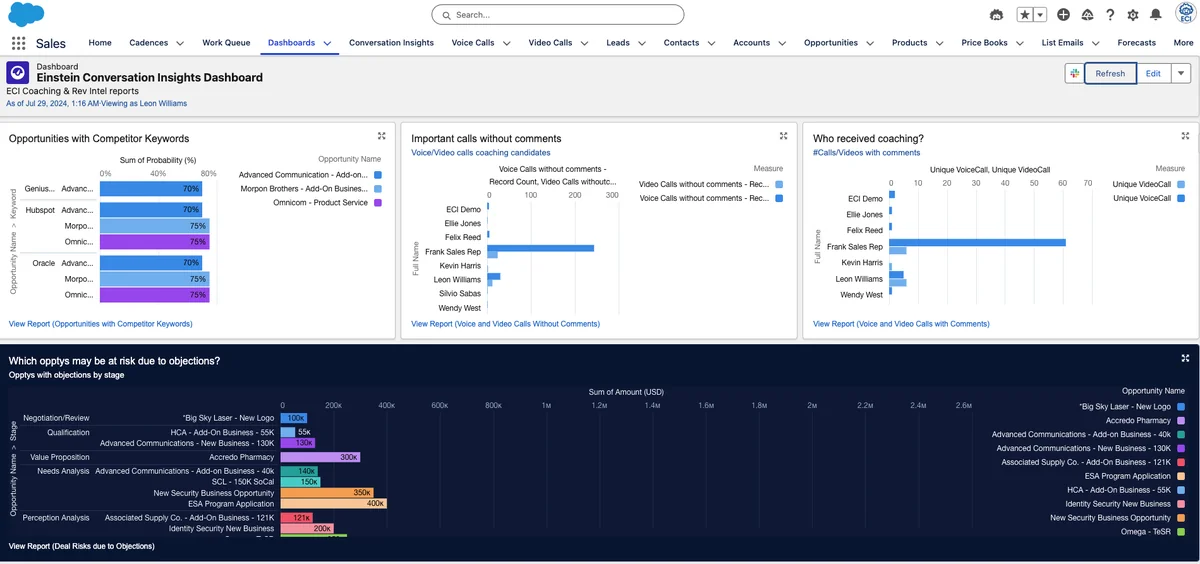
Einstein Conversation Insights reports turn individual call review into operating metrics. Use reports to find calls missing related records, calls with competitor mentions, Opportunities with no recent recorded call, and sellers who need coaching on discovery or pricing conversations.
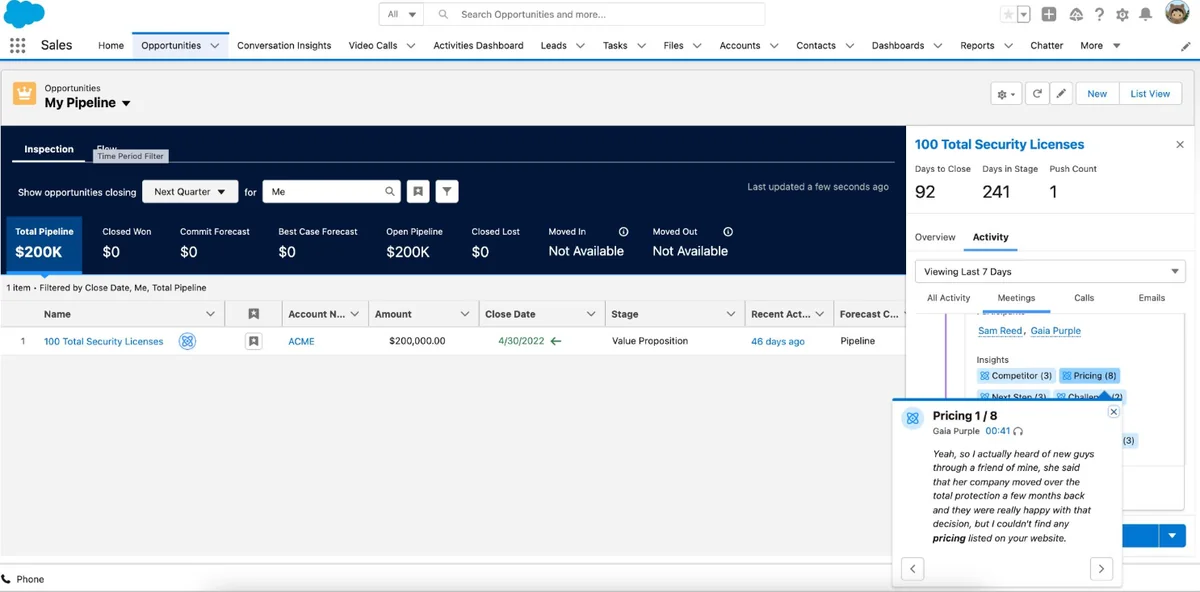
Pipeline Inspection is useful for managers because it places call activity next to pipeline changes. For a deeper primer on that workflow, see Salesforce Pipeline Inspection setup and usage. If your team already manages activity through dashboards, connect ECI reporting with Salesforce dashboard design patterns so managers see the same definitions every week.
Report ideas for sales operations
| Report | Filter | Why it matters |
|---|---|---|
| Calls without related Opportunities | Call date last 14 days and related record blank | Find matching or data quality problems early. |
| Competitive calls by stage | Competitor insight present and Opportunity stage open | Help managers coach deals before they close lost. |
| Pricing discussions by owner | Pricing call insight present | Detect whether sellers discuss commercial terms too early or too late. |
| Call summaries created | Generated summaries in the last 30 days | Measure adoption of generative features where licensed. |
| Manager comments by team | Comments on voice or video calls | Track whether coaching is happening, not only whether calls are recorded. |
Apex and SOQL examples for call records
Most Einstein Conversation Insights setup work is declarative. Use Apex only when you need a custom Lightning component, an internal audit page, or integration logic that cannot be handled with reports or Flow. Keep the code read-only unless the business has a clear rule for writing call fields.
The example below reads recent VoiceCall records for a custom admin component. It uses WITH USER_MODE so Salesforce enforces the running user’s object and field permissions in the query. It also limits rows to avoid turning a call audit widget into a governor-limit problem.
public with sharing class ConversationInsightAuditController {
    public class CallRow {
        @AuraEnabled public Id id;
        @AuraEnabled public String name;
        @AuraEnabled public Datetime createdDate;
        @AuraEnabled public Id relatedRecordId;
        @AuraEnabled public Id ownerId;
    }

    @AuraEnabled(cacheable=true)
    public static List<CallRow> recentVoiceCalls() {
        if (!Schema.sObjectType.VoiceCall.isAccessible()) {
            throw new AuraHandledException('You do not have access to Voice Call records.');
        }

        List<VoiceCall> calls = [
            SELECT Id, Name, CreatedDate, RelatedRecordId, OwnerId
            FROM VoiceCall
            WHERE CreatedDate = LAST_N_DAYS:30
            WITH USER_MODE
            ORDER BY CreatedDate DESC
            LIMIT 50
        ];

        List<CallRow> rows = new List<CallRow>();
        for (VoiceCall vc : calls) {
            CallRow row = new CallRow();
            row.id = vc.Id;
            row.name = vc.Name;
            row.createdDate = vc.CreatedDate;
            row.relatedRecordId = vc.RelatedRecordId;
            row.ownerId = vc.OwnerId;
            rows.add(row);
        }
        return rows;
    }
}
Governor limit note: keep call queries selective by date, owner, related record, or status. Do not query transcripts or related child data in a loop. If you need to audit thousands of call records, use Batch Apex or reports rather than a synchronous controller.
SOQL checks for implementation teams
Before building custom automation, confirm object and field availability in the target org. These examples are starting points; adjust fields after checking Object Manager and the Object Reference for your Salesforce release.
-- Recent voice calls not matched to any record
SELECT Id, Name, CreatedDate, OwnerId, RelatedRecordId
FROM VoiceCall
WHERE CreatedDate = LAST_N_DAYS:14
AND RelatedRecordId = null
ORDER BY CreatedDate DESC
LIMIT 100

-- Video calls created this quarter
SELECT Id, Name, CreatedDate, OwnerId
FROM VideoCall
WHERE CreatedDate = THIS_QUARTER
ORDER BY CreatedDate DESC
LIMIT 100

-- Generated call summaries, available from API v60.0 and later where enabled
SELECT Id, Name, CreatedDate
FROM GenAIConversationSummary
WHERE CreatedDate = LAST_N_DAYS:30
ORDER BY CreatedDate DESC
LIMIT 100
If you expose Einstein Conversation Insights records in LWC, combine Apex sharing, WITH USER_MODE, Lightning Data Service where possible, and permission-set based access. For more security patterns, review Salesforce Flow automation best practices and Service Cloud Voice architecture notes when voice infrastructure overlaps with Sales Cloud.
Common errors with Einstein Conversation Insights
Most Einstein Conversation Insights failures come from setup boundaries rather than AI processing. Use this checklist when a pilot user says calls are missing, transcripts do not appear, or call insight data is not useful.
| Symptom | Likely cause | Fix |
|---|---|---|
| Call record exists but no transcript appears | Processing delay, unsupported scenario, audio issue, or provider metadata problem | Check provider connection, call eligibility, language support, and Salesforce setup status. |
| Call is not related to the Opportunity | Missing Contact Role, unmatched email domain, or ambiguous buyer data | Clean Contact data, enforce Opportunity Contact Roles, or add a Flow for unresolved matches. |
| Managers cannot open a call | Record access, permission set, or sharing rule issue | Check object permissions, record sharing, and any restriction rules before changing page layouts. |
| Too many false positive insights | Broad keywords or overlapping categories | Use phrase-level terms, remove ambiguous words, and test categories against real transcripts. |
| Generative features are missing | Einstein for Sales add-on, permission set, regional availability, or feature toggle not configured | Validate licensing and feature setup in Salesforce Help before troubleshooting UI components. |
Best practices for an Einstein Conversation Insights production rollout
- Start with one sales segment. Choose a team with consistent call tools, clean Account data, and managers who will review calls.
- Define retention before recording. Decide how long recordings and transcripts should remain available and who can access them.
- Use permission sets, not profile sprawl. Keep seller, manager, and admin access separate.
- Test matching with real meeting patterns. Include partner calls, rescheduled meetings, group demos, and calls with personal email addresses.
- Keep insight categories maintainable. Review competitor and product terms monthly with sales operations.
- Train managers on evidence. A call insight is a pointer to a moment in a call. The transcript and Opportunity context still matter.
- Document the support path. Sellers need to know who handles provider connection issues, missing transcripts, and access requests.
For teams preparing for AI-related admin work, the concepts overlap with the security and governance topics covered in Salesforce AI Specialist certification preparation. The same rule applies to Einstein Conversation Insights: do not deploy generative features before you define access, review, and data handling rules.
Frequently Asked Questions
What is Einstein Conversation Insights in Salesforce?
Einstein Conversation Insights is a Salesforce sales conversation intelligence feature that processes supported voice and video calls into call records, transcripts, call insight highlights, action items, summaries, and coaching views. It works best when calls are matched to Accounts and Opportunities so teams can review conversation data in pipeline context.
Is Call Explorer Salesforce available to every user?
No. Call Explorer Salesforce access depends on Einstein Conversation Insights, the Einstein for Sales add-on, access to the voice or video call record, and the required permission set. Admins should validate licensing and permissions in the target org before adding the button to user training.
How do I analyze competitive wins and losses using conversation insights?
Define competitor insight categories, pair them with pricing, objection, timeline, and next-step categories, and report on those insights against Closed Won and Closed Lost Opportunities. To analyze competitive wins and losses using conversation insights accurately, review the transcript context instead of counting keyword mentions alone.
What is a call insight?
A call insight is a detected moment or extracted answer from a sales conversation. It can come from configured keywords, standard insight categories, or generative prompts where supported. A call insight should point users to something they can act on, such as an objection, pricing concern, competitor mention, or next step.
Does Einstein Conversation Insights replace Salesforce Activities?
No. Einstein Conversation Insights creates and surfaces call-specific records and data, while standard Activities still represent tasks, events, emails, and logged activity. The benefit is that conversation records can appear in places sellers already use, such as related records and pipeline views.
Can developers query Einstein Conversation Insights data with SOQL?
Some related records can be queried when the org has the feature and object access. Examples include VoiceCall from API v40.0, VideoCall from API v51.0, GenAIConversationSummary from API v60.0, and selected native-platform video call insight objects from API v66.0 where available. Always confirm object availability and field permissions in the org before writing Apex or SOQL.