Salesforce merge contacts combines duplicate Contact records into one surviving record in Lightning Experience. You select up to three contacts, choose the principal record, decide which visible field values to retain, and confirm the merge. Use the same controlled process for duplicate Account records, but review permissions, automation, related records, and rollback options before changing production data.
What must be configured before Salesforce merge contacts works?
The merge interface depends on duplicate detection and record-page configuration. A matching rule defines how Salesforce compares records. A duplicate rule decides whether Salesforce blocks, allows, or reports a possible duplicate during create or edit operations. The Potential Duplicates component then exposes matching records on a Lightning record page.
| Requirement | Why it matters | Admin check |
|---|---|---|
| Active matching rule | Defines fields and matching methods used to identify possible duplicates. | Setup > Matching Rules |
| Active duplicate rule | Runs the matching rule and controls whether matches are reported or blocked. | Setup > Duplicate Rules |
| Potential Duplicates component | Shows record-level duplicate alerts and the View Duplicates action. | Lightning App Builder |
| Record access | The user must be able to see the records selected for comparison. | OWD, role hierarchy, sharing, teams |
| Object permissions | A merge updates the principal record and removes the losing records. | Permission set or profile: Edit and Delete |
Salesforce documents the relationship between matching rules and duplicate rules in the Duplicate Management Trailhead unit. For a broader data-quality setup, see the SalesforceTutorial guide to Salesforce duplicate management.
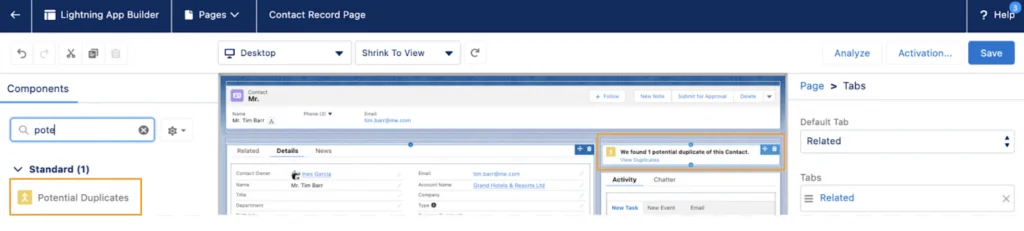
How to add the Potential Duplicates component
- Open a Contact record in Lightning Experience.
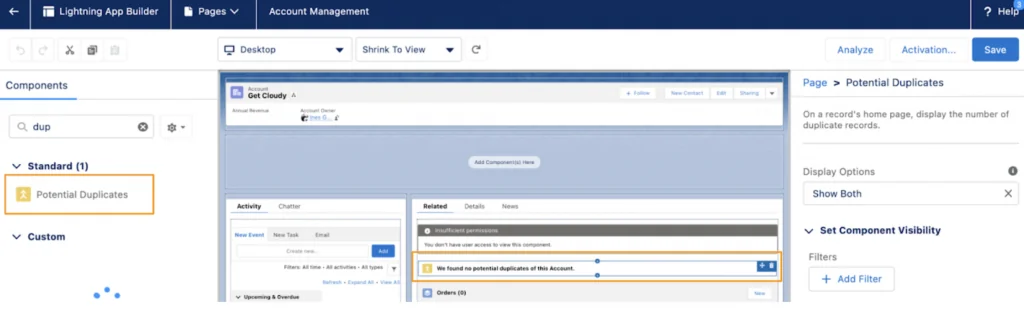
- Select Setup > Edit Page to open Lightning App Builder.
- Drag Potential Duplicates onto the record page.
- Save the page and activate it for the required app, record type, and profile assignments.
- Repeat the process for the Account record page when users also need account merging.
Production note: activate the component in a sandbox first. Page activation assignments can differ by app, record type, and profile, so a component visible to an administrator may still be absent for sales users.
How does Salesforce merge contacts in Lightning?
The standard Lightning flow starts from an existing Contact record. Salesforce Help states that users can choose up to three Contact records in one merge operation. One becomes the principal Contact; the others are removed after their data and relationships are processed.
How to merge contacts Salesforce step by step
- Open the Contact that should be reviewed.
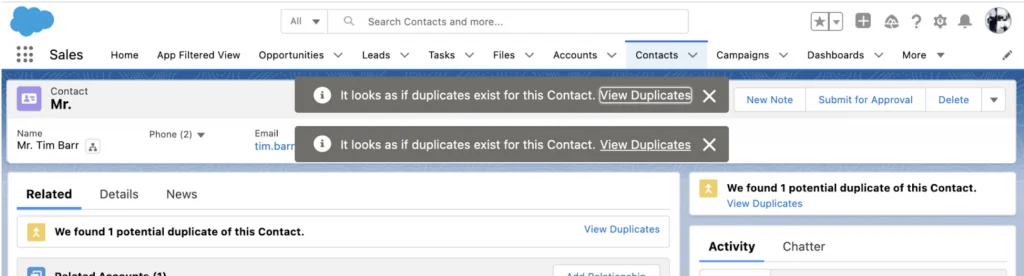
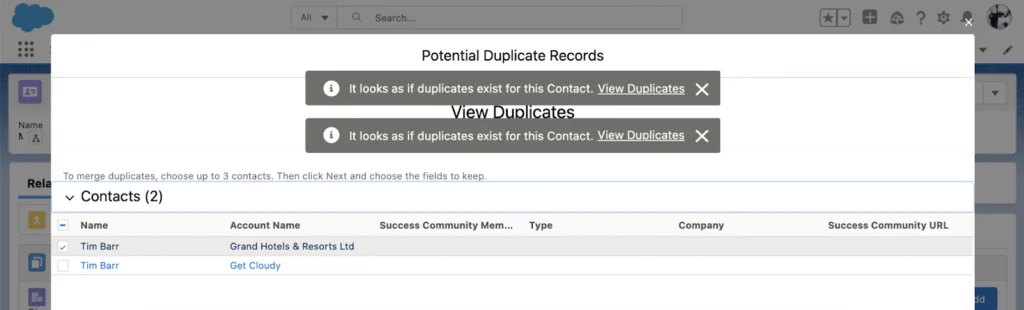
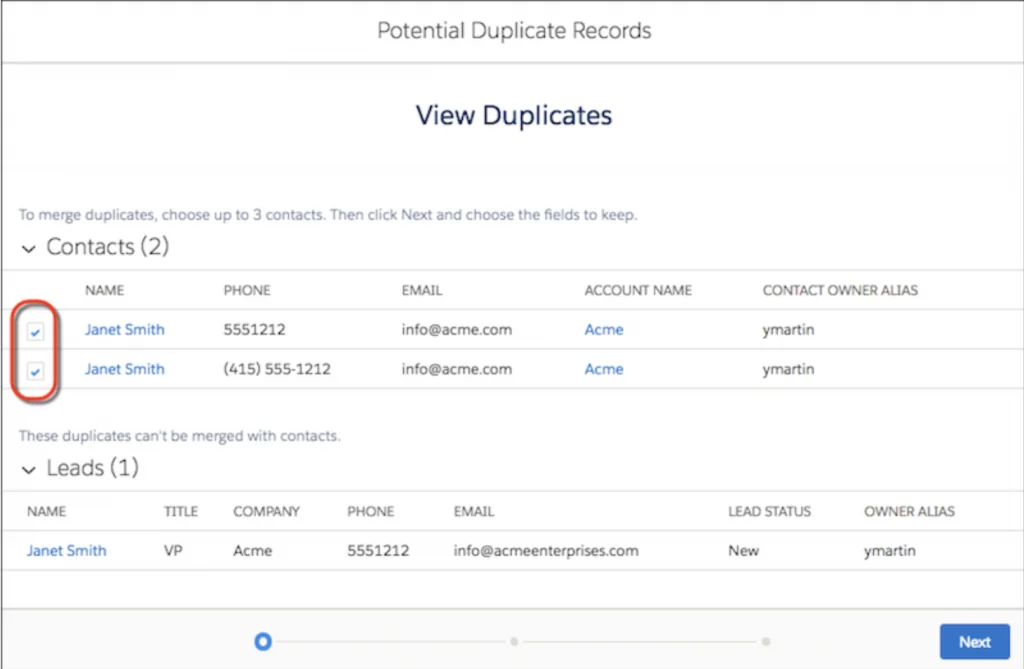
- In the duplicate alert or Potential Duplicates component, select View Duplicates.
- Select the Contact records to compare. Keep the total at three or fewer.
- Select Next.
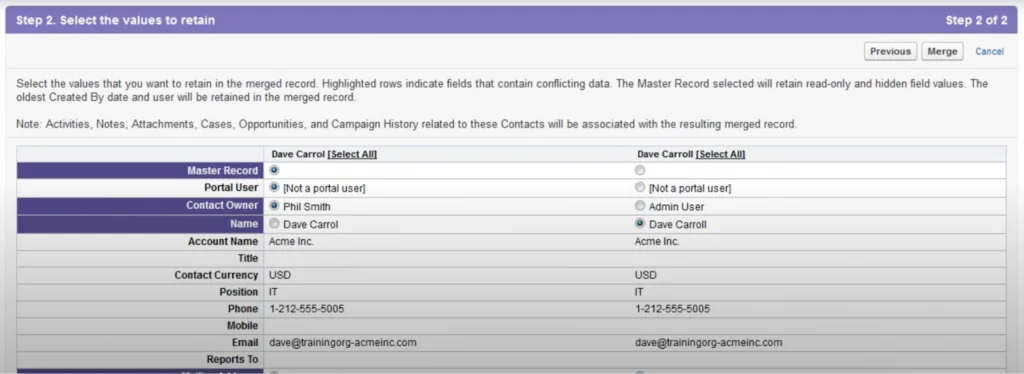
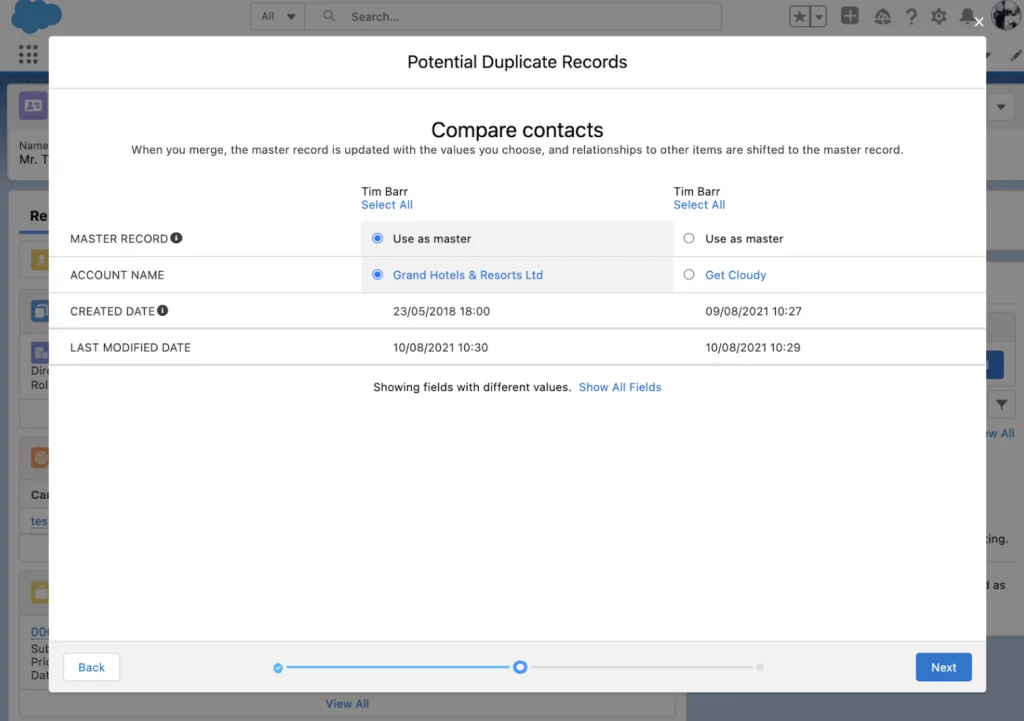
- Choose the principal Contact. This record keeps its Salesforce record ID.
- For each field shown in the comparison table, select the value that should survive.
- Review the selected values and confirm the merge.
- Open the surviving Contact and validate Account, email, phone, owner, campaign membership, activities, and custom relationships.
What survives a Contact merge?
The principal record keeps its ID. Values chosen in the wizard update that record. Fields that are not available for selection require extra care: Salesforce retains hidden or read-only values according to the principal-record behavior documented for the merge process. Layout assignment can also affect which fields appear in comparison screens.
Before merging, inspect these areas:
- AccountId: confirm which Account should remain on the surviving Contact.
- OwnerId: make sure ownership supports the intended sharing and queue process.
- Email and phone: check normalized values, not only formatting differences.
- External IDs: do not discard an identifier used by middleware, ERP, marketing, or billing systems.
- Consent fields: confirm the surviving values satisfy your privacy and communication rules.
- Custom lookups: test whether related custom records are reparented, blocked, or left unchanged.
Can contacts from different Accounts be merged?
Yes. The Lightning Contact merge process can compare contacts associated with different Accounts. This helps when the same person was created under an old employer, subsidiary, or duplicate customer account. The selected Account value on the principal Contact determines the direct account association after the merge.
Contacts to Multiple Accounts adds another edge case. Salesforce documents that duplicate indirect Account-Contact relationships can block a merge. Remove or correct the conflicting AccountContactRelation records, then retry. Review Salesforce considerations for Contacts to Multiple Accounts before cleaning up relationship records.
How do you merge Accounts in Salesforce Lightning?
The Account merge flow resembles the Contact process: open an Account, view possible duplicates, select up to three records, choose a principal Account, select retained values, and confirm. Related Contacts and other supported child records are processed according to Salesforce merge behavior and your org configuration.
Merge accounts in Salesforce Lightning
- Open the Account that should be the starting point.
- Select View Duplicates from the duplicate alert.
- Select up to three Account records.
- Choose the principal Account.
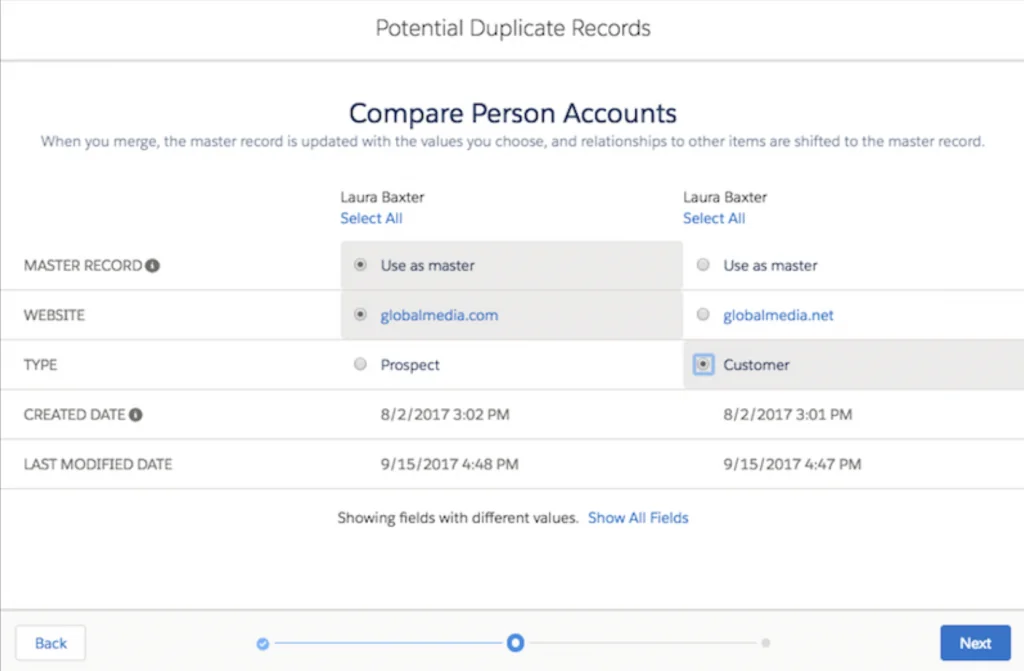
- Select the field values to keep.
- Review related records and confirm the merge.
- Validate account hierarchy, ownership, Contacts, Opportunities, Cases, activities, sharing, and integration identifiers.
Merge Salesforce accounts: business and person account rules
Salesforce allows business accounts to merge with business accounts and Person Accounts to merge with Person Accounts. A business Account cannot be merged with a Person Account. For Person Accounts, test Contact-related automation as well because a Person Account combines Account and Contact behavior.
The official procedure is documented in Merge Duplicate Accounts in Lightning Experience. Teams that are redesigning account access should also review the SalesforceTutorial explanation of Salesforce sharing rules.
Account merge checks for enterprise orgs
| Area | Risk | Validation |
|---|---|---|
| Account hierarchy | A principal Account can inherit an unintended parent or hierarchy position. | Compare ParentId and child Accounts before merge. |
| Opportunities | Ownership, territory, forecasting, or automation may change when records are reparented. | Test representative open and closed Opportunities. |
| External systems | The losing Account ID may still exist in middleware or a data warehouse. | Publish an ID crosswalk or update external references. |
| Partner accounts | Partner and external-user rules add permission and principal-record constraints. | Review Salesforce account merge considerations. |
| Sharing | Manual sharing and recalculated sharing can change access. | Run before-and-after access tests with non-admin users. |
How does merge duplicates Salesforce logic find records?
To merge duplicates Salesforce must first identify or receive a group of records. Native duplicate management uses matching rules for comparison and duplicate rules for action. Standard rules cover common Account, Contact, Lead, and Person Account scenarios, while custom rules let admins choose fields and matching methods supported by the platform.
Matching rule versus duplicate rule
| Configuration | Purpose | Example |
|---|---|---|
| Matching rule | Determines whether records are possible matches. | Compare Contact email and name. |
| Duplicate rule | Determines what happens when a match is found. | Allow with alert and report the duplicate. |
| Duplicate record set | Groups records identified as possible duplicates. | Review and merge a reported Contact group. |
| Potential Duplicates component | Displays matching records on a Lightning page. | Launch the comparison wizard from a Contact. |
A rule that blocks record creation can prevent new duplicates but does not clean existing data. For an existing org, use reporting, duplicate record sets, controlled jobs where licensed and available, or a reviewed data-migration process. See Manage Duplicates Using Duplicate Record Sets.
How can Apex merge Contacts or Accounts?
Apex supports merge DML for Accounts, Contacts, and Leads. The operation can combine a principal record with one or two duplicate records. Use Apex only when the business rule is deterministic and the process includes logging, permissions, duplicate validation, and tests. An automated merge based only on a fuzzy name match can destroy valid records.
public with sharing class ContactMergeService {
    public class MergeRequest {
        @AuraEnabled public Id masterContactId { get; set; }
        @AuraEnabled public Id duplicateContactId { get; set; }
    }

    @AuraEnabled
    public static Id mergeContacts(MergeRequest request) {
        if (request == null ||
            request.masterContactId == null ||
            request.duplicateContactId == null ||
            request.masterContactId == request.duplicateContactId) {
            throw new AuraHandledException('Provide two different Contact IDs.');
        }

        if (!Schema.sObjectType.Contact.isUpdateable() ||
            !Schema.sObjectType.Contact.isDeletable()) {
            throw new AuraHandledException('You do not have permission to merge Contacts.');
        }

        List<Contact> contacts = [
            SELECT Id, FirstName, LastName, Email, AccountId, OwnerId
            FROM Contact
            WHERE Id IN :new Set<Id>{
                request.masterContactId,
                request.duplicateContactId
            }
            WITH USER_MODE
        ];

        if (contacts.size() != 2) {
            throw new AuraHandledException('Both Contact records must be accessible.');
        }

        Map<Id, Contact> contactsById = new Map<Id, Contact>(contacts);
        Contact masterContact = contactsById.get(request.masterContactId);
        Contact duplicateContact = contactsById.get(request.duplicateContactId);

        Database.MergeResult result =
            Database.merge(masterContact, duplicateContact, false);

        if (!result.isSuccess()) {
            Database.Error firstError = result.getErrors()[0];
            throw new AuraHandledException(firstError.getMessage());
        }

        return result.getId();
    }
}
Governor-limit note: do not call this method once per row from a loop. A merge is DML and participates in transaction limits. For a cleanup queue, group reviewed work into bounded asynchronous transactions and persist success or failure for each pair.
Security note: with sharing enforces record sharing, not object permissions or field-level security by itself. The example checks update and delete access and uses WITH USER_MODE for the query. Add field-specific checks when your code writes values before the merge. See the SalesforceTutorial guide to Apex CRUD and field-level security.
What trigger events run during a merge?
Salesforce does not fire a separate “merge trigger.” The principal record is updated and losing records are deleted, so object triggers run through update and delete contexts. Salesforce documents merge trigger behavior in the Apex Developer Guide. Build handlers that are bulk-safe and do not assume every delete is a user-initiated standalone deletion.
trigger ContactTrigger on Contact (
    before update,
    after update,
    before delete,
    after delete
) {
    if (Trigger.isAfter && Trigger.isUpdate) {
        ContactAutomation.handleAfterUpdate(Trigger.new, Trigger.oldMap);
    }

    if (Trigger.isBefore && Trigger.isDelete) {
        ContactAutomation.handleBeforeDelete(Trigger.old);
    }
}
Test classes must cover the merge path and all side effects. Salesforce requires at least 75% Apex code coverage for deployment, but merge tests should assert record survival, deleted duplicate IDs, field values, and related-record behavior rather than targeting coverage alone.
What should you verify before and after a merge?
Pre-merge checklist
- Export the candidate records and key related objects.
- Confirm that the records represent the same person or organization.
- Identify the principal record by business ownership, external ID, and integration history.
- Review duplicate Account-Contact relationships.
- Pause or account for automation that sends email, creates tasks, or publishes platform events.
- Test with the same permission set used by production users.
Post-merge checklist
- Confirm the surviving record ID and selected field values.
- Validate child records, campaign members, activities, files, and custom junction objects.
- Check integration logs for references to losing record IDs.
- Re-run duplicate reports to confirm the group is resolved.
- Document the merge in a cleanup log with approver, date, principal ID, and losing IDs.
Common Salesforce contact and account merge errors
| Symptom | Likely cause | Resolution |
|---|---|---|
| No View Duplicates action | No match was reported, the component is missing, or activation assignments exclude the user. | Check active rules, component placement, page activation, and user access. |
| Insufficient privileges | The user lacks record access, Edit, Delete, or access required by related records. | Use a permission set and test with the affected user. |
| Field not shown in comparison | The field is hidden, read-only, or absent from the relevant page layout. | Review field security and assigned page layouts before merging. |
| Contacts to Multiple Accounts error | The merge would create a duplicate indirect Account-Contact relationship. | Remove or consolidate the conflicting relationship, then retry. |
| Business and Person Account selection rejected | The selected records use different Account models. | Merge only business-to-business or person-to-person Accounts. |
| Unexpected automation result | Update or delete triggers, flows, or integrations reacted to the merge. | Reproduce in a full sandbox and inspect debug and flow logs. |
Can you undo a merge?
A merge is not a single-click reversible transaction in the user interface. Losing Contact records are placed in the Recycle Bin, but restoring them does not guarantee that every field, relationship, sharing entry, or external-system reference returns to its prior state. Treat recovery as a controlled data-repair task. Salesforce provides a specific support article on recovering merged Salesforce Contacts.
Best practices for merging duplicate Salesforce records
- Prevent before cleaning: tune duplicate and matching rules around stable identifiers such as normalized email, phone, domain, or an external customer key.
- Separate detection from approval: let automation identify candidates, but require a user or steward to approve ambiguous merges.
- Protect integration keys: select the record recognized by external systems as principal or update those systems in the same change window.
- Test automation: include Flow, Apex, assignment, territory, sharing, and integration behavior in sandbox validation.
- Use small batches: merge reviewed groups and audit results instead of running an unbounded cleanup.
- Measure recurrence: report on new duplicate record sets to identify the source process that continues creating duplicates.
Frequently Asked Questions
How many contacts can Salesforce merge at one time?
Salesforce can merge up to three Contact records in one Lightning merge operation: one principal contact and up to two duplicates. For larger duplicate groups, merge them in controlled batches and validate related records after each batch.
What permissions are required to merge contacts in Salesforce?
The user needs access to the Contact records and the object permissions required by the merge operation, including Edit and Delete on Contact. Related records can introduce additional permission requirements, so test the assigned permission set with representative records before allowing production merges.
Can Salesforce merge contacts from different accounts?
Yes. Lightning Experience can merge Contact records even when they belong to different Account records. The surviving Contact keeps the AccountId value selected in the comparison step, while related-data behavior depends on the relationship type and merge rules.
Can business accounts and person accounts be merged together?
No. Salesforce supports merging business accounts with business accounts and person accounts with person accounts, but it does not allow a business account and a person account to be merged into one record.
Can a merged Salesforce contact be recovered?
The principal Contact remains active and the losing Contact records are moved to the Recycle Bin. Recovery is possible only within the normal Recycle Bin retention and restore constraints, and restoring a losing record does not automatically reverse every relationship change made by the merge.
Official Salesforce references
- Merge Duplicate Contacts in Lightning Experience
- Merge Duplicate Accounts in Lightning Experience
- Duplicate Management Trailhead module
- Database.MergeResult Apex Reference