Salesforce multi factor authentication requires a user to prove identity with a registered verification method in addition to a password when signing in directly. Salesforce requires MFA for direct access to production and sandbox orgs. Organizations that use single sign-on must enforce a compliant MFA challenge through their identity provider or Salesforce.
This guide explains the supported verification methods, the current admin setup, Salesforce Authenticator enrollment, SSO considerations, user recovery, and the 2026 enforcement changes that administrators should review.
What Is Salesforce Multi Factor Authentication?
Salesforce multi factor authentication separates login proof into more than one factor. A password is the knowledge factor. A registered authenticator, passkey, or security key supplies a possession or inherence factor. A user must complete both parts before Salesforce creates an authenticated session.
MFA is different from device activation. Device activation is a risk-based identity check that can appear when Salesforce does not recognize a browser, device, or network. MFA is an ongoing login requirement. The same registered verification method can sometimes be used for both processes, but the security controls are not interchangeable.
Salesforce documents the direct-login requirement in MFA for Direct Salesforce Logins and lists the supported methods in Verification Methods for Multi-Factor Authentication.
Who Must Use MFA in Salesforce?
Users who sign in directly to a Salesforce production or sandbox org through the Salesforce login page, a My Domain login URL, or a supported Salesforce mobile login flow must use a registered verification method. The requirement applies to employee users, including administrators and integration users that perform interactive UI logins.
For federated access, the identity provider can perform the MFA challenge. The SSO policy must require an approved verification method for every covered login path. A trusted network, client certificate, or managed device can strengthen an access policy, but it does not replace MFA by itself.
| Login path | Where MFA is enforced | Admin check |
|---|---|---|
| Username and password at Salesforce | Salesforce | Identity Verification settings and registered user methods |
| My Domain direct login | Salesforce | Direct UI login policy and My Domain authentication configuration |
| Single sign-on | Identity provider or Salesforce | IdP sign-on policy, bypass rules, and fallback login paths |
| OAuth integration without an interactive UI login | Depends on the OAuth flow and connected app policy | Use a supported integration flow rather than designing unattended jobs around a human MFA prompt |
Which MFA Methods Does Salesforce Support?
Salesforce supports four method categories for direct-login identity verification: Salesforce Authenticator, third-party time-based one-time password apps, built-in authenticators, and physical security keys. Salesforce recommends phishing-resistant methods such as built-in authenticators and security keys where workforce and device policies permit them.
| Method | User action | Phishing resistance | Typical fit |
|---|---|---|---|
| Salesforce Authenticator | Approve a push request or use an app-generated code when available | Lower than passkey methods because users must assess the request | Mobile workforce and general employee access |
| TOTP authenticator app | Enter a rotating verification code | No | Users who already use a standards-based authenticator |
| Built-in authenticator | Use Touch ID, Face ID, Windows Hello, a device PIN, or another registered passkey gesture | Yes | Managed laptops and supported mobile devices |
| Physical security key | Insert, tap, or present a USB or NFC key | Yes | Privileged users, restricted work areas, and users without phones |
Salesforce Authenticator setup
The Salesforce Authenticator setup connects one Salesforce user account to the mobile app by using a two-word phrase displayed during enrollment. The user completes the connection in the app and then approves a confirmation request in Salesforce.
- Install Salesforce Authenticator from a supported mobile app store.
- Sign in to Salesforce with the username and password.
- On the verification-method screen, choose Salesforce Authenticator.
- Open the app, add an account, and enter the two-word phrase shown by Salesforce.
- Review the account details and approve the connection.
- Complete one test login before ending the rollout session.
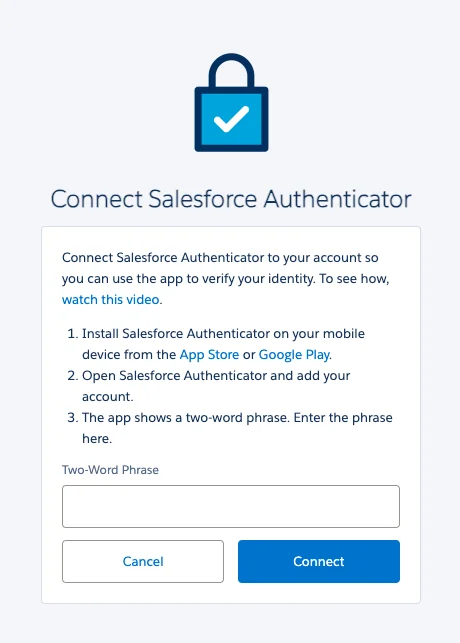
The official procedure is available in Register Salesforce Authenticator as an Identity Verification Method. Users changing phones should disconnect the old registration or restore an existing backup before reconnecting the account.
MFA Salesforce setup with a third-party TOTP app
For an MFA Salesforce deployment that uses a third-party authenticator, the user scans the enrollment QR code or enters the displayed setup key into an app that supports time-based one-time passwords. The app then generates a short-lived code that the user enters during login.
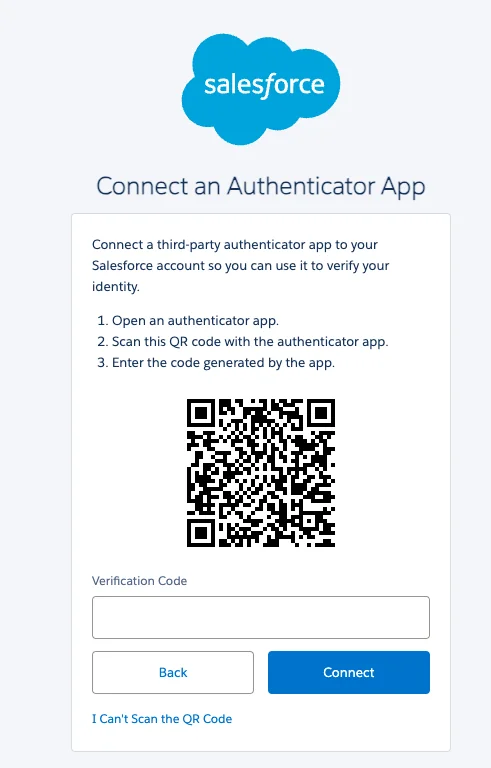
TOTP depends on synchronized time. If valid-looking codes fail, confirm that the device date and time are set automatically. Do not save the QR code or setup key in a ticket, shared document, or chat channel because either item can be used to reproduce the code generator.
Built-in authenticators and passkeys
A built-in authenticator uses WebAuthn and a passkey protected by the device. Examples include Touch ID, Face ID, and Windows Hello. Registration creates a public-private key pair. The private key and biometric data remain on the user’s device.

Review Enable Built-In Authenticators for Identity Verification before rollout. Browser, operating-system, device-management, and passkey-sync behavior can affect the user experience, so test each supported device profile.
Physical security keys
A physical security key is a hardware passkey that communicates through USB or NFC. It requires no mobile app and no code entry. This method works well for administrators, call-center users who cannot carry phones, and break-glass accounts stored under controlled procedures.
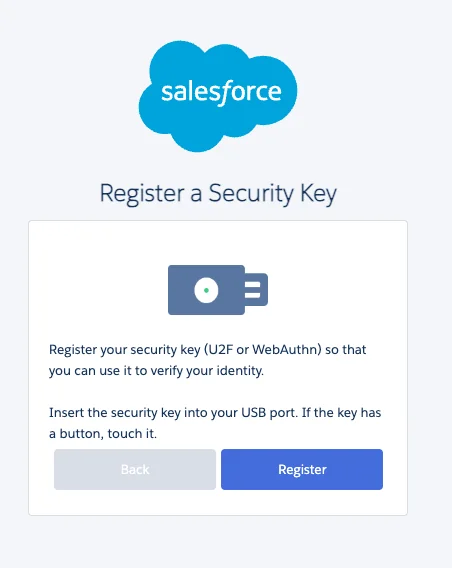
Confirm browser and connector support before purchasing keys. Salesforce describes the method in Security Keys for MFA.
How Do Admins Enable Salesforce Multi Factor Authentication?
In current Salesforce orgs, the direct-login MFA control is managed from Identity Verification settings. Before enforcing the policy, inventory login paths, pilot the selected methods, and prepare account-recovery procedures.
- From Setup, enter Identity Verification in Quick Find.
- Open Identity Verification.
- Confirm that Require multi-factor authentication (MFA) for all direct UI logins to your Salesforce org is selected.
- Review which verification methods are available to users.
- Confirm that MFA is classified as a high-assurance session method where required by the session policy.
- Test with a non-admin pilot user, an administrator, Salesforce mobile, and every approved browser.
The official setup path is documented in Enable MFA for Direct Login.
Configure the verification-method choices
Use the available-verifier settings to control which registration options users can select. In enterprise orgs, this decision should follow device ownership, support capacity, phishing risk, accessibility needs, and business-continuity requirements.
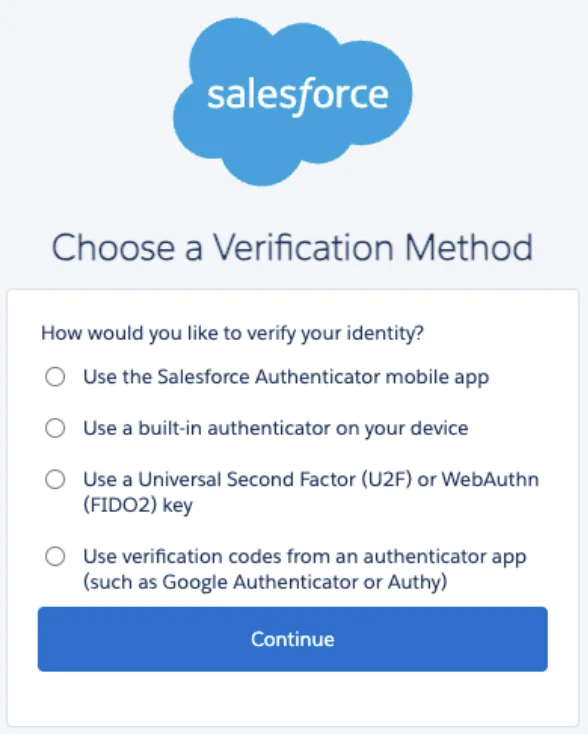
Salesforce documents these controls in Configure the MFA Verification Methods Available to Users.
How Should MFA Work with Salesforce SSO?
Single sign-on does not remove the MFA requirement. It changes the system that performs the challenge. The identity provider must apply an MFA policy to covered Salesforce logins, including users, networks, device states, and fallback paths that might otherwise bypass the challenge.
For a production SSO design, verify these points:
- The IdP policy requires MFA for all in-scope Salesforce users.
- Emergency accounts have a documented Salesforce-native MFA method.
- The My Domain authentication page does not expose an unintended direct-login bypass.
- Service accounts use non-interactive integration patterns rather than shared UI credentials.
- Policy exceptions have named owners, expiration dates, and audit evidence.
Do not treat email, SMS, or voice delivery as the preferred control for Salesforce access. Select methods listed by Salesforce as supported for the requirement, and favor passkey-based methods for privileged users.
How Do Users Register Backup MFA Methods?
Users should register more than one approved method when organizational policy allows it. A second method reduces help-desk dependency when a phone is replaced, a security key is unavailable, or a laptop passkey cannot be used.
A user can open personal settings, locate the identity verification or advanced user details area, and register another available method. Admins should publish a support matrix that states which combinations are allowed. For example, a managed-laptop passkey can be the daily method while a physical key is stored as the recovery method.
Do not make a single mobile phone the only recovery path for every administrator. In enterprise orgs, at least two controlled methods for privileged users provide a safer operational design.
How Do Admins Recover a User Locked Out by MFA?
When a user loses access to every registered method, an authorized administrator can generate a temporary identity verification code. Salesforce permits an expiration period from 1 to 24 hours. The admin can also disconnect an obsolete method so the user enrolls again at the next login.
- Verify the user’s identity through the organization’s support process.
- Open the user record in Setup.
- Generate a temporary verification code and set the shortest practical expiry.
- Send the code through an approved channel.
- Have the user sign in and register a permanent method.
- Expire the temporary code early if it is no longer needed.
- Record the recovery action in the support ticket or audit log.
See Generate a Temporary Verification Code for MFA Logins. Never issue a temporary code before completing identity verification. Otherwise, the recovery process becomes an account-takeover route.
Common Salesforce MFA Errors and Fixes
| Symptom | Likely cause | Resolution |
|---|---|---|
| Authenticator connection phrase is rejected | The phrase expired, was entered for a different account, or contains a typing error | Restart enrollment and enter the new phrase in the intended account |
| TOTP code fails repeatedly | Device clock drift | Enable automatic date and time, then try the next generated code |
| Windows Hello or Touch ID is not offered | The method is disabled, the browser is unsupported, device enrollment is missing, or a passkey policy blocks it | Confirm Salesforce settings, browser support, and operating-system configuration |
| Security key is not detected | Unsupported connector, browser permission, NFC state, or key registration mismatch | Test a supported browser and connector, then re-register if necessary |
| User replaced a phone | The old Salesforce Authenticator registration remains connected | Restore from backup where available or have an admin disconnect the old method |
| SSO user is prompted twice | Both the IdP and Salesforce enforce separate challenges | Review the authentication architecture and keep one compliant enforcement path unless a step-up policy requires both |
Best Practices for an Enterprise MFA Rollout
- Pilot by persona. Test administrators, desktop users, mobile users, contractors, and restricted-device teams separately.
- Prefer phishing-resistant methods. Use built-in authenticators or physical security keys for privileged and high-risk access where feasible.
- Register recovery methods. Avoid a single point of failure for admins and service owners.
- Protect fallback login. Review My Domain, SSO, delegated authentication, and emergency access together.
- Separate human and machine access. Integrations should use connected apps, OAuth policies, certificates, or other supported non-interactive patterns.
- Train the help desk. Staff need a documented identity-check process before generating temporary codes or disconnecting methods.
- Review login evidence. Use Login History, identity events, and security monitoring to confirm that users follow the expected authentication path.
Related SalesforceTutorial references include Salesforce security model and access controls, Salesforce permission sets, Salesforce Login History troubleshooting, and Salesforce single sign-on configuration.
Salesforce MFA News and 2026 Changes
Salesforce MFA news administrators should track
The main Salesforce MFA news in 2026 is broader technical enforcement for employee users, including direct access to sandbox environments. Salesforce states that MFA is required for access to production and sandbox orgs. Admins should no longer treat sandbox authentication as outside the control baseline.
Salesforce also continues to steer customers toward phishing-resistant verification methods. Built-in authenticators and WebAuthn security keys are the methods to prioritize for administrators and other privileged users. Because enforcement behavior can change through release updates, review the current MFA enforcement preparation guidance and release documentation before each seasonal release.
This topic is configuration-driven rather than API-version-driven. There is no Apex or Metadata API example required to activate the direct-login control. Do not build custom Apex authentication logic to replace the platform MFA flow.
Frequently Asked Questions
Is Salesforce multi factor authentication required for sandboxes?
Yes. Salesforce states that MFA is required for direct access to production and sandbox orgs. Review sandbox users, test accounts, release-management users, and emergency admin accounts before enforcement affects deployment work.
Can Salesforce SSO satisfy the MFA requirement?
Yes, when the identity provider enforces a compliant MFA challenge for every covered Salesforce login. Admins must also close fallback paths that allow users to bypass the IdP policy.
Can a user complete Salesforce Authenticator setup on a new phone?
Yes. Restore the Authenticator backup when available, or disconnect the old registration and enroll the new device. Test the new connection before the old phone is retired.
What should an admin do when an MFA Salesforce user is locked out?
Verify the user’s identity, generate a temporary verification code with a 1-to-24-hour expiry, and help the user register a permanent method. Disconnect an obsolete registration when required.
Which Salesforce MFA method resists phishing?
Built-in authenticators and physical security keys are phishing-resistant because they use passkeys and bind the authentication response to the legitimate service rather than asking the user to copy a code.
Implementation Checklist
- Confirm direct-login MFA is enabled in Identity Verification settings.
- Document every production, sandbox, mobile, SSO, and emergency login path.
- Select approved methods by user persona and device policy.
- Provide at least one recovery option for privileged users.
- Test enrollment, login, phone replacement, lost-key, and temporary-code scenarios.
- Review Salesforce MFA news and seasonal release notes before each release.
- Audit exceptions and remove temporary bypasses after migration.