A case formula compares one expression with a list of exact values and returns the result paired with the first match. In Salesforce, use CASE() when one field value maps to one output, such as translating a Case status into a customer-facing message or converting a priority picklist into a numeric score.
The function works in formula fields, validation rules, Flow formula resources, report formulas, and other formula contexts that support it. It is not the same as creating a support Case record. This article covers the formula function first, then explains the separate question of how to create a Case in Salesforce.
What Is a Case Formula?
The Salesforce CASE() function evaluates one expression against ordered value-and-result pairs. When the expression equals a listed value, Salesforce returns the associated result. When no value matches, Salesforce returns the final fallback result.
CASE(
    expression,
    value1, result1,
    value2, result2,
    value3, result3,
    else_result
)| Argument | Purpose | Example |
|---|---|---|
expression |
The field, function result, text, or number to evaluate. | Status |
value |
An exact value that Salesforce compares with the expression. | "Escalated" |
result |
The output returned when the value matches. | "Manager review required" |
else_result |
The output returned when none of the listed values match. | "Standard handling" |
Salesforce documents CASE() as an exact-match function. It is suited to discrete values, not range comparisons such as “Amount is greater than 100,000.” For ranges and compound Boolean conditions, use IF(), AND(), or OR(), or place a CASE() inside an IF().
Case formula in Salesforce syntax rules
- The expression and each comparison value must be compatible.
- All possible results, including the fallback, must return a type compatible with the formula field return type.
- Text literals require quotation marks.
- The last argument is mandatory because it handles unmatched or blank expressions.
- For picklists,
CASE(Picklist_Field__c, ...)is supported in formula contexts documented by Salesforce.TEXT()is useful when another function needs the picklist as text.
Use Salesforce Help: CASE function and the complete formula function reference when checking supported syntax.
How to Build a Case Formula in Salesforce
- Open Setup, then select Object Manager.
- Choose the object that will own the formula, such as Case, Opportunity, or a custom object.
- Select Fields & Relationships, click New, and choose Formula.
- Enter the field label and select the return type that matches every possible result.
- Use the advanced formula editor to insert fields and functions.
- Enter the formula, click Check Syntax, and correct any type or reference errors.
- Set field-level security, add the field to layouts where needed, and save.
- Test records that cover every listed value, the fallback path, blanks, and unexpected values.
The setup path follows Salesforce’s formula-field process described in Build a Formula Field. For a guided exercise, see the Trailhead unit Enhance Data Display with Formula Fields.
SFDC case formula example for support status
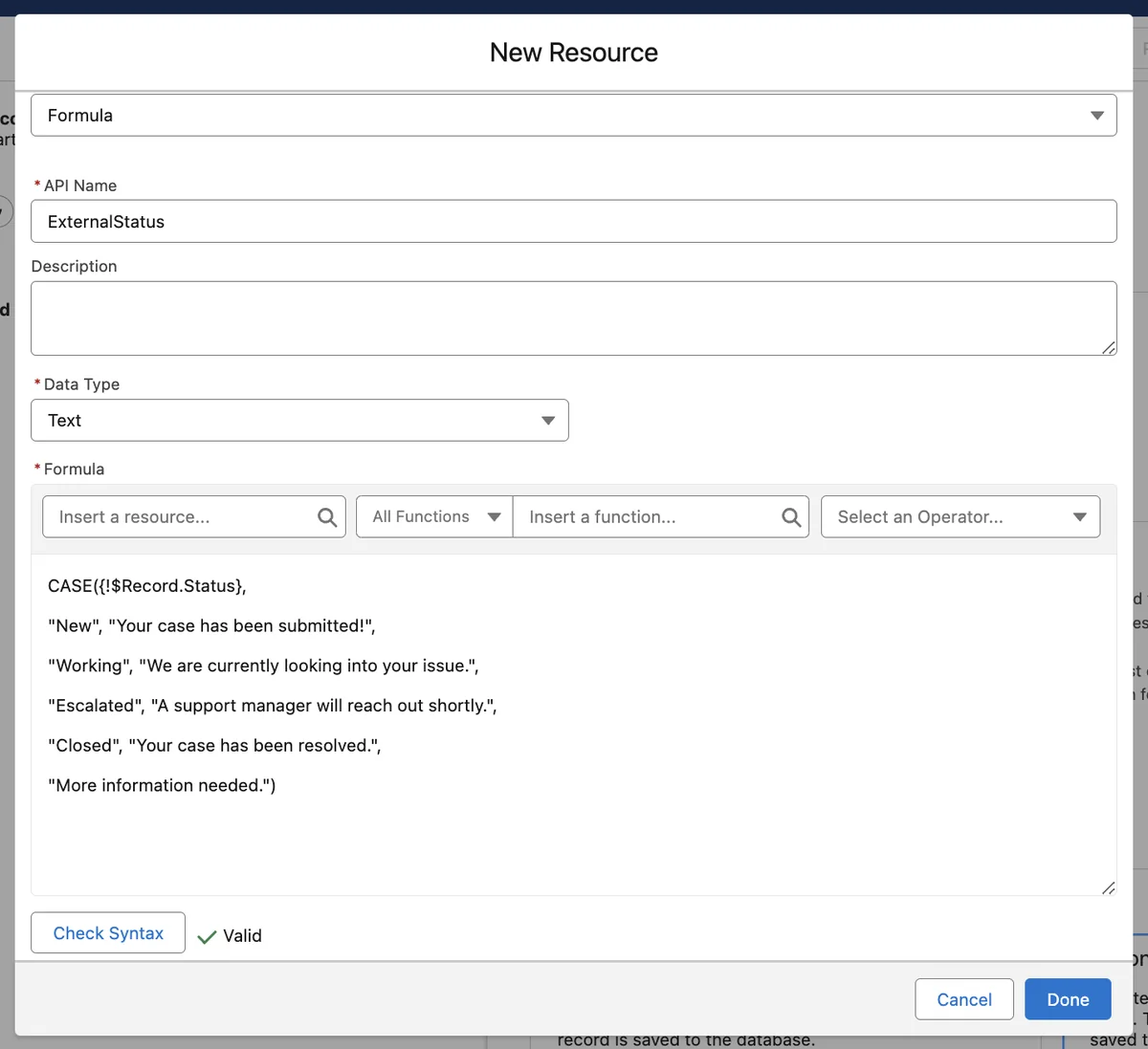
The phrase SFDC case often refers to the standard Case object used by Service Cloud. The following Text formula converts internal Case statuses into messages that are easier to place in an email template, screen flow, or Experience Cloud page.
CASE(
    Status,
    "New", "Your request is in the support queue.",
    "Working", "A support agent is reviewing your request.",
    "Escalated", "The request is under escalation review.",
    "Closed", "The support request is closed.",
    "Contact support for the latest status."
)
Keep the fallback meaningful. Administrators can add or rename status values later, and a blank fallback can hide a configuration gap.
Salesforce formula case example for response targets
This Salesforce formula case maps the standard Priority picklist to a response target. Create it as a Number formula with zero decimal places when downstream reporting or automation needs a numeric value.
CASE(
    Priority,
    "High", 4,
    "Medium", 12,
    "Low", 24,
    48
)
The result represents hours, but a formula field does not enforce an SLA or pause a clock. Use Entitlement Management, milestones, Flow, or other service-process automation when you need operational tracking rather than a display calculation.
Case Formula Examples for Common Salesforce Requirements
Map opportunity stages to forecast bands
CASE(
    StageName,
    "Prospecting", "Early",
    "Qualification", "Early",
    "Needs Analysis", "Middle",
    "Value Proposition", "Middle",
    "Closed Won", "Won",
    "Closed Lost", "Lost",
    "Other"
)
This pattern works when the requirement is a direct map from one stage to one category. It does not replace Forecast Categories, which Salesforce manages separately.
Convert a service channel into a routing code
CASE(
    Origin,
    "Phone", 10,
    "Email", 20,
    "Web", 30,
    "Chat", 40,
    99
)
A numeric code can simplify report sorting or integration mapping. Document the codes because a user viewing “30” cannot infer “Web” without context.

Group calendar months into quarters
CASE(
    MONTH(CreatedDate),
    1, "Q1",
    2, "Q1",
    3, "Q1",
    4, "Q2",
    5, "Q2",
    6, "Q2",
    7, "Q3",
    8, "Q3",
    9, "Q3",
    10, "Q4",
    11, "Q4",
    12, "Q4",
    "Unknown"
)
CreatedDate is a Date/Time value, and MONTH() returns its month number in supported formula contexts. This example creates calendar quarters, not an organization-specific fiscal calendar. For fiscal reporting, use Salesforce fiscal-period capabilities or a maintained mapping that matches the org’s fiscal configuration.
Return an image from a case formula
A Text formula can combine CASE() with IMAGE(). Use Salesforce-hosted static resources or another approved URL strategy rather than relying on undocumented platform image paths.
CASE(
    Health_Score__c,
    1, IMAGE("/resource/health_red", "Red health indicator", 16, 16),
    2, IMAGE("/resource/health_amber", "Amber health indicator", 16, 16),
    3, IMAGE("/resource/health_green", "Green health indicator", 16, 16),
    ""
)
Confirm that the static resources exist and that users can access the rendered output. The IMAGE() result is text or rendered image markup, so the enclosing formula must return Text.
Combine IF and CASE for range plus exact matching
IF(
    Amount >= 100000,
    CASE(
        StageName,
        "Prospecting", "Large - Early",
        "Qualification", "Large - Early",
        "Closed Won", "Large - Won",
        "Large - Active"
    ),
    "Standard Deal"
)
The outer IF() handles a range condition. The inner CASE() handles exact stage values. This is clearer than repeating the amount test in every branch.
When Should You Use CASE Instead of IF?
| Requirement | Preferred function | Reason |
|---|---|---|
| Map one field value to one result | CASE() |
It expresses a lookup-style mapping without repeated comparisons. |
| Evaluate greater-than, less-than, or ranges | IF() |
CASE() uses exact matches. |
| Evaluate several fields together | IF() with AND() or OR() |
The condition is Boolean rather than a single-value lookup. |
| Map many values maintained by business users | Custom Metadata plus automation or Apex | Configuration records can be easier to maintain than a large hard-coded formula. |
| Return a value in Flow only | Flow formula resource | A database formula field is unnecessary when no other process needs the result. |
Common Errors with a Case Formula
Incorrect parameter type
This error usually means that the expression, comparison values, or result values do not agree with the expected type. For example, a Number result cannot be mixed with a Text fallback in a Number formula.
/* Invalid for a Number formula because the fallback is text */
CASE(Priority, "High", 4, "Medium", 12, "Unknown")
/* Valid Number result */
CASE(Priority, "High", 4, "Medium", 12, 0)Formula returns the fallback unexpectedly
Check the exact stored picklist value, spelling, spaces, and whether the field is blank. Also confirm that the formula references the correct field and object relationship. The fallback is returned whenever no listed value matches.
Date formula shows an error
Salesforce documents a specific edge case in which a Date formula built with CASE() can evaluate invalid date expressions in nonmatching branches. When branch expressions can produce invalid dates, use nested IF() logic so only the required date branch is evaluated. See the official Salesforce Help article on Date formula fields using CASE.
Formula is too hard to maintain
A formula with dozens of business mappings may pass syntax checks but still be the wrong design. In enterprise orgs, move volatile mappings to Custom Metadata Types and read them from Flow or Apex when administrators need to change mappings without editing a large formula. Formula fields cannot dynamically query Custom Metadata records by an arbitrary key in the same way Apex can, so select the implementation pattern based on where the output is required.
Security, Performance, and Deployment Best Practices
- Set field-level security. Formula fields can expose information derived from other fields. Review who can see the formula output and the fields it references.
- Avoid treating a formula as access control. A formula can label a record as restricted, but it does not replace organization-wide defaults, sharing rules, restriction rules, permission sets, or Apex sharing.
- Keep mappings readable. Put one value-result pair per line and use a nonblank fallback where an unknown state matters.
- Test all paths. Include every known value, a blank, an obsolete value if data migration is possible, and the fallback.
- Deploy dependencies together. A formula fails deployment when referenced custom fields, relationships, or static resources are missing.
- Check compiled size. The editor reports formula-size issues. Reduce repeated expressions, simplify nesting, or move complex logic to another layer when necessary.
- Use tests for automated logic. Formula fields do not require an Apex test class by themselves, but Apex, Flow, validation rules, or integrations that depend on the result should be tested against representative values.
For broader guidance, review Salesforce’s formula best practices and formula-building tips.
How to Create a Case in Salesforce
How to create a Case in Salesforce from the user interface
The query how to create a Case in Salesforce refers to a service record, not the CASE() formula function. In Lightning Experience, a user with create permission on the Case object can open the Cases tab, click New, enter the required fields configured by the org, and save the record.
Common fields include Status, Case Origin, Contact, Account, Subject, and Description. The fields shown and their defaults depend on page layouts, record types, validation rules, assignment rules, and user permissions. A case formula may calculate a display value on the record after save, but it does not create the Case record.
Related Salesforce Tutorials
- Salesforce formula fields and return types
- Salesforce Case management configuration
- Salesforce Flow formulas and automation
- Salesforce validation rules with formula logic
Frequently Asked Questions
What does CASE do in a Salesforce formula?
A case formula compares one expression with listed exact values and returns the result paired with the first match. If no value matches, it returns the final fallback result.
Can CASE evaluate number ranges in Salesforce?
No. CASE() performs exact matching. Use IF() with comparison operators for ranges, then nest a case formula when you also need exact-value mapping.
Can I use a picklist directly in CASE?
Yes. Salesforce supports using a picklist as the expression in documented CASE() formula patterns. Ensure that each comparison text exactly matches the stored picklist value and that every result matches the formula return type.
Why does my Salesforce formula CASE return the else value?
The expression did not exactly match any listed value, or the expression was blank. Check the field reference, picklist value, spelling, spacing, and fallback behavior.
Is CASE in a formula the same as a Salesforce Case record?
No. CASE() is a formula function. A Salesforce Case is a service record used to track a customer issue or request. A case formula can calculate information on a Case record, but it does not create the record.