CRM document management in Salesforce means storing, linking, sharing, versioning, searching, and governing business files in the same context as accounts, opportunities, cases, contracts, and custom records. Salesforce Files covers the core file lifecycle, while libraries, Files Connect, Flow, Apex, Experience Cloud, and AppExchange solutions extend the design when an organization needs external repositories, approvals, retention controls, document generation, or large-scale storage.
The design decision is not simply “where should we upload a PDF?” A production implementation must define the system of record, file ownership, access model, version rules, external sharing, storage growth, legal retention, and integration behavior before users begin adding CRM documents.
What is CRM document management in Salesforce?
CRM document management connects files to the records and processes that give them meaning. A quote belongs to an opportunity, a signed agreement belongs to an account or contract, and a diagnostic log belongs to a case. Users should be able to find the file from the business record without knowing which object stores the binary content.
Salesforce Files uses a data model built around three objects:
| Object | Purpose | Implementation note |
|---|---|---|
ContentDocument |
Represents the logical file. | One document can have multiple versions and can be shared to multiple records. |
ContentVersion |
Represents one version and stores version-specific data. | Insert a new ContentVersion to upload a file or add a version. |
ContentDocumentLink |
Links the file to a user, group, library, record, or other supported entity. | A single file can be related to more than one Salesforce record without duplicating the binary file. |
Salesforce publishes the Salesforce Files data model and the object references for ContentVersion and ContentDocumentLink. These references should guide any Apex, API, migration, or reporting design.
How does document management in Salesforce work?
Document management in Salesforce with Files
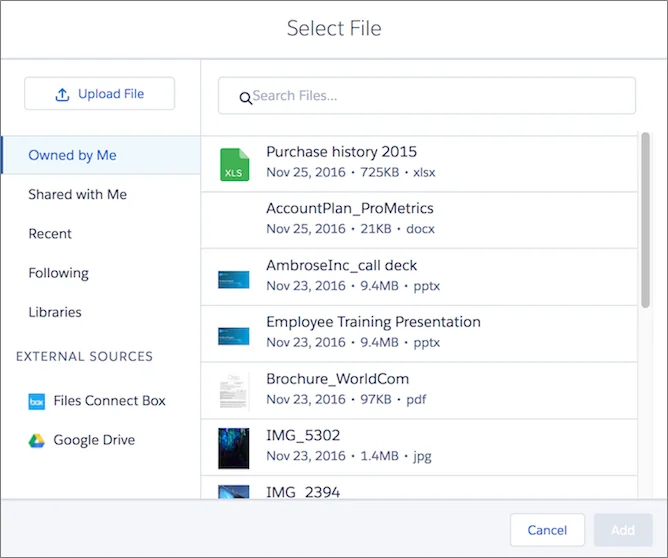
In Lightning Experience, Salesforce Files is the standard starting point for uploaded business files. Users can upload from Files Home or a Files related list, preview supported formats, share a file with people or groups, upload a new version, follow updates, and link the same file to more than one record.
For record-based work, add the Files related list to the Lightning record page or page layout. Salesforce recommends configuring uploads so that files added through legacy attachment areas are stored as Salesforce Files rather than as legacy attachments. New implementations should not design around the old Attachment object unless a migration or compatibility requirement forces it.
Salesforce document management system components
| Component | Use it for | Do not assume |
|---|---|---|
| Files Home | Personal and shared file discovery, recent files, ownership, and general file actions. | Files Home alone does not create a business taxonomy or retention policy. |
| Files related list | Files associated with an account, opportunity, case, custom object, or another supported record. | Record visibility does not automatically answer every file-sharing edge case; test the effective file access. |
| Libraries | Controlled collections of shared content with library membership and permissions. | A library is not a substitute for record-level process design. |
| Salesforce Knowledge | Versioned knowledge articles for internal or external support content. | A knowledge article is not the same data model as a general uploaded file. |
| Files Connect | Access and search supported external repositories from Salesforce. | The external repository’s permissions, authentication, indexing, and connector limits still apply. |
| Flow and Apex | Approvals, metadata capture, validation, routing, notifications, and integration logic. | Automation does not create legal compliance by itself. |
CRM documents and their record context
A common enterprise pattern is to keep one logical file and link it to every record that requires access. For example, a signed master agreement may be linked to the account, the originating opportunity, and a contract record. This avoids creating three independent copies that can drift apart.
Use a clear relationship rule:
- Link customer-wide documents to the account.
- Link transaction-specific documents to the opportunity, quote, order, or contract.
- Link support evidence to the case.
- Link controlled operational content to a library when access is membership-based rather than transaction-based.
Do not link every file to the account “for convenience.” That approach creates noise, broadens access, and makes lifecycle rules harder to enforce.
SFDC documentation versus business documents
The query SFDC documentation can mean two different things. Salesforce product documentation explains how the platform works; business documents are the files an organization stores in its Salesforce org. Keep these concepts separate in navigation, search labels, and governance. Admin runbooks, architecture decisions, and release procedures usually belong in a controlled knowledge or collaboration repository, while customer contracts and case evidence belong with CRM records.
How should you design a CRM document management architecture?
Choose the architecture by answering six questions before selecting a connector or package:
- What is the authoritative repository? Salesforce, SharePoint, Google Drive, Box, Amazon S3, an enterprise content platform, or another controlled store.
- Who needs access? Internal Salesforce users, partner users, customers, employees without Salesforce licenses, integration users, or auditors.
- How large and frequent are the files? Consider average file size, daily upload volume, version growth, preview needs, and bulk migration volume.
- Which controls are mandatory? Retention, legal hold, immutable archive, classification, encryption, regional storage, download restrictions, or audit evidence.
- Which processes touch the file? Generation, signature, approval, OCR, extraction, review, publication, and deletion.
- Where must users work? Lightning record pages, Experience Cloud, mobile, email, an external DMS, or a combined interface.
| Architecture | Best fit | Main trade-off |
|---|---|---|
| Salesforce Files only | Moderate file volumes, record-centric collaboration, standard sharing, and simple versioning. | File storage consumption and limited enterprise records-management controls. |
| Salesforce Files plus automation | Metadata capture, approval routing, naming standards, notifications, and process checks. | Custom logic must be tested and maintained across releases. |
| Files Connect | Files remain in a supported external repository while users discover and access them from Salesforce. | Authentication, connector capability, external search, and repository permissions shape the user experience. |
| Custom external storage integration | High volume, large files, specialized retention, or existing storage architecture. | Requires a secure integration, metadata synchronization, failure handling, and a clear deletion model. |
| AppExchange document platform | Document generation, e-signature, controlled templates, external collaboration, or packaged DMS features. | Licensing, vendor dependency, data residency, limits, and upgrade behavior require review. |
How do security and sharing work for Salesforce Files?
File security must be designed separately from object permissions. Record access, file ownership, direct sharing, library membership, Chatter sharing, public links, and Experience Cloud access can all affect whether a person can reach a file.
Apply these controls:
- Grant object and field permissions through permission sets and permission set groups rather than broad profiles where possible.
- Restrict who can upload, share, create public links, and manage libraries.
- Use Viewer or Collaborator access deliberately when sharing directly with users.
- Review
ContentDocumentLink.ShareTypeand visibility behavior before automating links. - Test as real internal and external personas. Administrator access is not a valid security test.
- Disable or limit public-link use when files contain customer, employee, financial, or regulated data.
Salesforce documents private sharing and Viewer or Collaborator access in Share Files with People in Lightning Experience. Public links can expose a file outside the org; the official File Privacy and Sharing documentation should be part of the security review.
Warning: A public URL is a distribution mechanism, not a substitute for authenticated customer access. Use expiration and password controls where available, and confirm that the feature meets the organization’s policy before enabling it.
How do you automate CRM documents with Apex?
Use Flow for declarative routing and notifications when the file event and required logic are supported. Use Apex when you need transactional control, complex metadata mapping, an API-facing upload service, or processing that exceeds Flow’s practical design limits.
The following Apex service inserts a Salesforce File and publishes it to a record through FirstPublishLocationId. It validates input, checks create access, and returns the created ContentDocumentId.
public with sharing class CrmDocumentService {
    public class DocumentException extends Exception {}

    public static Id uploadFile(
        Id parentRecordId,
        String fileName,
        Blob body
    ) {
        if (parentRecordId == null || String.isBlank(fileName) || body == null) {
            throw new DocumentException(
                'Parent record, file name, and file body are required.'
            );
        }

        if (!Schema.sObjectType.ContentVersion.isCreateable()) {
            throw new DocumentException(
                'The running user cannot create Salesforce Files.'
            );
        }

        ContentVersion versionRecord = new ContentVersion(
            Title = removeExtension(fileName),
            PathOnClient = fileName,
            VersionData = body,
            FirstPublishLocationId = parentRecordId
        );

        insert versionRecord;

        ContentVersion insertedVersion = [
            SELECT ContentDocumentId
            FROM ContentVersion
            WHERE Id = :versionRecord.Id
            WITH USER_MODE
            LIMIT 1
        ];

        return insertedVersion.ContentDocumentId;
    }

    private static String removeExtension(String fileName) {
        Integer dotPosition = fileName.lastIndexOf('.');
        return dotPosition > 0
            ? fileName.substring(0, dotPosition)
            : fileName;
    }
}
Governor-limit note: Do not call this method once per file from a loop. For batch uploads, accept a collection, perform bulk inserts, and query the inserted versions in one SOQL statement. Also account for Apex heap limits: passing large base64 payloads through synchronous Apex can fail before the file insert occurs. For larger files, use supported REST, UI API, or direct upload patterns instead of routing the entire payload through custom Apex.
Set the class API version to the version used by your org’s release and regression-test file behavior during each seasonal upgrade. The object model is stable, but permissions, UI behavior, connector support, and upload limits can vary by feature and edition.
How do you query files without creating performance problems?
Start from the relationship you know. To list recent files linked to one case, query ContentDocumentLink and select fields from ContentDocument.LatestPublishedVersion.
List<ContentDocumentLink> caseFiles = [
    SELECT ContentDocumentId,
           ShareType,
           Visibility,
           ContentDocument.Title,
           ContentDocument.FileType,
           ContentDocument.LatestPublishedVersionId,
           ContentDocument.LatestPublishedVersion.CreatedDate
    FROM ContentDocumentLink
    WHERE LinkedEntityId = :caseId
    WITH USER_MODE
    ORDER BY ContentDocument.LatestPublishedVersion.CreatedDate DESC
    LIMIT 200
];
Keep the filter selective, return only fields needed by the UI, and paginate when a record can hold many files. Do not retrieve VersionData in a list query. Binary content consumes heap and should be fetched only for a specific download or processing operation.
How should Files Connect and external storage be evaluated?
Files Connect can let users access and search supported external file sources from Salesforce. The setup includes enabling Files Connect, configuring an external data source and authentication, and granting users access to that source. Review the current Files Connect setup process because supported repositories and authentication requirements can change.
Evaluate an external repository against these criteria:
- Does Salesforce store a copy, a reference, or both?
- Which system controls permissions and revocation?
- Can Global Search find the external file and its metadata?
- What happens when a file moves, is renamed, or is deleted externally?
- Can Experience Cloud users access it?
- Are previews, mobile access, version history, and offline behavior supported?
- How are connector errors logged and retried?
Vendor integration examples for a Salesforce document management system
The following images represent document-platform brands commonly considered during DMS evaluations. They are not recommendations. Product packaging, connector architecture, licensing, supported clouds, and security controls change over time, so confirm each option in its current AppExchange listing and vendor documentation.




What are the best practices for CRM document management?
- Define a document taxonomy. Specify document type, business owner, related record, confidentiality, retention class, and status.
- Use metadata, not file names alone. A file named
Final_v7_revised.pdfcannot support reliable reporting or automation. - Keep one logical document. Use links and versions instead of copying the same binary file across records.
- Separate collaboration from records management. Version history helps collaboration, but legal retention and immutable archive requirements may need another control layer.
- Design external sharing as a process. Define who may publish, whether authentication is required, when access expires, and how access is revoked.
- Monitor storage. Salesforce file storage allocations vary by edition. Track growth, large files, duplicate uploads, and migration volume before storage pressure becomes an incident.
- Use asynchronous processing. OCR, virus scanning, extraction, classification, and large integrations should run outside the user transaction when possible.
- Preserve audit context. Record who uploaded, approved, replaced, published, or deleted a document and why.
- Test lifecycle events. Cover new upload, new version, relink, owner change, record deletion, user deactivation, public-link expiration, and repository outage.
For related platform design, see the SalesforceTutorial guides to Salesforce security model, Salesforce Flow automation, ContentDocumentLink in Salesforce, and Salesforce Files Connect setup.
What common errors occur with CRM documents?
| Problem | Likely cause | Correction |
|---|---|---|
| User sees the record but not the file | The file link, ownership, visibility, library membership, or external-repository permission does not grant access. | Inspect the effective file sharing path as the affected user. |
| Multiple “final” copies exist | Users upload a new file instead of a new version or reuse links. | Train users on version upload and automate duplicate detection where practical. |
| Apex upload fails for large files | Heap, request-size, or synchronous transaction limits are exceeded. | Use a supported direct upload or API pattern and process asynchronously. |
| Public link is unavailable | Org settings, permissions, library rules, edition, or file context does not permit the action. | Review Content Deliveries and Public Links settings and current Salesforce Help requirements. |
| External file cannot be found | Connector indexing, authentication, repository permissions, or search scope is incomplete. | Validate the external data source, identity, searchable fields, and connector logs. |
| Storage grows faster than expected | Large files, many versions, duplicate uploads, or migration design. | Measure version growth, apply lifecycle rules, and evaluate external storage where justified. |
Frequently Asked Questions
Can Salesforce be used as a document management system?
Yes, Salesforce Files, libraries, sharing, version history, search, Flow, and Apex can support record-centric CRM document management. Organizations that require immutable archives, legal holds, advanced retention, very large file volumes, or specialized collaboration should evaluate an external repository or document-management package.
What is the difference between Salesforce Files and Attachments?
Salesforce Files uses ContentDocument, ContentVersion, and ContentDocumentLink and supports versioning and sharing across records. Attachments use the legacy Attachment object and have a narrower relationship model. New Lightning implementations should use Salesforce Files unless a documented compatibility requirement applies.
Can one Salesforce file be linked to multiple records?
Yes. Create additional ContentDocumentLink records for the same ContentDocument. This lets one logical file appear on multiple supported records without uploading duplicate binaries.
Does record access automatically grant access to every linked file?
No. File access depends on the link, sharing mode, file ownership, library membership, user type, and other settings. Test the complete sharing path with the actual user persona rather than assuming that record access and file access are identical.
When should CRM documents be stored outside Salesforce?
External storage is worth evaluating when file size, volume, retention, legal hold, data residency, enterprise search, or non-Salesforce access requirements exceed the fit of Salesforce Files. Keep Salesforce record context and repository metadata synchronized so users can still find the document from the CRM process.