Avochato is a business messaging platform that can connect text, chat, and calling activity with Salesforce records. A Salesforce implementation can expose the messaging inbox inside Lightning Experience, associate conversations with Leads or Contacts, synchronize selected data, and invoke package actions from Flow where the installed package supports them.
This guide explains how to assess, configure, secure, test, and operate the integration. Package capabilities, object names, licensing, carrier requirements, and available channels can change, so confirm each option in the installed package and the current Avochato for Salesforce documentation before designing production automation.
What is Avochato for Salesforce?
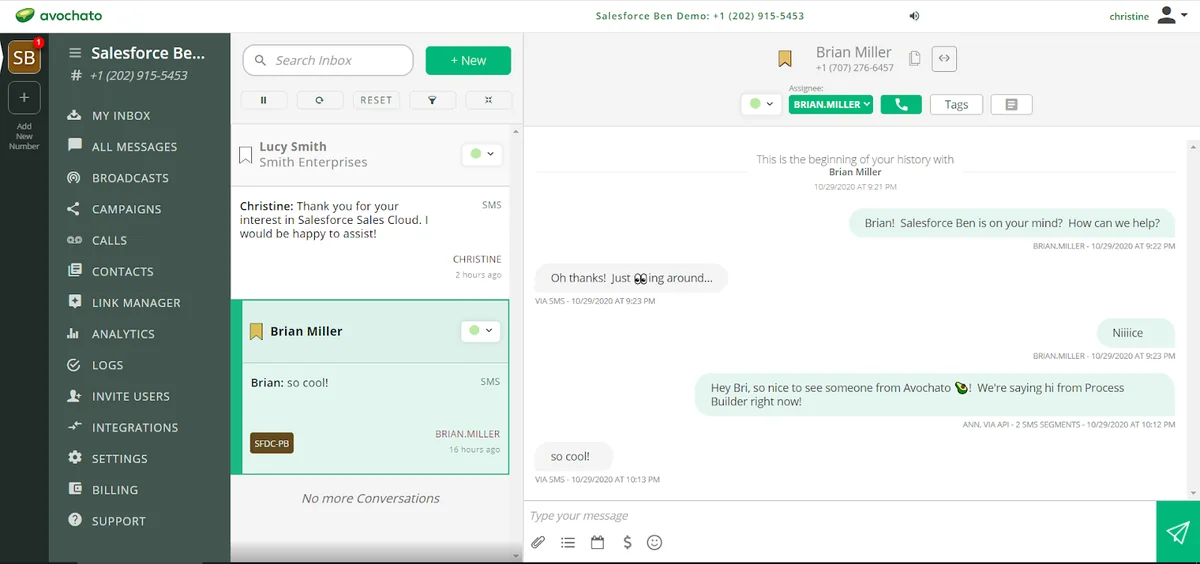
Avochato for Salesforce is an AppExchange integration that brings customer messaging into a Salesforce workflow. Depending on the package version and configuration, users can work from an Avochato tab, a Lightning component on a record page, a Lightning utility, or the external inbox while synchronized activity remains available in Salesforce.
The integration is most useful when a team needs a shared business number rather than messages stored on an employee’s personal phone. It also gives administrators a defined place to apply record matching, access controls, ownership rules, consent checks, and reporting.
| Requirement | Implementation question | Salesforce design impact |
|---|---|---|
| One-to-one messaging | Which users can send from each business number? | Package license, permission set, inbox membership, and record access |
| Shared inbox | Who owns an incoming conversation? | Queue, user, Case owner, Lead owner, or routing policy |
| Activity history | Should each message create an activity or be grouped? | Storage, reporting volume, API use, and timeline readability |
| Record creation | What happens when a phone number has no match? | Lead creation, duplicate management, assignment rules, and required fields |
| Automation | Which events may send an outbound message? | Flow entry criteria, consent checks, recursion controls, and fault handling |
Where can users access Avochato in Salesforce?
Avochato Lightning tab
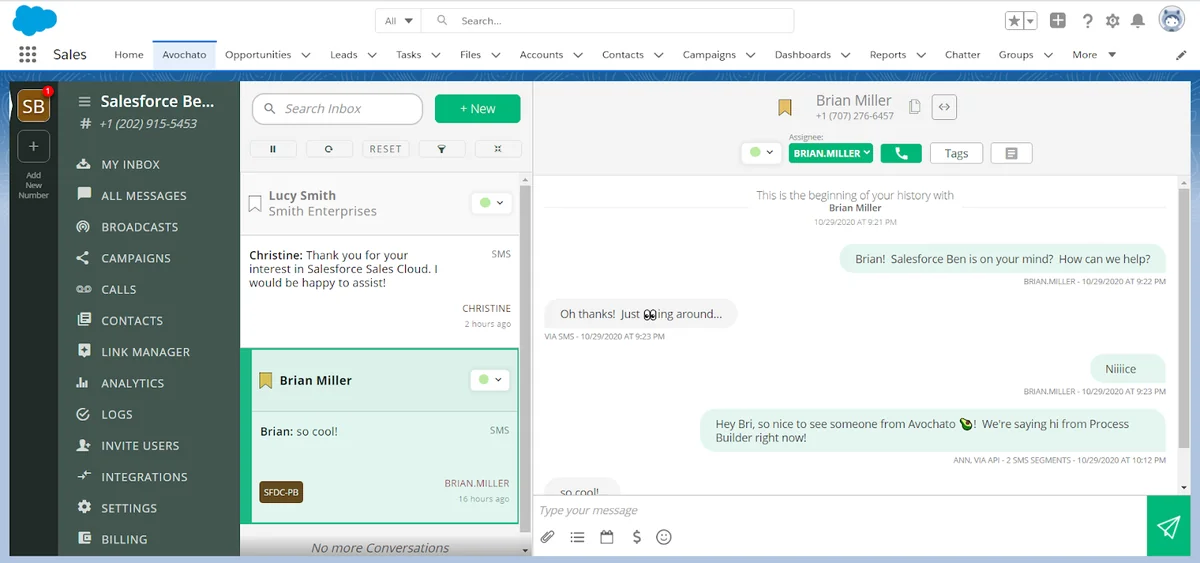
An installed package can provide a navigation item that opens the messaging workspace inside a Salesforce app. Add the item only to apps used by licensed and authorized users. A tab is suitable for agents who spend part of their day managing an inbox rather than working from one record at a time.
Lightning record page component
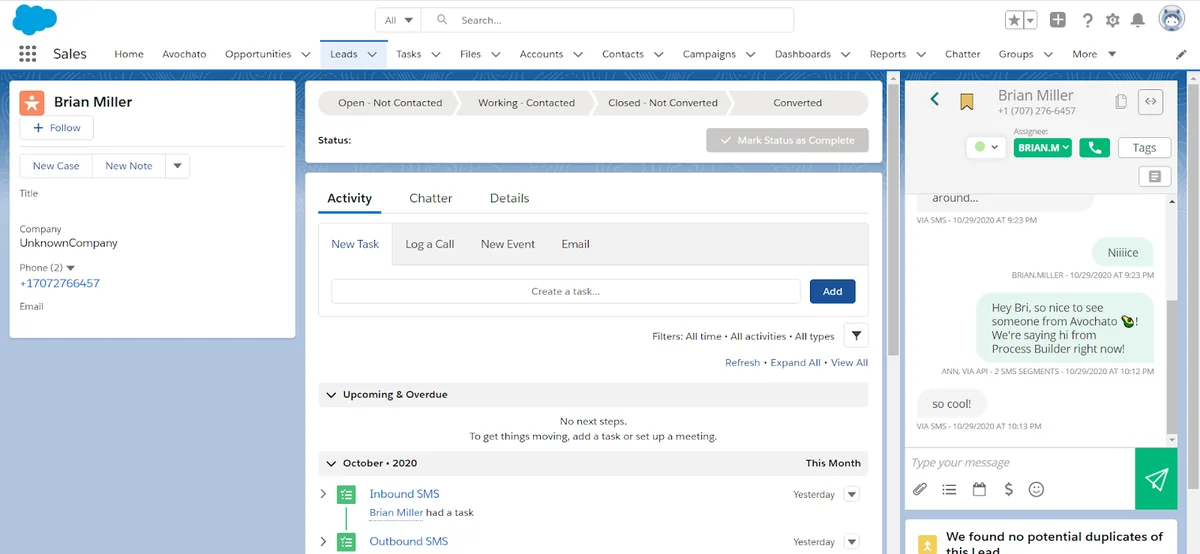
A record-page component keeps messaging beside the Lead, Contact, Account, Case, or another supported record. Add the component through Lightning App Builder and apply component visibility rules when only some users or record types should see it.
Do not treat component visibility as a security boundary. Users also need the applicable package permission, object permission, field access, record access, and Avochato account authorization.
Lightning utility bar
A utility bar keeps the messaging component available while users move between records in the same Lightning app. Salesforce documents utility configuration under Add a Utility Bar to Lightning Apps.
- In Setup, open App Manager.
- Edit the Lightning app used by the messaging team.
- Open Utility Items.
- Add the Avochato utility supplied by the package.
- Set panel dimensions and startup behavior.
- Confirm that the app is assigned only to intended profiles or users.
How does the Avochato shared inbox model work?
Avochato documentation uses an account or inbox concept for a business messaging workspace associated with one or more communication numbers. This term is separate from the Salesforce Account object. Document the distinction in administrator runbooks because the duplicate terminology can cause configuration mistakes.
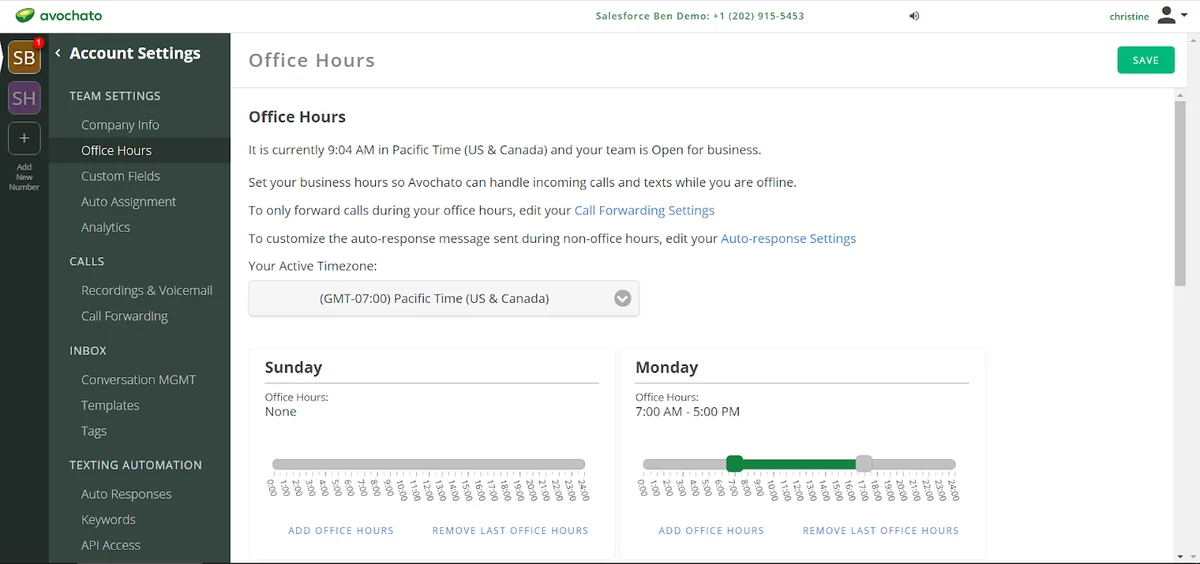
Each inbox can have its own members, routing behavior, templates, integrations, office-hour settings, and sending identity. In a multi-department deployment, use separate inboxes when teams require different numbers, access boundaries, compliance wording, ownership rules, or Salesforce mappings.
Recommended ownership model
| Scenario | Suggested conversation ownership | Salesforce alignment |
|---|---|---|
| Inbound sales enquiry | Lead owner after record matching | Lead assignment and territory rules |
| Support request | Case owner or support queue member | Case assignment and escalation process |
| Appointment coordination | Assigned coordinator | Contact, appointment, or work record owner |
| Unmatched number | Triage queue | Duplicate check before creating a Lead |
Use automatic assignment only after defining what happens when the Salesforce owner is inactive, absent, unlicensed for the package, or not a member of the relevant inbox.
How do you plan the Avochato Salesforce integration?
1. Inventory objects and phone fields
List every Salesforce object that may participate in messaging. For each object, record the preferred phone field, alternate phone fields, country source, consent field, opt-out field, owner field, and duplicate rule.
Do not match records by the displayed phone string without testing normalization. The same number can be stored with spaces, brackets, a national prefix, or an international country code. Define one canonical format for matching and outbound use.
2. Decide whether Salesforce or Avochato owns each value
| Data element | Typical source of truth | Reason |
|---|---|---|
| Lead or Contact owner | Salesforce | Assignment, territory, and record-access rules normally run there |
| Business number membership | Avochato | The messaging platform controls inbox access |
| Messaging consent | Salesforce or a consent platform | Salesforce automation needs a queryable eligibility value |
| Conversation status | Avochato | The inbox controls active and closed messaging work |
| Case status | Salesforce | Service processes, milestones, and reporting depend on it |
3. Select the activity storage pattern
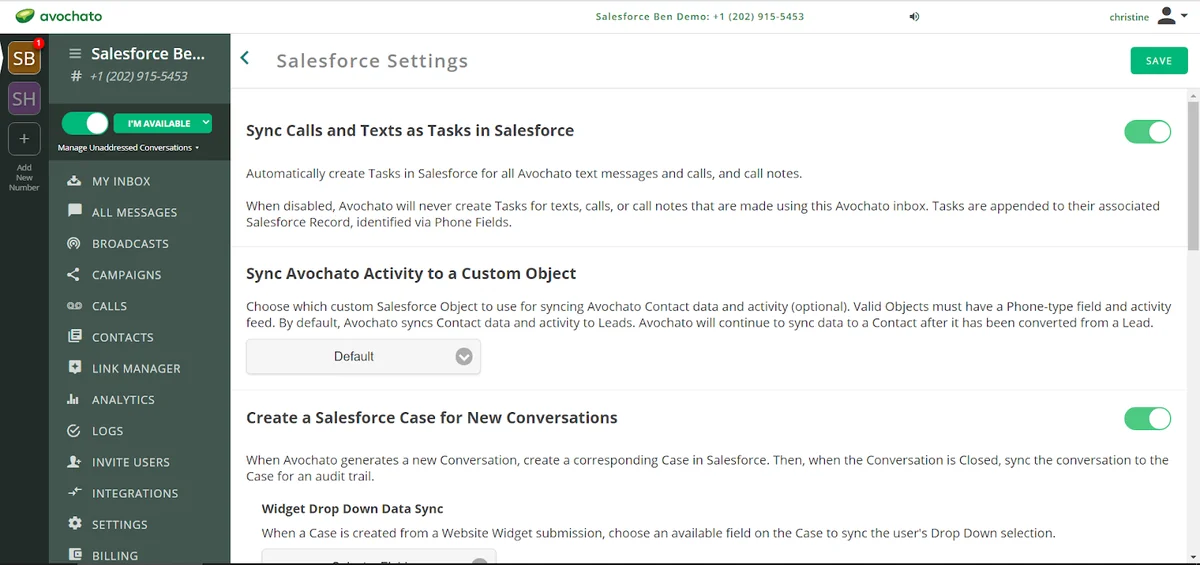
The package may support syncing calls, messages, notes, summaries, or grouped conversation information. Avoid enabling every available activity option without estimating volume. One Task per message can make the activity timeline noisy and increase storage and reporting load. Grouped activity or a package custom object can be more suitable for high-volume inboxes, subject to the capabilities of your installed version.
4. Configure user-specific credentials where required
Avochato documents user-specific API credential synchronization for attributing messages to an individual user and limiting that user to authorized inboxes. Do not place shared API secrets in custom fields, Flow text constants, Apex source, or Custom Labels. Follow the package’s supported credential process.
How do you install and configure Avochato safely?
- Use a sandbox first. Install the package in a sandbox that represents production metadata and sharing.
- Review the package listing. Confirm editions, license terms, package permissions, supported objects, and current release notes on the official Avochato AppExchange listing.
- Limit installation access. Prefer installation for administrators or selected profiles until permission sets and testing are complete.
- Connect a non-personal integration user. Use a dedicated Salesforce user when the package supports that model. Grant only the permissions required by the selected synchronization features.
- Assign package licenses. Give interactive access only to users who need to open or send through the package.
- Assign permission sets. Use permission sets instead of broad profile changes. Salesforce recommends permission sets for extending user access without modifying the base profile.
- Configure record matching. Test duplicate numbers, Person Accounts, converted Leads, blank phone fields, and international formats.
- Add Lightning components. Configure the tab, record-page component, or utility only after access controls work.
- Enable synchronization incrementally. Start with one inbox, one object, and a small pilot group.
Deployment warning: A successful package installation does not prove that users can access the same records, inboxes, phone numbers, credentials, or metadata in the target org. Include post-deployment configuration in the release checklist.
How should website messaging be connected to Salesforce?
A website widget can provide a path for a visitor to start a conversation. Before deployment, define what information the widget collects, how consent is recorded, which inbox receives the conversation, and what Salesforce record should be created or updated.

Do not create a new Lead for every incoming number without duplicate controls. A safer design attempts an exact normalized-phone match, checks permitted objects in a defined order, and sends ambiguous matches to a triage process.
How do Avochato templates work with Salesforce data?
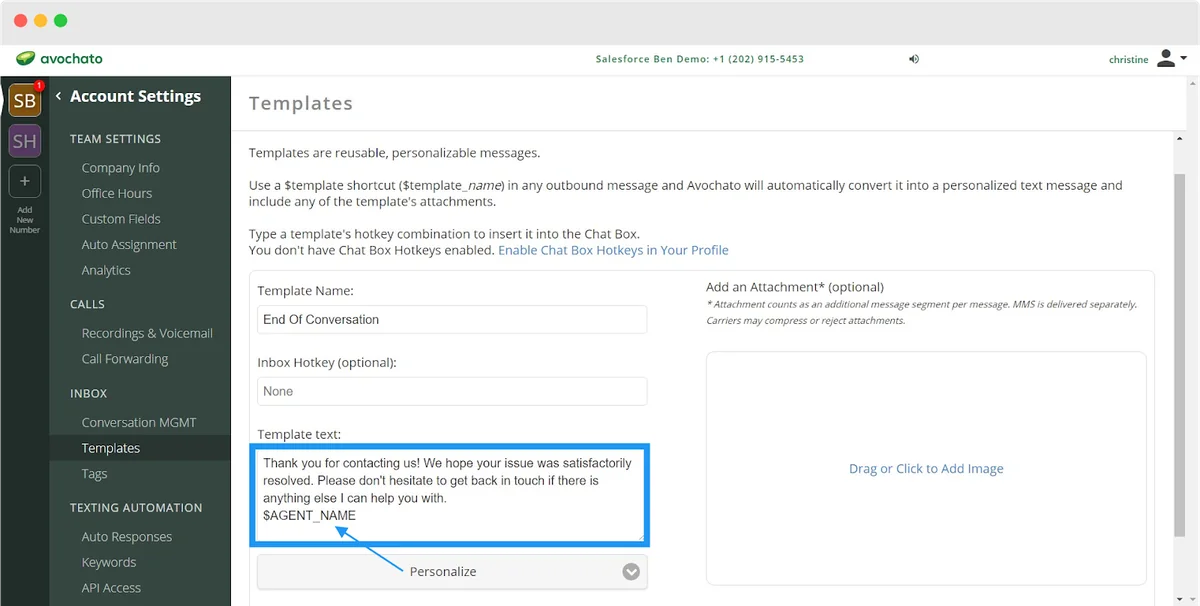

Message templates reduce repeated typing and help teams use approved wording. Variables can insert supported contact or agent values, but administrators should test the output when a source field is blank, too long, formatted unexpectedly, or unavailable to the sending user.
Template governance checklist
- Identify an owner for each template.
- Store the business purpose and approved audience.
- Specify required consent and permitted sending hours.
- Test variable substitution with blank and multilingual data.
- Include opt-out wording where required by the applicable channel and jurisdiction.
- Review links, phone numbers, and dates before each campaign or release.
- Retire obsolete templates instead of leaving similar versions active.
How can Salesforce Flow automate Avochato processes?
The installed package can expose invocable actions for supported operations such as contact synchronization or tag changes. Current Avochato documentation describes Flow-based synchronization and package actions, but the exact action names and inputs depend on the package version.
Use Flow Builder rather than starting new Process Builder automation. Salesforce has moved declarative automation development toward Flow, and existing Process Builder processes should be assessed for migration.
Example: determine whether a Contact is eligible for messaging
Create explicit fields rather than burying consent logic in several flows. The following example assumes custom fields named SMS_Consent__c, SMS_Opt_Out__c, and SMS_Consent_Expires_On__c. Adapt the API names and legal rules to your implementation.
AND(
    SMS_Consent__c,
    NOT(SMS_Opt_Out__c),
    NOT(ISBLANK(MobilePhone)),
    OR(
        ISBLANK(SMS_Consent_Expires_On__c),
        SMS_Consent_Expires_On__c >= TODAY()
    )
)
A record-triggered Flow can evaluate the same conditions before calling an Avochato package action. Add a fault connector that writes a controlled error record or sends an administrator notification. Do not let a messaging callout prevent the underlying business transaction unless the message is part of the transaction’s required outcome.
Recommended Flow sequence
- Run only after the triggering record meets narrow entry conditions.
- Check that the phone field is populated.
- Check consent, opt-out, country, and message-purpose rules.
- Check whether the same message has already been requested.
- Invoke the installed Avochato action.
- Capture the action result or fault.
- Update a status field only after the call succeeds.
Apex selector for bulk eligibility checks
The following Apex class does not send a message. It returns Contacts that pass an organization’s pre-send eligibility fields so a Flow or service layer can process them in bulk. The example uses user-mode SOQL, available in modern Apex API versions, to enforce object and field permissions during the query. Set the class API version to a version supported by your org and regression-test behavior during each release upgrade.
public with sharing class MessagingEligibilityService {
    public class Request {
        @InvocableVariable(required=true)
        public Id contactId;
    }

    public class Result {
        @InvocableVariable
        public Id contactId;

        @InvocableVariable
        public Boolean eligible;

        @InvocableVariable
        public String reason;
    }

    @InvocableMethod(label='Evaluate SMS Messaging Eligibility')
    public static List<Result> evaluate(List<Request> requests) {
        Set<Id> contactIds = new Set<Id>();
        for (Request requestItem : requests) {
            if (requestItem != null && requestItem.contactId != null) {
                contactIds.add(requestItem.contactId);
            }
        }

        Map<Id, Contact> contactsById = new Map<Id, Contact>([
            SELECT Id, MobilePhone, SMS_Consent__c, SMS_Opt_Out__c,
                   SMS_Consent_Expires_On__c
            FROM Contact
            WHERE Id IN :contactIds
            WITH USER_MODE
        ]);

        List<Result> results = new List<Result>();
        Date todayValue = Date.today();

        for (Request requestItem : requests) {
            Result response = new Result();
            response.contactId = requestItem == null ? null : requestItem.contactId;
            Contact contactRecord = contactsById.get(response.contactId);

            if (contactRecord == null) {
                response.eligible = false;
                response.reason = 'Contact was not found or is inaccessible.';
            } else if (String.isBlank(contactRecord.MobilePhone)) {
                response.eligible = false;
                response.reason = 'Mobile phone is blank.';
            } else if (!contactRecord.SMS_Consent__c) {
                response.eligible = false;
                response.reason = 'SMS consent is not recorded.';
            } else if (contactRecord.SMS_Opt_Out__c) {
                response.eligible = false;
                response.reason = 'Contact has opted out.';
            } else if (contactRecord.SMS_Consent_Expires_On__c != null
                    && contactRecord.SMS_Consent_Expires_On__c < todayValue) {
                response.eligible = false;
                response.reason = 'SMS consent has expired.';
            } else {
                response.eligible = true;
                response.reason = 'Eligible for the configured messaging process.';
            }
            results.add(response);
        }
        return results;
    }
}
Governor-limit note: The class performs one SOQL query for the full request collection and contains no query or DML statement inside a loop. A production deployment also requires tests for bulk input, inaccessible records, blank numbers, opt-out, expired consent, and eligible Contacts. Salesforce requires at least 75% aggregate Apex code coverage for production deployment, but each class should be tested for behavior rather than targeting the percentage alone.
What security controls does an Avochato implementation need?
- Least privilege: Grant package licenses, permission sets, inbox membership, and Salesforce object access only to required users.
- CRUD and field-level security: Confirm access for every object and field read or updated by users, Flow, Apex, and the integration user.
- Record sharing: Decide whether a user may see a conversation when the related Lead, Contact, or Case is not shared with that user.
- Credential protection: Use the package’s supported connection process. For custom callouts, use External Credentials and Named Credentials rather than source-code secrets. Salesforce explains this model in the Named Credentials developer guide.
- Consent enforcement: Block sends when consent is missing, expired, withdrawn, or outside the defined purpose.
- Auditability: Record who initiated an automated send, the source record, the automation version, and the result.
- Data retention: Define how long message content, attachments, summaries, activities, and failure logs remain available.
What should you test before deploying Avochato?
| Test area | Required cases |
|---|---|
| Record matching | Lead only, Contact only, Person Account, duplicate number, converted Lead, international number, blank number |
| Permissions | Administrator, licensed agent, unlicensed user, read-only user, user without record access |
| Messaging | Inbound, outbound, reply, attachment, failed delivery, opt-out, closed conversation |
| Automation | Bulk update, duplicate event, paused Flow, package action fault, integration-user failure |
| Ownership | Queue owner, inactive owner, owner outside the inbox, reassignment, Case closure |
| Deployment | Missing credentials, permission-set assignment, Lightning activation, app navigation, scheduled jobs |
Measure Salesforce API consumption, Task or custom-object growth, asynchronous backlog, automation failures, and unmatched-number rates during the pilot. Use a rollback plan that can disable outbound automation without uninstalling the package or deleting synchronized records.
Best practices for operating Avochato in enterprise orgs
- Use separate inboxes when departments require different access, numbers, or compliance policies.
- Keep Salesforce as the owner of CRM assignment data unless there is a documented reason to reverse that direction.
- Use one normalized phone strategy across imports, integrations, duplicate rules, Flow, and Apex.
- Do not send from a record-triggered Flow without idempotency protection.
- Queue high-volume operations when the selected package action and business process support asynchronous execution.
- Report failed or unmatched activity separately from successful conversations.
- Review package release notes and sandbox-test upgrades before production installation.
- Maintain a data dictionary for package objects, fields, statuses, and synchronization ownership.
- Review templates and automated messages with legal and business owners on a defined schedule.
For related platform configuration, see the guides to Salesforce permission sets, Salesforce Flow automation, Lightning App Builder, and Salesforce record security.
Frequently Asked Questions
What does Avochato do in Salesforce?
Avochato can expose business messaging inside Salesforce and synchronize supported conversation or contact data with Salesforce records. Available components, objects, actions, and channels depend on the installed package version, license, and inbox configuration.
Can Avochato create Salesforce activities?
The integration can support activity synchronization according to Avochato’s package documentation and configured options. Confirm whether your implementation creates individual Tasks, grouped activities, summaries, or package-object records before enabling high-volume synchronization.
Can Salesforce Flow send an Avochato message?
Salesforce Flow can use invocable actions exposed by the installed Avochato package. Check the action’s required inputs and outputs in Flow Builder, enforce consent before the action, add a fault path, and test bulk-triggered transactions in a sandbox.
Does every Salesforce user need an Avochato license?
Users who interact with Avochato components or send messages may require assigned package and vendor access. Background synchronization can have different licensing requirements. Verify the current terms in the AppExchange listing, package documentation, and your Avochato agreement.
How should Avochato match Leads and Contacts?
Use a documented normalized-phone strategy and define the search order for Leads, Contacts, Person Accounts, and supported custom objects. Ambiguous matches should go to a review path instead of updating an arbitrary record.
Should Avochato messages be stored as Salesforce Tasks?
Tasks work when users need messages in the standard activity timeline, but one record per message can create high data volume. Compare individual Tasks with grouped activities, summaries, or package custom objects before selecting the storage model.