App in Salesforce searches often refer to Salesforce In-App Guidance: the native Lightning feature for placing prompts and walkthroughs inside the pages where users work. An administrator can use it to explain a field, announce a process change, link to training, or guide users through a short sequence without building an Aura component or Lightning web component.
In-App Guidance works best for focused instructions delivered at the point of need. It should support a process rather than replace complete documentation, role-based training, validation rules, or a usable page design.
What Does App in Salesforce Mean for User Guidance?
Within this article, app in Salesforce means guidance displayed inside a Lightning Experience app or supported Experience Cloud page. Salesforce provides two main content structures:
- Single prompt: One message displayed at a configured location.
- Walkthrough: A sequence of prompts that users advance through in order.
The administrator writes the content, chooses where it appears, selects eligible users, defines scheduling behavior, and activates the guidance. Salesforce documents the feature in its In-App Guidance overview.
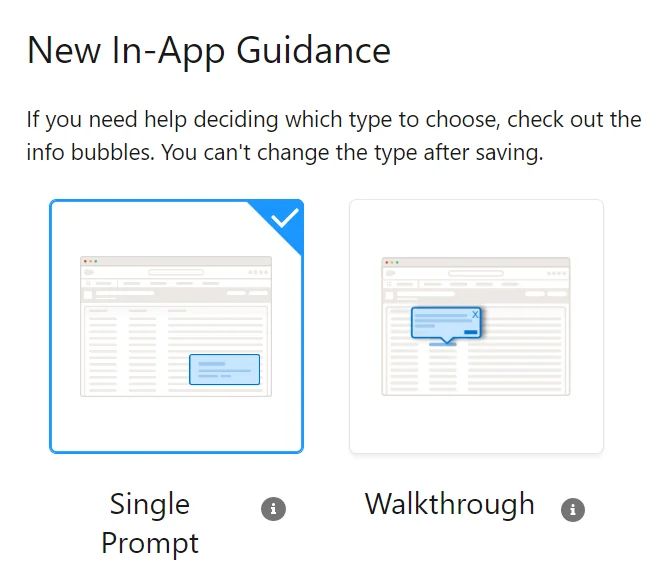
This feature is intended for short onboarding messages, feature discovery, process reminders, and contextual help. Salesforce Trailhead advises against using prompts for subjects that require extensive prerequisites, long explanations, or heavily personalized workflows. For those cases, use formal learning material, a knowledge article, a screen flow, or a redesigned process.
What Is Salesforce In App Guidance?
Salesforce in app guidance is a setup-managed layer of instructional content that appears over supported Salesforce pages. It does not change the underlying record, field configuration, sharing model, automation, or application code.
A prompt is presentation content, not an enforcement mechanism. For example, a targeted prompt can explain that sales representatives should complete Opportunity.NextStep, but it cannot ensure that the field contains a value. Use a validation rule, required field configuration, or automation when the requirement must be enforced.
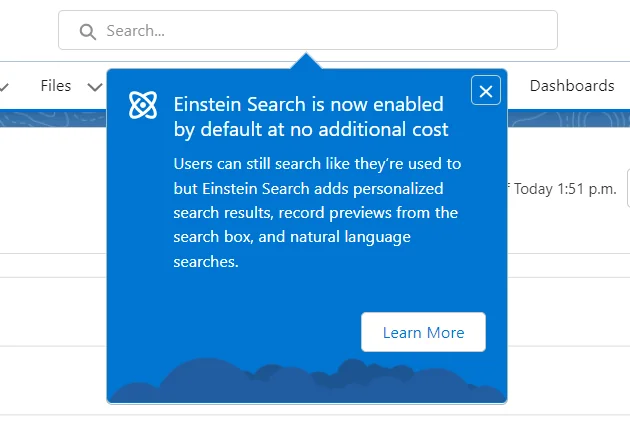
Permissions required to manage In-App Guidance
Salesforce documents administrative permissions such as Design and Deliver In-App Guidance and View Setup and Configuration for creating and maintaining guidance. Additional access can be required when the builder must inspect profiles, roles, apps, objects, or page elements.
In enterprise orgs, assign the required permissions through a permission set or permission set group rather than expanding a user profile. Keep authoring access separate from general business-user access, and test with a user whose permissions match the intended audience.
What In-App Guidance does not override
The feature does not bypass:
- Object permissions and field-level security.
- Record sharing, organization-wide defaults, sharing rules, or restriction rules.
- Lightning page activation and component visibility.
- Required fields, validation rules, duplicate rules, flows, or Apex logic.
- User access to external links, videos, files, or training systems referenced by a prompt.
A prompt can therefore appear while the referenced field or action remains unavailable to the user. Treat access validation as a required part of testing.
Which In-App Guidance Prompt Type Should You Use?
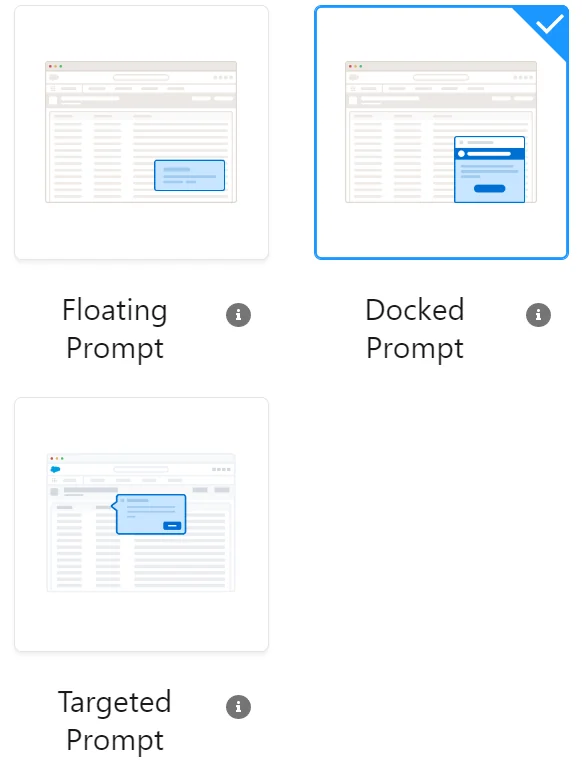

Salesforce supports floating, docked, and targeted prompt presentations. The correct choice depends on whether the message refers to the whole page, requires supporting material, or must point to a specific interface element.
| Prompt type | Use it for | Avoid it when |
|---|---|---|
| Floating prompt | Page-level notices, short reminders, or links that do not depend on one control | The user must identify a specific field or button |
| Docked prompt | Longer supporting text, formatted content, links, or an embedded video where supported | The message must remain visually attached to one element |
| Targeted prompt | Calling attention to a field, action, menu, tab, or supported page element | The target varies across page assignments or may be hidden by visibility rules |
In-App Guidance with a floating prompt
A floating prompt appears at a selected position without being anchored to a particular control. It suits a short announcement such as a revised case escalation policy or a link to release training.
Keep the message related to the current page. A generic company announcement shown on every record page interrupts work and provides little contextual value.
In-App Guidance with a docked prompt
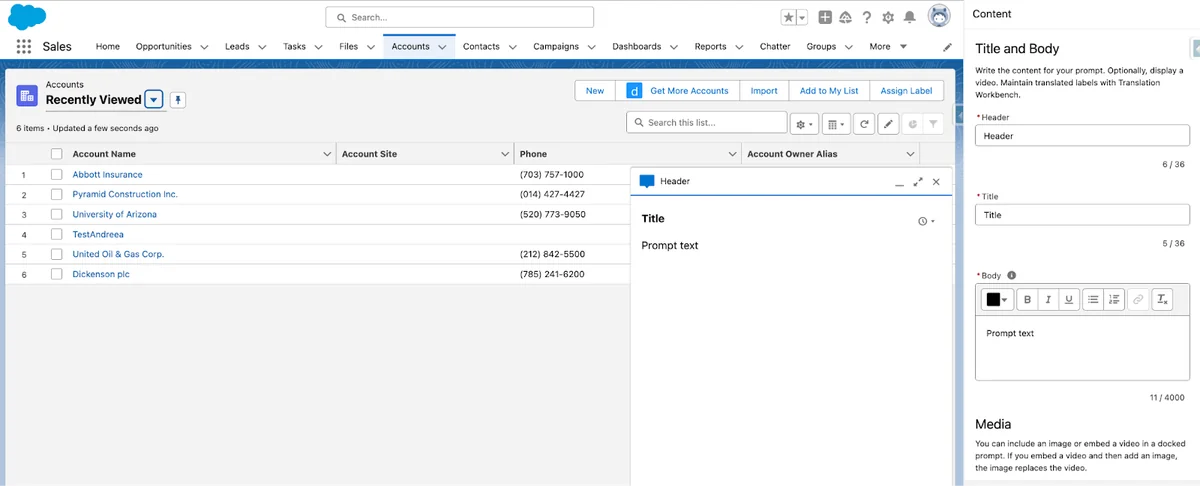
A docked prompt stays in a corner of the interface and can hold more material than a small callout. Salesforce documentation notes that docked prompts support richer formatting and can include a video where the configuration supports it.
Use this option for a brief explanation plus a link to a complete procedure. Do not paste an entire operating manual into the prompt. Users should be able to understand the required action within a few seconds.
Salesforce in app guidance with a targeted prompt
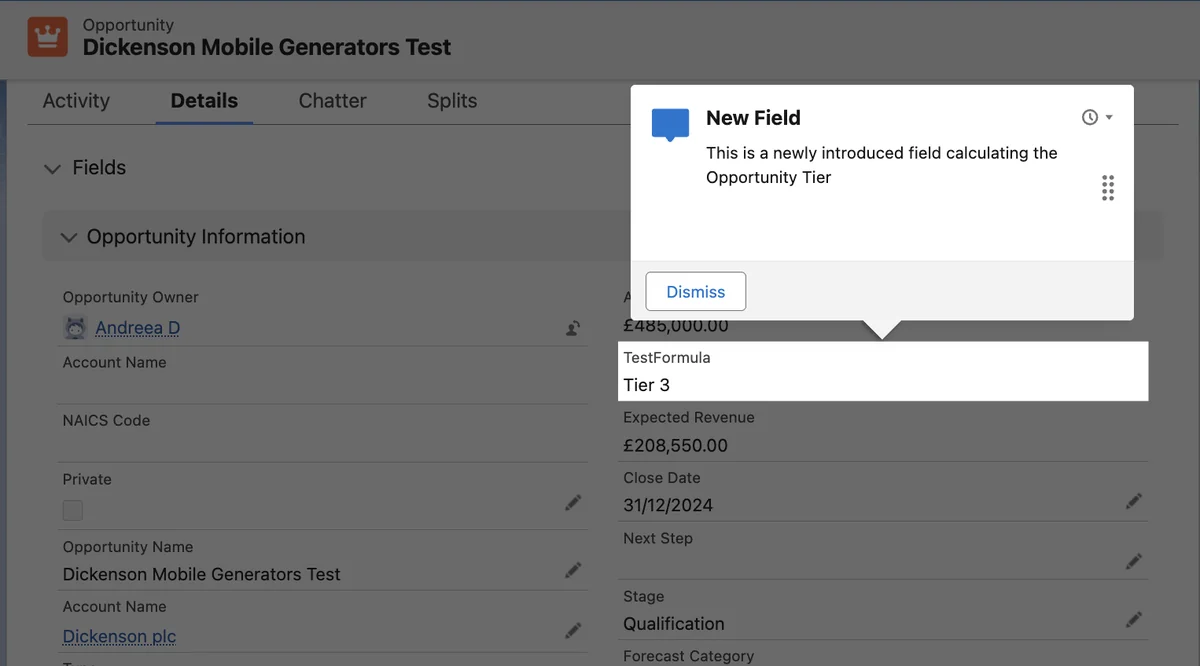
A targeted prompt points to a supported page element. It is appropriate when the instruction would be unclear without a visual anchor, such as introducing a new quick action or explaining a field added to an opportunity page.
Salesforce made targeted prompts generally available after their initial beta release. Salesforce also documents support for targeting fields on record pages, Dynamic Forms, and creation windows in supported contexts. Because supported targets and page behavior can change by release, verify the current In-App Guidance considerations before designing a deployment.
How Does an In App Walkthrough Work?
An in app walkthrough combines multiple prompt steps into one guided sequence. A step can explain the current page, identify an action, and continue after the user moves to another supported page. Salesforce documents walkthroughs that span pages and wait for required user actions before presenting later steps.
Use a walkthrough when users must understand a short sequence. Examples include introducing a revised lead qualification process, showing where to update opportunity stages, or explaining a new case handoff action.
Design limits for an in app walkthrough
Salesforce currently documents a maximum of 10 prompts in a walkthrough. A technical limit should not become a content target. In production implementations, three to five steps are usually easier to test and less disruptive than a 10-step tour.
Split longer processes into role-specific guidance or link to a detailed procedure. A walkthrough should explain the immediate task, not every variation of the business process.
Example walkthrough design
| Step | Location | Purpose | Completion signal |
|---|---|---|---|
| 1 | Opportunity record | Explain the revised qualification process | User selects Next |
| 2 | Targeted at Stage | Identify the stage that starts the review | User selects Next |
| 3 | Targeted at Next Step | Explain the required operational note | User updates the field |
| 4 | Record action area | Point to the approval submission action | User completes the walkthrough |
The walkthrough explains the interface, while field requirements and approval eligibility remain enforced through Salesforce configuration.
How to Configure App in Salesforce In-App Guidance
Build guidance in a sandbox first. The exact labels and available controls can vary by Salesforce release, enabled products, page type, and license.
1. Define one measurable user action
Write the desired outcome before opening Setup. A clear outcome is “Users select the new Escalate Case action when priority is Critical,” not “Users understand the service process.”
Map the guidance to the smallest useful behavior:
- The page where the user needs help.
- The element or action the user must notice.
- The audience that performs the task.
- The start and end dates for the message.
- The metric that indicates use or completion.
2. Open In-App Guidance in Setup
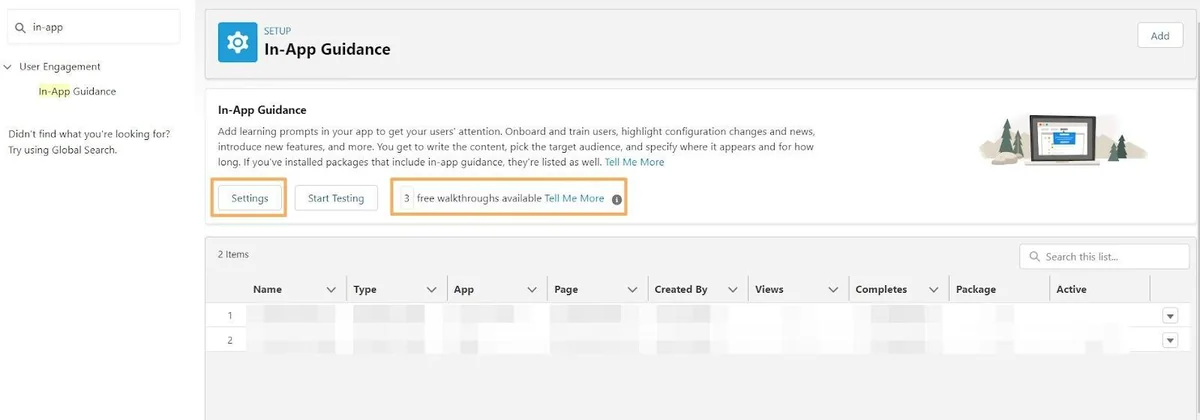
- Open Setup.
- Enter In-App Guidance in Quick Find.
- Select In-App Guidance.
- Choose the option to add new guidance.
- Select a single prompt or walkthrough.
The setup page also provides settings, existing guidance records, activation controls, URLs, and summary analytics. Salesforce maintains the detailed procedure in Create Prompts.
3. Select the app, page, and prompt location
Navigate in the builder to the page where the guidance belongs. Confirm whether it should appear only in the current app or on the same page across applicable apps.
This choice matters when one Lightning record page serves several applications. A message written for Sales users may be wrong in a service application even though both apps expose the same Account page.
4. Write the prompt content
Start with the action. Replace “A new process is now available” with “Select Request Review after completing the qualification fields.”
Good prompt content normally contains:
- A title that names the task.
- One reason the action matters.
- One instruction the user can complete on the current page.
- An optional link to documentation or training.
- A button label that describes the destination or action.
Salesforce provides additional writing recommendations in Tips for Writing Effective In-App Guidance.
5. Configure audience and schedule
Restrict the message to users who perform the process. Depending on the current builder options, audience criteria can use profiles and permissions. Validate the behavior in your org rather than assuming that a permission set name itself is an audience filter.
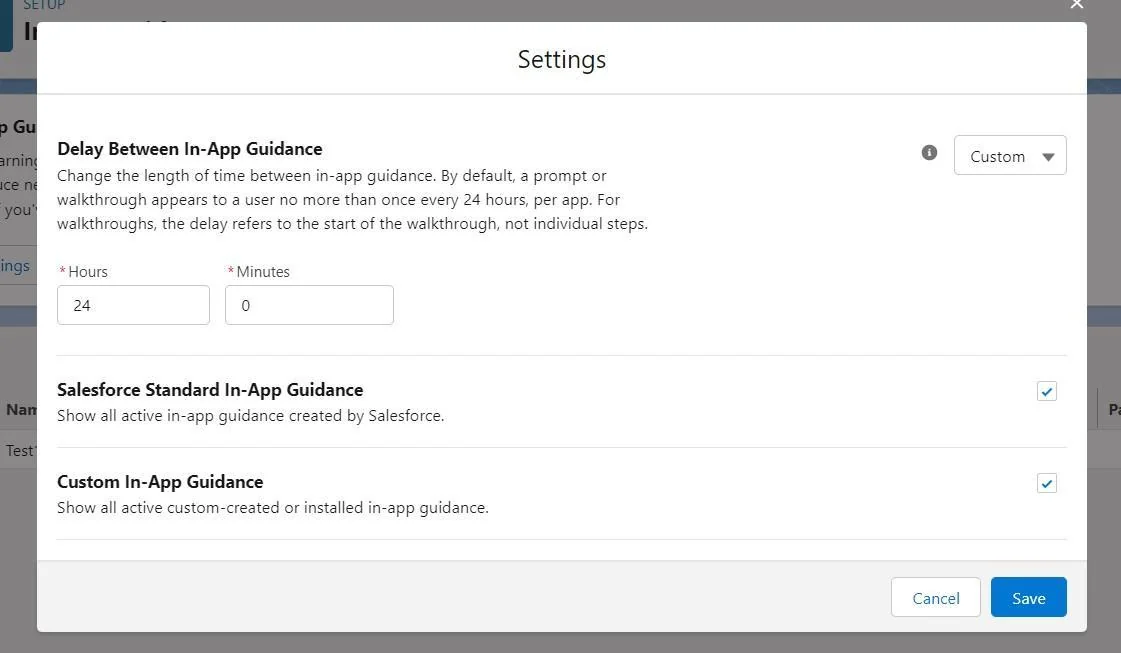
Set a schedule that matches the release or training period. Avoid leaving temporary change notices active indefinitely. Salesforce also applies an org-level delay between guidance displays; its documentation states that the default delay is 24 hours, meaning a user normally sees no more than one prompt or walkthrough per app during that delay.
6. Save with a maintainable API name
Use a name that identifies the process, audience, and purpose. For example:
Opportunity_Qualification_Review_FY26
Case_Critical_Escalation_Service_Agents
Lead_Conversion_Refresh_Sales_Users
Do not include a temporary employee name or an unexplained project code. Clear names make activation reviews, packaging, reporting, and retirement easier.
How to Test Salesforce In App Guidance
Preview mode confirms layout, but complete testing must also cover eligibility, page assignment, permissions, component visibility, browser size, and interaction with other active guidance.
Salesforce states that test mode ignores schedule settings, the global display delay, and user-interaction analytics. A prompt that works in test mode can therefore still fail to display under normal conditions.
Sandbox test checklist
- Test with the intended user profile and assigned permissions.
- Open the same app and page assignment used by the audience.
- Confirm that targeted elements are visible to the user.
- Test more than one record type when page layouts differ.
- Check common desktop widths and supported browsers.
- Confirm that links and videos are accessible under company network rules.
- Test dismissal, snooze, completion, and repeated-display behavior.
- Check whether Salesforce-provided guidance competes with the custom message.
- Verify the prompt after a page component or action is renamed.
- Repeat the test after deployment to production with a controlled audience.
Use Salesforce’s Preview and Test In-App Guidance documentation for the current testing controls.
Common reasons a prompt does not appear
| Symptom | Likely cause | Check |
|---|---|---|
| Prompt appears only in test mode | Schedule, delay, audience, prior interaction, or activation state | Review normal display settings and test with a new eligible user |
| Targeted prompt becomes floating | The target element is missing or unsupported | Check page assignment, quick actions, component visibility, and package dependencies |
| Some users never see the prompt | Audience criteria or page access differs | Compare profile, permissions, app access, record type, and Lightning page activation |
| Prompt points to the wrong location | The page changed after the prompt was built | Edit and retest the prompt after UI changes |
| Walkthrough stops between pages | The next page or required element does not match the configured path | Repeat the exact navigation as the target user |
How to Measure In-App Guidance Usage
The In-App Guidance Setup page provides summary information such as views and completion data. Salesforce also documents a custom report type based on the Prompt Action object for more detailed analysis.
Track metrics that match the business outcome:
- Views: Did eligible users encounter the guidance?
- Completion rate: Did users finish the walkthrough?
- Dismissal behavior: Are users closing the message before acting?
- Process result: Did the underlying data or action change after launch?
- Support impact: Did questions about the specific change decrease?
Prompt analytics alone do not prove process adoption. For example, walkthrough completion does not confirm that users entered valid opportunity data. Compare guidance metrics with record data, flow outcomes, report trends, and support cases.
Review the official Analytics for In-App Guidance documentation before creating the report type because available fields can evolve.
How to Evaluate In-App Guidance Software in 2025
The search phrase how to evaluate in-app guidance software in 2025 is still used, but evaluations performed in 2026 should use current Salesforce licensing, supported pages, limits, security requirements, and release documentation. Do not base a purchase decision on a 2025 feature matrix without rechecking each item.
Evaluation criteria for 2026
| Criterion | Questions to ask | Salesforce native check |
|---|---|---|
| Supported surfaces | Which Lightning and Experience Cloud pages require guidance? | Verify each page type against current Salesforce considerations |
| Audience targeting | Can guidance reach only users who perform the process? | Test available profile and permission criteria in the org |
| Workflow depth | Is the process a short sequence or a branching procedure? | Use native walkthroughs for short paths; assess other tools for complex branching |
| Analytics | Do you need views and completions or detailed behavioral analysis? | Review Setup analytics and Prompt Action reporting |
| Content governance | Who creates, approves, localizes, reviews, and retires guidance? | Use permissions, naming standards, ownership records, and scheduled reviews |
| Licensing and limits | How many active walkthroughs and authors are required? | Check the org’s current entitlements and Salesforce limits page |
| Accessibility | Can users navigate and understand the guidance with assistive technology? | Test keyboard access, focus order, labels, text clarity, and supported browsers |
| Change resilience | What happens when a Lightning page, action, or Dynamic Form changes? | Include guidance regression tests in every relevant release |
| Data handling | Does the platform collect user activity or transmit content externally? | Review Salesforce documentation and any third-party security architecture |
When native In-App Guidance is enough
Use the Salesforce feature when the requirement is declarative, the guidance appears on supported pages, targeting options match the audience, analytics requirements are modest, and the process can be explained through a prompt or short walkthrough.
When to assess another approach
Consider another design when the requirement includes complex branching, cross-application journeys, detailed behavioral analytics, strict content experimentation, unsupported user interfaces, or guidance that must perform transactions.
Before purchasing software, also evaluate whether a Salesforce Screen Flow, a contextual help link, a Lightning Web Component, a knowledge article, or a revised page layout solves the problem with less maintenance.
What Are the Current In-App Guidance Limits?
Salesforce maintains a separate Limits for In-App Guidance page. Check it before deployment because licensing and entitlement behavior can change.
Important current considerations include:
- Walkthroughs support a maximum of 10 prompt steps.
- The number of custom prompts and walkthroughs that can be created is subject to Salesforce limits and licensing.
- Salesforce previously provided three free custom walkthroughs broadly, but current Salesforce documentation states that this entitlement is no longer available to all users. The Setup page shows the entitlement available in the specific org.
- Installed guidance can have different limit treatment from custom guidance created in the org.
- Supported behavior differs between Lightning Experience and Experience Cloud contexts.
- Targeted elements can fail when page components, quick actions, or package dependencies are missing.
Do not hardcode an assumed free-walkthrough count into an implementation plan. Confirm the entitlement in the target production org and in the current Salesforce contract.
Best Practices for Maintaining App in Salesforce Guidance
Assign an owner and retirement date
Every prompt or walkthrough should have a business owner, technical owner, deployment reason, activation date, and review date. Remove guidance after users have adopted the change or when the referenced interface no longer exists.
Keep one message tied to one outcome
A prompt that announces a feature, explains three policies, links to four documents, and requests an unrelated action will be difficult to understand and measure. Create separate guidance only when each message has a distinct audience and purpose.
Coordinate guidance with release management
Add In-App Guidance to the release checklist for every Lightning page, Dynamic Form, quick action, and navigation change that it references. A page change can detach a targeted prompt even when the prompt record itself was not modified.
Apply security outside the prompt
Do not place confidential record details, tokens, credentials, or restricted instructions in prompt content. Do not rely on audience targeting as the only security control. Protect the underlying data through object permissions, field-level security, sharing, and application authorization.
Avoid using guidance to compensate for poor design
If every field requires a prompt, the page probably needs fewer fields, clearer labels, conditional visibility, validation messages, or a guided flow. Use Lightning App Builder and Salesforce Dynamic Forms to simplify the interface before adding more overlays.
Test during each Salesforce release cycle
Include guidance regression testing in preview sandboxes and release-readiness work for Winter, Spring, and Summer releases. Pay particular attention to page markup, navigation changes, targetable elements, Experience Cloud support, and licensing notes.
Frequently Asked Questions
What is an app in Salesforce in this context?
In this context, app in Salesforce refers to In-App Guidance displayed inside Lightning Experience apps or supported Experience Cloud pages. Administrators can create single prompts and walkthroughs that explain features or processes where users work.
Is Salesforce In-App Guidance available without Apex?
Yes. Salesforce In-App Guidance is configured declaratively through Setup and does not require Apex, Aura, or Lightning Web Components. Custom code may still be required when the business requirement includes transactions, complex branching, unsupported interfaces, or behavior beyond prompt presentation.
How many steps can an in app walkthrough contain?
An in app walkthrough can contain up to 10 prompt steps according to current Salesforce documentation. Keep the sequence shorter when possible and link to detailed training for processes that require more explanation.
Why does In-App Guidance appear in testing but not to users?
Test mode ignores scheduling, the global display delay, and interaction analytics. In normal use, the prompt can also be blocked by audience criteria, activation status, prior user interaction, app scope, page assignment, missing target elements, or permissions.
Can Salesforce in app guidance enforce a required process?
No. Salesforce in app guidance explains what a user should do, but it does not enforce field completion or business rules. Use required fields, validation rules, flows, approvals, duplicate rules, or Apex for enforcement.
Are three Salesforce walkthroughs still free?
Do not assume that every org receives three free custom walkthroughs. Salesforce documentation states that the earlier entitlement is no longer available to all users. Check the In-App Guidance Setup page and the current Salesforce agreement for the target org.
Implementation Summary
Use an app in Salesforce guidance layer when a user needs a short instruction on a supported page. Select a floating, docked, or targeted prompt based on the message, and use an in app walkthrough only for a short sequence. Configure the audience and schedule, test with representative users outside test mode, measure both prompt interaction and process results, and retire content when it no longer serves a current task.