Salesforce Dynamic Forms revolutionize how users interact with record data by creating flexible, condition-based page layouts. This Lightning Experience feature allows administrators to display only relevant fields based on user roles, record types, or field values, significantly improving data entry efficiency and user experience. Available from Spring ’20 (API v48.0), Dynamic Forms work with most standard and custom objects in Lightning Experience.
What Are Salesforce Dynamic Forms?
Dynamic Forms enable administrators to break down traditional page layouts into individual field and section components within the Lightning App Builder. Unlike standard page layouts where all fields appear in a single “Details” section, Dynamic Forms allow precise field placement anywhere on the record page with conditional visibility rules.
Key capabilities include:
- Field-level conditional visibility based on user permissions, record types, or field values
- Flexible field positioning using drag-and-drop Lightning App Builder interface
- Reduced page complexity by showing only relevant information
- Enhanced mobile experience with responsive field sections
Object Compatibility: Dynamic Forms support most standard objects (Account, Contact, Lead, Opportunity, Case) and custom objects. Some objects like Campaign and Task have limited support as of Winter ’26.
Dynamic Forms in Salesforce: Key Features
Dynamic Forms provide several advantages over traditional page layouts:
Conditional Field Visibility
Set visibility rules using formula expressions or simple criteria. Fields can appear or hide based on:
- User profile or permission set assignments
- Record type selections
- Field value conditions (e.g., show “Close Date” only when Stage = “Closed Won”)
- Custom formula logic combining multiple criteria
Flexible Field Placement
Position fields anywhere on the Lightning record page using the App Builder’s drag-and-drop interface. This eliminates the rigid two-column structure of traditional page layouts.
Enhanced User Experience
Reduce cognitive load by displaying only necessary fields. Users focus on relevant data without scrolling through unused sections.
Simplified Layout Management
Manage field visibility directly in Lightning App Builder instead of maintaining multiple page layouts for different user scenarios.
How to Set Up Salesforce Dynamic Forms
Setting up Dynamic Forms requires enabling the feature and configuring field sections in Lightning App Builder. Follow these steps:
Step 1: Enable Dynamic Forms
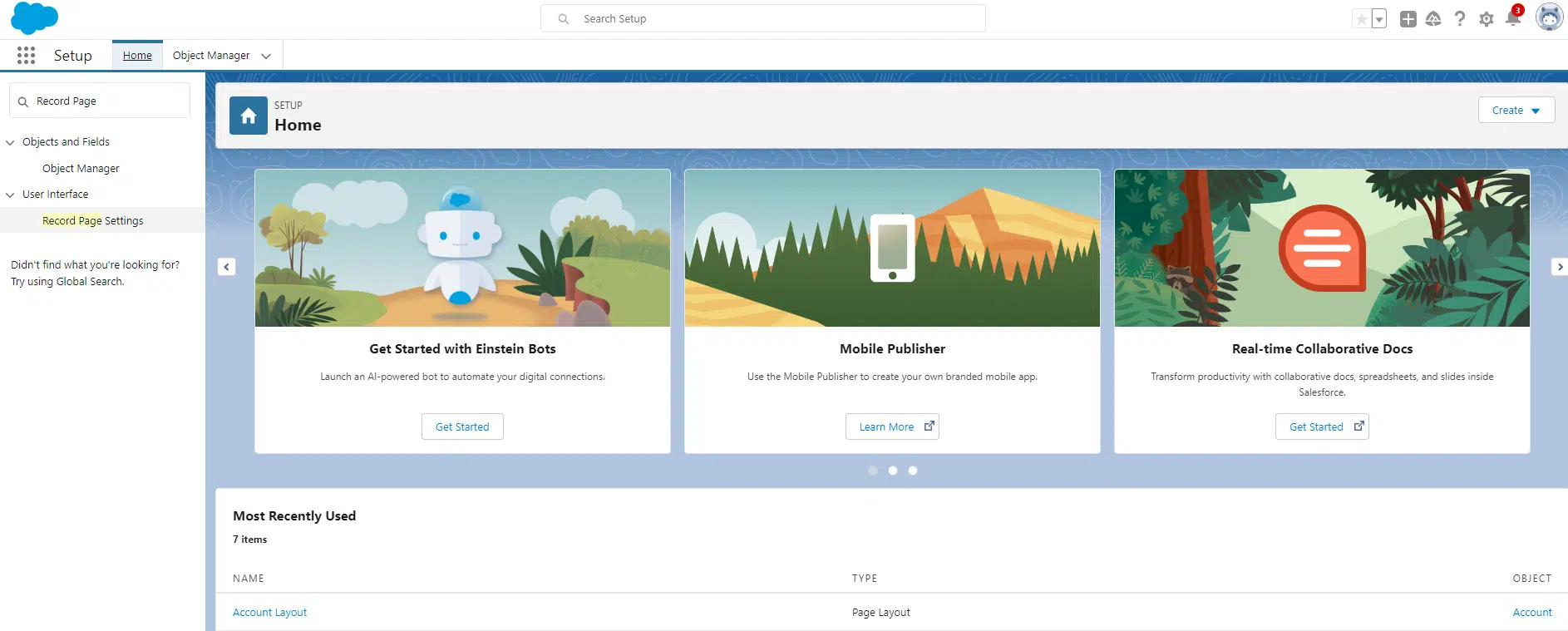
Navigate to Setup → Object Manager → [Object Name] → Lightning Record Pages. Alternatively, go to Setup, search “Record Page Settings” in Quick Find, and enable Dynamic Forms for your organization.
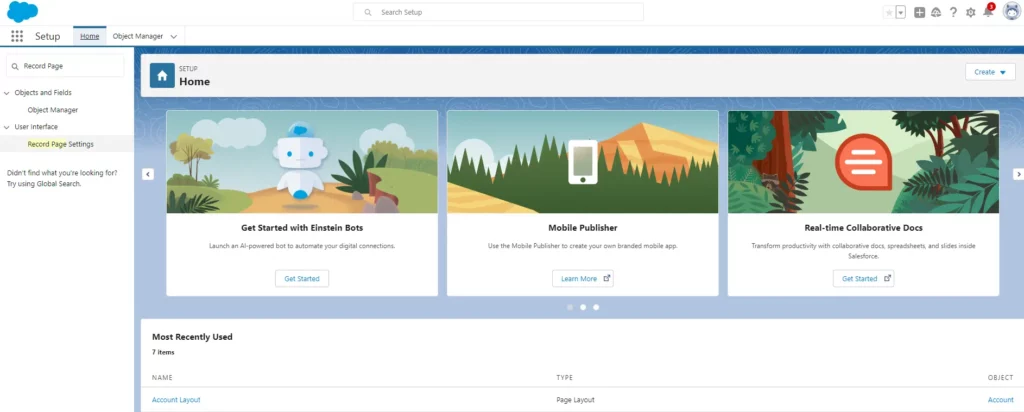
Note: Dynamic Forms require Lightning Experience and are not available in Salesforce Classic.
Step 2: Edit the Lightning Record Page
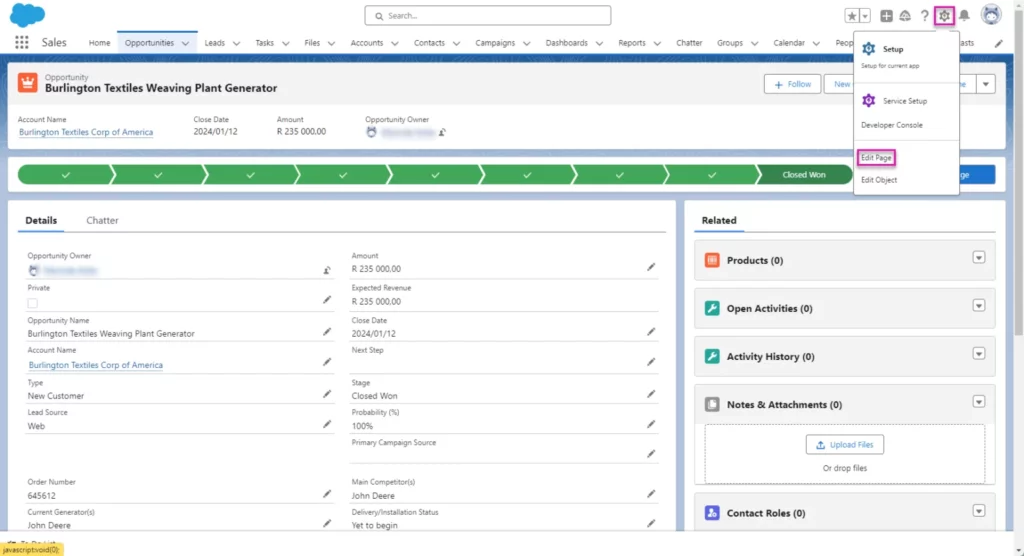
Navigate to the target object’s record page. Click the gear icon (⚙️) in the upper right corner and select Edit Page to open Lightning App Builder.
Step 3: Add Field Sections
In Lightning App Builder, locate the Fields tab in the left component panel. Drag the Field Section component onto your page layout. You can add multiple field sections to organize related fields logically.
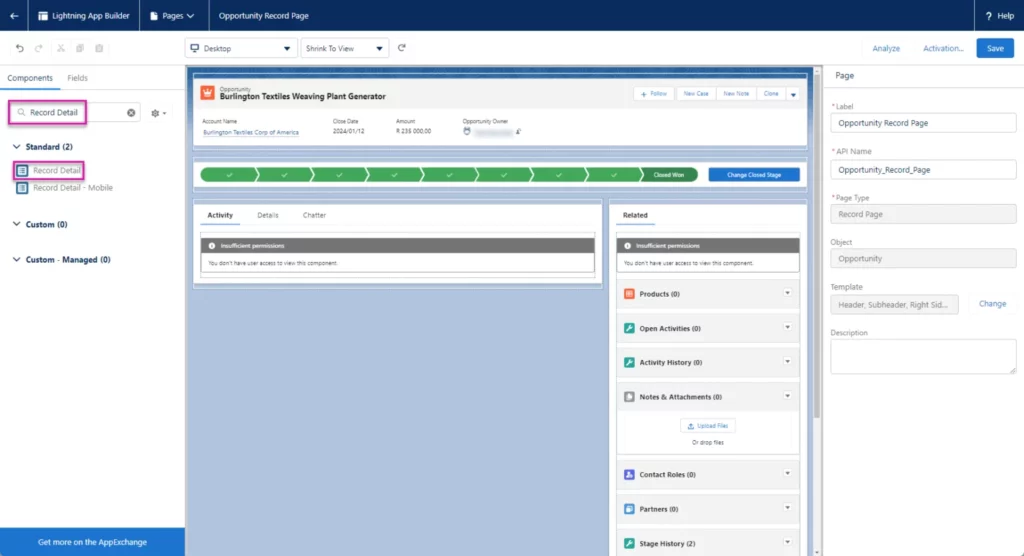
Step 4: Configure Fields and Visibility Rules
Select a Field Section component and click Add Fields. Choose the fields you want to display, then configure visibility rules:
- Always visible: Field appears for all users
- Rule-based: Field appears when conditions are met
- Never visible: Field is hidden (useful for conditional logic)
Example visibility rule: Show “Discount Percentage” field only when “Opportunity Stage” equals “Negotiation” and user has “Sales Manager” profile.
Step 5: Configure Field Behavior
For each field, set additional properties:
- Required: Make field mandatory for record saves
- Read-only: Display field value without allowing edits
- Help text: Provide contextual guidance
Step 6: Save and Activate
Click Save to preserve your changes. Then click Activation to assign the page to specific profiles, record types, or make it the org default.
Dynamic Forms Best Practices
Follow these guidelines to maximize Dynamic Forms effectiveness:
Object Compatibility Planning
Verify object support before implementation. As of Winter ’26, these objects have full Dynamic Forms support:
- Account, Contact, Lead, Opportunity
- Case, Solution, Product
- Custom objects
- Most standard objects except Campaign, Task, Event
Performance Optimization
Organize fields using tabs or accordion sections to improve page load times. Lightning App Builder loads visible components first, deferring hidden sections until needed.
Example: Group “Address Information” fields in a collapsible section that expands only when users need to edit location data.
Mobile Experience
Enable Dynamic Forms for Salesforce Mobile App by activating your Lightning record page for mobile. Test field visibility and layout on mobile devices to ensure usability.
Visibility Rule Complexity
Keep visibility formulas simple to avoid performance issues. Complex formulas with multiple AND/OR conditions can slow page rendering.
Good: ISPICKVAL(Stage__c, "Closed Won")
Avoid: AND(ISPICKVAL(Stage__c, "Closed Won"), OR(Profile.Name = "Sales Manager", $Permission.CustomPermission), NOT(ISBLANK(Amount)))
Related List Management
Dynamic Forms control field sections only. Related lists, Chatter feeds, and activity timelines remain controlled by standard page layouts. Maintain both Dynamic Forms and page layouts for complete record page management.
User Training
Train users on conditional field behavior. Users may be confused when fields appear or disappear based on their actions. Provide clear documentation explaining visibility rules.
Dynamic Forms vs Traditional Page Layouts
| Feature | Dynamic Forms | Traditional Page Layouts |
|---|---|---|
| Field positioning | Flexible placement anywhere | Fixed two-column structure |
| Conditional visibility | Formula-based rules | Record type dependencies only |
| Mobile optimization | Responsive design | Limited mobile customization |
| Related lists | Not supported | Full control |
| Printable views | Not supported | Full control |
Common Dynamic Forms Errors and Solutions
“Field not available” Error
This occurs when trying to add fields that don’t exist on the object or lack field-level security permissions. Verify field API names and user permissions.
Visibility Rules Not Working
Check formula syntax and field API names. Ensure referenced fields are accessible to users experiencing issues.
Performance Issues
Reduce complex visibility formulas and limit the number of field sections per page. Use tabs to organize content and improve load times.
Frequently Asked Questions
What objects support Salesforce Dynamic Forms?
Most standard objects (Account, Contact, Lead, Opportunity, Case) and all custom objects support Dynamic Forms. Some objects like Campaign, Task, and Event have limited or no support as of Winter ’26.
Can Dynamic Forms replace traditional page layouts completely?
No. Dynamic Forms control field sections only. Traditional page layouts still manage related lists, printable views, and certain system fields. You need both for complete record page control.
How do Dynamic Forms work with record types?
Dynamic Forms can use record types in visibility rules. You can show different field sections based on the selected record type, providing more granular control than traditional page layout assignments.
Are Dynamic Forms available in Salesforce Classic?
No. Dynamic Forms require Lightning Experience and are not available in Salesforce Classic. Users accessing records in Classic will see the traditional page layout.
Can I use Dynamic Forms with the Salesforce Mobile App?
Yes. Activate your Lightning record page for mobile to enable Dynamic Forms in the Salesforce Mobile App. Test the mobile experience to ensure field visibility and layout work correctly on smaller screens.
What happens to existing page layouts when I implement Dynamic Forms?
Existing page layouts remain unchanged. Dynamic Forms work alongside traditional layouts. You can gradually migrate field sections to Dynamic Forms while keeping related lists and other elements in standard layouts.
Conclusion
Salesforce Dynamic Forms provide administrators with flexible tools to create user-focused record pages that adapt to specific business needs. By implementing conditional field visibility and flexible positioning, organizations can reduce page complexity, improve data entry efficiency, and enhance user experience across desktop and mobile devices.
Start with simple field sections and visibility rules, then gradually add complexity as users become comfortable with the dynamic behavior. Remember to maintain traditional page layouts for related lists and system functions while leveraging Dynamic Forms for field-level customization.
For production implementations, test thoroughly across different user profiles, record types, and devices to ensure consistent behavior. Document visibility rules clearly for ongoing maintenance and user training.