Creating a new Salesforce application allows you to organize tabs, objects, and functionality into a custom workspace for your users. This guide walks you through the complete process from initial setup to profile visibility configuration.
A Salesforce application is a container that groups related tabs and functionality. Unlike the Salesforce AppExchange which hosts third-party solutions, custom applications are built directly in your org to meet specific business requirements.
Prerequisites for Creating Salesforce Applications
Before creating a new Salesforce application, ensure you have:
- System Administrator or equivalent permissions
- Access to Setup menu
- Understanding of which tabs and objects your application will include
- Custom objects and tabs already created (if needed)
How to Create a New Salesforce Application
To create a new Salesforce application, navigate to Setup → Build → Create → Apps.
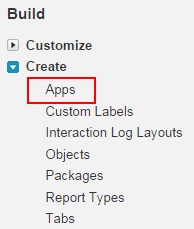
Click on New to start the application creation wizard.

Step 1: Select Application Type
Choose between two application types:
- Custom App: Standard application with tabs and navigation
- Console App: Multi-panel interface for service agents and power users
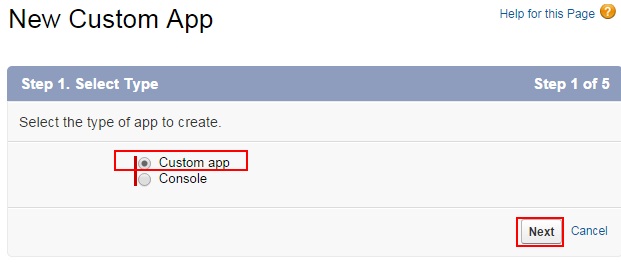
Select Custom App for most use cases and click Next.
Step 2: Configure Application Details
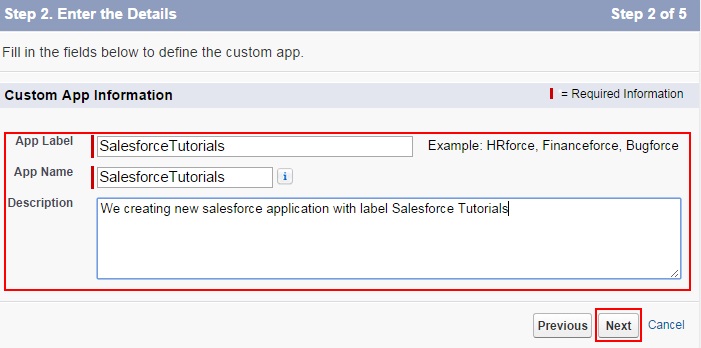
Enter the following required information:
- App Label: Display name for your application
- App Name: API name (auto-generated from label)
- Description: Optional but recommended for documentation
Click Next to continue.
Step 3: Add Application Logo
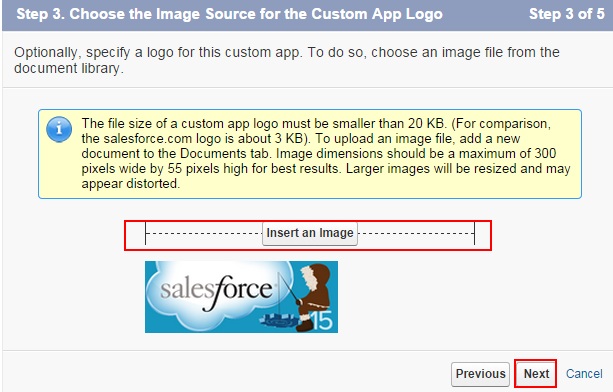
Upload a custom logo for your application by clicking “Insert an image”. The image should be:
- 32×32 pixels for optimal display
- Stored in Documents or Static Resources
- PNG or JPG format
Click Next after selecting your image.
Step 4: Select Available Tabs
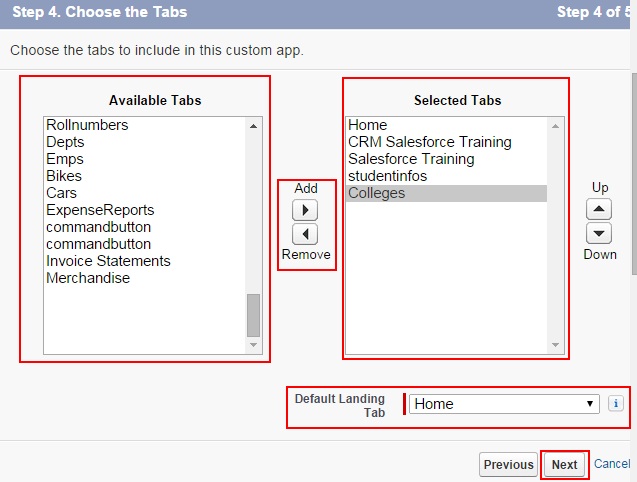
Choose which tabs appear in your application:
- Move tabs from Available Tabs to Selected Tabs using the arrows
- Order tabs by dragging them up or down in the Selected Tabs list
- Include standard objects (Accounts, Contacts) and custom objects as needed
Common tabs for business applications include:
- Home
- Accounts
- Contacts
- Opportunities
- Custom objects specific to your business
Click Next to proceed.
Step 5: Set Profile Visibility
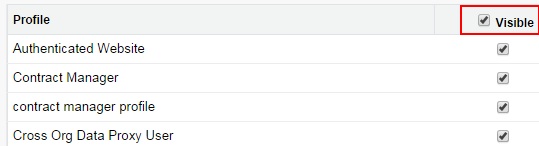
Configure which profiles can access your application:
- Check Visible for profiles that should see this application
- Check Default to make this the default application for specific profiles
- System Administrator profile typically gets both visible and default access
Click Save to create your application.
Switching Between Salesforce Applications
Once created, users can switch between applications using the App Launcher.
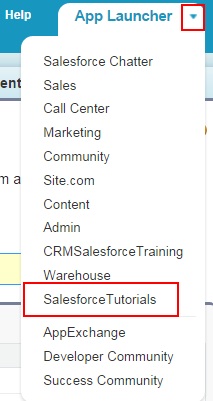
Click the dropdown arrow next to the current application name to see all available applications.

Your new Salesforce application is now active and ready for users.
Best Practices for Salesforce Application Development
When creating custom Salesforce applications, follow these guidelines:
Tab Organization
- Group related functionality together
- Place most-used tabs first in the order
- Limit tabs to 8-10 for optimal user experience
- Use descriptive tab labels that match business terminology
Profile and Permission Management
- Create dedicated permission sets for application-specific access
- Test application visibility with different user profiles
- Document which profiles should have access to each application
- Consider using permission set groups for complex access patterns
Application Naming Conventions
- Use clear, business-friendly names
- Avoid technical jargon in application labels
- Include department or function in the name (e.g., “Sales Operations”, “Service Console”)
- Keep API names consistent with your org’s naming standards
Salesforce Application vs AppExchange Solutions
Understanding when to build custom applications versus installing AppExchange solutions:
| Custom Applications | AppExchange Solutions |
|---|---|
| Built in your org | Third-party developed |
| No additional licensing costs | May require separate licenses |
| Full customization control | Limited customization options |
| Requires internal development | Ready-to-install packages |
| Your org maintenance responsibility | Vendor provides updates |
Common Issues and Troubleshooting
Application Not Visible to Users
- Check profile visibility settings in the application setup
- Verify user has appropriate profile or permission set
- Confirm tab visibility settings for individual objects
Tabs Missing from Application
- Ensure tabs are added to the Selected Tabs list
- Check object-level permissions for the user’s profile
- Verify custom objects have tabs created
Performance Considerations
- Limit the number of tabs in console applications
- Consider using Lightning App Builder for complex layouts
- Test application performance with realistic data volumes
Integration Patterns for Custom Applications
Custom Salesforce applications often require integration with external systems. Common Salesforce integration patterns include:
- REST API: For real-time data synchronization
- Bulk API: For large data migrations and batch processing
- Streaming API: For near real-time event notifications
- Platform Events: For internal event-driven architecture
When designing applications that will integrate with external systems, consider data flow requirements and choose appropriate integration patterns early in the development process.
Frequently Asked Questions
What’s the difference between a Salesforce application and the AppExchange?
A Salesforce application is a custom container you build in your org to organize tabs and functionality. The AppExchange is Salesforce’s marketplace for third-party applications and components that you can install in your org.
How many tabs can I add to a Salesforce application?
There’s no hard limit on tabs per application, but best practice is to keep it under 10 tabs for optimal user experience. Console applications should have even fewer tabs to maintain performance.
Can I modify a Salesforce application after creating it?
Yes, you can edit applications after creation. Go to Setup → Apps → App Manager, find your application, and click Edit. You can modify tabs, visibility, branding, and other settings.
What permissions do I need to create Salesforce applications?
You need the “Customize Application” permission, which is included in the System Administrator profile. You may also need “Manage Apps” permission depending on your org’s setup.
How do I handle Salesforce admin interview questions about applications?
Common Salesforce admin interview questions about applications focus on use cases, tab organization, profile visibility, and the difference between custom apps and console apps. Practice explaining when you’d create a custom application versus using existing ones.
What are the security considerations for custom Salesforce applications?
Key security considerations include proper profile and permission set assignment, field-level security for custom objects, sharing rules for data access, and regular review of application visibility settings. Always follow the principle of least privilege.