The dusty stick is an unusual Slack emoji inherited from Glitch, the online game created by the team that later built Slack. In a current workspace, you can search for the emoji by name, use it as a reaction, or give it a team-defined meaning such as celebration, encouragement, or acknowledgment.
This guide explains how to find and use the dusty stick, configure the Slack hummus sound, enable huddle music, pause notifications, and apply a set of practical Slack tricks. Menu names can change as Slack updates its desktop and mobile clients, so the steps below follow Slack’s documentation available in July 2026.
What Is the Dusty Stick in Slack?
The dusty stick is an emoji associated with Glitch, a browser-based game developed by Tiny Speck before the company focused on Slack. The original game item was linked to an in-game item-loss event and was described as a way to gather energy before spreading happiness to nearby players.
That historical description does not establish a formal business meaning for the emoji in Slack. Most teams treat :dusty_stick: as an informal reaction. Its meaning depends on the conversation and any conventions adopted by the workspace.
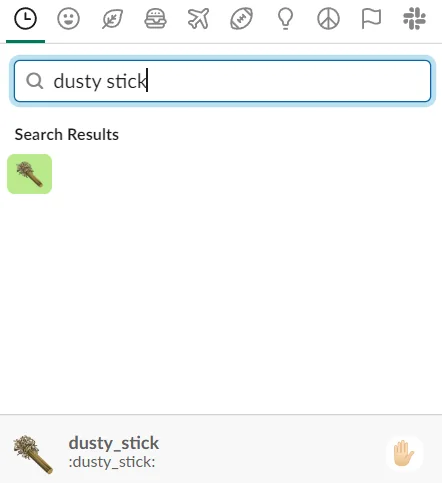
How to find the dusty stick emoji
- Open a Slack channel or direct message.
- Select the smiley-face icon in the message field.
- Search for dusty stick or enter
dusty_stick. - Select the result to insert it into a message.
- To use it as a reaction, hover over a message, select Add reaction, and search again.
Slack also accepts emoji codes typed directly into a message. Where the emoji is available, typing :dusty_stick: and sending the message renders the image. Slack documents the general emoji and reaction workflow in its emoji and reactions guide.
What if the dusty stick is missing?
Emoji availability can differ between workspaces. A workspace may use a different emoji set, an administrator may restrict customization, or the emoji may have been removed. First search the emoji picker rather than assuming that the code exists.
Where policy allows it, a member can add an equivalent image as a custom emoji. Slack recommends a square JPG, PNG, or GIF under 128 KB and notes that transparent backgrounds work best. The Android app does not currently support adding custom emoji directly, so use Slack on desktop or iOS for that task. Administrators can also limit who may add or edit custom emoji.
Suggested custom emoji name:
dusty_stick

Resulting message code:
:dusty_stick:
Do not upload artwork unless your organization has permission to use it. For the current upload process and file constraints, see Slack’s custom emoji documentation.
How Teams Can Use the Dusty Stick
The dusty stick works best when a team gives it a simple, documented meaning. An unexplained reaction can confuse new members, people outside the immediate project, and participants in Slack Connect conversations.
| Team meaning | Example use | Risk |
|---|---|---|
| Recognition | React when someone resolves a difficult incident. | Recipients may not understand the symbol. |
| Encouragement | Use it when a teammate is working through a long task. | It may appear sarcastic without context. |
| Celebration | Add it after a deployment, release, or closed deal. | Too many reactions can obscure useful signals. |
| Conversation marker | Use it to identify messages for a team ritual. | Search results become unreliable if usage is inconsistent. |
In enterprise workspaces, document reaction conventions in a channel canvas or onboarding page. For example, reserve standard reactions such as eyes for review, check marks for completion, and the dusty stick for informal recognition. This keeps operational reactions separate from social ones.
Search for dusty stick reactions
Slack search supports the has: modifier for finding messages with a specific emoji reaction. The exact query depends on the emoji code available in your workspace.
has::dusty_stick:

# Combine it with a keyword
release has::dusty_stick:

# Find only messages you reacted to
hasmy::dusty_stick:
Slack documents emoji-reaction search modifiers in its search reference. Search results remain subject to the user’s channel access and the organization’s retention settings.
Slack Hummus Sound Configuration
The Slack hummus sound is one of the notification sounds that may appear in Slack’s desktop sound settings. Instead of a chime, the sound plays a spoken “hummus” alert. The available choices can vary by operating system, app version, and notification type.
How to enable the Slack hummus sound
- Open Slack on desktop.
- Select your profile picture in the sidebar.
- Select Preferences.
- Open Notifications.
- Scroll to Sound & appearance.
- Open the sound menu for the notification type you want to change.
- Select Hummus if it appears in the available list.
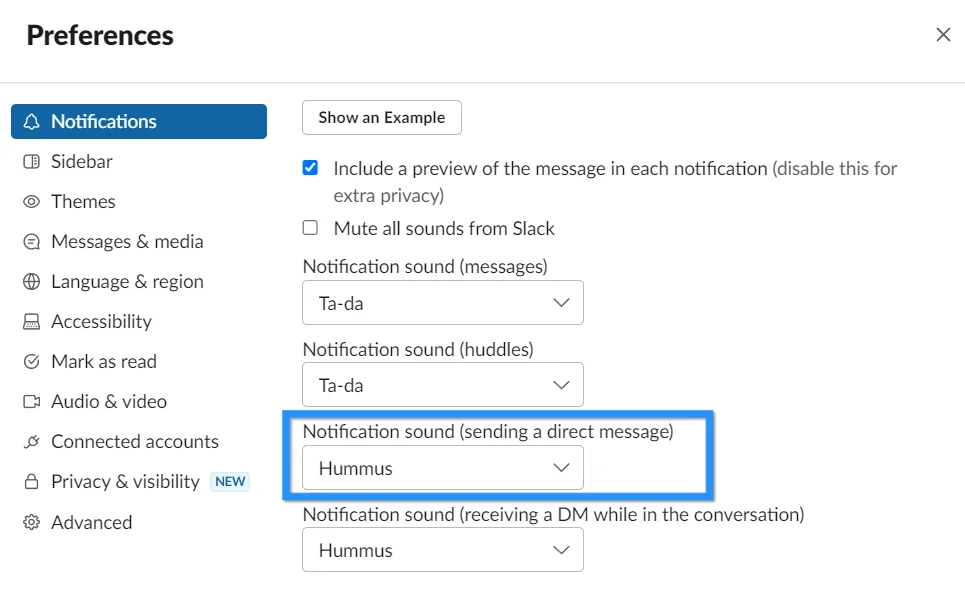
Slack can expose separate controls for different notification events. Test the selected sound before applying it across all alerts. A spoken notification repeated throughout the day may become disruptive in a shared office, during screen recordings, or while presenting.
If the Slack hummus sound does not appear, update the desktop client and check the sound list again. Slack’s official notification configuration guide explains the current path to sound and appearance settings but does not guarantee that every client exposes the same sound names.
Slack hummus sound troubleshooting
| Problem | Check | Recommended action |
|---|---|---|
| No notification audio | Slack may be muted under Sound & appearance. | Clear Mute all sounds from Slack. |
| Sound works only sometimes | Notifications may be paused or limited to mentions. | Review the notification scope and pause schedule. |
| Desktop sound differs from mobile | Mobile systems use separate notification controls. | Review both Slack and operating-system settings. |
| Hummus is not listed | The option may not exist in that client build. | Choose another sound rather than relying on an undocumented workaround. |
Huddle Music and Audio Preferences
Slack huddles provide real-time audio, video, screen sharing, and a thread for notes. Slack also includes a preference that plays music when you are the last participant remaining in a huddle.
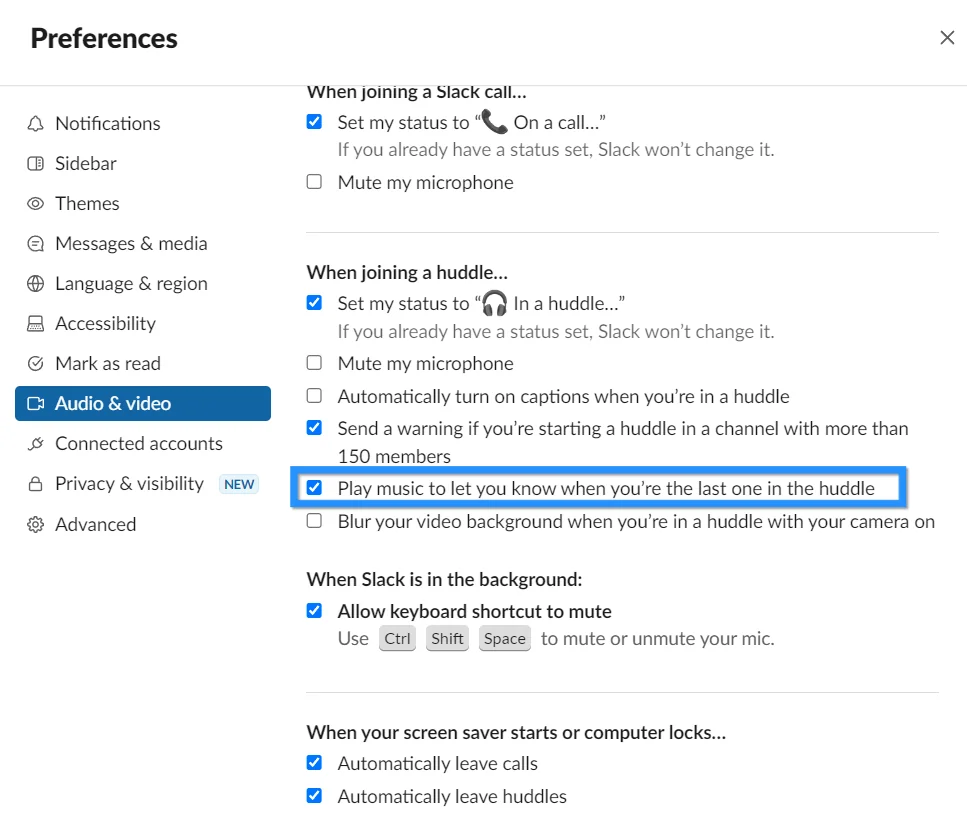
How to enable last-participant huddle music
- Open Slack on desktop.
- Select your profile picture and open Preferences.
- Select Audio & video.
- Locate the huddle preferences.
- Enable Play music when you’re the last one in a huddle.
The option affects the user who enables it; it is not a channel-wide huddle setting. Slack lists this control alongside options for joining muted, showing a preview, enabling captions, setting a huddle status, and leaving automatically when the computer locks.
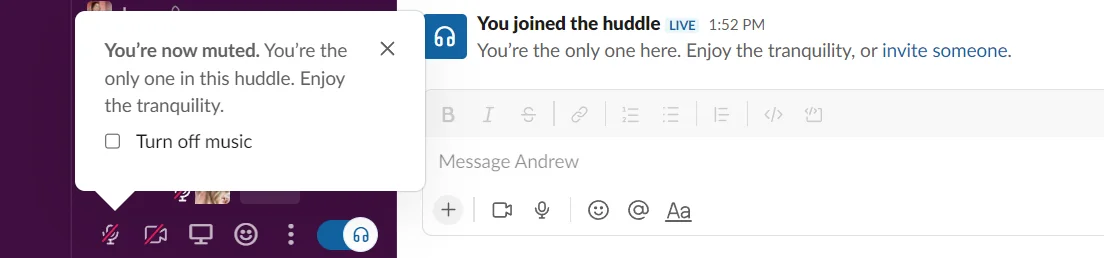
For the current controls, see Slack’s huddle preferences documentation. Huddles are available to members and guests on Slack plans, although specific capabilities and limits can depend on the plan and administrative policy.
Other Glitch-Era Emoji in Slack
The dusty stick is not the only image associated with Slack’s Glitch history. Workspaces may also expose emoji depicting a Glitch crab and a Cubimal chick. As with the dusty stick, verify their names in the emoji picker because availability and naming can differ.
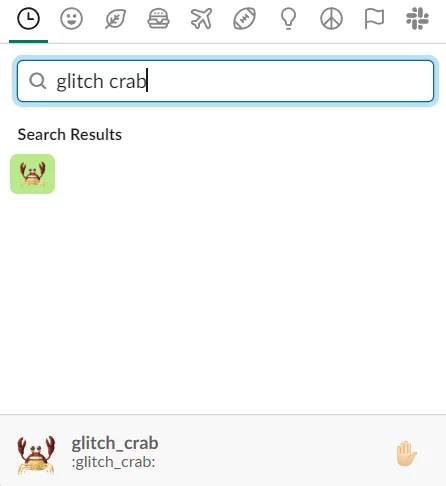
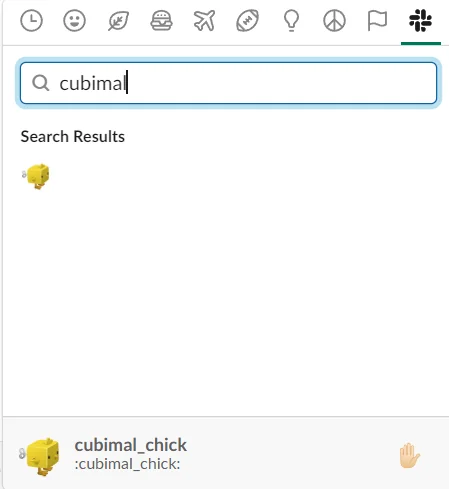
These emoji are best treated as cultural artifacts rather than workflow controls. For status tracking, approval, escalation, or incident management, use reactions with meanings that every participant understands and document those meanings in the workspace.
Slack Tricks for Reducing Notification Noise
The most useful Slack tricks are not hidden animations or novelty sounds. They are controls that prevent unnecessary interruptions while preserving messages for later review.
Slack tricks for pausing notifications
- Select your profile picture.
- Hover over or select Pause notifications.
- Choose a preset duration or a custom time.
- Resume notifications from the same menu when you return.
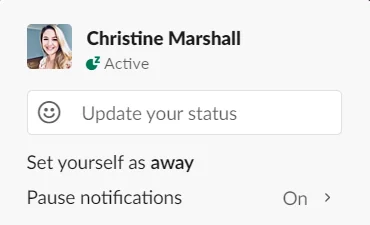
Slack displays a notification-pause indicator next to the member’s name. The indicator means notifications are paused; it does not communicate why the person is unavailable. Set a status such as “Focus time until 3:00 PM” when teammates need more context.
Slack also supports a recurring notification schedule. This is one of the better Slack tricks for teams distributed across time zones because it reduces alerts outside working hours without requiring members to pause notifications manually every day. Review Slack’s work-hours setup guide and pause-notifications guide.
Slack tricks that improve message handling
- Use emoji reactions instead of acknowledgment replies: A check mark or eyes reaction can reduce messages such as “done” and “looking.”
- Search by reaction: Use
has::emoji_name:to locate messages marked with a known reaction. - Configure channel keywords carefully: Add terms that require attention, but avoid broad words that generate constant alerts.
- Separate social and operational emoji: Keep the dusty stick for informal recognition and reserve documented reactions for approvals or triage.
- Use notification schedules: Configure work hours rather than relying on manual muting.
- Review one-click reactions: Choose reactions that match the team’s common acknowledgment patterns.
Best Practices for Emoji and Sound Settings
- Do not assign workflow meaning silently. Explain what a reaction means in a canvas, channel topic, or onboarding document.
- Avoid using sounds as an escalation mechanism. Notification sounds are personal preferences and may be muted.
- Respect accessibility preferences. Animated emoji can be disabled, and sound-dependent processes exclude users who cannot or do not use audio alerts.
- Test Slack Connect behavior. External organizations can have different custom emoji and naming conventions.
- Keep reactions searchable. Do not reuse the same emoji for approval, rejection, and celebration.
- Follow administrator policy. Enterprise administrators may control emoji permissions, app features, retention, and notification defaults.
The Slack hummus sound and dusty stick can make a workspace feel less formal, but neither should replace a documented process. Use Slack tricks to reduce communication overhead, then keep decisions, owners, and deadlines in text that people can search and understand.
Frequently Asked Questions
What does the dusty stick emoji mean in Slack?
The dusty stick comes from Glitch, the game developed by the team that later created Slack. Slack does not impose a current business meaning, so teams commonly use it for encouragement, recognition, celebration, or an internal joke.
How do I type the dusty stick emoji?
Search for “dusty stick” in the Slack emoji picker. Where the emoji is installed under the expected name, you can enter :dusty_stick: in a message. If it does not render, the emoji is not available under that code in your workspace.
How do I turn on the Slack hummus sound?
On desktop, open Preferences, select Notifications, scroll to Sound & appearance, and choose Hummus from the relevant sound menu. The Slack hummus sound may not appear in every client version or operating system.
Why is the Slack hummus sound missing?
The Slack hummus sound may be unavailable in your current app build, platform, or notification category. Update Slack, check each sound menu, and use another listed sound when Hummus is not provided.
Can Slack play music when everyone leaves a huddle?
Slack can play music when you are the last participant in a huddle. Enable Play music when you’re the last one in a huddle under the desktop huddle or audio and video preferences.
Which Slack tricks help reduce interruptions?
Useful Slack tricks include setting a notification schedule, pausing alerts during focus time, limiting notifications to relevant activity, using reactions instead of acknowledgment messages, and configuring channel keywords narrowly.
Related Salesforce and Slack Tutorials