To understand how to allow mobile web access Salesforce administrators must separate two controls: the org-level mobile web setting and access to the Salesforce mobile connected apps for iOS and Android. Enable the mobile setting first, then verify the user’s profile, permission sets, API access, connected app access, login policies, and record-level permissions.
Salesforce enables native mobile app access for users by default in many orgs, but administrators can restrict it. A successful mobile login does not bypass object permissions, field-level security, sharing rules, restriction rules, login hours, IP restrictions, or multi-factor authentication.
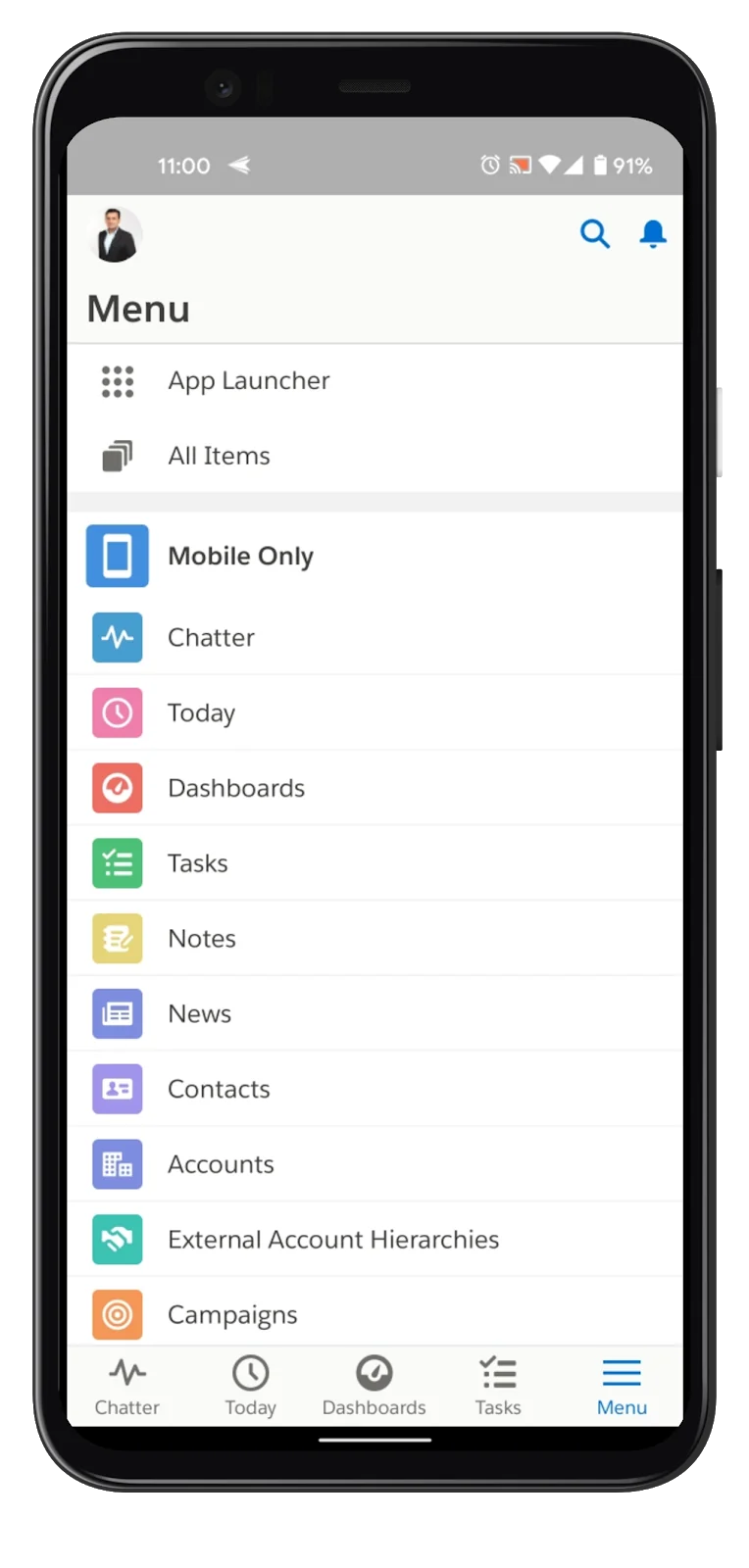
How to Allow Mobile Web Access Salesforce
Use the following sequence because each layer can independently prevent access.
- From Setup, enter Salesforce Settings in Quick Find.
- Open Salesforce Settings.
- Select Enable the Salesforce mobile web when that option is available in your org.
- Save the setting.
- Verify that the user can access the relevant Salesforce mobile connected app.
- Confirm that the user has the permissions required by the objects, fields, Apex classes, flows, and tabs used in the mobile experience.
- Test with the same identity provider, network, device type, and login URL that production users will use.
Salesforce documents the org-level procedure in its developer guide for defining mobile users. Salesforce also states that the native Salesforce app is available to users by default in supported editions, while administrators can control access through settings and connected app policies.
Salesforce Developer Guide: Define Which Users Can Use the Salesforce App
Salesforce Help: Set Up the Salesforce Mobile App
What Is the Difference Between Mobile Web and the Salesforce Mobile App?
| Access method | How users connect | Main administrator controls |
|---|---|---|
| Mobile browser | A supported browser opens the Salesforce login or My Domain URL | Salesforce Settings, login policies, session settings, My Domain, SSO, MFA, IP ranges, and user permissions |
| Salesforce mobile app | The Salesforce app for iOS or Android authenticates through Salesforce connected apps | Connected App Access, OAuth policies, PIN and session controls, custom attributes, API access, and user permissions |
| Custom Mobile SDK app | A custom application uses Salesforce OAuth and Mobile SDK | The custom connected app, OAuth scopes, callback URLs, session policies, certificates, and application code |
The phrase “mobile web access” is still used in some Salesforce setup labels and documentation. Do not assume that enabling one checkbox grants every user access to the native app. The native app also depends on its Salesforce-managed connected app and the user’s assigned permissions.
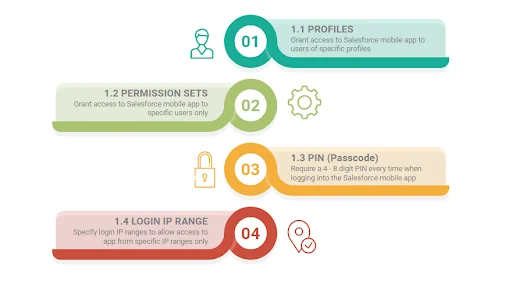
How Do You Grant Salesforce Mobile App Access by Profile?
Profile-level connected app access is useful when an entire user population should receive the same baseline policy.
- From Setup, enter Profiles in Quick Find.
- Select the profile assigned to the mobile users.
- Open the profile’s connected app access settings. The exact page layout can vary between Salesforce setup interfaces.
- Allow access to Salesforce for Android and Salesforce for iOS when those entries are available.
- Save the profile.
- Ask the affected user to sign out and authenticate again if an existing OAuth session continues to use an older policy.
Salesforce also documents the reverse procedure: administrators can prevent mobile app access by clearing the Salesforce for Android and Salesforce for iOS entries under a profile’s Connected App Access section.
Salesforce Help: Prevent Users from Accessing the Salesforce Mobile App
How Do You Grant Mobile Access with Permission Sets?
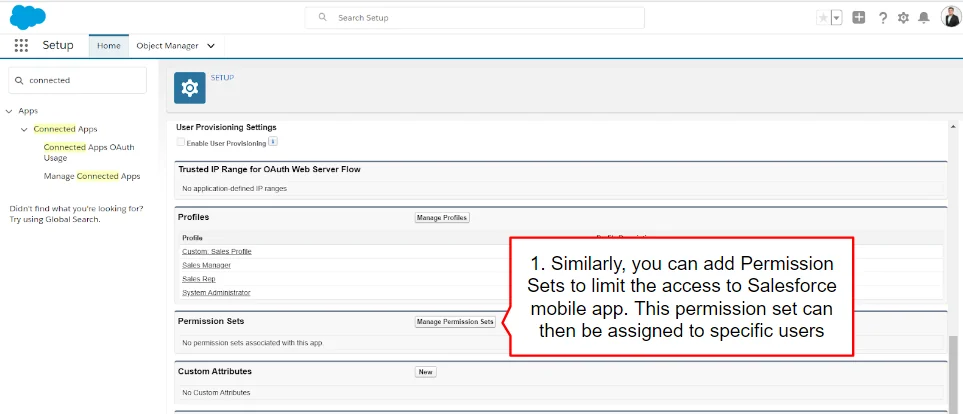
For enterprise orgs, use a permission set-led model when only selected users need an additional permission. Profiles remain supported, but Salesforce recommends using profiles for baseline access and permission sets or permission set groups for task-based access.
A permission set can grant system permissions, object permissions, field permissions, Apex class access, Visualforce page access, custom permissions, and other capabilities. However, a permission set cannot remove access already granted by a profile or another permission set. Use a permission set group muting permission set only for permissions that the muting model supports.
Recommended assignment pattern
- Create a permission set named for the business capability, such as Mobile Sales Access.
- Grant only the object, field, app, Apex, flow, and system permissions needed by the mobile workflow.
- Assign the permission set to a pilot group.
- Validate access with Login As where policy allows, or with a dedicated test user.
- Add the permission set to a permission set group when several permission sets form one job function.
Salesforce Help: App and System Settings in Permission Sets
Does the Salesforce Mobile App Require API Enabled?
Check the API Enabled system permission when a user can authenticate but mobile pages fail to load or actions return permission errors. Salesforce published updated guidance in May 2026 stating that API access can be enabled for Salesforce mobile app users through a permission set.
- Open Setup → Permission Sets.
- Create or select the permission set used for mobile users.
- Open System Permissions and click Edit.
- Select API Enabled.
- Save and assign the permission set to the affected users.
Edition note: API availability and behavior can depend on the Salesforce edition and user license. Salesforce documents separate considerations for Professional, Group, Contact Manager, and external user licenses. Verify the current license documentation before using API access as a universal requirement.
Salesforce Help: Enable API Access for Salesforce Mobile App
Salesforce Help: API Enabled Permission Requirements
How Do You Configure PIN and Session Policies?
PIN and session controls apply to the native mobile app rather than replacing Salesforce authentication. They reduce the risk from an unlocked device or a long-lived local session.
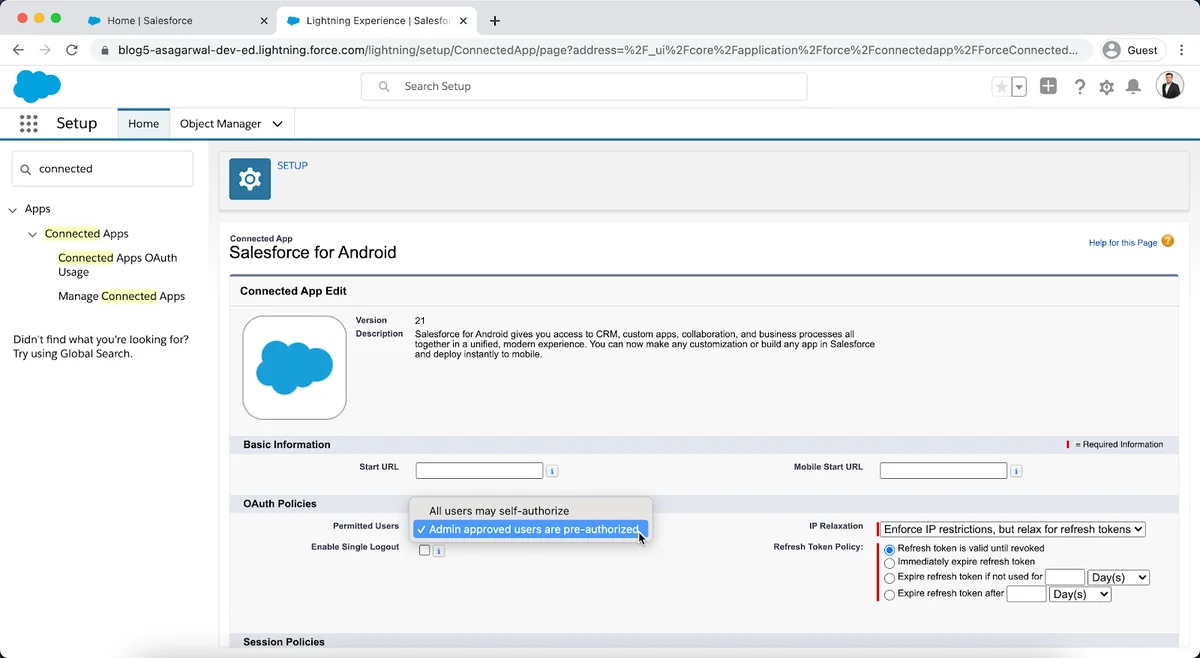
- From Setup, open Connected Apps or Manage Connected Apps.
- Select the Salesforce connected app for the relevant platform.
- Review session timeout, PIN length, PIN timeout, OAuth, and IP restriction policies exposed for that app.
- Apply the policy to a pilot population before enforcing it across the org.
- Test device lock, app backgrounding, token refresh, SSO reauthentication, and revoked sessions.
A mobile PIN is not the same as the user’s Salesforce password, device passcode, biometric control, or MFA verification method. Each control protects a different stage of access.
How Do Login IP Ranges Affect Mobile Users?
Profile login IP ranges can block a mobile login when the phone’s public IP address falls outside the configured range. This often affects users moving between corporate Wi-Fi, home networks, cellular networks, and VPN connections.
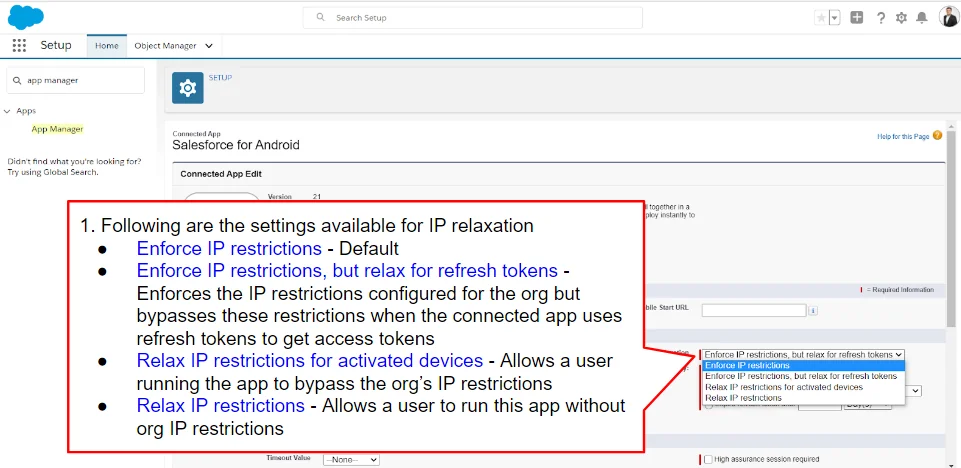
Connected app OAuth policies can also enforce or relax IP restrictions. Do not relax an IP policy merely to make a test login succeed. First determine whether the intended architecture requires corporate VPN access, a trusted network, conditional access through an identity provider, or unrestricted mobile connectivity.
IP restriction test checklist
- Record the public IP address used by the device on Wi-Fi and cellular data.
- Check the user’s profile login IP ranges.
- Check the connected app’s OAuth IP restriction policy.
- Check identity provider conditional-access rules.
- Confirm that VPN address ranges are present when VPN use is mandatory.
- Review Login History for the exact failure status.
Salesforce Help: Mobile App Repeated Identity Verification and IP Restrictions
How Do Salesforce Mobile Custom Attributes Restrict Data Actions?
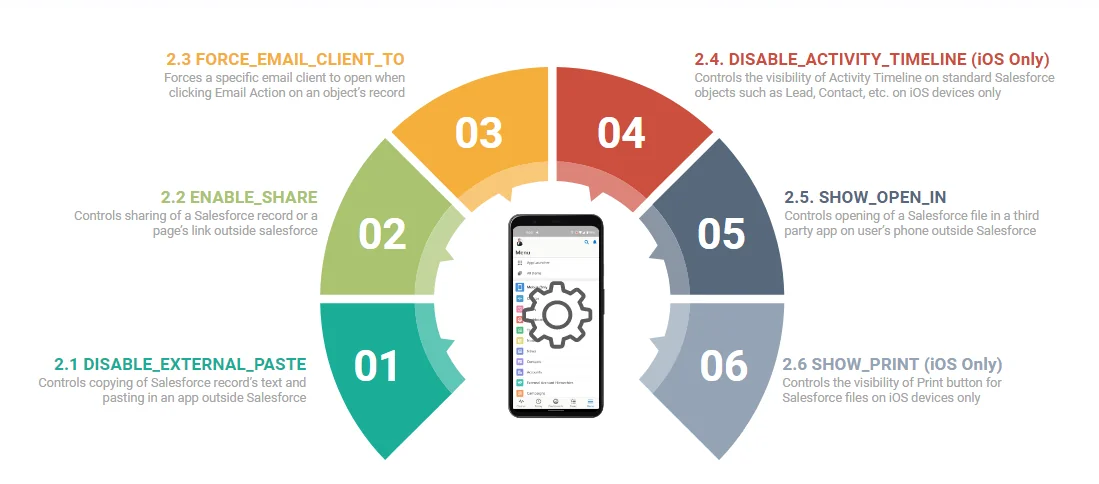
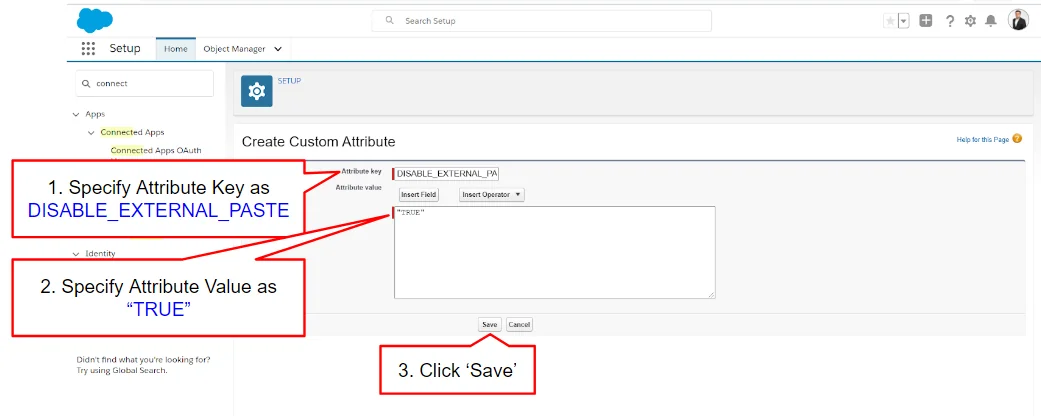
Salesforce supports connected app custom attributes that control selected behaviors in the Salesforce mobile app. Availability and platform behavior can change, so validate each attribute against the current Salesforce Help matrix before deployment.
| Custom attribute | Purpose | Validation requirement |
|---|---|---|
DISABLE_EXTERNAL_PASTE |
Restricts copying content from Salesforce and pasting it into an application outside Salesforce | Test supported fields, rich text, mobile operating systems, managed devices, and app versions |
ENABLE_SHARE |
Controls Salesforce mobile sharing behavior where supported | Confirm whether the action shares a link, record context, or other content in the current app version |
SHOW_OPEN_IN |
Controls whether supported Salesforce files can be opened in another mobile application | Test file types, content permissions, device management policy, and both mobile platforms |
SHOW_PRINT |
Controls printing options on supported platforms and content types | Confirm current iOS support in the official attribute table |
DISABLE_ACTIVITY_TIMELINE |
Controls activity timeline visibility in supported Salesforce mobile contexts | Confirm platform and app limitations before relying on the attribute |
Custom attributes are not substitutes for CRUD, field-level security, sharing, encryption, mobile device management, or data loss prevention controls. They narrow specific app behaviors. Users must still receive the minimum Salesforce data access needed for their work.
Salesforce Help: Control Access and Security for the Salesforce Mobile App
Salesforce Help: Connected App Custom Attribute Values
What Salesforce Permissions Still Apply on Mobile?
Mobile access does not create a second authorization model. Salesforce evaluates the same platform controls used by desktop sessions.
| Security layer | Mobile effect |
|---|---|
| Object permissions | Determine whether a user can create, read, edit, or delete records for an object |
| Field-level security | Determines whether a field is visible or editable, including in Lightning pages and mobile forms |
| Organization-wide defaults | Set baseline record access |
| Role hierarchy and sharing rules | Extend record access according to the org sharing design |
| Restriction rules | Reduce the records visible to supported users and objects |
| Login hours and IP ranges | Control when and from where a user can authenticate |
| App, tab, Apex, Flow, and Visualforce access | Determine whether mobile navigation and custom functions can be opened |
| Connected app policies | Control OAuth and native mobile session behavior |
For related configuration guidance, see the Salesforce security model tutorial, Salesforce permission sets guide, Salesforce profiles tutorial, and Salesforce login IP ranges setup.
How Should You Test Mobile Access Before Deployment?
In enterprise orgs, test mobile access with representative personas rather than a System Administrator account. Administrator testing can conceal missing object, field, Apex, app, or connected app permissions.
- Create test users with the same licenses, profiles, permission set groups, roles, and sharing access as production users.
- Test iOS and Android separately when both platforms are supported.
- Test the mobile browser and native Salesforce app separately.
- Verify SSO, MFA, session expiration, PIN timeout, token revocation, and device replacement.
- Test Wi-Fi, cellular data, and VPN paths that users are expected to use.
- Open every required object, list view, record page, flow, quick action, report, dashboard, and file action.
- Confirm that restricted fields and records remain unavailable.
- Review Login History, connected app OAuth usage, debug logs, and identity provider logs for failures.
Common Errors When Allowing Salesforce Mobile Access
| Symptom | Likely cause | What to check |
|---|---|---|
| User cannot authenticate | Incorrect login URL, SSO policy, locked account, login hours, IP restriction, or connected app access | Login History, My Domain URL, identity provider logs, profile settings, and connected app policy |
| Login succeeds but no records appear | Object permission, sharing, restriction rule, list view, or API access issue | Permission sets, OWD, sharing rules, role, restriction rules, and API Enabled |
| App displays an insufficient privileges error | Missing field, Apex class, Visualforce page, Flow, custom permission, or object access | The failing component’s dependencies and the user’s complete permission assignment |
| User must verify identity repeatedly | IP enforcement, token policy, browser or device state, or identity provider session policy | OAuth IP policy, profile IP ranges, SSO session duration, and device network |
| Mobile navigation item is missing | App assignment, tab visibility, form factor configuration, object permission, or navigation configuration | Lightning app settings, navigation items, profile, permission sets, and page activation |
| Custom attribute appears ineffective | Wrong connected app, unsupported platform, incorrect value, cached session, or app-version difference | Official attribute matrix, app developer name, exact value, platform, and a new login session |
Salesforce maintains a separate troubleshooting article for password, SSO, locked-account, server, and mobile login issues.
Salesforce Help: Troubleshoot Salesforce Mobile App Login Problems
Best Practices for Salesforce Mobile Web Access
- Use least privilege. Grant only the objects, fields, apps, flows, and actions required by the mobile role.
- Prefer permission sets for task access. Keep profiles focused on baseline identity and login settings where practical.
- Do not test only as an administrator. Use licensed persona-based test users.
- Document the expected network path. State whether mobile users need VPN, corporate Wi-Fi, or unrestricted internet access.
- Review connected app OAuth usage. Revoke sessions for lost devices, terminated users, and policy changes that require reauthentication.
- Combine Salesforce and device controls. Use mobile device management or mobile application management when compliance requires device encryption, managed application boundaries, remote wipe, or conditional access.
- Retest after releases. Salesforce mobile app behavior and supported custom attributes can change independently from your org metadata.
Trailhead provides additional guidance on Salesforce mobile rollout planning, including session timeouts, PIN enforcement, offline data, and IP allowlists.
Trailhead: Salesforce Mobile Rollout Planning and Device Security
Frequently Asked Questions
How do I enable Salesforce mobile web access?
From Setup, search for Salesforce Settings, enable the Salesforce mobile web option when it is available, and save. Then verify connected app access, API permissions, login policies, and the user’s normal Salesforce permissions.
Why can a Salesforce user log in on desktop but not mobile?
The mobile session can be blocked by Salesforce mobile connected app access, OAuth IP restrictions, profile login IP ranges, API access, SSO conditional-access rules, an incorrect My Domain URL, or a device-specific authentication problem. Check Salesforce Login History and identity provider logs first.
Is Salesforce mobile app access enabled by default?
Salesforce states that users can access the Salesforce mobile app by default in supported orgs and editions, but administrators can revoke access through profiles, connected app settings, and security policies. User licenses and assigned permissions still determine what each person can use.
Does enabling mobile access expose more Salesforce data?
No. Enabling mobile access does not grant additional object, field, or record access. The mobile session remains subject to CRUD permissions, field-level security, sharing, restriction rules, app access, Apex access, and other Salesforce authorization controls.
Can Salesforce prevent users from copying mobile data?
Salesforce supports the DISABLE_EXTERNAL_PASTE connected app custom attribute for restricting supported copy-and-paste behavior from Salesforce to applications outside Salesforce. Confirm current iOS and Android behavior in the official custom attribute documentation and combine it with device management controls when required.