Salesforce opportunity stages are the picklist values on the Opportunity StageName field that show where a deal sits in your sales process. They also influence probability, forecast category, pipeline reporting, Path guidance, Kanban views, and automation, so admins should design them with Sales Operations instead of treating them as labels only.
In an enterprise Sales Cloud org, a stage change is more than a rep moving a deal forward. It can affect weighted pipeline, forecast rollups, validation rules, approval criteria, dashboards, integrations, and renewal handoffs. This guide explains how to design, configure, query, and govern stages without breaking reporting or rep adoption.
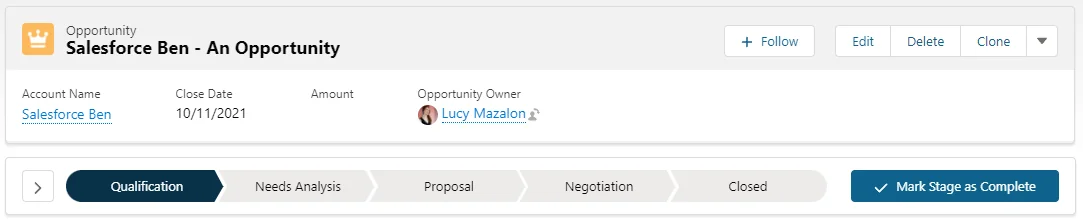
What are Salesforce Opportunity Stages?
Salesforce Opportunity Stages are values in the standard Opportunity StageName picklist. Salesforce stores the selected value on each Opportunity record and uses the related stage metadata to help calculate sales pipeline, probability-based views, and forecast category behavior. The Salesforce Object Reference describes Opportunity as the standard object for a sale or pending deal and notes that StageName can control or imply related opportunity fields. See the official Opportunity object reference.
A useful stage answers one operational question: what evidence has changed since the last step? For example, “Discovery Complete” is easier to manage than “Discovery” because the exit condition is clear. In production orgs, unclear stages create reporting arguments: one rep marks “Proposal” after sending a price sheet, while another waits until legal review starts.
Opportunity stages in salesforce: fields that matter
The stage label is visible to users, but admins also manage supporting attributes behind the picklist value. These attributes make opportunity stages in salesforce useful for forecasting and reporting.
| Configuration item | Where it is used | Admin design note |
|---|---|---|
| Stage Name | Opportunity record, reports, Path, Kanban, automation criteria | Use names that describe business evidence, such as “Qualified” or “Contract Sent”. |
| Type | Open, Closed Won, or Closed Lost status behavior | Do not create several closed stages unless reporting needs them. |
| Probability | Weighted pipeline and expected revenue calculations | Base percentages on historical conversion data where possible. |
| Forecast Category | Collaborative Forecasts and forecast reporting | Map stages to categories that match how managers call pipeline. |
| Sort Order | Path sequence, picklist display, stage progression analysis | Keep the order aligned with the normal sales cycle. |
How Salesforce Opportunity Stages affect probability and forecasts
Each active stage can carry a default probability and forecast category. When a user selects a stage, Salesforce can apply the related probability unless your org allows users or automation to override it. Salesforce Help documents that Opportunity Stage can affect Probability, and Salesforce forecasting setup uses forecast categories to group opportunity amounts into forecast views. Review the official Salesforce Help pages for stage and probability behavior and pipeline forecasting setup.
Do not use probability as a rep confidence score unless your sales leadership agrees. Probability is often treated as a math input for weighted pipeline. Forecast Category is usually the better field for manager judgement, such as Pipeline, Best Case, Commit, Closed, or Omitted. In enterprise orgs, keep the definitions separate: a deal can be in an early stage with urgency, or a late stage can still be risky because procurement is blocked.
Salesforce sales stages and probability example
| Stage | Type | Default probability | Forecast category | Entry requirement |
|---|---|---|---|---|
| Prospecting | Open | 10% | Pipeline | Potential buying need identified. |
| Qualified | Open | 25% | Pipeline | Budget, need, timing, and decision path documented. |
| Solution Fit | Open | 45% | Best Case | Customer agrees that the proposed solution addresses the need. |
| Proposal Sent | Open | 65% | Best Case | Formal quote or proposal delivered. |
| Negotiation | Open | 80% | Commit | Commercial or legal terms are under review. |
| Closed Won | Closed Won | 100% | Closed | Signed order, accepted quote, or equivalent close evidence exists. |
| Closed Lost | Closed Lost | 0% | Omitted | Customer will not buy in this cycle. |
This table is an implementation pattern, not a Salesforce default list. Use it as a workshop starting point for salesforce sales stages, then adjust percentages after reviewing historical win rates by stage.
Where do you configure Opportunity stages in Salesforce?
Admins configure stages from Setup. Use this path in Lightning Experience: Setup > Object Manager > Opportunity > Fields & Relationships > Stage. From there, add values, edit existing values, reorder values, replace values, deactivate values, and manage the attributes that support salesforce opportunity stages.
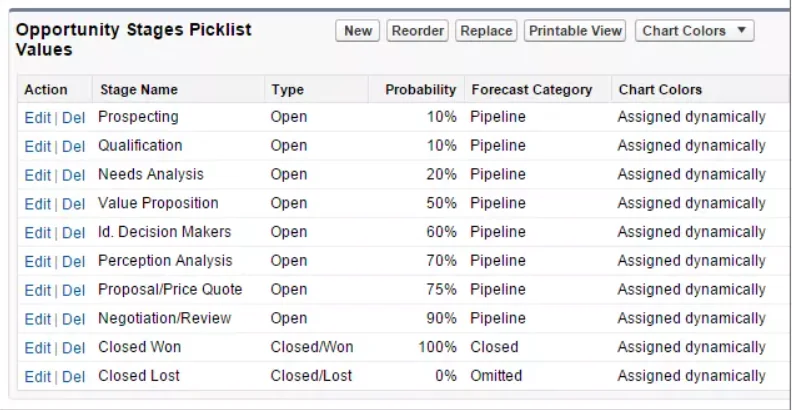
How to add a new opportunity stage
- Open Setup.
- Go to Object Manager and select Opportunity.
- Open Fields & Relationships.
- Select the standard Stage field.
- In the Opportunity Stages picklist values area, click New.
- Enter the stage name, stage type, default probability, and forecast category.
- Add a short description that explains when a rep should enter the stage.
- Save the value, then add it to the correct Sales Process if record types are in use.
When you add a value, do not stop at the picklist screen. Update Sales Processes, record type assignments, Path settings, validation rules, reports, dashboards, integrations, and any Flow or Apex logic that checks StageName. Missing one of these dependencies is the common reason a stage appears in Setup but not for the right users.
Sales opportunity stages and types explained for admins
The phrase sales opportunity stages and types explained usually refers to two related items: the visible stage name and the stage type. The type classifies the stage as open, won, or lost. Reports use this classification when users filter open pipeline, won revenue, or lost deals. Salesforce Help also notes that stage types are used in opportunity reporting status filters.
Use stage type carefully. A stage called “Verbal Yes” may sound almost closed, but it should normally remain Open until your company has the accepted order, signed agreement, purchase order, or other close evidence required by finance. Closing too early gives dashboards cleaner numbers for a day and wrong numbers for the quarter.
How to use Sales Processes and Record Types with stages
A Sales Process controls which Opportunity Stage values are available for a record type. Record types then expose the correct business process, picklist values, and page layout to the user. Salesforce Trailhead explains that a sales process maps the stages an opportunity follows and affects what appears in a sales path, while record types determine available business processes, picklist values, and layouts. See the official Trailhead project on customizing a sales path.
Use one Sales Process when every team sells through the same decision path. Use separate Sales Processes when stage definitions differ by motion, such as new business, renewals, channel sales, professional services, or enterprise strategic deals. Do not create record types only to hide one value if the underlying sales motion is the same.
Sfdc opportunity management with multiple record types
Good sfdc opportunity management keeps sales data comparable without forcing every business unit into one process. A renewal opportunity may need stages such as “Renewal Risk Review” and “Quote Accepted”, while a new logo deal may need “Discovery”, “Security Review”, and “Procurement”. Separate record types help, but too many record types make automation and reporting harder.
| Scenario | Recommended setup | Reason |
|---|---|---|
| Same stages, different page fields | One Sales Process, separate page layouts if needed | Reporting stays consistent while UI differs. |
| Different stage names or order | Separate Sales Processes and record types | Users see only the stages that apply to their process. |
| Different products but same selling motion | One Sales Process with Product, Price Book, or custom fields | Avoids needless record type growth. |
| Different forecast treatment | Review stage-to-forecast mappings with Sales Operations | Forecast category definitions must stay clear for managers. |
For related setup guidance, see Salesforce record types best practices and Salesforce forecasting setup.
How to guide reps with Path, Kanban, and required fields
Path gives users a visual view of a picklist-based process and can show key fields and guidance for each step. Salesforce Help describes Path as a way to guide users through a business process, including opportunities, and Trailhead shows how Sales Path can include key fields and guidance. Start with Path when reps need stage-specific reminders, not when the business problem is missing validation.
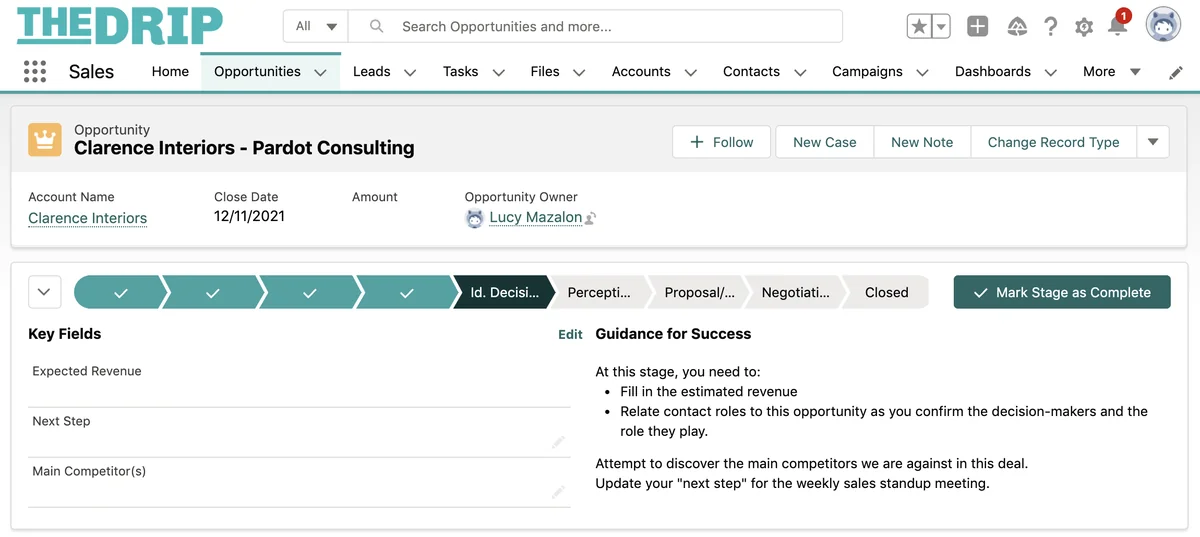
Path guidance pattern for salesforce opportunity stages
For each stage, define three items:
- Entry rule: what must be true before the rep selects the stage.
- Key fields: the few fields that must be completed during that stage.
- Exit rule: the evidence required before the opportunity moves forward.
Keep Path text short. Put long policy content in a linked enablement page. If the guidance is longer than the rep can scan during a call, it will be ignored.
How to query Salesforce Opportunity Stages with SOQL and Apex
Developers often need stage data for dashboards, integrations, or validation support. You can query the Opportunity object for selected stages on records, and you can query the OpportunityStage object for the configured stage metadata. The Salesforce Developer Object Reference states that OpportunityStage represents a stage of an Opportunity in the sales pipeline and is available in API version 28.0 and later.
Query configured stages
SELECT ApiName,
       MasterLabel,
       SortOrder,
       IsActive,
       IsClosed,
       IsWon,
       DefaultProbability,
       ForecastCategoryName
FROM OpportunityStage
WHERE IsActive = true
ORDER BY SortOrder
Use this query when an integration needs to read valid stage values instead of hardcoding them. Do not assume the standard stage list exists in every org; admins can change stage values, deactivate values, and assign different values to Sales Processes.
Apex example for stage-based pipeline summary
public with sharing class OpportunityStageSummaryService {
    public class StageSummary {
        @AuraEnabled public String stageName;
        @AuraEnabled public Integer recordCount;
        @AuraEnabled public Decimal totalAmount;

        public StageSummary(String stageName, Integer recordCount, Decimal totalAmount) {
            this.stageName = stageName;
            this.recordCount = recordCount;
            this.totalAmount = totalAmount == null ? 0 : totalAmount;
        }
    }

    @AuraEnabled(cacheable=true)
    public static List<StageSummary> getOpenPipelineByStage() {
        List<AggregateResult> rows = [
            SELECT StageName,
                   COUNT(Id) recordCount,
                   SUM(Amount) totalAmount
            FROM Opportunity
            WHERE IsClosed = false
            WITH USER_MODE
            GROUP BY StageName
        ];

        List<StageSummary> summaries = new List<StageSummary>();
        for (AggregateResult row : rows) {
            summaries.add(new StageSummary(
                (String) row.get('StageName'),
                (Integer) row.get('recordCount'),
                (Decimal) row.get('totalAmount')
            ));
        }
        return summaries;
    }
}
This example uses one aggregate query, so it avoids querying inside a loop. WITH USER_MODE makes the SOQL query respect the running user’s object permissions, field permissions, and sharing rules. Salesforce Developer Docs describe user mode for database operations, and in API version 67.0 and later Salesforce directs Apex developers away from WITH SECURITY_ENFORCED in favor of WITH USER_MODE for SOQL security enforcement. Review user mode database operations and Apex security and sharing.
Best practices for Salesforce Opportunity Stages
These practices help admins keep salesforce opportunity stages usable after launch.
1. Define exit criteria before creating values
Do not ask users to choose between vague options. Define the evidence required for each stage, then create the value. For example, “Proposal Sent” should require a quote, proposal document, or CPQ quote status that proves the customer received pricing.
2. Keep the stage list short enough to report
Most orgs do not need a stage for every task. Calls, demos, security questionnaires, legal review, and procurement can be activities, fields, or checklist items unless they change forecast treatment. Too many stages dilute stage conversion reports and make sales opportunity stages and types explained conversations harder for new admins.
3. Separate stage from loss reason
Use one or a few Closed Lost stages, then capture the reason in a separate required field such as Loss_Reason__c. If you create “Closed Lost – Price”, “Closed Lost – Competitor”, and “Closed Lost – No Decision” as stages, your stage reporting becomes a mix of process status and reason codes.
4. Use validation only for evidence, not punishment
A validation rule should block a stage change when the required data is missing. It should not force every field on every opportunity. A simple rule can require a next step before a deal enters negotiation:
AND(
    ISPICKVAL(StageName, "Negotiation"),
    ISBLANK(NextStep)
)
For more examples, see Salesforce reports for pipeline analysis and Salesforce Pipeline Inspection.
5. Review automation before renaming stages
Renaming a stage can affect Flows, Apex, validation rules, report filters, dashboards, integrations, CPQ approvals, and data warehouse mappings. Before deployment, search metadata for StageName and the current stage labels. In source-tracked projects, check Flow XML, Apex tests, report metadata, and custom metadata records.
Common errors with Opportunity stages in Salesforce
| Error | Why it happens | Fix |
|---|---|---|
| Stage is visible in Setup but missing on the record | The value is not included in the Sales Process for that record type. | Add the stage to the correct Sales Process and confirm record type assignment. |
| Forecast numbers look wrong after a stage change | Probability or forecast category mapping does not match the new stage definition. | Review default probability, forecast category, and manager override process. |
| Reports split the same process into too many rows | Stages were used for reasons, tasks, or temporary states. | Move task-level details into fields, activities, Path guidance, or related records. |
| Integration fails after admin cleanup | External system hardcoded old stage labels. | Expose valid values through metadata or custom mapping instead of code constants. |
| Users skip required steps | Path explains the process but no validation enforces required evidence. | Add targeted validation rules or before-save Flow checks for stage transitions. |
Deployment checklist for stage changes
Use this checklist before changing salesforce opportunity stages in a live org:
- Confirm the business owner for each stage and forecast category.
- Document entry criteria, exit criteria, and required fields.
- Update Sales Processes and record types.
- Update Path key fields and guidance.
- Review validation rules, Flows, Apex, approval processes, assignment logic, and CPQ rules.
- Update reports, dashboards, forecast views, and pipeline inspection filters.
- Back up current stage usage counts before replacing or deactivating values.
- Run Apex tests and user acceptance tests for each record type.
- Train managers on how probability and forecast category should be interpreted.
Frequently Asked Questions
What are salesforce opportunity stages used for?
salesforce opportunity stages show the current position of a deal in the sales process. They also support probability, forecast category mapping, reports, dashboards, Path guidance, Kanban views, and automation that depends on StageName.
How do I change opportunity stages in salesforce?
Go to Setup > Object Manager > Opportunity > Fields & Relationships > Stage. Add, edit, reorder, replace, or deactivate values there. After that, update the relevant Sales Processes, record types, Path settings, reports, validation rules, Flows, and integrations.
How many salesforce sales stages should an org have?
There is no universal number. Use enough salesforce sales stages to show meaningful buying progress and forecast changes, but not so many that stages become task tracking. Many teams start with five to seven open stages plus Closed Won and Closed Lost, then adjust based on reporting needs.
Can different record types have different opportunity stages in salesforce?
Yes. Use Sales Processes with Opportunity record types to control which stages are available for each process. This is the standard approach when different teams, deal types, or revenue motions need different stage lists.
Should I rename default opportunity stages or create new stages?
Create or rename stages only after mapping the real sales process. If a default value does not match your process, change it before rollout. In an existing org, check reports, dashboards, automation, integrations, and historical data before renaming or replacing a value.
How does sfdc opportunity management use forecast categories?
sfdc opportunity management uses forecast categories to group opportunities for forecasting. Stages describe process position, while forecast categories help managers view revenue by confidence level, such as Pipeline, Best Case, Commit, Closed, or Omitted.