Salesforce SharePoint integration connects Salesforce records with documents stored in Microsoft SharePoint. The safest design keeps SharePoint as the document system of record, stores only stable identifiers and metadata in Salesforce, and uses either Salesforce Files Connect, a managed connector, Microsoft Graph API callouts, or middleware according to the required user experience and transfer volume.
The correct approach depends on four questions: must users browse files inside Salesforce, must Salesforce create or move documents, must access follow each user’s SharePoint identity, and how large or frequent are the transfers? This guide explains the supported architecture choices, setup steps, Apex pattern, security controls, migration planning, and failure handling.
What is Salesforce SharePoint integration?
Salesforce SharePoint integration is an architecture that lets Salesforce users find, open, link, upload, or automate documents that remain in SharePoint. It does not require copying every document into Salesforce Files. A record normally stores a SharePoint site ID, drive ID, item ID, web URL, folder path, or connector-specific reference.
| Requirement | Recommended starting point | Main trade-off |
|---|---|---|
| Search and access external files | Salesforce Files Connect for SharePoint Online | Best for supported browsing and linking, but less flexible than a custom Graph API workflow |
| Embed document actions on record pages | Managed connector or custom Lightning Web Component | More control, but adds package or development ownership |
| Create folders and upload files automatically | Microsoft Graph through Named Credentials, Flow HTTP Callout, Apex, or middleware | Requires Microsoft app registration, OAuth design, monitoring, and error recovery |
| High-volume or large-file migration | Middleware or an external worker using Microsoft Graph upload sessions | Adds another runtime, but avoids Apex heap and transaction constraints |
Which Salesforce SharePoint integration pattern should you use?
Do not begin with code. First select the ownership model for identity, storage, and automation. In enterprise orgs, most failed implementations come from treating document access as a simple URL field while ignoring Microsoft permissions, record visibility, or document lifecycle rules.
Pattern 1: Files Connect for SharePoint Online
Salesforce Files Connect lets users access, share, and search external files from supported external systems, including SharePoint. The setup uses an authentication provider and an external data source. Review the official Files Connect setup process, the SharePoint Online authentication provider steps, and the external data source configuration before selecting this pattern.
Use Files Connect when the main requirement is user-driven discovery and linking. Confirm current edition, license, authentication, and SharePoint Online support in Salesforce Help before implementation. Salesforce has separately documented retirement for SharePoint on-premises support, so do not assume an older on-premises design remains available.
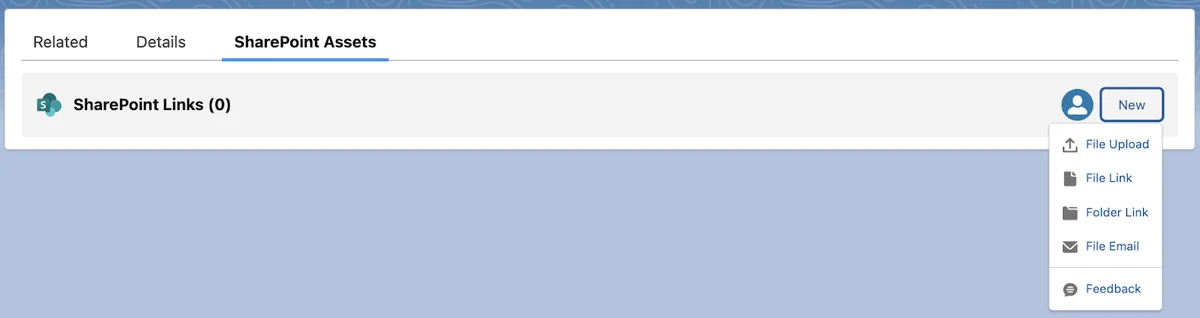

Pattern 2: Managed connector
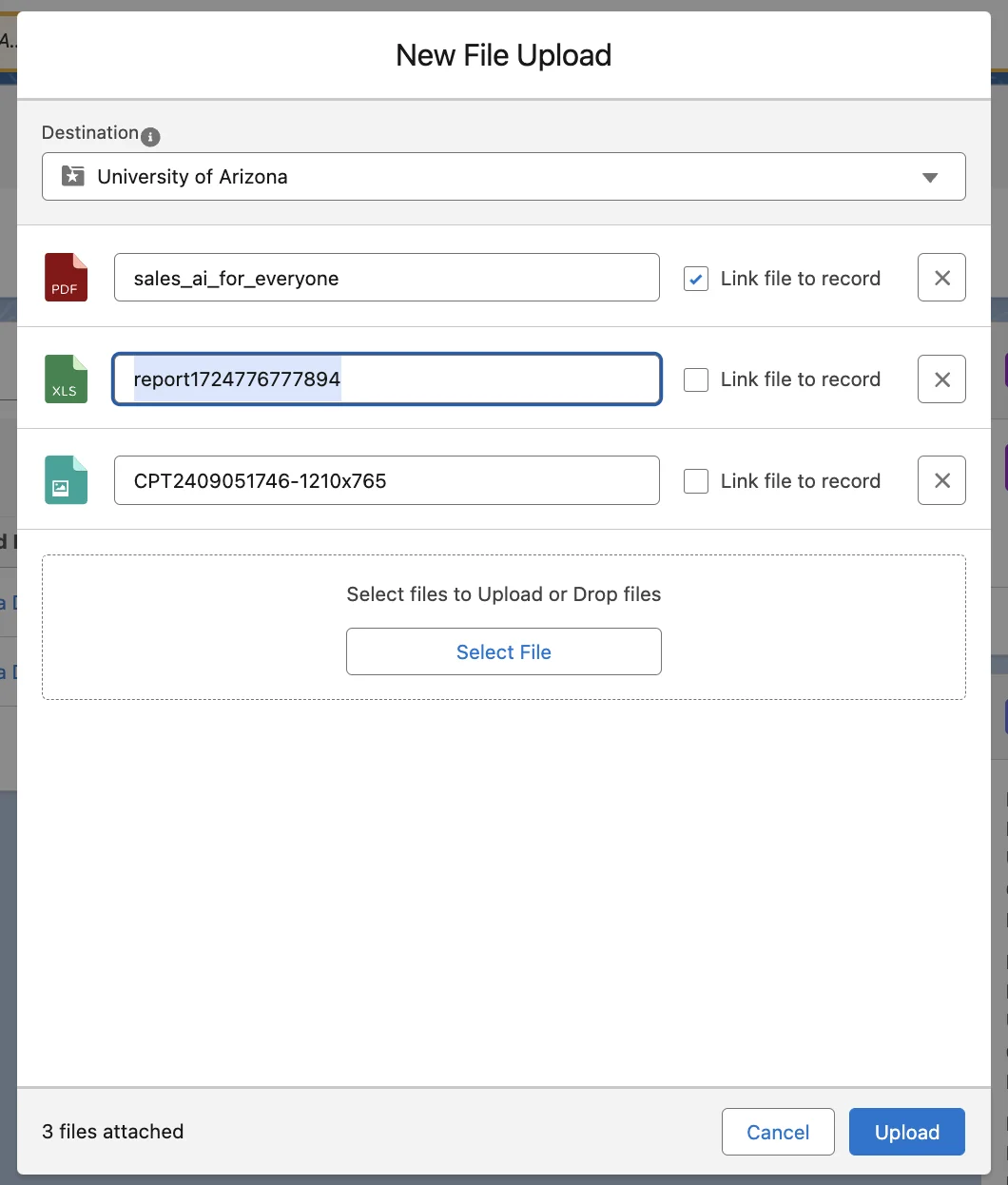

A managed connector can provide record-page components, file previews, folder creation, and migration actions without building every feature. Evaluate where credentials are stored, whether the package uses delegated or application permissions, how references are represented in Salesforce, what happens when a package license is removed, and whether audit logs are available.
Pattern 3: Custom Microsoft Graph integration
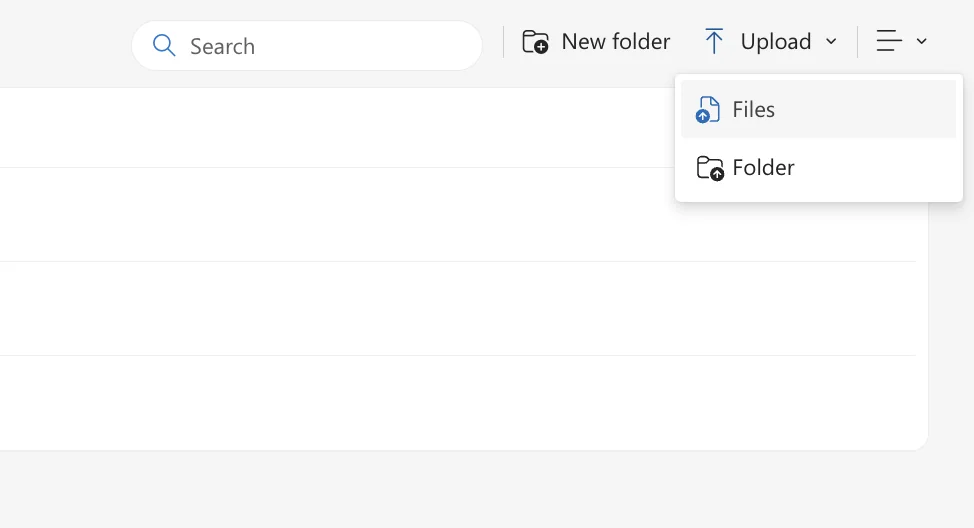
A custom Salesforce integration with SharePoint normally calls Microsoft Graph. Use a Salesforce Named Credential for the endpoint and an External Credential for authentication instead of hard-coding tokens or secrets. Salesforce documents that a Named Credential combines the callout URL and authentication settings, and Apex can reference it with the callout: endpoint syntax.
This pattern fits controlled automation such as creating an Opportunity folder, uploading an approved contract, storing a SharePoint item ID on a custom object, or renaming a folder after a business event. It requires a Microsoft Entra app registration and Graph permissions approved by the Microsoft 365 administrator.
Pattern 4: Middleware-led synchronization
Use middleware when sharepoint to salesforce integration includes bulk migration, retries across long time windows, malware scanning, transformations, large files, or cross-system orchestration. Salesforce should publish an event or make a small request, while the external worker handles Graph upload sessions, checkpoints, and retries.
How to design SharePoint to Salesforce integration
A sharepoint to salesforce integration can be user-driven, event-driven, or scheduled. Define the direction precisely. “Sync documents” is not a testable requirement. State which system creates the file, which system owns the content, which metadata is copied, and what happens after a rename, move, deletion, or permission change.
1. Define the document system of record
Choose one source of truth for file bytes. A common model keeps the binary document in SharePoint and stores a lightweight reference in Salesforce. Avoid creating duplicate copies in both systems unless a legal or offline requirement justifies the storage, retention, and deletion complexity.
2. Create a stable reference model
Use a custom object such as SharePoint_Document__c with fields for Parent_Record_Id__c, Site_Id__c, Drive_Id__c, Item_Id__c, Web_Url__c, File_Name__c, ETag__c, Last_Synced_At__c, and Sync_Status__c. The Graph driveItem resource represents files and folders in OneDrive and SharePoint document libraries. Store item IDs where possible because folder and file names can change.
3. Select delegated or application identity
Delegated access runs in a user’s Microsoft context and usually gives the clearest permission alignment for interactive browsing. Application access is suited to background processing but must be scoped using the least Microsoft Graph permission that supports the use case. The Salesforce user who can see a record is not automatically entitled to its SharePoint document.
4. Map Salesforce visibility to SharePoint authorization
OWD, role hierarchy, sharing rules, teams, and manual sharing control Salesforce record access. SharePoint permissions control document access. A sharepoint integration salesforce design must validate both systems. Never expose a document URL merely because the parent Account is visible.
5. Define lifecycle events
Document automation commonly reacts to Account creation, Opportunity stage changes, quote approval, contract activation, or Case closure. Use record-triggered Flow for orchestration when the operations are declarative and bounded. Use Queueable Apex or middleware when callouts, retries, or multi-step compensation are required.
How to configure Salesforce integration with SharePoint using Microsoft Graph
The following sequence describes a custom Microsoft Graph approach. Microsoft tenant policy and Salesforce release behavior can differ, so validate each step in a sandbox and a non-production Microsoft site.
- Register an application in Microsoft Entra ID. Record the tenant ID and application ID. Configure delegated or application permissions based on the chosen identity model.
- Create an authentication provider or External Credential in Salesforce. Use OAuth 2.0 and map the principal to a permission set. Salesforce’s HTTP Callout authentication guidance requires an External Credential and permission-set mapping for authenticated Flow callouts.
- Create a Named Credential. Use
https://graph.microsoft.comas the base URL and associate it with the External Credential. See the official Named Credentials guide. - Grant principal access. Assign the permission set that enables the External Credential principal. A valid OAuth configuration alone is not enough if the running user lacks principal access.
- Implement the Graph operation. Use Flow HTTP Callout for a declarative endpoint or Apex when request construction, binary payloads, or response handling needs code.
- Persist the Graph identifiers. Save the site, drive, and item IDs returned by Graph. Do not parse IDs from a browser URL.
- Add monitoring and retry rules. Capture HTTP status, Graph request identifiers where available, retry count, and final failure reason.
Apex example: upload a Salesforce File to SharePoint
This example reads the latest ContentVersion in user mode and uploads it to a known SharePoint drive and folder through a Named Credential named Microsoft_Graph. It is intentionally limited to one file. For bulk work, enqueue one or more bounded jobs and avoid querying or calling out inside record loops.
public with sharing class SharePointUploadService {
    public class UploadResult {
        @AuraEnabled public String itemId;
        @AuraEnabled public String name;
        @AuraEnabled public String webUrl;
    }

    @AuraEnabled
    public static UploadResult uploadLatestVersion(
        Id contentDocumentId,
        String siteId,
        String driveId,
        String folderPath
    ) {
        if (contentDocumentId == null ||
            String.isBlank(siteId) ||
            String.isBlank(driveId)) {
            throw new AuraHandledException('Required upload parameters are missing.');
        }

        ContentVersion versionRecord = [
            SELECT Title, FileExtension, VersionData
            FROM ContentVersion
            WHERE ContentDocumentId = :contentDocumentId
              AND IsLatest = true
            WITH USER_MODE
            LIMIT 1
        ];

        String fileName = versionRecord.Title;
        if (String.isNotBlank(versionRecord.FileExtension)) {
            fileName += '.' + versionRecord.FileExtension;
        }

        String normalizedFolder = String.isBlank(folderPath)
            ? ''
            : folderPath.replaceAll('^/+|/+$', '') + '/';

        String graphPath =
            '/v1.0/sites/' + EncodingUtil.urlEncode(siteId, 'UTF-8') +
            '/drives/' + EncodingUtil.urlEncode(driveId, 'UTF-8') +
            '/root:/' + encodePath(normalizedFolder + fileName) +
            ':/content';

        HttpRequest request = new HttpRequest();
        request.setEndpoint('callout:Microsoft_Graph' + graphPath);
        request.setMethod('PUT');
        request.setHeader('Content-Type', 'application/octet-stream');
        request.setBodyAsBlob(versionRecord.VersionData);
        request.setTimeout(120000);

        HttpResponse response = new Http().send(request);
        if (response.getStatusCode() < 200 ||
            response.getStatusCode() >= 300) {
            throw new CalloutException(
                'SharePoint upload failed. HTTP ' +
                response.getStatusCode() + ': ' +
                response.getBody()
            );
        }

        Map<String, Object> payload =
            (Map<String, Object>) JSON.deserializeUntyped(response.getBody());

        UploadResult result = new UploadResult();
        result.itemId = (String) payload.get('id');
        result.name = (String) payload.get('name');
        result.webUrl = (String) payload.get('webUrl');
        return result;
    }

    private static String encodePath(String value) {
        List<String> encodedSegments = new List<String>();
        for (String segment : value.split('/')) {
            if (String.isNotBlank(segment)) {
                encodedSegments.add(
                    EncodingUtil.urlEncode(segment, 'UTF-8').replace('+', '%20')
                );
            }
        }
        return String.join(encodedSegments, '/');
    }
}
Governor-limit note: the file blob, JSON response, and HTTP request consume Apex heap and callout resources in the same transaction. Microsoft Graph supports a simple upload endpoint for files up to its documented limit, but Apex can become the tighter constraint. Route large documents through middleware and use Graph upload sessions rather than attempting to hold the full file in Apex memory.
See Salesforce’s Named Credential callout documentation and Microsoft’s small-file upload API for endpoint behavior.
How should SharePoint integration Salesforce security work?
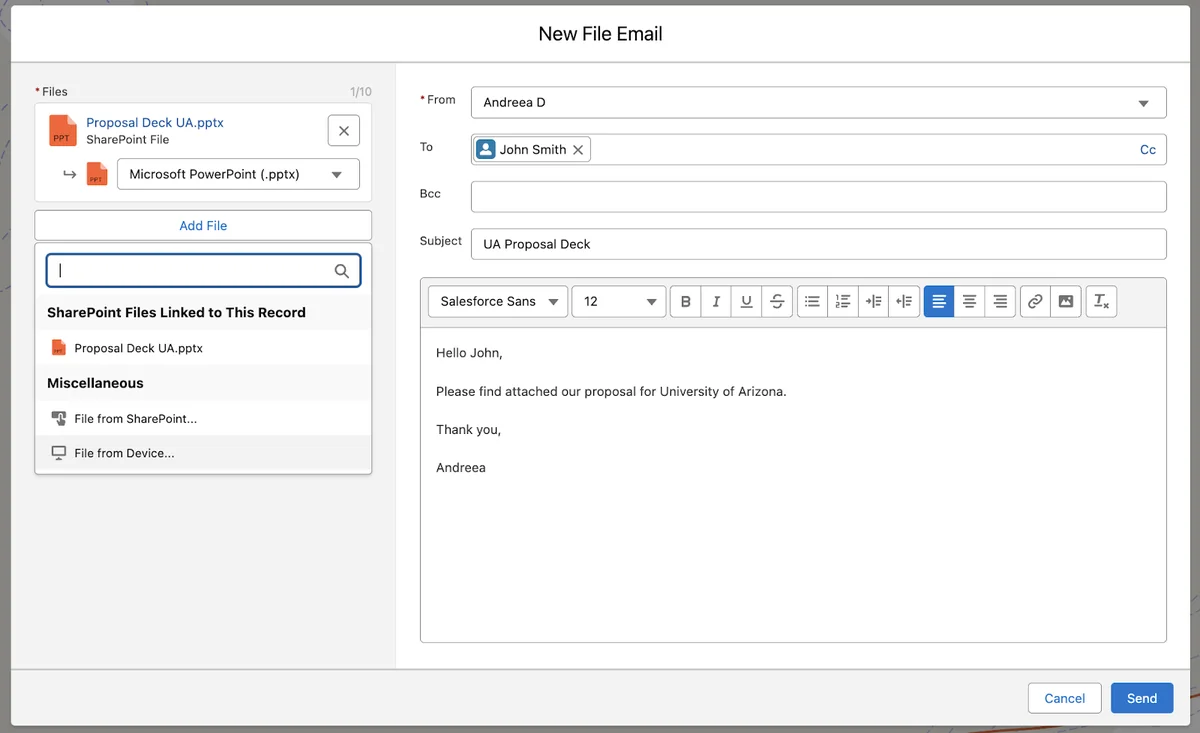
A sharepoint integration salesforce implementation has two independent authorization planes. Salesforce controls who can execute the action and view the related metadata. Microsoft controls who can read or change the actual document.
- Use Named Credentials and External Credentials. Do not store client secrets, bearer tokens, or refresh tokens in Apex, custom settings, custom metadata, or JavaScript.
- Grant principal access through permission sets. Limit the users and integration identities that can call Microsoft Graph.
- Enforce Salesforce CRUD, FLS, and sharing. Use
with sharing, user-mode queries, or explicit security enforcement according to the transaction. - Apply least privilege in Microsoft Graph. Avoid tenant-wide write permissions when access can be restricted to selected sites.
- Do not trust a stored URL as authorization. Revalidate access when the file is opened or changed.
- Audit administrative and runtime activity. Record the Salesforce user, record ID, operation, SharePoint item ID, timestamp, outcome, and correlation identifier.
Per-user versus named-principal access
Per-user identity is appropriate when users should see only what their Microsoft account permits. A named principal is appropriate for controlled service operations, such as creating a standard folder structure. Do not use a broad service identity merely to avoid resolving user access problems.
Browser and Lightning security controls
A custom Lightning Web Component should call Apex or an approved Salesforce integration layer rather than exposing OAuth secrets in browser code. If a design embeds or navigates to Microsoft content, review Content Security Policy, trusted URL requirements, Microsoft frame policies, and the connector’s documented limitations.
How to automate folders and metadata

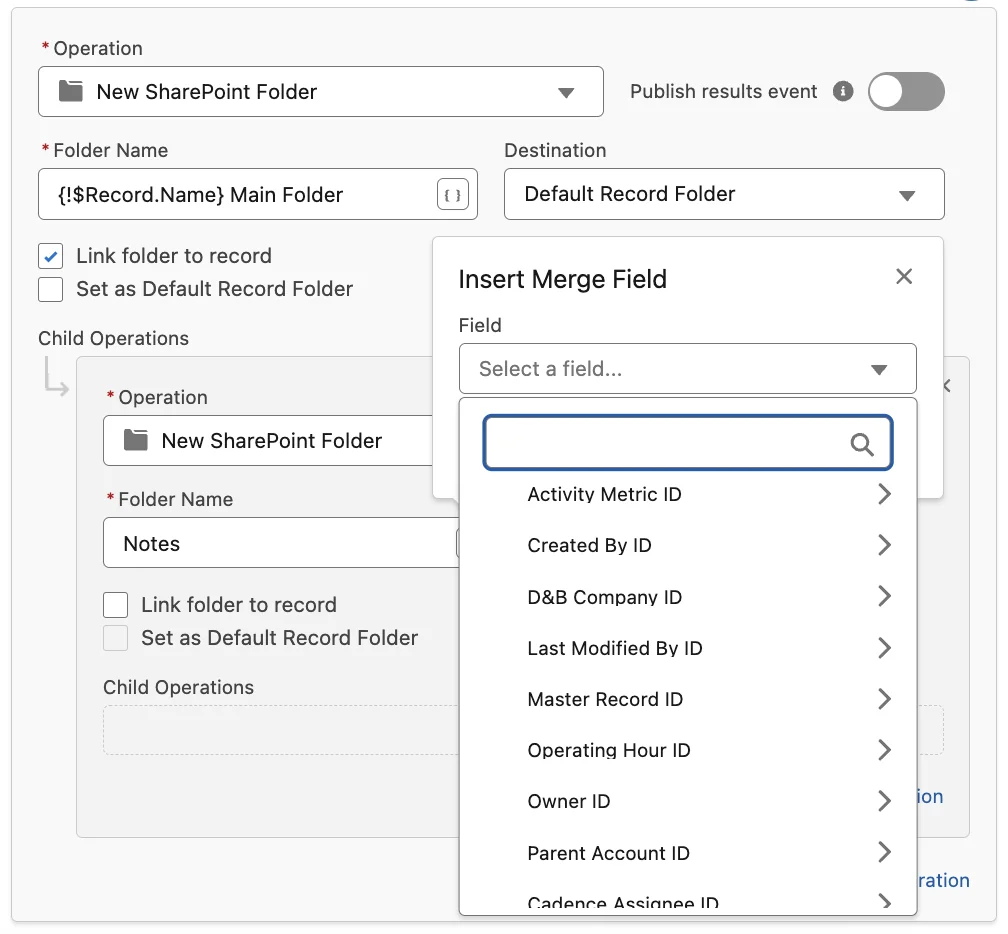
Folder automation is useful only when the naming model remains stable. Build names from immutable or controlled values, not free-form Account names alone. For example, use {AccountNumber}-{AccountName} and store the returned item ID.
SharePoint to Salesforce integration event flow
- A record-triggered Flow detects the qualifying business change.
- The Flow checks whether a SharePoint folder ID already exists, making the operation idempotent.
- A Queueable Apex job or middleware request creates the folder.
- The integration stores the returned item ID and web URL.
- A platform event or status record reports success or failure.
- A retry process handles transient failures without creating duplicate folders.
Salesforce integration with SharePoint naming rules
Replace or reject characters that SharePoint does not accept, cap generated names to the target system’s current limits, and handle duplicates. Keep the business label separate from the external item ID so a later rename does not break the relationship.
How to migrate Salesforce Files to SharePoint
A migration is not just a copy job. Inventory ContentDocument, ContentVersion, and ContentDocumentLink relationships; identify files linked to multiple records; decide which version to migrate; preserve legal holds and retention rules; and define whether Salesforce copies are deleted after validation.
| Migration stage | Required control |
|---|---|
| Discover | Count documents, versions, total bytes, owners, record links, and unsupported file types |
| Map | Resolve each Salesforce record to a target site, library, folder, and naming rule |
| Transfer | Use checksums or size checks, bounded batches, retries, and throttling controls |
| Validate | Confirm Graph item ID, file size, expected record relationship, and user access |
| Cut over | Freeze or route new uploads, then switch the record UI to SharePoint references |
| Clean up | Delete Salesforce files only after approval, retention checks, and recoverability testing |
For a large sharepoint to salesforce integration or reverse migration, prefer an external worker. Microsoft Graph upload sessions support resumable ranged uploads, while Salesforce Bulk API can extract metadata at scale. Keep a migration ledger so each source version maps to one external item and one final status.
Common errors with Salesforce SharePoint integration
| Symptom | Likely cause | Resolution |
|---|---|---|
| 401 Unauthorized | Expired token, incorrect audience, tenant mismatch, or invalid credential configuration | Re-authenticate, inspect the OAuth configuration, and verify the Named Credential endpoint |
| 403 Forbidden | Graph permission or SharePoint site permission is missing | Check delegated/application permissions, admin consent, selected-site grants, and user access |
| 404 Not Found | Wrong site, drive, item ID, or encoded path | Resolve IDs with Graph and encode each path segment rather than the whole URL |
| Duplicate folders | Retries are not idempotent | Store the external item ID and use a unique integration key before creating again |
| Users can see links but not files | Salesforce sharing and SharePoint access are not aligned | Treat record visibility and document authorization as separate checks |
| Apex heap or timeout failure | File or response is too large for one transaction | Move transfer processing to middleware or split the operation using supported upload sessions |
| Renamed folder breaks links | The integration stored only a path | Use SharePoint item IDs as the primary external reference |
Best practices for production deployment
- Use a sandbox and a dedicated non-production SharePoint site for integration testing.
- Separate interactive browsing from background automation because they often need different identity models.
- Make create, move, and upload operations idempotent.
- Use Queueable Apex only for bounded callout work; use middleware for sustained transfer workloads.
- Store external IDs, status, last attempt, attempt count, and error summary.
- Write Apex callout mocks for success, authorization failure, throttling, malformed response, and timeout cases.
- Deploy Named Credential metadata carefully and configure secrets or user authentication in the target org.
- Review Salesforce and Microsoft release notes before each production release.
Related tutorials: Salesforce Named Credentials, Apex REST callouts, Salesforce Files architecture, and Salesforce Flow automation.
Frequently Asked Questions
Can Salesforce integrate with SharePoint Online?
Yes. Salesforce SharePoint integration can use Files Connect, a managed connector, Microsoft Graph API callouts, or middleware. Choose based on browsing, automation, identity, file size, and volume requirements.
Should SharePoint files be copied into Salesforce Files?
Not by default. Keep one document system of record unless a business or legal requirement needs a copy. Storing references in Salesforce reduces duplication but requires reliable SharePoint access and lifecycle controls.
How do I secure sharepoint to salesforce integration?
Use OAuth through Named Credentials and External Credentials, grant principal access with permission sets, enforce Salesforce CRUD/FLS and sharing, and apply least-privilege Microsoft Graph permissions. Validate Salesforce record access and SharePoint document access independently.
Can Salesforce Flow create SharePoint folders?
Yes, when a managed connector exposes a Flow action or when Flow HTTP Callout invokes an authenticated API. Use an idempotency check and save the returned SharePoint item ID to prevent duplicate folders.
What is the best way to upload large files to SharePoint?
Use middleware or an external worker with Microsoft Graph upload sessions. Large binary transfers can exceed practical Apex heap, request-size, or transaction constraints even when the Graph endpoint supports the file size.