Salesforce Winter ’25 Flow Builder updates
The Flow Builder updates bring several exciting features to streamline automation, improve troubleshooting, and enhance interactivity.

| Feature | Description |
|---|---|
| Action Button Component | Now generally available, this component allows users to trigger actions with a simple button click in screen flows, making flows more interactive. |
| Repeater Component | Lets users update collections of records directly, simplifying workflows when working with multiple records. |
| Errors and Warnings Pane | Consolidates errors and warnings in one place, making troubleshooting faster and more efficient. |
| Einstein AI in Flow (Beta) | Allows users to describe desired formulas, and Einstein generates them automatically. Create and edit flows with Einstein’s support in Flow Builder. |
| Subflows in Prompt Flows | Use the Subflow element to call another prompt flow within a prompt flow, allowing modular and reusable automation. |
| Create Records Enhancements | Enables both creation and updating of records based on criteria, reducing the need for separate elements and minimizing errors. |
| Data Transformation Options | Transform data into more target resource types, including Text, Number, Currency, Boolean, Date, and Date/Time, allowing greater flexibility. |
Key Highlights
- Action Button Component: This feature lets users interact with screen flows by clicking buttons to trigger actions, offering a more engaging user experience.
- Einstein Assistance (Beta): Einstein AI can now assist in creating formulas by allowing users to describe their calculations. This is ideal for users who want complex formulas without knowing advanced functions.
- Subflows in Prompt Flows: With the new Subflow element, you can break down automation into smaller, reusable components. This is useful for complex workflows where tasks need to be repeated or referenced.
Salesforce Action Button Component
The Action Button component in Salesforce, now generally available, lets users trigger screen actions with a button click on a screen flow. This feature launches an auto launched flow, showing results on the same screen, reducing the need for multiple screens and minimizing user errors.
New Improvements:
- Running Indicator: Shows that a screen action is in progress.
- Variable Refresh: Update input and output variables without refreshing the browser.
- In Progress Output: Use the “In Progress” status to control other components during action execution.
- System Context Notification: Alerts when an autolaunched flow runs in system context, enhancing data security.
- Conditional Disable: Action button can be disabled based on Boolean criteria.
- Accessibility: Enhanced screen reader support at design and runtime.
How to Use:
- Create and activate an autolaunched flow.
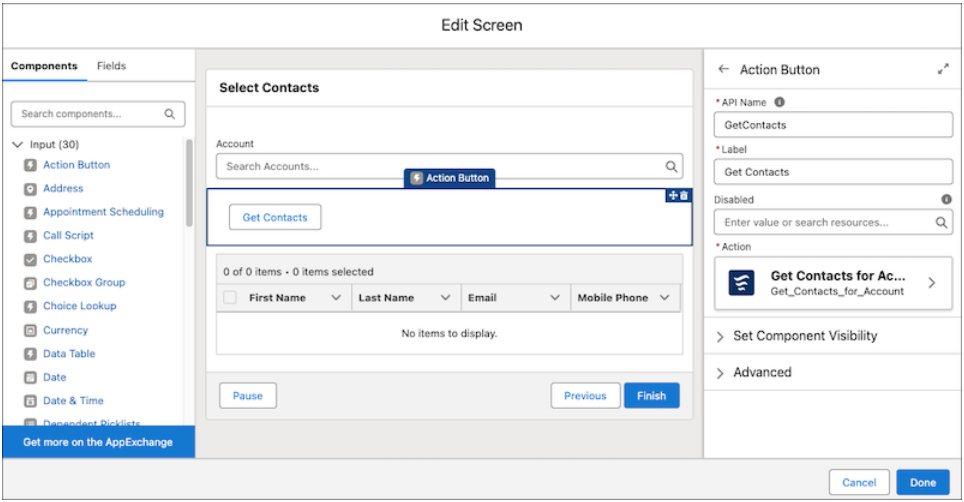
- Add a screen with an Action Button in Flow Builder.
- Configure the button to launch the autolaunched flow and display outputs on the same screen, reducing steps.
Example Use Case:
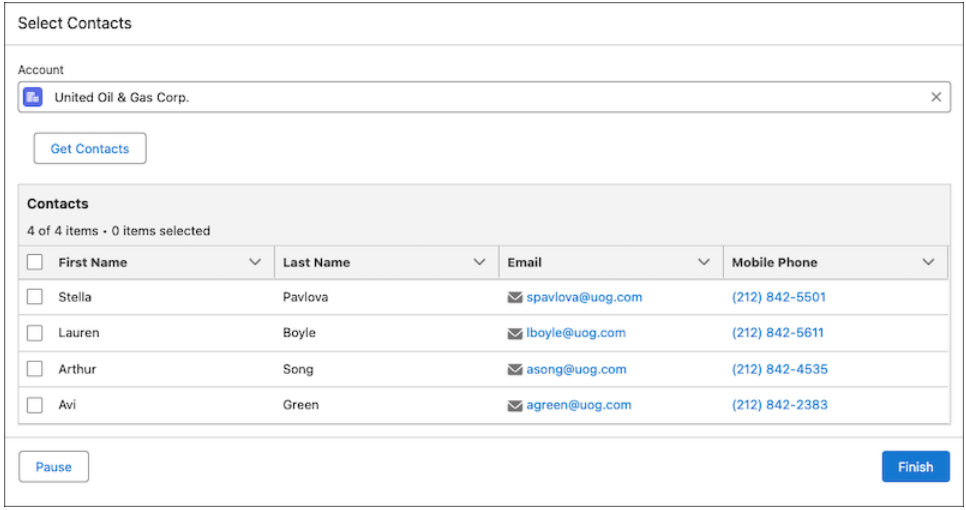
Include a Lookup to select an account, use an Action Button to retrieve contacts for the account, and display related contacts in a Data Table.
At run time, the user gets a streamlined experience because they can select the account without going to another screen to select the contacts. Both actions are on one screen.
User Experience Updates
The Winter ’25 release brings a more intuitive and efficient experience for users building flows.
| User Experience Feature | Description |
|---|---|
| Errors and Warnings Pane | All errors and warnings are now shown in a single pane, making it easy to identify and fix issues. |
| Resource Menu Search | Quickly search for child resources within the resource menu for faster flow creation and troubleshooting. |
| Flow Efficiency Tips | Get direct guidance on making flows more efficient through helpful tips within Flow Builder. |
Key Highlights
- Errors and Warnings Pane: This new pane simplifies troubleshooting by centralizing all errors and warnings, saving time for users when debugging complex flows.
- Resource Menu Search: With a searchable resource menu, finding specific child resources is faster, making it easier to navigate large flows.
- Flow Efficiency Tips: Flow Builder now includes tips to help users optimize their flows, providing guidance on best practices and efficiency improvements.
Screen Flow-Specific Updates
| Screen Flow Feature | Description |
|---|---|
| Enhanced Action Button Component | Users can trigger actions with a button click in screen flows, adding an interactive element to user experience. |
| Repeater Component | Allows updating collections of records directly in screen flows, simplifying workflows with multiple records. |
| Expanded Choice Lookup Component | Users can now select multiple options within the Choice Lookup component, providing more flexibility for decision flows. |
| Customizable Screen Components | Disable screen components during runtime and display labels or API names directly on components for improved clarity. |
Key Highlights
- Action Button Component: The button-triggered actions allow users to complete tasks instantly within screen flows, creating a more interactive and engaging experience.
- Expanded Choice Lookup: Users can make multiple selections within Choice Lookup, adding flexibility for flows that require multiple inputs.
- Customizable Screen Components: Users can now label screen components directly, giving better clarity and customization to their flow screens.
Einstein Support for Flow Formulas (Beta)
- Formula Builder with Einstein: With this beta feature, you can describe your formula needs, and Einstein will generate the correct functions and operators. This tool makes creating complex formulas much more accessible to users without coding expertise.
- Edit Instructions in Flow Builder: You can now modify Einstein-generated instructions directly within Flow Builder, eliminating the need to create new flows when you need to make changes.
Create or Update Records with Efficiency
The Create Records element now includes both creation and updating of records based on specific criteria. This feature saves time by merging what would typically be two steps into one. It’s especially useful for processes that frequently involve checking whether a record already exists before creating or updating it.
Enhanced Data Transformation Options
The Transform element now allows data to be mapped to a variety of target types beyond complex data types. Supported target types include:
- Text
- Number
- Currency
- Boolean
- Date and Date/Time
This flexibility helps users manage data types more effectively within flows, reducing the need for additional workarounds and ensuring data consistency across different formats.
These Winter ’25 updates bring powerful tools for building, managing, and troubleshooting flows. From automation and AI support to improved user guidance, Flow Builder is now more robust and user-friendly, helping you build effective flows that streamline processes and enhance the Salesforce experience.