A slack animated gif is an animated image shared in a Slack message, often through the Giphy app or by pasting a GIF URL. For Salesforce teams, the safest pattern is to allow GIFs in social channels, control app approval and ratings, and keep customer, incident, and release channels focused on searchable work.
This guide explains how to send a gif on Slack, how admins add a giphy to Slack, when a gif in Slack helps communication, and how to manage the setting so animated content does not slow down or distract work channels. Use a slack animated gif as a message enhancement, not as the message itself.
What is a slack animated gif?
A slack animated gif is a GIF file, Giphy result, or linked animation that appears inside a Slack conversation. Users usually send one from the message composer, the shortcuts menu, or an approved app such as Giphy. The feature is not a Salesforce data feature by itself, but it matters in Salesforce programs because many sales, service, DevOps, and enablement teams now discuss Salesforce work in Slack.
In enterprise orgs, treat each slack animated gif as a collaboration setting, not as a default for every channel. A celebration GIF may work in a sales win channel. The same GIF in a production incident channel can hide the message that explains a rollback, failed deployment, or customer escalation.
| Slack area | Good use | Use with care |
|---|---|---|
| Sales celebration channels | Closed-won messages, team recognition, onboarding moments | Do not include customer data in the GIF text or message |
| Salesforce release channels | Light reaction after a successful deployment summary | Avoid GIF-only updates; keep release status searchable |
| Support and incident channels | Rare, non-critical moments after resolution | Do not post during active Sev1 or customer-impacting work |
| Training channels | Reinforcing completion of a Trailhead or internal task | Use captions so the message remains clear without animation |
Slack Animated Gif setup: how admins add Giphy
Workspace permissions decide whether users can install Giphy themselves or must request approval. Slack’s official app guidance says users can install an app from the Apps area and then continue through the Slack Marketplace prompts. Workspace owners can also require app approval before members install apps. Review your internal policy before you add a giphy to Slack, especially in workspaces that also use Salesforce for Slack apps.
Salesforce admins should separate two items that sound related but behave differently: Giphy sends animated media in Slack, while Salesforce for Slack apps connect Salesforce records, notifications, or actions to Slack. Salesforce Help documents the setup path for Salesforce for Slack integrations and the permission scopes used by Salesforce for Slack apps. Keep those governance reviews separate from Giphy approval.
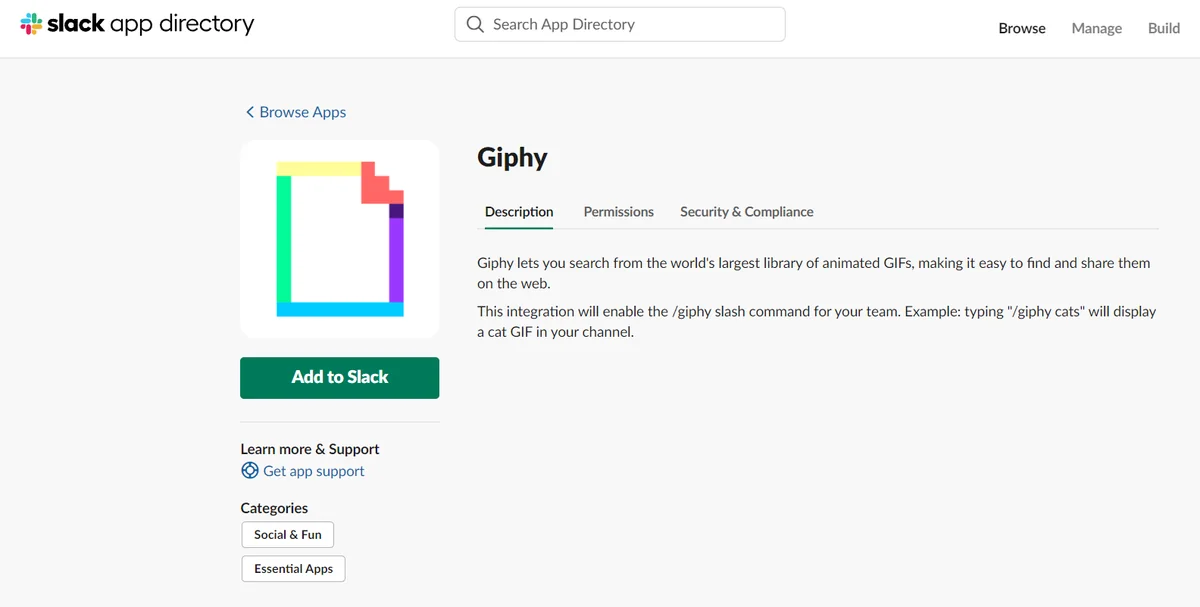
How to add a giphy to slack for workspace users
- Open Slack on desktop and go to Tools or More, then open Apps.
- Search for Giphy. If your workspace requires approval, submit the request with a short reason.
- When the app page opens in Slack Marketplace, choose Add to Slack.
- Review the requested access, rating options, and preview behavior before saving the integration.
- Tell users which channels allow a slack animated gif, which channels block a slack animated gif, and which channels should stay text-first.
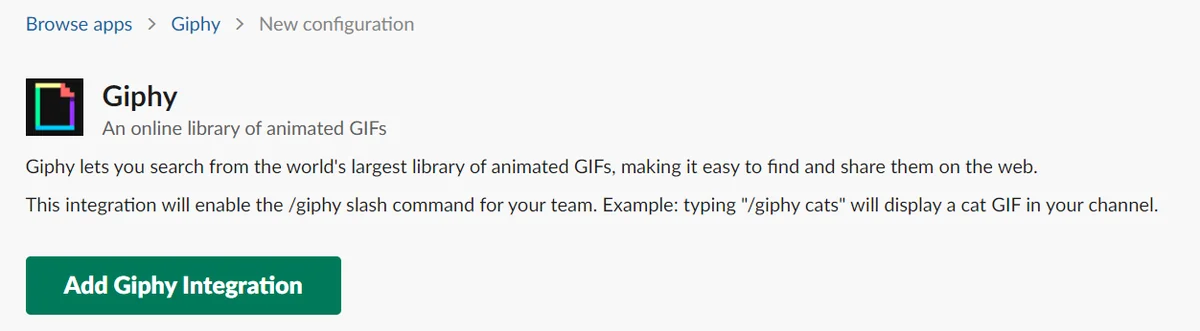
For Salesforce-heavy workspaces, document the decision in the same place where you document approved Slack apps, app owners, and review dates. This helps auditors distinguish a communication app from an app that can read Salesforce records.
How to send a GIF in Slack after Giphy is installed
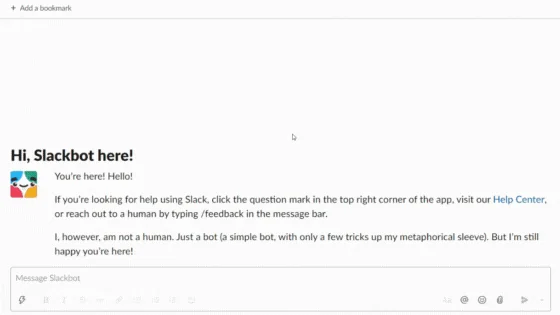
Once Giphy is installed, users can send a gif in Slack from the composer area. The exact labels can change as Slack updates the desktop app, so use the flow below as the working pattern rather than a fixed UI contract.
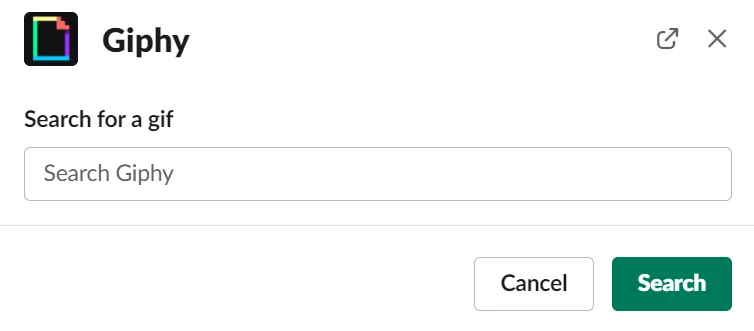
How to send a gif on slack from the message box
- Open the channel or direct message where the GIF belongs.
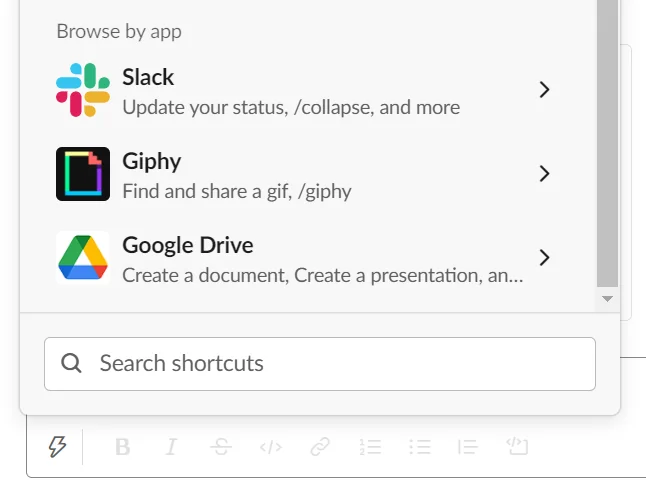
- Click the shortcuts or actions button near the message composer.
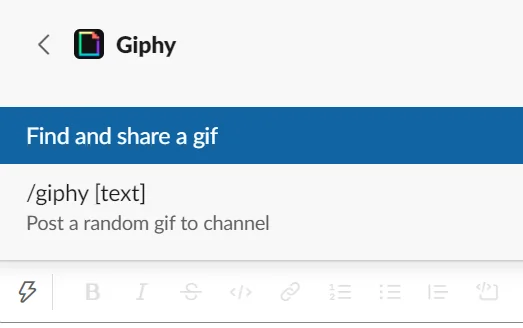
- Search for Giphy and select the option to find and share a GIF.
- Enter a short phrase. Use work-safe terms that match the tone of the channel.
- Preview the result. Shuffle or search again if the first result does not fit.
- Share the GIF only after you verify the channel and audience.
Where a gif in slack fits in daily work
A gif in Slack works best when it adds tone to a message that already contains the needed information. Do not let the animation carry the whole update. In Salesforce delivery channels, write the actual status first, then add the GIF only if the channel policy allows it.
Example: write “UAT passed for release 26.6.3; deployment window remains 9:00 PM IST” before any reaction GIF. That keeps the Salesforce release record clear for people who search the channel later, even when a slack animated gif appears in the same thread.
Insert gif slack checklist before posting
- Channel: Make sure the channel allows informal media.
- Audience: Check whether customers, partners, or executives are present.
- Searchability: Add text that explains the business update.
- Accessibility: Avoid flashing or fast-moving GIFs in work channels.
- Data: Never include Salesforce customer data, screenshots, case details, or opportunity values in a reaction image.
How Salesforce teams should use a slack animated gif
A slack animated gif can support team culture, but Salesforce workspaces often contain governed workflows. Salesforce for Slack apps can expose Salesforce records, actions, and notifications in Slack after admins enable and configure the integration. That does not mean every Slack app should receive the same approval. Review Giphy as a collaboration app and review Salesforce for Slack apps as business-system integrations. A slack animated gif should never receive the same review process as an app that can read or write Salesforce data.
In production programs, create channel rules by work type. Sales channels may allow celebration GIFs. Case swarm channels should keep the thread readable. DevOps channels should avoid animated posts during deployments. Architecture channels should use GIFs rarely because design decisions need searchable context. A slack animated gif can stay in side threads, but the decision record should stay in text.
Example Salesforce channel policy
| Channel type | GIF policy | Reason |
|---|---|---|
| #sales-wins | Allowed after the Salesforce opportunity link or summary | Recognition is part of the channel purpose |
| #case-swarm-priority | Not allowed during active troubleshooting | Support teams need a clear event timeline |
| #sf-release-notes | Allowed only after the deployment result | Release status must remain the first message |
| #architecture-review | Limited to non-decision threads | Future readers need context, links, and decisions |
Flow example for approved GIF links in Salesforce notifications
If a Salesforce automation needs to send a Slack message, prefer the official Send Slack Message Flow action where it fits your edition and setup. Salesforce Help states that the action requires accepting the Slack Terms of Service in Setup and installing one of the official Salesforce Slack apps in the Slack workspace. A Flow message can include a link to an approved image or GIF, but whether Slack renders a preview depends on Slack settings and the destination context.
The Apex below does not call Slack. It builds a plain message for Flow so an admin can combine a Salesforce record label with a pre-approved GIF URL. It avoids SOQL and DML, so it does not add query or DML governor-limit pressure. Use Custom Metadata or a controlled custom object to store approved URLs; do not let users pass arbitrary URLs from a public field.
public with sharing class SlackGifTemplateService {
    public class Request {
        @InvocableVariable(required=true)
        public String recordLabel;

        @InvocableVariable(required=true)
        public String approvedGifUrl;
    }

    public class Response {
        @InvocableVariable
        public String slackMessage;
    }

    @InvocableMethod(
        label='Build Slack GIF Message'
        description='Builds message text for a Salesforce Flow Slack notification.'
    )
    public static List<Response> buildMessages(List<Request> requests) {
        List<Response> results = new List<Response>();

        for (Request req : requests) {
            Response res = new Response();

            String label = String.isBlank(req.recordLabel)
                ? 'Salesforce record'
                : req.recordLabel.replaceAll('[\r\n\t]+', ' ').trim();

            String gifUrl = String.isBlank(req.approvedGifUrl)
                ? ''
                : req.approvedGifUrl.trim();

            Boolean safeUrl = gifUrl.startsWith('https://www.salesforcetutorial.com/images/')
                || gifUrl.startsWith('https://media.giphy.com/')
                || gifUrl.startsWith('https://i.giphy.com/');

            res.slackMessage = safeUrl
                ? label + ' — ' + gifUrl
                : label;

            results.add(res);
        }

        return results;
    }
}
Governor-limit note: this method loops through the Flow input collection and performs no database work. If you later add queries for GIF templates, query once outside the loop and map records by key. Keep CRUD and field-level security checks in the layer that reads any Salesforce records used to choose a message.
Best practices for Giphy safety, app approval, and accessibility
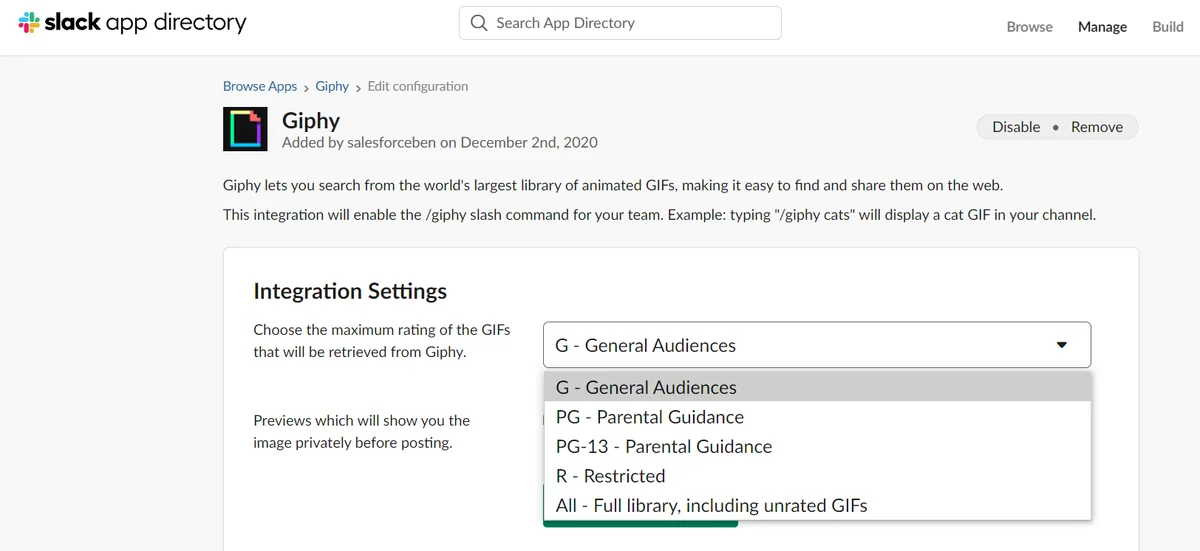
Slack gives workspace administrators controls for app installation and approvals. For Giphy, the practical controls are app approval, content rating, preview before posting, and user education. The goal is not to remove all informal communication. The goal is to prevent an animated post from creating HR, customer, or accessibility issues.
Set a content rating before broad rollout
Before users add a giphy to Slack across many channels, choose a rating that matches your workplace policy. Preview behavior should stay enabled in governed workspaces because a search term can return an unrelated result. A slack animated gif should never surprise the sender after it appears in a customer-facing or executive channel.
Use accessibility settings when animation causes distraction
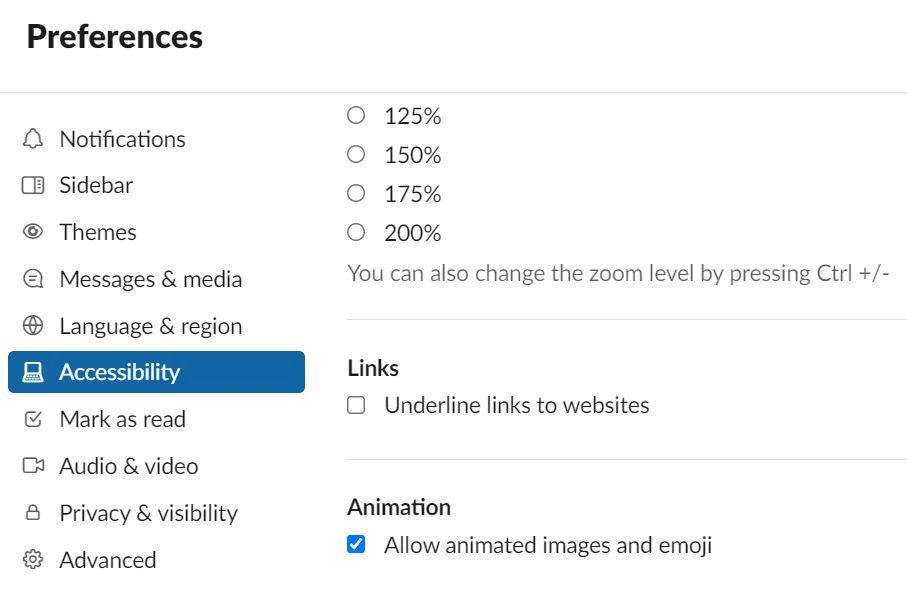
Users who do not want animation can adjust Slack accessibility preferences so animated images and emoji do not autoplay. This is important for long Salesforce triage threads, where multiple GIFs can make the channel harder to read. Teams should respect a request to stop posting moving images in a shared work channel.
Security and compliance notes for Salesforce workspaces
- Do not paste Salesforce session URLs, screenshots with record data, or customer identifiers into GIF search prompts.
- Do not use a GIF as the only response to an approval, production incident, or customer escalation.
- Keep Salesforce record access governed through Salesforce permissions, permission sets, sharing, and Salesforce for Slack configuration.
- Review Slack app scopes separately from Salesforce permission scopes. Giphy approval is not the same as approving a Salesforce data integration.
- For regulated teams, add GIF guidance to your Slack channel operating model and onboarding checklist.
Common errors with GIF in Slack setup
Most slack animated gif problems come from app approval, missing installation, preview settings, or user-level preferences. Use this table before opening a support ticket.
| Problem | Likely cause | Fix |
|---|---|---|
| Giphy does not appear in shortcuts | The app is not installed or not approved | Ask a workspace owner to approve or install Giphy from Slack Marketplace |
| User cannot add Giphy | Workspace requires app approval | Submit an app request with a business reason |
| GIF appears as a link only | Preview, unfurl, or destination settings prevent rendering | Check Slack preview settings and use text that still makes sense without animation |
| Animations feel too distracting | Autoplay is enabled in user preferences | Change Slack accessibility settings for animated images and emoji |
| Salesforce Flow message does not post | Salesforce for Slack setup is incomplete | Verify Slack Terms of Service acceptance, official Salesforce Slack app installation, and Flow action configuration |
Insert gif slack troubleshooting checklist
Use this insert gif slack checklist when a user says the GIF option is missing: confirm the Giphy app is installed, confirm app approval status, test in a non-restricted channel, ask the user to reload Slack desktop, and check whether the workspace has restricted third-party apps. If the issue is tied to a Salesforce automation, troubleshoot the Salesforce for Slack setup separately.
Official references for Slack and Salesforce admins
Use official documentation for setup-sensitive work. A slack animated gif may look simple to users, but app approval, Salesforce for Slack setup, and accessibility settings need documented ownership. Slack documents app installation and app approval in Slack Help. Salesforce documents Salesforce for Slack integrations, permission scopes, Trailhead learning, and the Flow Send Slack Message action.
- Slack Help: Add apps to your Slack workspace
- Slack Help: Manage app approval for your workspace
- Salesforce Help: Enable Salesforce for Slack Integrations
- Salesforce Help: Send Slack Message Action
- Salesforce Help: Permission Scopes for the Salesforce for Slack App
Related SalesforceTutorial resources
- Salesforce Slack integration setup guide
- Salesforce Flow automation basics for admins
- Salesforce permission sets and access control
- Salesforce notifications and collaboration patterns
Frequently Asked Questions
How do I send a GIF on Slack?
To send a GIF on Slack, open a channel or direct message, use the shortcuts or actions button near the message box, choose Giphy, search for a phrase, preview the result, and share it. If Giphy does not appear, your workspace may require an admin to install or approve the app.
How do I add Giphy to Slack?
To add Giphy to Slack, open the Slack Apps area, search for Giphy, and follow the Slack Marketplace install prompts. If app approval is enabled, submit the request to a workspace owner or app manager instead of trying to bypass the control.
Why can’t I insert a GIF in Slack?
You may not be able to insert a GIF in Slack because Giphy is not installed, the workspace requires app approval, the channel restricts apps, or your Slack client needs a reload. Use the insert gif slack checklist in this guide before troubleshooting Salesforce automation.
Can Salesforce Flow send a slack animated gif?
Salesforce Flow can send a Slack message through the official Send Slack Message action when Salesforce for Slack is configured. The message can include an approved GIF URL, but Slack controls whether it renders as an animated preview or only as a link.
Is a gif in Slack safe for Salesforce work channels?
A gif in Slack is safe only when the channel, audience, and content fit your workplace policy. Avoid GIFs in active incident channels, customer-facing channels, approval threads, and messages that need a clear audit trail.
How do I stop animated GIFs in Slack?
Open Slack preferences and review accessibility settings for animated images and emoji. Disabling animation helps users who find a slack animated gif distracting or hard to read in long Salesforce collaboration threads.