Salesforce activities are essential tools for tracking customer interactions, scheduling events, and managing tasks within your organization. This comprehensive guide covers creating, viewing, and managing Salesforce activities including tasks, events, and logged calls.
What are Salesforce Activities?
Salesforce activities encompass scheduled calendar events, tasks, and logged calls that help organizations track customer interactions and internal processes. Similar to Microsoft Outlook and Google Calendar, Salesforce activities enable users to schedule events, invite participants, assign tasks to team members, and maintain detailed records of customer communications.
Activities in Salesforce are directly related to standard objects like accounts, contacts, leads, opportunities, and cases. This relationship structure allows sales teams, support agents, and administrators to track all interactions involved in acquiring, selling, and servicing customers within a unified system.
Types of Salesforce Activities
Tasks in Salesforce
A task represents work that needs completion but doesn’t require a specific time slot on a calendar. Tasks are flexible activities that can be assigned to users with due dates, priorities, and status tracking. For example, a marketing team might create a task called “Send product announcement email” without specifying an exact time for completion.
Key task characteristics:
- No specific time duration required
- Assignable to users or queues
- Status tracking (Not Started, In Progress, Completed)
- Priority levels (High, Normal, Low)
- Due date assignment
Events in Salesforce
An event is a calendar-based activity with a scheduled start time, end time, and often a specific location. Events appear on users’ calendars and can include multiple attendees. Examples include customer meetings, product demonstrations, or training sessions.
Key event characteristics:
- Specific date and time requirements
- Duration specification
- Location field
- Multiple attendee support
- Calendar integration
Log a Call
Log a Call is a specialized activity type for recording completed phone conversations with customers or prospects. This activity captures important customer data and conversation details for future reference and reporting.
Send an Email
Send an Email activities track email communications sent from Salesforce or integrated email clients like Microsoft Outlook and Gmail. These activities maintain a complete communication history within customer records.
How to Create New Task in Salesforce
Creating activities in Salesforce requires understanding which activity type best fits your needs. For scheduled activities with specific times and locations, create events. For general work items without time constraints, create tasks.
To create an activity for leads, navigate to the Leads tab and select the specific lead record:

Select the Leads tab as shown above and choose the lead record for task creation. Access the detailed lead view and click “New Task” to begin the creation process.

The task creation form displays several required and optional fields:
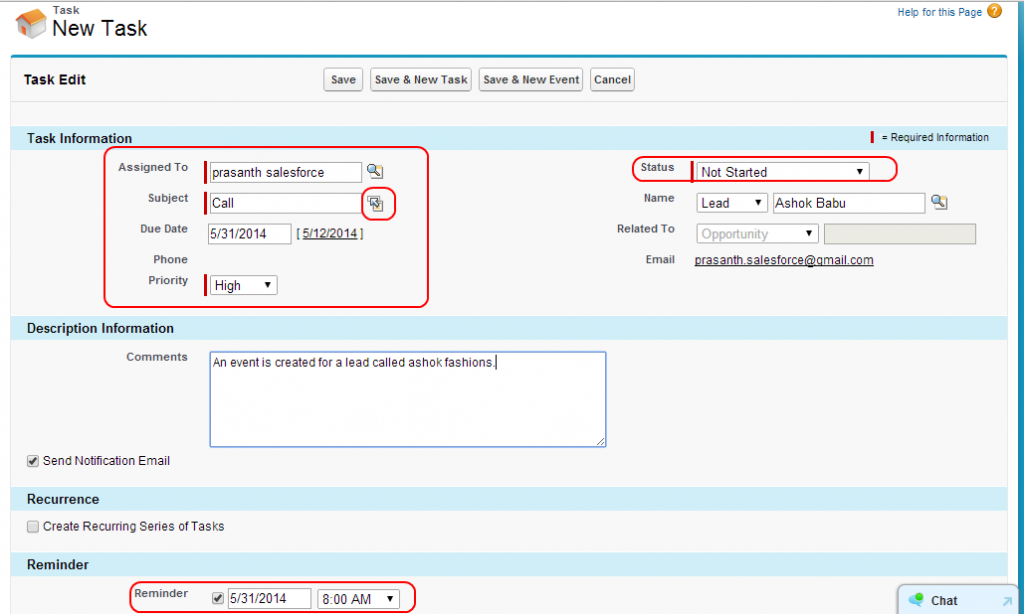
Task Field Definitions
- Assigned To: User responsible for completing the task
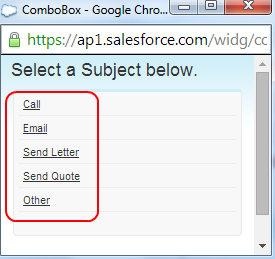
- Subject: Brief description of the task (selected from predefined values)
- Due Date: Target completion date
- Priority: Task importance level (High, Normal, Low)
- Status: Current task state (Not Started, In Progress, Completed)
- Name: Related contact or lead record
Select the subject from the lookup window to ensure consistency across your organization:
After completing all required fields, click the Save button to create the task:

The system confirms successful task creation and the new activity appears in the related record’s activity history.
Salesforce Activities Best Practices
Activity Management for Administrators
Salesforce administrators should configure activity settings to support organizational workflows:
- Customize activity subjects to match business processes
- Set up activity reminders and notifications
- Configure sharing rules for activity visibility
- Establish data validation rules for required fields
- Create custom activity fields for specific business needs
Integration Patterns for Activities
Salesforce activities integrate with external systems through several patterns:
- Email Integration: Sync with Outlook, Gmail, or other email clients
- Calendar Sync: Bidirectional synchronization with external calendars
- API Integration: Create activities programmatically using REST or SOAP APIs
- Third-party Apps: AppExchange solutions for enhanced activity management
Security Considerations
Activity security in Salesforce follows the platform’s sharing model:
- Activities inherit sharing settings from related records
- Private activities remain visible only to the owner and users above them in the role hierarchy
- Field-level security controls which activity fields users can view or edit
- Permission sets can grant additional activity-related permissions
Viewing and Managing Existing Activities
Salesforce provides multiple ways to view and manage activities:
Activity Timeline
The Activity Timeline component displays a chronological view of all activities related to a record, including completed tasks, logged calls, and upcoming events.
Activity Reports
Create custom reports to analyze activity data across your organization. Common report types include:
- Open tasks by user
- Completed activities by date range
- Activity volume by record type
- Overdue task reports
Calendar Views
Salesforce calendars display events and time-based activities in daily, weekly, or monthly views. Users can create multiple calendars and share them with team members.
Frequently Asked Questions
What is the difference between a task and an event in Salesforce?
A task is work that needs completion without a specific time slot, while an event is a calendar-based activity with scheduled start and end times. Tasks are flexible and can be completed anytime before the due date, whereas events occur at specific times and appear on calendars.
Can Salesforce activities be integrated with external calendar systems?
Yes, Salesforce activities integrate with external calendar systems including Microsoft Outlook, Google Calendar, and other email clients. This integration allows bidirectional synchronization of events and calendar items between Salesforce and external systems.
How do activity sharing rules work in Salesforce?
Activities inherit sharing settings from their related records (accounts, contacts, leads, etc.). Private activities remain visible only to the owner and users above them in the role hierarchy. Administrators can configure sharing rules and field-level security to control activity visibility and editing permissions.
What are the governor limits for activities in Salesforce?
Salesforce imposes limits on activity creation and management. Standard limits include maximum activities per record, API call limits for activity creation, and storage limits for activity data. These limits vary by Salesforce edition and can be monitored through Setup > System Overview.
How can administrators customize activity fields and layouts?
Administrators can customize activity objects by adding custom fields, modifying page layouts, creating validation rules, and setting up workflow rules. Activity customization is available through Setup > Object Manager > Task or Event, where you can modify field properties, layouts, and business logic.