Salesforce user licenses determine what features and functionality users can access within your org. Understanding the different types of Salesforce licenses helps administrators assign appropriate access levels while managing costs effectively.
This guide covers all Salesforce license types, including Work.com licenses, with step-by-step assignment instructions updated for Winter ’26.
What Are Salesforce User Licenses?
A Salesforce user license defines the baseline of features a user can access. Each user must have exactly one user license, which determines:
- Available apps and tabs
- Storage limits per user
- API access permissions
- Feature-specific functionality
User licenses work with permission sets and profiles to control granular access within the permitted baseline.
Complete List of Salesforce License Types
Salesforce offers multiple license types to match different user needs and budgets. Here are the primary categories:
Core Salesforce Licenses
- Salesforce – Full CRM access with customization capabilities
- Salesforce Platform – Custom apps without Sales/Service Cloud features
- Lightning Platform – Successor to Force.com, includes Lightning Experience
Industry-Specific Licenses
- Health Cloud – Healthcare industry features
- Financial Services Cloud – Banking and insurance capabilities
- Education Cloud – Academic institution management
Specialized Access Licenses
- Chatter Free – Collaboration-only access
- Chatter External – External user collaboration
- Sites and Site.com Only – Public website functionality
Work.com User Licenses Explained
Work.com provides performance management and employee engagement tools within Salesforce. Work.com licenses come in two distinct types:
Work.com Only User License
This license type serves users who need Work.com functionality without full Salesforce access. Work.com Only licenses include:
- Goal setting and tracking
- Performance reviews
- Recognition and rewards
- Skills and competency management
Users with Work.com Only licenses cannot access standard Salesforce CRM objects like Accounts, Contacts, or Opportunities.
Work.com User Feature License
This add-on license extends existing Salesforce users with Work.com capabilities. Users must already have a base Salesforce license (Salesforce, Platform, etc.) to receive this feature license.
How to Assign Work.com Only User License
Follow these steps to assign a Work.com Only license to a user who doesn’t have existing Salesforce access:
Navigate to Setup → Users → Users
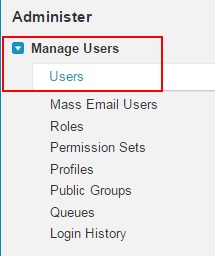
Click on Users to access the user management interface.
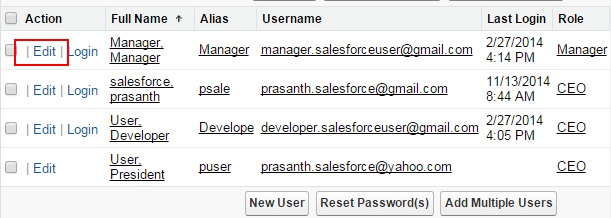
Select the target user from the list and click the Edit button to modify their license assignment.
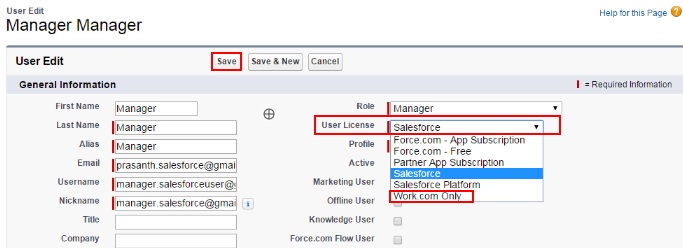
In the User License dropdown, select Work.com Only from the available license options.
Click Save to apply the license assignment. The user will receive Work.com access without full Salesforce functionality.
How to Assign Work.com User Feature License
For users who already have base Salesforce licenses and need Work.com features added:
- Navigate to Setup → Users → Users
- Select the user and click Edit
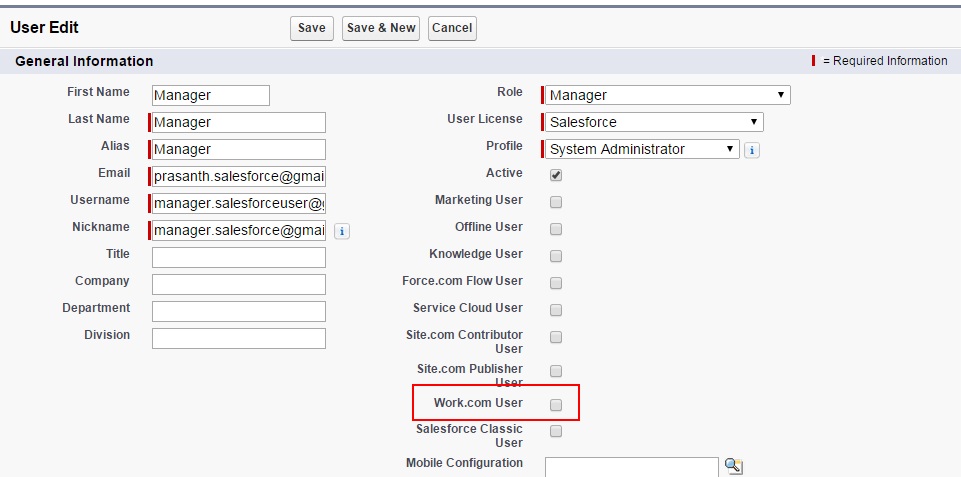
Check the Work.com User checkbox to add Work.com capabilities to their existing license.
Click Save to enable Work.com features for the user while maintaining their current Salesforce access.
Salesforce License Comparison Matrix
| License Type | CRM Access | Custom Objects | API Calls/Day | Storage (MB) |
|---|---|---|---|---|
| Salesforce | Full | Unlimited | 15,000 | 5 |
| Lightning Platform | None | Unlimited | 5,000 | 20 |
| Work.com Only | None | Work.com objects | 1,000 | 5 |
| Chatter Free | None | None | 200 | 2 |
License Management Best Practices
Effective license management requires ongoing monitoring and optimization:
Regular License Audits
Review user licenses quarterly to identify:
- Inactive users consuming licenses
- Users with excessive permissions
- Opportunities to downgrade license types
Cost Optimization Strategies
Consider these approaches to manage license costs:
- Use Lightning Platform licenses for users who don’t need CRM features
- Implement Chatter Free for collaboration-only users
- Leverage Community licenses for external users
Compliance Considerations
Ensure license assignments comply with:
- Salesforce terms of service
- Your organization’s security policies
- Industry regulations (HIPAA, SOX, etc.)
Common License Assignment Errors
Avoid these frequent mistakes when managing Salesforce licenses:
- Over-licensing – Assigning expensive licenses when cheaper options suffice
- Inactive users – Leaving licenses assigned to departed employees
- Permission conflicts – Granting permissions that exceed license capabilities
- Feature license confusion – Misunderstanding add-on vs. base license requirements
Frequently Asked Questions
What is the difference between Salesforce user licenses and permission sets?
User licenses define the baseline features a user can access, while permission sets grant additional permissions within that baseline. You cannot use permission sets to exceed license limitations.
How many different Salesforce licenses are available?
Salesforce offers over 20 different license types, including core licenses (Salesforce, Lightning Platform), industry-specific licenses (Health Cloud, Financial Services), and specialized access licenses (Chatter Free, Sites Only).
Can I change a user’s license type after assignment?
Yes, administrators can change user license types through Setup → Users → Users. However, changing from a higher to lower license may remove access to certain features and data.
What happens when I assign a Work.com Only license?
Users with Work.com Only licenses can access performance management features, goals, and recognition tools, but cannot access standard Salesforce CRM objects like Accounts, Contacts, or Opportunities.
Do all Salesforce licenses include API access?
Most Salesforce licenses include API access, but with different daily limits. Salesforce licenses get 15,000 API calls per day, while Lightning Platform gets 5,000, and Chatter Free gets 200.