Salesforce Google Apps integration enables seamless connectivity between your Salesforce org and Google Workspace services. This integration allows you to route Gmail messages directly to Salesforce records, access Gmail from within Salesforce, and use Google Talk for instant messaging while maintaining activity history on leads and contacts.
What is Salesforce Google Apps Integration?
Salesforce Google Apps integration connects your Salesforce org with Google Workspace (formerly G Suite) services. The integration provides three main components:
- Gmail to Salesforce routing – Automatically creates activities on matched records when you BCC a unique email address
- Gmail Buttons and Links – Quick access to Gmail from within Salesforce record pages
- Google Talk Sidebar – Instant messaging component embedded in the Salesforce interface
Gmail to Salesforce Email Routing
Gmail to Salesforce allows you to route emails sent from Gmail directly to records in your Salesforce org. The Force.com platform generates a unique email address for your account. Add this address to the BCC field of outgoing Gmail messages, and the system creates activities on matched leads, contacts, opportunities, and other records that support activity history.
This feature works for both emails and chat conversations, automatically matching recipients to existing records based on email addresses and creating comprehensive activity logs.
Gmail Buttons and Links Configuration
Gmail Buttons and Links provides quick access to Gmail from within the Salesforce interface. The service adds:
- Gmail links next to email fields on all record types
- Compose Gmail buttons on Activity History related lists for leads and contacts
When you click these buttons, Salesforce opens a new window, automatically logs you into Gmail, and populates the To field with the correct email address from the record.
Google Talk Sidebar Component
The Google Talk Sidebar displays below the sidebar search in the left pane of the Salesforce interface. This component allows users to:
- Stay within the Salesforce environment while messaging
- Toggle the interface on, off, or expand it into a separate window
- Log chats for contacts and leads as activities on their records
How to Add Google Apps to Salesforce
Google Apps integration requires Google Workspace business accounts, not consumer Gmail accounts. Consumer accounts use the “gmail.com” domain (example: user@gmail.com), while business accounts use custom domains registered with Google (example: user@yourcompany.com).
To set up Salesforce Google Apps integration, you must first create a Google Workspace account for your organization, then create individual accounts for Salesforce users.
Setup Process Overview
Navigate to Setup → Administer → Google Apps → Google Apps Settings to begin configuration.
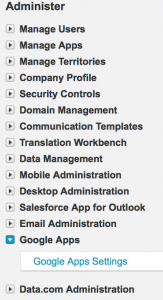
[Image: Current screenshot shows Classic UI — recommend updating to Lightning Experience screenshot]
Configuration Steps
The Salesforce Google Apps setup involves four main steps:
- Create Google Workspace Account – Register your domain with Google Workspace
- Configure Domain Settings – Set up domain verification and authentication
- Activate Google Apps Services – Enable Gmail, Google Talk, and other required services
- Create Google App Users – Export Salesforce users to Google Workspace or create individual accounts
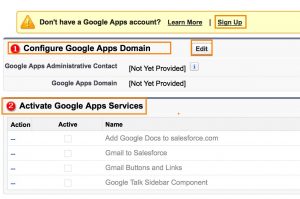
After creating Google Workspace accounts for your organization, create accounts for Salesforce users by clicking “Export to Google Apps” from the Google Apps Settings page.
Salesforce Admin Interview Questions: Google Apps Integration
Common Salesforce admin interview questions about Google Apps integration include:
- What are the prerequisites for Salesforce Google Apps integration?
- How do you troubleshoot email routing issues between Gmail and Salesforce?
- What security considerations apply to Google Apps integration?
- How do you manage user permissions for Google Apps features?
Integration Patterns and Best Practices
When implementing Salesforce Google Apps integration, consider these patterns:
Email-to-Case Integration
Combine Google Apps with Email-to-Case for comprehensive customer service workflows. Route customer emails through Gmail while automatically creating cases in Salesforce.
Activity Logging Strategy
Establish consistent activity logging practices for Gmail conversations and Google Talk chats. Configure automatic activity creation rules to maintain complete communication history.
User Training and Adoption
Provide training on Gmail buttons, BCC routing, and Google Talk features to ensure user adoption and proper usage of integration capabilities.
Security Considerations
Salesforce Google Apps integration requires careful attention to security:
- Domain Verification – Ensure proper domain ownership verification with Google
- User Authentication – Configure single sign-on (SSO) where possible
- Data Privacy – Review data sharing agreements between Salesforce and Google
- Access Controls – Implement appropriate user permissions and profile settings
Troubleshooting Common Issues
Email Routing Problems
If emails aren’t routing correctly from Gmail to Salesforce:
- Verify the BCC email address is correct and active
- Check that recipient email addresses match existing Salesforce records
- Confirm Google Workspace domain settings are properly configured
- Review Salesforce email administration settings
Authentication Issues
For login problems with Gmail buttons:
- Clear browser cookies and cache
- Verify Google Workspace account status
- Check Salesforce session settings and timeout configurations
- Confirm user has appropriate Salesforce profile permissions
Modern Alternatives and Migration
Note that Google Apps integration represents legacy functionality. Modern Salesforce orgs should consider:
- Einstein Activity Capture – Automatically sync emails and calendar events
- Salesforce Inbox – Native email integration with advanced features
- Third-party connectors – Specialized integration tools for Google Workspace
Organizations using Classic Google Apps integration should evaluate migration to these newer solutions for enhanced functionality and ongoing support.
Frequently Asked Questions
What’s the difference between consumer Gmail and Google Workspace for Salesforce integration?
Salesforce Google Apps integration requires Google Workspace (business) accounts with custom domains, not consumer Gmail accounts. Consumer accounts use @gmail.com addresses, while business accounts use your organization’s domain (like @yourcompany.com). Only Google Workspace accounts provide the administrative controls and API access needed for Salesforce integration.
How do I troubleshoot Gmail to Salesforce email routing issues?
First, verify you’re using the correct BCC email address generated by Salesforce. Check that recipient email addresses exactly match those in your Salesforce records. Confirm your Google Workspace domain is properly configured and that Salesforce email administration settings allow incoming emails. Review activity history on target records to see if emails are being created but not displaying correctly.
Can I use Salesforce Google Apps integration with Lightning Experience?
The original Google Apps integration was designed for Salesforce Classic and has limited functionality in Lightning Experience. Modern Salesforce orgs should use Einstein Activity Capture or Salesforce Inbox for Google Workspace integration, as these provide better Lightning compatibility and enhanced features.
What permissions do users need for Salesforce Google Apps features?
Users need “Use Google Apps” permission in their profile or permission set. They also need standard permissions for creating activities and accessing the records where Gmail integration will log communications. System administrators should review field-level security for activity fields and ensure users can create tasks and events.
Is Salesforce Google Apps integration still supported?
While the original Google Apps integration still functions, Salesforce focuses development on newer solutions like Einstein Activity Capture and Salesforce Inbox. Organizations should evaluate migrating to these modern alternatives for better functionality, ongoing support, and Lightning Experience compatibility.