Salesforce Inbox adds sales productivity features to the Outlook and Gmail integrations, so reps can work from email while still viewing and updating Salesforce context. For admins, the main work is licensing, email integration setup, Einstein Activity Capture decisions, pane configuration, tracking controls, and a rollout plan that keeps data access aligned with your Salesforce security model.
This guide explains how sfdc inbox is used in production orgs, how inbox by salesforce differs from Einstein Activity Capture, and what to check before enabling scheduling links, email tracking, and Send Later for a sales team.
What is Salesforce Inbox?
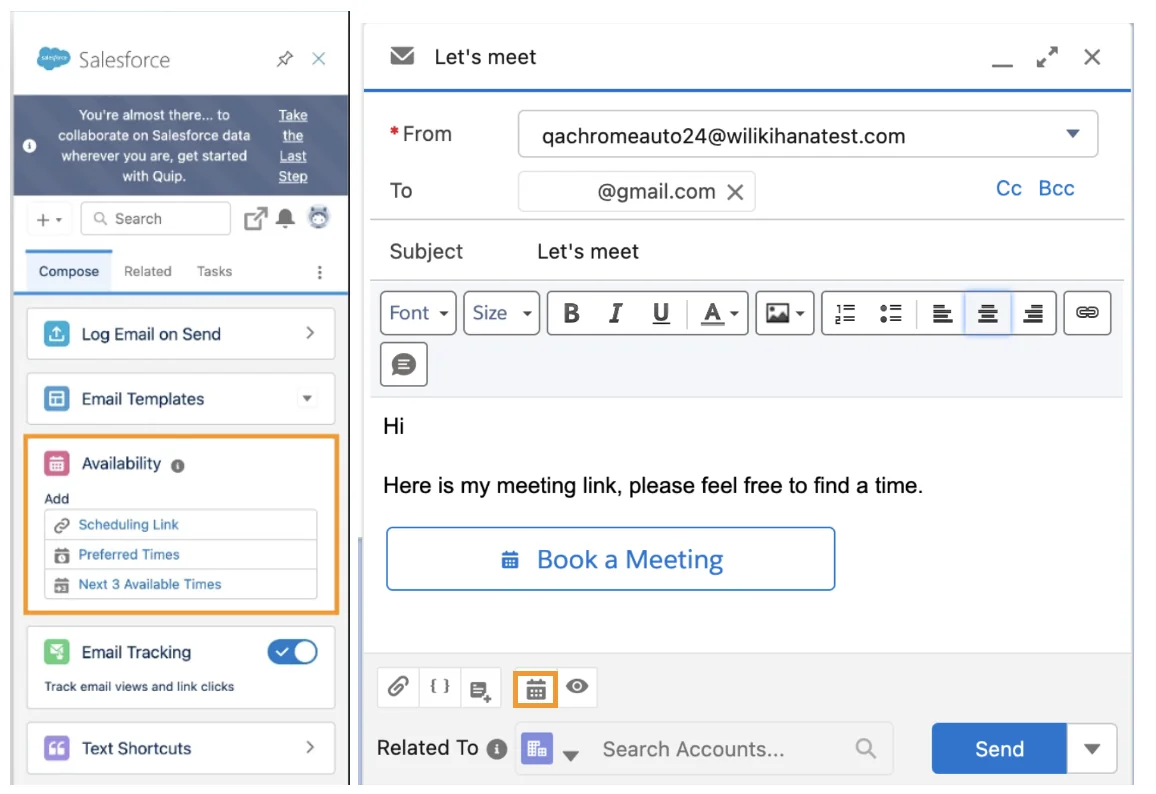
Salesforce Inbox is a licensed feature set for the Salesforce Outlook and Gmail integrations. It does not replace Sales Cloud, Outlook, Gmail, or Einstein Activity Capture. It extends the email side panel with actions such as email tracking, meeting availability, scheduling links, Send Later, and productivity tools that help a rep work on leads, contacts, accounts, opportunities, cases, and supported custom objects without switching tabs.
In enterprise orgs, admins usually position Salesforce Inbox as the user-facing email workflow layer. Einstein Activity Capture handles email and calendar capture or sync decisions. Outlook or Gmail integration provides the side panel. Salesforce Inbox adds the sales features that make the panel useful during prospecting and account management.
Terminology note for admins
Use Salesforce Inbox in documentation, permission-set names, and admin training. Use sfdc inbox only when you are mapping search terms, support tickets, or legacy internal notes, because users often type sfdc inbox when they mean the same Inbox feature set. Use inbox by salesforce when comparing the product to third-party scheduling tools, because buyers often search inbox by salesforce while evaluating whether the native Salesforce option is enough.
Sfdc inbox versus Outlook and Gmail integration
Some teams use the phrase sfdc inbox to mean every Salesforce email integration feature. That creates confusion during setup. The base Outlook and Gmail integrations bring Salesforce records into email. Salesforce Inbox is the additional licensed feature set that exposes Inbox actions inside those integrations. Salesforce Help documents the feature matrix for Outlook and Gmail integrations separately from Inbox features, so confirm the exact behavior for your client type before a rollout.
Inbox by salesforce versus Einstein Activity Capture
Inbox by Salesforce is not the same thing as Einstein Activity Capture. Inbox focuses on user actions in the mail client. Einstein Activity Capture connects Microsoft or Google accounts to Salesforce and can capture or sync email and event data based on the admin configuration. A production design can use both, but the data retention, object support, reporting behavior, and compliance review are different.
| Capability | Salesforce Inbox | Einstein Activity Capture | Admin decision |
|---|---|---|---|
| Email side panel actions | Yes, through Outlook or Gmail integration with Inbox features enabled | No, EAC is not the side panel UI | Enable Inbox features only for users who need the workflow |
| Email and event capture | Supports user productivity; manual logging depends on integration configuration | Captures or syncs activity data from Microsoft or Google accounts | Define capture scope, retention expectations, and visibility rules |
| Meeting availability | Supports availability insertion, scheduling links, and available time options | Provides calendar connection context when configured | Validate calendar access and business-hour expectations |
| Developer customization | Limited; customize the email application pane and related Salesforce data workflows | Limited direct Apex customization | Build around Salesforce records, not inside the mail client feature |
How Salesforce Inbox licensing works
Salesforce Inbox requires the right edition, license, and permission assignment. Salesforce Help lists Inbox as available for an extra cost in Professional and Enterprise editions. Salesforce also announced Inbox inclusion for Sales Cloud Unlimited and Performance editions through included Sales Cloud permission sets, but contract terms and packaging can vary. Always verify the assigned permission set license in Setup before telling a user that Inbox should appear.
For Sales Engagement customers, Salesforce Help states that Inbox permissions are included in the Sales Engagement User permission set. In a mixed org, do not assume that every Sales Cloud user has Salesforce Inbox. Build a report or admin checklist that compares users, permission set licenses, permission sets, email client, and integration status.
License and permission checklist
- Confirm the user has a supported Salesforce license and the needed Salesforce Inbox permission set license.
- Assign the Inbox permission set, Sales Cloud Included permission set, Inbox Included permission set, or Sales Engagement User permission set only when it matches the purchased package.
- Turn on the correct Outlook or Gmail integration before expecting Inbox actions to appear.
- Confirm the user is connected to the supported Microsoft or Google account type. Personal Outlook.com accounts are not the same as supported Microsoft 365 or Exchange configurations.
- Check whether the user is in an Einstein Activity Capture configuration if your process depends on automatic activity capture or calendar context.
How to set up Salesforce Inbox in Outlook or Gmail
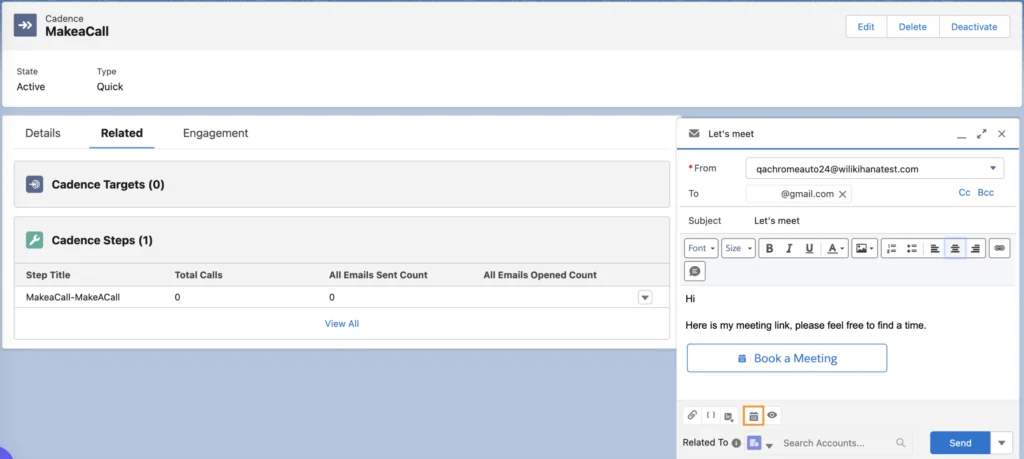
A clean Salesforce Inbox rollout starts with the base email integration. Do not begin by assigning licenses to every sales user. First decide whether the org will use Outlook integration, Gmail integration, Einstein Activity Capture, or a combination. Then test a small group with real mailboxes, real calendar permissions, and the same record access model used in production.
Admin setup path for Outlook
- From Setup, search for Outlook Integration and Sync.
- Turn on the Outlook integration and review the Salesforce Help system requirements for Microsoft 365, Exchange Online, or supported Exchange versions.
- Enable Enhanced Email if users must log Outlook emails as Salesforce email records.
- Use the Email Application Pane setup to create or customize the pane. Salesforce supports Lightning App Builder customization for the pane.
- Add Inbox features to the pane and remove actions that do not match your sales process.
- Assign the correct permission set license and permission set to pilot users.
- Ask pilot users to install or access the supported Outlook integration experience and connect their mailbox.
Admin setup path for Gmail
- From Setup, search for Gmail Integration and Sync.
- Review the Gmail integration requirements and confirm whether users must install the Salesforce Gmail integration Chrome extension.
- Configure Einstein Activity Capture only after you decide what email and event data should be captured or synced.
- Assign Salesforce Inbox access to users who need Inbox actions in Gmail.
- Test scheduling, tracking, Send Later, and record matching with a pilot mailbox before expanding access.
Recommended pilot scope
Start with five to ten users from one sales segment. Choose users who work with leads, contacts, accounts, and opportunities every day. Include at least one manager who can validate reporting needs. The pilot should answer three questions: which actions reps use, which sfdc inbox actions create support tickets, how inbox by salesforce changes scheduling behavior, and which email data the company is comfortable capturing in Salesforce.
What Salesforce Inbox features should admins enable first?
Enable Salesforce Inbox features in phases. A common mistake is enabling tracking, scheduling, Send Later, quick text, templates, and capture controls at the same time. Reps then see too many new actions, and admins cannot isolate the source of a data or support issue.
| Feature | Use it when | Admin caution |
|---|---|---|
| Email tracking | Sales users need visibility into opens or engagement signals from emails sent through supported clients. | Review privacy, legal, and internal IP filtering requirements before enabling it broadly. |
| Insert Availability | Reps spend time negotiating meeting times with prospects or customers. | Validate calendar connection, working hours, holidays, and time zone behavior. |
| Scheduling Link | Recipients should choose from the sender’s available calendar slots. | Salesforce Help notes that scheduling links are valid for 90 days; confirm whether that fits the sales process. |
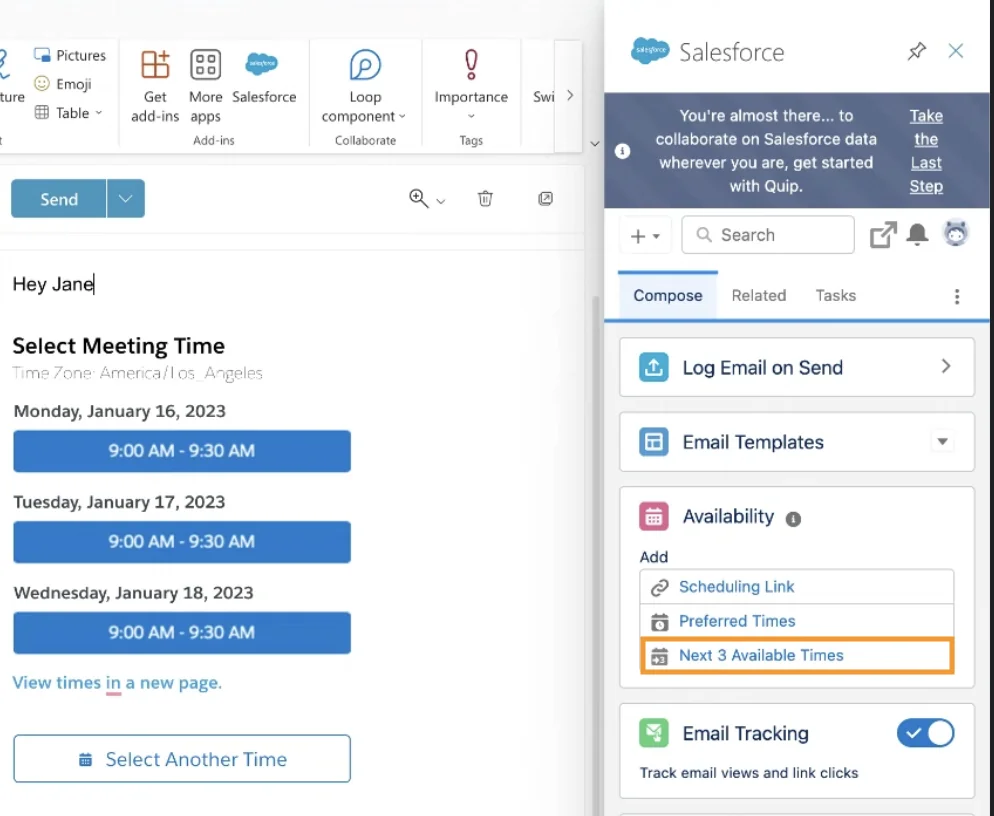
| Next available times | Reps want to insert a few options directly into an email without manually checking the calendar. | Train users to review inserted times before sending external emails. |
| Send Later | Users compose now but want the message delivered later from supported Outlook or Gmail experiences. | Confirm mailbox support and review scheduled email management with users. |
How Salesforce Inbox scheduling and availability work
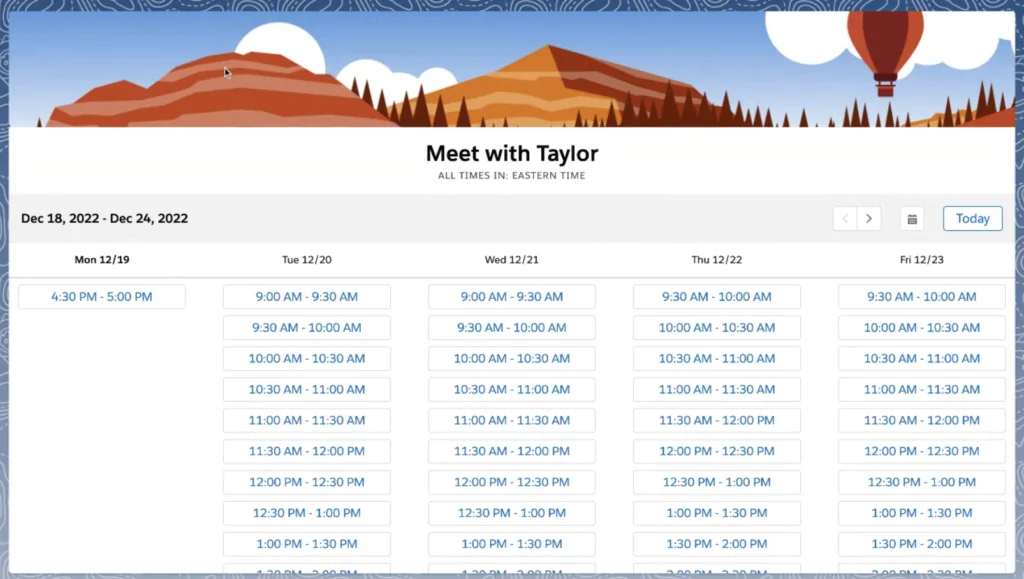
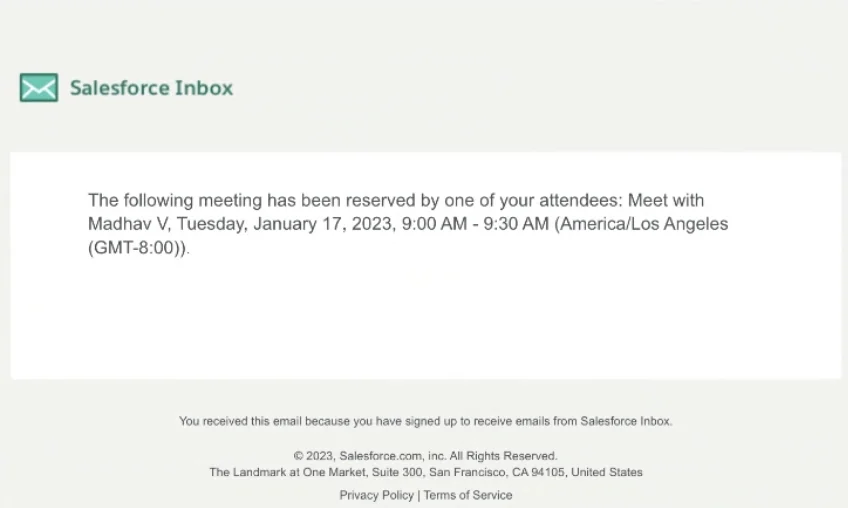
Salesforce Inbox scheduling features use the connected calendar to reduce meeting back-and-forth. The sender inserts availability into the message, and the recipient chooses a slot. Salesforce Help documents scheduling links, available time insertion, and considerations such as link validity, calendar availability, and supported clients.
Scheduling Link in inbox by salesforce
With inbox by salesforce, a rep can insert a scheduling link into an email. The recipient opens the link and selects from available calendar times. This is useful when the recipient should control the booking time, such as discovery calls, renewal meetings, partner introductions, and support handoffs.

Next available times in sfdc inbox
With sfdc inbox scheduling, the user can insert available slots directly into the email body. This works well for short sales cycles where a rep wants to offer a small set of times without requiring the prospect to open a full scheduling page. For regulated teams, train users to check the email body before sending because inserted times can expose availability patterns.
Summer 26 note: group calendar availability
Salesforce Summer ’26 release notes include group calendar availability for scheduling, where prospects can see available slots for Inbox users in a selected group with connected email. Treat this as a release-specific feature. Test it in a sandbox or preview org and confirm edition, licensing, and rollout status before adding it to a sales process.
Best practices for Salesforce Inbox security and data controls
Salesforce Inbox sits between personal productivity and CRM governance. Admins should review security before they discuss convenience. The side panel respects Salesforce access for record data, but mailbox data, calendar data, email tracking, and capture behavior introduce separate compliance questions.
Record access and field visibility
Use permission sets, permission set groups, profiles, organization-wide defaults, role hierarchy, sharing rules, and field-level security to control what users see in Salesforce. The email integration can display Salesforce records that match email addresses, but it does not make a user exempt from Salesforce security. If a rep cannot read a field on a record page, design as though that field should not appear in an email workflow either.
Email capture and retention
Do not promise that every email becomes a permanent Salesforce activity. Einstein Activity Capture behavior depends on configuration, supported objects, and product limits. If the business needs long-term retention for legal or account history, confirm whether users should manually log selected emails as Salesforce EmailMessage records using Enhanced Email, or whether another archival process is required.
Email tracking governance
Email tracking can raise privacy questions. Before enabling tracking in Salesforce Inbox, document who can use it, whether internal opens should be filtered, how customer consent is handled, and whether tracking is allowed in the countries where your sales team operates. Salesforce Help includes setup and consideration pages for tracking and IP filtering; pair those with your legal team’s policy.
Mobile app retirement
Do not build a 2026 rollout around the old Inbox mobile app. Salesforce Help states that the Salesforce Inbox mobile app was retired on February 1, 2024. For mobile users, review the current Salesforce mobile app, Outlook, Gmail, and supported integration experiences instead of relying on retired Inbox mobile behavior.
Developer notes for Salesforce Inbox implementations
Most Salesforce Inbox work is configuration, not custom code. Developers usually help in adjacent areas: record page components, reporting on logged email activity, validation around sales process data, and secure Apex services that read Salesforce records created by manual logging. Do not try to customize the internal Inbox client with Apex or LWC. Build on supported Salesforce platform objects and APIs.
Safe Apex example for manually logged EmailMessage records
The following Apex service reads recent EmailMessage records related to a Salesforce record. It uses one SOQL query, a LIMIT, with sharing, object access checks, and Security.stripInaccessible for field-level security. It is meant for records created in Salesforce, such as manually logged emails with Enhanced Email, not for private mailbox data that remains outside normal Salesforce storage.
public with sharing class RecentEmailMessageService {
    @AuraEnabled(cacheable=true)
    public static List<EmailMessage> getRecentEmailsForRecord(Id relatedRecordId) {
        if (relatedRecordId == null) {
            return new List<EmailMessage>();
        }

        if (!Schema.sObjectType.EmailMessage.isAccessible()) {
            return new List<EmailMessage>();
        }

        List<EmailMessage> queriedEmails = [
            SELECT Id, Subject, FromAddress, ToAddress, MessageDate, Status, RelatedToId
            FROM EmailMessage
            WHERE RelatedToId = :relatedRecordId
            ORDER BY MessageDate DESC NULLS LAST
            LIMIT 20
        ];

        SObjectAccessDecision accessDecision =
            Security.stripInaccessible(AccessType.READABLE, queriedEmails);

        List<EmailMessage> safeEmails = new List<EmailMessage>();
        for (SObject row : accessDecision.getRecords()) {
            safeEmails.add((EmailMessage) row);
        }
        return safeEmails;
    }
}
Governor limit note: keep email reporting queries outside loops. Salesforce Apex governor limits are per transaction; a synchronous Apex transaction can issue up to 100 SOQL queries and 150 DML statements. This service uses one query and no DML, so it is safe to call from a record page component when the page loads. If you later add enrichment logic, keep the query bulkified and avoid querying one email at a time.
LWC usage pattern
If you expose logged email records on an Account or Opportunity page, call the Apex method from an LWC placed on the Salesforce record page. The LWC receives the record context through @api recordId. Salesforce developer docs also support lightning/uiRecordApi for standard record reads, but related email queries usually need Apex because they filter child records.
import { LightningElement, api, wire } from 'lwc';
import getRecentEmailsForRecord from '@salesforce/apex/RecentEmailMessageService.getRecentEmailsForRecord';

export default class RecentLoggedEmails extends LightningElement {
    @api recordId;

    @wire(getRecentEmailsForRecord, { relatedRecordId: '$recordId' })
    emails;
}
How to roll out Salesforce Inbox without support issues
A good Salesforce Inbox rollout looks more like a change-management project than a feature toggle. Users need to know which emails should be logged, when to use scheduling links, what tracking means, and why some records appear in the side panel while others do not.
Production rollout checklist
- Document the supported email clients, mailbox types, Salesforce editions, and permission set licenses.
- Create a pilot permission set group for Salesforce Inbox users instead of editing many profiles.
- Customize the email application pane so the first screen shows the records and actions reps need most.
- Turn on one feature group at a time: record access first, then scheduling, then tracking, then Send Later.
- Prepare a one-page user guide that explains when to log emails manually and when EAC captures data automatically.
- Monitor login, connection, tracking, and scheduling issues for two weeks before expanding to the next team.
- Review release notes each Salesforce release, especially for Microsoft 365 authentication and scheduling changes.
Common errors with inbox by salesforce
| Symptom | Likely cause | Fix |
|---|---|---|
| Inbox actions do not appear | User has the email integration but not the Inbox permission set license or permission set | Check Permission Set License Assignments and assigned permission sets on the User record |
| Side panel opens but record data is missing | Record matching found no lead/contact/account, or the user lacks access | Check email address data quality, sharing, field-level security, and object permissions |
| Scheduling link fails or shows poor availability | Calendar connection, working hours, holidays, or supported mailbox issue | Reconnect the mailbox, test calendar visibility, and review scheduling considerations |
| Email tracking does not work | Tracking disabled, unsupported client, or tracking prerequisites not met | Review Salesforce Inbox email tracking requirements and client support |
| Users expect the retired mobile app | Old training content still references Inbox mobile | Update enablement material because Inbox mobile retired in 2024 |
Search and support naming for sfdc inbox and inbox by salesforce
For support queues, tag user issues with the official feature name and the user-facing search phrase. A ticket titled sfdc inbox missing from Gmail usually needs the same license and integration checks as a ticket titled inbox by salesforce missing from Outlook. Keeping sfdc inbox and inbox by salesforce in the knowledge base helps admins route the issue without changing the formal product name. Add synonyms such as sfdc inbox setup, sfdc inbox tracking, sfdc inbox access, inbox by salesforce scheduling, inbox by salesforce licensing, and inbox by salesforce access to the internal support article.
Official Salesforce resources and related SalesforceTutorial topics
Use Salesforce Help for product setup, Trailhead for setup walkthroughs, and Salesforce Developer Docs for code that reads Salesforce activity records. Start with the official Salesforce Inbox Help page, the Outlook and Gmail integration feature comparison, and the Trailhead module on email and calendar integration tools.
For related SalesforceTutorial reading, review Salesforce Sales Cloud setup, Salesforce reports for sales teams, Salesforce forecasting setup, Salesforce Pardot and Account Engagement, and Salesforce AI features.
Frequently Asked Questions
What is Salesforce Inbox used for?
Salesforce Inbox is used to bring sales actions into Outlook and Gmail. Reps can view Salesforce context, track supported emails, insert availability, use scheduling links, and work with Salesforce records from the email side panel.
Is sfdc inbox the same as Einstein Activity Capture?
No. sfdc inbox usually refers to Inbox features in the email client. Einstein Activity Capture is the service that connects Microsoft or Google accounts to Salesforce for email and event capture or sync. Many orgs use both, but they solve different problems.
Is inbox by salesforce included in Unlimited Edition?
Salesforce release notes announced included Inbox permissions for Sales Cloud Unlimited and Performance editions, while Salesforce Help lists Inbox as an add-on for Professional and Enterprise editions. Check your org’s permission set licenses and contract because packaging can vary by edition, SKU, and renewal terms.
Does Salesforce Inbox store every email in Salesforce?
No. Salesforce Inbox does not automatically mean every mailbox email is stored as a Salesforce record. Storage and capture behavior depends on Outlook or Gmail integration, Enhanced Email, manual logging, and Einstein Activity Capture configuration.
Can developers customize Salesforce Inbox with Apex?
Developers cannot rewrite the internal Inbox mail client experience with Apex. They can customize supported Salesforce surfaces around it, such as the email application pane, Lightning record pages, reporting logic, and secure Apex services that read Salesforce records created by logging activity.
What happened to the Salesforce Inbox mobile app?
The Salesforce Inbox mobile app was retired on February 1, 2024. For current mobile workflows, use supported Salesforce mobile, Outlook, Gmail, and email integration experiences rather than retired Inbox mobile documentation.