Chatter on Salesforce is the Salesforce collaboration layer for record feeds, posts, comments, mentions, groups, file sharing, and feed-tracked field updates. In Summer ’26, Chatter is turned off by default in new Salesforce orgs, so admins must decide whether to enable it, replace some collaboration with Slack Salesforce Channels, or run both with clear governance.
This guide explains where Chatter still fits, how to enable it, what changes when it is disabled, how to secure it, and how developers can extend collaboration without bypassing Salesforce permissions. It also separates Chatter from unrelated search terms such as custom slack themes, lightning record picker, and builder hall 11 release date so the page stays useful for Salesforce readers.
What is chatter on salesforce in 2026?
chatter on salesforce is a set of collaboration features inside Salesforce. Users can post on records, comment in feeds, mention coworkers, follow records, join groups, and see feed-tracked changes when an admin enables tracking for supported objects and fields.
In an enterprise org, the value is not the feed itself. The value is that the discussion stays next to the Account, Opportunity, Case, custom object record, or Experience Cloud context that caused the work. A renewal manager can explain a discount request on the Opportunity feed; a support lead can ask a product owner for input on a Case; a program team can keep a group thread tied to one process instead of scattering updates across email.
For current release behavior, verify your org against the official Salesforce release note for Summer ’26 Chatter defaults: Salesforce Summer ’26 release note for Chatter default settings.
How did Summer ’26 change chatter on salesforce?
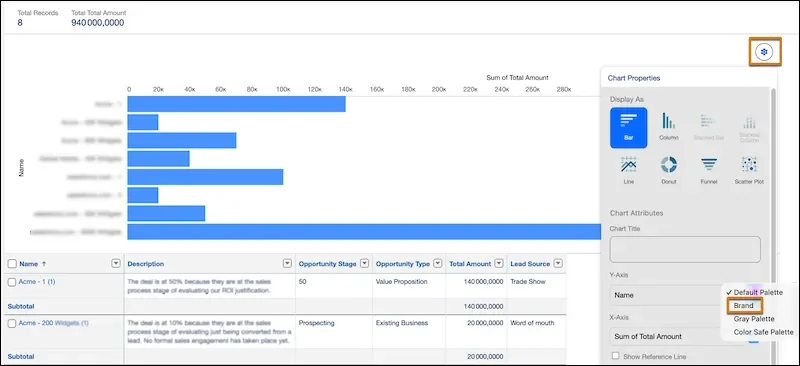
For chatter on salesforce, the important Summer ’26 change is simple: new orgs start with Chatter disabled. Existing orgs keep their current Chatter state. That distinction matters during sandbox refresh planning, new implementation projects, and integration testing because a feature that worked in an older org can appear missing in a new org until an admin enables Chatter.
| Org situation | Expected behavior | Admin action |
|---|---|---|
| Existing org created before Summer ’26 | Chatter keeps the existing enabled or disabled setting. | Review usage before making changes. Do not disable it without checking feeds, groups, Experience Cloud pages, and integrations. |
| New org created in Summer ’26 or later | Chatter starts disabled by default. | Enable it from Chatter Settings only if the implementation needs feeds, groups, follow behavior, or Chatter APIs. |
| Enterprise or Unlimited org using Slack | Salesforce Channels can support record collaboration in Slack where available. | Decide which records use Slack channels, which records still need Salesforce feeds, and how audit requirements are handled. |
A practical rule works well: enable chatter on salesforce when the record feed is part of the system of record; prefer Salesforce Channels when the conversation belongs in Slack; use both only when users understand the boundary. This keeps chatter on salesforce from becoming a duplicate notification stream and keeps custom slack themes out of technical governance.
Search data can mix unrelated terms into the same URL. Custom slack themes, custom slack themes settings, and custom slack themes troubleshooting do not belong to Salesforce Setup. A lightning record picker, lightning record picker errors, and lightning record picker configuration belong to LWC design, not Chatter administration, even when a lightning record picker appears in a custom collaboration screen.
Do not read this as an immediate removal of chatter on salesforce. Read it as an opt-in decision for new orgs. In a new implementation, chatter on salesforce should appear as a named line item in the release checklist, not as an assumption. If your architecture depends on record feeds, Chatter groups, feed-tracked updates, or Connect REST API resources for Chatter, include Chatter enablement in the build checklist.
How to enable chatter on salesforce in a new org
Use this setup path when a new org needs chatter on salesforce features. Document why chatter on salesforce is enabled so later admins can trace the decision:
- Open Setup.
- Enter Chatter Settings in Quick Find.
- Select Chatter Settings.
- Select Enable.
- Save the change.
- Review feed tracking, profile access, permission sets, page layouts, Lightning record pages, and Experience Cloud pages that depend on feeds.
Salesforce documents the enablement path in Chatter Settings and related help pages: Salesforce Chatter Settings documentation.
After enabling chatter on salesforce, do not turn on every feed-tracked field. Salesforce feed tracking can expose field changes to users who can see the record and the feed. Choose fields that help collaboration, such as Status, Priority, Amount, Close Date, Owner, or a business milestone field. Avoid tracking fields that create noise or expose information that should stay out of a feed.
What stops working when Chatter is disabled?
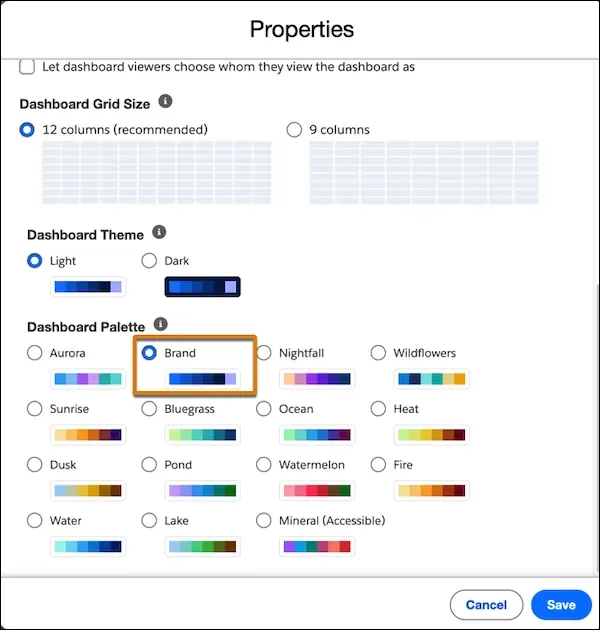
When chatter on salesforce is disabled, users lose Chatter surfaces and Chatter-dependent functions. In practice, check for these items before you decide not to enable it:
- Record feeds on Lightning record pages and Experience Cloud pages.
- Chatter tab and groups used for team discussion or announcements.
- Follow behavior where users subscribe to record updates.
- Publisher actions that create posts, comments, polls, questions, or file posts.
- Custom integrations that call Chatter or Connect REST API resources.
- Reports or automation assumptions based on feed activity or FeedItem data.
For a greenfield chatter on salesforce implementation, this is a design decision. For an org migration, it is a dependency audit. Search metadata and code for FeedItem, FeedComment, CollaborationGroup, ConnectApi, and any REST calls to Chatter resources.
How to configure feed tracking without creating noise
For chatter on salesforce, feed tracking controls which object and field changes appear in feeds. Salesforce documentation states that you can select up to 20 fields per object for feed tracking. That limit forces a useful question: which changes are worth telling people about?
Use this pattern in production orgs:
- Start with objects where collaboration changes outcomes, such as Case, Opportunity, Account, and key custom objects.
- Track fields that represent work state, ownership, dates, amounts, risk, or priority.
- Do not track fields that change often because of integrations unless the update is meaningful to users.
- Review field-level security before exposing feed-tracked values.
- Test with a non-admin user, not only with a System Administrator profile.
For the official setup path and limits, use Salesforce Help: Customize Chatter Feed Tracking.
Chatter on salesforce permissions, sharing, and security
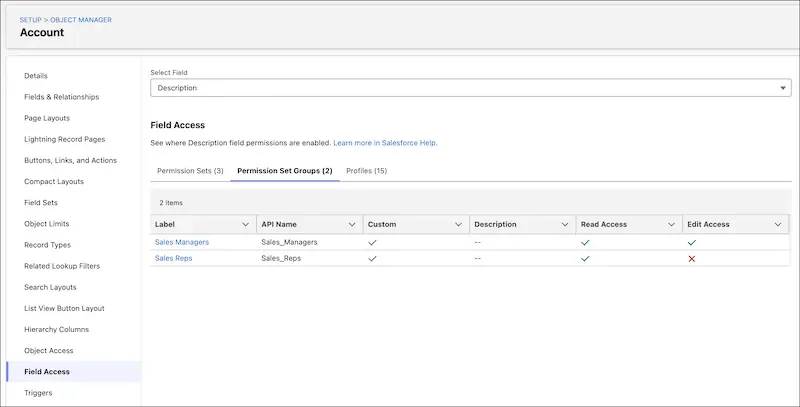
Chatter does not replace the Salesforce security model. A feed may sit beside a record, but access still depends on object permissions, record sharing, field-level security, and the specific Chatter permissions assigned through profiles or permission sets.
In enterprise orgs, the most common mistake is enabling collaboration first and reviewing access later. Reverse that order. Confirm the user can access the record, confirm which fields are visible, then confirm whether Chatter access should be available for that persona.
Security checklist before enabling feeds
- OWD and sharing: Confirm users can see only the records they should discuss.
- Object permissions: Confirm Read access before expecting users to view a record feed.
- Field-level security: Review tracked fields before enabling feed tracking.
- Permission sets: Assign Chatter permissions through permission sets where possible instead of adding broad access to profiles.
- External users: Test Experience Cloud users separately because site context and license type can change what they see.
For regulated orgs, also define a retention and moderation process for chatter on salesforce. Feed posts are business records in many implementations. Users should know what belongs in a record feed and what belongs in a case note, file, approval comment, or private system.
How Slack changes the Chatter decision
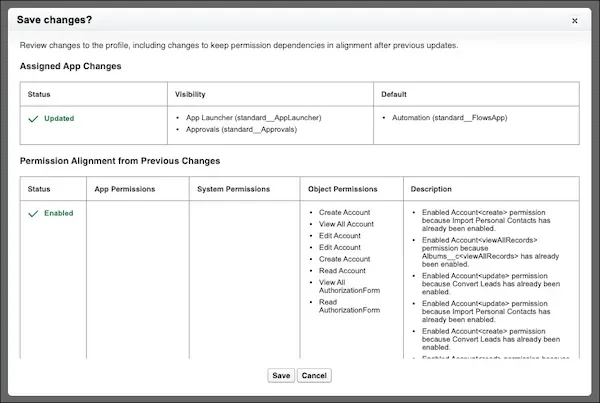
Salesforce Channels in Slack give teams another way to collaborate around Salesforce records. In supported editions and configurations, users can work in Slack while keeping the conversation connected to a Salesforce record. This does not mean every org should disable Chatter. It means architects should decide which collaboration surface fits each process.
Use Slack for fast team discussion, swarming, and cross-functional work where the team already works in Slack. Use Chatter when the record feed itself is the required collaboration history, when Experience Cloud users need a Salesforce-native feed, or when existing automation and integrations depend on Chatter data.
For setup details, review Salesforce’s official Salesforce Channels guidance: Set Up and Manage Salesforce Channels in Your Org.
Custom slack themes are not Chatter configuration
The query custom slack themes often appears near Slack-related content, but it is not a Salesforce Chatter setting. Custom Slack themes affect how Slack looks to a user. They do not enable Salesforce Channels, change record access, create feed items, or control Salesforce audit behavior.
Mention custom slack themes, custom slack themes preferences, or custom slack themes support only when you need to explain scope to users: Slack appearance settings are separate from Salesforce collaboration architecture. If an admin is troubleshooting missing record collaboration, custom slack themes should not be part of the root-cause checklist.
Builder hall 11 release date is not a Salesforce release item
The phrase builder hall 11 release date is not part of Salesforce Chatter, Slack, Lightning Web Components, or Salesforce release notes. If it appears in search data for this URL, treat it as a query mismatch rather than a content requirement for the Salesforce article.
A SalesforceTutorial page should not invent a Salesforce meaning for builder hall 11 release date. The safe handling is to state that it is unrelated and keep the technical coverage focused on chatter on salesforce, Slack channels, feed tracking, and developer patterns.
How developers work with Chatter safely
Developers usually touch Chatter in three ways: creating feed posts, reading feed data, or building UI flows that help users choose the right record before a post or update. Keep these customizations small. Chatter should support the business process, not become a hidden workflow engine.
Apex example: post a controlled Case update to a feed
The following Apex class posts a short Case update to the Case feed. It bulkifies the SOQL query, performs a create check for FeedItem, uses WITH USER_MODE for the Case query in current API versions that support user-mode operations, and avoids SOQL or DML inside the loop.
public with sharing class CaseChatterUpdateService {
    public class Request {
        @InvocableVariable(required=true)
        public Id caseId;
    }

    @InvocableMethod(label='Post Case Status to Chatter')
    public static void postCaseStatus(List<Request> requests) {
        if (requests == null || requests.isEmpty()) {
            return;
        }

        Set<Id> caseIds = new Set<Id>();
        for (Request requestItem : requests) {
            if (requestItem != null && requestItem.caseId != null) {
                caseIds.add(requestItem.caseId);
            }
        }

        if (caseIds.isEmpty()) {
            return;
        }

        if (!Schema.sObjectType.FeedItem.isCreateable()) {
            throw new SecurityException('Current user cannot create Chatter feed posts.');
        }

        Map<Id, Case> casesById = new Map<Id, Case>([
            SELECT Id, CaseNumber, Status
            FROM Case
            WHERE Id IN :caseIds
            WITH USER_MODE
        ]);

        List<FeedItem> posts = new List<FeedItem>();
        for (Case caseRecord : casesById.values()) {
            FeedItem post = new FeedItem();
            post.ParentId = caseRecord.Id;
            post.Body = 'Case ' + caseRecord.CaseNumber +
                ' is currently marked as ' + caseRecord.Status + '.';
            posts.add(post);
        }

        if (!posts.isEmpty()) {
            Database.SaveResult[] results = Database.insert(posts, false);
            for (Database.SaveResult result : results) {
                if (!result.isSuccess()) {
                    // In production, route this to your logging framework.
                    System.debug(LoggingLevel.WARN, result.getErrors()[0].getMessage());
                }
            }
        }
    }
}
Governor limit notes: the method performs one SOQL query and one DML operation for the batch. The sample is safe for Flow bulk execution patterns, but you still need tests for success, no input, missing access, and partial DML failure paths. Salesforce requires at least 75% Apex test coverage for deployment, but production teams should test behavior, not only lines.
Lightning record picker for Chatter-adjacent flows
The lightning record picker base component is useful when a custom screen must let a user select a record before creating a Chatter post, opening a related Slack channel, or routing collaboration to the right Account. Salesforce documents that lightning-record-picker searches Salesforce records, uses the GraphQL wire adapter, supports Lightning Experience, Experience Builder sites, and the Salesforce mobile app, and emits a change event with the selected recordId.
Use the official component reference for supported attributes and errors: Salesforce lightning-record-picker documentation.
<template>
    <lightning-card title="Choose related account">
        <div class="slds-p-around_medium">
            <lightning-record-picker
                label="Account"
                object-api-name="Account"
                value={accountId}
                display-info={displayInfo}
                matching-info={matchingInfo}
                onchange={handleAccountChange}>
            </lightning-record-picker>
        </div>
    </lightning-card>
</template>
import { LightningElement } from 'lwc';
export default class AccountRecordPickerForCollaboration extends LightningElement {
accountId;
displayInfo = {
primaryField: 'Name',
additionalFields: ['Phone']
};
matchingInfo = {
primaryField: { fieldPath: 'Name' },
additionalFields: [{ fieldPath: 'Phone' }]
};
handleAccountChange(event) {
this.accountId = event.detail.recordId;
this.dispatchEvent(new CustomEvent('recordselected', {
detail: { recordId: this.accountId }
}));
}
}In a collaboration flow, the lightning record picker helps users choose the correct Account, Case, or custom object record before chatter on salesforce automation runs. A second lightning record picker on the same screen can support a related contact or escalation record if the UI stays clear.
The lightning record picker, lightning record picker validation, and lightning record picker event handling are not Chatter feed features. It is a record selection component. Use it to reduce user error before a collaboration action. Do not use it as a replacement for record sharing, CRUD checks, or field-level security.
Best practices for chatter on salesforce governance
Good chatter on salesforce governance is mostly about boundaries. Users need to know when to post, where to post, and what not to post. Admins need to know which objects use chatter on salesforce feeds, which fields are tracked, and which users can create or read feed content.
| Decision | Recommended approach | Reason |
|---|---|---|
| Enable Chatter in a new org? | Enable only when feeds, groups, Experience Cloud use cases, or Chatter APIs are required. | New orgs no longer require Chatter by default, so treat it as an intentional architecture choice. |
| Use Chatter or Slack? | Use Chatter for Salesforce-native record history; use Slack channels for team collaboration where Slack is the working surface. | Both tools can support collaboration, but they solve different access, retention, and user-experience problems. |
| Track many fields? | Track only fields that users act on. | Too many feed updates reduce trust in the feed. |
| Use automation to post updates? | Post short, event-driven messages and include record links only when they add value. | Automated noise causes users to mute or ignore feeds. |
| Let developers insert FeedItem records? | Allow it through reviewed services, not scattered trigger code. | Centralized posting logic makes access checks, logging, and testing easier. |
Tying things together in an enterprise rollout
The phrase tying things together is useful only when it means a real implementation plan. For chatter on salesforce, that plan connects release behavior, Chatter Settings, feed tracking, Slack channels, permission sets, Apex services, and user training.
Use this rollout sequence for tying things together without creating rework:
- Inventory current feed usage, groups, custom code, and integrations.
- Decide which processes use Chatter, which use Salesforce Channels in Slack, and which use both.
- Enable Chatter only in orgs that need it.
- Configure feed tracking field by field.
- Assign permissions through permission sets and permission set groups.
- Update Lightning record pages so users see only useful collaboration components.
- Test with real personas, including Experience Cloud users if applicable.
- Train users with examples of good posts, bad posts, and where Slack fits.
This approach also keeps unrelated queries in their place. Custom slack themes belong to Slack appearance. The lightning record picker belongs to custom UI design. Builder hall 11 release date is not a Salesforce topic. Tying things together means making those boundaries clear.
Common errors with chatter on salesforce
Most chatter on salesforce problems come from one of three causes: the feature is disabled, the user lacks access, or the feed tracking design creates too much noise.
- Chatter tab is missing in a new org: Check Chatter Settings first, especially in Summer ’26 or later orgs.
- Feed component appears empty: Confirm Chatter is enabled, feed tracking is enabled for the object, and the user has record access.
- Users see too many feed updates: Reduce tracked fields and remove integration-updated fields that do not require human action.
- Apex insert fails for FeedItem: Check Chatter availability, create permission, the target ParentId, validation rules, and partial DML results.
- Slack channel is expected but unavailable: Confirm Salesforce Channels setup, supported objects, user permissions, Slack connection, and record page configuration.
Related SalesforceTutorial resources
- Salesforce Chatter setup and feature overview
- Salesforce Slack integration setup guide
- Salesforce Flow automation patterns
- Lightning interface Salesforce admin guide
- Salesforce API integration basics
Frequently Asked Questions
Is chatter on salesforce disabled by default now?
In new Salesforce orgs created in Summer ’26 or later, Chatter is turned off by default. Existing orgs keep their current setting. Admins can enable chatter on salesforce from Setup > Chatter Settings when record feeds, groups, follow behavior, or Chatter APIs are required.
Should I use Salesforce Chatter or Slack Salesforce Channels?
Use chatter on salesforce when the collaboration history must live directly on the Salesforce record feed or when Experience Cloud pages and Chatter APIs depend on it. Use Slack Salesforce Channels when the team works in Slack and needs a channel connected to a Salesforce record. Many enterprise orgs use both, but they define which process belongs in each tool.
Do custom slack themes affect Salesforce Chatter?
No. Custom slack themes change Slack appearance for users. They do not enable Chatter, configure Salesforce Channels, change Salesforce permissions, or create Chatter feed data.
Can lightning record picker create Chatter posts?
No. The lightning record picker selects a Salesforce record. A developer can use the selected recordId in a custom LWC, Flow, or Apex service that creates a feed post, but the component itself does not post to Chatter.
Why is builder hall 11 release date mentioned on this Salesforce page?
Builder hall 11 release date is an unrelated search query, not a Salesforce Chatter feature. It is mentioned only to clarify that it should not influence Salesforce release planning, Chatter setup, or Slack integration decisions.