Salesforce leads represent potential customers who have not yet entered your account and opportunity data model. Teams use the Lead object to capture, route, qualify, nurture, reject, and eventually convert prospects into an Account, Contact, and optionally an Opportunity.
A sound lead implementation requires more than adding fields to a page layout. Administrators must define who qualifies as a lead, how ownership is assigned, what data must exist before conversion, how duplicates are handled, and when a prospect should instead be created directly as a Contact.
What Are Salesforce Leads?
A Salesforce Lead is a standard object record for a person or organization that may have an interest in your products or services. A lead can originate from a web form, event registration, purchased list, partner referral, manual entry, API integration, or marketing automation platform.
The Lead object keeps early-stage prospects separate from established customer and account data. This separation is useful when inbound records are incomplete, duplicated, outside the target market, or still waiting for qualification.
What are leads in Salesforce used for?
The question what are leads in Salesforce usually refers to their role in the sales lifecycle. Teams commonly use Salesforce leads to perform the following work:
- Capture inquiries before creating account relationships.
- Assign prospects to users or queues according to territory, product, region, or source.
- Track qualification through the standard Lead Status field.
- Record activities such as calls, emails, tasks, and meetings.
- Add prospects to campaigns and track campaign member status.
- Disqualify records without adding them to the account database.
- Convert qualified prospects into Accounts, Contacts, and Opportunities.
Salesforce describes leads as potential customers and documents the standard conversion process in Salesforce Help: Converting Leads. Trailhead also provides a guided exercise in Create and Convert Leads as Potential Customers.
Standard fields on an SFDC lead
An SFDC lead includes identity, company, routing, qualification, and conversion fields. Field availability depends on page layouts, permissions, record types, and field-level security.
| Field | Purpose | Implementation note |
|---|---|---|
| First Name and Last Name | Identifies the prospect | Last Name is required on standard lead creation. |
| Company | Stores the prospect’s organization | Company is required unless your implementation changes the intake design through supported platform features. |
| Lead Status | Tracks lifecycle stage | At least one status value must be marked as converted before lead conversion can succeed. |
| Lead Source | Records acquisition source | Use controlled values instead of free-text acquisition labels. |
| Owner | Identifies the responsible user or queue | Assignment rules can route qualifying records during supported creation flows. |
| Rating | Stores a simple qualification category | Many enterprise orgs replace or supplement it with score and fit fields. |
| IsConverted | Indicates whether conversion occurred | Read-only system field used in reports, SOQL, and integrations. |
| ConvertedAccountId | References the resulting Account | Populated after successful conversion. |
| ConvertedContactId | References the resulting Contact | Populated after successful conversion when a Contact is created or selected. |
| ConvertedOpportunityId | References the resulting Opportunity | Blank when conversion occurs without creating an Opportunity. |
| ConvertedDate | Stores the conversion date | Useful for conversion reporting and time-to-convert metrics. |
The current field definitions and API behavior are listed in the official Lead Object Reference.
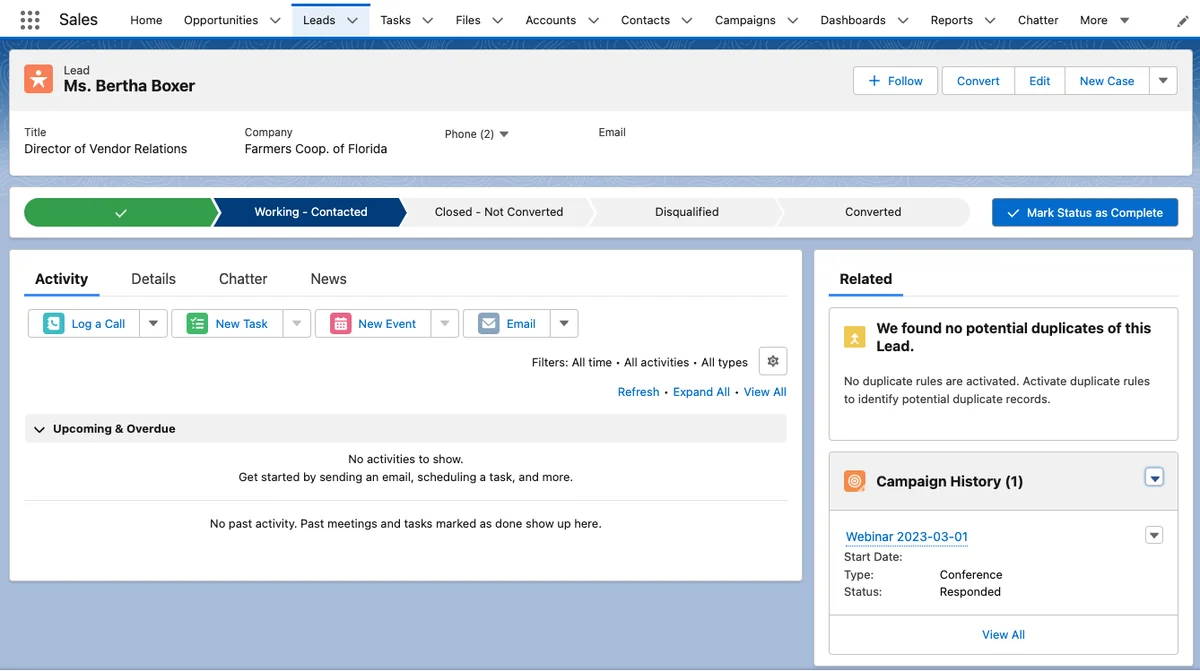
How Do Salesforce Leads Fit into the Data Model?
Salesforce leads are intentionally separate from the Account and Contact objects. A lead can participate in campaigns and activities, but it does not behave like a Contact related to an Account, Opportunity, Case, or account-level business process.
This distinction prevents unqualified inquiries from creating thousands of low-value Accounts and Contacts. It also creates an explicit control point where the business decides whether a prospect belongs in the customer data model.
Leads and contacts in the standard model
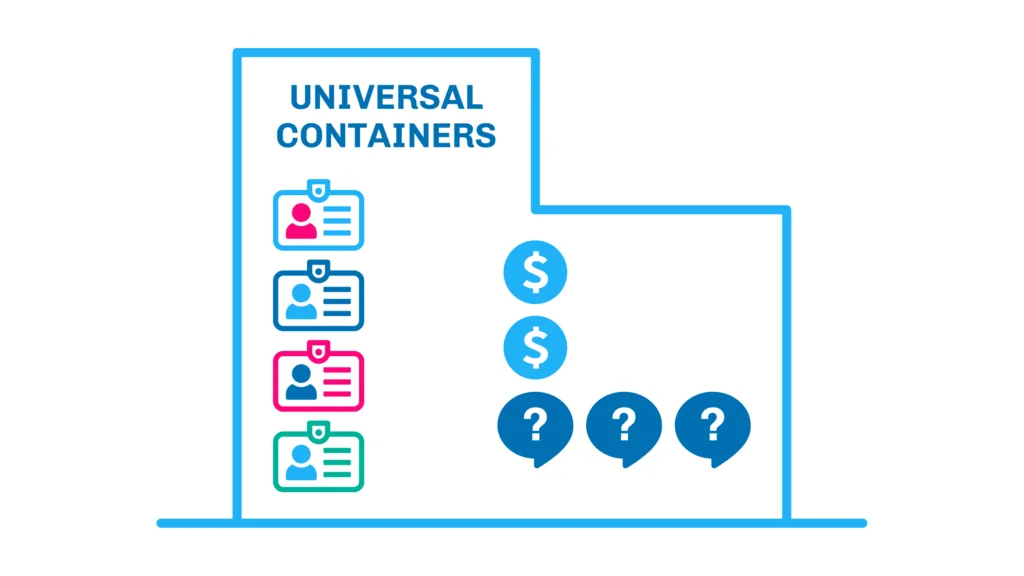
Leads and contacts can describe the same real-world person at different lifecycle stages, but Salesforce stores them as different objects. A Lead is evaluated before conversion. A Contact usually represents a person associated with an Account after conversion or direct Contact creation.
Contacts can participate in account relationships, opportunity contact roles, cases, contracts, campaigns, and other processes. Leads cannot be added directly as Opportunity Contact Roles because the lead has not yet become a Contact.
Leads vs contacts in Salesforce
The practical difference between leads vs contacts in Salesforce is not simply whether sales has spoken to the person. The difference is whether the record should participate in account-centered processes.
| Design question | Lead | Contact |
|---|---|---|
| Primary purpose | Qualify a potential customer | Represent a person related to an Account |
| Account relationship | No standard Account relationship before conversion | Normally associated with an Account |
| Opportunity participation | Converted into or associated with the account/contact structure first | Can be added through Opportunity Contact Roles |
| Campaign membership | Supported | Supported |
| Typical ownership | User or queue | User; often aligned with account ownership rules |
| Qualification result | Convert, nurture, recycle, or disqualify | Retain and manage within the customer or prospect account |
| Can return to Lead | Not applicable before conversion | No standard undo operation after lead conversion |
When deciding between leads vs contacts in Salesforce, define the rule in business terms. For example: convert when the company is in the target market, a valid person has been identified, duplicate checks are complete, and sales has accepted responsibility for follow-up.
How Does Salesforce Lead Conversion Work?
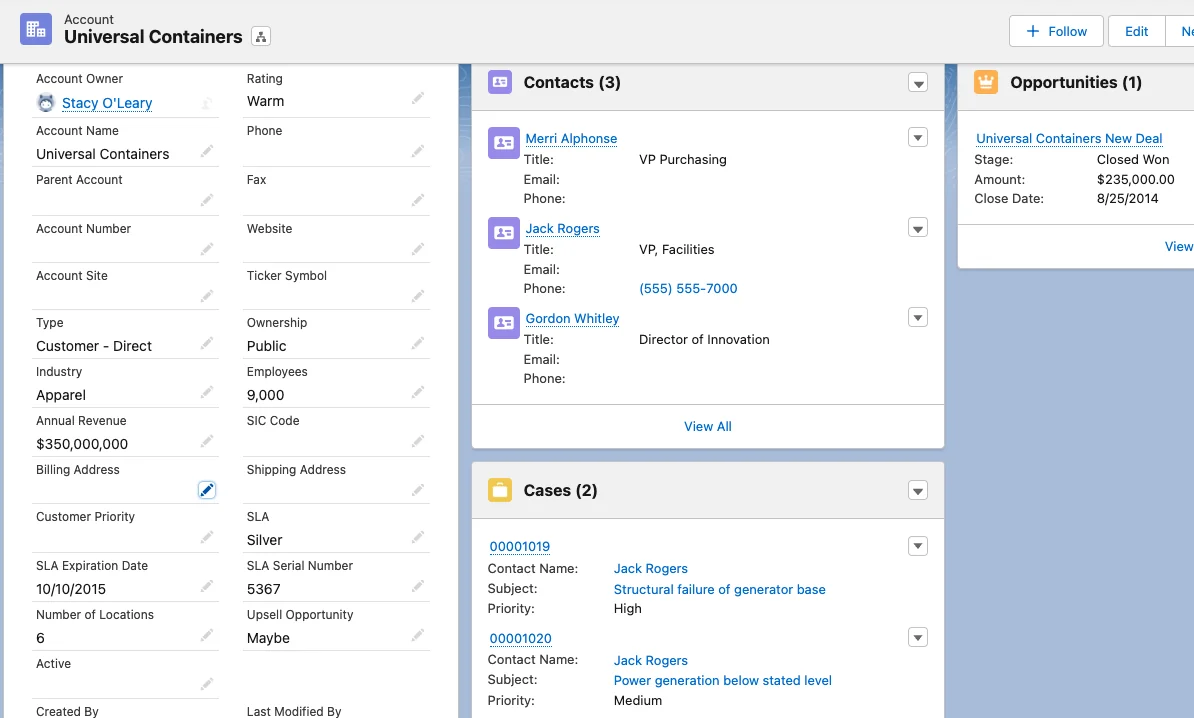
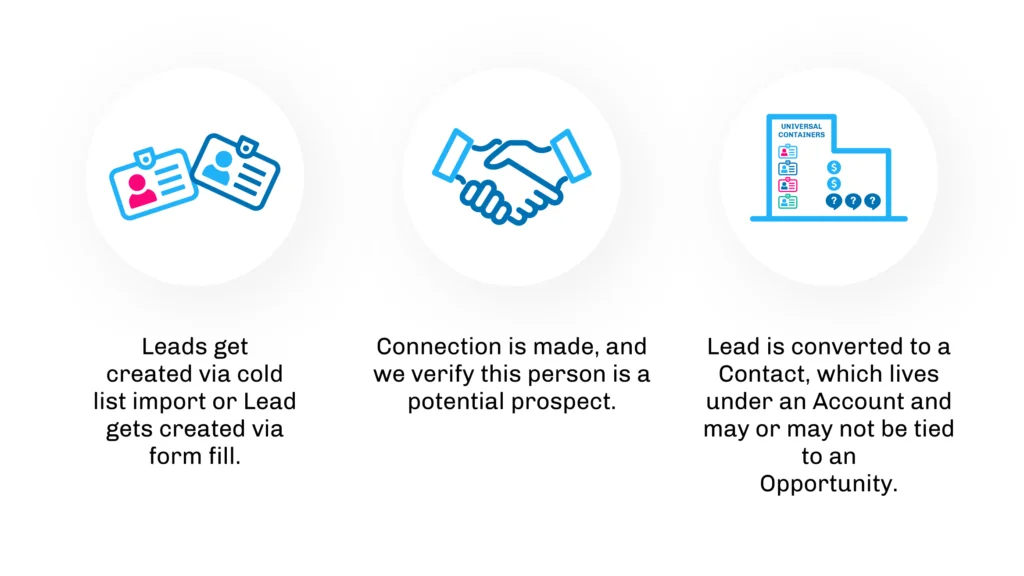
Lead conversion changes a qualified lead into an account-centered record structure. Salesforce creates or selects an Account, creates or matches a Contact according to the available conversion choices and duplicate configuration, and can create an Opportunity.
The source Lead is retained as a converted record for historical reporting. Salesforce populates fields such as IsConverted, ConvertedAccountId, ConvertedContactId, ConvertedOpportunityId, and ConvertedDate.
Standard lead conversion steps
- Open the qualified Lead record.
- Select Convert.
- Choose an existing Account or create an Account.
- Review the Contact selection or creation options presented by the org.
- Choose whether to create an Opportunity.
- Select the record owner where the conversion interface permits it.
- Use a converted Lead Status.
- Complete the conversion and review the resulting records.
Salesforce states that conversion creates an Account, Contact, and optionally an Opportunity using data from the lead. See What happens when I convert leads?.
What happens to lead fields during conversion?
Salesforce maps standard Lead fields to corresponding standard fields on Account, Contact, and Opportunity. Administrators can map supported custom Lead fields to compatible custom fields on those target objects.
Configure mappings from Setup → Object Manager → Lead → Fields & Relationships → Map Lead Fields. Create the destination fields first, confirm compatible data types, and then map each Lead field to the intended Account, Contact, or Opportunity field.
Salesforce documents this requirement in Planning Your Leads Implementation.
Can lead conversion be undone?
No standard feature converts the resulting Contact, Account, or Opportunity back into the original active Lead. Salesforce describes lead conversion as permanent. Correct bad conversions through an approved data-repair process rather than attempting to reactivate the converted record.
This is one reason conversion criteria should be documented, tested, and accepted by sales and marketing owners before automation is enabled.
How to Convert an SFDC Lead with Apex
Use Database.convertLead when a supported business process requires programmatic conversion. There is no equivalent convert DML statement. The Apex transaction must use a valid converted Lead Status and handle conversion failures explicitly.
public with sharing class LeadConversionService {
    public class ConversionException extends Exception {}

    public static Database.LeadConvertResult convertQualifiedLead(
        Id leadId,
        Id existingAccountId,
        Boolean createOpportunity
    ) {
        if (leadId == null) {
            throw new IllegalArgumentException('leadId is required.');
        }

        Lead sourceLead = [
            SELECT Id, IsConverted, Status
            FROM Lead
            WHERE Id = :leadId
            WITH USER_MODE
            LIMIT 1
        ];

        if (sourceLead.IsConverted) {
            throw new ConversionException('The lead is already converted.');
        }

        LeadStatus convertedStatus = [
            SELECT MasterLabel
            FROM LeadStatus
            WHERE IsConverted = TRUE
            ORDER BY SortOrder
            LIMIT 1
        ];

        Database.LeadConvert request = new Database.LeadConvert();
        request.setLeadId(sourceLead.Id);
        request.setConvertedStatus(convertedStatus.MasterLabel);
        request.setDoNotCreateOpportunity(!createOpportunity);

        if (existingAccountId != null) {
            request.setAccountId(existingAccountId);
        }

        Database.LeadConvertResult result = Database.convertLead(request, false);

        if (!result.isSuccess()) {
            List<String> messages = new List<String>();
            for (Database.Error errorItem : result.getErrors()) {
                messages.add(errorItem.getStatusCode() + ': ' + errorItem.getMessage());
            }
            throw new ConversionException(String.join(messages, '; '));
        }

        return result;
    }
}
Governor-limit warning: Do not place one Database.convertLead call inside a loop for large record sets. The API supports processing a list of lead conversion requests, but each transaction must still respect Apex governor limits and downstream automation costs. Group requests, process manageable batches, and account for Flows, triggers, duplicate rules, validation rules, and Account or Contact automation.
Security warning: The with sharing declaration enforces record-sharing behavior but does not automatically enforce every object and field permission for all operations. Use user-mode queries or explicit permission checks where the operation must honor the running user’s CRUD and field-level security. Also restrict access to the Apex class through profiles or permission sets.
See the official LeadConvert Apex Reference and Converting Leads in Apex.
How Should Salesforce Leads Be Routed?
Lead routing determines who owns each new prospect. Salesforce lead assignment rules can evaluate criteria and assign records to users or queues. Common criteria include country, state, product interest, employee count, language, partner source, and customer segment.
Lead assignment rule design
- Define mutually understood routing criteria outside Salesforce.
- Normalize incoming values before the rule evaluates them.
- Create queues for records that cannot be assigned directly.
- Order rule entries from most specific to least specific.
- Add a final fallback route so records do not remain with an integration user.
- Test Web-to-Lead, API, import, and manual creation separately because rule invocation can differ by channel.
- Monitor queue age and reassignment volume after deployment.
Administrators can review rules from Setup → Assignment Rules → Lead Assignment Rules. Salesforce documents the setup location in View and Edit Assignment Rules.
Routing mistake: assuming the active rule always runs
An active assignment rule does not mean every insert or update automatically invokes it. The record creation channel, API options, page-layout checkbox behavior, and custom code determine whether the assignment rule executes. Test each intake path rather than validating only manual creation.
How Do You Prevent Duplicate Leads and Contacts?
Duplicate management matters because the same person may arrive as an existing Contact, an open Lead, or several new Salesforce leads from different campaigns. Matching rules define how Salesforce identifies possible matches. Duplicate rules define whether the platform alerts, reports, or blocks the action.
Duplicate checks for leads and contacts
A practical duplicate strategy checks across both leads and contacts. Email can be a strong signal but should not always be the only key. Shared mailboxes, changed email addresses, aliases, and regional formatting can produce false matches or missed matches.
- Normalize email, phone, country, and company-domain values where possible.
- Use separate logic for business email and personal email use cases.
- Decide whether Web-to-Lead should block, allow, or route suspected duplicates.
- Define what happens when an existing customer submits a new form.
- Review duplicate rule effects on integrations before activation.
- Provide a merge or remediation process for records that users are allowed to save.
Salesforce provides standard and custom matching options. See Matching Rules and Standard Duplicate Rules.
Best Practices for Salesforce Leads
Define a lead before configuring Salesforce
Document which records qualify as Salesforce leads. Include form inquiries, event attendees, purchased data, partner referrals, job applicants, support requests, existing customers, students, vendors, and competitors. State whether each category becomes a Lead, Contact, Case, custom object record, or excluded record.
Use explicit lifecycle statuses
Lead Status should describe an operational state, not a vague opinion. A workable lifecycle might include New, Attempting Contact, Connected, Nurturing, Qualified, and Disqualified. Keep one or more values marked as converted according to the approved process.
Do not add dozens of status values to represent every sales activity. Store activity details in Tasks, Events, or structured fields, and keep status focused on lifecycle progression.
Separate qualification from scoring
A marketing score, product-fit score, and sales qualification decision answer different questions. Store them separately. A high engagement score does not prove that the prospect meets commercial, geographic, compliance, or product requirements.
Require conversion-ready data
Before conversion, validate the fields needed on the resulting records. Typical requirements include company name, country, business email, qualification outcome, account match decision, consent fields where applicable, and opportunity details when an Opportunity will be created.
Use validation carefully. Rules that block all edits can prevent sales representatives from correcting partially populated Salesforce leads. Scope each rule to the relevant status transition or conversion-ready state.
Map custom fields before deployment
Unmapped Lead fields can lose business context during conversion. Maintain a field-mapping matrix that identifies the source Lead field, target object, target field, data type, transformation rule, and system of record.
Retain converted leads for reporting
Converted leads remain available for historical reporting even though users generally work with the resulting records. Use the Converted field in Lead reports to separate open and converted populations. Conversion reporting can measure volume, conversion rate, conversion age, source quality, and owner performance.
Plan for stale and rejected records
Not every prospect should remain active forever. Define retention, suppression, deletion, and re-engagement policies with legal, privacy, marketing, and data-governance stakeholders. Do not delete records merely to improve a dashboard metric.
When Should You Skip the Lead Object?
Some organizations create Contacts directly instead of using Salesforce leads. This can work when every person is already associated with a known Account, such as account-based selling, partner management, customer onboarding, or a closed membership model.
A leadless model introduces tradeoffs. It can simplify one data model while adding more Contacts that have not been qualified. It may also require custom fields and automation to distinguish prospects, customers, former customers, partners, and non-selling relationships.
Evaluate these questions before skipping the Lead object:
- Can every incoming person be matched to a valid Account?
- Should unqualified inquiries appear in account activity and related lists?
- How will marketing and sales distinguish lifecycle stages?
- How will duplicate Contacts be prevented?
- How will rejected or irrelevant records be retained or removed?
- Will integrations expect a Lead ID, Contact ID, or both?
The right choice for leads vs contacts in Salesforce depends on the data model and operating process, not a preference for one object.
Common Errors with Salesforce Leads
| Error | Likely cause | Resolution |
|---|---|---|
| No converted status is available | No Lead Status value is marked as converted | Review Lead Status values and configure an approved converted status. |
| Lead conversion creates duplicate Accounts | Matching rules, duplicate rules, or user selection do not identify the existing Account | Review matching criteria and train users to select an existing Account where appropriate. |
| Custom Lead data disappears | Custom fields were not mapped | Create compatible destination fields and configure Lead field mapping. |
| Assignment rule does not run | The creation channel did not invoke the active rule | Review form, API, import, Flow, or Apex assignment options. |
| Apex conversion fails in bulk | Conversion occurs inside a loop or downstream automation exceeds limits | Submit grouped requests, reduce automation cost, and inspect result errors. |
| Users can view a Lead but cannot convert it | Permissions, ownership, validation, duplicate rules, or target-record access blocks conversion | Test with the affected user and review each error returned by the conversion operation. |
| Reports mix open and converted records | The report does not filter IsConverted | Add a Converted equals False or True filter according to the report purpose. |
Salesforce Leads Implementation Checklist
- Define what enters the Lead object.
- Document the difference between Salesforce leads and Contacts for users.
- Configure Lead Status and at least one converted status.
- Set ownership, queues, and assignment rules.
- Configure matching and duplicate rules.
- Define qualification and conversion criteria.
- Map every required custom Lead field.
- Test conversion into new and existing Accounts.
- Test conversion with and without an Opportunity.
- Test Web-to-Lead, imports, APIs, Flows, and Apex separately.
- Review CRUD, field-level security, record access, and Apex class access.
- Create open, rejected, stale, and converted-lead reports.
- Train users that a completed conversion cannot be reversed through a standard undo action.
For related configuration guidance, see the Salesforce objects tutorial, Salesforce security model, Salesforce reports guide, and Apex programming tutorial.
Frequently Asked Questions
What are leads in Salesforce?
Salesforce leads are standard object records used to capture and qualify potential customers before they enter the Account, Contact, and Opportunity data model. A qualified Lead can be converted into an Account, Contact, and optionally an Opportunity.
What is the difference between leads and contacts in Salesforce?
The main difference between leads and contacts is their place in the data model. A Lead is an unconverted prospect being qualified, while a Contact is a person associated with an Account and can participate in account, opportunity, case, and relationship processes.
Can a converted Contact be changed back into a Lead?
No. Salesforce does not provide a standard undo operation that changes a converted Contact back into the original active Lead. Correct an accidental conversion through a controlled data-repair process and update the business rules that allowed it.
Does converting a Salesforce Lead always create an Opportunity?
No. Lead conversion creates or associates the required Account and Contact structure, but creating an Opportunity is optional. The user interface, API request, Flow, or Apex implementation can perform conversion without an Opportunity.
Can Salesforce leads belong to campaigns?
Yes. Salesforce leads and Contacts can be Campaign Members. Campaign membership lets teams track acquisition, responses, event attendance, and other marketing interactions before and after lead conversion.
Should an existing customer form submission create a new Lead?
Usually, the intake process should first check for an existing Contact. Creating a new Lead for an existing customer can split activity and create duplicate work. The correct action may be to update the Contact, create a Campaign Member, open a Case, or create a new Opportunity, depending on the form’s purpose.