Salesforce home page components allow administrators to customize the user experience by adding custom functionality to the home page layout. This tutorial covers creating custom home page components including links, images, and Visualforce pages.
The Salesforce home page layout consists of standard components like recent items, messages, and alerts, plus custom components that you create. You can edit standard components or build entirely new ones to meet specific business requirements.
Prerequisites for Creating Custom Home Page Components
Before creating custom home page components, complete these setup steps based on your component type:
- Custom Link Component: Define the home tab custom link first in Setup → Create → Home → Custom Links
- Image Component: Upload your image to Documents first (Setup → Create → Documents)
- Visualforce Page Component: Create your Visualforce page first (Setup → Develop → Pages)
How to Create New Home Page Components
Follow these steps to create a custom home page component in Salesforce:
- Navigate to Setup → Create → Home Page Components
- Click New to start creating your component
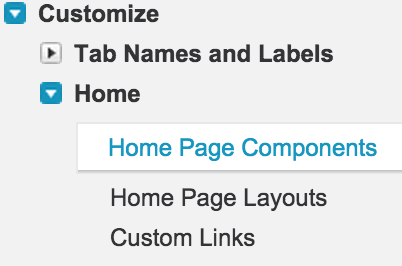
The Home Page Components list displays all existing components. Click the New button to create a new component.

Component Configuration Steps
When creating a new home page component, you’ll see the component creation form:
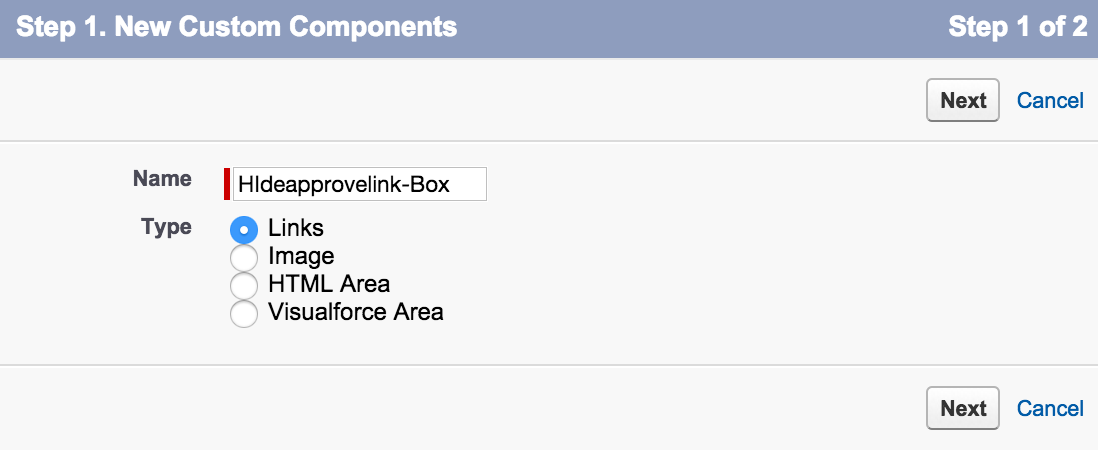
Complete the component configuration:
- Component Name: Enter a descriptive name (example: “HideApproveLink-Box”)
- Type: Select the component type (Link, HTML Area, Image, or Visualforce Page)
- Click Next to proceed to component-specific settings
- Link Selection: Choose your previously created custom link
- Click Save to create the component
Adding Home Page Components to Page Layout
After creating your component, add it to a home page layout:
- Go to Setup → Customize → Home → Home Page Layouts
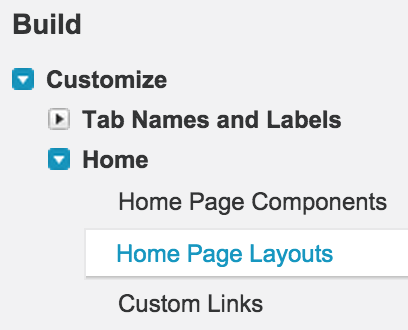
The Home Page Layouts page shows all available layouts. To modify the default layout or create a new one, click the appropriate link.

Click the Edit button to modify the home page layout and add your custom component.
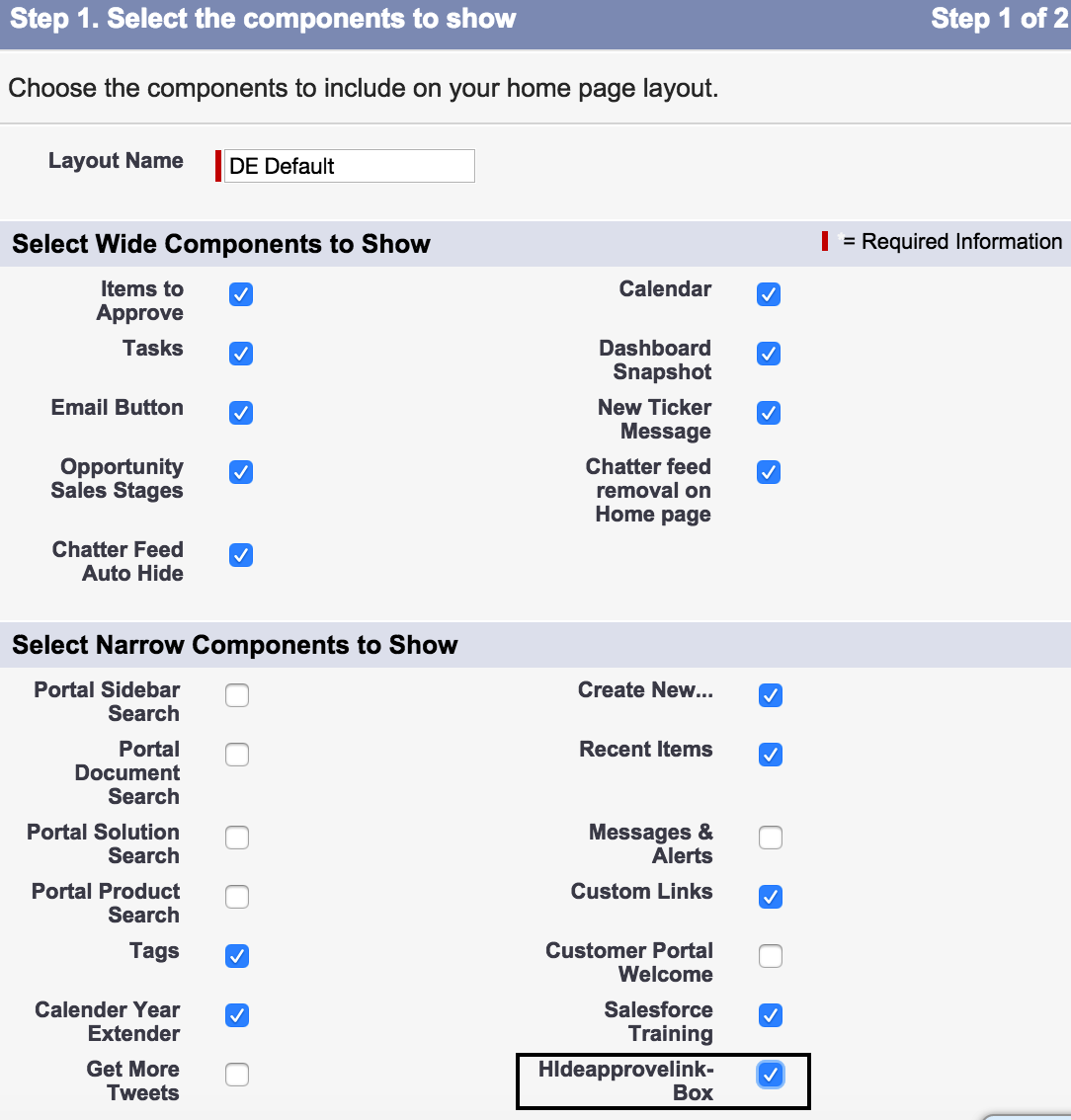
Home Page Component Types and Use Cases
Link Components
Link components display custom links on the home page. Common use cases include:
- Quick access to external applications
- Internal navigation shortcuts
- Hiding or showing specific UI elements (like approval buttons)
Visualforce Page Components
Visualforce page components embed custom Visualforce pages directly into the home page layout. These components support:
- Custom dashboards and reports
- Interactive forms and data entry
- Integration with external systems
- Custom business logic display
HTML Area Components
HTML area components allow you to add custom HTML content, including:
- Formatted text and announcements
- Embedded videos or media
- Custom styling and branding
Image Components
Image components display uploaded images from your Documents folder, useful for:
- Company logos and branding
- Informational graphics
- Visual navigation aids
Best Practices for Home Page Components
Performance Considerations
- Keep Visualforce page components lightweight to avoid slow page loads
- Optimize images for web display (recommended: under 100KB)
- Test component performance with different user profiles
User Experience Guidelines
- Use descriptive component names that indicate functionality
- Position critical components in the narrow column for better visibility
- Consider mobile responsiveness when designing components
Security and Permissions
- Test components with different user profiles and permission sets
- Ensure Visualforce pages respect field-level security
- Use appropriate sharing settings for linked documents
Troubleshooting Common Issues
Component Not Displaying
If your home page component doesn’t appear:
- Verify the component is added to the correct home page layout
- Check user profile assignments for the home page layout
- Ensure required permissions are granted for linked resources
Visualforce Page Errors
For Visualforce page components showing errors:
- Test the Visualforce page independently before adding to home page
- Check for governor limit issues in custom controllers
- Verify all referenced objects and fields are accessible
Page Layout Assignment in Salesforce
Home page layout assignment determines which users see specific layouts. Configure assignments through:
- Setup → Customize → Home → Home Page Layouts
- Click Home Page Layout Assignment
- Assign layouts based on user profiles or individual users
This ensures different user groups see relevant home page components based on their roles and responsibilities.
Frequently Asked Questions
What types of home page components can I create in Salesforce?
You can create four types of home page components: Link components (for custom links), HTML Area components (for custom HTML content), Image components (for uploaded images), and Visualforce Page components (for custom Visualforce pages).
How do I create a Visualforce page component for the home page?
First create your Visualforce page in Setup → Develop → Pages. Then go to Setup → Create → Home Page Components → New, select “Visualforce Page” as the type, and choose your created page from the dropdown.
Can I hide standard home page components like approval buttons?
Yes, you can create custom link components that use JavaScript to hide standard elements. Create a custom link with appropriate JavaScript code, then add it as a Link component to your home page layout.
How do I assign different home page layouts to different users?
Use page layout assignment in Setup → Customize → Home → Home Page Layouts. Click “Home Page Layout Assignment” to assign specific layouts to user profiles or individual users based on their roles.
What are the best practices for Visualforce page components on the home page?
Keep Visualforce pages lightweight to avoid slow loading, respect field-level security in your controllers, test with different user profiles, and ensure mobile responsiveness. Avoid complex queries or operations that might hit governor limits.