When your marketing team announces they’ve HubSpot migrated from Salesforce or chosen HubSpot for marketing automation while keeping Salesforce as the primary CRM, you need a bidirectional sync that maintains data integrity across both platforms. This integration connects HubSpot’s marketing automation capabilities with Salesforce’s robust CRM functionality.
The HubSpot-Salesforce integration is a managed package owned by HubSpot that creates a bridge between the two systems. Unlike custom API integrations, this native connector handles the complex data synchronization automatically while giving you granular control over field mappings and sync rules.
Understanding HubSpot Salesforce Integration Architecture
The HubSpot Salesforce integration installs as a managed package in your Salesforce org, creating several components that enable seamless data flow between platforms.
Integration Components Installed in Salesforce
- 1 Salesforce Managed Package (HubSpot Integration)
- 1 Permission Set for integration user access
- 4 Visualforce Pages for embedded HubSpot functionality
- Custom fields for HubSpot record IDs and sync status
The integration operates through a dedicated integration user account that serves as the bridge between systems. This user must have appropriate permissions to read, create, and update records across all synchronized objects.

Data Model Differences: Salesforce vs HubSpot
The primary architectural difference impacts how person records are structured. Salesforce uses separate Lead and Contact objects, while HubSpot consolidates all person data into a single Contact object.
| Salesforce Object | HubSpot Equivalent | Sync Behavior |
|---|---|---|
| Lead | Contact | Syncs to HubSpot Contact with Lifecycle Stage property |
| Contact | Contact | Direct sync to HubSpot Contact |
| Account | Company | One-to-one mapping |
| Opportunity | Deal | Direct sync with stage mapping |
| Task/Event | Activity | Activity timeline sync |
HubSpot uses the Lifecycle Stage property to track progression from Marketing Qualified Lead to Customer, replacing Salesforce’s Lead conversion process.
Salesforce and HubSpot Integration Setup Process
The integration setup begins in HubSpot but requires configuration steps in both systems. Follow this sequence to ensure proper installation.
Pre-Installation Requirements
Before starting the salesforce and hubspot integration, verify these prerequisites:
- Salesforce System Administrator permissions
- HubSpot Super Admin access
- Clean data in both systems (run duplicate reports)
- Documented field mapping requirements
- Integration user created with appropriate permissions
Creating the Integration User
The integration user requires specific permissions to synchronize data effectively:
- Create a new user with a dedicated integration license
- Assign the HubSpot Integration permission set
- Grant API Enabled permission
- Ensure access to all objects you plan to sync
- Set appropriate sharing rules for restricted data
This user will appear in Salesforce audit trails for all HubSpot-initiated changes, making it essential for tracking data modifications.
How to Integrate HubSpot with Salesforce: Step-by-Step
The installation process spans both platforms and requires careful attention to sync settings and field mappings.
Installation Steps
- In HubSpot: Navigate to Settings > Integrations > Connected Apps
- Select Salesforce: Click “Connect app” and choose your Salesforce environment
- Authenticate: Log in with your integration user credentials
- Install Package: Approve the managed package installation in Salesforce
- Configure Objects: Select which objects to sync (Contacts required, others optional)
- Map Fields: Review and adjust field mappings for each object
- Set Sync Rules: Configure sync direction and conflict resolution
- Test Sync: Run initial sync with a small data subset
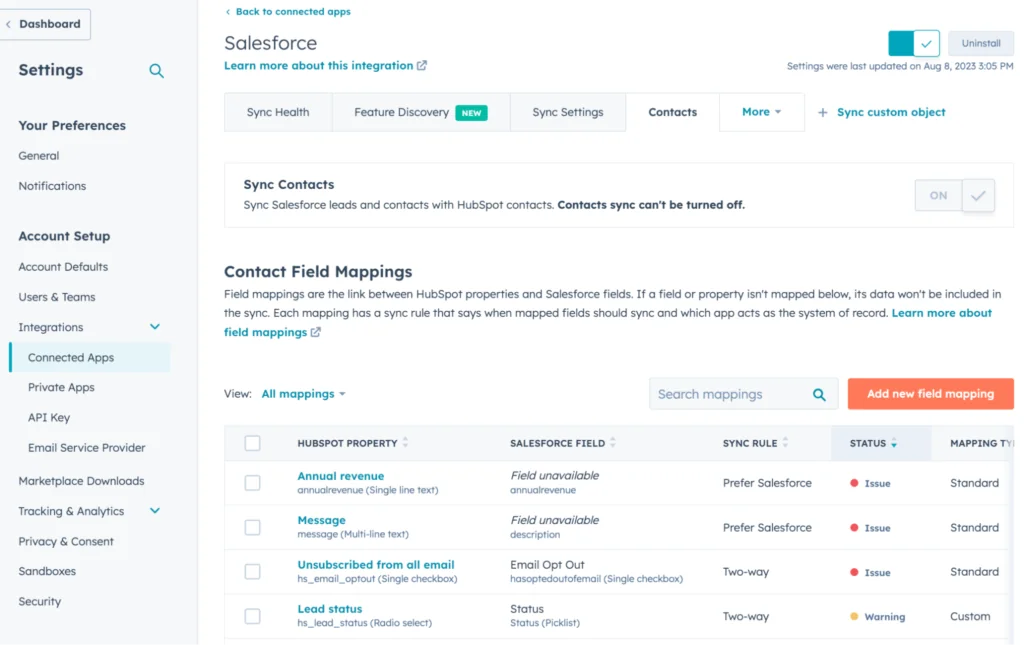
Field Mapping and Sync Rules
The integration offers four sync rule options for each mapped field:
- Two-way sync: Both systems can update the field (recommended for most fields)
- Always use Salesforce: Only Salesforce can modify the field value
- Prefer Salesforce unless blank: HubSpot can only populate empty Salesforce fields
- Don’t sync: Field exists in mapping but no data synchronization occurs
Choose sync rules based on your data governance requirements and which system serves as the source of truth for specific data points.
Data Type Compatibility and Common Issues
Understanding data type compatibility prevents sync errors and data corruption during the salesforce integration with hubspot process.
Compatible Data Types
| Salesforce Field Type | HubSpot Property Type | Sync Compatibility |
|---|---|---|
| Text | Single-line text | ✓ Full compatibility |
| Picklist | Dropdown select | ✓ Values must match exactly |
| Multi-select Picklist | Multiple checkboxes | ✓ Values must match exactly |
| Date | Date picker | ✓ Full compatibility |
| DateTime | Date picker | ⚠ Time component lost |
| Number | Number | ✓ Full compatibility |
| Checkbox | Yes/No | ✓ Full compatibility |
| Formula | Calculated property | ⚠ Read-only in HubSpot |
Picklist Synchronization Considerations
HubSpot lacks Salesforce’s inactive picklist value feature. When picklist values become obsolete:
- Delete unused values instead of marking them inactive
- Inactive Salesforce picklist values cause sync errors
- Coordinate picklist changes between both systems
- Test picklist modifications in sandbox environments first
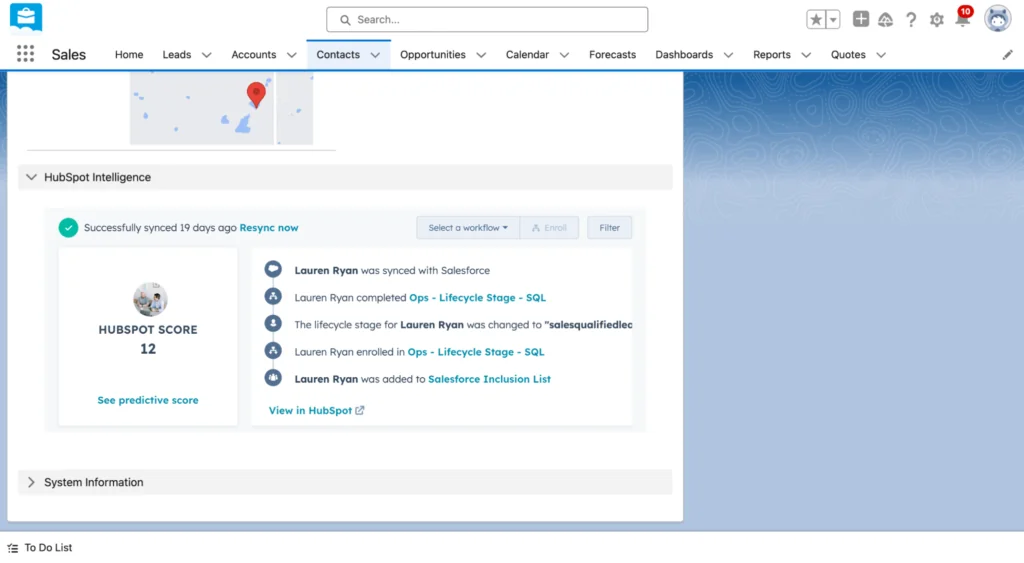
HubSpot Visualforce Pages in Salesforce
The integration installs Visualforce pages that embed HubSpot functionality directly into Salesforce record pages, enabling sales teams to access marketing data without switching platforms.
Available Visualforce Page Features
- Complete activity timeline from HubSpot
- Marketing email engagement history
- Website behavior tracking
- Lead scoring and lifecycle stage progression
- Workflow enrollment status and history
- Direct meeting booking (Beta)
- Sales sequence enrollment (Beta)
Adding HubSpot Visualforce Pages to Page Layouts
Follow these steps to embed HubSpot intelligence in Salesforce:
- Navigate to Setup > Object Manager
- Select the object (Lead, Contact, Account, or Opportunity)
- Choose Page Layouts and select the layout to modify
- Click Edit and find Visualforce Pages in the palette
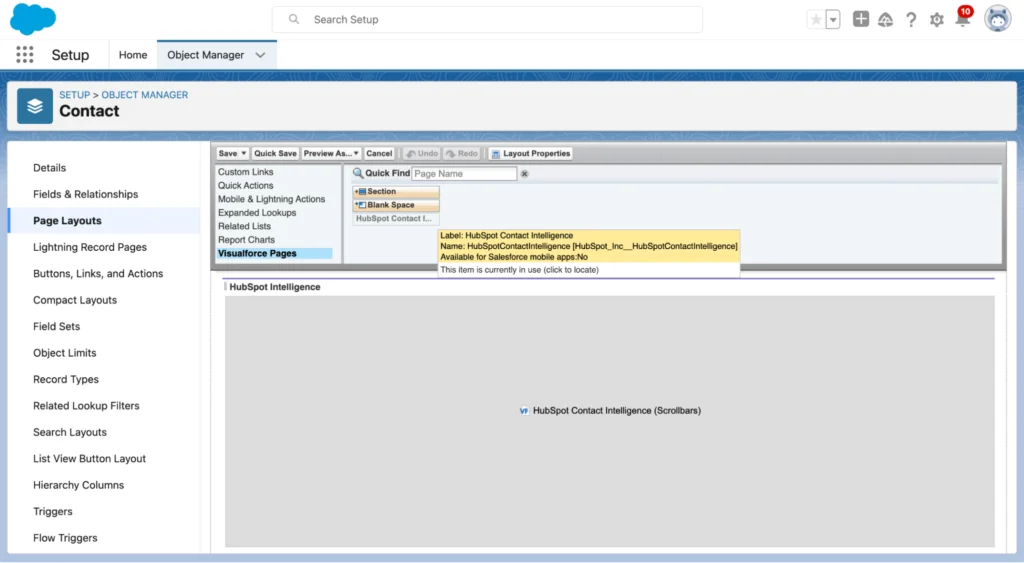
- Create a new section named “HubSpot Intelligence”
- Set the section to 1-column layout
- Drag the HubSpot Intelligence Visualforce page to the section
- Configure height to 350 pixels and enable scrollbars
- Save and deploy the page layout
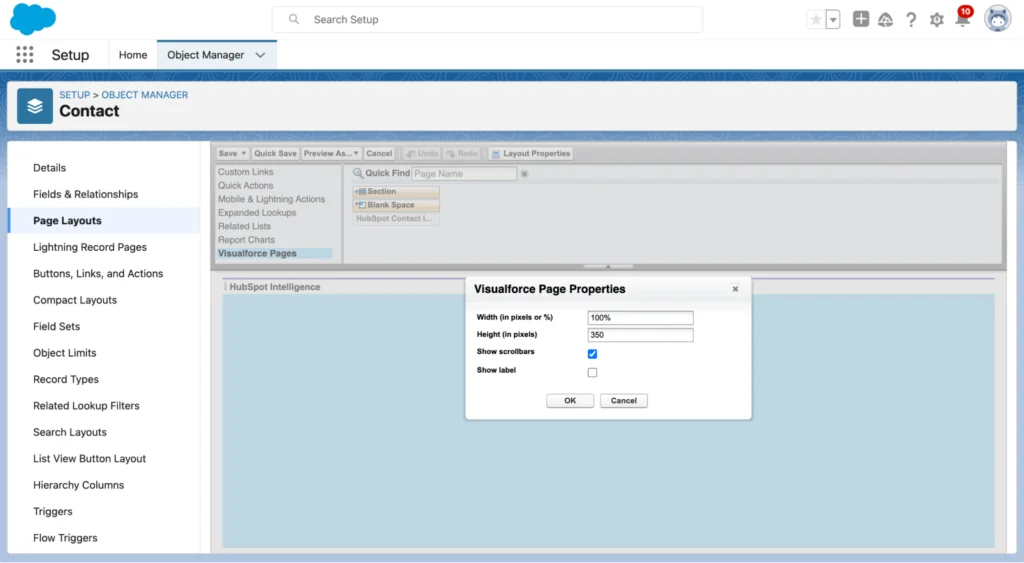
Repeat this process for each page layout where you want HubSpot data visibility.
Sync Frequency and Performance Considerations
The HubSpot-Salesforce integration synchronizes data every 15 minutes, balancing real-time needs with system performance.
Sync Performance Factors
- Record Volume: Large datasets may experience longer sync times
- Field Complexity: Formula fields and complex data types slow synchronization
- API Limits: Both systems have daily API call limits that affect sync capacity
- Network Latency: Geographic distance between data centers impacts sync speed
Optimizing Sync Performance
Implement these strategies to maintain efficient synchronization:
- Sync only necessary fields to reduce API calls
- Use inclusion lists to limit record scope
- Schedule bulk updates during off-peak hours
- Monitor sync error logs regularly
- Implement data validation rules to prevent sync failures
Data Governance and Security Best Practices
Maintaining data integrity across both platforms requires careful governance and security planning.
Integration User Security
- Use a dedicated integration user account
- Implement IP restrictions for the integration user
- Regularly rotate integration user passwords
- Monitor integration user activity in audit logs
- Limit integration user permissions to necessary objects only
Data Quality Management
Establish processes to maintain clean data across both systems:
- Run duplicate reports before initial sync
- Implement validation rules for critical fields
- Create data quality dashboards in both systems
- Establish clear data ownership policies
- Document field mapping decisions and rationale
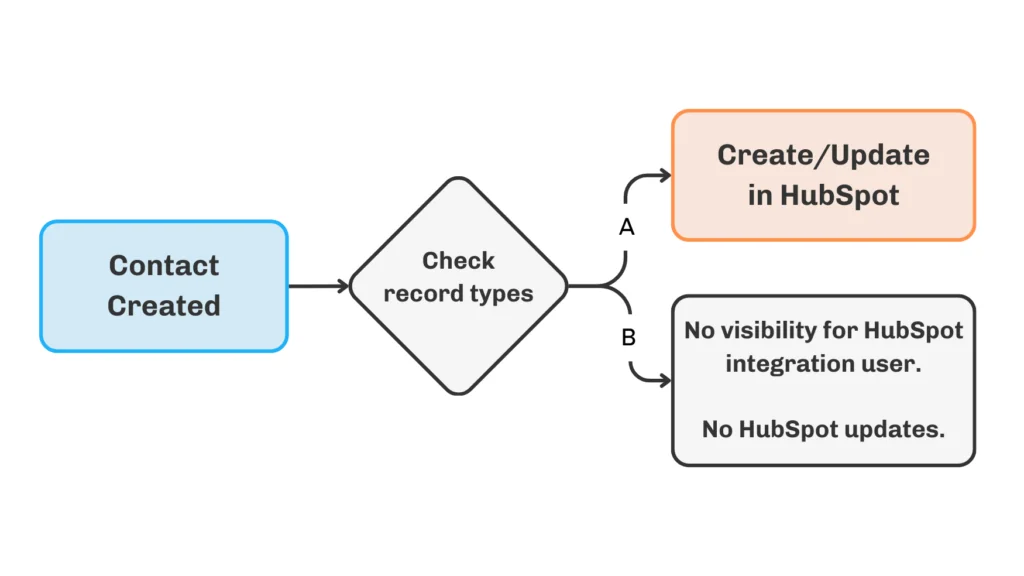
Troubleshooting Common Integration Issues
Understanding common sync problems helps maintain smooth integration operation.
Duplicate Record Handling
HubSpot allows only one Contact per email address, while Salesforce permits multiple Leads and Contacts with identical emails:
- The most recently updated Salesforce record syncs to HubSpot
- Older records with the same email stop syncing
- Implement email uniqueness validation in Salesforce to prevent conflicts
- Use HubSpot’s Contact ID and Lead ID properties to identify record types
Lead Conversion Impact
When a Lead converts in Salesforce:
- The resulting Contact inherits the HubSpot sync relationship
- HubSpot Contact record remains unchanged
- Lead-specific data may be lost if not mapped to Contact fields
- Lifecycle Stage property updates to reflect conversion
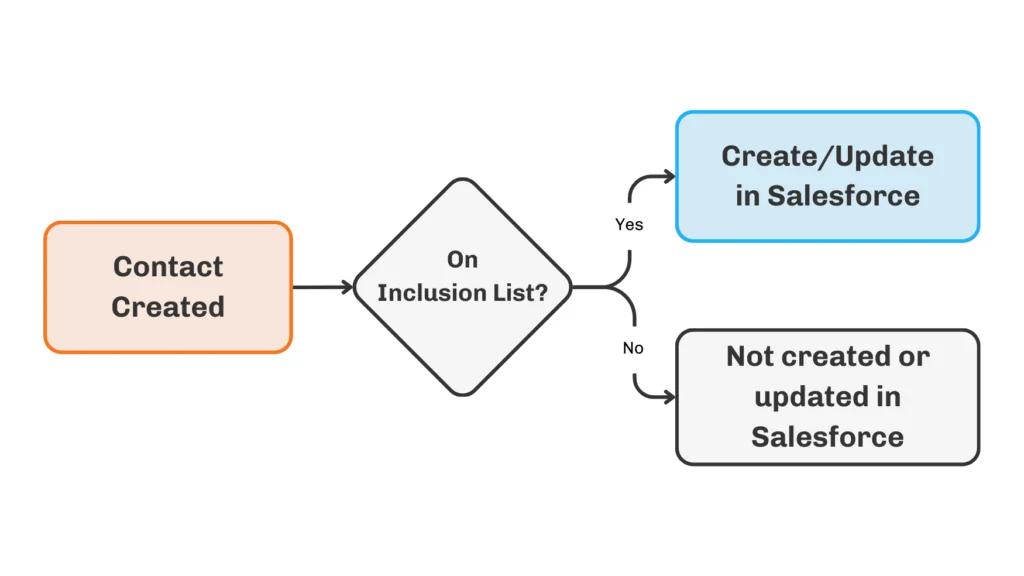
Sync Error Resolution
Monitor and resolve sync errors through HubSpot’s integration dashboard:
- Field mapping conflicts appear with specific error messages
- Data type mismatches prevent successful synchronization
- Permission errors indicate integration user access issues
- API limit errors suggest need for sync optimization
Advanced Integration Scenarios
Complex business requirements may need additional configuration beyond standard setup.
Custom Object Synchronization
While the native integration handles standard objects, custom objects require:
- Custom API development for non-standard objects
- Middleware solutions like Zapier or MuleSoft
- Third-party integration platforms
- Custom Apex triggers for specialized sync logic
Multi-Org Considerations
Organizations with multiple Salesforce orgs face additional complexity:
- Each Salesforce org requires separate HubSpot integration
- Data consolidation strategies needed for reporting
- User training varies by org-specific configurations
- Governance policies must account for multiple data sources
Change Management and User Adoption
Successful integration requires organizational change management beyond technical implementation.
Stakeholder Communication
Inform affected teams about integration benefits and changes:
- Sales teams gain marketing intelligence in Salesforce
- Marketing teams access sales data for better targeting
- Customer service teams see complete customer journey
- Leadership gets unified reporting across platforms
Training Requirements
Develop training programs for different user groups:
- Sales Users: Using HubSpot data in Salesforce, understanding lifecycle stages
- Marketing Users: Salesforce data access in HubSpot, lead scoring impact
- Administrators: Managing sync settings, troubleshooting errors, field mapping
Frequently Asked Questions
What happens when HubSpot migrated from Salesforce to existing data?
When HubSpot migrated from Salesforce, existing data in both systems will sync based on your field mapping configuration. The integration identifies matching records by email address for Contacts and Leads, and by domain for Companies/Accounts. Records without matches create new entries in the destination system. Run a data audit before migration to identify potential duplicates and conflicts.
Can I sync custom fields between HubSpot and Salesforce?
Yes, the HubSpot Salesforce integration supports custom field synchronization. Create corresponding custom properties in HubSpot for your Salesforce custom fields, then map them in the integration settings. Ensure data types are compatible and consider sync rules carefully for custom fields containing sensitive or calculated data.
How do I handle multiple Salesforce Leads with the same email address?
HubSpot only allows one Contact per email address, so when multiple Salesforce Leads or Contacts share an email, only the most recently updated record syncs to HubSpot. Implement email uniqueness validation in Salesforce or use HubSpot’s Lead ID and Contact ID properties to identify which Salesforce record is actively syncing.
What are the API limits for HubSpot Salesforce integration?
The integration consumes API calls from both systems’ daily limits. HubSpot Professional accounts get 40,000 API calls daily, while Enterprise accounts get 120,000. Salesforce API limits depend on your edition and user licenses. Monitor usage in both systems and optimize sync settings to stay within limits, especially during initial data loads.
How often does the integration sync data between systems?
The HubSpot Salesforce integration syncs data every 15 minutes automatically. This frequency balances near real-time data access with system performance. Critical updates may take up to 15 minutes to appear in the destination system, so plan workflows accordingly for time-sensitive processes.
Can I sync Salesforce Opportunities with HubSpot Deals?
Yes, Salesforce Opportunities sync with HubSpot Deals as part of the standard integration. Map opportunity stages to deal stages, and ensure currency fields align between systems. The integration handles opportunity-to-deal conversion automatically, maintaining relationships with associated Contacts and Accounts/Companies.