Salesforce Flows are automation tools that enable you to build complex business solutions using clicks, not code. This comprehensive Salesforce tutorial covers everything you need to master Flow Builder, from basic concepts to advanced automation patterns used in enterprise orgs.
Flows handle complex business logic without requiring developer resources, making them essential for Salesforce admins managing integration patterns, security requirements, and relationship configurations. This guide addresses common Salesforce admin interview questions about Flow automation and provides practical examples for real-world implementations.
What are Salesforce Flows?
Salesforce Flows are declarative automation tools that perform business logic through a visual interface. Available since API version 44.0 (Summer ’18), Flows can execute various tasks including:
- Sending emails and custom notifications
- Posting to Chatter feeds
- Creating, updating, and deleting records
- Integrating with external systems via REST/SOAP callouts
- Implementing complex approval processes
- Managing relationships in Salesforce through lookup and master-detail configurations
Flows operate within Salesforce’s security model, respecting object-level security, field-level security, and sharing rules. They execute in system context by default but can be configured to run in user context when needed for security compliance.
Flow Builder Architecture and Components
Flow Builder uses three fundamental building blocks that work together to create automation logic:
1. Elements
Elements perform specific actions within your Flow. They include interaction elements (Screens, Actions, Subflows), logic elements (Decision, Assignment, Loop), and data elements (Create, Update, Get, Delete Records). Each element has specific governor limits and execution contexts.
2. Connectors
Connectors define the execution path between elements. They determine which element runs next based on conditions or outcomes. Proper connector configuration prevents infinite loops and ensures efficient Flow execution.
3. Resources
Resources store and manipulate data throughout Flow execution. Understanding resource types is crucial for Salesforce relationship interview questions and admin scenarios.
Types of Resources
- Variables: Store single values (Text, Number, Record, Date, Currency, Boolean, Picklist). Must specify data type and scope.
- Collections: Store multiple records or values of the same data type. Essential for bulk operations and governor limit compliance.
- Constants: Fixed values referenced multiple times. Improve maintainability and reduce hardcoded values.
- Formulas: Calculate values dynamically using Salesforce formula syntax. Support same functions as formula fields.
- Choices: Present options to users in Screen Flows. Can be static or dynamic based on record data.
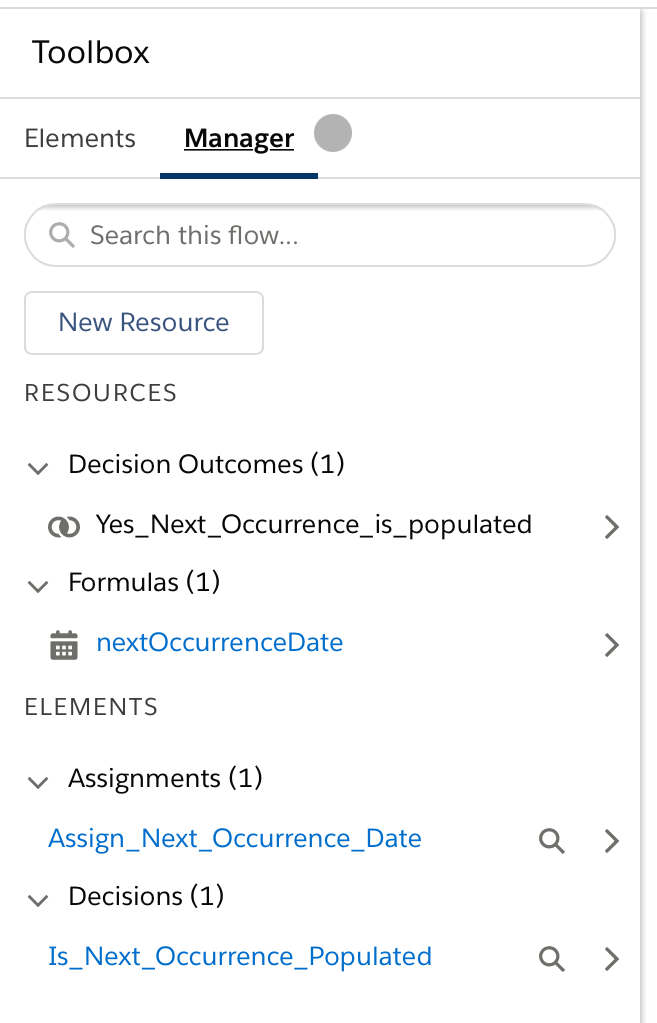
Manager Tab
The Manager tab in Flow Builder contains all Resources created for your Flow. This centralized view helps manage variables, collections, constants, formulas, and choices efficiently. The Manager tab shows resource usage and helps identify unused resources that impact Flow performance.
Flow Elements: Interaction, Logic, and Data Operations
Interaction Elements
- Screen: Create custom user interfaces for data collection or display. Available only in Screen Flows. Supports input validation, conditional visibility, and dynamic picklist values.
- Action: Execute standard or custom actions including Quick Actions, Apex methods, and platform events. Useful for integration patterns and external system communication.
- Subflow: Call another Flow from within your current Flow. Promotes reusability and modular design. Subflows can accept input variables and return output variables.
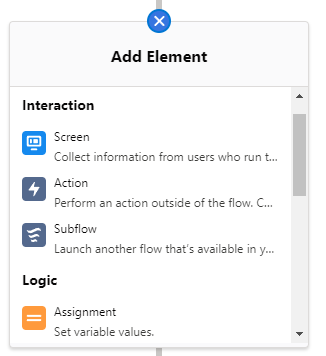
Logic Elements
- Decision: Branch Flow execution based on defined conditions. Supports multiple outcomes and default paths. Essential for handling different business scenarios.
- Assignment: Set or modify variable values. Can perform calculations, concatenate text, or manipulate collections. Critical for data transformation.
- Loop: Iterate over collections to process multiple records. Must include proper exit conditions to avoid infinite loops and governor limit violations.
Data Elements
- Create Records: Insert new records into Salesforce. Supports bulk operations and relationship field population. Respects validation rules and triggers.
- Update Records: Modify existing records. Can update single records or collections. Maintains audit trail and field history tracking.
- Get Records: Retrieve records from Salesforce using filter conditions. Equivalent to SOQL queries with similar performance considerations.
- Delete Records: Remove records from Salesforce. Moves records to Recycle Bin unless permanently deleted. Triggers deletion events.
How to Call Flows in Salesforce
Flow execution depends on the trigger mechanism configured during Flow creation. Each trigger type serves specific automation needs and has distinct security and performance characteristics:
- Record Changes: Triggered automatically when records are created, updated, or deleted. Executes in system context with full data access.
- User Interaction: Launched manually through buttons, Lightning pages, or Quick Actions. Runs in user context with current user’s permissions.
- Scheduled Execution: Runs at specified times and frequencies. Processes records in batches with configurable batch sizes.
- Platform Events: Responds to platform event messages from internal or external systems. Enables real-time integration patterns.
- Apex Invocation: Called programmatically through Apex code using Flow.Interview class. Allows complex conditional triggering.
When creating Flows, select the appropriate trigger type based on your business requirements and technical constraints. Each type has specific governor limits and execution contexts that affect Flow behavior.
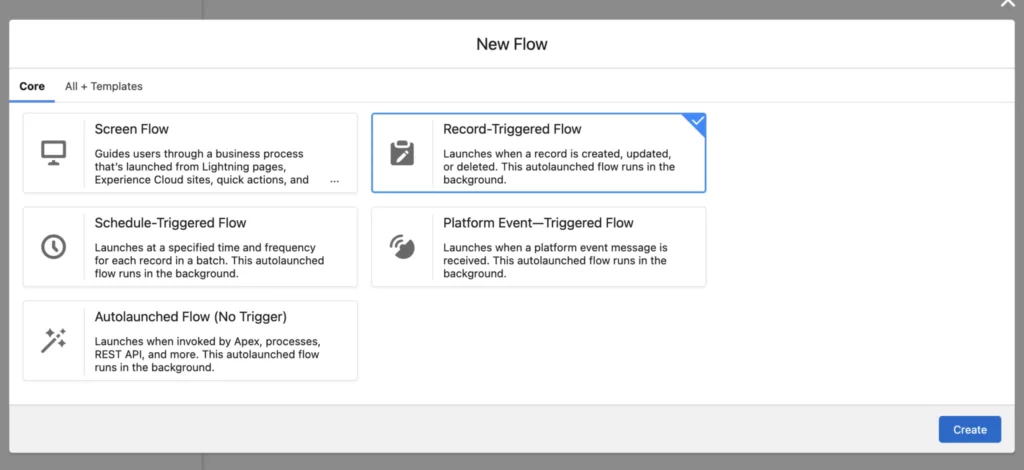
Types of Flows in Salesforce
Salesforce provides five main Flow types, each designed for specific automation scenarios. Understanding when to use each type is essential for Salesforce admin interview questions and implementation decisions.
1. Screen Flow
- Description: Creates guided user experiences with custom screens and input validation.
- Usage: Deployed on Lightning pages, Experience Cloud sites, Quick Actions, or utility bar components.
- Example Use Case: Lead qualification wizard that guides sales reps through discovery questions and automatically scores leads based on responses.
- Governor Limits: 2,000 elements per Flow, 50 screens per Flow, 5-minute execution timeout.
2. Record-Triggered Flow
- Description: Executes automatically when records are created, updated, or deleted. Replaces Workflow Rules and Process Builder functionality.
- Usage: Handles before-save and after-save automation scenarios with precise timing control.
- Example Use Case: Automatically create follow-up tasks when Opportunity stage changes to “Closed Lost” and send notification emails to account team members.
- Governor Limits: Executes within transaction limits, shares DML and SOQL limits with other automation.
3. Scheduled-Triggered Flow
- Description: Processes records in batches at specified times and frequencies. Handles large data volumes efficiently.
- Usage: Performs routine maintenance tasks, data cleanup, or periodic calculations.
- Example Use Case: Update contract status to “Expired” for all contracts where End Date is past current date, running daily at midnight.
- Governor Limits: 250,000 records per batch, 24-hour maximum execution time, 100 concurrent scheduled Flows.
4. Platform Event Flow
- Description: Responds to platform event messages, enabling event-driven architecture and real-time integration patterns.
- Usage: Processes events from external systems, Change Data Capture events, or custom platform events.
- Example Use Case: Update inventory levels in Salesforce when warehouse management system publishes shipment received events.
- Governor Limits: Event message size limits, delivery retry policies, and subscription limits apply.
5. Autolaunched Flow
- Description: Executes when invoked by Apex code, Process Builder, or other Flows. Runs without user interaction.
- Usage: Performs complex calculations, data transformations, or orchestrates multiple automation processes.
- Example Use Case: Calculate commission amounts based on complex territory rules and product categories when opportunities are closed won.
- Governor Limits: Shares transaction limits with calling context, 2,000 elements per Flow.
Flow Security and Relationships in Salesforce
Flows operate within Salesforce’s comprehensive security model, making security considerations essential for admin interview questions and production implementations.
Object and Field-Level Security
Flows respect object permissions and field-level security settings from the running user’s profile and permission sets. When designing Flows, consider:
- Read/Create/Edit/Delete permissions on objects accessed by the Flow
- Field-level security settings that may hide or make fields read-only
- Custom permissions that control access to specific Flow functionality
Record-Level Security and Sharing
Record-triggered Flows run in system context and can access all records regardless of sharing rules. Screen Flows run in user context and respect sharing rules by default. Use “Run As” settings to control security context appropriately.
Managing Relationships in Salesforce Flows
Flows can create and maintain relationships between objects through lookup and master-detail fields. Common relationship patterns include:
- Populating lookup fields during record creation
- Updating related records when parent records change
- Creating junction objects for many-to-many relationships
- Maintaining data consistency across related objects
Flow Performance and Governor Limits
Understanding governor limits prevents Flow failures in production environments and addresses common Salesforce admin interview questions about automation scalability.
Key Governor Limits
- DML Operations: 150 DML statements per transaction (synchronous), 10,000 records per DML operation
- SOQL Queries: 100 SOQL queries per transaction (synchronous), 50,000 records total retrieved
- CPU Time: 10,000 milliseconds per transaction (synchronous), 60,000 milliseconds (asynchronous)
- Flow Elements: 2,000 elements per Flow, 5-minute execution timeout for Screen Flows
Performance Best Practices
- Use collections and bulk operations instead of individual record processing
- Minimize SOQL queries by retrieving related data in single queries
- Implement proper error handling and fault paths
- Test Flows with realistic data volumes before deployment
Integration Patterns with Salesforce Flows
Flows support various integration patterns for connecting Salesforce with external systems, addressing common integration requirements in enterprise environments.
REST API Integration
Use HTTP Callout actions to integrate with REST APIs. Configure named credentials for authentication and handle response parsing within Flow logic.
Platform Events Integration
Publish and subscribe to platform events for real-time data synchronization. Platform Event Flows respond to events from external systems or Change Data Capture.
Apex Integration
Call custom Apex methods through Invocable Actions. This pattern enables complex calculations or operations not available through standard Flow elements.
Quick Deploy Strategies for Salesforce Flows
Deploying Flows efficiently requires understanding deployment dependencies and testing requirements.
Deployment Considerations
- Flows require 75% test coverage when deployed via change sets or metadata API
- Dependencies include custom objects, fields, Apex classes, and permission sets
- Version management allows rollback to previous Flow versions if needed
- Flow interviews (running instances) continue with the version that started them
Testing Strategies
- Create test data that covers all Flow paths and decision outcomes
- Test with different user profiles and permission sets
- Validate governor limit compliance with realistic data volumes
- Test error handling and fault paths thoroughly
Frequently Asked Questions
What is the difference between Salesforce Flows and Process Builder?
Flows are the current automation platform in Salesforce, while Process Builder is deprecated and no longer receives new features. Flows offer more functionality, better performance, and support for complex logic patterns. Salesforce recommends migrating existing Process Builder processes to Flows for better maintainability and feature access.
How do Flows handle relationships in Salesforce?
Flows can create and maintain relationships through lookup and master-detail fields. They can populate relationship fields during record creation, query related records using Get Records elements, and update related records through Update Records elements. Flows respect relationship security and validation rules defined on the objects.
What are common Salesforce Flow integration patterns?
Common integration patterns include REST API callouts for external system communication, Platform Event subscriptions for real-time data sync, Apex invocable actions for complex logic, and scheduled Flows for batch processing. Each pattern serves different integration requirements and has specific security and performance considerations.
How do I prepare for Salesforce admin interview questions about Flows?
Focus on understanding Flow types, when to use each type, security considerations, governor limits, and real-world use cases. Practice explaining how Flows fit into overall automation strategy, their relationship to other Salesforce features, and how they handle complex business requirements without code.
What security considerations apply to Salesforce Flows?
Flows respect object-level security, field-level security, and sharing rules based on their execution context. Record-triggered Flows run in system context with full access, while Screen Flows run in user context. Consider the “Run As” setting, custom permissions, and data access requirements when designing Flow security.
How do I quick deploy Salesforce Flows to production?
Quick deploy requires pre-validated change sets or metadata packages. Ensure all dependencies are included, test coverage meets requirements (75% for Apex components), and Flow versions are properly managed. Use deployment tools like Salesforce CLI or third-party DevOps platforms for automated deployment pipelines.