This Salesforce tutorial covers switching between Salesforce Lightning Experience and Salesforce Classic using the built-in switcher functionality. You’ll learn how to navigate between interfaces and enable Lightning Experience for older orgs using the migration assistant.
How to Switch from Salesforce Lightning Experience to Salesforce Classic
New Salesforce Developer accounts automatically enable Lightning Experience by default. You can verify this by checking the user menu in the top-right corner of your org.
To identify which interface you’re using, look for the switcher option in your user menu. If you see “Switch to Salesforce Classic,” you’re currently in Lightning Experience.
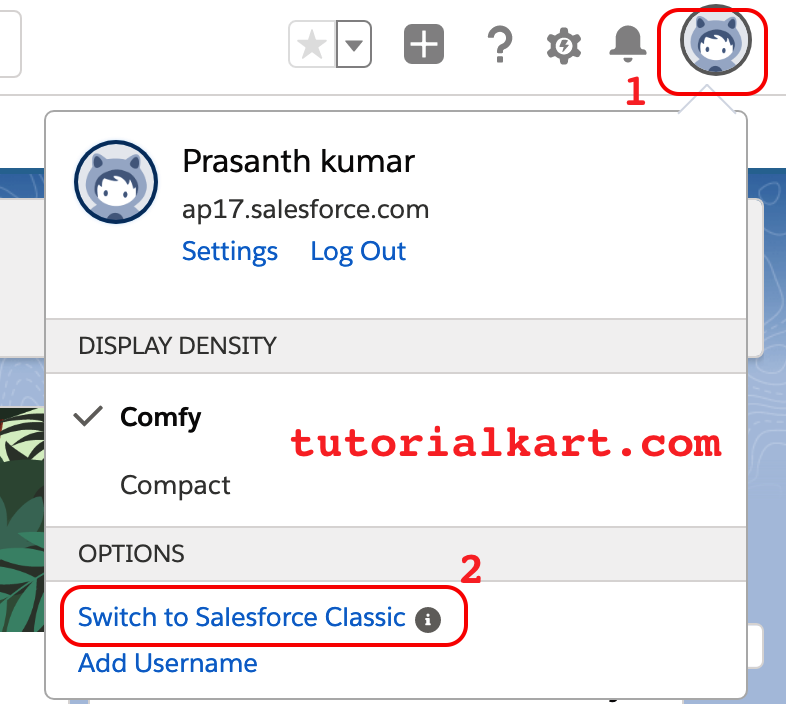
Step-by-Step Switching Process
- Click your username or profile picture in the top-right corner
- Select “Switch to Salesforce Classic” from the dropdown menu
- The page will reload and display the Classic interface
- Verify the switch by checking the URL – Classic shows “home/home.jsp”
After switching to Classic, the browser URL changes to include “home/home.jsp”, confirming you’re now in the Classic interface.
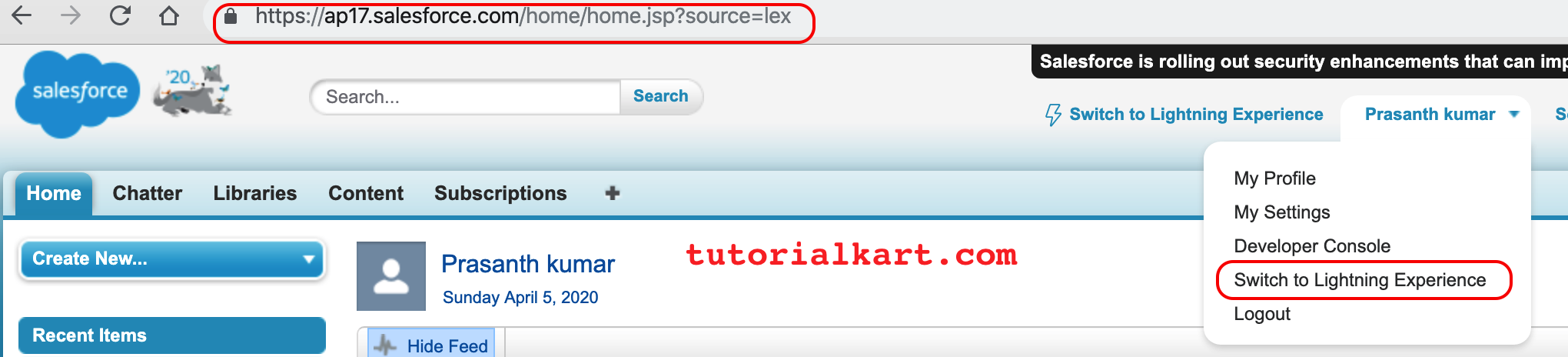
In Classic, the user menu displays “Switch to Lightning Experience” instead, allowing you to return to the modern interface with a single click.
Lightning Experience Migration Assistant for Older Orgs
Salesforce orgs created before Summer ’16 require manual Lightning Experience enablement using the Lightning Experience Migration Assistant. This tool helps administrators transition from Classic to Lightning systematically.
Accessing the Migration Assistant
From Salesforce Classic Setup:
- Navigate to Setup (gear icon or Setup link)
- Search for “Lightning Experience Migration Assistant”
- Click “Get Started” to begin the migration process
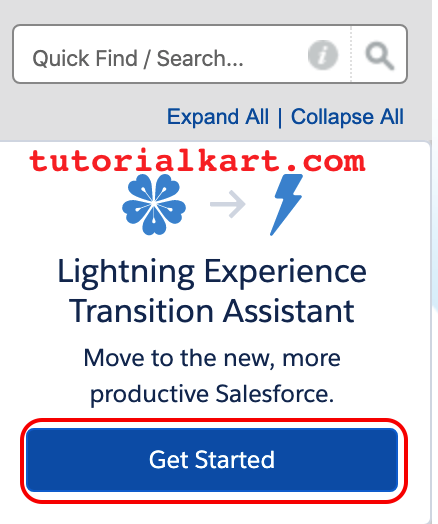
Migration Process Overview
The Lightning Experience Migration Assistant guides you through three distinct phases:
- Discover: Analyze your org’s readiness for Lightning Experience
- Rollout: Plan and execute the transition strategy
- Optimize: Fine-tune Lightning Experience for your users
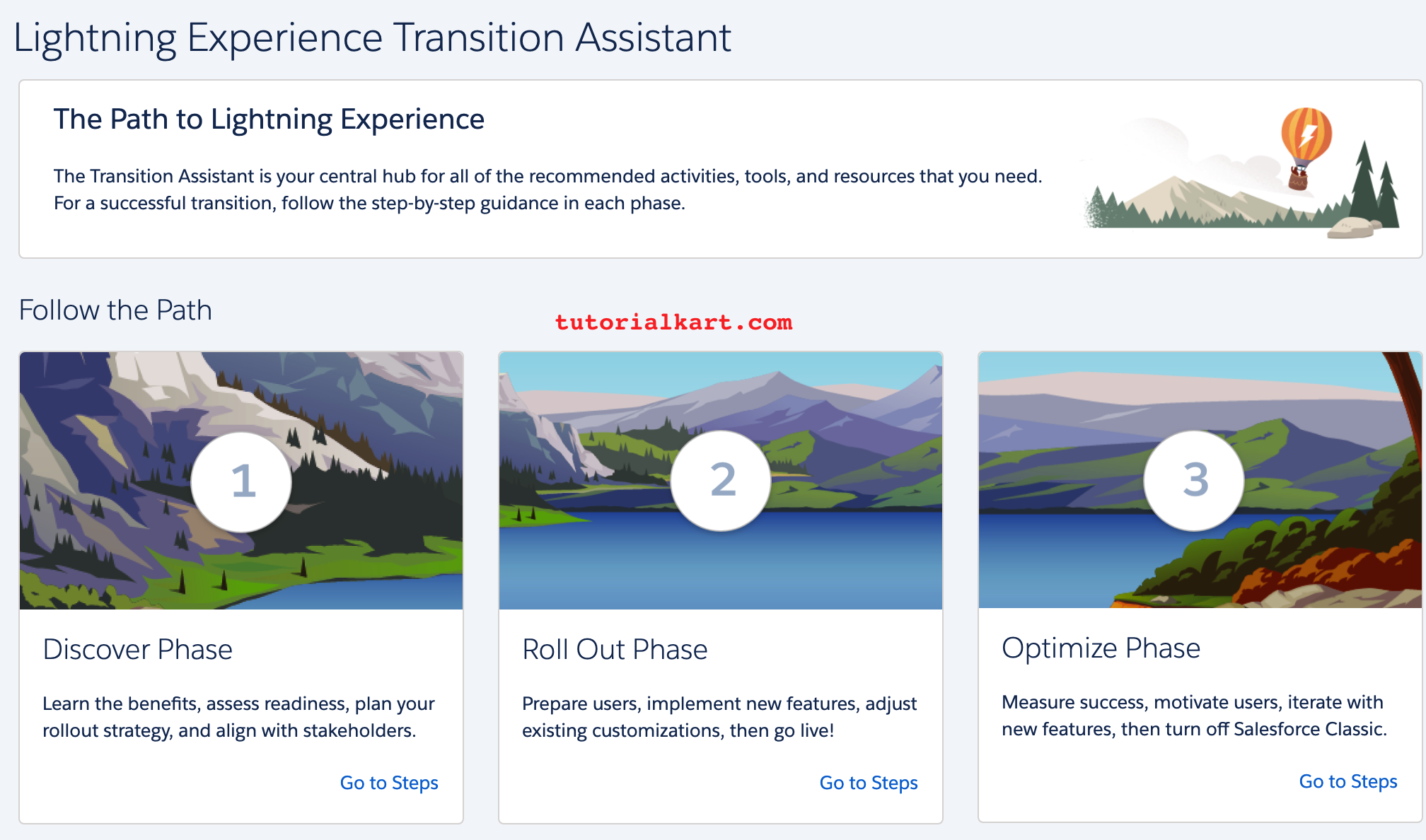
Following these phases ensures a smooth transition and helps identify potential issues before full deployment.
Key Differences Between Lightning Experience and Classic
Understanding the interface differences helps users navigate effectively between both experiences:
| Feature | Lightning Experience | Classic |
|---|---|---|
| URL Pattern | /lightning/page/home | /home/home.jsp |
| Navigation | App Launcher + Navigation Bar | Tabs + Sidebar |
| Page Layout | Dynamic, component-based | Fixed, section-based |
| Mobile Support | Responsive design | Limited mobile optimization |
Best Practices for Interface Switching
When working with both interfaces, consider these recommendations:
- User Training: Ensure users understand both interfaces during transition periods
- Feature Parity: Verify critical functionality works in both experiences
- Performance Testing: Test page load times and user workflows in both interfaces
- Browser Compatibility: Lightning Experience requires modern browsers (IE 11+ deprecated)
Common Salesforce Admin Interview Questions
Administrators frequently encounter questions about interface switching during interviews:
- How do you enable Lightning Experience for an org?
- What’s the difference between the switcher and migration assistant?
- Which features are not available in Lightning Experience?
- How do you handle user resistance to interface changes?
Frequently Asked Questions
Can all users switch between Lightning Experience and Classic?
Yes, if both interfaces are enabled in your org. Administrators can control this through user permissions and profiles. The switcher appears in the user menu when both experiences are available.
What happens to my data when switching interfaces?
Your data remains unchanged when switching between interfaces. Only the user interface changes – all records, configurations, and customizations persist across both experiences.
Do I need special permissions to use the Lightning Experience switcher?
No special permissions are required to use the switcher. However, administrators can disable the switcher through Setup > Lightning Experience > Lightning Experience Settings if they want to restrict interface access.
Why don’t I see the switcher option in my org?
The switcher only appears when both Lightning Experience and Classic are enabled. If your org has fully migrated to Lightning or only has Classic enabled, the switcher won’t be visible.
Related Salesforce Tutorials
Continue learning with these related topics: