The salesforce standard country names list provides a structured approach to managing address data through State and Country/Territory Picklists. This feature replaces free-text address fields with standardized dropdown values, eliminating data quality issues that plague most Salesforce orgs. When properly implemented, it ensures consistent address formatting across all standard objects including Accounts, Contacts, Leads, Contracts, Orders, and Quotes.
State and Country Picklists are available in all Salesforce editions and can be enabled at no additional cost. The feature includes 249 countries and territories with their associated states, provinces, and administrative regions – totaling 587 valid combinations in the standard configuration.
Understanding Salesforce State and Country Picklists
State and Country Picklists convert standard address fields from open text to controlled dropdown lists. This change affects all standard objects with address fields and applies to both new records and existing data through a migration process.
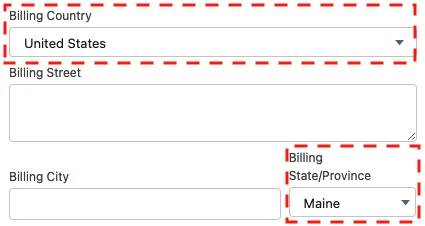
The feature operates on these standard address fields:
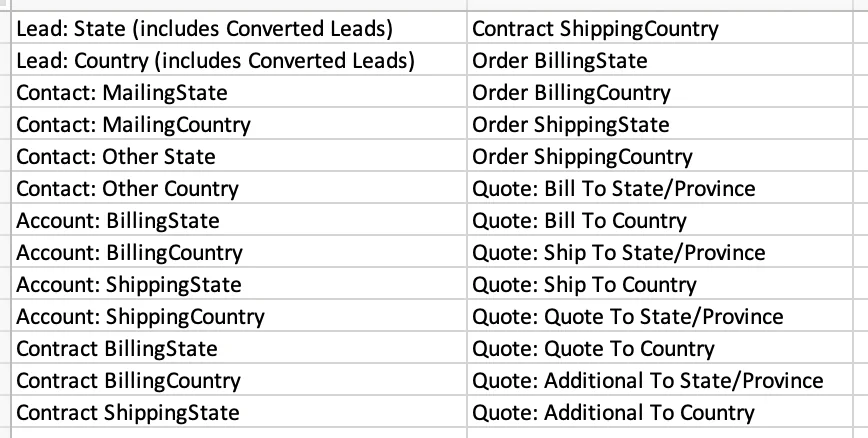
- Account: Billing Address and Shipping Address (State/Country)
- Contact: Mailing Address (State/Country)
- Lead: Address (State/Country)
- Contract: Billing Address and Shipping Address (State/Country)
- Order: Billing Address and Shipping Address (State/Country)
- Quote: Billing Address and Shipping Address (State/Country)
When disabled, these fields accept any text input, leading to inconsistent data entry patterns.
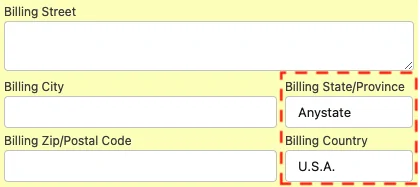
Data Quality Problems with Text-Based Address Fields
Organizations using text-based address fields typically encounter these data quality issues:
Inconsistent State Abbreviations
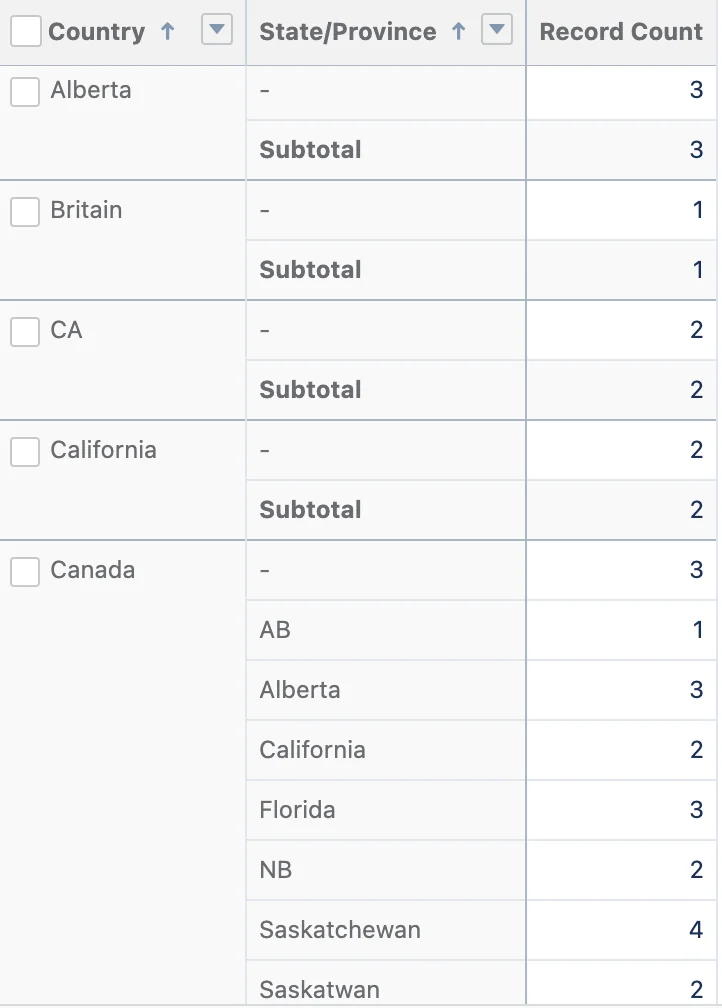
Users enter state data in multiple formats: “CA”, “California”, “Calif”, “calif”, creating reporting and automation challenges. The same location appears as different values in reports and list views.
Invalid State-Country Combinations
Text fields allow impossible combinations like “Alberta, United States” or “Texas, Canada”. These errors compound over time, especially with data imports from external systems.
Typos and Invalid Entries
Common problems include misspellings (“Califronia”), numbers (“90210”), and random characters. These entries break validation rules and create poor user experience.

Salesforce Official US State Picklist Values
The salesforce official us state picklist values include all 50 states, the District of Columbia, and US territories. Each state appears with its full name (not abbreviations) in the standard configuration:
| State/Territory | Standard Label | Integration Name |
|---|---|---|
| Alabama | Alabama | Alabama |
| Alaska | Alaska | Alaska |
| Arizona | Arizona | Arizona |
| California | California | California |
| District of Columbia | District of Columbia | District_of_Columbia |
| Puerto Rico | Puerto Rico | Puerto_Rico |
The complete list includes 62 US states and territories. Administrators can customize labels while maintaining the integration names for API consistency.
Oslo Normalization to Salesforce State/Province Picklist US Canada
The oslo normalization to salesforce state/province picklist us canada process involves standardizing address data from external systems before enabling picklists. This is critical for organizations using data integration tools or importing from systems that use different address formats.
Canadian Province Mapping
Canadian provinces require careful mapping from common abbreviations:
| Province | Common Abbreviation | Salesforce Standard |
|---|---|---|
| Alberta | AB | Alberta |
| British Columbia | BC | British Columbia |
| Ontario | ON | Ontario |
| Quebec | QC | Quebec |
Integration System Considerations
Before enabling picklists, audit these integration touchpoints:
- Marketing Automation: Marketo, Pardot, HubSpot field mapping
- Data Enrichment: ZoomInfo, Data.com normalization rules
- Web-to-Lead: Form field validation and mapping
- API Integrations: Custom applications pushing address data
Pre-Implementation Planning
Successful implementation requires thorough planning before enabling the feature. This planning phase prevents data migration issues and ensures smooth user adoption.
Database Size Assessment
Calculate the scope of data cleanup by running these SOQL queries:
// Count Accounts with address data
SELECT COUNT() FROM Account WHERE BillingState != null OR BillingCountry != null

// Count Leads with address data
SELECT COUNT() FROM Lead WHERE State != null OR Country != null

// Count Contacts with address data
SELECT COUNT() FROM Contact WHERE MailingState != null OR MailingCountry != null
Data Quality Analysis
Generate reports to identify data quality issues:
- Create a Lead report grouped by Country, then by State
- Export unique State/Country combinations
- Identify invalid combinations and formatting inconsistencies
- Document cleanup requirements for each object
Data Cleanup Strategies
Clean existing data before enabling picklists to avoid migration errors and user confusion. The built-in migration tool only handles exact matches and common abbreviations – it cannot resolve conflicting or invalid data.
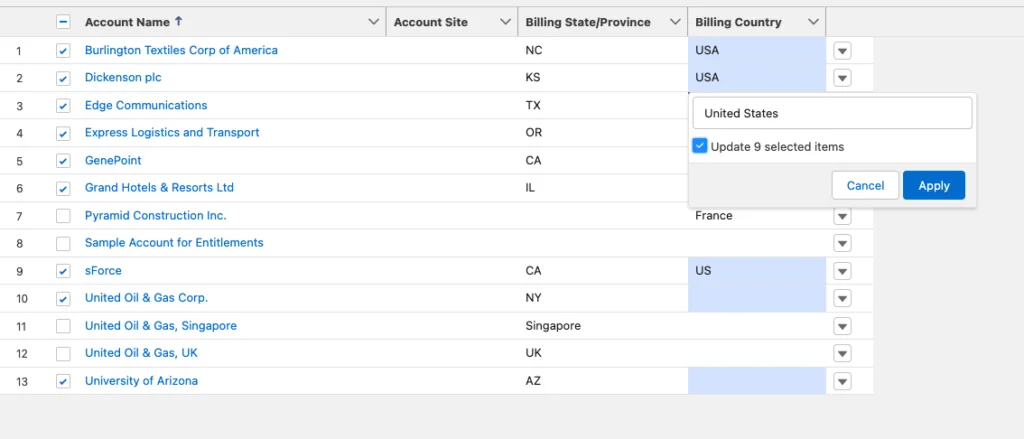
Inline Editing for Small Datasets
For organizations with fewer than 1,000 records per object, use Salesforce list views with inline editing:
- Create list views filtered by object type
- Enable inline editing on State and Country fields
- Manually correct invalid entries
- Save changes directly in the interface
Excel-Based Cleanup for Large Datasets
For larger datasets, use Excel with VLOOKUP formulas against the standard picklist values:
- Export records with ID, State, and Country fields
- Create a reference sheet with all 587 valid combinations
- Use VLOOKUP to identify invalid entries
- Correct invalid data using the reference sheet
- Import corrected data back to Salesforce
Salesforce Country Normalization Canada
The salesforce country normalization canada process requires special attention to provincial abbreviations and bilingual naming conventions. Canadian data often uses postal abbreviations that don’t match Salesforce standard labels.
Common Canadian Data Issues
- Postal Codes in State Fields: Users sometimes enter postal codes (K1A 0A6) instead of provinces
- French Province Names: Quebec vs Québec, New Brunswick vs Nouveau-Brunswick
- Territory Abbreviations: NT (Northwest Territories), NU (Nunavut), YT (Yukon)
Recommended Cleanup Approach
// SOQL to identify Canadian records needing cleanup
SELECT Id, Name, BillingState, BillingCountry
FROM Account
WHERE BillingCountry LIKE '%Canada%'
AND (BillingState LIKE '%[0-9]%' OR LEN(BillingState) = 2)
Enabling State and Country Picklists
After data cleanup, navigate to Setup → State and Country/Territory Picklists to begin the enablement process.
Step 1: Configure States, Countries, and Territories
Review and customize the standard list:
- Activate only countries relevant to your business
- Customize labels if needed (e.g., “USA” instead of “United States”)
- Deactivate unused territories to simplify user selection
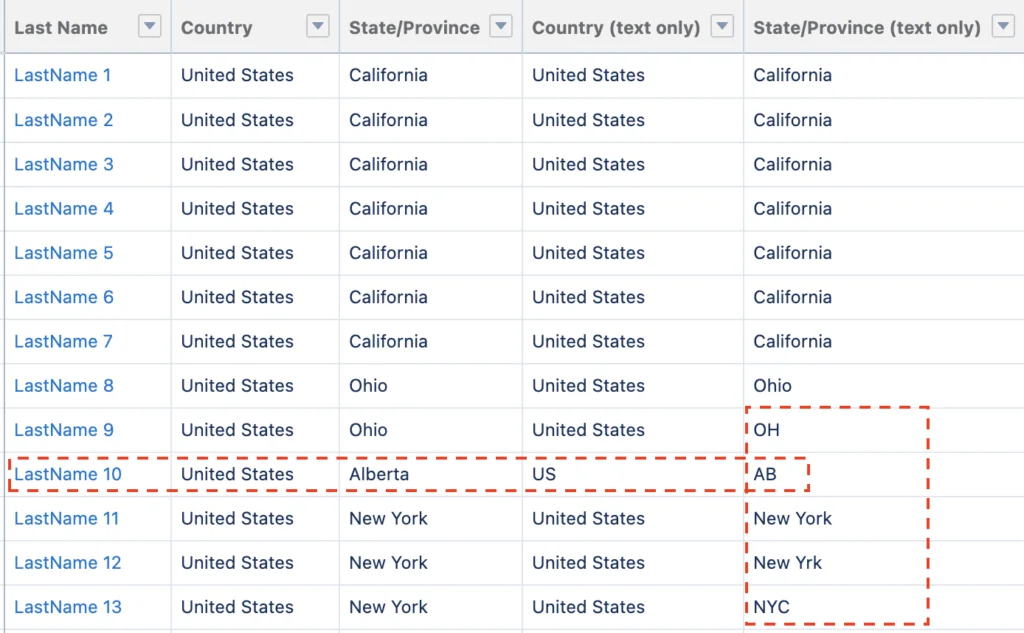
Step 2: Scan for State & Country Data
Salesforce scans all standard address fields across all objects. This process typically takes 5-15 minutes depending on database size. The scan identifies:
- Total records with address data
- Exact matches to standard values
- Potential matches requiring conversion
- Unmatched values requiring manual cleanup
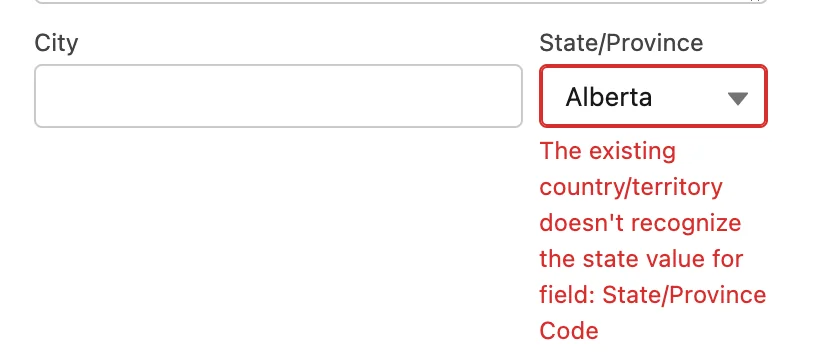
Step 3: Convert Identified Data
The conversion process maps existing text values to picklist values. Common mappings include:
- “US” → “United States”
- “UK” → “United Kingdom”
- “CA” → “California” (when Country = “United States”)
- “AB” → “Alberta” (when Country = “Canada”)
Step 4: Enable for Users
After successful conversion, enable the feature for all users. This change is immediate and affects all standard address fields across the org.
Post-Implementation Considerations
User Training
Train users on the new dropdown interface and explain why certain combinations are no longer available. Provide documentation on the standard values for common countries.
Integration Updates
Update external systems to use valid picklist values. Common integration changes include:
- Web-to-Lead forms with dropdown validation
- API integrations using exact picklist values
- Data import templates with valid values only
Ongoing Maintenance
Monitor data quality through regular reports and consider these maintenance tasks:
- Quarterly audits of address data quality
- Integration testing after system updates
- User feedback collection on missing values
Common Implementation Errors
Insufficient Data Cleanup
The most common error is enabling picklists without thorough data cleanup. This results in:
- Conversion failures requiring manual intervention
- User confusion when records appear correct but generate errors
- Incomplete migration leaving some records with text values
Integration System Oversight
Failing to update integration systems before enablement causes ongoing data quality issues. New records from external systems may fail validation or create error logs.
Inadequate User Communication
Users need advance notice of the change and training on new dropdown behavior. Without proper communication, productivity drops as users struggle with the new interface.
Frequently Asked Questions
Can I customize the salesforce standard country names list after enabling picklists?
Yes, you can add, edit, or deactivate values in Setup → State and Country/Territory Picklists. However, you cannot delete values that are currently in use on existing records. Changes apply immediately to all users and affect dropdown options across all standard objects.
What happens to existing data when I enable state and country picklists?
Salesforce attempts to convert existing text values to matching picklist values during the enablement process. Exact matches and common abbreviations convert automatically. Invalid or unmatched values remain as text and may cause validation errors until manually corrected.
Do salesforce state/province picklist values united states include all territories?
Yes, the standard list includes all 50 states plus Washington D.C., Puerto Rico, US Virgin Islands, American Samoa, Guam, Northern Mariana Islands, and other US territories. You can deactivate unused territories to simplify the dropdown for users.
How do I handle oslo normalization to salesforce state/province picklist us canada for integrated systems?
Update your integration mappings to use full state/province names instead of abbreviations. For Canada, map “AB” to “Alberta”, “BC” to “British Columbia”, etc. Test integrations thoroughly before enabling picklists to ensure data flows correctly.
Can I revert back to text fields after enabling country picklists?
No, once enabled, State and Country Picklists cannot be disabled. This is a permanent change that affects all standard address fields. Plan carefully and complete data cleanup before enabling the feature.
What’s the difference between salesforce official us state picklist values and custom picklist fields?
Official state picklists are managed by Salesforce and include automatic validation between state and country combinations. Custom picklist fields don’t have this validation and require manual maintenance. The official picklists also integrate with address validation services and mapping applications.