A scheduled path in Salesforce represents the evolution of time-based automation, replacing legacy Workflow Rules and Process Builder scheduled actions. Unlike traditional approaches that require specific trigger criteria, scheduled path flows execute based purely on time intervals, offering administrators unprecedented flexibility in automating routine processes.
This guide demonstrates how to build production-ready scheduled path flows, including practical examples for user management, data cleanup, and notification systems. We’ll cover the complete implementation process from planning through deployment, with real code examples and best practices learned from enterprise implementations.
Understanding Scheduled Path vs Legacy Automation
Scheduled path flows differ fundamentally from their predecessors. While Workflow Rules and Process Builder required record changes to trigger scheduled actions, scheduled path flows operate independently of user interactions. They execute at predetermined intervals—daily, weekly, or one-time—processing records in batches according to your defined criteria.
The key advantages include:
- Independent execution: No triggering record required
- Flexible scheduling: Run once, daily, or weekly at specific times
- Batch processing: Handle multiple records efficiently
- Enhanced logic: Complex decision trees and calculations
- Better error handling: Built-in fault tolerance and debugging
Prerequisites and Permissions
Before creating scheduled path flows, verify these requirements:
Required Permissions
- Manage Flow: Create, edit, and delete flows
- Run Flow: Execute flows in your organization
- View Setup and Configuration: Access Flow Builder
These permissions are typically assigned through System Administrator profiles or custom permission sets. For production deployments, consider creating a dedicated “Flow Administrator” permission set.
System Considerations
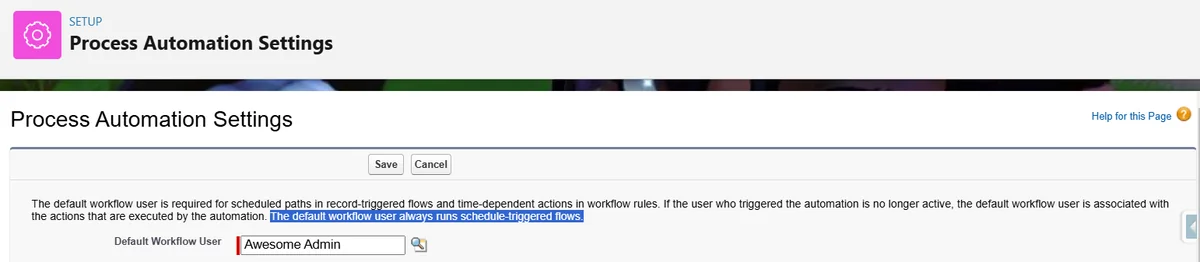
Scheduled flows run under the Automated Process User by default. This system user has elevated permissions but may not reflect your intended security model. To run flows under a specific user context, configure the Default Workflow User in Setup > Process Automation Settings.
Record Triggered Flow vs Scheduled Path
Understanding when to use each automation type prevents common implementation mistakes:
| Aspect | Record Triggered Flow | Scheduled Path |
|---|---|---|
| Trigger | Record create/update/delete | Time-based schedule |
| Execution Context | Single record | Batch of records |
| Use Cases | Immediate validation, field updates | Periodic cleanup, notifications |
| Performance | Real-time impact on user operations | Background processing |
| Governor Limits | Per-transaction limits apply | Batch-specific limits |
A record triggered flow executes immediately when records change, making it ideal for validation rules, field calculations, or instant notifications. Scheduled path flows handle time-sensitive operations like data archival, periodic reports, or maintenance tasks.
How to Create Workflow in Salesforce Using Scheduled Path
Modern Salesforce workflow creation centers on Flow Builder rather than legacy Workflow Rules. Here’s the complete process for building a scheduled path flow:
Step 1: Access Flow Builder
Navigate to Setup and search for “Flows” in the Quick Find box. Click “Flows” to view your organization’s automation inventory.
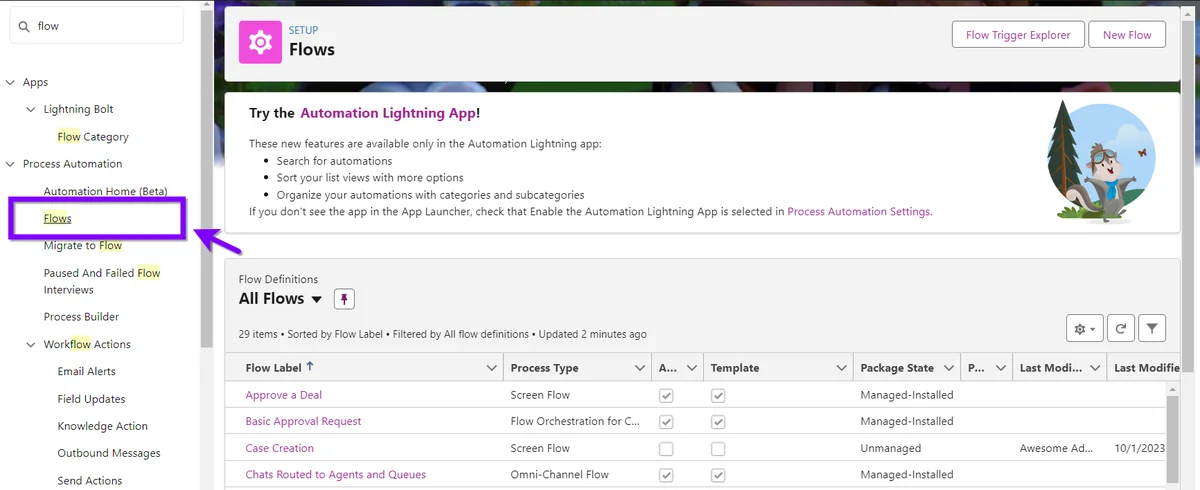
Click “New Flow” to open Flow Builder in a new tab. This launches the flow creation wizard.
Step 2: Select Flow Type
Choose “Start from Scratch” when prompted, then select “Schedule-Triggered Flow” from the flow type options.
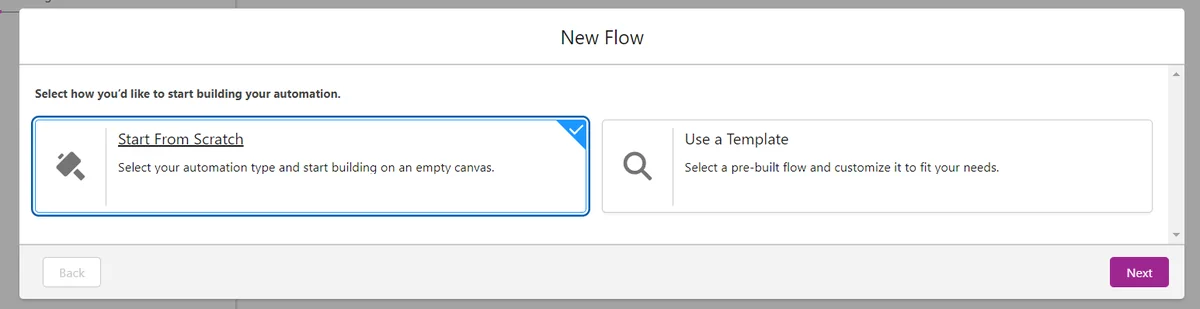
Click “Create” to initialize your scheduled path flow canvas.
Step 3: Configure Schedule Settings
The first configuration screen requires schedule definition. Specify:
- Start Date and Time: When the flow begins executing
- Frequency: Once, Daily, or Weekly
- Time Zone: Ensure consistency across your organization
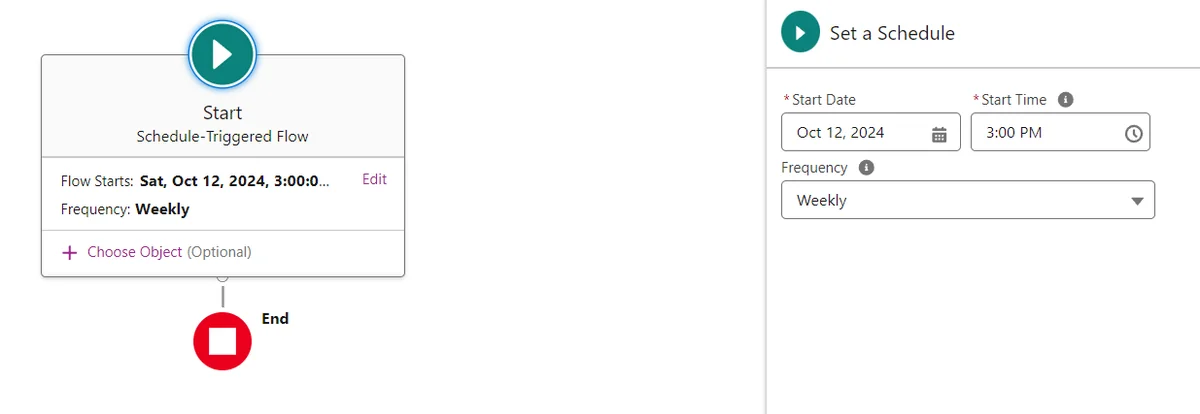
For enterprise implementations, consider business hours and system maintenance windows when scheduling flows.
Step 4: Define Object and Entry Criteria
Select the primary object your flow will process. Common choices include User, Account, Contact, or custom objects requiring periodic maintenance.
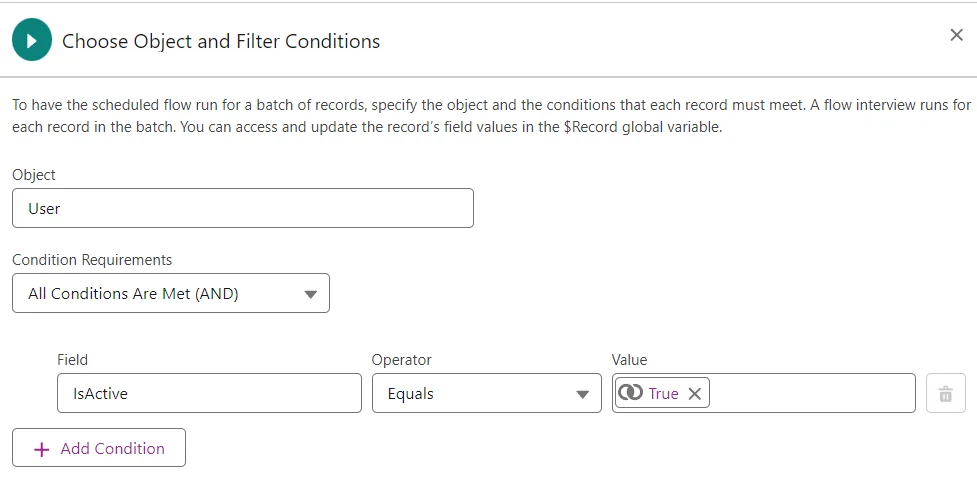
Entry criteria determine which records enter your flow. Use conditions like:
- Record status: Active = true
- Date ranges: CreatedDate > LAST_N_DAYS:30
- Field values: Type = ‘Customer’
Practical Example: User Deactivation Flow
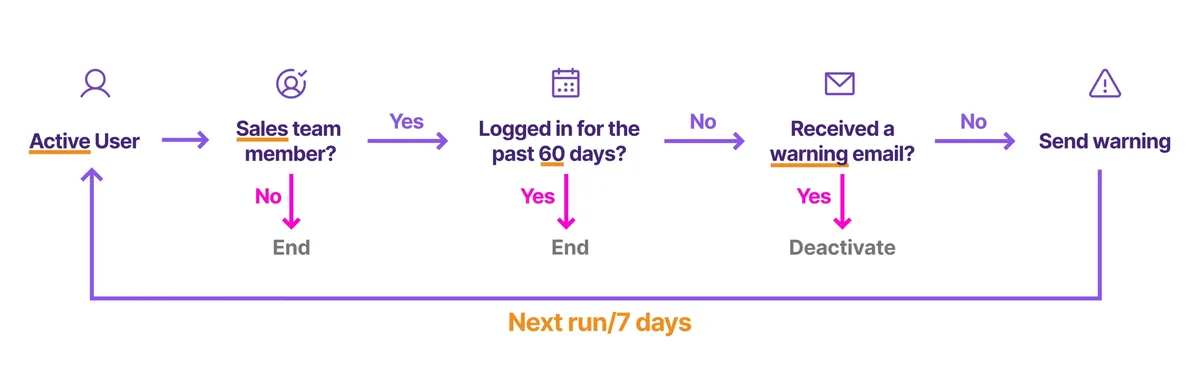
This example demonstrates a complete scheduled path implementation for managing inactive users—a common enterprise requirement.
Business Requirements
Create a flow that:
- Runs weekly on Saturdays at 3:00 PM
- Identifies sales team members inactive for 60+ days
- Sends warning emails before deactivation
- Deactivates users who don’t respond within one week
Implementation Steps
Create Date Formula
First, create a formula resource to calculate “60 days ago”:
Resource Type: Formula
API Name: SixtyDaysAgo
Data Type: Date
Formula: TODAY() - 60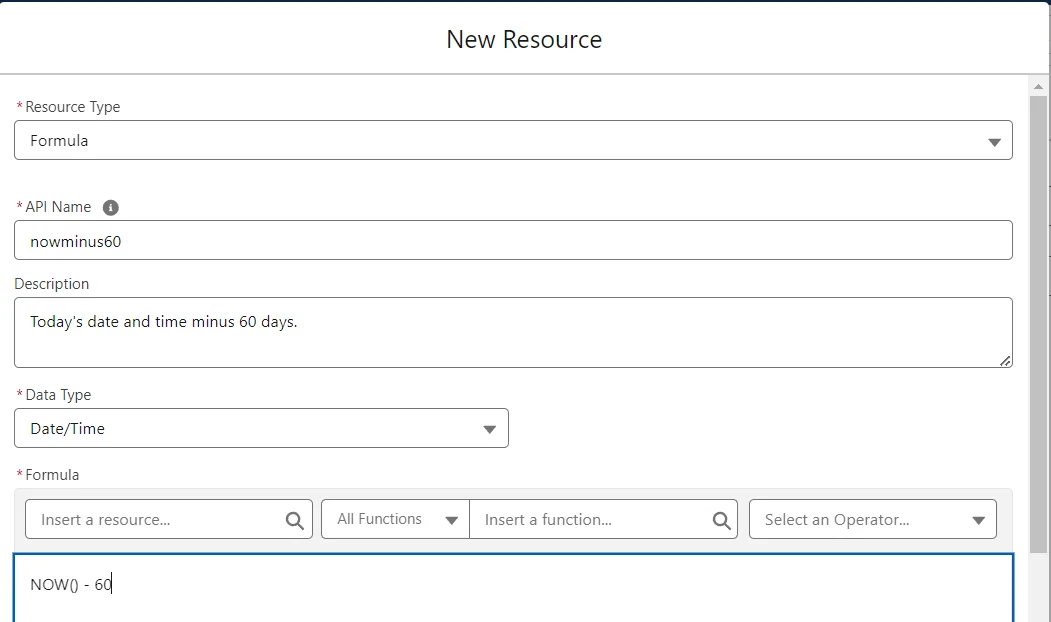
Configure Entry Criteria
Set entry criteria to identify active users:
Object: User
Conditions: IsActive = True
Logic: All Conditions Are Met (AND)
Add Decision Element
Create a decision element to evaluate user eligibility:
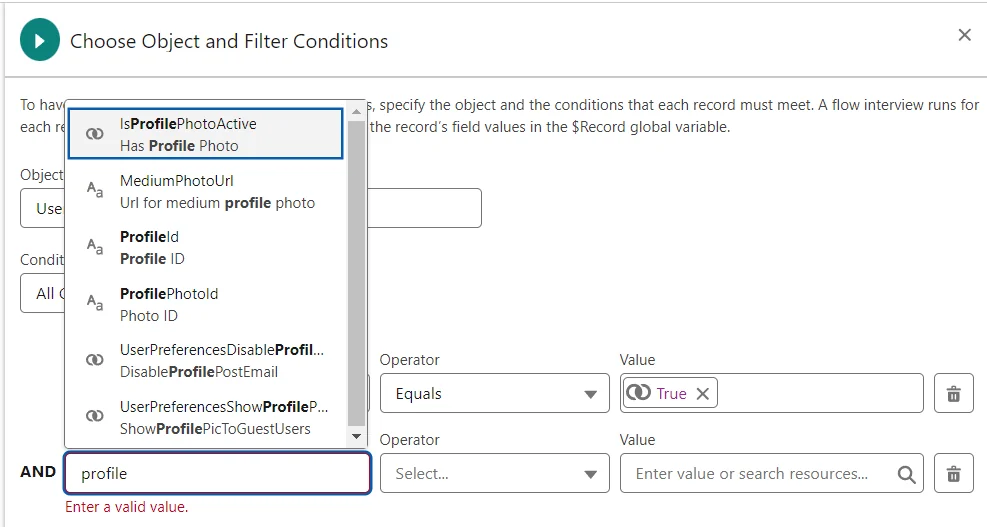
Configure decision outcomes:
- Warning Path: LastLoginDate < {!SixtyDaysAgo} AND Profile.Name = 'Sales User'
- Deactivation Path: Warning sent AND still inactive
- No Action: User logged in recently
Governor Limit Considerations
Scheduled flows process records in batches of 200. For large datasets, consider:
- SOQL Queries: Maximum 100 per batch
- DML Operations: Maximum 150 per batch
- CPU Time: 60,000ms per batch
- Heap Size: 12MB per batch
Use efficient queries and avoid nested loops to stay within limits.
Best Practices for Production Deployment
Testing Strategy
Always test scheduled flows in a sandbox environment:
- Unit Testing: Verify individual flow elements
- Integration Testing: Test with realistic data volumes
- Schedule Testing: Confirm timing and frequency
- Error Handling: Test failure scenarios
Monitoring and Maintenance
Implement monitoring for production scheduled flows:
- Flow Run History: Review execution logs regularly
- Error Notifications: Set up email alerts for failures
- Performance Metrics: Track execution time and record counts
- Business Impact: Monitor downstream effects
Security Considerations
Scheduled flows inherit permissions from the running user context. Ensure:
- Field-Level Security: Verify access to all referenced fields
- Object Permissions: Confirm CRUD access for target objects
- Sharing Rules: Consider record-level access restrictions
- Data Classification: Handle sensitive data appropriately
Common Pitfalls and Solutions
Performance Issues
Problem: Flow times out processing large record sets
Solution: Implement efficient filtering in entry criteria rather than decision elements. Use indexed fields in conditions.
Governor Limit Exceptions
Problem: “Too many SOQL queries” error
Solution: Consolidate data retrieval using Get Records elements with multiple conditions instead of separate queries.
Scheduling Conflicts
Problem: Multiple flows competing for system resources
Solution: Stagger execution times and coordinate with other administrators on scheduling.
Migration from Legacy Automation
When migrating from Workflow Rules or Process Builder:
- Audit Existing Logic: Document current automation behavior
- Map Dependencies: Identify interconnected processes
- Plan Rollout: Phase migration to minimize disruption
- Validate Results: Compare outcomes before deactivating legacy automation
Use the Process Builder Migration Tool in Setup to identify candidates for conversion.
Advanced Scheduled Path Patterns
Multi-Object Processing
Process related records using subflows:
Main Flow: Account (scheduled)
├── Subflow: Update Related Contacts
├── Subflow: Create Activity Records
└── Subflow: Send Notifications
Conditional Scheduling
Implement business logic to skip execution under certain conditions:
Decision: Is Holiday?
├── Yes: Exit Flow
└── No: Continue Processing
Error Recovery
Build fault tolerance into scheduled flows:
Try: Main Processing Logic
Catch: Log Error + Send Alert
Finally: Update Status Fields
Frequently Asked Questions
What happens if a scheduled path flow fails during execution?
Failed scheduled path flows appear in the Flow Run History with error details. The system automatically retries failed batches up to three times. If all retries fail, the flow stops and sends error notifications to the flow owner. Remaining record batches are not processed until the next scheduled run.
Can I run a scheduled path flow on-demand for testing?
Yes, use the “Run” button in Flow Builder or create a manual flow that calls your scheduled flow as a subflow. For production testing, create a separate test version with modified entry criteria to process a small record subset.
How do scheduled path flows handle governor limits with large datasets?
Scheduled flows process records in batches of 200, with each batch subject to standard governor limits (100 SOQL queries, 150 DML operations, 60-second CPU time). If a batch exceeds limits, that batch fails but other batches continue processing. Design flows with efficient queries and minimal DML operations to avoid limit issues.
What’s the difference between scheduled path and time-based workflow actions?
Time-based workflow actions require a triggering record change and execute relative to that trigger (e.g., 7 days after record creation). Scheduled path flows run independently on fixed schedules, processing all records meeting entry criteria regardless of when they were created or modified.
Can scheduled path flows access data from multiple objects?
Yes, scheduled flows can query related objects using Get Records elements or reference related data through lookup relationships. However, the entry criteria and main processing loop are based on a single primary object selected during flow configuration.