Need to identify which Salesforce edition your organization uses? This guide shows you exactly how to find your edition in Lightning Experience and Classic, plus explains the differences between all current Salesforce editions.
How to Find Which Salesforce Edition You Are Using
Follow these steps to identify your Salesforce edition:
- In Lightning Experience: Click the gear icon (⚙️) in the top right corner, then select Setup
- In Salesforce Classic: Go to Setup → Administer
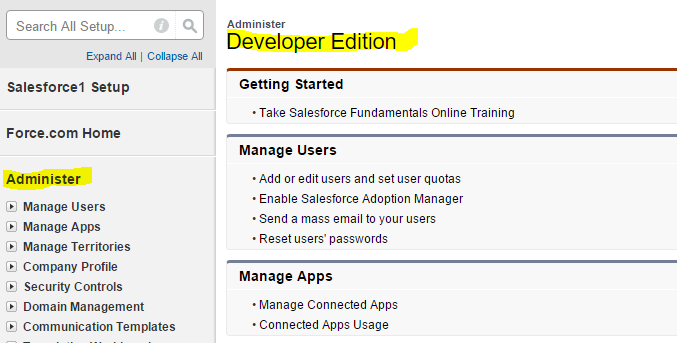
- Look for your edition name displayed in the left navigation panel under the Administer section
Your edition will be clearly labeled in the setup menu as shown below:
[Image: Current screenshot shows Classic UI — recommend updating to Lightning Experience screenshot]
Alternative Methods to Check Your Salesforce Edition
Company Information Page
In Lightning Experience:
- Click the gear icon → Setup
- In Quick Find, search for “Company Information”
- Your edition appears at the top of the Company Information page
API Version Check
For developers and admins familiar with APIs:
- Use the REST API endpoint:
/services/data/ - Check the organization limits endpoint for edition-specific limits
- Reference the Salesforce REST API Developer Guide
Current Salesforce Editions Explained
Salesforce offers different editions based on your organization’s needs and the products you use. Here are the main categories:
Sales Cloud Editions
| Edition | Target Users | Key Features | API Calls/Day |
|---|---|---|---|
| Essentials | Small teams (up to 10 users) | Basic CRM, email integration | 5,000 |
| Professional | Growing sales teams | Workflow, reports, dashboards | 15,000 |
| Enterprise | Large organizations | Custom objects, advanced workflow | 100,000 |
| Unlimited | Enterprise with unlimited customization | All features, unlimited custom objects | Unlimited |
Service Cloud Editions
- Essentials: Basic case management for small support teams
- Professional: Knowledge base, web-to-case, email-to-case
- Enterprise: Advanced case routing, CTI integration
- Unlimited: All Service Cloud features with unlimited customization
Platform and Specialized Editions
- Platform: Custom app development without Sales/Service features
- Lightning Platform: Modern app development with Lightning components
- Industry-Specific: Financial Services Cloud, Health Cloud, Manufacturing Cloud
Why Your Salesforce Edition Matters
Understanding your edition is crucial for:
- Feature availability: Custom objects, workflow rules, and API limits vary by edition
- User limits: Each edition has different user capacity
- Storage limits: Data and file storage allocations differ significantly
- Integration capabilities: API call limits affect third-party integrations
- Customization options: Apex, Visualforce, and Lightning Platform access varies
Governor Limits by Edition
Key limits that affect development and administration:
- Essentials: 5,000 API calls/day, 1 GB data storage
- Professional: 15,000 API calls/day, 1 GB data storage
- Enterprise: 100,000 API calls/day, 1 GB data storage
- Unlimited: Unlimited API calls, 120 GB data storage
For complete governor limits, reference the Salesforce Limits Quick Reference Guide.
Upgrading Your Salesforce Edition
If your current edition doesn’t meet your needs:
- Contact your Salesforce Account Executive
- Review the official pricing and editions page
- Plan for data migration and user training
- Test new features in a sandbox environment first
Important: Edition changes may affect existing customizations, integrations, and user permissions. Always test thoroughly before upgrading production orgs.
Frequently Asked Questions
Can I check my Salesforce edition without admin access?
No, you need System Administrator permissions or “View Setup and Configuration” permission to access the Setup menu where edition information is displayed. Standard users cannot view this information.
Does my Salesforce edition affect API integration limits?
Yes, API call limits vary significantly by edition. Essentials allows 5,000 calls/day, Professional allows 15,000, Enterprise allows 100,000, and Unlimited has no API call restrictions. This directly impacts third-party integrations and custom applications.
What happens to my data if I downgrade my Salesforce edition?
Downgrading can result in data loss if you exceed the new edition’s limits. Custom objects, workflow rules, and advanced features may be disabled. Always export critical data and test in a sandbox before downgrading.
Can I use Apex code in all Salesforce editions?
No, Apex development is only available in Enterprise, Unlimited, and Platform editions. Professional and Essentials editions do not support custom Apex code, triggers, or Visualforce pages.
How do I know if I need to upgrade my Salesforce edition?
Consider upgrading if you’re hitting storage limits, need more API calls, require custom objects or Apex development, or need advanced features like territory management or advanced workflow. Monitor your org’s limits in Setup → System Overview.