Workbench Salesforce is a web-based developer tool that provides direct API access to your Salesforce org for data operations, SOQL queries, and metadata management. Unlike the standard Salesforce interface, workbench salesforce gives administrators and developers programmatic control over records, user management, and org configuration through Force.com APIs.
This tool serves as an alternative to Data Loader when you need quick data operations without installing desktop software. Workbench handles bulk record operations, password management, and advanced queries that exceed standard report capabilities.
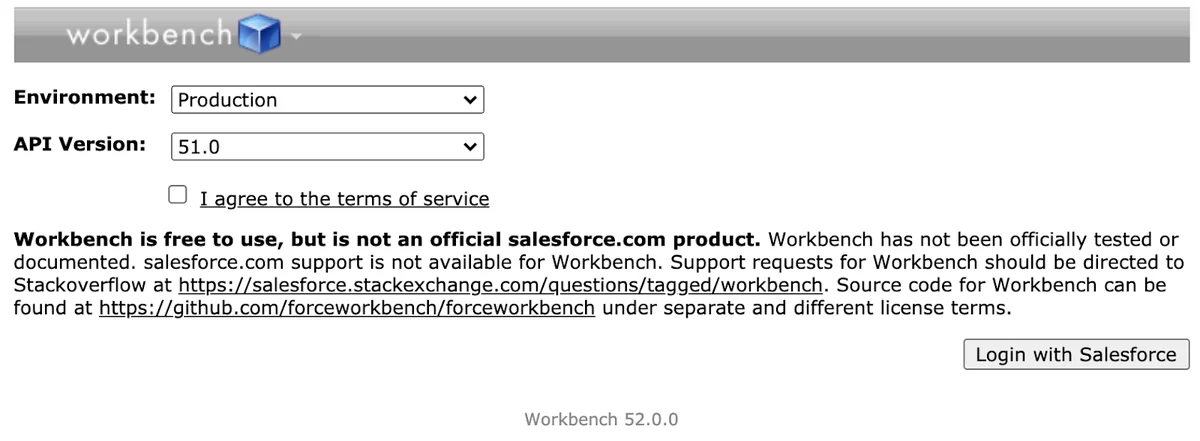
What is Workbench Salesforce
Workbench is a free, browser-based application that connects to Salesforce orgs through REST and SOAP APIs. It provides a simplified interface for data management tasks that would otherwise require custom code or third-party tools.
Key capabilities include:
- Bulk record operations (insert, update, delete, undelete)
- SOQL and SOSL query execution
- User password management
- Metadata deployment and retrieval
- API testing and debugging
Workbench operates independently of your Salesforce org’s storage limits and page layout restrictions, making it valuable for operations on fields not visible in standard layouts.
Salesforce Workbench Login Process
To access workbench login, navigate to workbench.developerforce.com and authenticate using your Salesforce credentials. The login workbench process supports both production and sandbox environments.
Authentication steps:
- Select your environment (Production/Developer or Sandbox)
- Choose API version (recommend latest stable version)
- Accept terms of service
- Authenticate via Salesforce OAuth
Once authenticated, Workbench maintains your session until Salesforce timeout occurs, typically matching your org’s session timeout settings.
Password Management with Workbench Salesforce
Workbench provides administrative password reset capabilities that bypass standard “Forgot Password” workflows. This feature proves essential when users cannot access email or complete security questions.
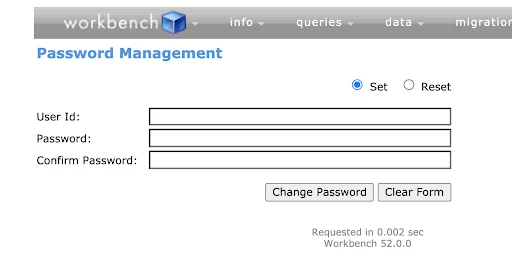
To reset a user password:
- Navigate to Utilities → Password Management
- Enter the target user’s Salesforce ID
- Specify the new password (must meet org password policies)
- Confirm the password change
- Notify the user of their temporary password
This method requires System Administrator permissions and works only for active users. Inactive or frozen users require reactivation through standard Salesforce interfaces first.
SOQL Queries in Workbench
Workbench’s SOQL query interface provides more flexibility than standard reports, allowing queries on system fields, deleted records, and objects excluded from reporting.
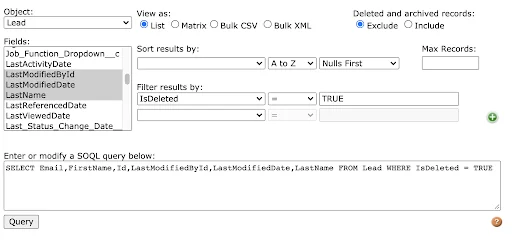
Query capabilities include:
- Access to all standard and custom objects
- System fields (CreatedById, LastModifiedById, IsDeleted)
- Deleted records (using IsDeleted = TRUE filter)
- Relationship queries across objects
- Large result sets (up to 2000 records per query)
Example SOQL for deleted leads:
SELECT Id, Name, Email, LastModifiedDate, LastModifiedBy.Name
FROM Lead
WHERE IsDeleted = TRUE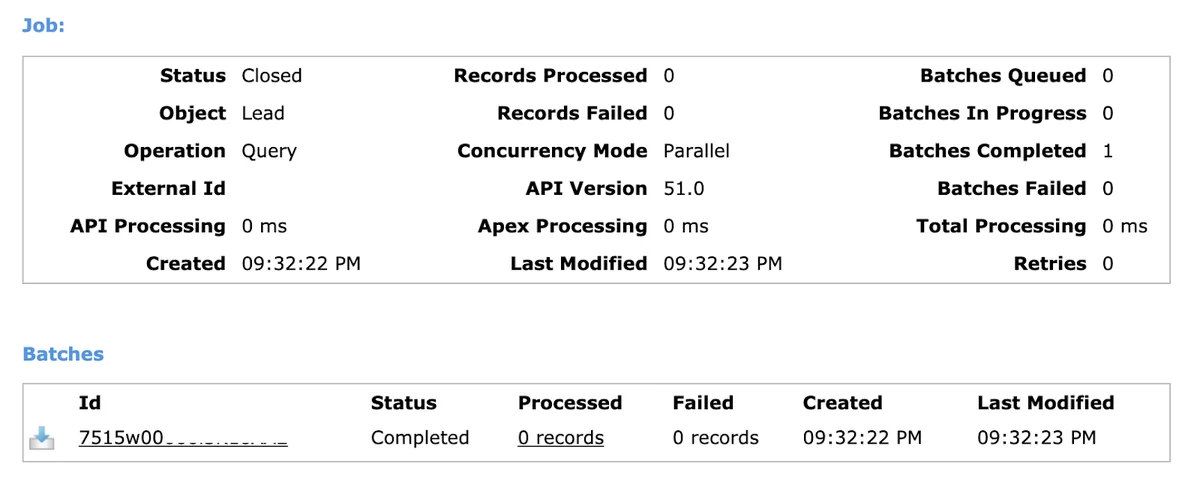
Results can be viewed in-browser or exported as CSV for further analysis. The query builder assists with field selection and filter construction for users less familiar with SOQL syntax.
Bulk Data Operations
Workbench handles bulk record operations through CSV file uploads or single record forms. These operations respect field-level security and validation rules but bypass page layout restrictions.
Mass Record Updates
Bulk updates require a CSV file containing record IDs and the fields to modify. Workbench processes up to 10,000 records per operation.
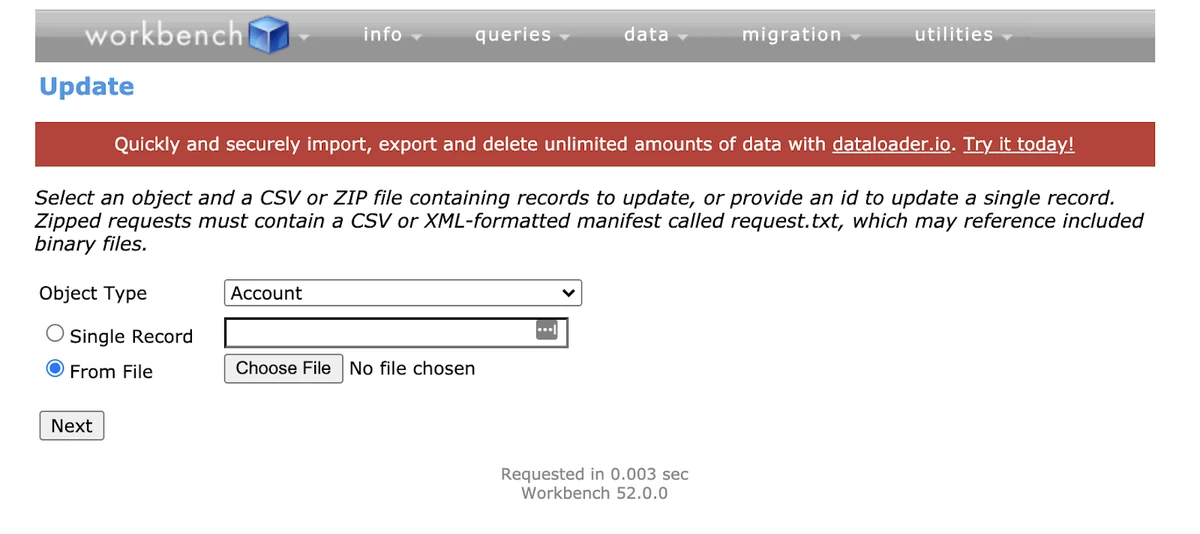
Update process:
- Navigate to Data → Update
- Select the target object type
- Upload CSV file or use single record form
- Map CSV columns to Salesforce fields
- Review and execute the update
Required CSV format includes an Id column and columns for each field to update. Ensure picklist values match exactly and required fields contain valid data.
Mass Record Creation
Record creation follows similar steps but omits the Id column requirement. Workbench generates new record IDs automatically.
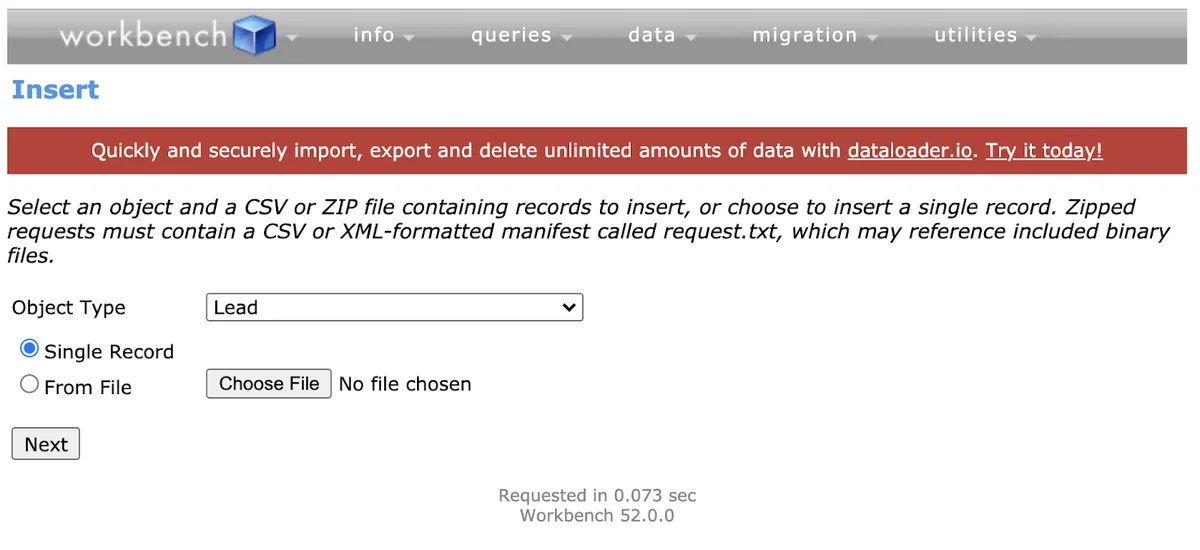
Creation considerations:
- All required fields must contain valid values
- Picklist values must match API names exactly
- Date fields require YYYY-MM-DD format
- Lookup fields accept either record IDs or external IDs
Mass Record Deletion
Workbench deletion operations move records to the Recycle Bin, following standard Salesforce deletion behavior. This operation requires only record IDs.
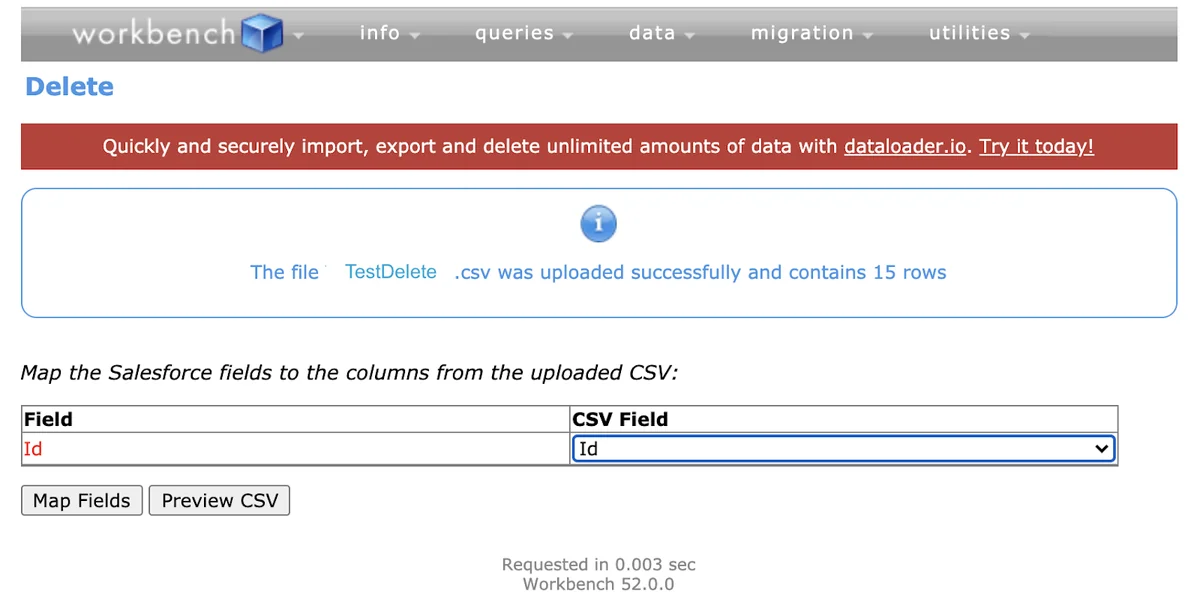
Deletion steps:
- Generate a report containing record IDs to delete
- Export the report as CSV (backup recommended)
- Navigate to Data → Delete in Workbench
- Upload CSV file with Id column mapped
- Execute deletion operation
Unlike Salesforce’s native mass delete (limited to 250 records), Workbench handles larger deletion batches efficiently.
Record Undeletion
Workbench can restore deleted records from the Recycle Bin within the 15-day retention period. This operation requires the deleted record IDs.
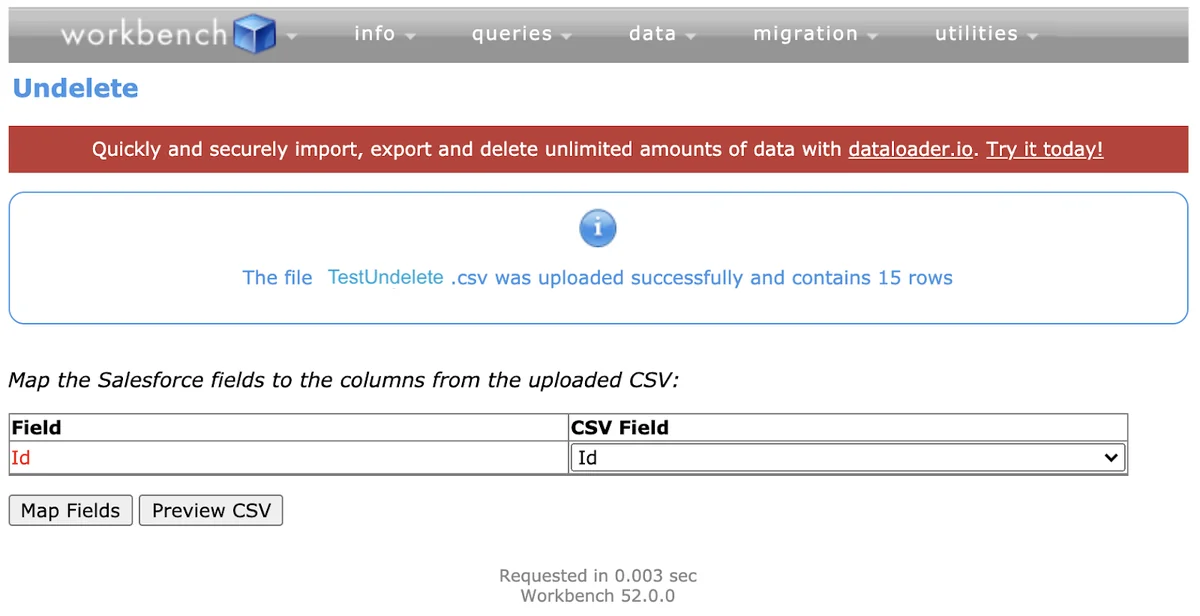
Undelete process:
- Query deleted records using SOQL with IsDeleted = TRUE
- Export record IDs to CSV
- Navigate to Data → Undelete
- Upload CSV with Id column mapped
- Execute undelete operation
Restored records return to their original state, including field values and relationships that existed before deletion.
Advanced Workbench Features
Metadata Operations
Workbench supports metadata deployment and retrieval for custom objects, fields, workflows, and other configuration elements. This functionality assists with org comparisons and selective deployments.
SOSL Search Queries
Salesforce Object Search Language (SOSL) queries perform text searches across multiple objects simultaneously. Workbench’s SOSL interface supports complex search patterns and result filtering.
Asynchronous SOQL
For large data sets exceeding standard query limits, Workbench supports asynchronous SOQL queries that run in the background and return results when complete.
Security and Best Practices
Workbench operations respect Salesforce security models, including:
- Object-level permissions (CRUD)
- Field-level security (FLS)
- Sharing rules and record access
- Profile and permission set restrictions
Best practices include:
- Test operations in sandbox environments first
- Backup data before bulk modifications
- Validate CSV formats and data quality
- Monitor API usage limits during large operations
- Use descriptive operation names for audit trails
Workbench vs. Alternative Tools
Workbench offers advantages over other Salesforce data tools:
| Feature | Workbench | Data Loader | Data Import Wizard |
|---|---|---|---|
| Installation Required | No | Yes | No |
| Record Limit | 10,000 | 5,000,000 | 50,000 |
| Custom Objects | Yes | Yes | Limited |
| SOQL Queries | Yes | Yes | No |
| Password Management | Yes | No | No |
Choose Workbench for quick operations, testing, and scenarios requiring immediate access without software installation.
Frequently Asked Questions
How do I access workbench login if my org has IP restrictions?
Workbench respects your org’s IP restrictions. If blocked, you’ll need to either access from a trusted IP range or temporarily relax IP restrictions in Setup → Network Access. Alternatively, use a VPN that routes through approved IP addresses.
Can workbench salesforce handle more than 10,000 records at once?
No, Workbench limits bulk operations to 10,000 records per batch. For larger data sets, split your CSV files into smaller chunks or use Data Loader for operations exceeding this limit. You can process multiple batches sequentially through Workbench.
Does Workbench work with Salesforce sandbox environments?
Yes, Workbench supports both production and sandbox environments. During login workbench process, select “Sandbox” as your environment type and authenticate with your sandbox credentials. This allows safe testing of bulk operations before production deployment.
What happens if my SOQL query returns more than 2,000 records?
Workbench displays the first 2,000 records and provides a “More” link to retrieve additional results. For complete data extraction of large result sets, consider using asynchronous SOQL queries or Data Loader’s query functionality instead.
Can I use Workbench to modify system fields like CreatedDate?
No, Workbench cannot modify system-controlled fields such as CreatedDate, CreatedById, LastModifiedDate, or LastModifiedById. These fields are read-only and maintained automatically by Salesforce. Focus bulk updates on custom fields and editable standard fields only.