Where can you find active licenses in Salesforce? Navigate to Setup → Company Information to view all active user licenses, or use Setup → Users → Manage Users for detailed license assignments. This guide covers every location where Salesforce license information appears and explains the differences between license types.
Salesforce license management affects every org’s user capacity, feature access, and costs. Understanding license locations, types, and consumption patterns helps administrators optimize user assignments and avoid unexpected billing.
Where Can You Find Active Licenses In Salesforce: Primary Locations
Salesforce stores license information in multiple locations within Setup. Each location serves different administrative purposes:
Company Information Page
The Company Information page provides the highest-level license overview:
- Navigate to Setup → Company Information
- Scroll to the “User Licenses” section
- View total purchased vs. used licenses for each type
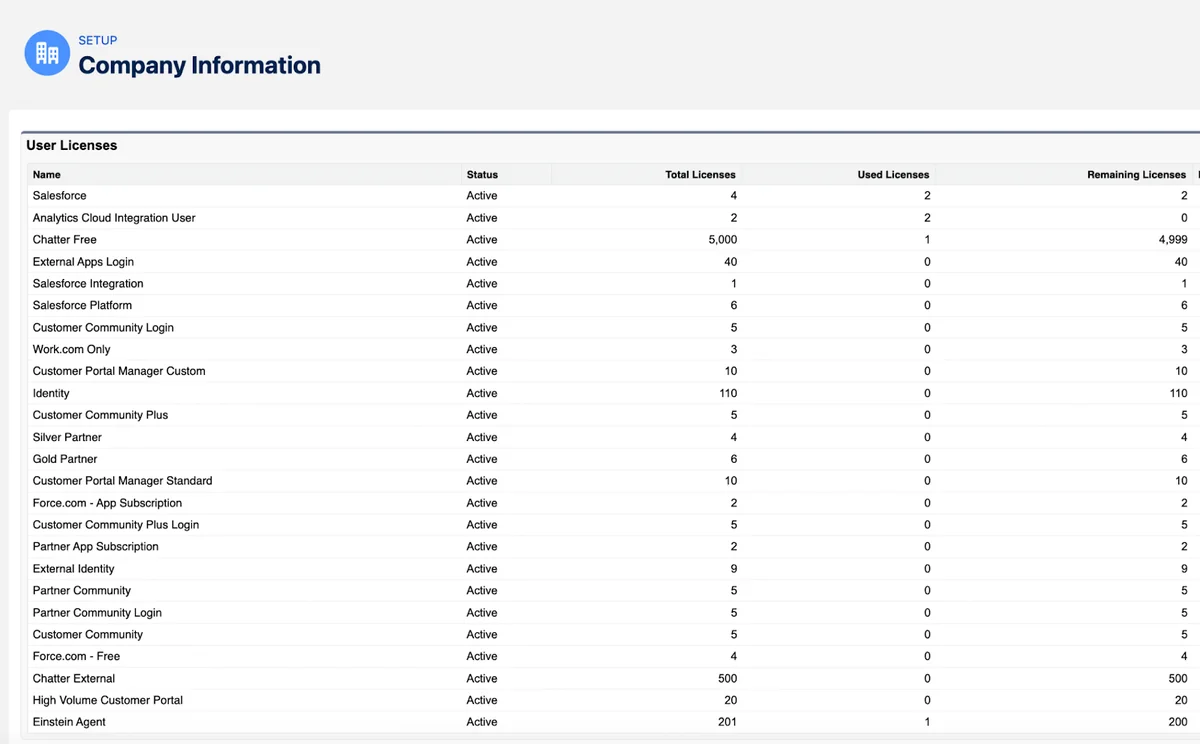
This view shows license consumption at a glance but lacks user-specific details.
User Management Interface
For detailed license assignments per user:
- Navigate to Setup → Users → Manage Users
- Review the “User License” column in the user list
- Click individual user records to see complete license details
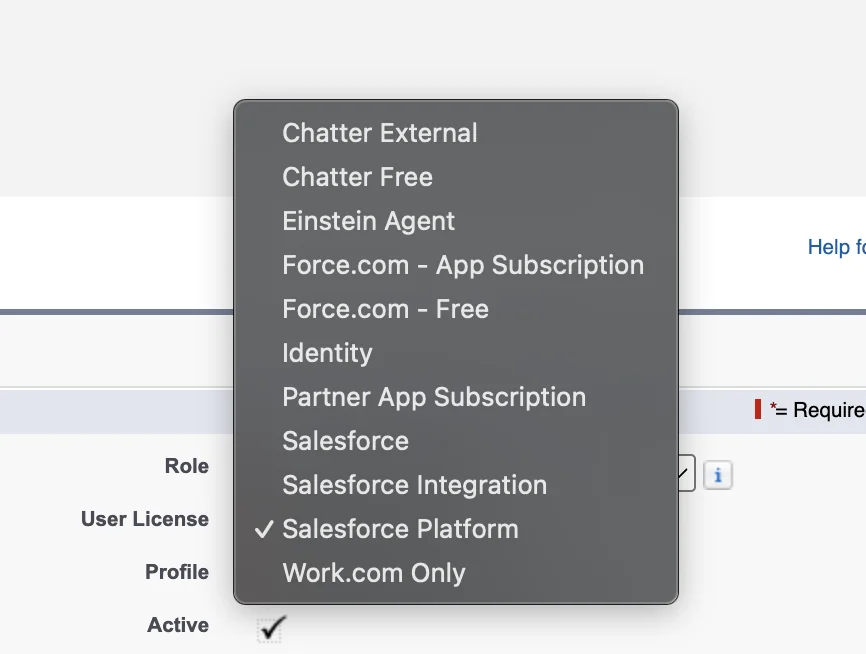
The user detail page displays the assigned user license, feature licenses, and permission set licenses.
Permission Set Licenses and Feature Licenses
Additional license types appear in dedicated Setup sections:
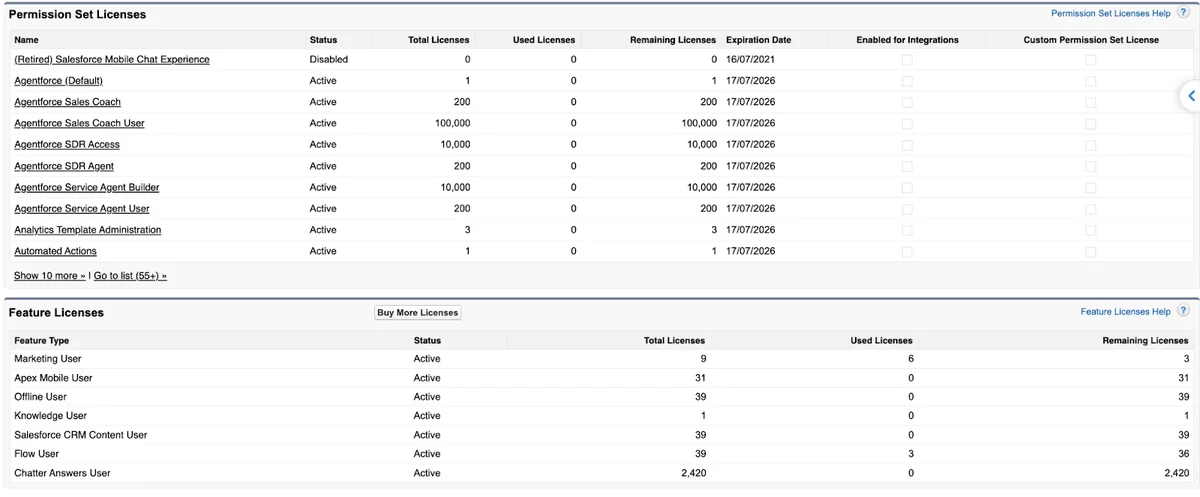
Navigate to Setup → Permission Set Licenses or Setup → Feature Licenses to view consumption for these supplementary license types.
Salesforce Vs Salesforce Platform License: Key Differences
Understanding the salesforce vs salesforce platform license distinction affects both functionality and cost optimization.
Salesforce License (Full CRM)
The standard Salesforce license provides:
- Complete Sales Cloud and Service Cloud access
- Standard objects: Accounts, Contacts, Leads, Opportunities, Cases
- AppExchange app compatibility
- Full reporting and dashboard capabilities
- Workflow, Process Builder, and Flow access
Salesforce Platform License Options
Platform licenses offer limited CRM functionality for custom app users:
| License Type | Custom Objects | Standard Objects | Use Case |
|---|---|---|---|
| Platform Starter | 10 | Accounts, Contacts | Simple custom apps |
| Platform Plus | 110 | Accounts, Contacts | Complex custom development |
| Platform Login | 10 | Accounts, Contacts | Occasional users (credit-based) |
The salesforce platform vs salesforce license choice depends on whether users need full CRM functionality or only custom application access.
Lightning Platform Starter Unlimited Edition Features
Lightning Platform Starter Unlimited Edition provides enhanced platform capabilities:
- Unlimited custom objects (vs. 10 in standard Platform Starter)
- Advanced workflow and approval processes
- Enhanced API limits
- Sandbox environments for development
- Advanced security features
This edition suits organizations building extensive custom applications without requiring full Salesforce CRM licenses for all users.
Salesforce License Comparison: Complete Overview
A comprehensive salesforce licence comparison helps administrators choose appropriate license types:
User License Types
Every Salesforce user requires exactly one user license:
- Salesforce: Full CRM access, available in all editions
- Salesforce Platform: Custom app access, Enterprise/Unlimited only
- Identity: SSO access without CRM functionality
- Experience Cloud: External user portal access
- Integration User: API-only access for system integrations
Feature Licenses
Feature licenses extend user capabilities beyond the base license:
- Marketing User: Campaign and email marketing access
- Knowledge User: Knowledge base article management
- Flow User: Advanced automation capabilities
- Service Cloud User: Enhanced service features
Permission Set Licenses
Permission Set Licenses enable specific advanced features:
- Sales Planning: Territory and quota management
- CPQ (legacy): Configure, Price, Quote functionality
- Pipeline Inspection: Advanced sales analytics
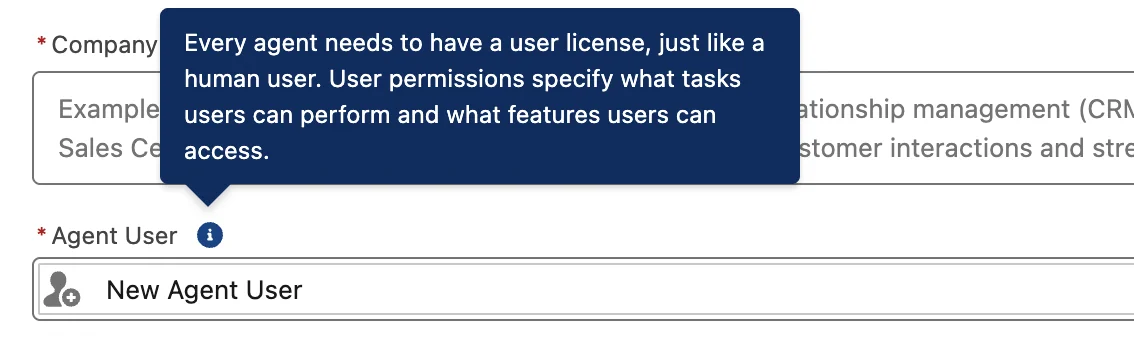
Agentforce and Einstein Agent Licenses
Agentforce introduces dedicated Einstein Agent licenses for AI-powered automation:
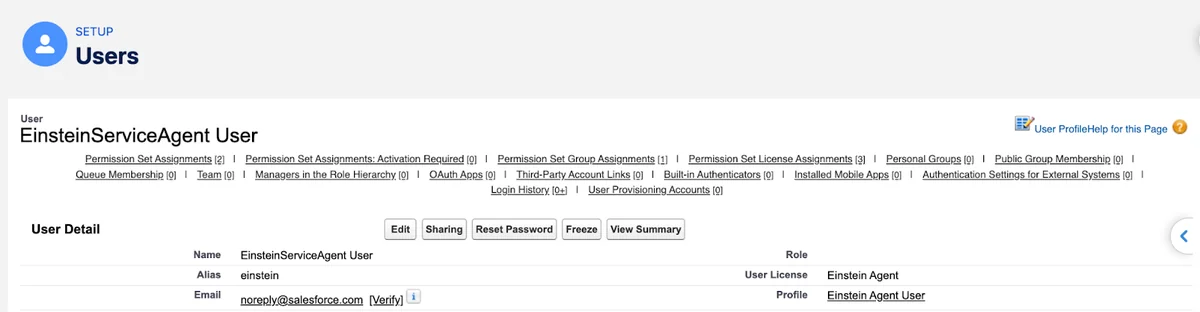
Einstein Agent licenses:
- Do not consume standard Salesforce user licenses
- Automatically assigned when creating Agentforce agents
- Include the Einstein Agent User profile
- Enable AI agent functionality without human user overhead
License Monitoring and Reporting Best Practices
Effective license management requires ongoing monitoring:
Custom Report Types for License Tracking
Create custom report types to track license usage:
- Navigate to Setup → Object Manager → User
- Create reports on User License, Feature Licenses, and Permission Set License assignments
- Schedule automated reports for license consumption alerts
Governor Limits and License Constraints
Monitor these license-related limits:
- Maximum users per license type
- API call limits per Integration User license
- Storage limits associated with Platform licenses
- Login-based license credit consumption
License Assignment Automation
Automate license assignments using Apex and Flow:
// Example: Assign Marketing User feature license
User newUser = [SELECT Id FROM User WHERE Id = :userId];
UserLicense marketingLicense = [SELECT Id FROM UserLicense WHERE Name = 'Marketing User'];

// Validate license availability before assignment
if (marketingLicense.UsedLicenses < marketingLicense.TotalLicenses) {
    // Assign through profile or permission set
    // Implementation depends on org structure
}
Always check license availability before automated assignments to prevent runtime errors.
Troubleshooting License Issues
Common license-related problems and solutions:
License Assignment Errors
- "Insufficient Privileges": User lacks permission to assign licenses
- "License Limit Exceeded": No available licenses of the requested type
- "Invalid License Combination": Conflicting license assignments
License Visibility Problems
- Check user permissions for Setup access
- Verify "View Setup and Configuration" permission
- Confirm license assignment permissions in profile or permission sets
Frequently Asked Questions
Where can you find active licenses in Salesforce for bulk user management?
Navigate to Setup → Users → Manage Users to view all user license assignments in a list format. Use the User License column to filter and sort by license type. For bulk operations, export user data or create custom reports on the User object.
What is the difference between Salesforce vs Salesforce Platform license pricing?
Salesforce Platform licenses cost significantly less than full Salesforce licenses because they exclude CRM functionality like Leads, Opportunities, and Cases. Platform licenses are ideal for users who only need access to custom applications built on the Salesforce platform.
How do Lightning Platform Starter Unlimited Edition licenses differ from standard Platform Starter?
Lightning Platform Starter Unlimited Edition removes the 10 custom object limit, provides unlimited custom objects, enhanced API limits, and includes sandbox environments. Standard Platform Starter is limited to 10 custom objects and has reduced API allocations.
Can you view Salesforce license comparison data in reports?
Yes, create custom report types on the User object to compare license assignments across your org. Include fields for User License, Feature Licenses, and Permission Set Licenses. Schedule these reports to monitor license consumption trends over time.
How do Einstein Agent licenses appear in license tracking?
Einstein Agent licenses appear as a separate license type in the Company Information page and user records. These licenses do not count against standard Salesforce user license limits and are specifically designed for Agentforce AI agents.