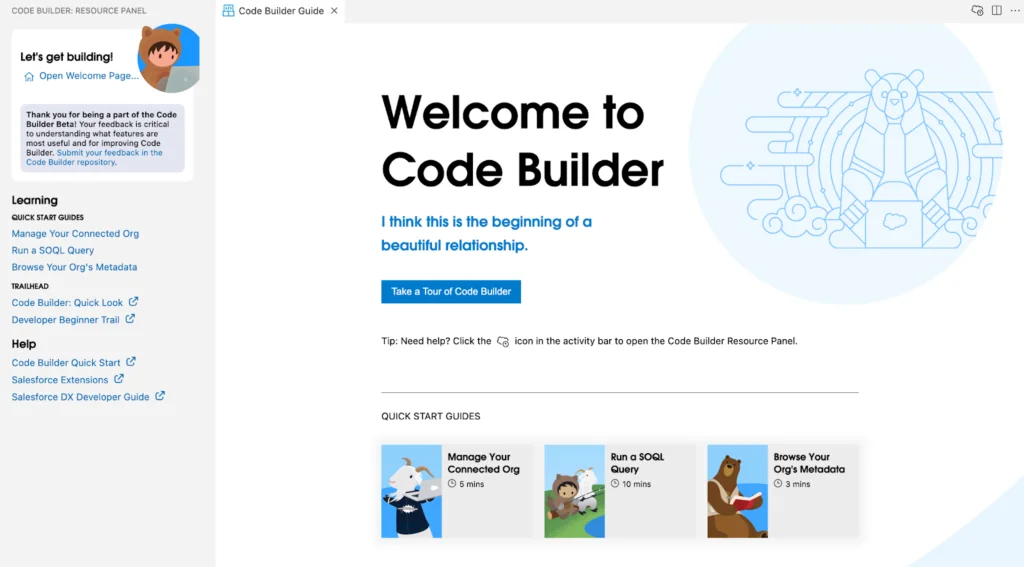
Salesforce Code Builder was Salesforce’s browser-based development environment for Apex, Lightning Web Components, metadata, Salesforce CLI commands, and source control. Salesforce now refers to the product as Agentforce Vibes IDE, but existing searches, documentation paths, screenshots, and administrator discussions may still use the Code Builder name.
The IDE provides a Visual Studio Code-style workspace in a web browser with Salesforce Extensions, Salesforce CLI, Git integration, and authenticated org access. It is useful when developers cannot install local tools, need a controlled sandbox workspace, or want a consistent Salesforce development environment across machines.
What Is Salesforce Code Builder Called in 2026?
Salesforce Code Builder is now named Agentforce Vibes IDE in current Salesforce developer documentation. Salesforce describes it as a browser-based IDE that provides Visual Studio Code capabilities together with Salesforce Extensions, Salesforce CLI, and GitHub integration.
The rename matters when you search Setup or official documentation. Older material may say Code Builder, while current navigation and documentation may say Agentforce Vibes IDE. The underlying development model remains based on Salesforce DX projects, metadata source files, authenticated orgs, CLI commands, and source control.
Official reference: Agentforce Vibes IDE overview.
| Term | Meaning | Where you may see it |
|---|---|---|
| Salesforce Code Builder | Former product name for the browser IDE | Older screenshots, release notes, articles, and search queries |
| Agentforce Vibes IDE | Current name used in Salesforce developer documentation | Current Setup pages, documentation, and Trailhead content |
| Salesforce Extensions for VS Code | Extensions for Apex, LWC, metadata, testing, and org commands | Both the browser IDE and supported desktop VS Code environments |
| Salesforce CLI | Command-line tools used to authenticate, retrieve, deploy, test, and inspect projects | Integrated terminal and local development environments |
How Does Salesforce Code Builder Compare with Desktop VS Code?
The main difference is where the development environment runs. Visual Studio Code for Salesforce runs on your computer and requires local installation of VS Code, Salesforce CLI, and extensions. The browser IDE runs in a Salesforce-managed cloud workspace and opens through a browser.
| Area | Browser IDE | Desktop VS Code |
|---|---|---|
| Installation | No local IDE installation | Requires VS Code, Salesforce CLI, and extensions |
| Workspace location | Cloud-hosted development workspace | Local file system or a remote development environment |
| Salesforce commands | Available through included extensions and terminal | Available after local tool installation |
| Source control | Supports Git-based workflows, including GitHub repositories | Supports Git and other locally configured source-control tools |
| Offline use | Requires browser and network access | Editing can continue offline, although org operations require connectivity |
| Environment control | Salesforce manages the hosted IDE environment | The developer or enterprise IT team manages versions and configuration |
| Best fit | Temporary workstations, managed devices, onboarding, and sandbox development | Long-running projects, custom local tooling, and complex multi-repository work |
Visual Studio Code for Salesforce development
Use desktop Visual Studio Code when your team needs local scripts, Docker tools, multiple repositories, custom binaries, or tighter integration with a workstation-based build pipeline. Follow the official Salesforce Extensions for VS Code documentation when configuring a desktop environment.
Salesforce Visual Studio Code browser workflow
The browser IDE uses familiar Visual Studio Code concepts such as the Activity Bar, command palette, Explorer, integrated terminal, source-control view, and extension commands. A developer who already knows the Salesforce Visual Studio Code workflow can usually use the same Salesforce DX project structure and similar commands.
How to Enable Salesforce Code Builder
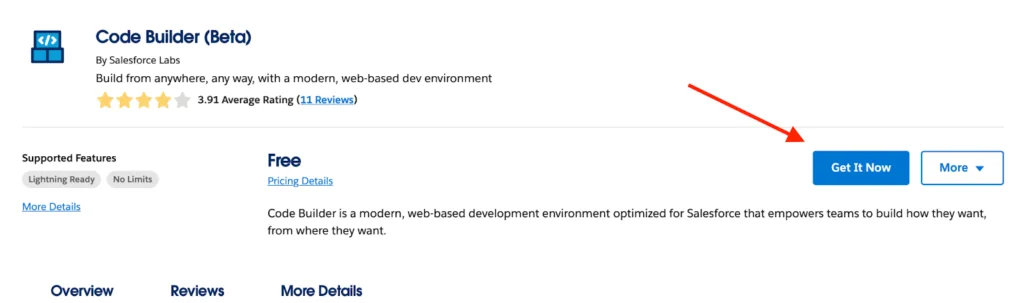
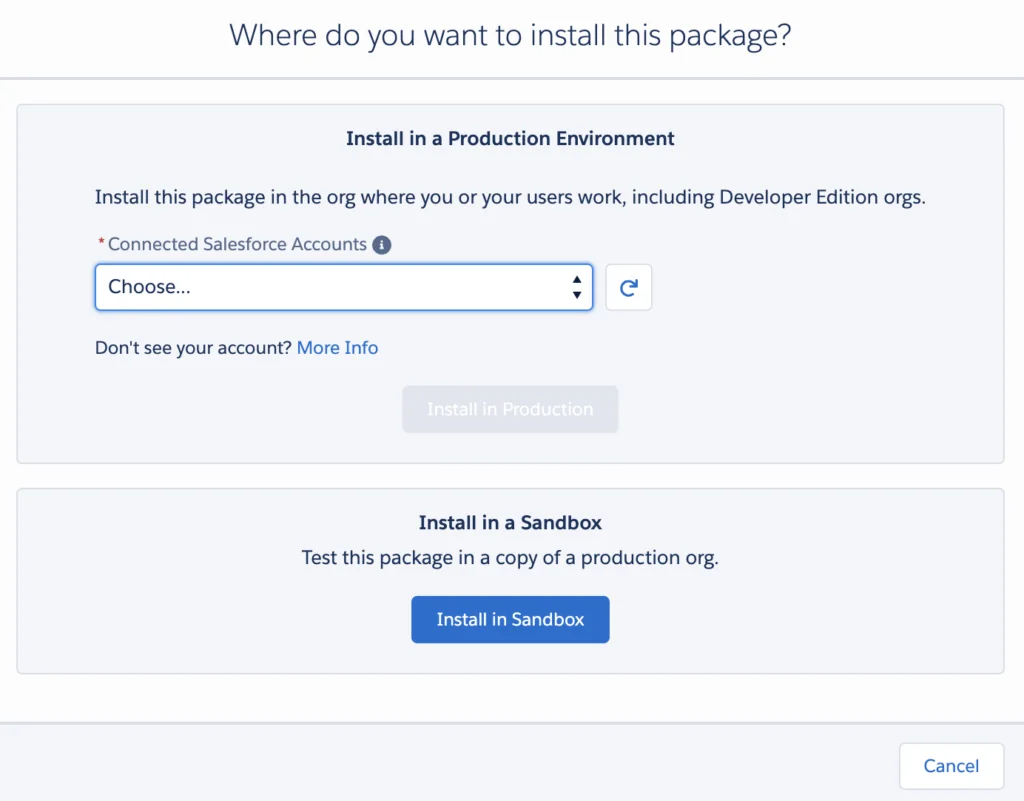
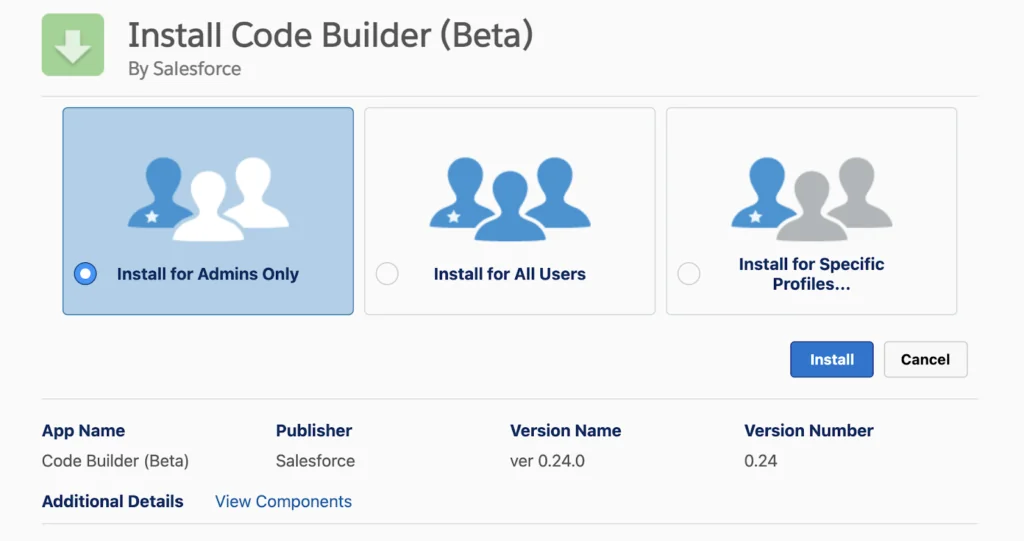
Current Salesforce documentation instructs an administrator to launch Agentforce Vibes IDE from Salesforce Setup and accept the applicable terms and conditions. Availability and access requirements can vary by org type and release, so verify the current Setup page before designing an enterprise rollout.
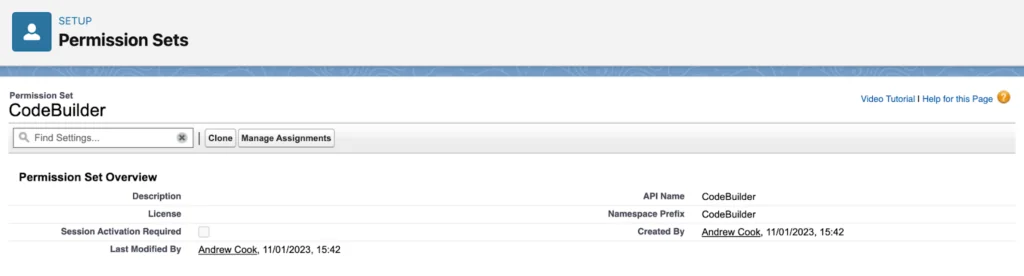
The official setup guide states that after the administrator completes setup, users require the documented access permissions. Review the current permission requirements rather than relying on permission-set names shown in older beta screenshots.
Official reference: Set up Agentforce Vibes IDE.
Code Builder Salesforce administrator checklist
- Open Setup in the Salesforce org where the development environment will be enabled.
- Search Setup for Agentforce Vibes IDE. In older org documentation, the feature may be described as Code Builder.
- Open the setup page and review the terms, data-handling requirements, supported org types, and access conditions.
- Complete the administrator activation process.
- Grant only the permissions required by the current Salesforce setup documentation.
- Direct developers to use a sandbox, scratch org, or Developer Edition org instead of making changes directly in production.
- Test authentication, project creation, metadata retrieval, Apex tests, and deployment with a non-administrator developer account.
How to Create a Salesforce DX Project in Codebuilder
A codebuilder workspace should contain a Salesforce DX project rather than a collection of unrelated Apex files. The project configuration file, sfdx-project.json, defines package directories, source format, namespace settings, and the project’s source API version.
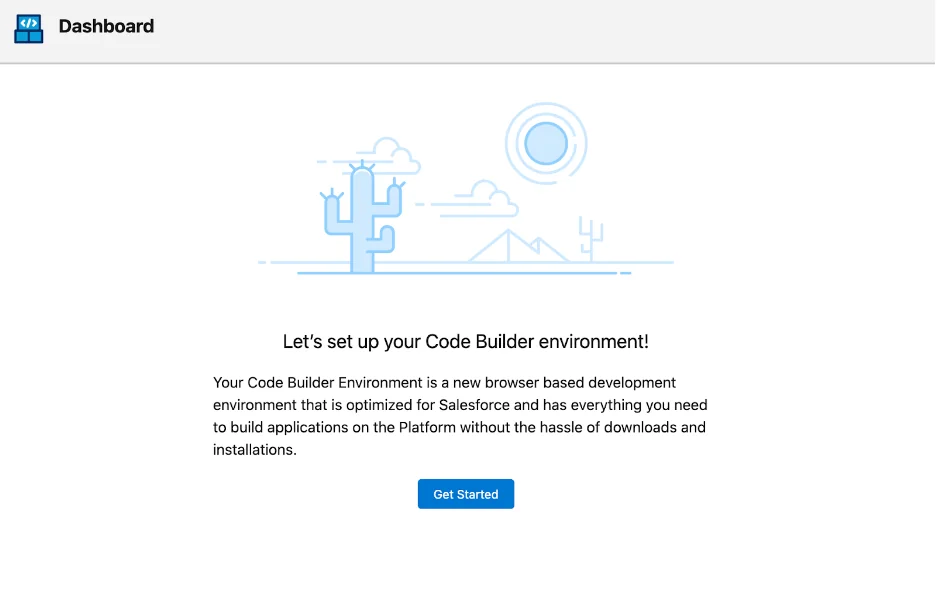
Salesforce documents project creation through the command palette. The current guide uses the SFDX: Create Project command and a workspace path under /home/codebuilder/.
Official reference: Create projects in Agentforce Vibes IDE.
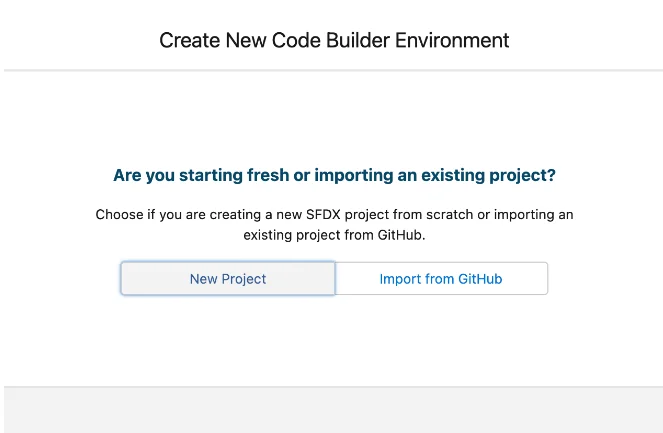
Create a new project from the command palette
- Open the command palette with Ctrl+Shift+P on Windows or Linux, or Command+Shift+P on macOS.
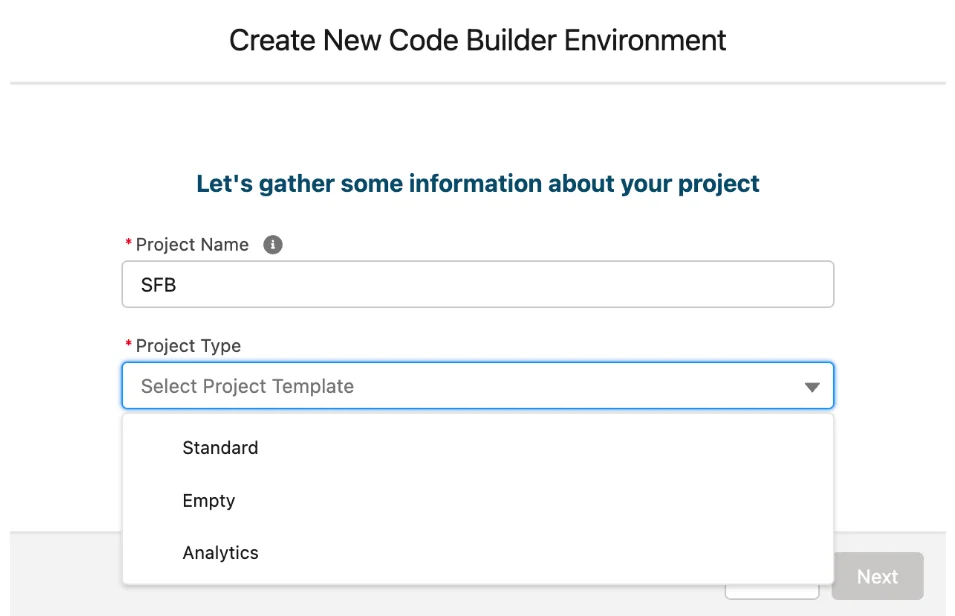
- Run SFDX: Create Project.
- Select the standard project template unless your repository requires another supported template.
- Enter a project name such as
service-console-app. - Select the workspace folder requested by the IDE.
- Open
sfdx-project.jsonand confirm the package directory and source API version.
Example sfdx-project.json file
{
  "packageDirectories": [
    {
      "path": "force-app",
      "default": true
    }
  ],
  "name": "service-console-app",
  "namespace": "",
  "sfdcLoginUrl": "https://login.salesforce.com",
  "sourceApiVersion": "65.0"
}
The example uses API version 65.0 as a project setting for the Summer ’26 release cycle. Confirm the API version supported by your target org and toolchain before committing it. Changing sourceApiVersion does not automatically make older metadata compatible with newer features.
How to Open a GitHub Repository in Salesforce Code Builder
Use a repository as the source of truth for Apex, LWC, permission sets, flows, objects, and other metadata. Do not treat an org as the only authoritative copy of deployable source.
Salesforce documents cloning an existing Salesforce DX project from GitHub. HTTPS authentication can use the credentials supported by the repository provider. SSH cloning requires an SSH key in the hosted environment that GitHub recognizes.
Official reference: Create a project from a repository.
# Clone the repository into the current workspace.
git clone git@github.com:example-org/service-console-app.git

# Open the project directory.
cd service-console-app

# Confirm the current branch and uncommitted changes.
git status

# Review configured remotes before pushing.
git remote -v
Source-control rules for enterprise orgs
- Protect the main branch and require pull-request review.
- Run Apex tests and static analysis before merging.
- Keep authentication files, private keys, access tokens, and local environment files out of Git.
- Separate destructive changes from routine deployments when the release process requires additional approval.
- Retrieve only intentional metadata changes; broad retrievals can introduce unrelated profile, layout, or flow differences.
- Resolve merge conflicts in source before deployment rather than overwriting another developer’s org changes.
See Salesforce’s source-driven development guidance.
How to Authorize a Salesforce Org from Code Builder
A project must authenticate to a target org before the CLI can retrieve metadata, deploy source, run Apex tests, or open the org. Use a development org such as a sandbox or scratch org. Production authorization should be restricted to release operations that require it.
# Authorize a production-login-based org, such as a Developer Edition org.
sf org login web --alias DevHubOrDevOrg --set-default

# Authorize a sandbox through the test login endpoint.
sf org login web \
  --instance-url https://test.salesforce.com \
  --alias IntegrationSandbox \
  --set-default

# Confirm the authenticated orgs visible to the workspace.
sf org list

# Display the current default org details.
sf org display --target-org IntegrationSandbox
Security warning: An authenticated CLI session acts with the permissions of the Salesforce user who completed login. The IDE does not bypass object permissions, field-level security, sharing, or administrative permissions. However, a broadly privileged integration or administrator user can still expose more data and metadata than a developer needs.
What Can You Build with Salesforce Code Builder?
The browser IDE supports the same source-driven categories commonly handled through Salesforce Extensions and Salesforce CLI, subject to the commands and extensions available in the hosted environment.
- Apex classes, triggers, interfaces, Queueable jobs, Batch Apex, and test classes
- Lightning Web Components with JavaScript, HTML, CSS, and XML configuration files
- Custom objects, fields, permission sets, layouts, applications, and other Metadata API components
- SOQL queries and anonymous Apex during development and troubleshooting
- Metadata retrieval, validation, and deployment
- Apex test execution and result review
- Git branches, commits, pull-request workflows, and repository synchronization
Lightning Web Components in visual studio code for salesforce
The Lightning Web Components extension provides language services for JavaScript, HTML, and component metadata. Salesforce documents syntax support, code completion, and component development commands for the browser IDE.
Official reference: Lightning Web Components development.
Example Apex controller with CRUD and FLS enforcement
public with sharing class RecentCaseController {
    @AuraEnabled(cacheable=true)
    public static List<Case> getRecentOpenCases(Integer requestedLimit) {
        if (!Schema.sObjectType.Case.isAccessible()) {
            throw new AuraHandledException('You do not have access to cases.');
        }

        Integer rowLimit = requestedLimit == null
            ? 20
            : Math.max(1, Math.min(requestedLimit, 100));

        List<Case> cases = [
            SELECT Id, CaseNumber, Subject, Status, Priority
            FROM Case
            WHERE IsClosed = false
            WITH USER_MODE
            ORDER BY LastModifiedDate DESC
            LIMIT :rowLimit
        ];

        return cases;
    }
}
The class uses with sharing for record-sharing enforcement and WITH USER_MODE so the query applies user-mode object and field permissions. The limit is capped at 100 to prevent an unbounded client request. Keep SOQL outside loops and test both authorized and unauthorized user scenarios.
Example Lightning Web Component
import { LightningElement, api, wire } from 'lwc';
import getRecentOpenCases from '@salesforce/apex/RecentCaseController.getRecentOpenCases';

export default class RecentOpenCases extends LightningElement {
    @api recordLimit = 20;
    cases;
    error;

    @wire(getRecentOpenCases, { requestedLimit: '$recordLimit' })
    wiredCases({ data, error }) {
        if (data) {
            this.cases = data;
            this.error = undefined;
        } else if (error) {
            this.cases = undefined;
            this.error = error;
        }
    }
}
<template>
<lightning-card title="Recent Open Cases">
<template lwc:if={cases}>
<ul class="slds-var-p-around_medium">
<template for:each={cases} for:item="caseRecord">
<li key={caseRecord.Id}>
{caseRecord.CaseNumber} — {caseRecord.Subject}
</li>
</template>
</ul>
</template>
<template lwc:elseif={error}>
<p class="slds-text-color_error slds-var-p-around_medium">
The cases could not be loaded.
</p>
</template>
</lightning-card>
</template><?xml version="1.0" encoding="UTF-8"?>
<LightningComponentBundle xmlns="http://soap.sforce.com/2006/04/metadata">
<apiVersion>65.0</apiVersion>
<isExposed>true</isExposed>
<targets>
<target>lightning__AppPage</target>
<target>lightning__HomePage</target>
</targets>
</LightningComponentBundle>How to Retrieve, Deploy, and Test Metadata
Use targeted commands so that the repository contains only intended changes. A deployment that succeeds technically can still introduce a security or behavior defect, so validate the source, test results, permission changes, and target environment before release.
# Retrieve selected metadata from the default org.
sf project retrieve start \
  --metadata ApexClass:RecentCaseController \
  --metadata LightningComponentBundle:recentOpenCases

# Run the related Apex test class and wait for completion.
sf apex run test \
  --tests RecentCaseControllerTest \
  --result-format human \
  --code-coverage \
  --wait 20

# Validate the source without committing a deployment.
sf project deploy validate \
  --source-dir force-app \
  --test-level RunLocalTests \
  --wait 30

# Deploy after review and successful validation.
sf project deploy start \
  --source-dir force-app \
  --test-level RunLocalTests \
  --wait 30
Salesforce requires at least 75% Apex code coverage for production deployment, and every trigger must have some coverage. Treat 75% as a deployment threshold, not a test-quality target. Tests should verify expected results, bulk behavior, permission-sensitive paths, failure handling, and asynchronous completion where applicable.
Related tutorials:
- Salesforce Apex development concepts
- Lightning Web Components development
- Salesforce CLI commands and setup
- Salesforce sandbox types and use cases
- Salesforce permission sets and access design
Best Practices for Salesforce Code Builder Security
Use least-privilege identities
Give developers access to the objects, fields, metadata types, and environments required for their assigned work. Avoid shared administrator credentials. Individual accounts improve auditability and let administrators remove access without affecting the rest of the team.
Keep production out of the normal coding loop
Develop and test in scratch orgs or sandboxes. Use source control and a reviewed deployment process to move changes toward production. Direct production edits create drift between the org and repository.
Do not store secrets in project files
Do not commit access tokens, connected-app secrets, private keys, passwords, or exported customer data. Use approved secret-management and CI/CD credential mechanisms. Add local environment files to .gitignore where appropriate.
Review permission metadata with the code
An Apex or LWC change often depends on permission sets, Apex class access, object permissions, and field permissions. Review these files in the same pull request so the deployment does not produce an inaccessible feature or excessive access.
Enforce security in Apex
Record sharing, CRUD, and FLS are separate concerns. Use an appropriate sharing declaration, user-mode database operations where supported, or explicit security checks. Never assume an LWC hides a field securely merely because the field is absent from the page.
Common Salesforce Code Builder Errors
| Error or symptom | Likely cause | Resolution |
|---|---|---|
| The IDE does not appear in Setup | The feature is unavailable for the org, not enabled, or listed under its current name | Search for Agentforce Vibes IDE and confirm current org eligibility in official documentation |
| A user cannot launch the workspace | Missing access permission or incomplete administrator activation | Compare the user’s permissions with the current setup guide |
| CLI commands target the wrong org | The default org alias is incorrect | Run sf org list and specify --target-org in deployment commands |
| Metadata deployment reports no files | The command points to the wrong package directory or metadata name | Check sfdx-project.json, file paths, and component names |
| LWC imports cannot resolve | The Apex class or method is missing, not deployed, or lacks @AuraEnabled |
Verify the class name, method signature, access, and deployment state |
| Git push fails | Repository credentials, SSH keys, branch protection, or remote URL are incorrect | Check git remote -v, authentication, and repository policy |
| Changes disappear after reopening | Work was not committed or pushed, or the hosted workspace was reset | Commit and push completed work to the approved remote repository |
| Deployment fails in production but passed in a sandbox | Different metadata, permissions, test data assumptions, dependencies, or API versions | Validate against the target environment and remove tests that depend on org data |
When Should a Team Use Code Builder Salesforce?
The code builder Salesforce workflow fits teams that need browser access, standardized tooling, fast onboarding, or sandbox development from managed devices. It can also help during workshops, support sessions, and temporary development work where local installation is restricted.
Desktop VS Code remains a better fit when the project depends on local containers, multiple language runtimes, custom shell tooling, large repositories, offline editing, or workstation-specific integrations. Many enterprise teams can support both approaches while keeping the same Git repository, Salesforce DX structure, testing rules, and deployment pipeline.
Frequently Asked Questions
Is Salesforce Code Builder still available?
Salesforce Code Builder continues under the name Agentforce Vibes IDE in current Salesforce documentation. Search Setup and official developer documentation using the current product name when the older Code Builder label does not appear.
Is Salesforce Code Builder the same as Visual Studio Code?
No. Salesforce Code Builder provides a Visual Studio Code-style browser environment with Salesforce Extensions and Salesforce CLI, while desktop Visual Studio Code runs locally and is managed on the developer’s computer.
Can Salesforce Code Builder develop Lightning Web Components?
Yes. The browser IDE supports Lightning Web Components development through Salesforce Extensions, including component files, code completion, org commands, retrieval, deployment, and testing workflows.
Should developers connect Code Builder to production?
Developers should normally connect Salesforce Code Builder to a sandbox, scratch org, or Developer Edition org. Limit production access to controlled validation and release processes because authenticated commands operate with the connected user’s permissions.
Does Codebuilder replace Git?
No. Codebuilder is an IDE, while Git provides version history, branching, merging, and collaboration. Store Salesforce DX source in an approved repository and use the IDE as a workspace for editing, testing, and committing changes.
Can I use Salesforce Code Builder without installing Salesforce CLI?
The hosted IDE includes Salesforce development tooling, so you do not need to install Salesforce CLI on the local computer merely to use the browser workspace. Desktop Visual Studio Code requires its own supported local tool installation.
Salesforce Code Builder Deployment Checklist
- Confirm the product’s current name, availability, and permissions in official Salesforce documentation.
- Use a Salesforce DX project with a reviewed
sfdx-project.jsonfile. - Connect to a sandbox, scratch org, or Developer Edition org for development.
- Store source in Git and protect the release branch.
- Run targeted retrievals to avoid unrelated metadata changes.
- Bulkify Apex and keep SOQL and DML outside loops.
- Enforce record sharing, CRUD, and FLS.
- Run meaningful Apex tests and confirm production deployment coverage requirements.
- Validate deployments before production release.
- Review permission sets, Apex class access, and field permissions with each feature.
- Commit and push work before closing or resetting a hosted workspace.
For guided practice, see the official Code Builder and Agentforce Vibes IDE Trailhead unit.