Salesforce calendar sharing allows users to view and manage each other’s schedules, events, and tasks without manual coordination. This feature is essential for teams that need visibility into colleague availability and meeting schedules. In this guide, we’ll cover how to configure Organization-Wide Defaults (OWD), set up calendar sharing permissions, and understand the security and sharing model that governs calendar access.
Why Share Calendar in Salesforce?
Before implementing Salesforce calendar sharing, users had to manually request schedule information from colleagues. In large organizations with hundreds of users, collecting meeting schedules and events becomes inefficient and error-prone. Calendar sharing solves this by granting controlled access to calendars based on users, roles, public groups, and role hierarchies.
Calendar sharing supports these access levels:
- Hide Details – Shows only busy/free time slots
- Hide Details and Add Events – View availability plus create events
- Show Details – View event titles and details
- Show Details and Add Events – Full access to view and create
Security and Sharing in Salesforce Calendar Configuration
Salesforce calendar sharing follows the platform’s security model, which includes Organization-Wide Defaults, role hierarchy, and explicit sharing rules. Understanding this model is crucial for proper calendar access control.
Organization-Wide Default Settings for Calendars
The first step in calendar sharing setup involves configuring OWD settings. These determine the baseline access level for all users in your organization.
Navigate to Setup → Security → Sharing Settings.
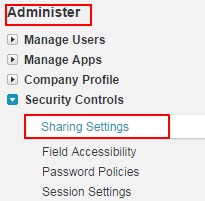
Click on Edit next to Organization-Wide Defaults to modify calendar sharing settings.
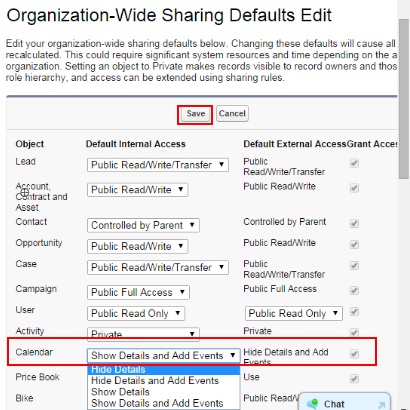
In the Calendar section, you’ll find four sharing options. Select Show Details and Add Events for maximum collaboration, or choose a more restrictive option based on your organization’s privacy requirements.
Click Save to apply the changes.
What is Inherited Sharing in Salesforce?
Inherited sharing refers to how calendar access permissions flow through Salesforce’s role hierarchy and sharing rules. When you grant calendar access to a role, users in subordinate roles may inherit those permissions based on your organization’s sharing configuration.
Key inherited sharing concepts:
- Role Hierarchy – Higher roles can access calendars of lower roles
- Sharing Rules – Automatic sharing based on criteria
- Manual Sharing – Explicit grants to specific users or groups
How to Create New Salesforce Calendar Sharing
After configuring OWD settings, individual users can set up personal calendar sharing preferences.
Step 1: Access Personal Settings
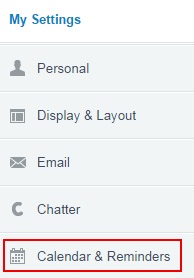
Navigate to Your Name → My Settings.
Step 2: Navigate to Calendar Settings
In My Settings, select Calendar & Reminders.
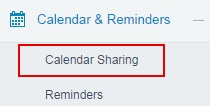
Select Calendar Sharing from the Calendar & Reminders section.
Step 3: Add Calendar Sharing Rules
Click the Add button to create new calendar sharing permissions.

Choose from these sharing options:
- Users – Share with specific individuals
- Roles – Share with entire role groups
- Roles and Subordinates – Include role hierarchy
- Public Groups – Share with predefined groups
- Personal Groups – Share with custom user groups
Step 4: Configure Sharing Permissions
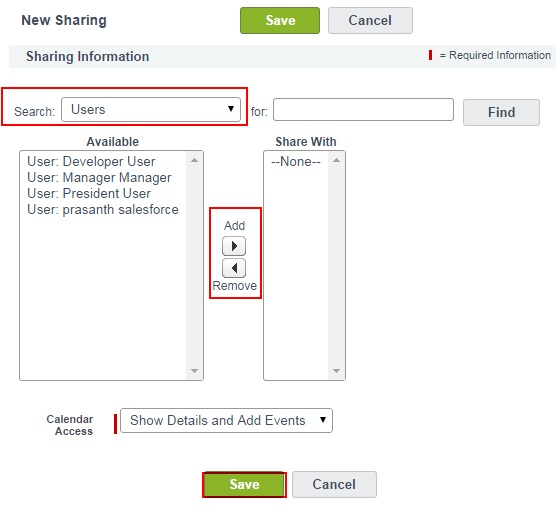
Use the arrow buttons to move users from the “Available” list to the “Share With” section. Select the appropriate access level for each sharing rule.
With Sharing Without Sharing in Apex Calendar Context
When developing custom Apex code that interacts with calendar data, understanding sharing keywords is crucial:
- with sharing – Enforces user’s sharing rules and field-level security
- without sharing – Runs in system context, bypassing sharing rules
- inherited sharing – Uses the sharing context of the calling class
Example Apex class for calendar operations:
public with sharing class CalendarSharingController {
    // This class respects user's calendar sharing permissions
    public static List<Event> getUserEvents(Id userId) {
        return [SELECT Id, Subject, StartDateTime, EndDateTime
                FROM Event
                WHERE OwnerId = :userId
                AND StartDateTime >= TODAY
                ORDER BY StartDateTime];
    }
}
Default Apex Class Sharing Behavior
By default, Apex classes run without sharing unless explicitly declared. For calendar-related functionality, consider these patterns:
- Use with sharing for user-facing calendar features
- Use without sharing for administrative calendar operations
- Use inherited sharing when the context depends on the caller
Best Practices for Salesforce Calendar Sharing
- Start Restrictive – Begin with minimal access and expand as needed
- Use Groups – Leverage public groups instead of individual user sharing
- Document Permissions – Maintain clear documentation of who has access to what
- Regular Audits – Review sharing rules quarterly to ensure they remain appropriate
- Test Thoroughly – Verify sharing rules work as expected across different user profiles
Troubleshooting Calendar Sharing Issues
Common problems and solutions:
- Users can’t see shared calendars – Check OWD settings and individual sharing rules
- Events not appearing – Verify the user has appropriate object and field-level permissions
- Sharing rules not working – Ensure the sharing rule criteria match the intended users
Frequently Asked Questions
How do I share calendar in Salesforce with specific users?
Navigate to Your Name → My Settings → Calendar & Reminders → Calendar Sharing. Click Add, select “Users” from the dropdown, choose specific users, and set the appropriate access level (Hide Details, Show Details, etc.).
What is inherited sharing in Salesforce calendar context?
Inherited sharing means calendar access permissions flow through Salesforce’s role hierarchy and sharing rules. Users in higher roles can access calendars of subordinate roles, and sharing rules automatically grant access based on defined criteria without manual intervention.
What’s the difference between with sharing and without sharing in Apex for calendars?
“With sharing” enforces the current user’s sharing rules and field-level security when accessing calendar data. “Without sharing” runs in system context, bypassing sharing restrictions. Use “with sharing” for user-facing calendar features and “without sharing” for administrative operations.
How do Organization-Wide Defaults affect calendar sharing?
OWD settings determine the baseline calendar access for all users. Options include Hide Details, Hide Details and Add Events, Show Details, and Show Details and Add Events. These settings establish the minimum access level before additional sharing rules are applied.
Can I share calendars with public groups in Salesforce?
Yes, you can share calendars with public groups, roles, roles and subordinates, and personal groups. This approach is more efficient than individual user sharing and easier to maintain as team membership changes.