A Salesforce Excel connector lets an authorized user read Salesforce data in Microsoft Excel and, when the connector supports write operations, send approved changes back to Salesforce. It is useful for controlled bulk review, reconciliation, forecasting, and data stewardship, but it does not bypass Salesforce permissions, validation rules, duplicate rules, or API limits.
This guide explains the architecture behind an Excel-to-Salesforce connection, how to pull reports and SOQL results, how to plan updates safely, and when a native report export or Data Loader is the better option. The screenshots show a representative third-party add-in interface; menu names, licensing, supported platforms, and automation features can change by product version.
What is a Salesforce Excel Connector?
A Salesforce Excel connector is an Excel add-in or integration service that authenticates to Salesforce, calls Salesforce APIs, and writes returned fields into worksheet cells. Depending on the product, it may support report imports, SOQL queries, refreshable worksheets, inserts, updates, upserts, deletes, and reusable flow definitions.
The connector sits outside Salesforce, but Salesforce remains the system of record. The user who signs in determines which objects, records, and fields are available. OAuth scopes control what the connected application can request, while object permissions, field-level security, sharing, and record ownership control what the signed-in user can actually access.
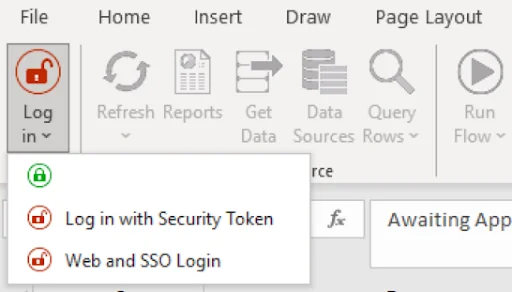
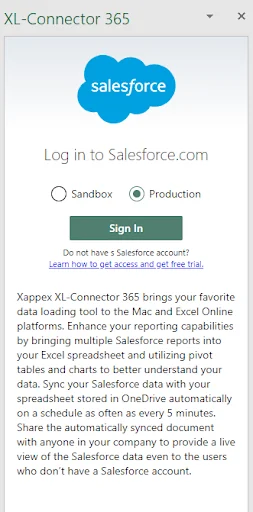
How does the connector Excel workflow operate?
A connector Excel workflow normally follows five stages: authenticate, select data, map fields, execute an API operation, and record the result. Treat each stage as a control point rather than a convenience step.
| Stage | What happens | Admin control |
|---|---|---|
| Authentication | The user signs in through Salesforce OAuth. | Connected app policy, permitted users, session policy, MFA, and OAuth scopes. |
| Read | The add-in requests a report or runs SOQL. | Object access, field-level security, sharing, query selectivity, and API limits. |
| Transform | Users sort, filter, calculate, or edit worksheet values. | Workbook protection, data classification, formula controls, and review process. |
| Write | The add-in inserts, updates, upserts, deletes, or restores records if supported. | CRUD access, required fields, validation rules, duplicate rules, triggers, and flows. |
| Audit | The add-in writes success or error details to the sheet or log. | Save operation IDs, failed rows, timestamps, source file, and approving user. |
XL connector Salesforce authentication choices
An XL connector Salesforce setup should use Salesforce OAuth rather than storing a username and password inside a workbook. In Setup, review the connected application’s OAuth policies, who can authorize it, which scopes it requests, and how refresh tokens are handled. For a production rollout, prefer admin-approved access through a permission set when the connector supports that policy.
Use a sandbox first. A sandbox test confirms object mappings, field formats, validation behavior, automation side effects, and error handling without changing production records. Do not reuse a production workbook against a sandbox unless every environment-dependent record ID and endpoint is clearly separated.
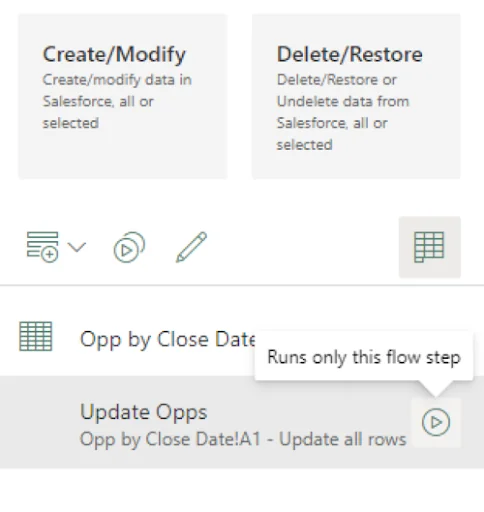
XL connector flow definitions
Some products let you save a sequence of read, transform, macro, and write steps as a reusable flow. A saved flow reduces manual setup, but it also repeats mistakes consistently. Store the query, destination range, object name, key field, batch settings, and post-run checks with the flow definition.
How to pull Salesforce data into Excel
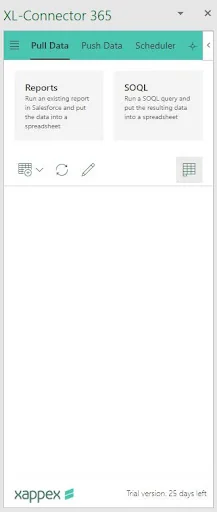
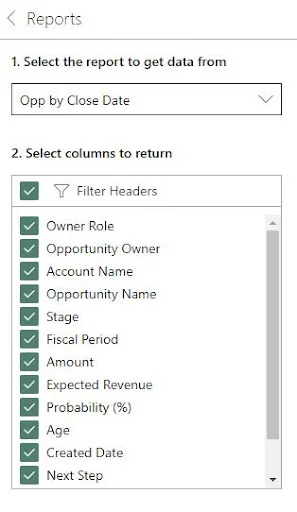
There are two common read paths: import an existing Salesforce report or run SOQL. Reports are easier for business users because the report already contains filters and columns. SOQL gives an admin or developer direct control over selected fields, relationships, filters, ordering, and limits.
Import a Salesforce report
- Create and validate the report in Salesforce.
- Confirm that the running user can access the report folder and every required field.
- In the add-in, choose the report import operation.
- Select only the columns needed for the worksheet task.
- Choose a fixed destination cell or named table.
- Refresh once, then compare the worksheet row count and totals with Salesforce.
Native Salesforce report export remains a valid alternative when users need a one-time snapshot. Salesforce can export report data to spreadsheet-compatible formats. A connector becomes more useful when the workbook must be refreshed repeatedly or when approved changes must be written back.
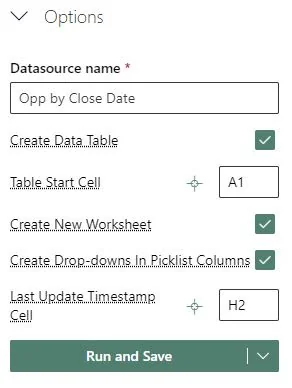
Create Excel Salesforce picklist controls
An Excel Salesforce worksheet can use data validation lists for picklist fields. This reduces spelling errors, but it does not replace Salesforce validation. Dependent picklists, record types, restricted picklists, inactive values, and automation can still reject a value that appears valid in Excel.
Run SOQL from an XL connector
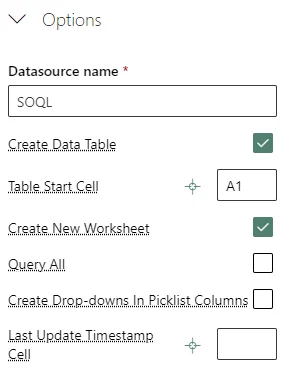
An XL connector that accepts SOQL should use explicit field lists and selective filters. SOQL does not support SQL-style SELECT *. Query only the records and fields required for the task.
SELECT Id,
       Name,
       StageName,
       Amount,
       CloseDate,
       Account.Name
FROM Opportunity
WHERE IsClosed = false
  AND CloseDate = THIS_QUARTER
ORDER BY CloseDate ASC
LIMIT 5000
This query is read-only. It returns open opportunities for the current quarter, includes the parent account name, and limits the worksheet to 5,000 rows. For larger extracts, use a connector that supports pagination or Bulk API behavior, and confirm the vendor’s implementation before relying on it.
Use worksheet parameters without creating unsafe queries
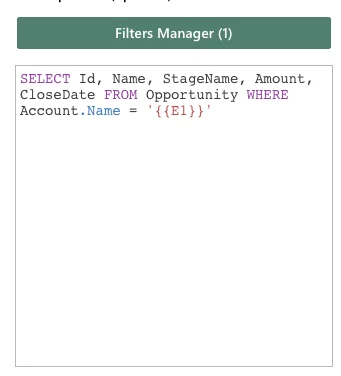
Some add-ins substitute cell values into SOQL. Treat cell content as input, not trusted query text. Prefer product-supported parameter binding. If the add-in performs literal text substitution, restrict editable cells, validate allowed formats, and never let an untrusted user inject a complete WHERE clause.
For example, a safe design lets a user enter a date in a named cell such as StartDate, then the connector converts it to a SOQL date literal. A weak design concatenates arbitrary worksheet text into the query.
How to update Salesforce records from Excel safely
A write-back job should use a stable key, a narrow field set, and a recoverable process. For updates, include the 18-character Salesforce record ID. For upserts, use a field marked as an External ID and, where required, unique.
Id,StageName,CloseDate
006XXXXXXXXXXXXXXX,Proposal/Price Quote,2026-08-31
006YYYYYYYYYYYYYYY,Negotiation/Review,2026-09-15
Before sending the file, remove formulas from write columns or convert them to values, preserve leading zeros, and confirm that dates match the user’s Salesforce locale and the connector’s expected format.
Preflight checklist for inserts, updates, and upserts
- Back up the target records: export ID, current values, and audit fields before the change.
- Limit the columns: do not include fields that are not part of the approved change.
- Test a small batch: use five to ten representative records, including expected failures.
- Review automation: record-triggered flows, Apex triggers, assignment rules, duplicate rules, and validation rules may run.
- Check permissions: the user needs object-level update access and edit access to each mapped field.
- Save row-level results: retain Salesforce error messages with the original input row.
Bulkification and API behavior
The worksheet may contain thousands of rows, but Salesforce processes API requests according to the API and batch mechanism used by the connector. A connector that sends one request per row can consume API calls quickly. A connector that uses Composite API, REST collections, SOAP batches, or Bulk API has different limits and transaction behavior. Ask the vendor which API is used, the batch size, retry policy, and whether partial success is supported.
Salesforce automation must also be bulk-safe. A trigger that performs SOQL or DML inside a loop can fail when the connector submits records in batches. The connector cannot correct non-bulkified Apex.
Security best practices for a Salesforce Excel connector
The main risk is not the add-in interface; it is the movement of Salesforce data into a file that can be copied, emailed, or stored outside Salesforce. Apply the same data-classification and least-privilege rules used for any API integration.
| Control | Recommended practice |
|---|---|
| OAuth access | Allow only approved users and review requested scopes. |
| User permissions | Use permission sets; do not grant broad object or field access only for Excel convenience. |
| Record access | Verify sharing and ownership with a non-admin test user. |
| Workbook storage | Use an approved encrypted location with retention and access controls. |
| Sensitive fields | Exclude personal, financial, health, credential, and token fields unless the process requires them. |
| Formula injection | Sanitize exported values beginning with formula characters before sharing CSV or Excel files. |
| Session review | Review connected app usage and revoke sessions when access is no longer needed. |
| Auditability | Retain source file, operator, timestamp, object, operation, and per-row outcome. |
Salesforce provides connected app controls for OAuth policies, scopes, session management, and user authorization. These controls do not protect a workbook after data has been exported, so Microsoft 365 or endpoint controls must cover the file itself.
Common errors with an XL connector Salesforce setup
| Error or symptom | Likely cause | Action |
|---|---|---|
| Not approved for access | The connected app requires admin pre-authorization and the user lacks the assigned profile or permission set. | Grant the approved permission set or change the connected app policy after security review. |
| Insufficient access or read-only field | The user lacks CRUD or field-level edit access. | Remove the field from the mapping or grant the minimum required permission. |
| Invalid cross reference ID | The lookup ID is wrong, belongs to another environment, or is inaccessible. | Use an 18-character ID from the target org and verify record access. |
| Required fields are missing | The insert does not provide fields required by schema, record type, validation, or automation. | Review object metadata and the complete error message. |
| Picklist value is invalid | The value is inactive, restricted, record-type dependent, or misspelled. | Refresh metadata and use a list valid for the target record type. |
| Rows changed unexpectedly after refresh | The query lacks stable ordering or the result set changed in Salesforce. | Include IDs, use deterministic ORDER BY fields, and never rely on worksheet row number as identity. |
| Date appears wrong in Excel | Excel locale and Salesforce user locale differ. | Align locale settings or use an unambiguous ISO date format where supported. |
Salesforce Excel connector vs native Salesforce tools
| Tool | Best fit | Main limitation |
|---|---|---|
| Salesforce report export | One-time analysis of report rows in a spreadsheet. | No direct write-back or managed refresh. |
| Data Import Wizard | Guided imports for supported standard and custom objects. | Not designed for worksheet refresh or broad admin operations. |
| Data Loader | Repeatable insert, update, upsert, delete, and export jobs. | Requires file preparation and does not provide an Excel-native review interface. |
| Salesforce Inspector or developer tools | Technical querying and metadata inspection by authorized users. | Not a governed business-user spreadsheet workflow. |
| Salesforce Excel connector | Refreshable Excel analysis and controlled write-back where approved. | Third-party licensing, file-governance risk, and dependency on connector API behavior. |
For a one-time export, use the native report export. For scheduled enterprise integration, use an integration platform or a designed API service. Use a connector when Excel is part of the approved operating process and the organization can govern authentication, files, mappings, and write-back.
Production rollout checklist
- Document the business process, owner, objects, fields, and expected data volume.
- Review the connected app, OAuth scopes, vendor security documentation, and data-processing terms.
- Create a dedicated permission set for the minimum required Salesforce access.
- Test login, report import, SOQL, refresh, insert, update, upsert, and failure handling in a sandbox.
- Validate triggers, flows, duplicate rules, validation rules, and downstream integrations.
- Define workbook storage, encryption, retention, sharing, and deletion rules.
- Require a backup export and peer review before high-impact updates.
- Train users to read row-level results and stop when errors are systematic.
- Monitor connected app sessions, API consumption, and unexpected data changes.
- Re-test after Salesforce releases, connector upgrades, schema changes, and security-policy changes.
Frequently Asked Questions
Does a Salesforce Excel connector bypass field-level security?
No. A correctly implemented Salesforce Excel connector acts through Salesforce APIs as an authenticated user. Object permissions, field-level security, sharing, and record access still apply, although you should test with a non-admin account to confirm the connector’s behavior.
Can an XL connector update Salesforce records?
Many XL connector products support inserts, updates, upserts, and other write operations, but capability varies by edition. Use 18-character IDs for updates, external IDs for controlled upserts, and test automation and validation rules in a sandbox before production use.
Is a connector Excel workflow better than Data Loader?
A connector Excel workflow is better for a governed process that requires repeated worksheet refresh and human review. Data Loader is usually better for file-based admin jobs where an Excel interface and live refresh are not required.
Can Excel Salesforce queries use SOQL?
Yes, if the add-in provides a SOQL query feature. Excel Salesforce queries must use valid SOQL, explicit field lists, and selective filters. The signed-in user must have access to every selected object, record, and field.
Should I use 15-character or 18-character Salesforce IDs in Excel?
Use 18-character IDs in Excel. The 18-character form is case-insensitive and is safer in spreadsheet and external-system workflows, while the 15-character form is case-sensitive.
Official Salesforce references
- Salesforce Object Query Language documentation
- Manage OAuth access policies for a connected app
- Export and connect Salesforce reports
- Convert a 15-character Salesforce ID to an 18-character ID
- Disable formulas in exported Salesforce reports
Related SalesforceTutorial guides