Salesforce inspector reloaded is an open-source browser extension that helps Salesforce admins and developers inspect records, run SOQL, review metadata, test REST API requests, and troubleshoot Flow work without leaving the org. Use it for investigation and controlled admin work, not as a replacement for source control, deployment validation, or Salesforce’s security model.
Salesforce’s own developer blog describes Salesforce Inspector Reloaded as an open-source extension that is not an official Salesforce product, so enterprise teams should approve it the same way they approve any tool that can call Salesforce APIs. Start with a sandbox, document allowed use cases, and restrict production access to users who already have a clear admin or developer responsibility. Salesforce Developer Blog: Improve Your Productivity with Salesforce Inspector Reloaded
Salesforce Inspector Reloaded overview for 2026
Salesforce Inspector Reloaded sits in the browser and reads the context of the Salesforce page you are using. From that context, it can open shortcuts for records, objects, fields, metadata, data export, data import, REST calls, logs, and Flow analysis. In enterprise orgs, the value is speed: an admin can inspect a field value, a developer can test a REST resource, and an architect can review dependencies before a change window.
The risk is also speed. A user with API access can make changes faster than they can through the standard page layout. Page layout read-only settings, hidden fields, and UI-only controls are not a complete security model. Review object permissions, field-level security, validation rules, sharing settings, session policies, and extension governance before enabling it broadly.

What changed in Salesforce Inspector Reloaded 2.0?
Version 2.0 focuses on three areas that matter in daily Salesforce work: Flow review, metadata impact analysis, and safer API access. The UI also aligns more closely with Salesforce Lightning patterns, which makes the extension feel less separate from the working context. Treat the visual refresh as a usability change, not as a change to Salesforce permissions or platform behavior.
| Area | What it helps with | Admin or developer caution |
|---|---|---|
| Flow Scanner | Checks Flow metadata against rules for maintainability, descriptions, naming, fault handling, and related review items. | Do not treat scan output as a deployment gate by itself. Review findings with the flow owner. |
| Dependencies Explorer | Shows metadata relationships and can support impact analysis before changing fields, Apex, flows, or pages. | Coverage depends on metadata dependency data available through Salesforce APIs. |
| REST Explore headers | Lets developers test Salesforce REST API calls with request headers such as query options or call options. | Use lower environments for destructive or high-volume calls. REST API requests count against API limits. |
| External Client App and PKCE support | Supports a more controlled OAuth setup for browser-based use cases. | Security admins should own the connected authentication policy, not individual users. |
| sObject cache | Reduces repeated object describe calls when switching orgs or opening the panel. | Clear the cache when a newly created object or field does not appear. |
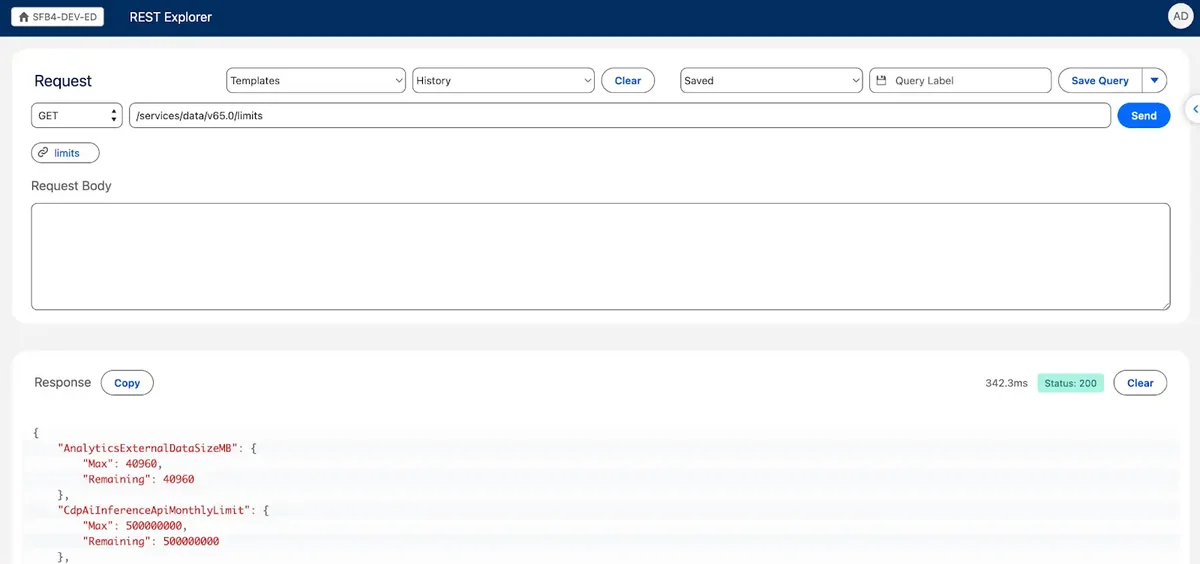
How to set up salesforce inspector reloaded safely
For most teams, salesforce inspector reloaded should start as a sandbox review tool before it becomes part of production support.
Install the extension only after your Salesforce security owner approves it. In a small dev org, a browser extension may feel harmless. In a production org with customer data, it is another API-capable client that needs governance.
- Start in a sandbox. Confirm that data export, import, REST calls, metadata search, and Flow Scanner behave as expected for your profiles and permission sets.
- Review API access. The extension relies on Salesforce API calls for many features, so users need the correct API permissions and should understand API consumption.
- Prefer least privilege. Do not grant Modify All Data, Author Apex, Manage Users, or Customize Application only because a user wants faster inspection.
- Separate admin and developer personas. Admins may need record and Flow review tools; developers may need REST Explore, Tooling API, and debug log access.
- Document approved operations. For example: read-only record inspection is allowed in production; bulk updates are sandbox-first; destructive REST calls are not allowed from the browser.
- Use External Client Apps where your governance model requires it. Salesforce documents External Client Apps as packageable frameworks for third-party applications that integrate with Salesforce through APIs and security protocols. Salesforce Help: External Client Apps
For OAuth security, pay attention to PKCE. Salesforce documentation explains that Proof Key for Code Exchange protects authorization code flows against interception attacks, especially for public clients. Salesforce Developer Docs: Secure Connected Apps and External Client Apps
How does Flow Scanner work in Salesforce Inspector Reloaded?
Flow Scanner reviews Flow metadata and reports items that need attention. This is helpful when you inherit an org with many active and inactive flows, inconsistent naming, missing descriptions, or weak fault handling. salesforce inspector reloaded Flow Scanner does not replace Flow Builder testing, debug runs, or deployment validation. It gives you a faster review queue.
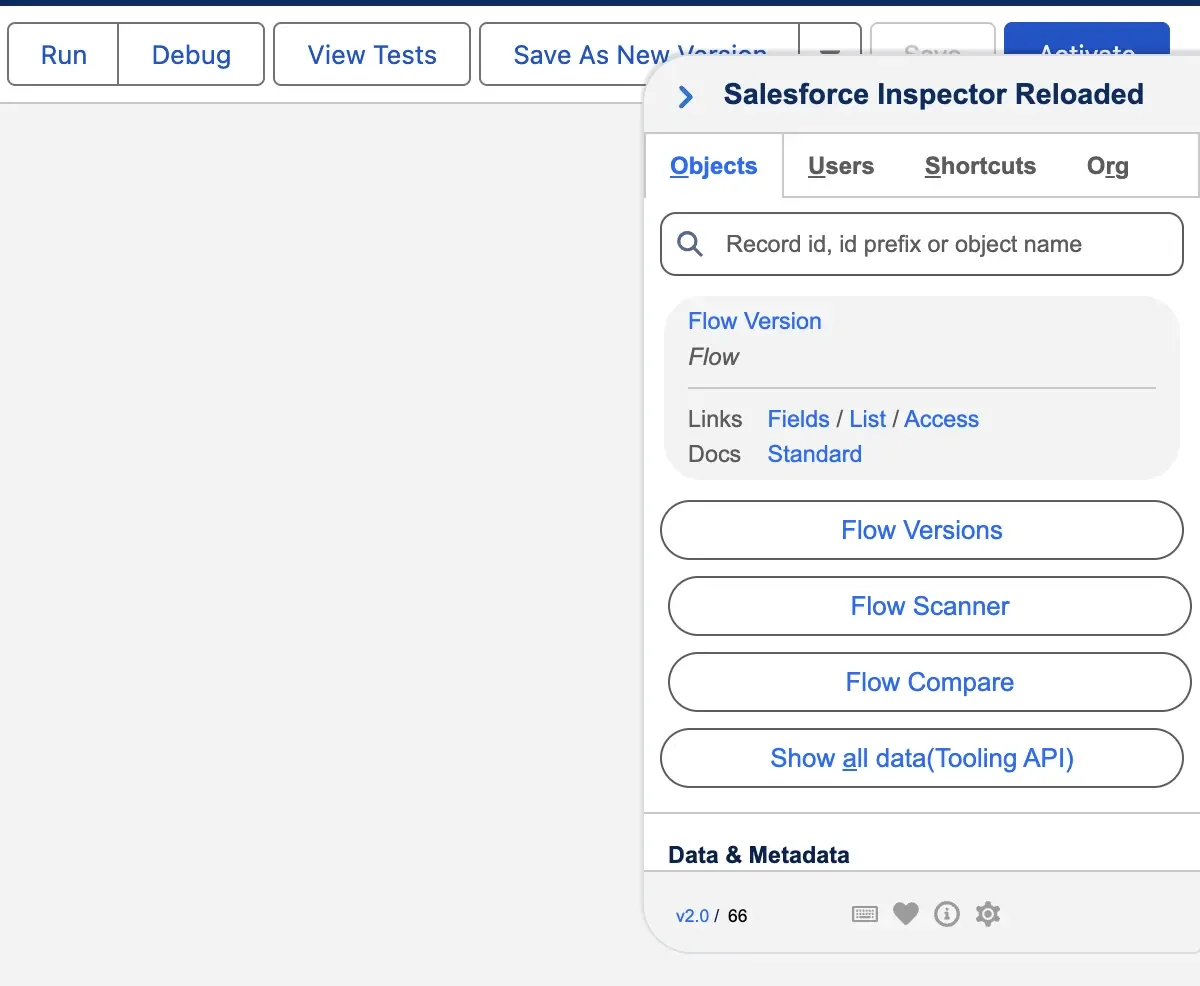
Flow Scanner review path
- Open the flow in a sandbox or another non-production org when possible.
- Open Salesforce Inspector Reloaded from the browser extension panel.
- Run Flow Scanner and review the findings by severity.
- Fix errors first, then review warnings and informational messages.
- Use the scan export to attach evidence to a story, change request, or pull request.
- Compare Flow versions before and after the change when Salesforce supports comparison for that flow type. Salesforce Help: Compare Flow Versions
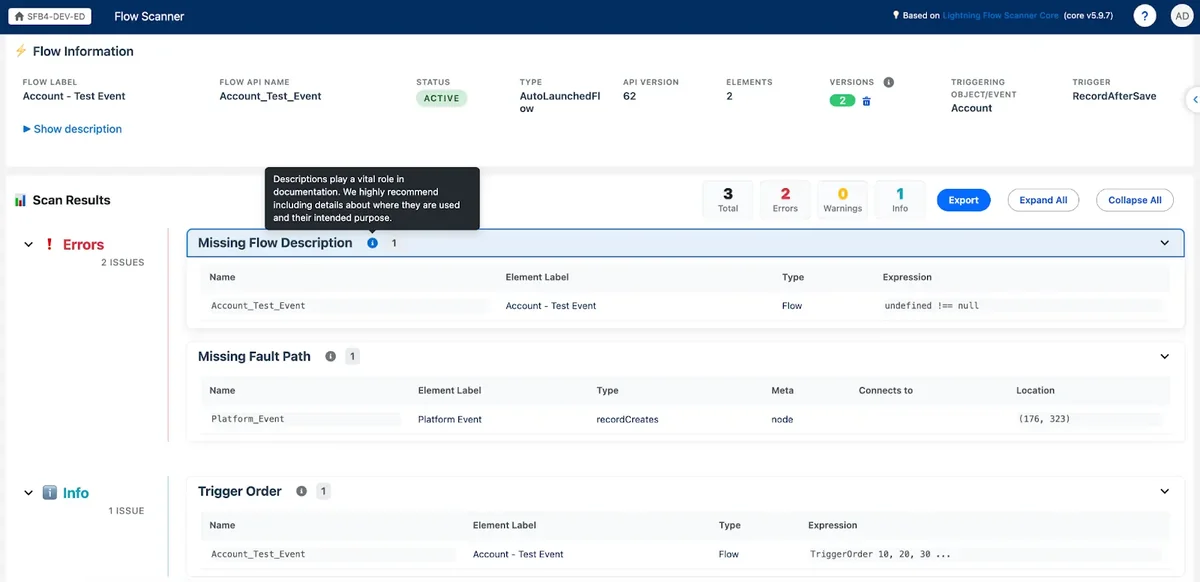
Configuring Flow Scanner rules
Teams should tune Flow Scanner rules to match their automation standards. For example, an enterprise org might require a naming convention for record-triggered flows, a description for each reusable subflow, and a fault path for data-changing elements. The goal is not to silence every warning; the goal is to make review behavior consistent across admins and developers.
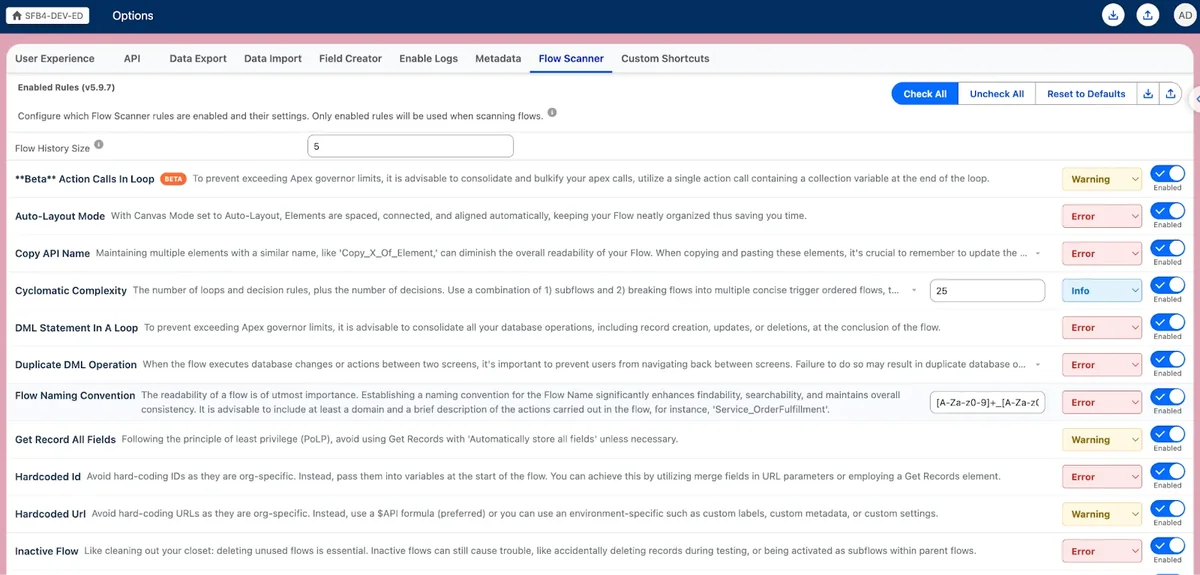
Remember that Salesforce Flow behavior changes by API version and release. Salesforce removed the 2,000 executed-element limit for flows running on API version 57.0 and later, but other Flow limits still apply. Use the official Flow limits page when a scan finding touches performance or runtime behavior. Salesforce Help: General Flow Limits
How to manage inactive Flow versions
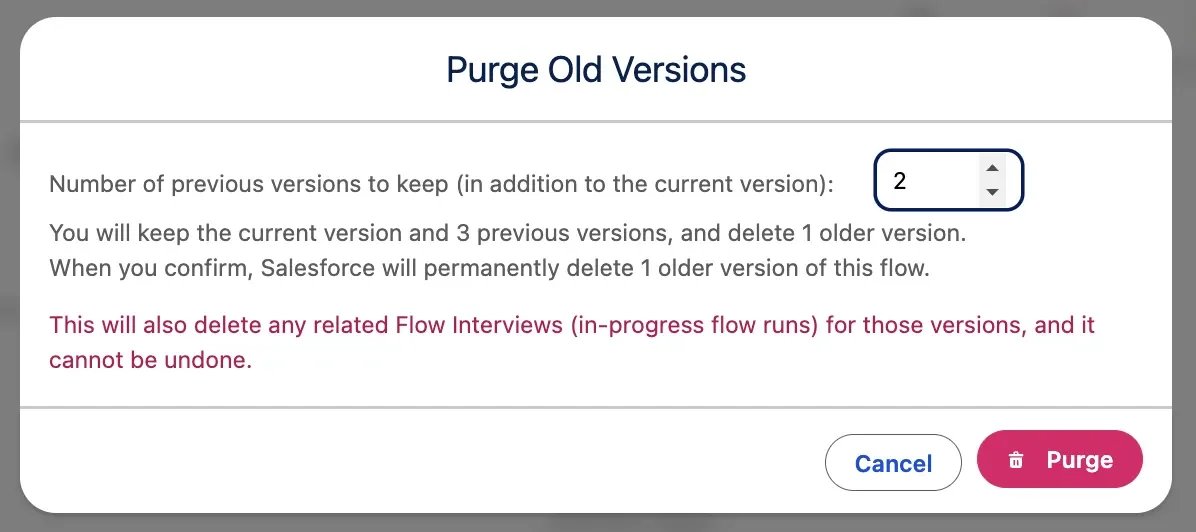
Salesforce admins often leave many inactive versions after testing changes. A few old versions are useful for rollback investigation, but a long version history can make review harder. Salesforce Inspector Reloaded helps surface version counts and can help remove inactive versions when the team has a retention rule.

Use a simple policy: keep the active version, keep the last known good inactive version when rollback context matters, and delete older inactive versions only after release evidence is stored elsewhere. Do not delete versions during an incident unless the incident owner approves it.
How Dependencies Explorer helps impact analysis
Dependencies Explorer matters when a field, flow, Apex class, validation rule, or Lightning page is shared across workstreams. Instead of guessing where a component is used, you can review dependency data before planning the change. This makes salesforce inspector reloaded useful before deleting a custom field, renaming a flow resource, modifying an Apex invocable method, or changing a permission-related component.
Salesforce exposes metadata relationships through MetadataComponentDependency in Tooling API. Salesforce documents it as a Tooling API object that represents dependency relationships between metadata components. It can be queried with Tooling API in API version 43.0 and later, and Salesforce also documents Bulk API 2.0 usage for retrieving up to 100,000 dependency records in a single query. Salesforce Developer Docs: MetadataComponentDependency
When you need to validate what the extension shows, run a Tooling API query in a controlled environment. This example uses Summer ’26 API v67.0 and returns metadata components that reference Apex classes:
GET /services/data/v67.0/tooling/query/?q=
SELECT+MetadataComponentName,MetadataComponentType,RefMetadataComponentName,RefMetadataComponentType
+FROM+MetadataComponentDependency
+WHERE+RefMetadataComponentType='ApexClass'
+AND+MetadataComponentType='Flow'
Do not rely on dependency output alone for deletion decisions. Search source control, run deployment validation, review managed package boundaries, and ask the owning team before removing shared metadata.
Best practices for data export and import
Data Export in salesforce inspector reloaded is useful for quick SOQL work: checking a set of Accounts, finding orphaned records, reviewing field values, or preparing a small correction file. It should not become an uncontrolled data migration process.
Safe SOQL patterns for quick inspection
Keep queries selective and small. Use filters, limit the returned fields, and avoid exporting sensitive fields unless the task requires them. This query checks recently modified Accounts without pulling unnecessary columns:
SELECT Id, Name, OwnerId, LastModifiedDate
FROM Account
WHERE LastModifiedDate = LAST_N_DAYS:7
ORDER BY LastModifiedDate DESC
LIMIT 200
For imports, test with a small batch in a sandbox and keep the CSV, query, user, timestamp, and rollback approach. If the update is repeatable or high volume, use Data Loader, Bulk API, or a governed integration path instead of a browser workflow.
How to use REST Explore without creating API risk
REST Explore is useful when a developer needs to test a Salesforce REST API request while already authenticated to an org. Salesforce REST API supports standard and custom HTTP headers, and the REST API documentation explains that headers can pass parameters and customize request options. Salesforce Developer Docs: REST API Headers
Use REST Explore in salesforce inspector reloaded for read requests and controlled tests. For write requests, prefer a sandbox and a small data set. Avoid running destructive requests such as DELETE or broad composite updates from a production browser session unless the change is approved and logged.
GET /services/data/v67.0/query?q=SELECT+Id,Name+FROM+Account+LIMIT+10
Sforce-Query-Options: batchSize=200
Sforce-Call-Options: client=InspectorReloadedReview
The sample headers show intent, but they do not remove the need for API governance. REST calls still execute as the authenticated user and still follow Salesforce API behavior, limits, and permissions.
How to review debug logs with less noise
Debug logs help track events that occur in a Salesforce org, including Apex execution, automation behavior, and other transaction details. Salesforce generates logs when trace flags are active or when specific troubleshooting activity occurs. Salesforce Help: Debug Logs
Use the Logs Viewer in salesforce inspector reloaded as a faster way to filter and open logs, but keep the same troubleshooting discipline. Set trace flags for the smallest user and time window that solves the problem. Remove noisy debug levels after analysis. Store only the log extracts needed for the ticket because logs can contain record data and execution details.
Security checklist before enabling salesforce inspector reloaded in production
salesforce inspector reloaded should be governed as an API client, not just as a browser convenience. The extension can make authorized work faster, but that also means a mistaken update can spread faster.
- Control installation. Use browser management or endpoint policy where your company requires approved extensions only.
- Limit high-risk permissions. Review users with Modify All Data, View All Data, Author Apex, Manage Users, and Customize Application.
- Review API access. If a profile or permission set should not use APIs, do not grant API access only for convenience.
- Use sandbox-first write operations. Data Import, REST write calls, and metadata-affecting actions should be tested outside production.
- Log change evidence. Save SOQL, CSV files, scan exports, ticket approvals, and deployment references.
- Protect customer data. Export only the fields needed for the task and avoid local storage of sensitive extracts.
For internal training, link this page with related SalesforceTutorial resources: Salesforce Flow automation basics, SOQL query examples for admins and developers, Salesforce REST API tutorial, and Salesforce Data Loader guide.
Common errors with salesforce inspector reloaded
Most salesforce inspector reloaded errors are permission, session, metadata cache, or API request problems rather than extension defects.
| Symptom | Likely cause | What to check |
|---|---|---|
| New object or field does not appear | sObject describe cache or session state | Clear the extension cache, refresh the Salesforce tab, and confirm field-level security. |
| SOQL query fails | Invalid field, insufficient permissions, wrong API name, or unsupported query pattern | Test a smaller query, verify API names in Object Manager, and confirm CRUD/FLS. |
| Data update fails with validation error | Validation rule, duplicate rule, required field, trigger, or Flow fault | Read the returned error, test one record, and check automation running on the object. |
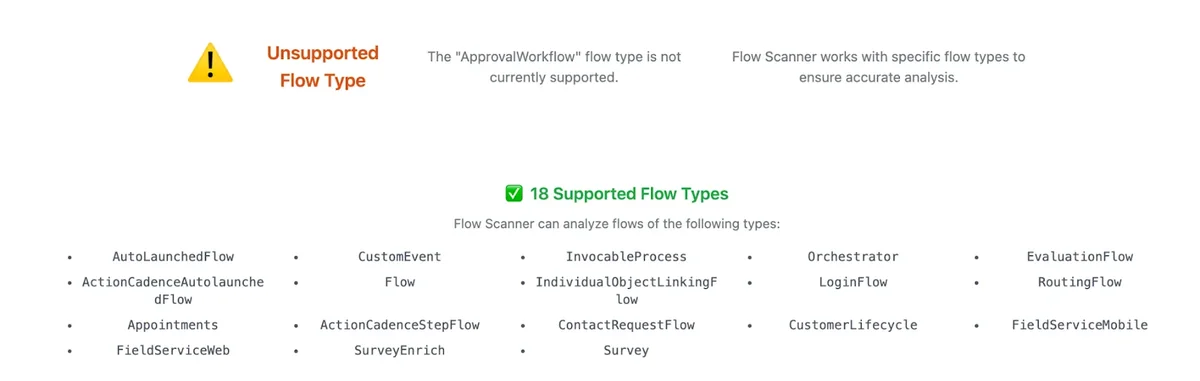
| Flow scan output looks incomplete | Unsupported flow type or metadata pattern | Use manual Flow review, Salesforce debug tools, and Flow version comparison. |
| REST call returns unauthorized | Session, OAuth scope, profile permission, or org policy issue | Confirm the user has API access and the app authentication policy allows the requested operation. |
When should admins and developers use salesforce inspector reloaded?
Use salesforce inspector reloaded when the task is investigative, bounded, and easier from the current Salesforce context. Good examples include inspecting a record field, testing a read-only SOQL query, finding metadata references before a user story estimate, or exporting Flow Scanner results for peer review.
Do not use it as the primary tool for deployments, recurring integrations, large migrations, security review, or production incident changes without approval. In mature orgs, it belongs beside Salesforce CLI, source control, DevOps Center or your deployment tool, Data Loader, and official Setup pages.
Frequently Asked Questions
Is salesforce inspector reloaded an official Salesforce product?
No. Salesforce has described Salesforce Inspector Reloaded as an open-source extension that is not an official Salesforce product. Treat it as a productivity tool that still relies on the current user’s Salesforce permissions and API access.
Can salesforce inspector reloaded bypass Salesforce security?
The extension does not grant permissions by itself, but it can expose API-based actions that users may not see on a page layout. A user who has API access and object or field permissions can use those permissions outside the normal page UI, so production orgs should control who can install and authenticate browser extensions.
What is the safest way to use Flow Scanner?
Use Flow Scanner first in a sandbox or full-copy environment, review warnings with the automation owner, and treat the results as review signals rather than deployment approval. For production changes, still use source control, peer review, test data, and Salesforce’s own Flow version comparison.
Does Dependencies Explorer show every dependency in an org?
No. Dependencies Explorer is useful for impact analysis, but it depends on metadata relationship data that Salesforce exposes through APIs such as MetadataComponentDependency. Use it with deployment validation, source search, and manual review when changing shared metadata.
Should admins use Data Export from salesforce inspector reloaded instead of Data Loader?
Use Data Export for quick checks, small investigations, and ad hoc SOQL. Use Data Loader, Bulk API, ETL tooling, or a governed integration path for repeatable migrations, high-volume jobs, scheduled extracts, or audit-controlled operations.