This org does not have source tracking. means Salesforce CLI cannot calculate an automatic difference between your local Salesforce DX project and the target org. The message is expected for production orgs and other environments that do not support tracking, but it can also appear when tracking was disabled locally for a scratch org or sandbox.
The fix depends on the target environment. For an org that cannot support source tracking, deploy or retrieve an explicit directory, metadata component, or manifest. For a scratch org or supported sandbox, check whether tracking was disabled and enable it locally before relying on preview or incremental synchronization commands.
What Does “This Org Does Not Have Source Tracking.” Mean?
Salesforce source tracking records metadata changes made in two places:
- The source files inside your local Salesforce DX project.
- The metadata changed directly in a source-tracked org.
Salesforce CLI uses this information to identify conflicts and determine which components changed since the previous deploy or retrieve operation. Source tracking is supported by scratch orgs and can be used with eligible Developer and Developer Pro sandboxes. Production orgs do not support source tracking.
The message this org does not have source tracking. therefore does not always indicate a broken authentication or failed Salesforce connection. It often indicates that the command expected change-tracking information that the target org cannot provide.
Salesforce documents the behavior in its Salesforce DX source tracking guide and notes in the project deploy start command reference that some orgs, including production orgs, never allow source tracking.
Source tracking support by org type
| Target environment | Source tracking support | Recommended deployment method |
|---|---|---|
| Scratch org | Supported and enabled by default unless disabled during creation or in local CLI configuration | Tracked deployment or explicit metadata deployment |
| Developer or Developer Pro sandbox | Supported when enabled and configured for the workflow | Tracked deployment where available; explicit deployment otherwise |
| Partial Copy or Full sandbox | Do not assume source tracking is available | Manifest, source directory, or metadata selection |
| Production org | Not supported | Explicit Metadata API deployment |
| Developer Edition org used as a normal target | Do not confuse it with a scratch org | Explicit deployment unless the documented org configuration supports tracking |
How Do You Identify Which Salesforce Org the CLI Is Using?
Before changing any source-tracking setting, confirm the target alias or username. A common production issue is deploying to the wrong default org because the project-level target was changed earlier.
# Display the current target org configured for the project
sf config get target-org

# Display details for a specific alias or username
sf org display --target-org DevSandbox

# List authenticated orgs and aliases
sf org list
Review the username, org ID, instance URL, and alias. Do not enable tracking or reset tracking until you know whether the target is a scratch org, sandbox, production org, or Developer Edition org.
In an enterprise deployment pipeline, pass --target-org explicitly rather than relying on a developer workstation’s default configuration:
sf project deploy start \
  --target-org IntegrationSandbox \
  --manifest manifest/package.xml \
  --test-level RunLocalTests \
  --wait 30
This pattern reduces the risk of deploying to an unintended environment and makes the command reproducible in CI.
How to Fix “This Org Does Not Have Source Tracking.” for Production and Other Non-Tracking Orgs
You cannot turn a production org into a source-tracked org by running a local CLI command. The sf org enable tracking command changes local Salesforce CLI behavior; it does not add source-tracking capability to an org that does not support it.
When the target does not support tracking, tell Salesforce CLI exactly what to deploy or retrieve.
Option 1: Deploy a source directory
sf project deploy start \
  --target-org Production \
  --source-dir force-app/main/default/classes \
  --test-level RunLocalTests \
  --wait 30
This command deploys the components under the specified directory. It does not need source-tracking information to determine scope.
Warning: Select the directory carefully. A broad path such as force-app can include more metadata than intended.
Option 2: Deploy named metadata components
sf project deploy start \
  --target-org UAT \
  --metadata ApexClass:InvoiceService \
  --metadata ApexClass:InvoiceServiceTest \
  --metadata CustomObject:Invoice__c \
  --wait 30
Use this method for a small, known set of components. Quote component names containing spaces or shell-sensitive characters.
Option 3: Deploy a package.xml manifest
sf project deploy start \
  --target-org UAT \
  --manifest manifest/package.xml \
  --test-level RunLocalTests \
  --wait 30
A manifest works well for release-controlled deployments because reviewers can see the intended component types and members.
<?xml version="1.0" encoding="UTF-8"?>
<Package xmlns="http://soap.sforce.com/2006/04/metadata">
    <types>
        <members>InvoiceService</members>
        <members>InvoiceServiceTest</members>
        <name>ApexClass</name>
    </types>
    <types>
        <members>Invoice__c</members>
        <name>CustomObject</name>
    </types>
    <version>65.0</version>
</Package>
The manifest API version controls how Salesforce interprets the metadata request. Confirm the version supported by your installed Salesforce CLI and target release rather than increasing it without testing.
Option 4: Retrieve an explicit scope
# Retrieve a metadata type or individual component
sf project retrieve start \
  --target-org Production \
  --metadata ApexClass:InvoiceService

# Retrieve the members defined in a manifest
sf project retrieve start \
  --target-org Production \
  --manifest manifest/package.xml
For a non-tracking org, an unscoped retrieve cannot infer every component you intended to synchronize. Specify the source directory, metadata members, or manifest.
Validate before production deployment
Use a validation deployment when the release process requires tests and a later quick deployment:
sf project deploy validate \
  --target-org Production \
  --manifest manifest/package.xml \
  --test-level RunLocalTests \
  --wait 60
Salesforce states that project deploy validate does not support source tracking. That is expected: validation uses the explicit deployment scope and does not update tracking state.
How Do You Fix Source Tracking in a Scratch Org Salesforce Project?
A scratch org Salesforce project normally has source tracking enabled from creation. If this org does not have source tracking. appears for a scratch org, check whether the org was created with tracking disabled, whether local CLI tracking was disabled, or whether the alias points to a different org.
Scratch org Salesforce diagnostic steps
- Confirm that the alias resolves to the expected scratch org.
- Confirm that the scratch org has not expired.
- Check the command used to create it for
--no-track-source. - Enable tracking in the local CLI configuration when the org supports it.
- Preview the deployment or retrieval again.
sf org display --target-org FeatureWork
sf org enable tracking --target-org FeatureWork
sf project deploy preview --target-org FeatureWork
sf project retrieve preview --target-org FeatureWork
According to the official org enable tracking documentation, enabling tracking affects the local environment. Salesforce CLI stores the setting in local org configuration so that tracking operations run for that target.
If the scratch org was intentionally created without tracking for CI, it can be clearer to keep it non-tracked and deploy an explicit directory:
sf project deploy start \
  --target-org BuildOrg \
  --source-dir force-app \
  --ignore-conflicts \
  --wait 20
Use --ignore-conflicts only when the deployment process deliberately treats the repository as authoritative. It does not resolve a metadata design conflict; it tells the CLI to proceed despite detected conflicts.
Reset stale tracking state
Reset tracking only when the local tracking records no longer match the intended baseline. A reset can make the next preview show a different set of changes, so commit or back up local work first.
sf project reset tracking \
  --target-org FeatureWork \
  --no-prompt
After resetting, run deploy and retrieve previews before applying changes:
sf project deploy preview --target-org FeatureWork
sf project retrieve preview --target-org FeatureWork
How Do Salesforce Scratch Orgs Work?
Salesforce scratch orgs are disposable environments created from a Dev Hub for development, automated testing, packaging, and isolated configuration work. They differ from a normal Developer Edition org because their lifecycle and configuration are controlled through Salesforce DX tooling.
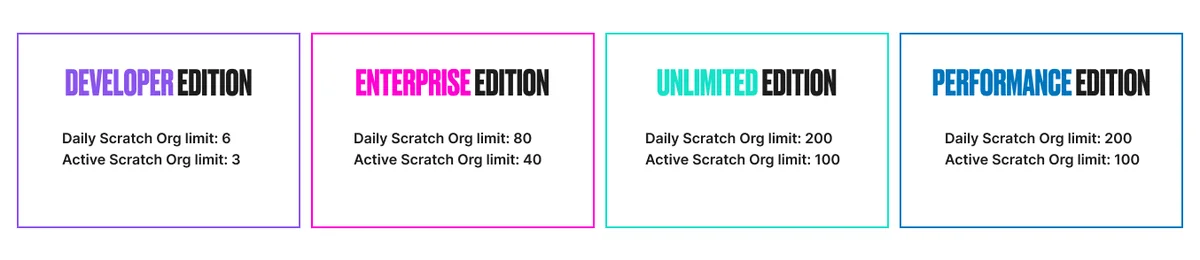
Scratch orgs have source tracking enabled by default. Salesforce also supports creating them with source tracking disabled by using the applicable CLI flag, which is useful for some automated build environments.
Scratch.org is not the same as a Salesforce scratch org
The search term scratch.org is often entered by users looking for Salesforce scratch org instructions. In Salesforce terminology, the feature is written as scratch org, without a domain suffix. A scratch org is created from a Dev Hub with Salesforce CLI; it is not created by visiting a website named scratch.org.
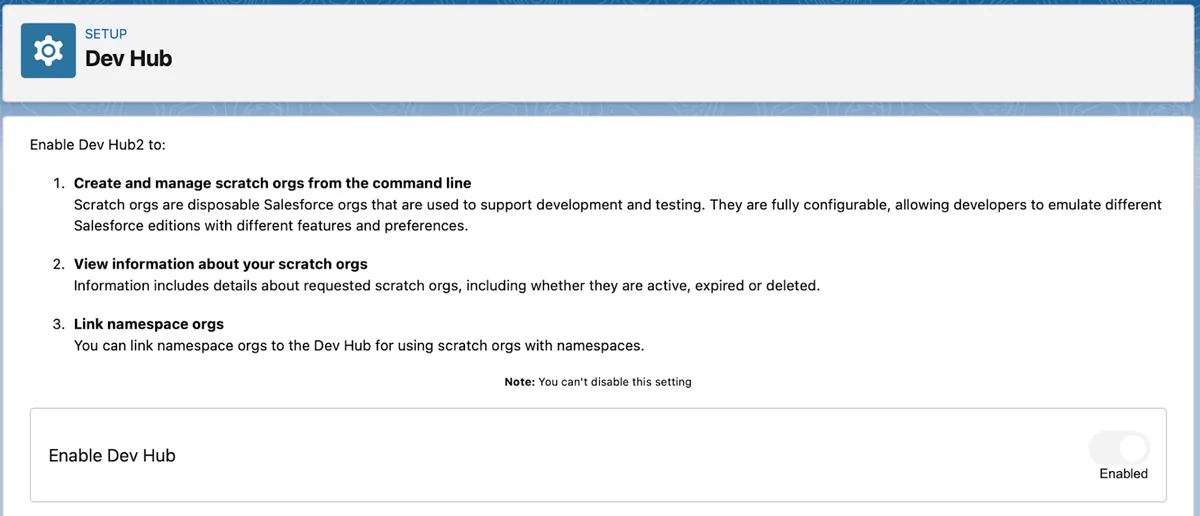
How to create a developer org Salesforce teams can use as a Dev Hub
Teams searching for how to create a developer org Salesforce environment should distinguish between three resources:
| Environment | Purpose | Created from |
|---|---|---|
| Developer Edition org | Persistent learning, development, or Dev Hub use where eligible | Salesforce Developer signup |
| Trailhead Playground | Hands-on Trailhead exercises | Trailhead |
| Scratch org | Temporary source-driven development and testing | A Dev Hub through Salesforce CLI |
A Developer Edition org can serve as a Dev Hub when the edition and account meet Salesforce requirements. Enabling Dev Hub is an administrative action in Setup. Review Salesforce documentation before enabling it in a long-lived org because Dev Hub configuration affects how scratch orgs and second-generation packages are managed.
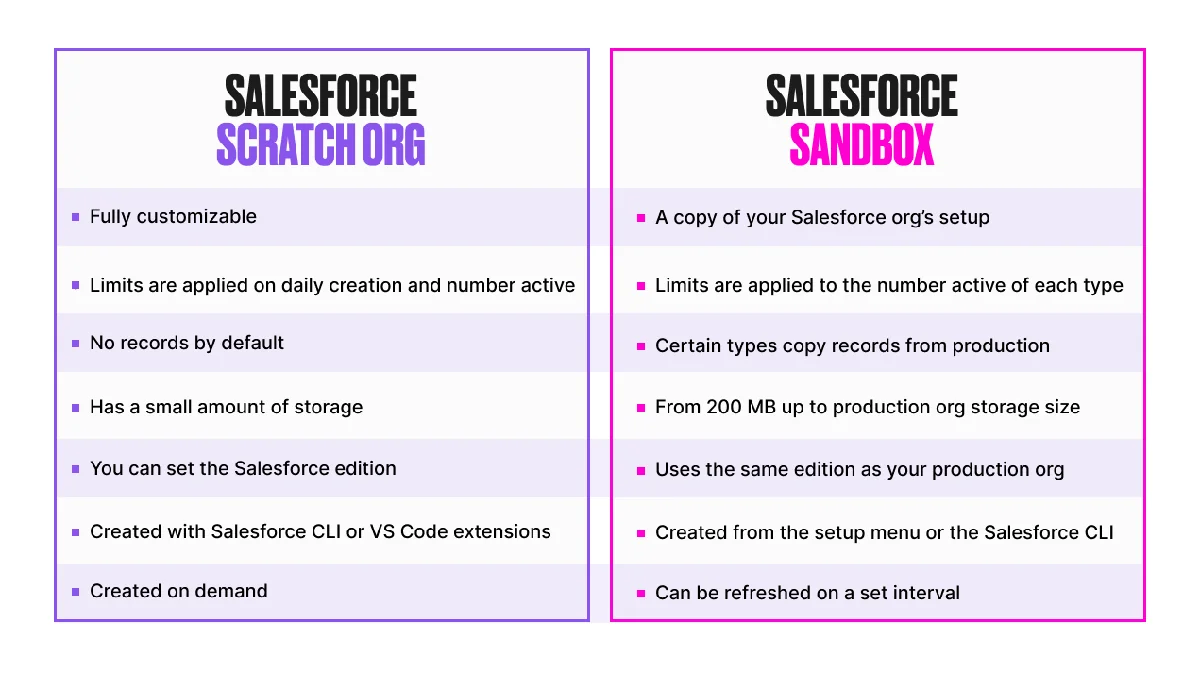
Salesforce scratch orgs versus sandboxes
| Decision factor | Scratch org | Sandbox |
|---|---|---|
| Lifecycle | Temporary and created for a defined task | Longer-lived and refreshed from production |
| Metadata origin | Definition file, packages, source deployment, shape, or snapshot | Copy of production metadata at refresh time |
| Data | Usually loaded as test data or provided through a supported snapshot workflow | Depends on sandbox type and refresh |
| Best fit | Feature branches, package development, automated tests, isolated prototypes | Integration testing, UAT, training, staging, production-context testing |
| Source tracking | Enabled by default unless disabled | Available for supported sandbox workflows, not universal across every sandbox type |
Create a scratch org Salesforce project definition
A scratch org definition file declares the edition and the features or settings required by the project. Keep the file in source control and include only configuration that the team can reproduce.
{
  "orgName": "Billing Feature Development",
  "edition": "Developer",
  "features": [
    "EnableSetPasswordInApi"
  ],
  "settings": {
    "lightningExperienceSettings": {
      "enableS1DesktopEnabled": true
    }
  }
}
Do not add a feature name or settings key unless it is supported by the target Salesforce release and scratch org definition schema. An invalid feature or unsupported setting causes scratch org creation to fail.
Create and open the scratch org
sf org create scratch \
  --target-dev-hub DevHub \
  --definition-file config/project-scratch-def.json \
  --alias BillingFeature \
  --duration-days 7 \
  --set-default

sf org open --target-org BillingFeature

Deploy the project source after the org is created:
sf project deploy start \
  --target-org BillingFeature \
  --source-dir force-app \
  --wait 20
Then assign permission sets and import test data as separate repeatable steps:
sf org assign permset \
  --target-org BillingFeature \
  --name Billing_User

sf data import tree \
  --target-org BillingFeature \
  --plan data/billing-plan.json
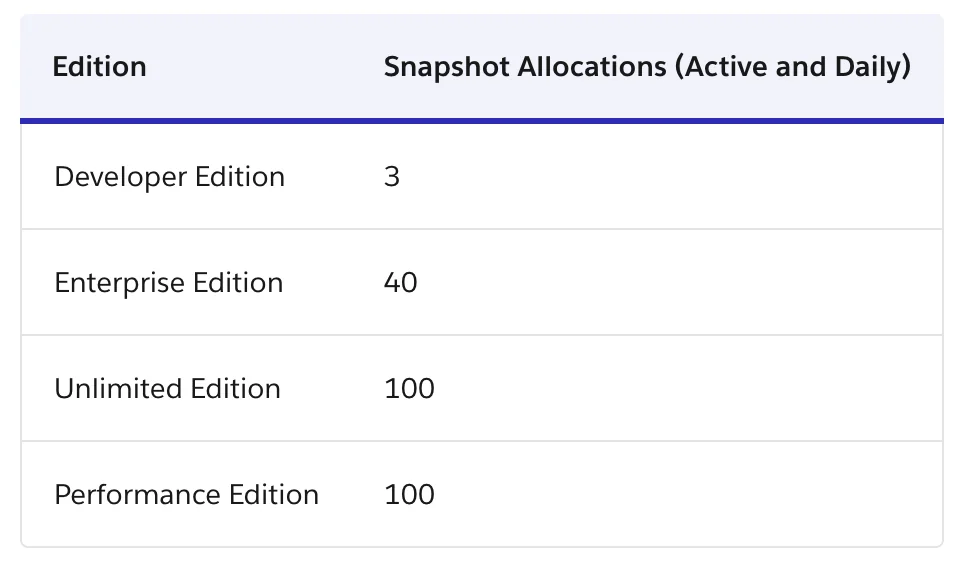
How Do Org Shapes and Snapshots Affect Scratch Org Setup?
An org shape and a scratch org snapshot solve different setup problems.
- Org shape: captures supported characteristics of a source org, such as edition, features, settings, licenses, and limits, so a new scratch org can start with a comparable configuration.
- Scratch org snapshot: captures a configured scratch org at a point in time and can include metadata, installed packages, and data supported by the snapshot process.
Use an org shape when the main problem is reproducing an org’s configuration. Use a snapshot when the team repeatedly installs dependencies, deploys metadata, and loads the same data before testing.
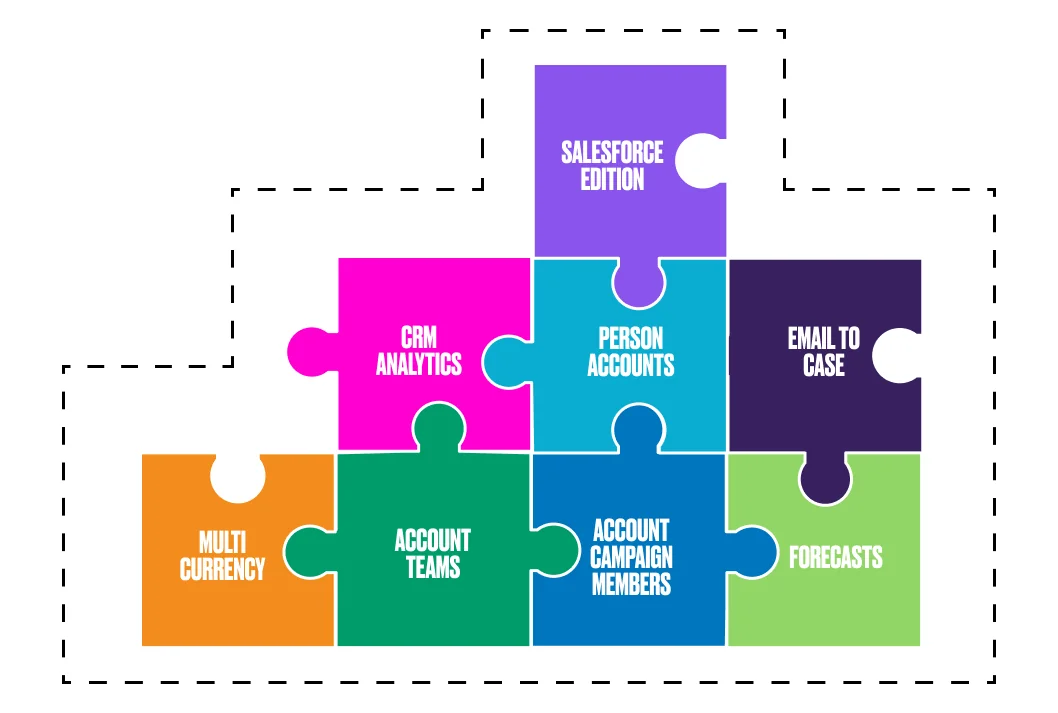
Salesforce notes that shapes are release-specific and do not capture every feature or setting. Treat the definition file as a reviewed part of the environment design rather than assuming a shape reproduces the source org exactly.
What Are the Common Errors with Salesforce Source Tracking?
1. The target alias points to production
Symptom: The developer expects incremental synchronization but receives this org does not have source tracking.
Fix: Run sf org display, confirm the instance and org ID, and use an explicit manifest or source directory for production.
2. The scratch org was created with no source tracking
Symptom: A newly created scratch org behaves like a non-tracking target.
Fix: Review the creation command. Either enable local tracking for the supported org or create another scratch org without the no-tracking flag.
3. Local CLI tracking was disabled
Symptom: Another developer can preview changes in the same type of org, but the current workstation cannot.
Fix:
sf org enable tracking --target-org FeatureWork
This updates local CLI configuration. It does not modify the server-side capability of production.
4. The deploy command has no explicit scope
Symptom: Salesforce CLI cannot infer what to deploy because no tracking information is available.
Fix: Add --source-dir, --metadata, or --manifest.
5. A destructive change is missing from the manifest workflow
Deleting a local file does not automatically delete the corresponding metadata in a non-tracking org. Use a reviewed destructive changes manifest and test it in a sandbox before production.
sf project deploy start \
  --target-org UAT \
  --manifest manifest/package.xml \
  --post-destructive-changes manifest/destructiveChangesPost.xml \
  --dry-run \
  --test-level RunLocalTests
Warning: Metadata deletion can affect dependencies, profiles, permission sets, flows, Apex, and reports. Review the deployment result before applying the destructive package.
6. A deployment overwrites an admin’s org-side change
Non-tracking org deployments do not provide the same local-versus-remote conflict workflow as tracked development. Before deploying to a shared environment:
- Retrieve or compare the affected components.
- Check source control for concurrent branches.
- Use deployment previews where supported.
- Run validation and required Apex tests.
- Coordinate changes to profiles, permission sets, flows, and Lightning pages.
What Source Tracking Practices Work in Enterprise Salesforce Orgs?
- Keep Git or another source-control system as the release record. Salesforce source tracking helps synchronize environments, but it is not a replacement for version control.
- Use one scratch org per feature or developer where the architecture permits. This reduces collisions in shared sandboxes.
- Use sandboxes for production-context testing. Integration, UAT, training, and release validation often require production-derived configuration or data relationships.
- Make deployment scope explicit in CI. Use a generated manifest, package directory, or validated delta process rather than depending on workstation tracking state.
- Run Apex tests appropriate to the release. Salesforce requires at least 75% aggregate Apex code coverage for production deployment, and every trigger must have some coverage. Coverage alone does not prove functional correctness.
- Review CRUD, field-level security, and sharing behavior. A successful metadata deployment does not prove that Apex or Lightning components enforce user permissions correctly.
- Pin and review CLI changes. Salesforce CLI commands and flags evolve independently of an org’s metadata API version. Test CLI upgrades in the pipeline before replacing the production build image.
For related deployment guidance, see the SalesforceTutorial articles on Salesforce deployment methods, Salesforce sandbox types, Salesforce CLI commands, and Salesforce deployment best practices.
Frequently Asked Questions
Why does Salesforce say this org does not have source tracking?
The message appears when Salesforce CLI cannot use change-tracking information for the target org. Production orgs do not support source tracking, while a scratch org or supported sandbox may show the message when tracking was disabled or the wrong alias was selected.
Can I enable source tracking in a production Salesforce org?
No. Running sf org enable tracking changes local Salesforce CLI configuration only; it does not make a production org support source tracking. Use an explicit source directory, metadata selection, or package.xml manifest for production deployments.
Do Salesforce scratch orgs have source tracking enabled?
Yes. Salesforce scratch orgs have source tracking enabled by default. It can be disabled during creation for workflows such as CI, and local CLI tracking can also be disabled or enabled for an org that supports the feature.
How do I deploy when an org has no source tracking?
Run sf project deploy start with --source-dir, --metadata, or --manifest. These flags provide an explicit deployment scope, so Salesforce CLI does not need source tracking to determine which components to send.
Is a Developer Edition org the same as a scratch org Salesforce environment?
No. A Developer Edition org is persistent and can be used for learning or as an eligible Dev Hub. A scratch org Salesforce environment is temporary, created from a Dev Hub, and configured through Salesforce DX project files and CLI commands.
What does scratch.org mean in Salesforce searches?
The term scratch.org is commonly used as a search variation, but Salesforce calls the environment a scratch org. You create it with Salesforce CLI from a Dev Hub rather than through a website with that domain-style name.