What Are Enhanced Lists in Salesforce?
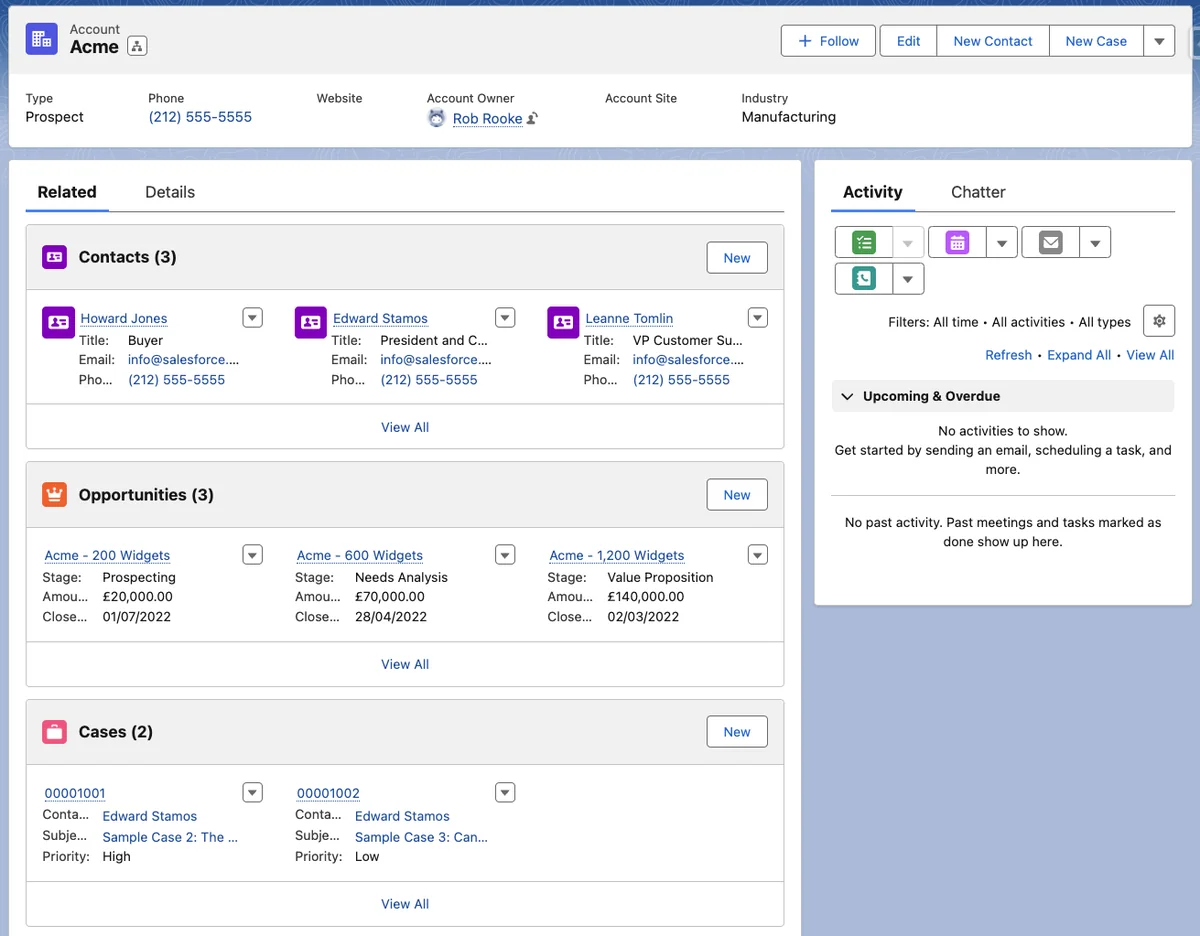
To answer what are enhanced lists in Salesforce in admin terms: an enhanced list is a display setting for the standard Related Lists and Related List – Single Lightning components. It does not create a new relationship, a new object, or a new security layer. It changes how users view and act on records that are already related through a lookup relationship, master-detail relationship, or another supported related list source.
A related list sits on a record page and shows records associated with the current record. On an Account, common examples include Contacts, Opportunities, Cases, Files, and Activities. Salesforce Help describes related list customization as part of record page and page layout configuration, and the Lightning page component documentation states that Enhanced List can show up to 10 fields and supports features such as resizing, sorting, mass actions, and text wrapping. See Salesforce Help: Customize Related Lists and Salesforce Help: Standard Lightning Page Components.
In enterprise orgs, the best use case is not “show everything.” The best use case is to show the fields a user needs to make the next decision. A sales user may need Opportunity Amount, Stage, Close Date, and Owner. A support user may need Case Priority, Status, Last Modified Date, and Entitlement. Enhanced lists help because the table can carry more context than a Basic list while staying inside the standard Lightning page.
Enhanced, Basic, Tile, and Dynamic Related Lists Compared
| Option | Where admins configure it | Best fit | Important limit |
|---|---|---|---|
| Basic List | Lightning App Builder component property, with columns from the page layout | Small record pages where four fields are enough | Shows fewer fields than Enhanced List |
| Tile | Lightning App Builder component property | Compact visual display for a small set of records | Usually less efficient for scanning rows |
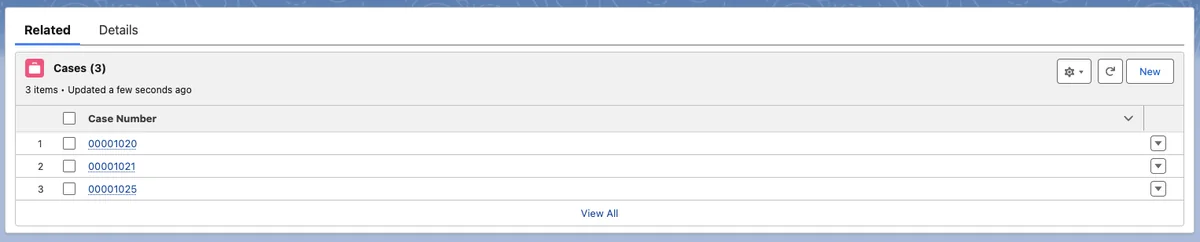
| Enhanced List | Lightning App Builder component property | Most standard Salesforce related lists where users need sorting, actions, and more columns | Still works within standard related list limits and security |
| Dynamic Related List – Single | Lightning App Builder component properties | Filtered lists, custom labels, separate list versions for the same child object | Applies to one related list component at a time |
This table is the practical answer to what are enhanced lists in Salesforce when an admin is choosing a record page component. Enhanced List improves the standard related list display. Dynamic Related List – Single moves more of the list configuration into Lightning App Builder, including filtering and columns for that component.
Use the phrase what are enhanced lists in Salesforce in your design notes to mean the Enhanced List display type on a Lightning record page. Do not use it as a synonym for list views, reports, or a dynamic related list Salesforce component; those solve different problems.
How to Enable Enhanced Lists on a Lightning Record Page
Use this path when the page already uses standard Salesforce related lists and you only need a better display type.
- Go to Setup, open Object Manager, select the parent object, and open the Lightning record page from Lightning Record Pages. You can also open Lightning App Builder directly from Setup.
- Click Edit for the record page assigned to the app, profile, or org default you want to change.
- Select the Related Lists component or a Related List – Single component on the canvas.
- In the properties pane, set Related List Type to Enhanced List.
- For standard related lists, update columns, buttons, and related list order on the assigned page layout when those settings are page-layout controlled.
- Save the Lightning page, activate it for the right scope, and test with a user profile that matches production access.
The last step matters. Enhanced lists do not override object permissions, field-level security, sharing, record types, lookup visibility, or related list availability on the assigned layout. If a user cannot see a field or child record elsewhere in Salesforce, changing the list type does not grant access.
Which Component Should You Use for Salesforce Related Lists?
Admins often ask what are enhanced lists in Salesforce after seeing several related components in Lightning App Builder. The component choice decides where the list gets its configuration and how much control you have per list.
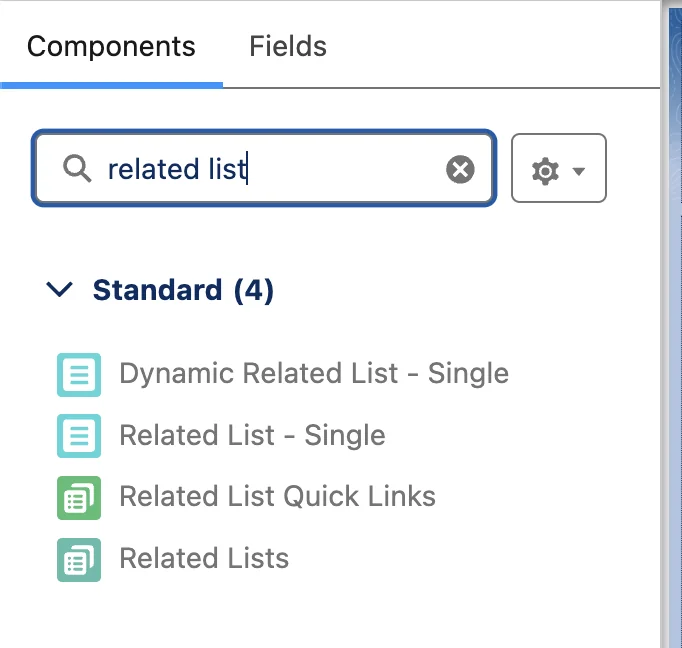
Salesforce related lists: Related Lists component
The Related Lists component renders the related lists configured for the page layout assigned to the record and user. Use it when the page should follow the page layout as the source of truth. This works well for orgs that already manage list order, columns, and buttons through page layouts and want one component to bring those lists onto the Lightning page.
The tradeoff is governance. If admins keep adding objects to the page layout, the record page can become hard to scan. In a production org, review page layouts by persona before enabling Enhanced List everywhere. Sales, service, finance, and partner users rarely need the same Salesforce related lists in the same order.
Salesforce related lists: Related List – Single component
Related List – Single shows one selected related list. Use it when a page needs a specific list in a specific region, such as open Cases near the account summary or Opportunities next to revenue fields. It also lets you apply component visibility rules to that individual list.
This component is useful when the same object record page serves multiple apps. For example, the Sales app can show Opportunities high on the Account page, while the Service app can prioritize Cases and Assets. The underlying Salesforce related lists still respect the page layout and user security model.

Dynamic related list Salesforce: Dynamic Related List – Single
A dynamic related list Salesforce setup uses the Dynamic Related List – Single component to configure one related list directly in Lightning App Builder. Salesforce Help says dynamic related lists let admins add, customize, and filter related lists in Lightning App Builder instead of relying only on the page layout editor. See Salesforce Help: Create Dynamic Related Lists in Lightning App Builder and Trailhead: Optimize Lightning Dynamic Related Lists.
Use a dynamic related list Salesforce configuration when one child object needs different views on the same record page. On Account, you might create one list for open Opportunities and another for closed Opportunities. On Contact, you might show high-priority Cases in one list and recent Cases in another. That is different from Enhanced List: enhanced lists improve table behavior, while dynamic related lists control list definition, filters, label, fields, and sort order for one component.
Salesforce related lists: Related List Quick Links
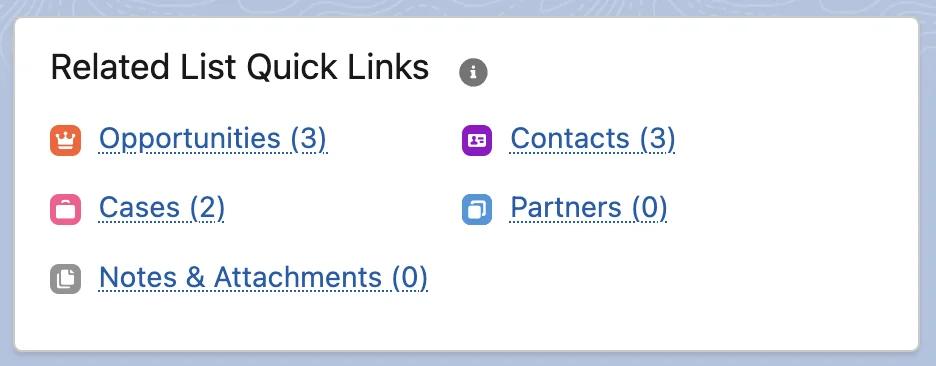
Related List Quick Links gives users a compact navigation area for the record’s related lists. It fits pages with many related objects where showing every list as a full table would push important fields too far down the page. It does not replace careful page layout design, but it gives users a faster way to jump to the list they need.
When Should Admins Use Enhanced Lists?
Use Enhanced List when the user must compare rows. Sorting by Close Date, resizing a Name column, reading wrapped subject text, or selecting several rows for an action are table tasks. The answer to what are enhanced lists in Salesforce is not only “more columns.” It is a better fit for row-based work on a record page.
| Scenario | Recommended setup | Reason |
|---|---|---|
| Account team reviews open Opportunities | Enhanced List or dynamic related list Salesforce component filtered to open records | Users need Amount, Stage, Close Date, Owner, and next-step fields |
| Support manager reviews recent Cases | Enhanced List with key Case fields | Sorting and wrapped text help triage |
| Finance team reviews custom Invoice__c records | Related List – Single with Enhanced List | The list can be placed near account balance fields |
| Record page has 15 child objects | Related List Quick Links plus selected Enhanced Lists | The page stays scannable while important lists remain visible |
| Same child object needs two filtered views | Dynamic Related List – Single | Filters and labels belong in Lightning App Builder for that component |
Best Practices for Enhanced Salesforce Related Lists
These practices come from implementation reviews where related lists were technically correct but hard to use.
Start with the user task, not the object model
A data model can have dozens of child relationships. A record page should not expose all of them at equal weight. Decide what the user needs to do from the parent record. Then place Salesforce related lists that support that task. Move rare admin-only lists to a separate tab, quick link, or app-specific page.
Keep columns decision-based
Do not fill all 10 visible Enhanced List fields just because the component supports them. Choose fields that help a user decide, contact, escalate, approve, or update. For Opportunities, Stage and Close Date often matter more than audit fields. For Cases, Priority and Status often matter more than owner email if the owner name already links to the user record.
Test with real permissions
Admin testing hides many problems. Enhanced lists may look correct for a System Administrator but fail for a standard user because the lookup field is hidden, the related object is not visible, or field-level security removes a column. Test with a cloned profile or permission set group that matches the user population.
Use app-specific Lightning pages
One object can have multiple Lightning record pages assigned by app, record type, and profile. In enterprise orgs, this is often cleaner than creating many page layouts for small related list differences. Sales users can see revenue lists. Service users can see support lists. Operations users can see fulfillment lists.
Document why each list exists
When a record page has many lists, future admins need context. Keep a page design note in your build documentation: list name, business owner, target user group, fields shown, actions enabled, and whether the list is page-layout controlled or a dynamic related list Salesforce component.
Common Errors with Enhanced Lists
The enhanced related list does not show the fields you expected
For standard Related Lists and Related List – Single components, the columns often come from the related list section on the assigned page layout. Update the correct page layout for the affected user, not only the Lightning page. If multiple record types or profiles use different layouts, confirm which layout the user receives.
The related list is missing for some users
Check object permissions, tab visibility, parent lookup field visibility, field-level security, and page layout assignment. A related list can depend on the child relationship field being visible to the user. If you recently moved from Basic to Enhanced List, the change may expose a configuration issue that already existed.
Mass actions do not appear
Salesforce documents that mass quick actions for related lists require Lightning App Builder configuration, including the action bar and Enhanced List in supported related list contexts. Review Salesforce Help: Set Up a Mass Quick Action for Related Lists. Also confirm that the action is available for the object and that the user has permission to perform it.
Dynamic filters do not match the expected records
For a dynamic related list Salesforce component, re-check filter logic, picklist values, record type differences, and whether the field is populated on existing records. Dynamic related lists filter the records shown in that component; they do not change record ownership, sharing, or the underlying child relationship.
Limitations of Enhanced Lists and Standard Alternatives
Enhanced lists improve the standard table, but they do not turn a related list into a reporting engine or a custom workspace. The answer to what are enhanced lists in Salesforce should include the boundary: enhanced lists are still standard Lightning components.
| Need | Enhanced List fit? | Better option |
|---|---|---|
| Show one child object related to the current record | Yes | Enhanced List or Dynamic Related List – Single |
| Show the same child object with different filters | Partly | Dynamic Related List – Single |
| Group records from several unrelated objects into one table | No | Report, Flow screen, custom LWC, or AppExchange package |
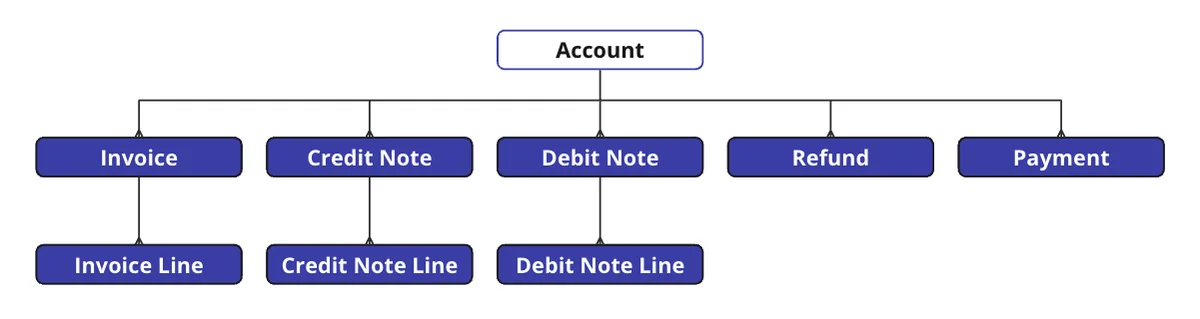
| Show grandchild records several relationships away | No for a simple related list | Report type, custom query, Flow, or LWC |
| Apply conditional cell formatting in a record page list | No standard enhanced list feature | Custom LWC or supported analytics/reporting approach |
| Run complex row-level business logic | No | Screen Flow, Apex-backed LWC, or custom action |
Use reports when the user needs aggregation or cross-object analysis
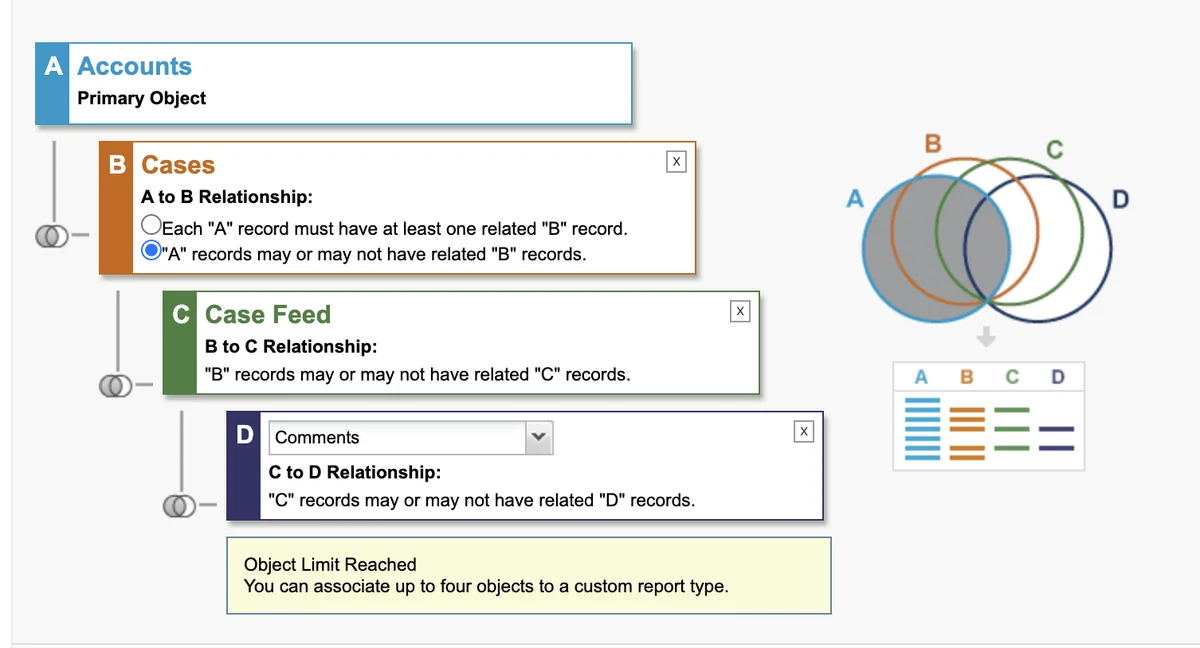
A report can handle grouping, summaries, charts, and joined analysis better than a related list. On a record page, admins can place report chart components or add links to filtered reports. Use this when the question is analytical, such as “Which case categories are increasing for this account?” rather than operational, such as “Which open cases need action now?”
Use Screen Flow when the user needs guided updates
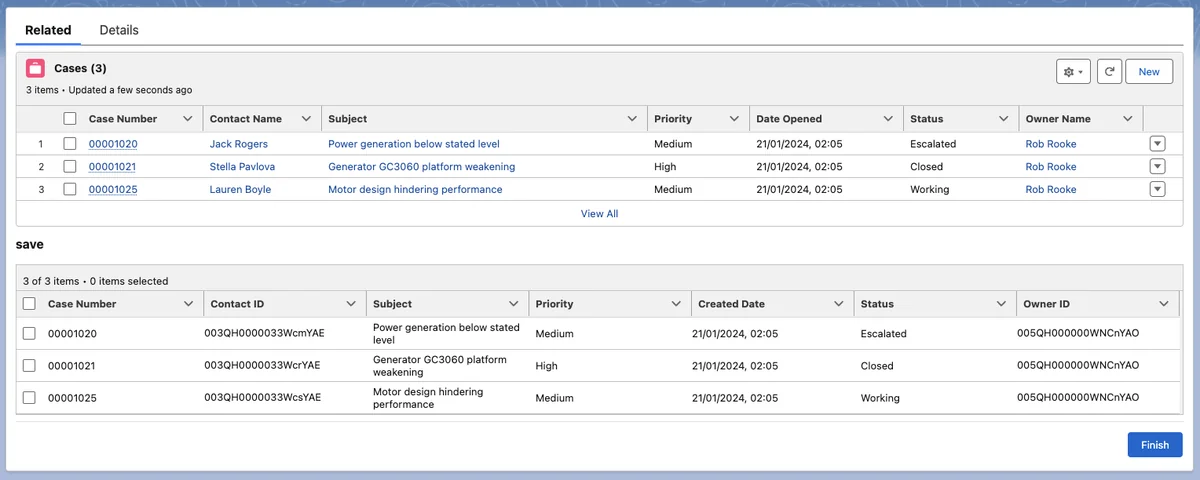
A Screen Flow can query records, show them in a data table, ask for input, and perform updates through Flow elements. Use it when users need a guided process instead of a passive list. Flow is not a drop-in replacement for all Salesforce related lists because it requires design, testing, and transaction planning, but it works well for controlled actions such as selecting renewal assets or escalating several cases.
Use a custom LWC when the standard component cannot model the requirement
A custom Lightning Web Component can use the UI Related List API when the data shape is still a supported related list. The lightning/uiRelatedListApi module includes wire adapters for related list metadata, records, counts, and batch requests. Salesforce Developer Docs list these adapters and document getRelatedListRecords parameters such as parentRecordId, relatedListId, fields, pageSize, sortBy, and where. See Salesforce Developer Docs: UI Related List API and Salesforce Developer Docs: getRelatedListRecords.
The example below reads Contacts for an Account by using Lightning Data Service through the UI API. It avoids Apex because the standard API handles record access and field access according to the running user. Use Apex only when the UI API cannot represent the query or business logic.
import { LightningElement, api, wire } from 'lwc';
import { getRelatedListRecords } from 'lightning/uiRelatedListApi';

const CONTACT_FIELDS = [
    'Contact.Name',
    'Contact.Email',
    'Contact.Phone'
];

export default class AccountContactRelatedList extends LightningElement {
    @api recordId;
    contacts = [];
    error;

    @wire(getRelatedListRecords, {
        parentRecordId: '$recordId',
        relatedListId: 'Contacts',
        fields: CONTACT_FIELDS,
        sortBy: ['Contact.Name'],
        pageSize: 10
    })
    wiredContacts({ data, error }) {
        if (data) {
            this.contacts = data.records.map((record) => ({
                id: record.id,
                name: record.fields.Name?.value,
                email: record.fields.Email?.value,
                phone: record.fields.Phone?.value
            }));
            this.error = undefined;
        } else if (error) {
            this.error = error;
            this.contacts = [];
        }
    }
}
If you replace the UI API with Apex, bulkify the Apex service, avoid SOQL in loops, and enforce CRUD and field-level security. For custom Apex in API v67.0 and later, prefer user-mode database operations where the operation must respect the running user’s object and field permissions, and use Security.stripInaccessible to remove fields a user cannot access before DML or serialization. See Salesforce Developer Docs: user-mode database operations and Salesforce Developer Docs: stripInaccessible. Also write tests for success, no-access, no-records, and large-record scenarios. Salesforce requires at least 75% Apex test coverage for deployment to production, as documented in Salesforce Developer Docs: Testing and Code Coverage, but the better target is meaningful assertions around access and behavior.
Enhanced Lists Security and Performance Checklist
- Sharing: Enhanced lists show records the user can access. They do not bypass organization-wide defaults, role hierarchy, sharing rules, teams, or manual sharing.
- Object permissions: Users need read access to the child object before the related list is useful. Create, edit, delete, and action availability depend on object permissions and action configuration.
- Field-level security: Columns that use hidden fields may disappear or show limited information for some users.
- Page layouts: Standard Salesforce related lists can depend on assigned page layouts. Verify record type and profile assignments before troubleshooting the Lightning page.
- Component visibility: Use visibility rules to reduce clutter, but document the rule. Hidden components can confuse support teams if no one records why a list appears only for certain users.
- Data volume: A related list is not a substitute for data archiving or indexed search. If child records grow into the thousands, give users filters, reports, or purpose-built navigation.
- Mobile: Test mobile behavior separately. Some related list behavior differs between desktop Lightning Experience and the Salesforce mobile app, so validate the exact device path used by the team.
Implementation Pattern for Enterprise Orgs
Use this pattern when several teams share the same parent object.
- Inventory current lists. Export or document the current page layout related lists, columns, buttons, and Lightning page components.
- Map lists to personas. Label each list as required, optional, app-specific, admin-only, or remove.
- Choose the component. Use Related Lists for layout-driven pages, Related List – Single for targeted placement, and dynamic related list Salesforce components for filtered versions.
- Enable Enhanced List where row scanning matters. Do not enable it only because it is available; enable it where sorting, actions, and more fields help the task.
- Test as the user. Confirm columns, buttons, quick actions, sharing, field security, and mobile behavior.
- Deploy with change sets, DevOps Center, or source control. Treat Lightning pages, page layouts, actions, and permission changes as one release unit.
- Review after go-live. Use user feedback and adoption data to remove lists that no one uses.
Related SalesforceTutorial Resources
- Salesforce Flow tutorial for guided record updates
- Lightning interface Salesforce record page basics
- Salesforce record pages and record data explained
- Dynamic Forms in Salesforce for Lightning pages
- Salesforce permission sets and field access planning
Frequently Asked Questions
What are enhanced lists in Salesforce used for?
Enhanced lists are used to make standard Salesforce related lists easier to scan and act on from a Lightning record page. They are best when users need more visible columns, sorting, column resizing, wrapped text, or supported list actions without building a custom component.
Are enhanced lists the same as dynamic related lists in Salesforce?
No. Enhanced List is a display type for standard related list components. A dynamic related list Salesforce component lets admins configure a single related list in Lightning App Builder, including its label, fields, sorting, and filters. Use Enhanced List for better table behavior. Use Dynamic Related List – Single when the same child object needs filtered views or component-specific configuration.
Why are Salesforce related lists not showing for a user?
Check the assigned page layout, Lightning page activation, child object permissions, lookup field visibility, field-level security, and sharing. Salesforce related lists follow the user’s access. An enhanced list setting does not grant access to records or fields.
Can enhanced lists show records from multiple objects in one list?
No. Enhanced lists show one supported related list at a time. If users need multiple objects in one combined table, evaluate a report, Screen Flow, custom LWC, or a managed package that supports that data model.
What are enhanced lists in Salesforce compared with list views?
Enhanced lists appear on a record page and show records related to the current parent record. List views are object-level views that show records from one object based on list view filters. Use enhanced lists for record context and list views for broader object work queues.
Do enhanced lists require Apex?
No. Admins enable enhanced lists in Lightning App Builder. Apex is only needed when the standard related list, dynamic related list Salesforce component, Flow, or report cannot meet the requirement.
Summary
What are enhanced lists in Salesforce? They are the standard Lightning related list display type to choose when users need a better table on a record page. Start with Salesforce related lists that support real work, enable Enhanced List where sorting and actions help, and use Dynamic Related List – Single when filters and component-level configuration matter. When the requirement crosses objects, relationships, or complex logic, move to reports, Flow, or custom LWC instead of forcing the related list component to do work it was not designed to do.