Salesforce Data Loader is a client application for bulk import and export of data. When working with date fields, understanding the correct salesforce date format for data loader is critical for successful data operations. This guide covers date formatting requirements, common pitfalls, and practical examples for all Data Loader operations.
What Is A Data Loader
Data Loader is a desktop application used in Salesforce to import and export bulk data. Through Apex Data Loader you can perform Update, Insert, Delete, Upsert, Export and Export All operations. Each operation handles date fields differently, requiring specific formatting to prevent errors.
Salesforce Date Format For Data Loader Requirements
Data Loader accepts dates in specific formats depending on your locale settings and field type. The most common salesforce date format for data loader patterns include:
- Date fields: YYYY-MM-DD (ISO format) or MM/DD/YYYY (US format)
- DateTime fields: YYYY-MM-DDTHH:MM:SS.sssZ (ISO 8601 format)
- Time fields: HH:MM:SS.sss format
The system uses your Data Loader locale settings to interpret date formats. For consistent results across different environments, use ISO 8601 format (YYYY-MM-DD) for date fields.
Common Date Format Examples
| Field Type | Correct Format | Example |
|---|---|---|
| Date | YYYY-MM-DD | 2024-03-15 |
| DateTime | YYYY-MM-DDTHH:MM:SS.sssZ | 2024-03-15T14:30:00.000Z |
| Time | HH:MM:SS.sss | 14:30:00.000 |
Data Loader Operations Overview
Data Loader supports six primary operations, each handling date formatting consistently:
- Insert – Creates new records with date validation
- Update – Modifies existing records, preserving date field integrity
- Upsert – Combines update and insert operations based on external ID
- Delete – Removes records (date fields not relevant for deletion)
- Export – Extracts records with date fields in your locale format
- Export All – Extracts all records including deleted items from Recycle Bin
How to Download and Install Data Loader
Before configuring date formats, download Data Loader from your Salesforce org:
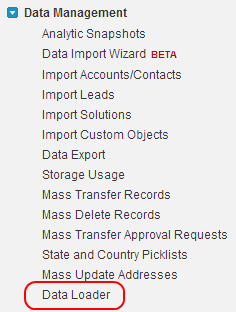
- Navigate to Setup → Data Management → Data Loader
- Click “Download Data Loader” for your operating system
- Install the application following the setup wizard
Authentication Setup
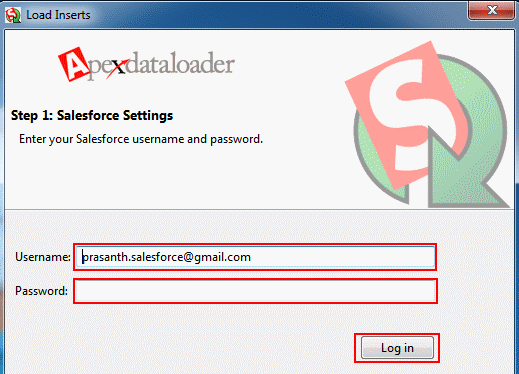
Data Loader requires proper authentication to access your Salesforce org:
- Username – Your Salesforce login username
- Password – Combination of your password plus security token
How to Generate Your Security Token
To obtain your security token:
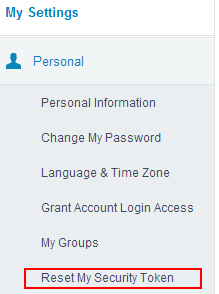
- Go to My Settings → Personal → Reset My Security Token
- Click “Reset Security Token”
- Check your email for the new token
- Combine your password with the token (no spaces): password123token456
Date Format Configuration in Data Loader
Data Loader uses your system locale by default, but you can configure specific date formats:
- Open Data Loader Settings
- Navigate to “Advanced Settings”
- Set “Use European date format” if needed
- Configure timezone settings for DateTime fields
Best Practices for Date Formatting
- Use ISO 8601 format (YYYY-MM-DD) for maximum compatibility
- Include timezone information for DateTime fields
- Validate date formats in a sandbox environment first
- Handle null values explicitly in your CSV files
- Consider daylight saving time changes for DateTime operations
Common Date Format Errors and Solutions
When working with salesforce date format for data loader, these errors frequently occur:
Invalid Date Format Error
Error: “Unable to create/update fields: Date_Field__c. invalid date: 03/15/24”
Solution: Use four-digit years and ISO format: 2024-03-15
Timezone Conversion Issues
Error: DateTime values appear incorrect after import
Solution: Include explicit timezone information or configure Data Loader timezone settings
Null Date Handling
Error: Required date fields showing validation errors
Solution: Ensure required date fields have valid values, use default dates where appropriate
Data Loader Features and Capabilities
Data Loader provides robust functionality for bulk data operations:
- Wizard interface – Step-by-step guidance for complex operations
- Database connectivity – Direct connection to external databases
- High volume support – Handles millions of records efficiently
- Drag and drop mapping – Visual field mapping interface
- Standard and custom object support – Works with all Salesforce objects
- Detailed reporting – Success and error logs in CSV format
- Command line interface – Automation support for scheduled operations
Performance Considerations
When processing large datasets with date fields:
- Batch size affects performance – start with 200 records per batch
- Date validation adds processing time – validate formats beforehand
- Index date fields used in WHERE clauses for faster exports
- Consider using Bulk API 2.0 for very large datasets (5M+ records)
Frequently Asked Questions
What date format does Salesforce Data Loader accept?
Data Loader accepts ISO 8601 format (YYYY-MM-DD) for date fields and (YYYY-MM-DDTHH:MM:SS.sssZ) for DateTime fields. The system also supports locale-specific formats based on your Data Loader settings.
How do I handle timezone issues with DateTime fields in Data Loader?
Include explicit timezone information in your DateTime values using ISO 8601 format with timezone offset (e.g., 2024-03-15T14:30:00.000-07:00) or configure your Data Loader timezone settings to match your data source.
Can I use different date formats in the same CSV file?
No, Data Loader requires consistent date formatting throughout your CSV file. All date fields must use the same format pattern. Use Excel or data transformation tools to standardize formats before import.
What happens if I import an invalid date format?
Data Loader will generate an error for that record and skip it during processing. The error log will specify which records failed and why. Fix the date format and re-run the operation for failed records.
How do I export dates in a specific format from Salesforce?
Data Loader exports dates in your system locale format by default. To change this, modify your Data Loader locale settings or use Excel to reformat exported dates after extraction.