Salesforce email templates are reusable email records that store a subject, body, folder, and merge-field context so users and automations can send consistent messages from Salesforce. In Lightning Experience, admins usually manage them from the Email Templates tab, then use them in record emails, email alerts, Flow Send Email actions, and Apex where the use case fits the platform limits.
This guide focuses on the Lightning setup path, the difference between template types, merge-field behavior, the EmailTemplate API object, and the common save error searched as template unique name must be provided template unique name. It uses official Salesforce documentation as the baseline and avoids Classic-only guidance unless it still affects current orgs.
What are Salesforce Email Templates?
Salesforce email templates let an org define repeatable email content once and reuse it in a controlled way. A template can include literal text, formatted HTML, images, and merge fields such as {{{Recipient.Name}}}, {{{Sender.Email}}}, or fields from the related record selected for the template.
In enterprise orgs, templates are usually owned by an admin or operations team rather than each sales or support user. That keeps legal text, product names, support instructions, and sender details consistent while still allowing field values to change per record.
Salesforce documents Lightning templates in Email Templates in Lightning Experience. For the API layer, Salesforce exposes the EmailTemplate object, which represents a template used for email, mass email, list email, or Sales Engagement email depending on the feature area.
Salesforce Email Templates: Lightning, Classic, and Builder options
Before you build Salesforce email templates, choose the template style that matches the channel. Lightning templates are the normal choice for Lightning record email and many automation use cases. Classic templates still matter when an org has existing workflow assets, Visualforce templates, or older managed-package dependencies.
| Template option | Where admins create it | Best use | Design notes |
|---|---|---|---|
| Lightning email template | Email Templates tab in Lightning Experience | Record emails, Flow, email alerts, shared business templates | Supports Lightning folders, merge fields, and template records users can manage outside Flow versions. |
| Email Template Builder template | Email template record, then Edit in Builder | Formatted messages with rows, images, buttons, and style controls | Requires the drag-and-drop builder permission for users who edit the content. |
| Classic text or HTML template | Classic Email Templates setup pages | Older automations, simple messages, orgs with legacy dependencies | Can still be used in Lightning in some contexts, but builder editing is not the same as Lightning template editing. |
| Visualforce email template | Salesforce Classic template setup | Developer-controlled rendering with Visualforce markup | Use only when the template needs logic or layout control that a Lightning template does not provide. |
For new implementation work, build Salesforce email templates in Lightning unless a requirement forces Visualforce or a managed package expects a Classic template. That decision makes sharing, folder access, and user editing easier to govern in Lightning Experience.
How to enable Salesforce Email Templates folders and builder access
Admins often miss two setup steps for Salesforce email templates: folder sharing and builder access. Folder sharing controls who can find or manage Salesforce email templates. Builder access controls who sees the builder editing experience for templates that use the drag-and-drop editor.
Enable folders and enhanced sharing for Lightning templates
Go to Setup → Quick Find → Lightning Email Templates, then enable Folders and Enhanced Sharing. Salesforce documents this setup path in its help page for enhanced template folders and sharing.
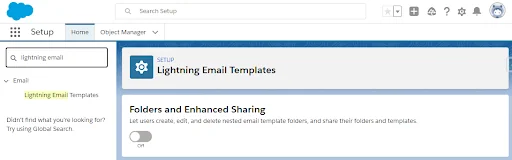
For Salesforce email templates, use folder names that describe ownership and purpose, such as Sales Renewal Templates, Case Response Templates, or Finance Notifications. Avoid one shared folder for every team because folder permissions become hard to review during audits.
Grant users permission to edit lightning email templates
For Salesforce email templates, create a permission set for template authors instead of adding broad permissions to every profile. In Setup, open Permission Sets, create a permission set such as Email Template Authors, and assign only the users who need to create or edit templates.
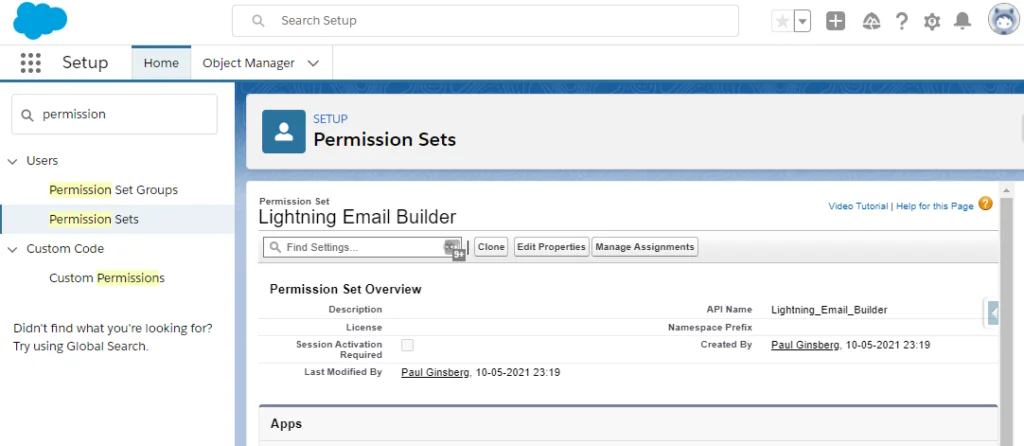
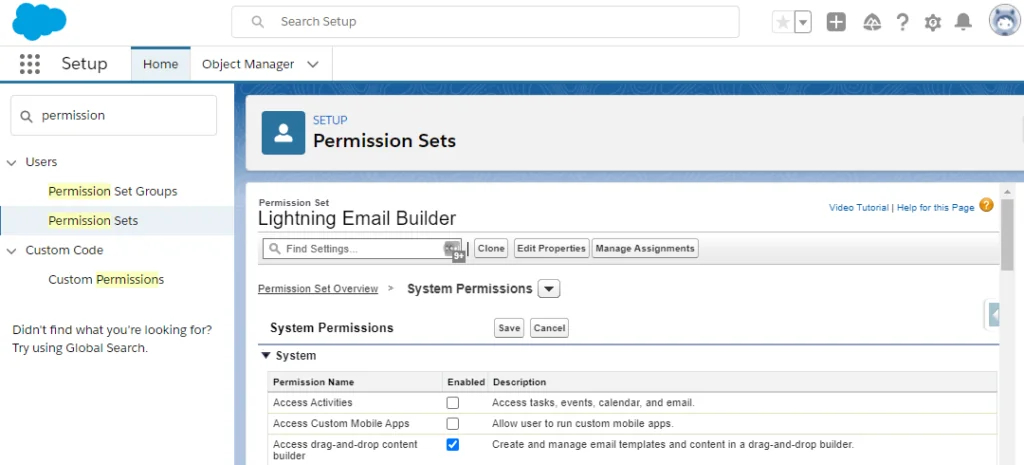
Open System Permissions in the permission set and review the permissions your org needs. For Salesforce email templates, the exact labels can vary by enabled features, but the builder permission is the key control for users who create formatted builder content.

For builder-based Salesforce email templates, select Access drag-and-drop content builder for users who must edit builder-based templates. Salesforce also documents builder permissions for enhanced email creation in Account Engagement contexts, where Manage Email Content and builder access can both matter for marketing assets.
How to create email template in Salesforce Lightning
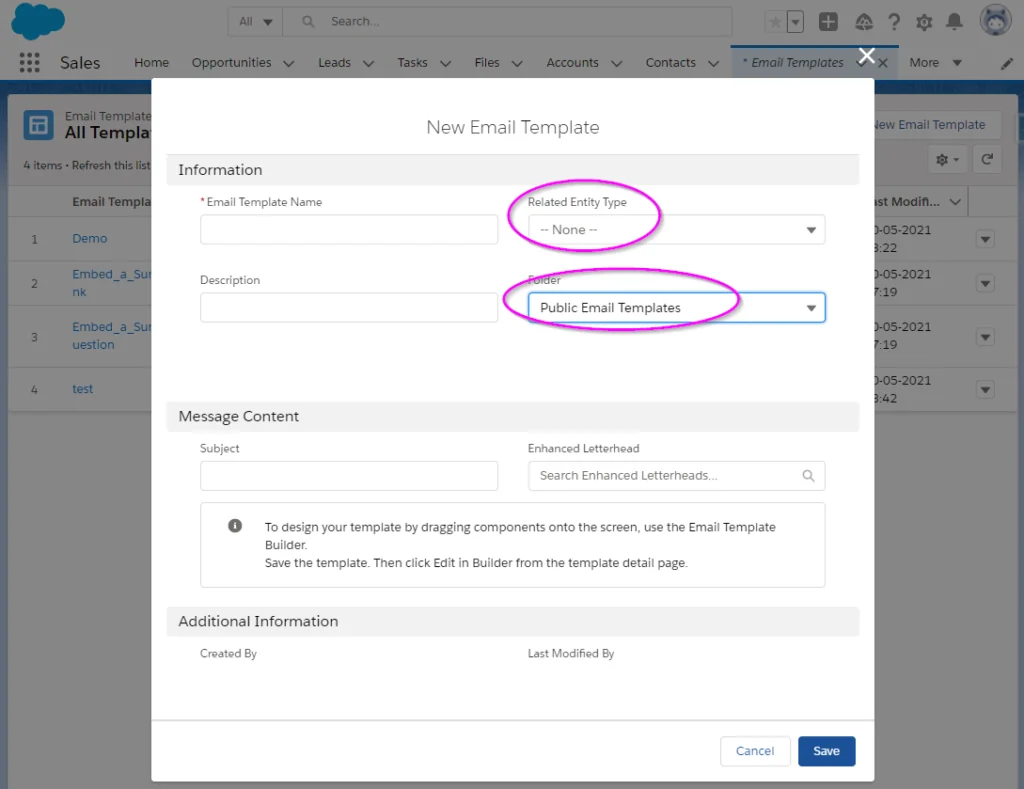
The safest way to create email template in Salesforce is to define the related entity, folder, subject, and description first, then add the body content. That sequence reduces merge-field mistakes because the template knows which object context it should use.
Create email template in Salesforce from the App Launcher
- Open the App Launcher.
- Search for Email Templates and open the tab.
- Click New Email Template.
- Enter a template name, description, subject, folder, and related entity type.
- Save the template, then edit the content area or open the builder when the template type supports it.
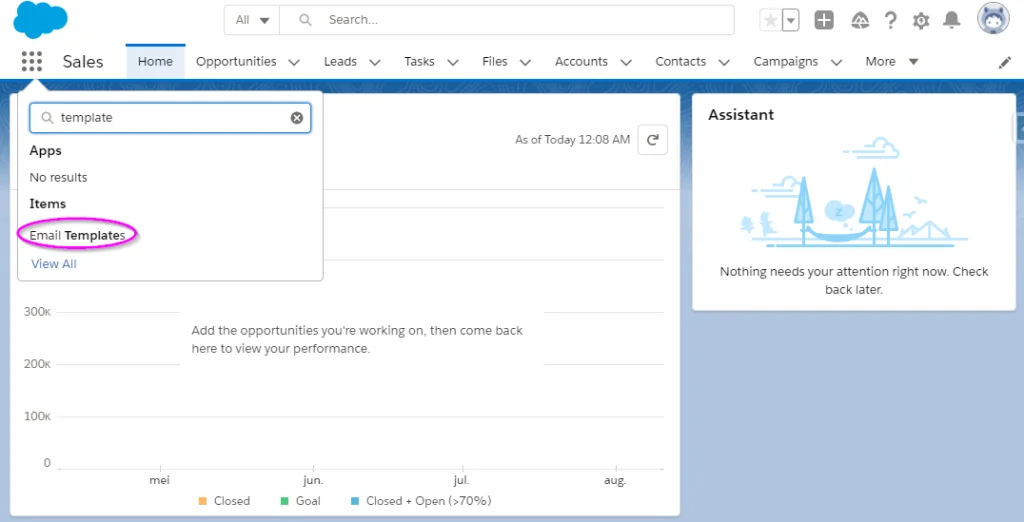
Salesforce’s official instructions for creating an email template in Lightning Experience also note that the subject can include merge fields. In production, name templates for the business event, not the channel. For example, Case Escalation Acknowledgement is easier to maintain than Support Email 7.
Choose the related entity for merge fields
For Salesforce email templates, the Related Entity Type decides which object fields the template can merge. Pick the object that triggers the email or represents the record being discussed. For a renewal notice, that might be Opportunity, Contract, or a custom Subscription object. For a support message, it is often Case.
In Salesforce email templates, do not assume every cross-object path will render. Salesforce documents that cross-object merge fields do not work in all email template contexts. If the email needs a parent field that the template cannot reach, create a formula field on the related entity or populate a text field through automation before the email is sent.
Use lightning email templates with the builder
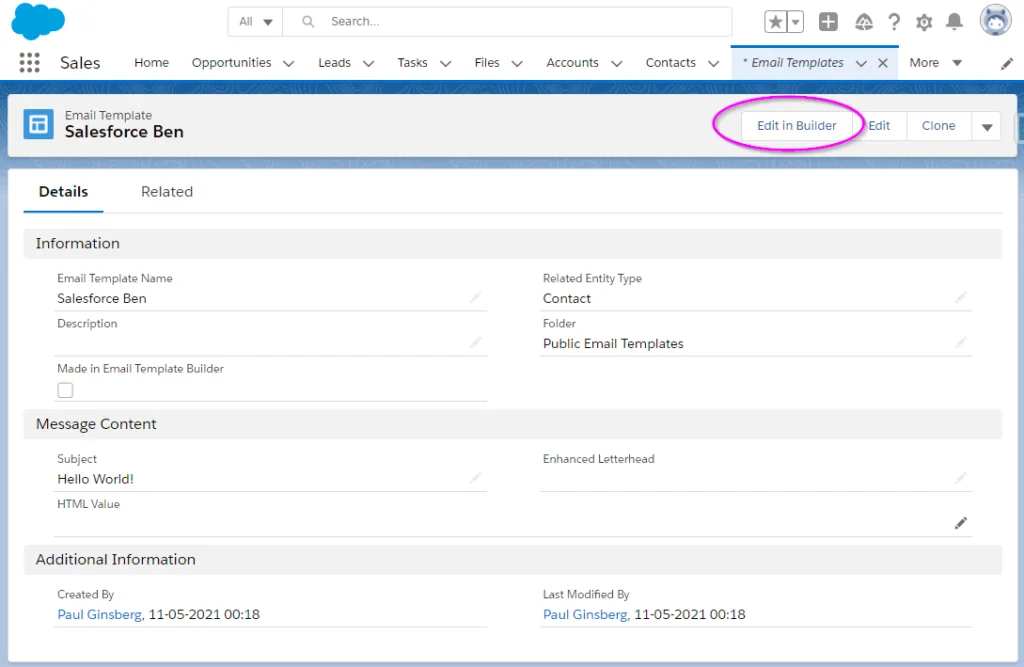
Lightning email templates can use the builder when the org and user permissions support it. After saving the template record, open the template and select Edit in Builder. If the button does not appear, check the user’s permission set, the template type, and whether the session has refreshed after permission assignment.
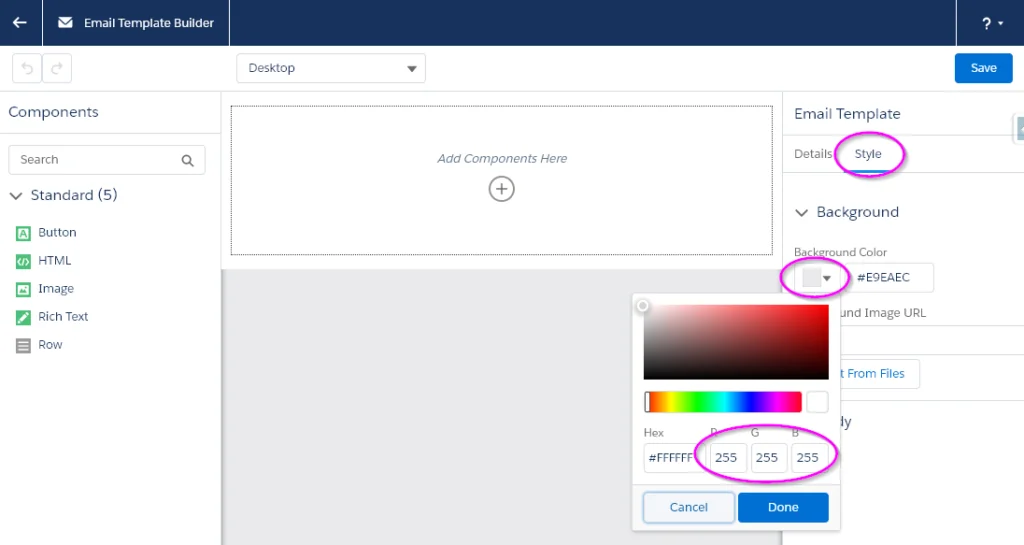
Inside the builder for Salesforce email templates, use simple sections, rich text, images, and buttons only where they help the recipient act. Email clients can treat spacing and fonts differently, so test the template in the mail clients your users and customers actually use.
How merge fields work in lightning email templates
In Salesforce email templates, merge fields replace placeholders with values from the recipient, sender, organization, or related record when Salesforce renders the email. For lightning email templates, the safest method is to insert fields through the merge-field picker rather than typing every token by hand.
A typical Salesforce email templates body may use values like these:
Hi {{{Recipient.Name}}},

Your case {{{Case.CaseNumber}}} was updated by {{{Sender.Name}}}.

Next step:
Please review the latest comment and reply if more information is needed.
Use three braces for Lightning merge syntax when Salesforce inserts that format. Avoid copying merge syntax from old Classic templates without testing it. A token that looks valid can still render blank if the related entity does not match the record used by Flow, Apex, or an email alert.
Merge-field checklist before activation
- Recipient context: Confirm whether the send action uses Contact, Lead, Person Account, or User as the recipient.
- Related record context: Confirm the record passed as the related entity matches the template’s object.
- Field visibility: Do not expose fields in emails unless the business has approved the data use.
- Null handling: Avoid sentences that break when an optional field is empty.
- Record links: Test links in a sandbox because internal Salesforce links and community links have different audience and login behavior.
How to use Salesforce Email Templates in automation
Salesforce email templates are commonly used from email alerts, Flow, and Apex. Pick the lowest-code option that still gives you enough control over recipient selection, related record context, error handling, and testing.
| Send method | Use it when | Watch for |
|---|---|---|
| Email Alert | A workflow-style notification needs a template, defined recipients, and a from address. | Recipient choices and available templates depend on the alert object and template type. |
| Flow Send Email action | Admins need conditional logic, record updates, or branching before sending. | Use recipient and related-record inputs correctly so merge fields resolve. Salesforce release notes document template support in the Send Email action. |
| Apex | The email send needs developer-controlled batching, validation, or custom error handling. | Bulkify the code. Call Messaging.sendEmail once per transaction path, not inside a loop. |
When Salesforce email templates are used from Flow, review Salesforce’s release-note documentation for using email templates in the Send Email action. The important design point is that merge fields need the correct recipient record, related record, or both.
Apex example for the EmailTemplate object
The following Apex example sends Salesforce email templates for renewal emails, one message per input row. It queries the EmailTemplate record once, validates contacts in bulk, and sends messages in one Messaging.sendEmail call. For Salesforce email templates, replace the template unique name and related record type with values from your org.
public with sharing class RenewalTemplateEmailService {
    public class Request {
        @InvocableVariable(required=true)
        public Id contactId;

        @InvocableVariable(required=true)
        public Id relatedRecordId;
    }

    @InvocableMethod(label='Send Renewal Template Email')
    public static void sendRenewalEmail(List<Request> requests) {
        if (requests == null || requests.isEmpty()) {
            return;
        }

        Set<Id> contactIds = new Set<Id>();
        for (Request requestRow : requests) {
            if (requestRow != null && requestRow.contactId != null) {
                contactIds.add(requestRow.contactId);
            }
        }

        Map<Id, Contact> contactsById = new Map<Id, Contact>([
            SELECT Id, Email
            FROM Contact
            WHERE Id IN :contactIds
            AND Email != null
        ]);

        EmailTemplate renewalTemplate = [
            SELECT Id, DeveloperName
            FROM EmailTemplate
            WHERE DeveloperName = 'Renewal_Reminder_Lightning'
            LIMIT 1
        ];

        List<Messaging.SingleEmailMessage> messages = new List<Messaging.SingleEmailMessage>();

        for (Request requestRow : requests) {
            if (requestRow == null || !contactsById.containsKey(requestRow.contactId)) {
                continue;
            }

            Messaging.SingleEmailMessage email = new Messaging.SingleEmailMessage();
            email.setTemplateId(renewalTemplate.Id);
            email.setTargetObjectId(requestRow.contactId);
            email.setWhatId(requestRow.relatedRecordId);
            email.setSaveAsActivity(false);
            messages.add(email);
        }

        if (!messages.isEmpty()) {
            Messaging.sendEmail(messages, false);
        }
    }
}
Governor-limit note: the code does not query or send inside the loop. Salesforce limits email send invocations per transaction, and org-level daily email limits can also apply. For high-volume messages, do not use this pattern as a marketing email engine; route that requirement to the appropriate Salesforce marketing product or an approved email service.
Security note: Apex with sharing respects record sharing, but it does not automatically enforce field-level security for every field you might query. If you build custom email bodies from queried fields instead of template merge fields, enforce CRUD and FLS with the platform security APIs before using the data.
How to fix template unique name must be provided template unique name
In Salesforce email templates, the error text template unique name must be provided template unique name usually appears when Salesforce cannot save or deploy a template because the template’s unique API-facing name is missing or inconsistent. In UI terms, that value is the template unique name. In API terms, admins and developers often see it as DeveloperName or metadata identity depending on the deployment method.
Why template unique name must be provided template unique name happens
- The template was created or deployed without a generated unique name.
- A metadata deployment contains a related entity setting that Salesforce rejects for the template type.
- A user copied an older template or package asset and left required fields blank.
- The template record exists in a folder or state that the current user cannot update.
Steps to resolve the error
- Open the template record in Lightning and check whether the template unique name is visible and populated.
- If you deploy through metadata, verify the template file name and metadata identity match the intended template unique name.
- Check that Related Entity Type is valid for the template you are saving.
- Move the template to a folder where the editing user has access, then save again.
- If the record remains blocked, create a new Lightning template with a clean unique name and copy only the approved body content.
Do not fix Salesforce email templates by renaming records randomly in production. Update the name in a sandbox first, then test every email alert, Flow, Apex reference, and package component that points to the template.
Best practices for Salesforce Email Templates in enterprise orgs
Salesforce email templates become technical debt when every team creates its own version of the same message. Use a governance pattern before the number of Salesforce email templates grows.
Naming and folder standards
- Use a business prefix such as
CASE_,OPPTY_, orCONTRACT_in the template unique name. - Put the lifecycle in the name, such as Case Closed Customer Notice or Contract Renewal 30 Day Reminder.
- Keep test and retired templates out of public folders.
- Document the sending mechanism in the description: user email, Flow, email alert, or Apex.
Testing standards
- Test at least one record with all merge fields populated and one record with optional fields blank.
- Send a test from a user with the same profile and permission sets as the production sender.
- Check mobile rendering if customers read the message on phones.
- Verify links for internal users, Experience Cloud users, and external recipients separately.
Change management
Store template ownership in a runbook. When a template changes, the owner should review the sending automation, target audience, from address, unsubscribe or compliance text where applicable, and any screenshots in the email body. For regulated teams, include email templates in release notes and approval records.
Common errors with EmailTemplate records and deployment
For Salesforce email templates, the EmailTemplate object is useful for queries and Apex sends, but deployment behavior depends on whether you use Metadata API, unlocked packages, change sets, or manual setup. Treat template deployment like any other metadata change.
| Problem | Likely cause | Practical fix |
|---|---|---|
| Template not visible to users | Folder access, template ownership, or sharing setup | Review enhanced folder sharing and assign the correct permission set. |
| Merge fields render blank | Wrong related entity or missing recipient context | Test the exact Flow, alert, or Apex path that sends the email. |
| Edit in Builder is missing | Missing builder permission or unsupported template state | Grant builder access to template authors and refresh the session. |
| Template unique name error | Missing or invalid unique name during save or deployment | Populate the unique name and validate metadata identity in a sandbox. |
| Apex sends no email | No recipient email, invalid template, or org email limits | Validate recipients before sending and inspect the SendEmailResult when you need error detail. |
Related SalesforceTutorial resources
Continue with Salesforce Flow automation patterns, permission set design in Salesforce, Salesforce email alert actions, Apex bulkification examples, and Lightning Experience administration.
Frequently Asked Questions
What are Salesforce email templates used for?
Salesforce email templates are used to send repeatable messages with standard content and merge fields. Admins use them for sales follow-ups, case replies, renewal notices, approval messages, and Flow-driven notifications when the email should reuse governed content.
How do I create email template in Salesforce Lightning?
To create email template in Salesforce Lightning, open the App Launcher, select Email Templates, click New Email Template, enter the name, folder, subject, and related entity type, then save and add the body content. Use Edit in Builder only when the user has builder access and the template supports that editor.
Why can lightning email templates show blank merge fields?
Lightning email templates show blank merge fields when the send action does not provide the recipient or related record expected by the template. Check the related entity type, Flow inputs, email alert object, or Apex setTargetObjectId and setWhatId values.
What does template unique name must be provided template unique name mean?
Template unique name must be provided template unique name means Salesforce cannot save or deploy the template because its unique API-facing name is missing or invalid. In the UI, populate the template unique name. In metadata or API work, verify the developer name and template metadata identity before deploying.
Can Apex send an EmailTemplate record?
Yes. Apex can query an EmailTemplate record and use its Id with Messaging.SingleEmailMessage.setTemplateId. The code must provide a valid target recipient and, when merge fields require it, a valid related record. Bulkify the send logic and avoid calling Messaging.sendEmail inside loops.