Where to configure allowed ip ranges in salesforce: use Setup > Network Access for org trusted IP ranges, and use Setup > Profiles > Login IP Ranges when you need to block users outside approved networks. Network Access reduces identity challenges for trusted locations; profile login IP ranges enforce a hard login boundary for users assigned to that profile.
Where to configure allowed ip ranges in salesforce
Salesforce has more than one IP range setting, so the correct setup page depends on the result you want. If your goal is to trust an office, VPN, or corporate egress IP so users do not receive the same device-verification challenge as often, configure trusted ranges in Network Access. If your goal is to stop a profile from logging in outside approved networks, configure Login IP Ranges on the profile.
In enterprise orgs, admins usually use both settings. Network Access handles known locations for the org, while profile login ranges create stricter access rules for support teams, finance teams, contractors, or integration users. Salesforce also provides Session Settings for continuous enforcement when users move between networks after login.
| Requirement | Where to configure it | Effect |
|---|---|---|
| Trust a company office or VPN range for the org | Setup > Network Access | Users from that range can avoid extra identity verification prompts for known-login checks. |
| Block a group of users outside an approved range | Setup > Profiles > Login IP Ranges | Users assigned to the profile cannot log in from IP addresses outside the range. |
| Keep checking profile ranges after login | Setup > Session Settings | Salesforce enforces profile Login IP Ranges on every request when the setting is enabled. |
| Review recent source IPs before allowlisting | Setup > Login History or SOQL on LoginHistory | Admins can compare real login sources with the network ranges provided by IT. |
What trusted IP ranges do in Salesforce Network Access
Trusted IP ranges in Network Access define ranges that Salesforce treats as trusted for org access checks. The official Salesforce Help path is Set Trusted IP Ranges for Your Org. This setting does not replace MFA and does not grant object, field, or record access. It only affects the network trust layer around login and device verification behavior.
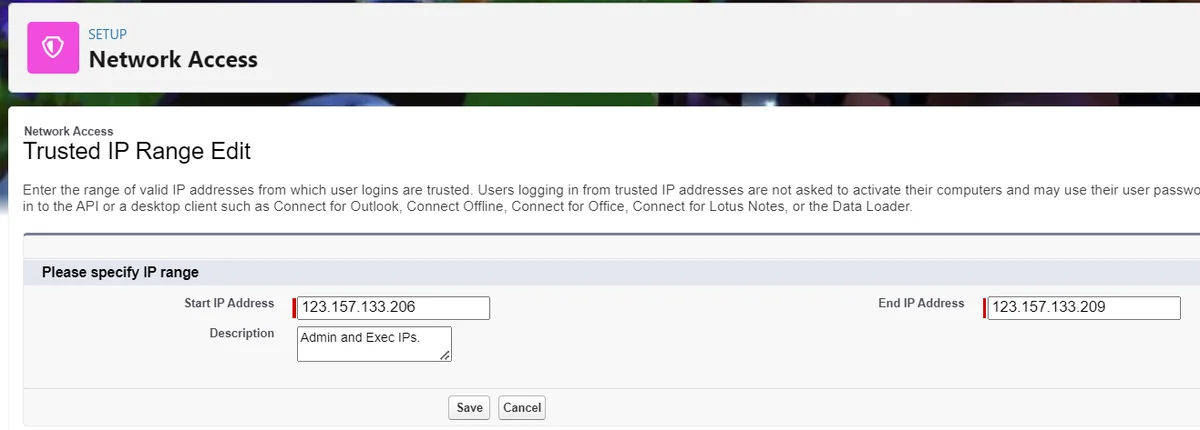
Use Network Access when the business asks where to configure allowed ip ranges in salesforce for common locations such as headquarters, a branch office, a secure VPN, or a known network egress point. Get the start and end addresses from the network team. Do not build a range from a single user screenshot unless IT confirms that the range is stable.
Steps to add trusted IP ranges in Network Access
- Go to Setup.
- Enter Network Access in Quick Find.
- Select Network Access.
- Click New.
- Enter the Start IP Address and End IP Address.
- Add a description that names the network owner, location, or VPN pool.
- Click Save.
For one approved IP address, enter the same address as both the start and end address. For a range, keep the start address lower than the end address and confirm that both values belong to the same address family. Salesforce documentation for IPv4 and IPv6 support states that allowlisted ranges can use IPv4 and IPv6 where supported, but both addresses in the same range must be the same type.
Salesforce ip range restrictions: trusted ranges vs profile ranges
salesforce ip range restrictions are not all the same. A trusted range at the org level makes a network trusted for verification behavior. A profile login IP range is an access restriction. This difference matters when a user asks why they could still log in from a home network even though the home IP was not listed under Network Access.
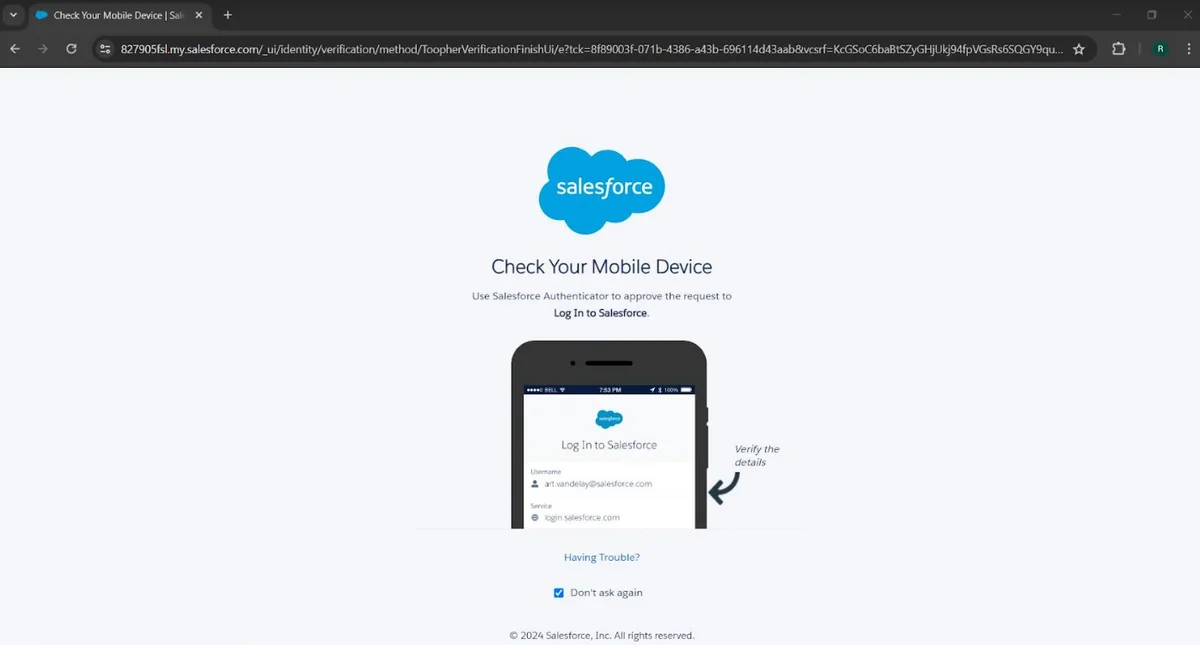
If the IP address is outside the org trusted range, Salesforce can require identity verification instead of blocking the user. If the IP address is outside the profile Login IP Ranges, Salesforce denies the login for users on that profile. Salesforce Trailhead describes the profile behavior as an in-or-out check: outside the profile range, the user cannot log in.
Ips salesforce admins should verify before allowlisting
The phrase ips salesforce often appears in searches when admins are trying to identify which IP addresses should be trusted. Start with the network team, not with browser-based IP lookup tools. A browser lookup may show a temporary ISP address, a VPN exit node, or a proxy address that does not represent the whole user population.
Before saving any range, collect the following evidence:
- Corporate NAT or VPN egress ranges from network engineering.
- Static public IPs used by integration middleware, ETL tools, or call center desktops.
- Login History entries that show recent Source IP values for successful and failed attempts.
- Change approval from the security owner when the range affects privileged users.
Salesforce restrict ip range setup for profiles
Use profile Login IP Ranges when the requirement is salesforce restrict ip range for a class of users. The official Salesforce documentation for Restrict Login IP Addresses in Profiles explains that admins add ranges from the profile page. This is the setting that blocks logins outside the allowed range.
Profile ranges apply to all users assigned to that profile. If a profile is shared by office users, remote users, integration users, and admins, do not add a narrow range until you split access into the correct profiles or move users to the right profile. Permission sets do not replace profile login IP ranges because the login range lives on the profile.
Restrict ip address salesforce access by profile
- Go to Setup.
- Enter Profiles in Quick Find.
- Open the profile you want to restrict.
- In the enhanced profile interface, select Login IP Ranges. In the original interface, use the Login IP Ranges related list.
- Click Add IP Ranges or New, depending on the interface.
- Enter the start address, end address, and a description.
- Save and test with a non-admin user assigned to that profile.
When you restrict ip address salesforce access at the profile level, test in a controlled window. Have one active System Administrator session available from a permitted range, and avoid changing the only admin profile in a way that can block your team from Setup.
How to enforce login IP ranges after the first login
By default, many teams think only about the login event. A user can authenticate from an approved range and later continue work from a changed network unless the org is configured to enforce ranges on each request. Salesforce documents the setting under Session Settings: select Enforce login IP ranges on every request when the security requirement needs continuous enforcement of profile Login IP Ranges.
This setting is useful for call centers, regulated back-office teams, and contractor profiles where the approved network is part of the control. It can also interrupt valid users whose VPN drops or whose ISP changes route. Pilot the setting with a small profile first, and tell the help desk what error users will see.
How to audit source IPs before changing ranges
Do not guess IP ranges from memory. Salesforce exposes login information in Setup and through the LoginHistory object, which is available from API version 21.0. Admins can use it to review recent source IPs before adding or tightening ranges.
SELECT Id, UserId, SourceIp, Status, LoginTime, LoginType
FROM LoginHistory
WHERE LoginTime = LAST_N_DAYS:7
ORDER BY LoginTime DESC
LIMIT 200
This SOQL query is for review, not for enforcement. Use it to compare login sources with the official IP list from IT. If you see consumer ISP addresses for users who should be on VPN, fix the VPN policy before adding a wide public range to Salesforce.
How to manage profile IP ranges with metadata
Teams that manage Salesforce through source control should track profile login ranges as metadata. The Metadata API Profile type includes login IP range information, and the IPAddressRange metadata type represents a range used by supported security features.
After retrieving a profile, a login IP range appears as a profile metadata entry. Review the generated source from your org before editing by hand, because profile XML can include many unrelated permissions.
<Profile xmlns="http://soap.sforce.com/2006/04/metadata">
    <loginIpRanges>
        <description>Corporate VPN egress - approved by Network Security</description>
        <startAddress>203.0.113.10</startAddress>
        <endAddress>203.0.113.50</endAddress>
    </loginIpRanges>
</Profile>
Use deployment validation before pushing profile range changes to production. If you use unlocked packages or CI/CD, keep these ranges environment-specific. A sandbox VPN range might not be valid in production, and a production integration IP should not be copied into every developer sandbox without approval.
Best practices for Salesforce IP range restrictions
- Keep a break-glass plan. Maintain at least one administrator access path that is protected and documented.
- Use descriptions as audit data. Include the location, owner, ticket number, and review date.
- Avoid broad ranges. Do not allow an entire ISP block when the real requirement is a VPN egress IP.
- Separate human and integration users. Integration users often need stable middleware IPs and a dedicated profile.
- Align with MFA and SSO. IP controls do not replace MFA, identity provider conditional access, or least privilege.
- Review after network changes. Office moves, VPN vendor changes, and Hyperforce-related architecture changes can require updated allowlists.
For connected apps, review Salesforce guidance on trusted IP ranges for a connected app. Connected app IP behavior is separate from profile design, and OAuth policies can affect API access in ways that a normal UI login test does not cover.
Common errors with Salesforce IP range setup
| Error or symptom | Likely cause | Fix |
|---|---|---|
| User is challenged but not blocked | The IP was only omitted from org trusted ranges. | Use profile Login IP Ranges when the requirement is to block access. |
| User is blocked from a valid office | The profile range does not include the office NAT or VPN egress IP. | Confirm the public egress range with IT and update the profile range. |
| Admins locked out a profile | A narrow range was applied to a shared admin profile. | Use a controlled change window and keep a permitted admin session available. |
| API job fails after profile restriction | The integration user runs from middleware outside the allowed range. | Use a dedicated integration profile and add the middleware public IP range. |
| User works after leaving VPN | Ranges are checked at login but not continuously for each request. | Evaluate Enforce login IP ranges on every request in Session Settings. |
Implementation checklist
- Define the requirement: trusted login experience, hard block, or continuous enforcement.
- Collect approved public IP ranges from IT or the identity/network security team.
- Review LoginHistory for recent SourceIp values and compare them with the approved list.
- Add org trusted ranges in Network Access only when the goal is trusted network behavior.
- Add profile Login IP Ranges when the goal is blocking logins outside approved networks.
- Test with one low-risk profile before applying the pattern to production users.
- Document owner, review date, and rollback steps in the range description or change ticket.
The practical answer to where to configure allowed ip ranges in salesforce is therefore: use Network Access for trusted org ranges, Profiles for blocking login access, Session Settings for continuous enforcement, and LoginHistory for audit evidence before and after the change.
Related Salesforce security topics
For adjacent controls, review profiles in Salesforce, permission sets in Salesforce, Salesforce security model, Salesforce login history, and multi-factor authentication in Salesforce. IP controls are only one layer; combine them with least privilege, MFA, session policy, and monitoring.
Frequently Asked Questions
Where do I configure allowed IP ranges in Salesforce?
Configure org trusted ranges in Setup > Network Access. Configure blocking rules in Setup > Profiles > Login IP Ranges. That is the core answer to where to configure allowed ip ranges in salesforce when you need to choose the correct Setup page.
What is the difference between trusted IP ranges and profile Login IP Ranges?
Trusted IP ranges make a network trusted for org-level login verification behavior. Profile Login IP Ranges restrict access for users assigned to that profile. If a user is outside a trusted org range, Salesforce can ask for verification. If a user is outside a profile range, Salesforce blocks the login.
Can Salesforce restrict IP range access for API users?
Yes. A profile Login IP Range can affect users who authenticate through APIs, including integration users. For connected apps, also review connected app IP ranges and OAuth policy because API behavior can depend on the connected app configuration.
Why can a user still log in outside a trusted IP range?
The user can still log in because Network Access trusted ranges are not the same as profile restrictions. Outside the trusted org range, Salesforce can require identity verification. To block access, use profile Login IP Ranges as the Salesforce IP range restrictions mechanism.
How do I avoid locking out admins when I restrict IP address Salesforce logins?
Use a change window, test with a non-critical profile first, keep an active administrator session from an allowed network, and confirm the public egress IP with IT. Do not apply a narrow range to the only System Administrator profile without a rollback plan.