Slack schedule message lets you write a Slack message now and send it later to a channel, direct message, or thread. Salesforce admins and developers use it to time release reminders, deal handoff notes, incident updates, and CRM automation alerts without interrupting users outside their work window.
This guide shows how to use Slack’s built-in scheduling options, when to schedule messages on Slack, and how to build a controlled Salesforce-to-Slack scheduling pattern with Apex, Flow, Named Credentials, and the Slack Web API.
In this article, slack schedule message refers to both the Slack user feature and the controlled API pattern a Salesforce team may use. The goal is not to send more messages; it is to send the right message when the recipient can act.
Slack Schedule Message: What It Does
A Slack schedule message is a normal Slack message with a future delivery time. The Slack schedule message feature works best when the content is known now but should arrive later. The message appears in the selected conversation at the scheduled time, and the sender remains the user or app that created it.
Slack supports scheduled messages from the product UI and through the Slack Web API. The UI works well for one-off team communication. The API works when Salesforce must create the message from a record event, approval, case escalation, or scheduled job.
For Salesforce teams, the distinction matters because a slack schedule message created by a user is different from a slack schedule message created by an integration. The Salesforce for Slack apps help users work with CRM data in Slack, but a custom scheduled Slack notification usually needs a Slack app, token governance, a Named Credential, and a clear audit pattern. Review Salesforce’s setup guidance for Slack integrations before connecting a production org: Enable Salesforce for Slack Integrations.
How to Use Slack Schedule Message on Desktop and Mobile
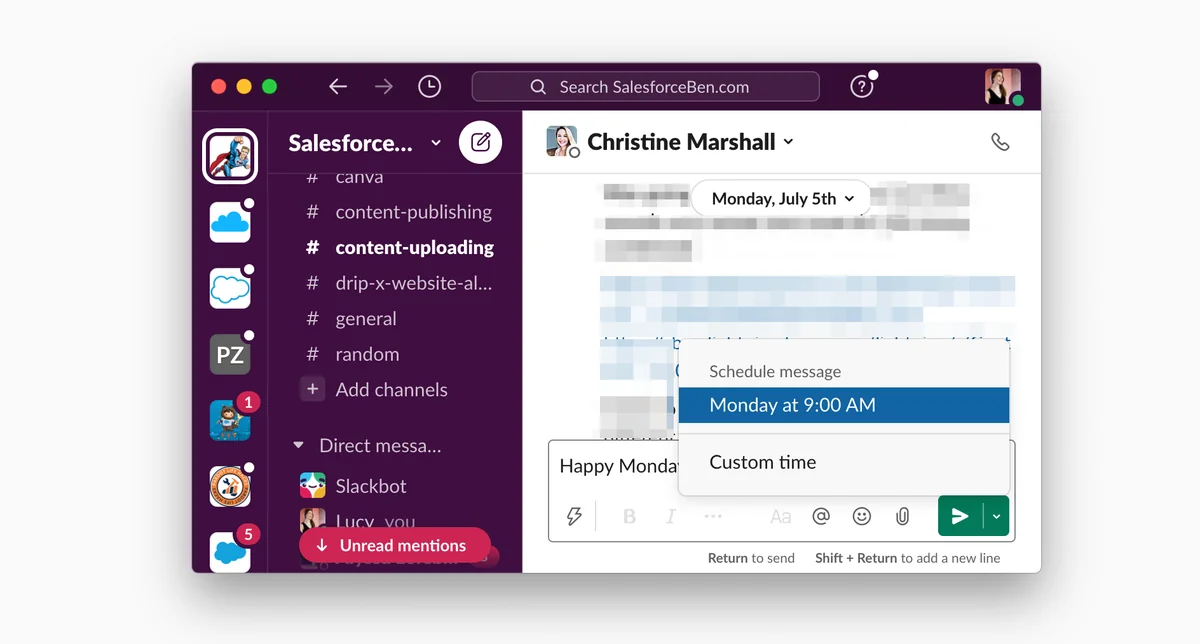
Slack documents the manual scheduling flow for scheduling a Slack message in its official help article for sending and reading messages. The exact icons can vary by client version, but the core behavior is the same: write the message, choose the scheduling control, select a date and time, and confirm.
How to schedule messages on Slack from desktop
- Open the Slack channel, direct message, or thread where the update should appear.
- Write the message. Add formatting, mentions, files, or links only if they are needed at send time.
- Click the arrow next to the send button instead of pressing Enter.
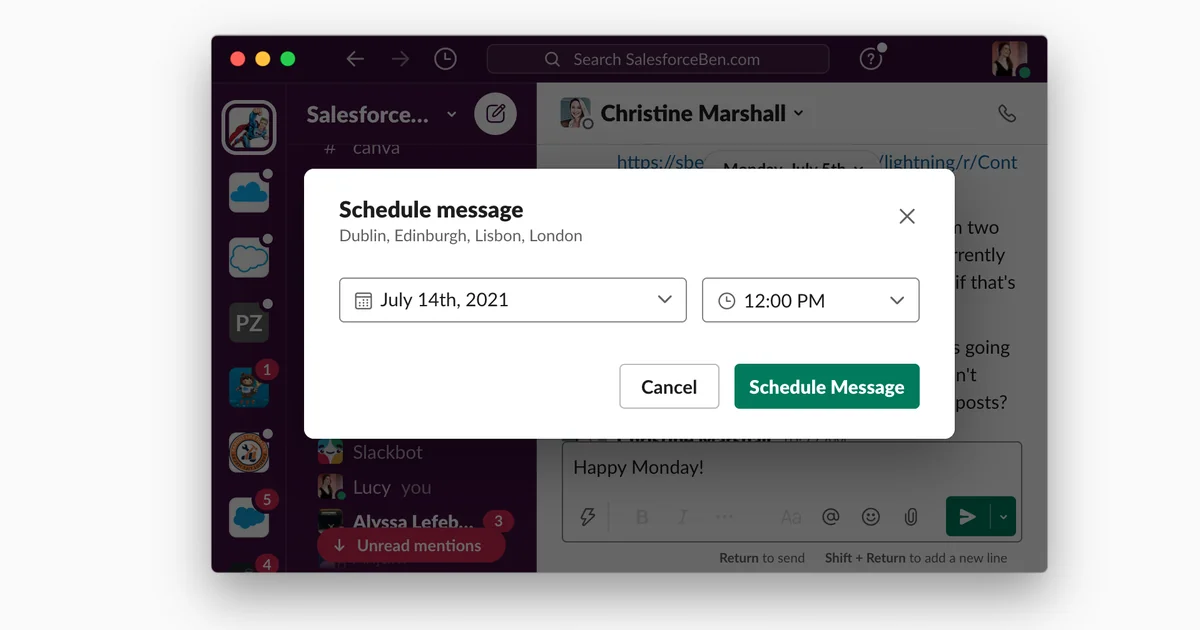
- Choose one of Slack’s suggested times, or select a custom date and time.
- Confirm the scheduled send and review it in Drafts & Sent if you need to make changes.
Use this path when you need to schedule messages on Slack for release reminders, agenda prompts, go-live checklists, or account handoff notes that a human should review before delivery.
Scheduling a Slack message from the mobile app
On the Slack mobile app, scheduling a Slack message starts the same way: write the message and press and hold the send icon to reveal scheduling options. This is useful when a Salesforce admin notices an issue after hours but wants the message to land during the team’s support window.
How to edit, reschedule, cancel, or send now
Slack groups drafts, scheduled messages, and sent messages under Drafts & Sent. From the scheduled tab, you can edit the content, reschedule it, send it immediately, cancel it, or delete it. This is the safest place to review a Slack schedule message before it reaches a large channel, especially when scheduling a Slack message for executives, support leads, or production release channels.
For API-based messages, Slack’s developer documentation states that updating a pending scheduled message requires deleting the old scheduled message and creating a new one. Store the returned scheduled_message_id if Salesforce must cancel or replace the message later. See Slack’s scheduling guide: Sending and scheduling messages.
When Salesforce Teams Should Schedule Messages on Slack
Salesforce teams should schedule messages on Slack when the timing of the message affects whether people act on it. Sending an alert at 11:45 PM for a non-urgent admin task usually creates noise. Scheduling the same message for the next support window makes it more likely to be read and acted on.
A practical rule: use slack schedule message for short, time-sensitive context; use Salesforce tasks for assigned work; and use a meeting only when people must discuss the decision live. This helps teams schedule messages on Slack without replacing the CRM process.
| Scenario | Better timing choice | Reason |
|---|---|---|
| Salesforce release reminder | Schedule for the morning of the deployment window | Admins and developers see the reminder before change sets, DevOps Center actions, or package deployment starts. |
| Opportunity handoff between regions | Schedule for the receiving team’s working hours | The account owner gets the context when they can act, not while they are offline. |
| Case escalation follow-up | Schedule after the promised response interval | The support lead gets a prompt if the case still needs attention. |
| Daily stand-up prompt | Use Slack workflow automation for recurring prompts | Recurring channel prompts belong in a workflow, not in a set of manually scheduled one-off messages. |
| Compliance or security notice | Send immediately when user action is urgent | Scheduling a Slack message is not suitable when delay increases business or security risk. |
When scheduling a Slack message is better than a calendar invite
Use a Slack schedule message when the task is small and you need to schedule messages on Slack without creating meeting overhead. The message belongs in the channel history, and the recipient does not need to block time. Use a calendar invite when the work requires a meeting, a deadline review, or explicit attendance.
When scheduling a Slack message is not enough
Do not use a slack schedule message as the only control for regulated approvals, production release gates, or customer commitments. Keep the source of truth in Salesforce records, approval history, work items, or your service management system. Slack should deliver context, not replace audit data.
Slack Schedule Message vs Reminder, Workflow, and Salesforce Automation
Choose the mechanism based on ownership and repeatability. A manual Slack schedule message is owned by the sender, so scheduling a Slack message manually should stay tied to human judgment. A Slack workflow is owned by the workspace automation design. A Salesforce automation is owned by CRM data and should follow Salesforce security and deployment controls.
Before you schedule messages on Slack from automation, decide whether the content should be generated at scheduling time or send time. For a slack schedule message that contains volatile fields, such as case owner or opportunity stage, recreate the message when the source record changes.
| Option | Use it for | Avoid it when |
|---|---|---|
| Manual Slack schedule message | One-time reminders, handoff notes, release announcements | The message must be triggered by Salesforce data without human review |
| Slack reminder | Personal or channel reminders that do not need full message formatting | The message needs Salesforce record context or strict audit tracking |
| Slack workflow recurring message | Daily stand-up prompts, weekly status collection, recurring channel notices | The timing depends on Opportunity, Case, or custom object field values |
| Salesforce Flow HTTP Callout | Admin-owned integration when the payload is simple and credentials are approved | You need complex retry logic, response parsing, or advanced error handling |
| Apex callout to Slack API | Bulk-aware CRM-driven scheduling with tests, logging, and controlled deployment | The team cannot govern tokens, Named Credentials, or API error handling |
How to Automate Slack Schedule Message from Salesforce
Automating a Slack schedule message from Salesforce means Salesforce sends a request to Slack’s chat.scheduleMessage endpoint. Slack schedules the message and returns a scheduled_message_id. If the Salesforce record changes later, your design must decide whether to cancel and recreate the scheduled message.
Prerequisites for scheduling a Slack message from Salesforce
- A Slack app with permission to post in the target channel. Slack’s
chat.scheduleMessagemethod uses the Slack Web API and requires a valid token with message-posting scope. - A Salesforce Named Credential for
https://slack.com/api. Named Credentials keep endpoint and authentication configuration out of Apex code. Salesforce documents this pattern in Named Credentials as Callout Endpoints. - A mapping from Salesforce context to Slack channel IDs. Do not hardcode production channel IDs in multiple classes or flows.
- A logging object or integration log field to store Slack’s response, including
scheduled_message_id, error code, and retry status. - CRUD and field-level security checks before reading customer, case, or opportunity data used in the message body.
Apex example: queue a Slack scheduled message after a Salesforce event
The following Apex example sends one slack schedule message from a Queueable job. This is the pattern to use when scheduling a Slack message must happen after Salesforce commits record changes. It uses a Named Credential named Slack_Web_API whose URL points to https://slack.com/api. Keep tokens in the Named Credential configuration, not in source code.
public with sharing class SlackScheduledMessageJob implements Queueable, Database.AllowsCallouts {
    public class SlackScheduleException extends Exception {}

    private String channelId;
    private String textBody;
    private Datetime postAtUtc;

    public SlackScheduledMessageJob(String channelId, String textBody, Datetime postAtUtc) {
        if (String.isBlank(channelId)) {
            throw new SlackScheduleException('channelId is required.');
        }
        if (String.isBlank(textBody)) {
            throw new SlackScheduleException('textBody is required.');
        }
        if (postAtUtc == null || postAtUtc.getTime() <= System.now().getTime()) {
            throw new SlackScheduleException('postAtUtc must be a future Datetime.');
        }

        this.channelId = channelId;
        this.textBody = textBody;
        this.postAtUtc = postAtUtc;
    }

    public void execute(QueueableContext context) {
        Long postAtSeconds = postAtUtc.getTime() / 1000;

        Map<String, Object> payload = new Map<String, Object>{
            'channel' => channelId,
            'text' => textBody,
            'post_at' => postAtSeconds
        };

        HttpRequest req = new HttpRequest();
        req.setEndpoint('callout:Slack_Web_API/chat.scheduleMessage');
        req.setMethod('POST');
        req.setHeader('Content-Type', 'application/json; charset=UTF-8');
        req.setTimeout(10000);
        req.setBody(JSON.serialize(payload));

        Http http = new Http();
        HttpResponse res = http.send(req);

        if (res.getStatusCode() < 200 || res.getStatusCode() >= 300) {
            throw new SlackScheduleException(
                'Slack API HTTP error ' + res.getStatusCode() + ': ' + res.getBody()
            );
        }

        Map<String, Object> result =
            (Map<String, Object>) JSON.deserializeUntyped(res.getBody());

        if (result.containsKey('ok') && ((Boolean) result.get('ok')) == false) {
            throw new SlackScheduleException(
                'Slack API error: ' + String.valueOf(result.get('error'))
            );
        }
    }
}
Governor limit note: do not call this job once per record inside a large trigger loop. Collect records, decide which messages are needed, and enqueue controlled work. Salesforce documents HTTP callout behavior and test requirements in the Apex HTTP callouts guide. A single Apex transaction has callout limits, so design batching and retries before using this pattern for high-volume Case or Opportunity updates.
Test class pattern with HttpCalloutMock
Apex tests cannot perform real HTTP callouts. When scheduling a Slack message from Apex, the test should prove that Salesforce sends the correct payload. Use HttpCalloutMock so the test verifies the request body without contacting Slack.
@IsTest
private class SlackScheduledMessageJobTest {
    private class SlackScheduleMock implements HttpCalloutMock {
        public HttpResponse respond(HttpRequest req) {
            System.assertEquals('POST', req.getMethod());
            System.assertEquals('callout:Slack_Web_API/chat.scheduleMessage', req.getEndpoint());

            Map<String, Object> body =
                (Map<String, Object>) JSON.deserializeUntyped(req.getBody());

            System.assertEquals('C1234567890', (String) body.get('channel'));
            System.assertEquals('Case handoff reminder', (String) body.get('text'));
            System.assert(body.containsKey('post_at'));

            HttpResponse res = new HttpResponse();
            res.setStatusCode(200);
            res.setBody('{"ok":true,"channel":"C1234567890","scheduled_message_id":"Q123","post_at":1893456000}');
            return res;
        }
    }

    @IsTest
    static void schedulesMessage() {
        Test.setMock(HttpCalloutMock.class, new SlackScheduleMock());

        Test.startTest();
        System.enqueueJob(new SlackScheduledMessageJob(
            'C1234567890',
            'Case handoff reminder',
            System.now().addHours(2)
        ));
        Test.stopTest();
    }
}
Salesforce requires at least 75% Apex test coverage for deployment, but coverage alone is not enough. Assert the endpoint, HTTP method, channel, message text, and time conversion so the test catches integration regressions. Salesforce’s official testing pattern is documented in Testing HTTP Callouts by Implementing HttpCalloutMock.
Flow option for admins
If the payload is simple, a record-triggered flow can call Slack through an HTTP Callout action. This can work for a low-code implementation, but it still needs authentication, request body design, error handling, and test coverage through your deployment process. Salesforce documents the configuration steps in Configure an HTTP Callout Action.
Slack API Limits and Governance for Scheduled Messages
Slack’s chat.scheduleMessage method has scheduling constraints, so every slack schedule message integration needs validation before the callout. At the time of writing, Slack states that messages can be scheduled up to 120 days in the future, and that an app cannot schedule more than 30 messages within a five-minute window for the same channel. Check the current Slack method page before implementing production limits: chat.scheduleMessage method.
For Salesforce architects, these limits affect bulk design when many records try to schedule messages on Slack at the same time. A campaign launch, renewal batch, or support migration can create many notifications at once. Use a queue table or custom object to spread work across time instead of pushing many scheduled messages into the same Slack channel window.
- Store Slack IDs. Save the channel ID and
scheduled_message_idif Salesforce must cancel or replace the pending message. - Protect tokens. Use Named Credentials and restrict who can change the integration user or Slack app token.
- Keep messages short. Link to the Salesforce record instead of copying large field values into Slack.
- Respect permissions. Do not post data to a channel unless the channel audience is allowed to see that record context.
- Log failures. Capture Slack error codes such as invalid channel, missing scope, time too far, or too many scheduled messages.
Best Practices for Scheduling a Slack Message in Enterprise Orgs
Scheduling a Slack message seems simple, but enterprise orgs need rules for every slack schedule message that leaves Salesforce. The message can be copied, searched, retained, and reviewed according to workspace policy. Treat Slack as a communication channel, not as a replacement for Salesforce data governance.
How to schedule messages on Slack without creating channel noise
Group low-risk updates into one slack schedule message when the same audience needs the same context. Do not schedule messages on Slack for every field update unless the channel has agreed to that alert pattern.
Use the recipient’s working time
Schedule non-urgent messages for the recipient’s working window. This is the main reason to schedule messages on Slack instead of sending every update immediately. For global teams, store a region, support shift, or time zone preference in Salesforce and convert to UTC before calling Slack.
Separate urgent alerts from planned reminders
Security incidents, production outages, and customer-impacting escalations should go through your incident process. A Slack schedule message works better for reminders that can wait, such as release notes, backlog triage prompts, and account handoffs.
Make ownership clear
For manual messages, the sender owns the message. For scheduling a Slack message through Salesforce, the automation owner must be clear. For automated messages, the Salesforce integration owner owns the logic, token, channel mapping, and retry policy. Document this in your runbook.
Do not expose restricted Salesforce fields
Before sending account, opportunity, case, or custom object data to Slack through a slack schedule message, check object permissions, field-level security, sharing, and the channel audience. In Apex, query only the fields you need and avoid posting personal or contractual data unless your compliance team approves the channel use.
Related SalesforceTutorial resources: Apex in Salesforce, Salesforce Flow automation, Salesforce integration patterns, permission sets in Salesforce, and SOQL query basics.
Slack Schedule Message Checklist for Salesforce Admins
Use this checklist before you schedule messages on Slack from a production Salesforce process. It keeps the slack schedule message feature useful without turning a channel into an alert queue.
- Confirm that scheduling a Slack message is the right channel for the task, not an approval step or incident alert.
- Confirm the Slack channel audience can see the Salesforce data included in the slack schedule message.
- Confirm the send time in the recipient’s time zone before converting it to UTC for the API.
- Confirm that Salesforce stores the Slack response if the message may need to be canceled or recreated.
- Confirm that bulk updates cannot create more scheduled messages than Slack allows for the same channel window.
- Confirm that each slack schedule message has a clear owner and business reason.
Common Errors with Slack Schedule Message
| Error or symptom | Likely cause | Fix |
|---|---|---|
| The schedule option is not visible | Client version, workspace policy, or unsupported message context | Update Slack, try desktop, and check workspace settings or channel restrictions. |
API returns time_too_far |
The requested post_at is beyond Slack’s allowed future window |
Validate the future date in Salesforce before the callout. |
API returns restricted_too_many |
Too many scheduled messages for the same channel and time window | Throttle messages, group updates, or spread them across a longer time range. |
API returns channel_not_found |
The app is not in the channel or the channel ID is wrong | Invite the Slack app to the channel and store the correct channel ID. |
| Salesforce test fails with a callout error | The test did not register an HttpCalloutMock |
Use Test.setMock before Test.startTest(). |
| Message sends with stale Salesforce data | The content was generated too early and the record changed before delivery | For sensitive data, schedule a job that builds the message close to send time, or cancel and recreate the pending Slack message when key fields change. |
Frequently Asked Questions
How do I slack schedule message from desktop?
Open the channel, DM, or thread, write the message, click the arrow next to the send button, choose a future time, and confirm. After that, review the message in Drafts & Sent if you need to edit, reschedule, cancel, or send it now.
Can Salesforce automatically schedule messages on Slack?
Yes, Salesforce can schedule messages on Slack by calling Slack’s chat.scheduleMessage API from Apex, Flow HTTP Callout, or middleware. In production, use a Named Credential, store Slack response IDs, handle API errors, and keep record data permissions in mind before posting to a channel.
Is scheduling a Slack message the same as a Slack reminder?
No. Scheduling a Slack message sends normal message content at a future time. A reminder is a Slack reminder object and is better for simple prompts. Use scheduled messages when the update should appear as a channel, DM, or thread message with normal formatting and context.
What limits apply when scheduling a Slack message with the API?
Slack’s developer documentation states that scheduled messages can be created up to 120 days in the future, and an app cannot schedule more than 30 messages in a five-minute window for the same channel. Check Slack’s current chat.scheduleMessage method page before deploying Salesforce automation because platform limits can change.
Should I use Flow or Apex for a Slack schedule message integration?
Use Flow HTTP Callout when the message payload is simple and admins can maintain the integration safely. Use Apex when you need bulk control, custom retry logic, structured error logging, test assertions, or complex formatting. Either option should use approved credentials and should avoid exposing Salesforce data to the wrong Slack audience.