Creating custom fields in Salesforce allows administrators to capture business-specific data beyond standard Salesforce fields. Custom fields enable organizations to tailor Salesforce objects to their unique requirements, improving data collection, reporting capabilities, and business process automation.
Custom fields in Salesforce are user-defined fields that extend standard objects (Account, Contact, Opportunity) or custom objects with additional data points. Unlike standard fields provided by Salesforce, custom fields are created by administrators or developers to store information specific to your organization’s processes and requirements.
Understanding Salesforce Field Types: Standard vs Custom
Salesforce provides two categories of fields for data storage:
- Standard Fields: Pre-built fields provided by Salesforce on standard objects (Name, Email, Phone on Contact object)
- Custom Fields: User-created fields that capture organization-specific data requirements
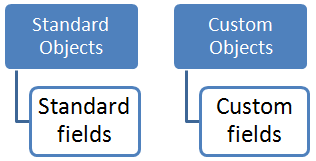
Standard Fields are provided by Salesforce on standard objects and cannot be deleted, though their properties can often be modified. These fields support core CRM functionality across all Salesforce orgs.
Custom Fields are created by users to capture data unique to their business processes. Custom fields can be added to both standard and custom objects, providing flexibility for diverse business requirements.
Custom Field Use Cases for Salesforce Admins
Custom fields serve multiple business purposes in Salesforce implementations:
- Data Collection: Capture business-specific information not available in standard fields (employee badge numbers, internal project codes, compliance tracking)
- Process Automation: Enable workflow rules, validation rules, and Flow processes to reference custom data points for business logic
- Reporting and Analytics: Include custom fields in reports and dashboards to track KPIs and business metrics unique to your organization
- Integration Requirements: Store external system identifiers and data mappings to support data synchronization between Salesforce and other business systems
Salesforce Custom Field Types and Examples
Salesforce provides multiple field types to accommodate different data requirements. Here’s a comprehensive breakdown of available custom field types:
| Custom Field Type | Description | Example Use Cases |
|---|---|---|
| Text | Single line alphanumeric characters (up to 255 characters) | Customer_ID__c, Order_Reference__c, Badge_Number__c |
| Text Area | Multiple lines of text (up to 255 characters) | Comments__c, Meeting_Notes__c, Special_Instructions__c |
| Text Area (Long) | Large text blocks (up to 32,000 characters) | Product_Details__c, Customer_Feedback__c, Technical_Specifications__c |
| Number | Numeric values with decimal places | Employee_Count__c, Square_Footage__c, Inventory_Level__c |
| Currency | Financial values with currency formatting | Annual_Budget__c, Contract_Value__c, Maintenance_Cost__c |
| Date | Date values without time component | Contract_Start_Date__c, Renewal_Date__c, Go_Live_Date__c |
| Date/Time | Date and time values with timezone support | Last_System_Update__c, Event_Start_Time__c, Maintenance_Window__c |
| Picklist | Dropdown with predefined values | Region__c, Order_Status__c, Priority_Level__c |
| Multi-Select Picklist | Multiple selections from predefined values | Product_Categories__c, Skills__c, Certifications__c |
| Checkbox | Boolean true/false values | Is_Active__c, Has_Agreed_Terms__c, Requires_Approval__c |
| Percent | Percentage values (0-100%) | Discount_Rate__c, Completion_Percentage__c, Success_Rate__c |
| Valid email addresses with click-to-email functionality | Billing_Contact_Email__c, Technical_Contact__c |
|
| Phone | Phone numbers with click-to-call functionality | Emergency_Contact__c, Support_Hotline__c |
| URL | Web addresses with click-to-navigate functionality | Company_Website__c, Product_Documentation__c |
| Formula | Calculated values based on other fields | Days_Since_Last_Contact__c, Full_Name__c, Age_in_Years__c |
| Lookup Relationship | Reference to records in other objects | Account_Manager__c, Primary_Contact__c, Related_Product__c |
| Master-Detail Relationship | Parent-child relationship with inheritance | Order_Line_Items__c, Case_Comments__c |
Step-by-Step Process: Creating Custom Fields in Salesforce
To create custom fields in Salesforce objects, follow these steps:
- Navigate to Object Manager: Setup → Object Manager → Select your target object
- Access Fields & Relationships: Click “Fields & Relationships” tab
- Create New Field: Click “New” button to launch the field creation wizard
- Select Field Type: Choose appropriate data type based on your requirements
- Configure Field Properties: Set field label, API name, length, and default values
- Set Field-Level Security: Configure visibility and editability by profile
- Add to Page Layouts: Include the field on relevant page layouts for user access
Advanced Custom Field Configuration
Beyond basic field creation, Salesforce admins can implement advanced field configurations:
Field Dependencies and Controlling Picklists
Create dependent relationships between picklist fields to ensure data consistency. Controlling picklists filter available values in dependent picklists based on the controlling field selection.
Validation Rules for Data Quality
Implement validation rules on custom fields to enforce data quality standards. Validation rules prevent users from saving records that don’t meet specified criteria.
Formula Fields for Calculated Values
Use formula fields to automatically calculate values based on other field data. Formula fields update in real-time and can reference fields from related objects through relationships.
Salesforce Relationship Fields: Connecting Objects
Relationship fields connect records across different objects, enabling data normalization and reporting across related records:
- Lookup Relationships: Loosely coupled connections between objects
- Master-Detail Relationships: Tightly coupled parent-child relationships with inheritance
- Hierarchical Relationships: Self-referencing relationships (User object only)
Custom Field Best Practices for Salesforce Admins
Follow these best practices when creating custom fields:
- Naming Conventions: Use descriptive, consistent naming patterns (e.g., Department_Code__c, not Dept__c)
- Field Limits: Monitor custom field limits per object (800 custom fields per standard object, 500 per custom object)
- Data Types: Choose appropriate data types to prevent data conversion issues
- Help Text: Provide clear help text to guide users on field usage and expected values
- Required vs Optional: Carefully consider which fields should be required to balance data quality with user experience
Common Custom Field Implementation Scenarios
Here are practical examples of custom field implementations across different business scenarios:
- Sales Process Enhancement: Add fields like Competitor__c, Decision_Criteria__c, Budget_Approved__c to Opportunity object
- Customer Service Tracking: Include SLA_Deadline__c, Escalation_Level__c, Resolution_Category__c on Case object
- Marketing Campaign Management: Create Campaign_Source__c, Lead_Score__c, Nurture_Stage__c fields for lead tracking
- Integration Requirements: Add External_System_ID__c, Last_Sync_Date__c, Sync_Status__c for external system integration
Related Salesforce Admin Topics
This Salesforce tutorial covers essential custom field creation concepts. For comprehensive Salesforce admin training, explore these related topics:
- How to create Picklist and Field Dependencies
- Understanding Formula Fields in Salesforce
- Step-by-Step Formula Field Creation
- Validation Rules in Salesforce Explained
- How to Create Validation Rules
- Salesforce Relationships Overview
- Creating Master-Detail Relationships
- Roll-Up Summary Fields Implementation
- Creating Custom Views in Salesforce
Frequently Asked Questions
What is the difference between standard and custom fields in Salesforce?
Standard fields are pre-built by Salesforce and exist on standard objects like Account, Contact, and Opportunity. Custom fields are created by administrators to capture organization-specific data requirements. Standard fields cannot be deleted but can often be modified, while custom fields can be fully customized and deleted by users with appropriate permissions.
How many custom fields can I create on a Salesforce object?
Standard objects support up to 800 custom fields, while custom objects support up to 500 custom fields. These limits include all field types (text, number, picklist, formula, etc.). Monitor your field usage in Setup → Object Manager to track current field counts.
Can I change a custom field type after creation?
Limited field type changes are possible, but many conversions will result in data loss. Safe conversions include Text to Text Area, Number to Currency, and Picklist to Multi-Select Picklist. Complex changes like Number to Text or Date to Text require careful planning and may require data export/import processes.
What are Salesforce relationship fields and when should I use them?
Relationship fields connect records between different objects. Use Lookup relationships for loose connections where child records can exist independently. Use Master-Detail relationships for tight parent-child relationships where child records depend on the parent and inherit security settings. Relationships enable cross-object reporting and data normalization.
How do I ensure data quality when creating custom fields?
Implement validation rules to enforce data entry standards, use appropriate field types to prevent invalid data, set required fields judiciously, provide clear help text for user guidance, and establish naming conventions for consistency. Consider using picklists instead of free-text fields where possible to maintain data standardization.
What permissions do I need to create custom fields in Salesforce?
You need “Customize Application” permission to create custom fields. This permission is typically assigned to System Administrators and users with custom profiles that include administrative capabilities. Additionally, “Manage Custom Report Types” permission may be needed for advanced field configurations.