Salesforce web-to-lead captures prospect information directly from your website forms and automatically creates lead records in your Salesforce org. This powerful lead generation tool eliminates manual data entry and ensures immediate follow-up on website inquiries.
In our previous tutorial, we covered different cloud service providers. This guide focuses on implementing web-to-lead functionality and integrating it with cloud infrastructure like Amazon Web Services.
What is Salesforce Web-to-Lead
Web-to-lead is a native Salesforce feature that generates HTML forms for your website. When visitors submit these forms, Salesforce automatically creates lead records with the captured information. The system supports up to 500 leads per day per org and includes built-in spam protection.
Key Benefits of Web-to-Lead
- Automatic lead creation from website forms
- Real-time data synchronization with Salesforce
- Built-in duplicate management and validation rules
- Assignment rules for automatic lead routing
- Integration with lead scoring and nurturing campaigns
How to Set Up Web-to-Lead in Salesforce
Follow these steps to configure web-to-lead in your Salesforce org:
Step 1: Enable Web-to-Lead
- Navigate to Setup → Lead Management → Web-to-Lead
- Click “Enable Web-to-Lead”
- Configure daily lead limit (default: 500 leads per day)
- Set up default lead source and other field mappings
Step 2: Create Web-to-Lead Form
- In Setup, go to Web-to-Lead → Create Web-to-Lead Form
- Select fields to include in your form (required: Last Name, Company)
- Configure field properties and validation
- Generate HTML code for your website
Amazon WEB Service EC2 Developers Workflow
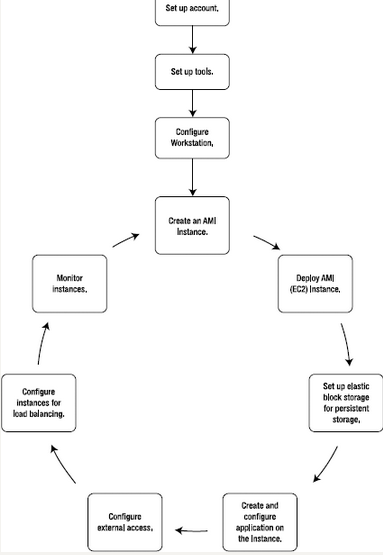
When hosting your web-to-lead forms on cloud platforms like Amazon EC2, follow these deployment steps:
- Create an account at http://aws.amazon.com
- Configure tools from Amazon Developer resource center
- Create a new EC2 instance for your web application
- Deploy the Amazon EC2 instance with your web-to-lead forms
- Set up Elastic Block Storage for form data backup
- Create and configure web application with Salesforce integration
- Create a URL for external access to the web-to-lead forms
- Create multiple instances if required for load balancing
- Monitor instances using Amazon Web Services console
Web-to-Lead HTML Form Example
<form action="https://webto.salesforce.com/servlet/servlet.WebToLead?encoding=UTF-8" method="POST">
<input type="hidden" name="oid" value="YOUR_ORG_ID">
<input type="hidden" name="retURL" value="http://yoursite.com/thank-you">

<label for="first_name">First Name:</label>
<input id="first_name" maxlength="40" name="first_name" size="20" type="text" />

<label for="last_name">Last Name:</label>
<input id="last_name" maxlength="80" name="last_name" size="20" type="text" required />

<label for="email">Email:</label>
<input id="email" maxlength="80" name="email" size="20" type="email" />

<label for="company">Company:</label>
<input id="company" maxlength="40" name="company" size="20" type="text" required />

<input type="submit" name="submit" value="Submit" />
</form>
Salesforce Web-to-Case Setup
Similar to web-to-lead, Salesforce web-to-case captures customer service inquiries from your website and creates case records automatically.
Web-to-Case Configuration Steps
- Enable Web-to-Case in Setup → Case Management → Web-to-Case
- Configure case assignment rules and escalation rules
- Create web-to-case HTML forms with required fields
- Set up email notifications for new cases
- Test form submission and case creation process
Cloud Infrastructure Integration
Modern web-to-lead implementations often leverage cloud services for scalability and reliability. Here’s how major cloud platforms support Salesforce integration:
Amazon Web Services SimpleDB Integration
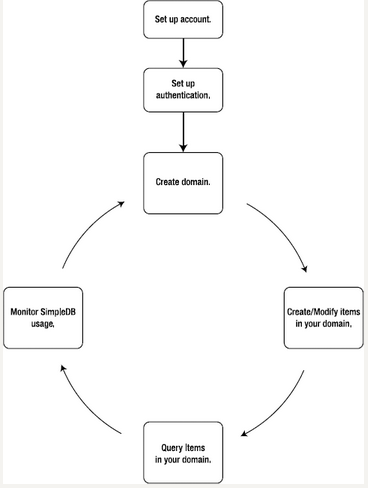
Amazon SimpleDB provides a NoSQL database service that can store form submissions before processing them into Salesforce leads. This approach offers additional data validation and backup capabilities.
Amazon Simple Storage Service (S3) for Form Assets
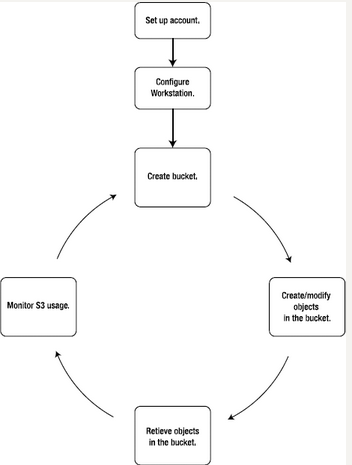
Amazon Simple Storage Service (S3) is a cloud database and data storage infrastructure used to store form assets, documents, and backup data for web-to-lead implementations.
Amazon S3 consists of three storage levels:
- Objects: Store form submissions and metadata with maximum size of 5TB
- Buckets: Organize web-to-lead related files with unique namespaces
- Keys: Identify specific form submissions and associated documents
Amazon CloudFront for Form Delivery
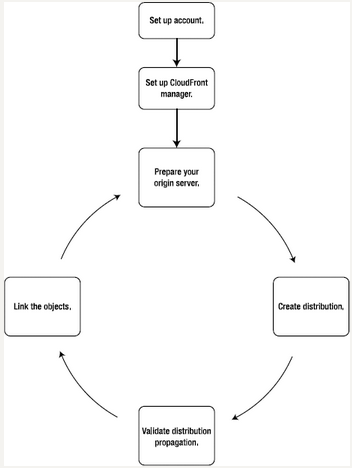
Amazon CloudFront is a content delivery network that accelerates web-to-lead form loading times. CloudFront integrates with Amazon S3 to deliver forms from the nearest geographic location to website visitors.
Amazon Simple Queue Service (SQS) for Form Processing
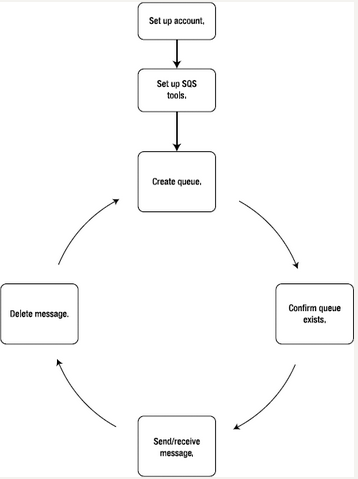
Amazon SQS supports queue functions for processing web-to-lead submissions: creating queues, listing queues, deleting queues, sending messages, receiving messages, and deleting messages. This ensures reliable form processing even during high traffic periods.
Amazon Elastic MapReduce for Lead Analytics
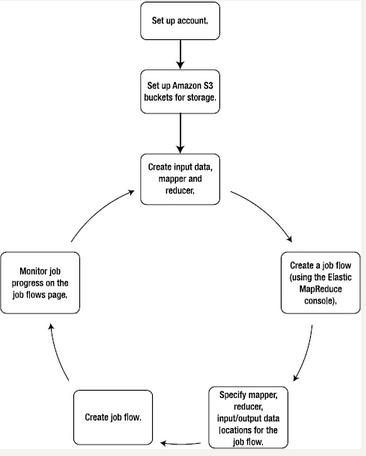
Amazon Elastic MapReduce executes parallel processing across multiple EC2 instances for analyzing web-to-lead data. Amazon S3 stores input and output data for these analytics processes.
Elastic MapReduce supports these web-to-lead analytics use cases:
- Lead source analysis and attribution
- Form conversion rate analytics
- Lead quality scoring and batch processing
- Data cleanup and deduplication
- Lead behavior indexing and segmentation
Web-to-Lead Best Practices
Form Design and User Experience
- Keep forms short (5-7 fields maximum for higher conversion)
- Use progressive profiling to gather additional data over time
- Implement client-side validation for immediate feedback
- Include clear privacy policy and data usage statements
- Optimize forms for mobile devices and accessibility
Data Quality and Management
- Set up validation rules to ensure data quality
- Configure duplicate rules to prevent duplicate leads
- Use picklist fields instead of free text where possible
- Implement lead assignment rules for proper routing
- Set up automated email responses and follow-up sequences
Security and Compliance
- Enable reCAPTCHA or similar spam protection
- Use HTTPS for all form submissions
- Implement GDPR compliance for European visitors
- Set up field-level security for sensitive information
- Monitor daily lead limits and submission patterns
Troubleshooting Common Web-to-Lead Issues
Form Submissions Not Creating Leads
- Verify Organization ID (OID) is correct in form code
- Check daily lead limit hasn’t been exceeded
- Ensure required fields (Last Name, Company) are included
- Validate HTML form syntax and field names
- Review assignment rules and user permissions
Leads Created with Missing Data
- Check field mapping between form and Salesforce fields
- Verify field-level security settings
- Review validation rules that might be blocking data
- Ensure form field names match Salesforce API names
Frequently Asked Questions
How do I set up web-to-lead in Salesforce?
Navigate to Setup → Lead Management → Web-to-Lead, click “Enable Web-to-Lead”, then create your form by selecting fields and generating HTML code. The process takes about 10 minutes to complete.
What is the difference between web-to-lead and web-to-case?
Web-to-lead captures prospect information and creates lead records for sales teams, while web-to-case captures customer service inquiries and creates case records for support teams. Both use similar HTML form technology but serve different business processes.
How many leads can web-to-lead process per day?
Salesforce web-to-lead supports up to 500 lead submissions per day per organization. If you exceed this limit, additional submissions will be rejected until the next day.
Can I customize the web-to-lead form fields?
Yes, you can select which lead fields to include in your form during the setup process. Required fields are Last Name and Company, but you can add custom fields, picklists, and other standard fields as needed.
How do I integrate web-to-lead with my website hosted on AWS?
Deploy your web-to-lead HTML forms on Amazon EC2 instances, use S3 for storing form assets, and leverage CloudFront for fast global form delivery. The Salesforce form action URL remains the same regardless of your hosting platform.
What happens if my web-to-lead form gets spam submissions?
Salesforce includes built-in spam protection, but you should also implement reCAPTCHA, honeypot fields, or similar client-side protection. You can also set up validation rules and assignment rules to filter suspicious submissions.