Different Salesforce Search Types :- In our previous Salesforce Training Tutorial we have learned about Overview on Salesforce Search. In this Salesforce Admin Tutorial we are going to learn about Different Salesforce search types.
Different Salesforce Search Types.
When coming to different Salesforce Search types we have four types of searches in Salesforce.com. They are
- Sidebar Search.
- Advanced Search.
- Global Search.
- Feed Search.
In salesforce.com when chatter is enabled both global search and Feed search are automatically enabled. Where sidebar search and Advanced searches are enabled when chatter is disabled.
Salesforce Sidebar Search
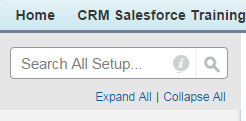
Sidebar Search is a quick search option located in the Salesforce Classic interface’s sidebar. This search is limited and mainly focuses on records within a single object at a time. It’s useful for simple lookups but is limited compared to other search types.
How to Use Sidebar Search:
- Type your query in the sidebar search box.
- Press “Enter” to see results within the selected object.
Limitations:
- Only available in Salesforce Classic.
- Limited to single-object searches.
- Results may not be as extensive or include complex filters.
Advanced Search
Advanced Search allows users to perform more detailed and complex searches across multiple objects. This search type offers filters for specific criteria, making it valuable for finding more specific data without sifting through irrelevant results.
This type of Salesforce search is available when we click on Advanced Search which is presented on the sidebar. In advanced search we can search for objects, fields, custom fields, long fields, descriptions, tasks,and notes. To modify search results we can use wildcards, filters and operators in advanced search.
- How to Use Advanced Search:
- Go to the Advanced Search option in the sidebar.
- Enter search criteria, such as record fields, date ranges, or specific keywords.
- Choose the objects you want to include in your search.
- Advantages:
- Searches across multiple objects simultaneously.
- Allows you to apply detailed filters for more targeted results.
Global Search
Global Search is the most versatile and widely used search type in Salesforce, available in both Salesforce Classic and Lightning Experience. It searches across all objects (standard and custom) and provides suggestions as you type.
In this Salesforce Search types, Global search box is presented on the header of the page. Through this we can search more efficiently than advanced search and sidebar search. Global search can be used to search articles, documents, products, solutions, chatter feeds, topics, peoples, descriptions, notes, event comments. Wildcards , filters and operators can also be used in global search.

- How to Use Global Search:
- Locate the Global Search Bar at the top of the page in Lightning Experience or Classic.
- Type in your query, and as you type, it will provide suggested results.
- Press “Enter” to view all results across different objects.
- Advantages:
- Comprehensive and quick, searching across the entire Salesforce org.
- Includes auto-suggestions, saving time on common searches.
- Allows pinning of frequently searched objects for quicker access.
Feed Search
Feed Search is used specifically to search within Chatter feeds, allowing users to find posts, comments, files, and topics. It’s useful for collaboration and retrieving specific discussions or information shared within a team.
- How to Use Feed Search:
- Go to the Chatter tab or the feed you want to search.
- Use the Feed Search box to type in keywords related to posts or topics you’re looking for.
- Results will focus on feed activity, including posts, comments, and attachments.
- Advantages:
- Helps retrieve past conversations, files, or important updates within Chatter.
- Ideal for teams collaborating through Chatter who need to track down specific shared information.
In this Salesforce search type, Contextual feed search is the fourth type of salesforce search. This Salesforce feed search is mainly used to search for post feeds and comments.